

How to deal with the Topaz Video Enhance AI crash? This article proposes 3 effective solutions: reinstalling/updating this application, changing to a more stable GPU driver, or reserving enough computer memory. Besides, it also shares an alternative to Topaz Video Enhance AI’s video enhancer: MiniTool Video Converter.
Topaz Video Enhance AI is a professional AI video processing application. It can enhance video quality by adjusting resolution, reducing noise, and increasing frame rate. Topaz Video Enhance AI can also add details to the videos using algorithms trained on AI.
Why is Topaz Video Enhance AI crashing? Problems with the Topaz Video Enhance AI software itself, its lack of compatibility with the system, and insufficient computer memory can all cause Topaz Video Enhance AI to crash.
How to Fix Topaz Video Enhance AI Crash
To solve the Topaz Video Enhance AI crashing issue, it’s useful to reinstall/update Topaz Video Enhance AI, replace it with a new GPU driver, or lower memory usage. While there are many reasons why Topaz Video Enhance AI might crash, these 3 are the most common.
Method 1. Reinstall or Update Topaz Video Enhance AI
A common reason for Topaz Video Enhance AI crashes is that the software version is outdated and no longer maintained. Some program vulnerabilities also cause the software to crash suddenly during startup or use. Therefore, simply downloading or updating to the latest version from the official Topaz Video Enhance AI website will resolve this issue.
Method 2. Use a More Stable GPU Driver
A GPU (Graphics Processing Unit) is an electronic circuit that accelerates computer processing and enables simultaneous multitasking. Its primary functions include rendering animation files and accelerating games, videos, and various workflows. Running a GPU can reduce the load on the CPU (Central Processing Unit).
Method 3. Reduce Memory Usage
Adjusting your computer’s memory usage can also reduce the load on the GPU and CPU, making your computer run more smoothly and optimizing support for software like Topaz Video Enhance AI. It’s generally recommended to reduce your computer’s memory usage to 20%-50% to provide sufficient memory for rendering.

An Alternative Tool for Enhancing Video
If the above methods still fail to resolve the Topaz Video Enhance AI crash issue, using another video enhancer is an ideal method to improve video quality. After some testing, I found that MiniTool Video Converter effectively helped me enhance my videos. Why did I choose it as the video enhancer? Firstly, MiniTool Video Converter is free of charge and supports exporting videos without watermarks. Secondly, it allows me to import various formats, such as MP4, MKV, MOV, AVI, WebM, WMV, and more.
MiniTool Video Converter’s video enhancer feature offers 3 types of enhancement options: original (slightly improves video quality), 2X (improves video quality to twice the original), or 4X (improves video quality to four times the original). In addition, it also enables me to preview the exported videos at key frames, comparing the improvement of the original videos.
The following steps are how to enhance a video with MiniTool Video Converter.
Step 1. Download and Set Up MiniTool Video Converter
Download MiniTool Video Converter and follow the on-screen instructions to set it up.
MiniTool Video ConverterClick to Download100%Clean & Safe
Step 2. Add the Target Video
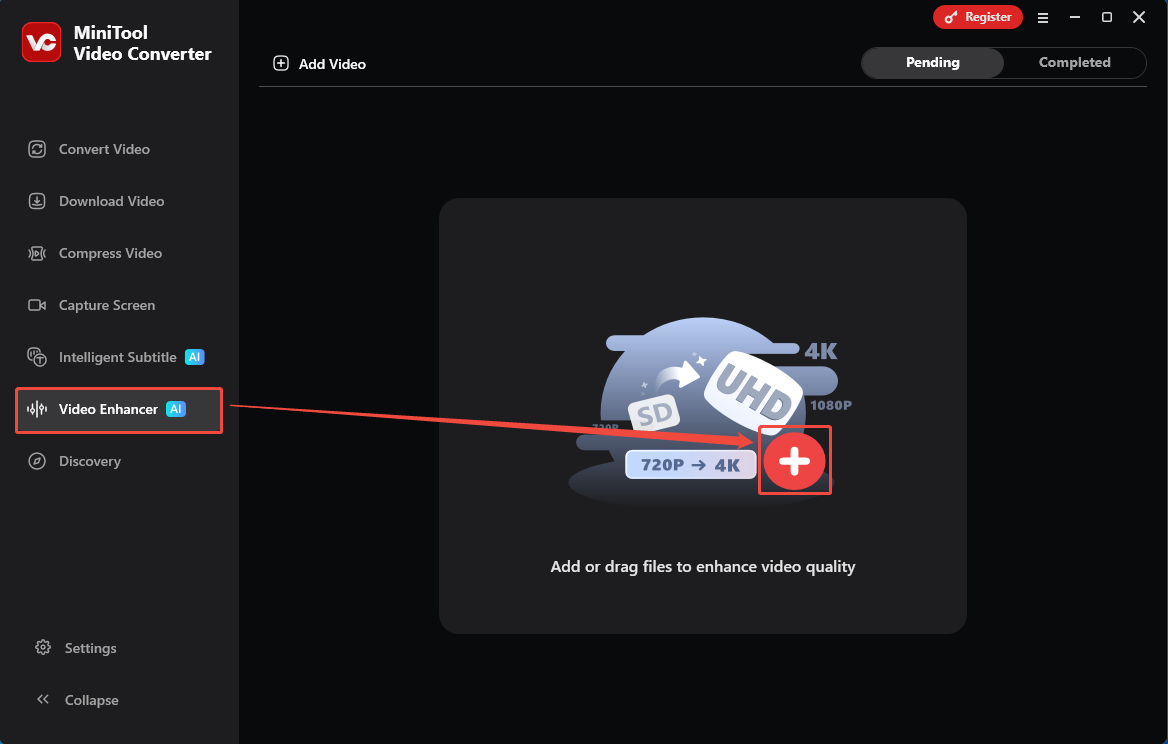
Run MiniTool Video Converter and switch to the Video Enhancer tab. Then, click on the Plus icon to import my video.
Step 3. Enhance the Video
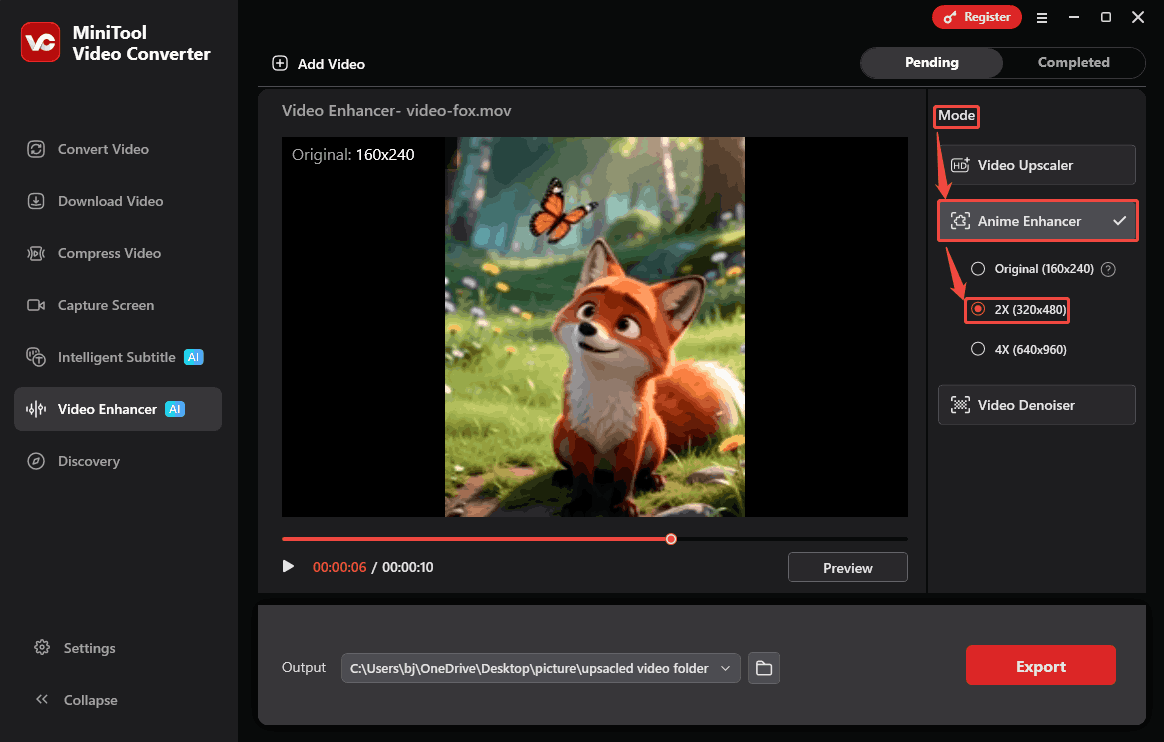
After that, focus on the Mode section. Expand the Anime Enhancer model. From there, choose a proper enhancement option. I select the 2X option, which makes my video resolution up to 320x480.
Step 4. Preview the Enhanced Video
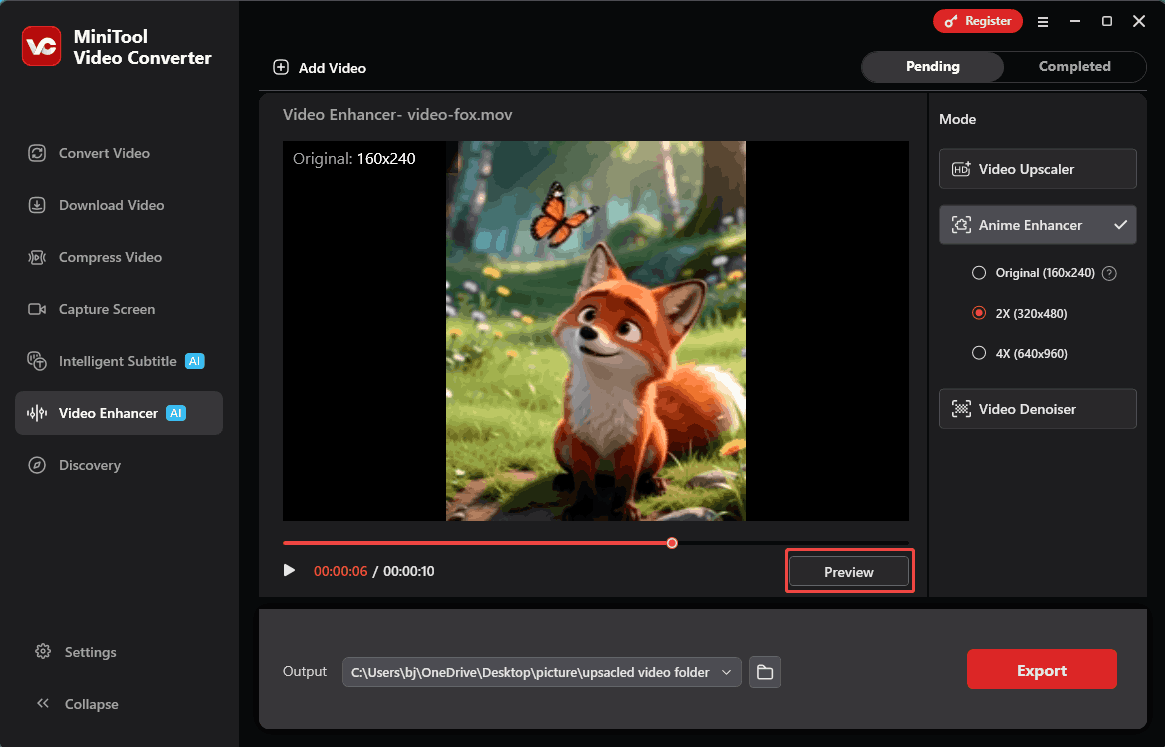
After selecting the desired enhancement parameters, I click the Preview button to compare the before-and-after videos side by side at certain key frames.
Step 5. Begin the Export Process
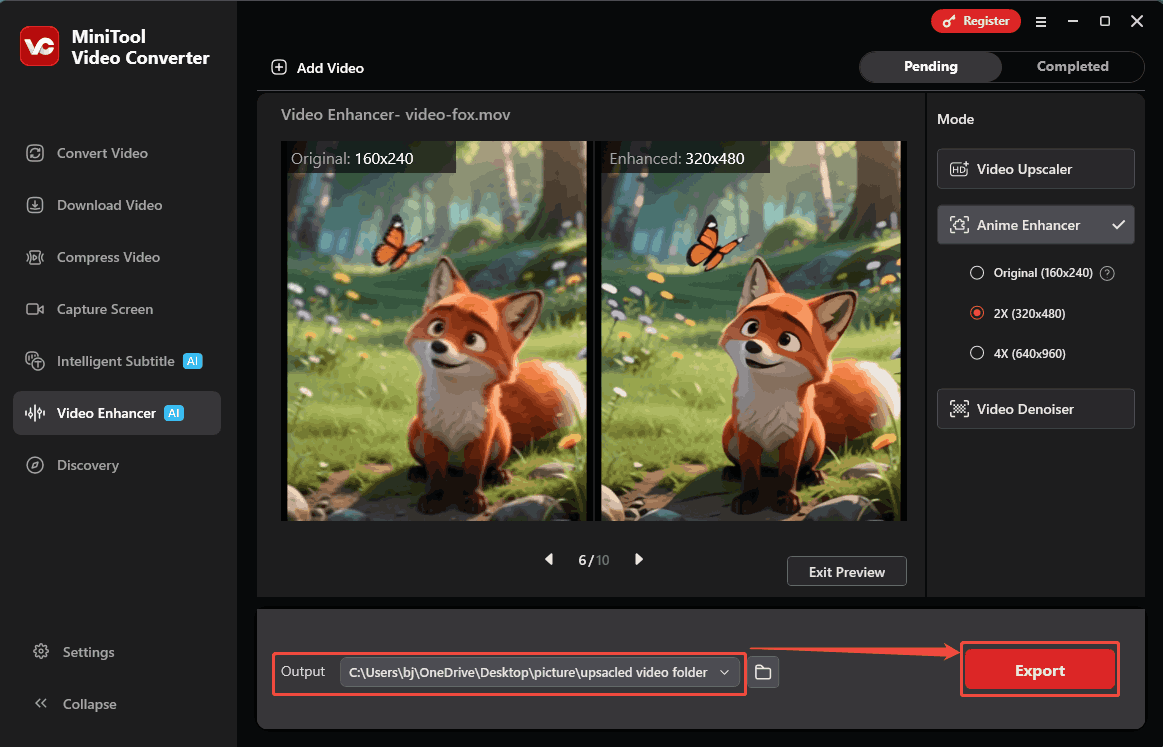
At the bottom of the interface, expand the Output option to set a storage location for the exported video. Then, click on the Export button to begin the export process.
Step 6. View and Locate the Exported Video
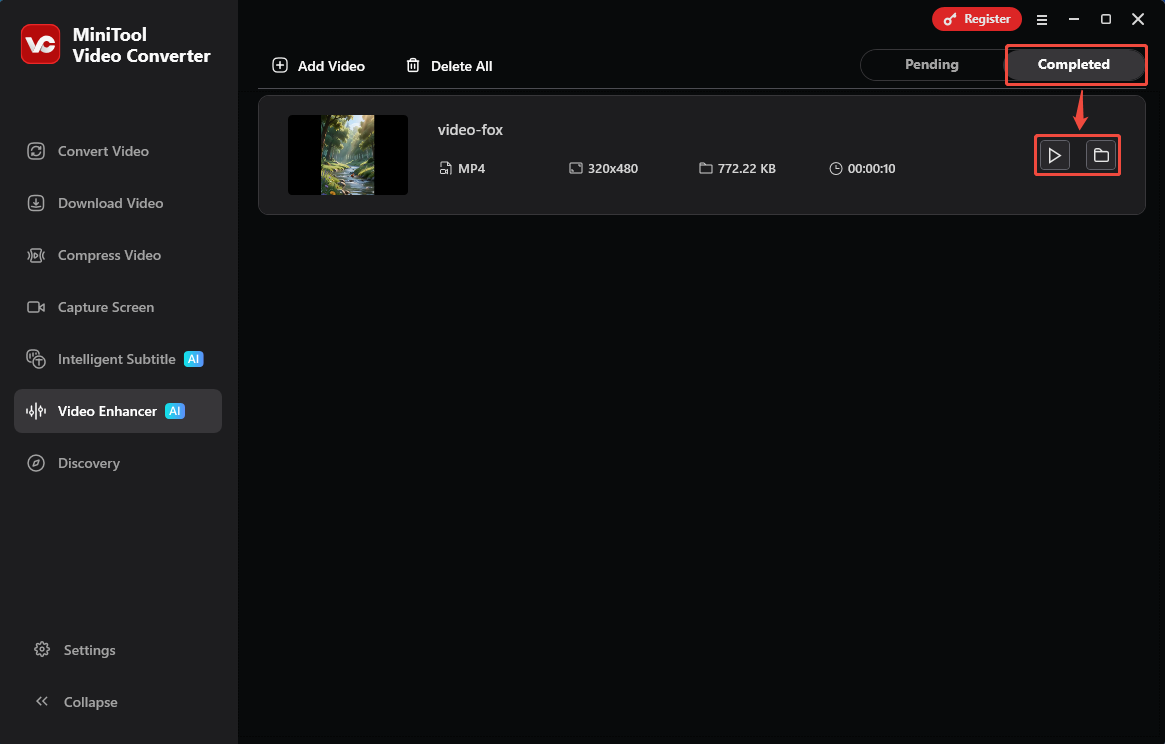
As soon as the export process ends, this exported video will land on the Completed tab. Here, I click on the Play icon to view it. Also, I can click on the Folder icon to locate this output video on my computer.
MiniTool Video Converter makes it easier to enhance the video quality. Moreover, it has a simple interface and is easy to use, even suitable for beginners.
Bottom Line
This article analyzes the causes of Topaz Video Enhance AI crashes, including issues with the software itself and computer hardware. It also describes 3 general methods to resolve this problem: reinstalling or updating Topaz Video Enhance AI, using a more stable GPU, and reducing memory usage. Apart from these, the article also shows Topaz Video Enhancer AI alternative: MiniTool Video Converter.
If you have any questions or suggestions about MiniTool Video Converter, feel free to contact MiniTool’s official support via email at support@minitool.com.
User Comments :