

Is Topaz Video Enhance AI free? No, it doesn’t provide a completely free version to users. Topaz Video Enhance AI introduced various paid services for users. Besides, this article shows another free video enhancer: MiniTool Video Converter.
Topaz Video Enhance AI is an AI-powered video quality enhancement software. It supports upscaling low-resolution videos, reducing overall image noise, sharpening blurry images, restoring videos to 4K resolution, and adjusting video frame rates. It utilizes advanced AI models to provide a good visual experience. Therefore, its powerful features are highly praised by users.
Is Topaz Video Enhance AI Free
No, Topaz Video Enhance AI isn’t free. It is a paid premium tool that uses advanced technology and is constantly updated. Therefore, there is no permanently free full version.
Topaz Video Enhance AI is a paid video enhancer. It has no permanent free version. Users need to purchase or subscribe. While it offers a free trial, the free version has limited functionality. Besides, the exported videos will have a watermark. Generally, the trial version is only suitable for testing before purchasing and not for daily video enhancement. If you use the trial version to enhance video quality, you’ll need to spend extra money to remove the watermark.
Topaz Video AI offers 2 paid plans: Personal and Pro. The personal plan is designed for individual creators, self-media users, and small studios with limited commercial use. It costs $33 per month, or $299 per year. The Pro plan is intended for video production studios, professional post-production teams, and large commercial organizations with full commercial rights and advanced features. It is priced at $67 per month, or $699 per year.
Topaz Video Enhance AI is a desired tool for professional video producers and commercial users. It’s not affordable enough for students, general users, and content creators.
The Most Recommended Free Video Enhancer
MiniTool Video Converter is currently the top recommended free tool for improving video quality. It’s an emerging video enhancer based on AI technology. It can improve video resolution, sharpen lines, and enhance the colors of the original videos.
I often download free anime videos. These videos are usually blurry, affecting the viewing experience. For a long time, I’ve been searching for a truly free, easy-to-use, and effective video enhancement tool. I tried many tools, but most are either limited in functionality or ineffective. After some searching, I finally found a tool, MiniTool Video Converter, that meets all my needs: MiniTool Video Converter.
MiniTool Video Converter’s Anime Enhancer includes 3 enhancement levels: original size, 2X, and 4X to help me achieve HD quality animation and cartoon videos. It proportionally enlarges the video based on its original resolution, resulting in sharper animation lines and more vibrant colors without compromising the original style.
MiniTool Video Converter allows me to compare the before-and-after video effects side by side at key frames, intuitively seeing the improvements and achieving a more refined and comfortable viewing experience. Furthermore, it enables me to import various video formats, broadly including MP4, MKV, MOV, AVI, WebM, WMV, 3GP, and FLV.
How to Enhance Video with MiniTool Video Converter
MiniTool Video Converter features video enhancement. It has a simple interface and is user-friendly, even for beginners. I only need to launch this application, import target videos, choose an enhancement option, and start the export process.
MiniTool Video Converter allows me to use AI mode to enhance video quality for free. It supports up to 4 times the quality of my video. Additionally, MiniTool Video Converter enables me to preview and compare the before and after effects at key frames. Below is a detailed guide on how to enhance video quality using MiniTool Video Converter.
Step 1: Download and Install MiniTool Video Converter
Download MiniTool Video Converter and set it up by following the on-screen prompts. Then, launch this software.
MiniTool Video ConverterClick to Download100%Clean & Safe
Step 2: Import the Target Video
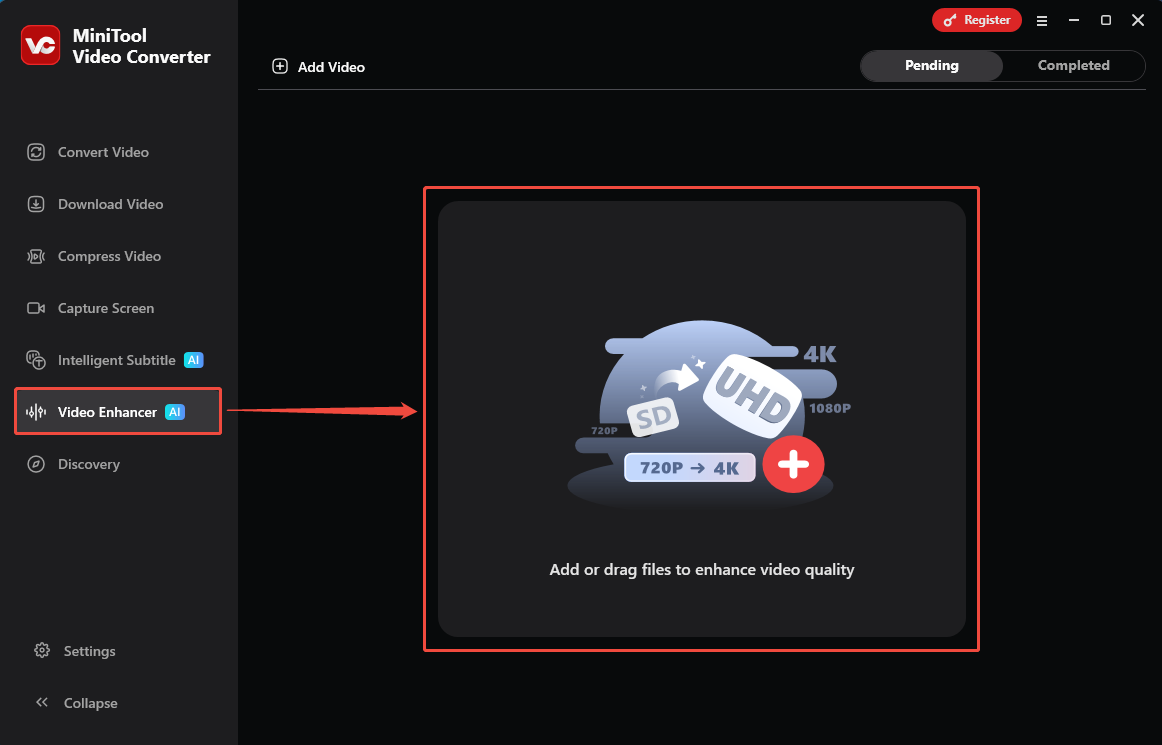
In the MiniTool Video Converter interface, switch to the Video Enhancer tab. Here, drag my video into the Add or drag files to enhance video quality option to import it.
Step 3: Set the Enhancement Level
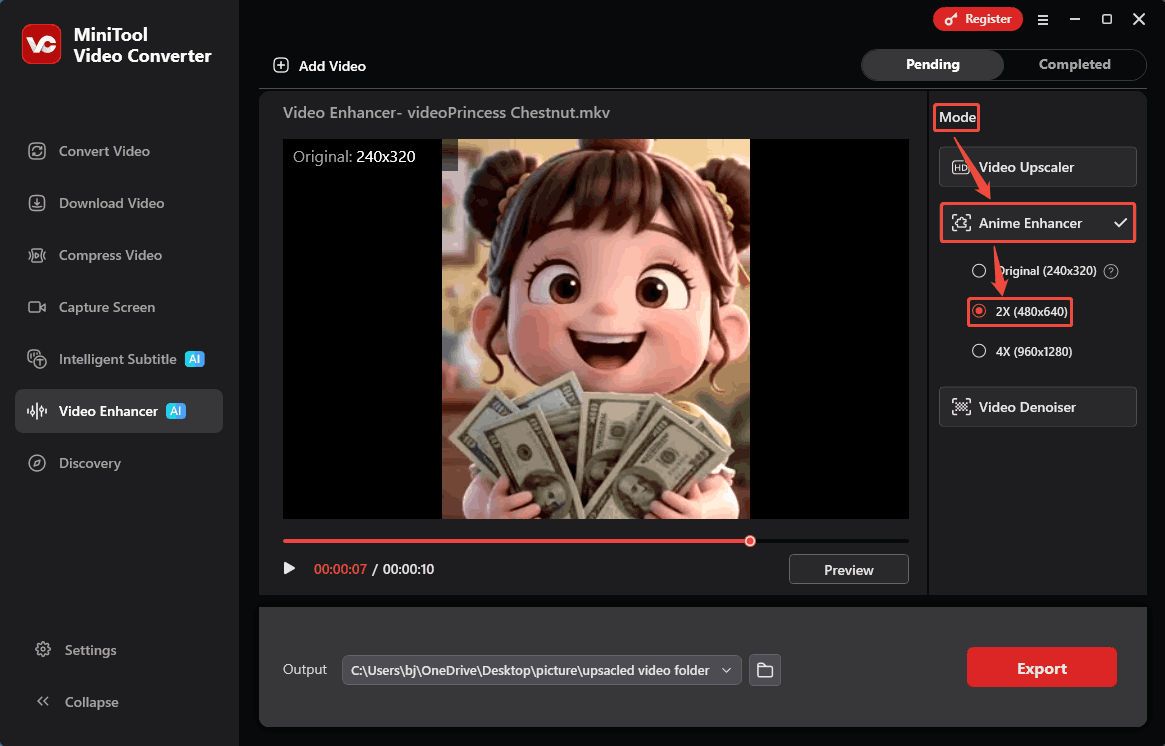
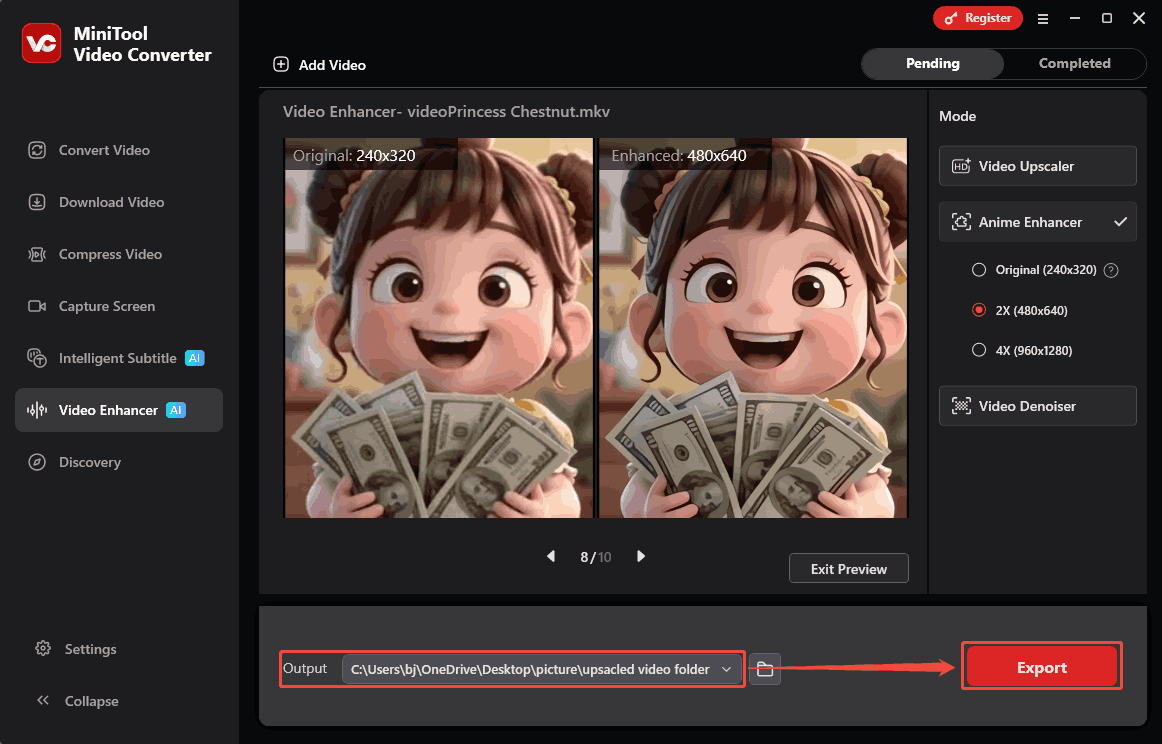
In the Mode section next to the imported video, locate the Anime Enhancer mode. From there, choose a desired enhancement level. I choose the 2X (480x640) option.
Step 4: Preview the Exported Video
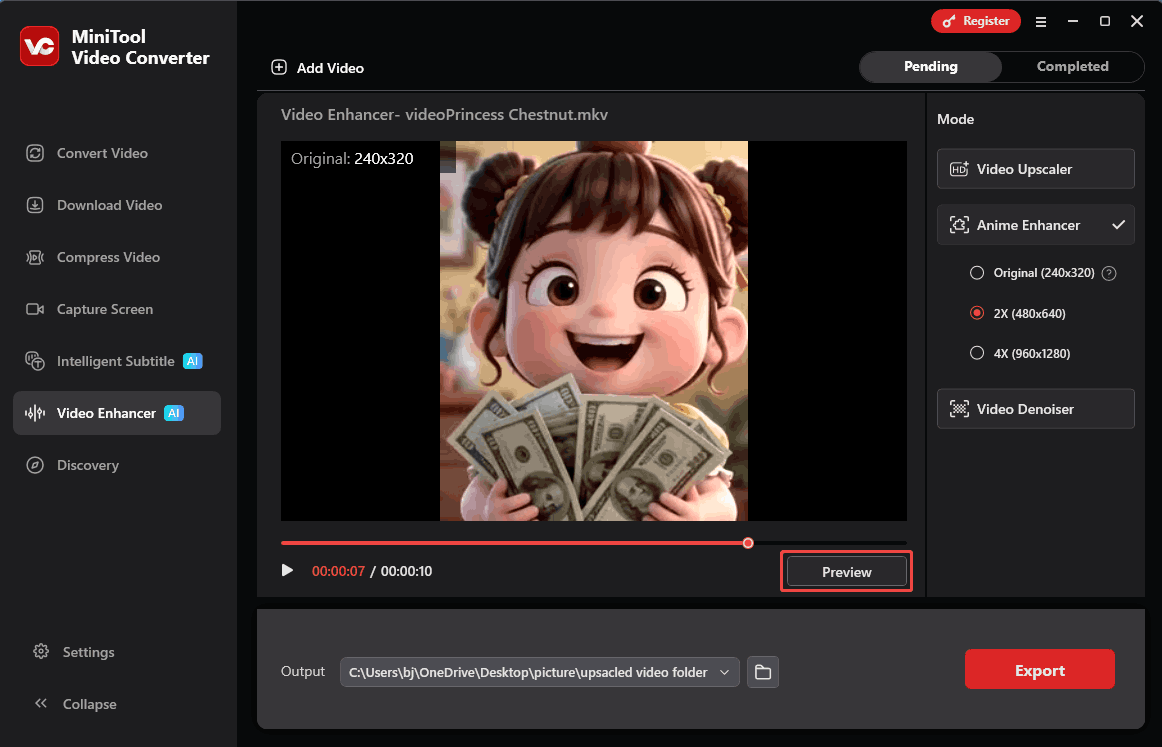
After setting the enhancement level, I click on the Preview button to check the before-and-after effects side by side at key frames.
Step 5: Start Exporting
Before starting the export, I expand the Output option to specify a storage location for the output video. Then, click on the Export button to start the export process.
Step 6: View and Locate the Results
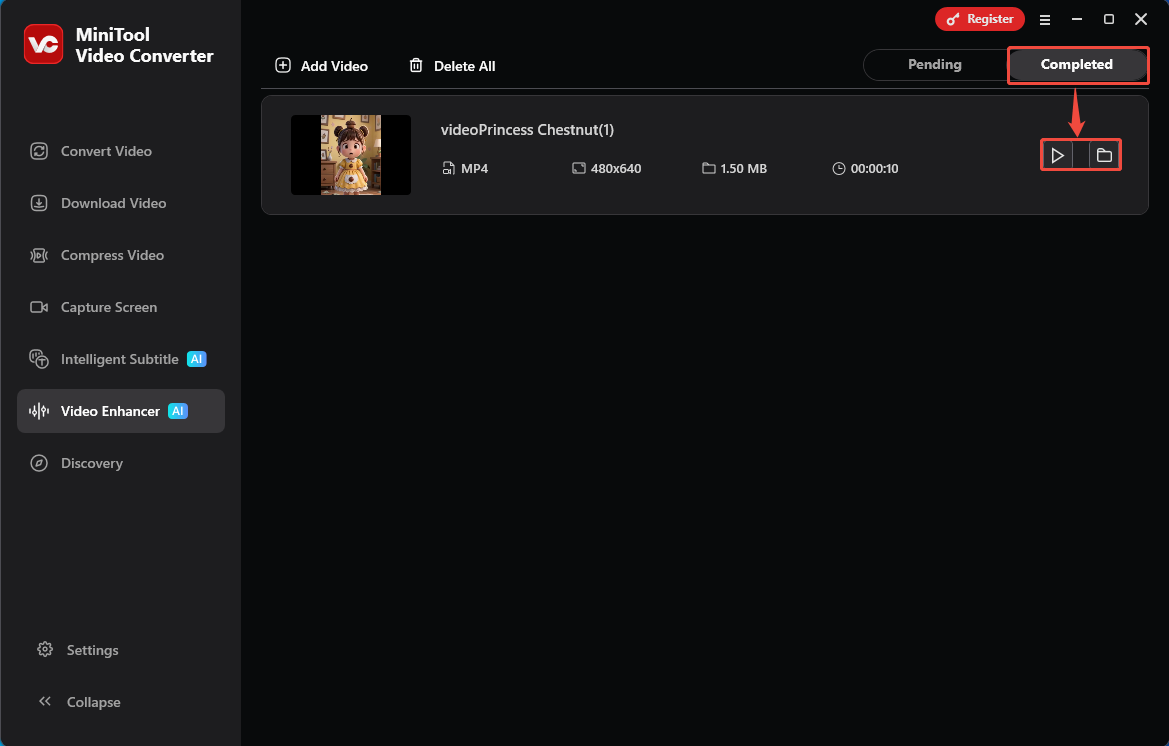
Once the video export process is complete, this output video will land on the Completed tab. There, I can click on the Play icon or the Folder icon to view or locate it on the PC.
MiniTool Video Converter can enhance video quality to 4K resolution, making it a great tool for inspiring my passion for watching movies and creating content.
Who Is MiniTool Video Converter Suitable for
MiniTool Video Converter is an ideal choice for Windows users. It is best suited for Windows users. Whether you’re a content creator, video editing enthusiast, professional, or casual user, you can use it to improve video quality. It aims to provide users with watermark-free, high-quality exports with no size limitations.
Final Words
Is Topaz Video Enhance AI free? No, it doesn’t have a full free service. This article introduces that Topaz Video Enhance AI offers different monthly and yearly plans for personal and Pro users. It also shares a free AI video enhancer: MiniTool Video Converter, with a few simple enhancement steps.
For any inquires regarding MiniTool Video Converter, feel free to reach out to the MiniTool team via email at support@minitool.com for support.
User Comments :