

Can ChatGPT enhance video quality? Actually no. ChatGPT is a language model trained by Generative Pre-trained Transformer models. This article shares a fabulous video enhancer: MiniTool Video Converter, which can easily improve video quality.
ChatGPT is a chatbot developed by OpenAI. It utilizes large-scale language models, primarily including GPT (Generative Pre-trained Transformer) models, to understand user prompts and generate human-like text, speech, and images. ChatGPT contains vast amounts of information and data, helping users understand specialized knowledge, engage in everyday communication, and brainstorm. It has accelerated the development of artificial intelligence and is widely loved by users worldwide.
Video enhancement refers to using various tools to improve the visual quality of the video, such as increasing video resolution, sharpening lines, enhancing colors, and reducing noise. With the assistance of artificial intelligence technology, video enhancement can genuinely make videos clearer and smoother.
Can ChatGPT Enhance Video Quality
No, ChatGPT can’t directly improve video quality. It’s an AI language model that only processes and analyzes text content. So, it lacks the capacity to edit or improve video quality.
ChatGPT is designed to read and recognize spoken text, process dialogue, and intelligently generate text. It is a lack of ability to analyze the pixels, colors, and lines of a video. Unlike professional video enhancement tools, ChatGPT doesn’t include AI super-resolution or image processing algorithms and can’t increase video resolutions. Therefore, it can’t improve the visual quality of any video.
What ChatGPT Can Do for Video Quality
ChatGPT is a powerful intelligent assistant. While it can’t directly improve video quality, ChatGPT helps enhance overall video quality by providing higher-level insights from its vast database, suggesting optimal parameters, and offering efficient workflows.
ChatGPT improves video quality indirectly and effectively. It compiles the performance and pros and cons of all video enhancers available online, recommending the best tools and suggesting optimal parameter settings, such as resolution, frame rate, and bitrate. ChatGPT also generates the most user-friendly workflows for using video enhancers, helping you efficiently enhance videos and resolve common video problems. Although it doesn’t process video itself, it remains a powerful tool for enhancing video performance.
An Alternative Tool: MiniTool Video Converter
After discovering that ChatGPT couldn’t enhance video quality, I have been looking for a video enhancer to optimize my anime videos. Recently, I came across MiniTool Video Converter, a versatile media processing tool. It integrates a professional anime enhancement feature, which is specifically tailored to improve video quality. With advanced artificial intelligence technology, MiniTool Video Converter can intelligently sharpen video lines, enhance color vividness, and truly improve video clarity.
MiniTool Video Converter also supports enhancing the target video to twice or four times the original video’s quality, with the highest resolution reaching 4K. MiniTool Video Converter also supports previewing the enhanced videos. I can compare the key frame sequences of the video before and after enhancement during the preview.
MiniTool Video Converter can restore blurry anime videos while preserving the original artistic style. Unlike ChatGPT, which only provides text suggestions, the anime enhancer allows you to directly enhance the visual quality of anime videos with just one click, without requiring professional editing skills.
The following shows how to enhance video quality using MiniTool Video Converter.
Step 1: Download and Install MiniTool Video Converter
Download MiniTool Video Converter and set it up following the on-screen prompts.
MiniTool Video ConverterClick to Download100%Clean & Safe
Step 2: Import the Target Video
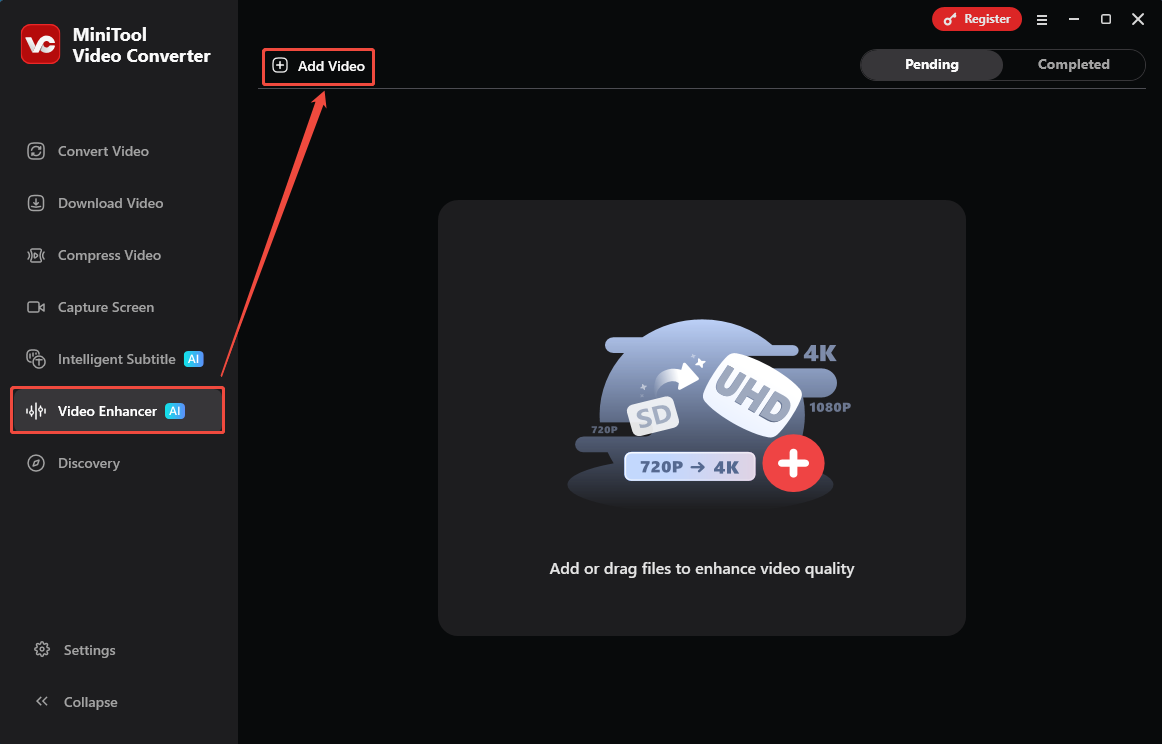
Launch MiniTool Video Converter. In the main interface, I switch to the Video Enhancer tab and click on the Add Video option to upload my target video.
Step 3: Choose an Enhancement Level
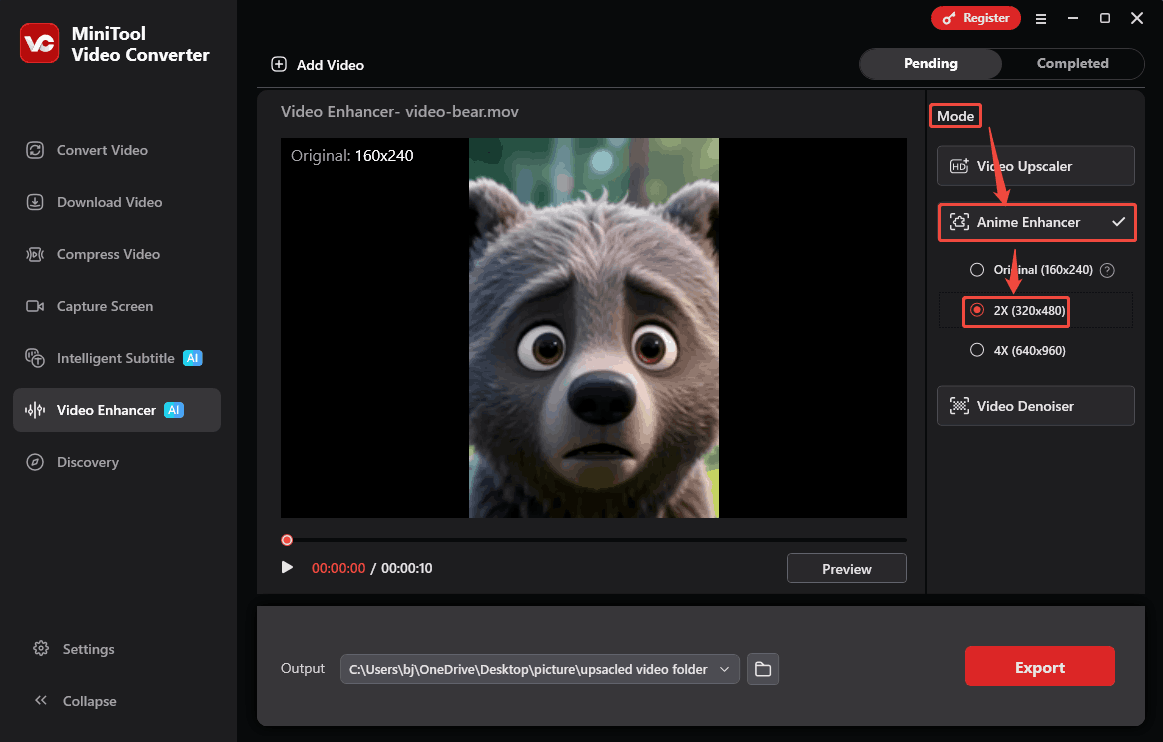
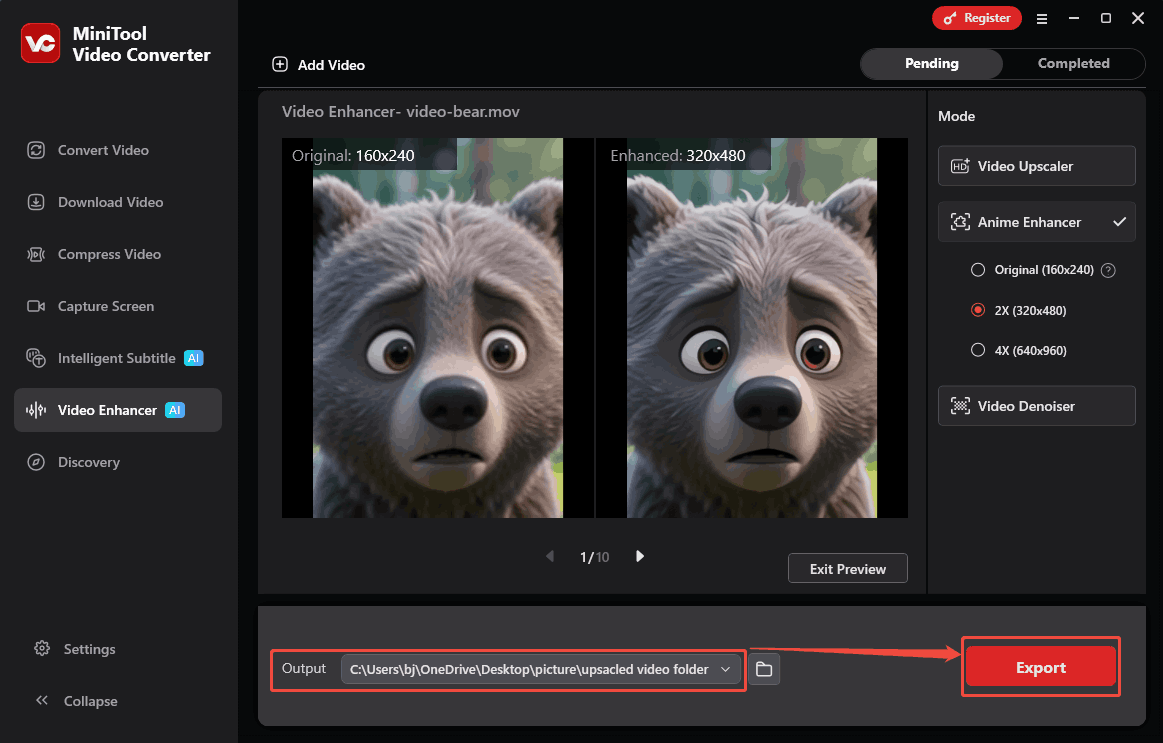
In the Mode section on the right part of the imported video, go to the Anime Enhancer mode. There, select an enhancement level for the enhanced video. I pick the 2X option, which can improve the target video resolution up to 320x480.
Step 4: Preview the Enhanced Video
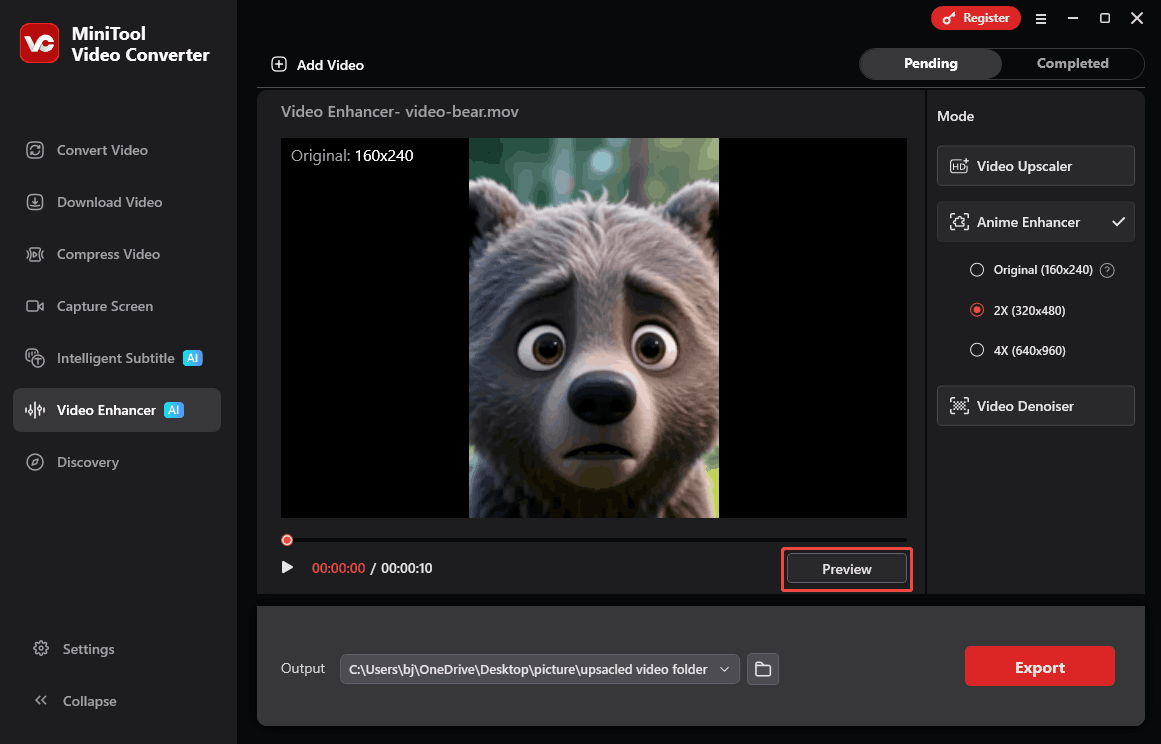
I click on the Preview button to view the before-and-after video effects side by side at certain key frames.
Step 5: Start the Export Process
After that, expand the Output option to choose a storage location for the enhanced video. Then, I click on the Export button to begin the export process.
Step 6: Check the Enhanced Video
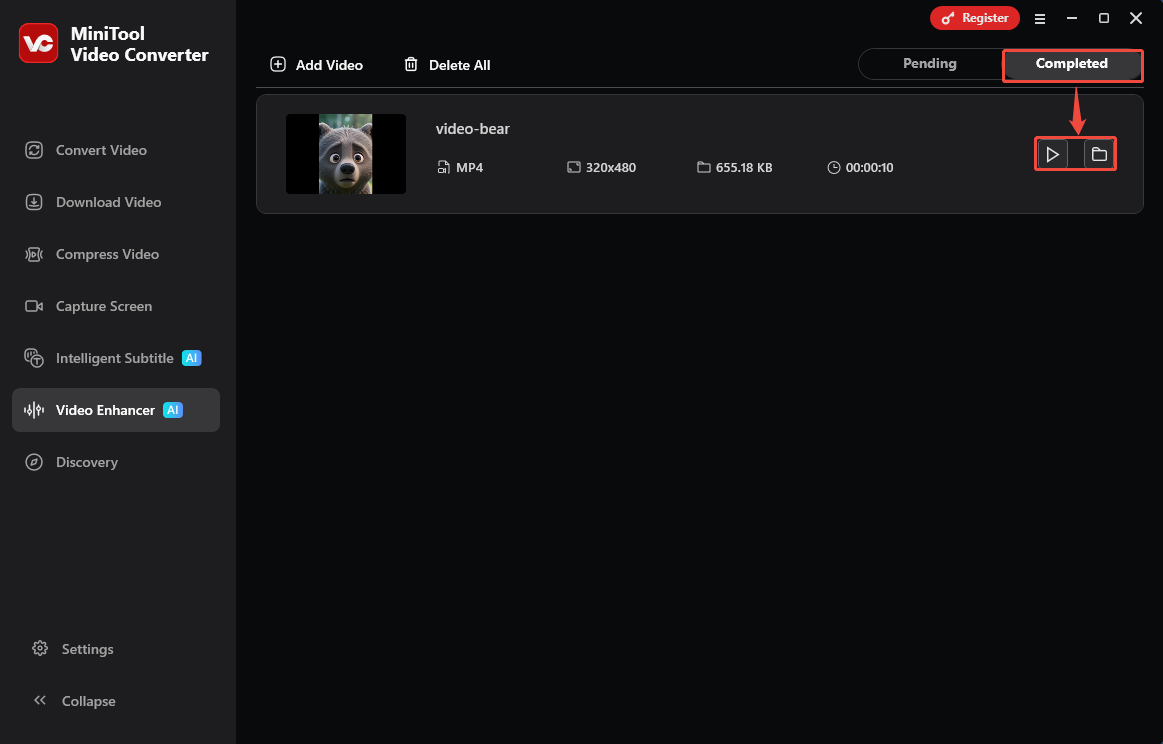
When the export process ends, this video enhancer will switch to the Completed tab. Here, click on the Play icon to check the enhanced video effect. Or I can also click on the Folder icon to locate the enhanced video on my computer.
MiniTool Video Converter makes it easier to enhance video quality with AI power. It is also free and user-friendly, even for beginners.
Wrap Things Up
Can ChatGPT enhance video quality? The answer is No. It only supports dealing with text language, assisting effective instruction for the video enhancer to improve video quality. This article recommends a fantastic video enhancer, MiniTool Video Converter, powered by AI technology.
Have questions or need assistance? Feel free to reach out to the MiniTool official support team at support@minitool.com for any inquiries or suggestions.
User Comments :