

Can HandBrake upscale video? Of course! HandBrake can upscale a video's resolution. However, it can’t improve video quality because it uses traditional pixel stretching. Therefore, this article introduces an AI-powered video upscaler, MiniTool Video Converter, to help you.
HandBrake is a free, open-source video transcoder that can convert digital video files from nearly any format to MP4, MKV, or WebM using modern codecs like H.264, H.265, and AV1. It's often used to compress video file sizes, rip DVDs or Blu-rays, and optimize videos for playback on phones, tablets, and TVs. All of this brings us to the core question: Can HandBrake upscale video?
Can HandBrake Upscale Video?
Yes, HandBrake can enlarge videos by increasing the resolution rather than true AI-based enhancement.
How to upscale to 4K in HandBrake?
- Launch the software and open your video.
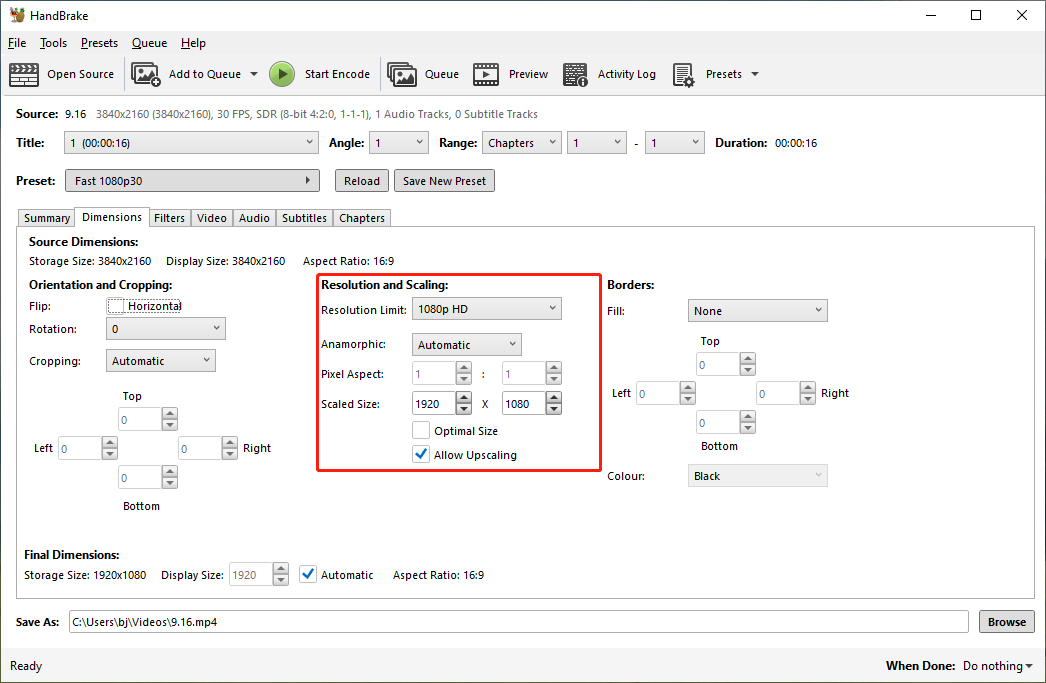
- Click the Dimensions tab in the main panel.
- In the Resolution and Scaling section, uncheck Optimal Size and check Allow Upscaling.
- Change the width to 3840 and the height to 2160 for standard 4K UHD.
- Go to the Video tab to choose a modern encoder, such as H.265 (HEVC) or H.264.
- Click Start Encode at the top of the window to start upscaling.
Video upscaling refers to the process of adding pixels to each frame of a video using AI (Artificial Intelligence) technology when the video is enlarged to fit a larger screen. Adding pixels increases the video resolution, resulting in higher clarity. Unlike traditional pixel stretching that results in blurry videos, video upscaling can truly improve video quality.
However, HandBrake uses a traditional enlargement method, not an artificial intelligence algorithm. This method enlarges the video by stretching pixels, which often results in a blurry image. In other words, HandBrake can only adjust the resolution to fit larger screens, but it doesn’t actually improve video quality.
Other Limitations of Using HandBrake to Upscale Video
- High level of expertise required: HandBrake allows manual adjustment of parameters, such as codec, resolution, and bitrate. Achieving the ideal video effect through manual fine-tuning of these parameters requires a high level of technical knowledge. Otherwise, it’s impossible to optimize the various parameters.
- Resolution blurring: Resolution stretching causes pixel misalignment. Therefore, the image becomes blurry and lacks sharpness.
- Loss of image detail: Stretching pixels only amplifies existing details without adding new ones. The enlarged pixels are no longer in their optimal state. So, many fine textures, such as skin, hair, or background, become blurry.
A HandBrake Alternative for AI Video Upscaling
Can you upscale video quality? Of course! I’ve been looking for a suitable upscaler recently and finally found MiniTool Video Converter. It supports AI-based video upscaling. With the software, I can upscale low-resolution videos up to 4 times the original size to enhance quality and clarity.
With its anime enhancer mode, I can easily optimize linework and brighten color blocks of my old anime or cartoon videos. Additionally, the software can remove grain, blur, and compression marks from the footage for clear, professional quality.
Fast Track Steps:
- Download and install MiniTool Video Converter
- Import your video.
- Set an enhancement level
- Preview the enhanced video.
- Start enhancement.
- Check the enhanced video.
1. Download and Install
Download the AI-powered video enhancement tool and follow the on-screen prompts to install it.
 MiniTool Video Converter
-
 Batch convert video/audio files among 1000+ formats.
 - Quickly compress videos for easy storage and transfer.
- Accurately extract subtitles from video/audio files.
- Effectively enhance video quality.

2. Add the Target File
Open the software. In the main interface, I switch to the Video Enhancer tab. From there, click on the Plus icon to import the target video from my device.
3. Pick the Desired Upscaling Level
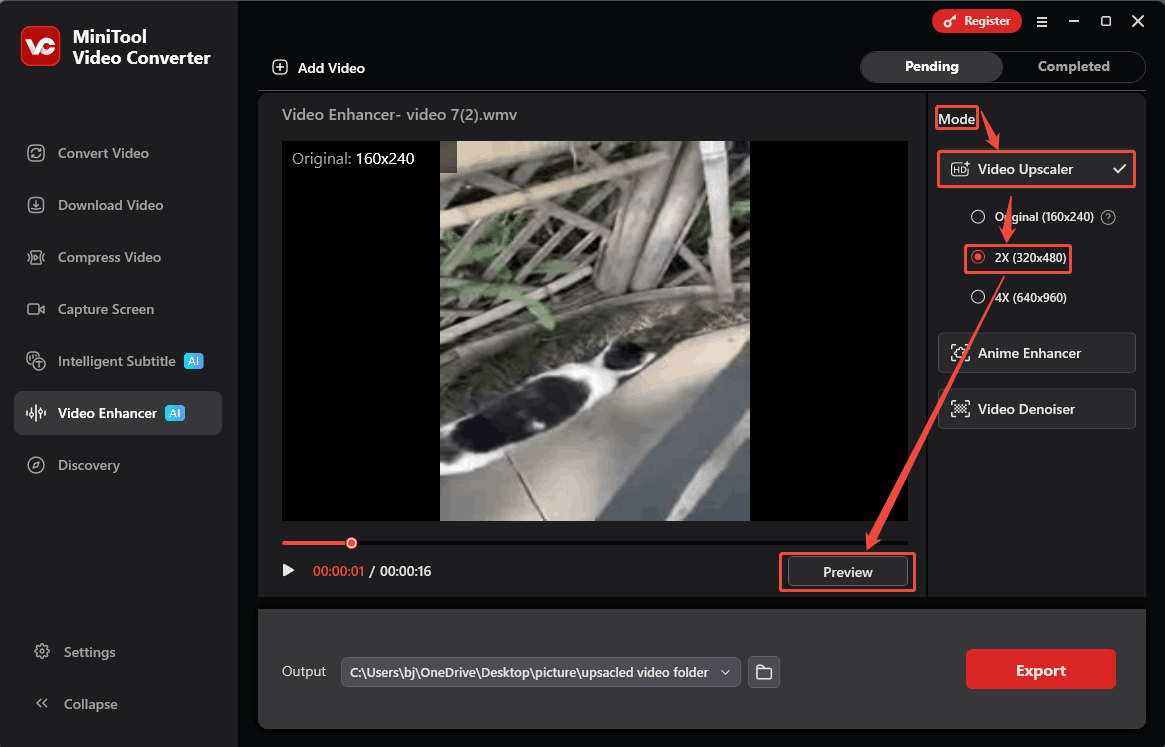
In the Mode section, expand the Video Upscaler tab and select an upscaling parameter. I chose the 2X (320x480) option. Then, click the Preview button to see the upscaled video. Also, I can compare the visual differences between the videos before and after upscaling.
4. Export the Upscaled Video
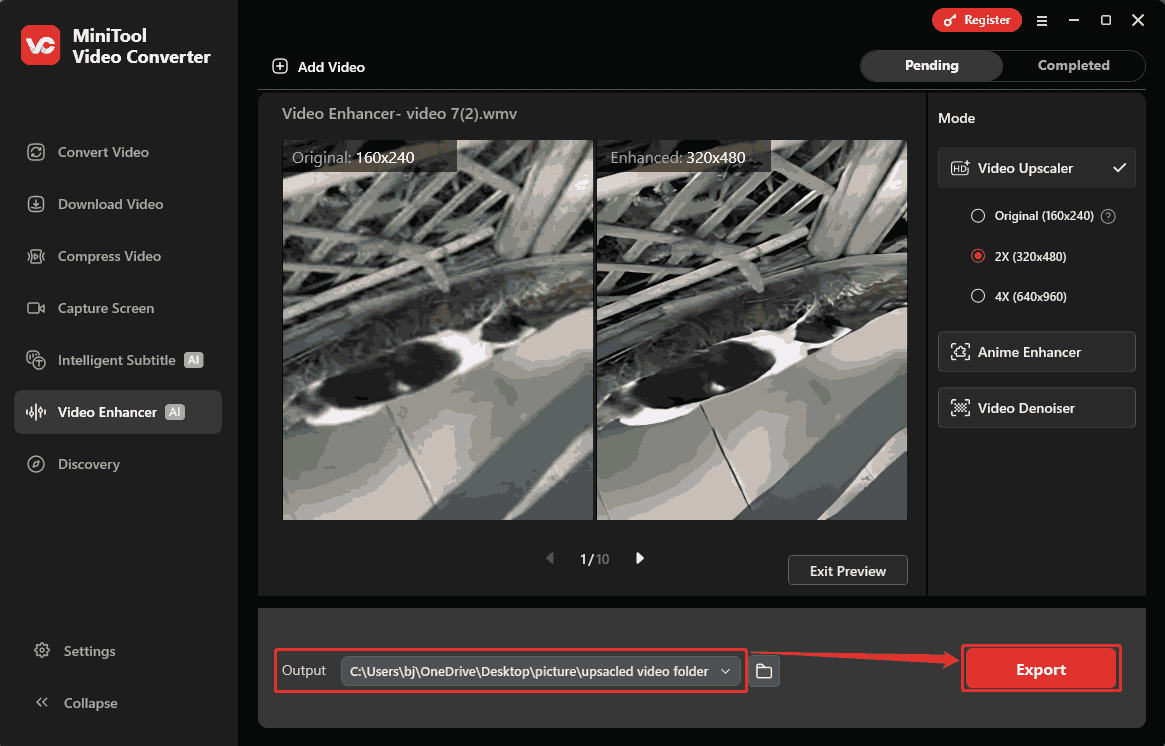
When setting the upscaling parameter, expand the Output option and pick a storage location for the output folder. Then, click on the Export button to begin exporting.
5. Check the Result
Once the export finishes, this upscaled video will automatically go to the Completed tab. Here, click the Play icon to check the video effect after upscaling. Additionally, you can click the Folder icon to locate the upscaled video.
HandBrake Upscaling Vs MiniTool Video Converter's AI Enhancer
| Software | HandBrake (Traditional Stretching) | MiniTool Video Converter (AI-Enhanced) |
| Technical Principle | Duplicates and stretches pixels | Uses AI to analyze and fill in missing details |
| Image Quality | Blurry visuals | Sharper details and clearer lines |
| Use Case | Only changes resolution to fit the screen | Truly enhances video clarity |
| Ease of Use | Requires manual adjustment | One-click operation, simple and user-friendly |
While HandBrake can upscale video by increasing resolution, it does not enhance actual quality. To improve video clarity, consider using an AI-driven tool such as MiniTool Video Converter.
How to Edit the Upscaled Videos
For editing upscaled videos, MiniTool MovieMaker can truly help you creatively edit videos with a user-friendly interface. It only requires users to import a target video, add it to the timeline, make edits, and export a new video.
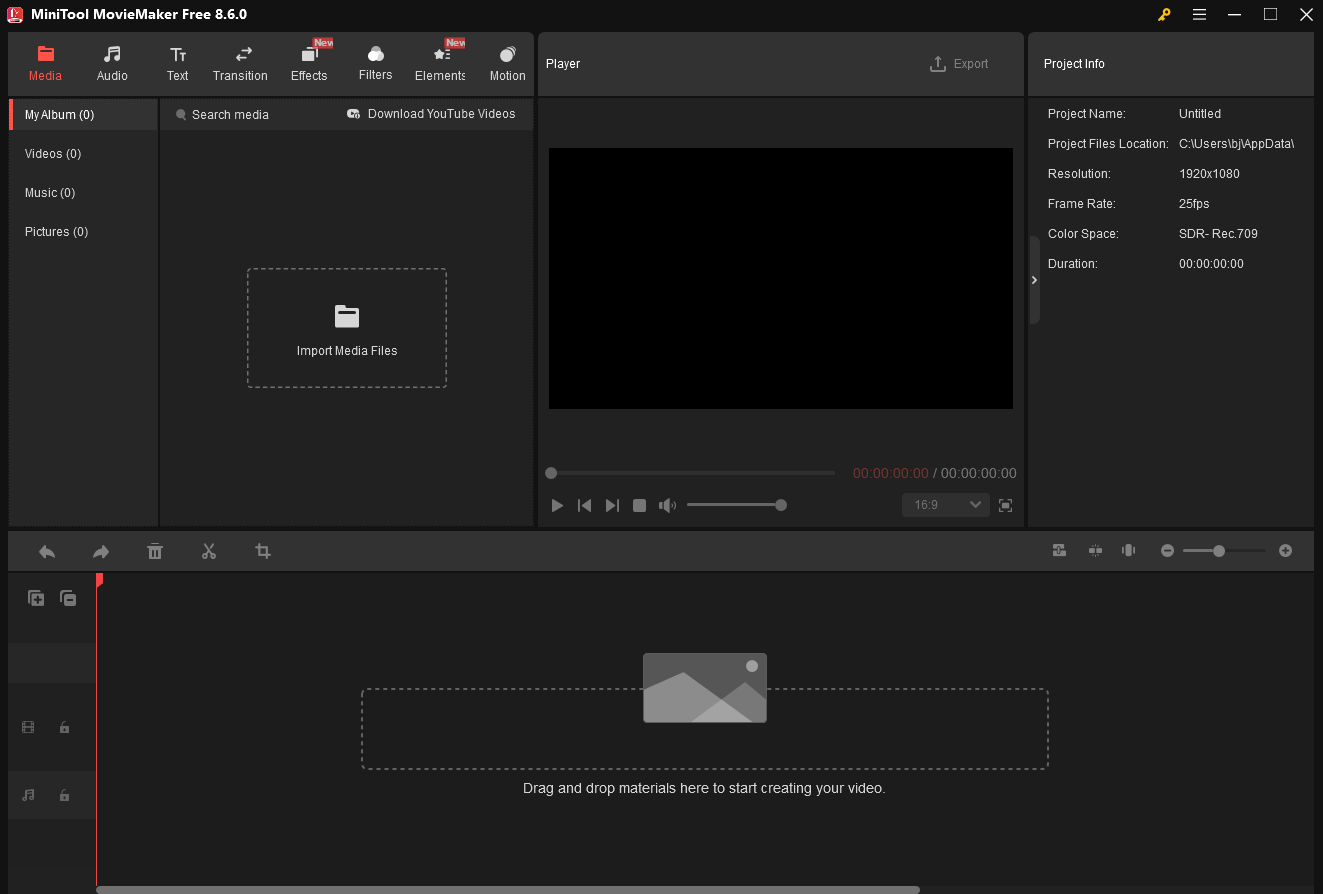
MiniTool MovieMaker is my commonly used video editor, which allows me to add music, effects, text, transitions, filters, elements, and motion effects to enhance my clips. It also helps me split, crop, trim, flip, rotate, and reverse the video. Moreover, the software enables me to fine-tune frame rate, aspect ratio, saturation, contrast, brightness, and more parameters. When I export the edited video, I can freely change the video format to MP4, MKV, MOV, AVI, WebM, and more.
MiniTool MovieMakerClick to Download100%Clean & Safe
Bottom Line
Can HandBrake upscale video? Yes, but it only stretches the original pixels without adding extra pixels. Therefore, it can’t improve video quality. With an alternative video upscaler, MiniTool Video Converter, you can easily improve video quality.
If you have any questions while using MiniTool products, contact the support team at support@minitool.com for help.
People Also Ask
2. Go to the Dimensions tab and set the resolution limit to 1080p (1920x1080).
3. Switch to the Video tab and pick an encoder, such as H.264 (x264) for the best compatibility or H.265 (x265) for a smaller file size.
4. Click Start Encode at the top of the window to downscale the video.
About The Author

Position: Columnist
Cora is a tech writer specializing in digital media workflows, with over six years of hands-on experience in video post-production, media transcoding, and screen capture. Her writing is always clear and practical. Cora also produces in-depth software reviews for users across skill levels to help them find the right tool and enjoy video editing.
User Comments :