

How to enhance MP4 video quality? This article tells you how to do it with 3 methods: using an AI video enhancer like MiniTool Video Converter, adjusting sharpness and color in a video editor, and applying video stabilization. It also explains why improving video quality matters.
How to Enhance MP4 Video Quality
This section includes 3 methods on how to improve MP4 video quality:
- AI upscaling and denoising.
- Adjust color settings.
- Use video stabilization.
Method 1: AI Upscaling and Denoising
MiniTool Video Converter provides a free, unrestricted way to enhance videos. Here is a quick guide on how to use it to improve MP4 video quality.
- Install MiniTool Video Converter.
- Import the target video.
- Choose the enhanced mode.
- Preview the video.
- Set save location.
- Start enhancing and save the video.
Step 1: Download and Install MiniTool Video Converter
Download the MiniTool Video Converter installer, follow the on-screen prompts to install it, then launch the application.
MiniTool Video ConverterClick to Download100%Clean & Safe
Step 2: Import the Target Video
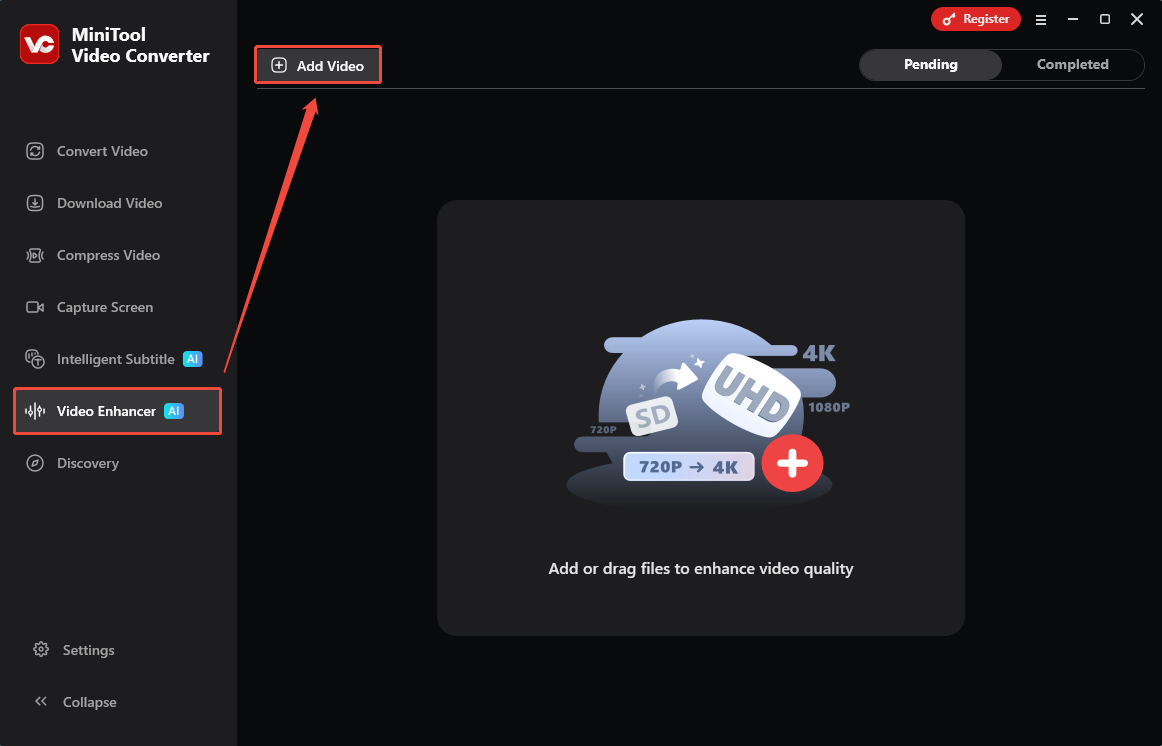
From the menu on the left, choose Video Enhancer. Next, click Add Video to upload the MP4 video that needs improving.
Step 3: Select an Enhance Mode
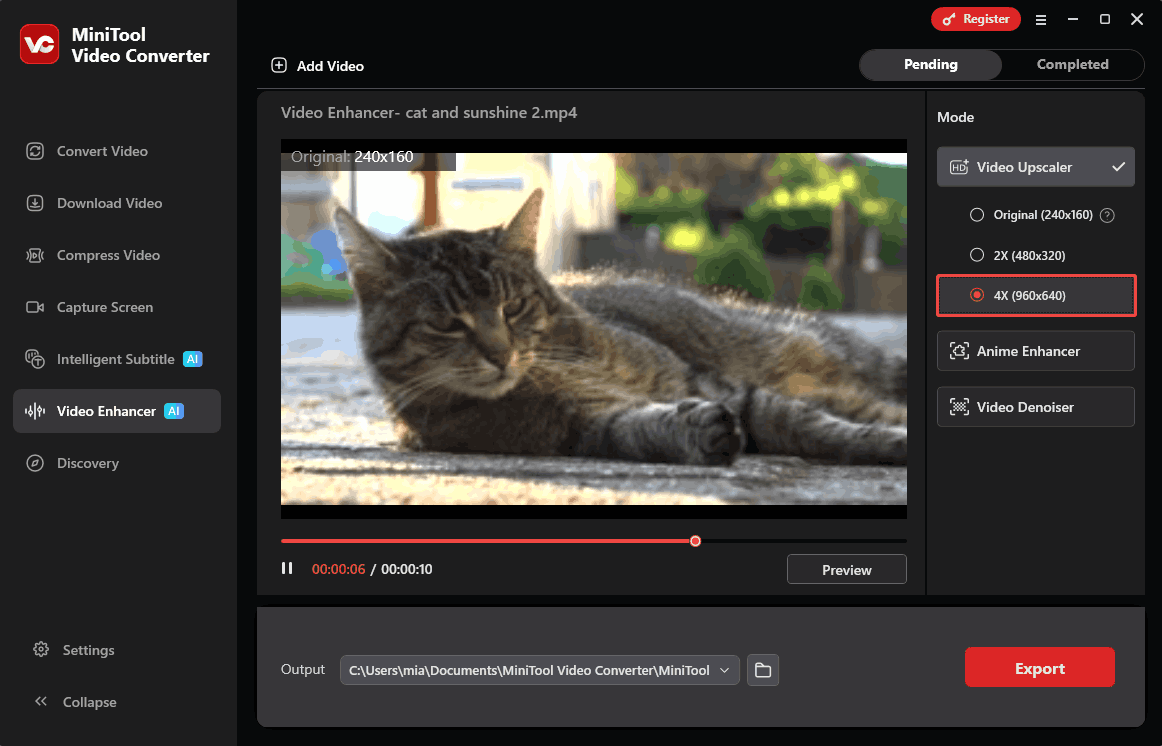
Once the video is imported, enhancement options appear in the right-side panel. Choose from modes like Video Upscaler, Anime Enhancer, or Video Denoiser depending on the need. In this example, I select the Video Upscaler option and increase the video resolution by 4 times.
Step 4: Preview to Check the Effect
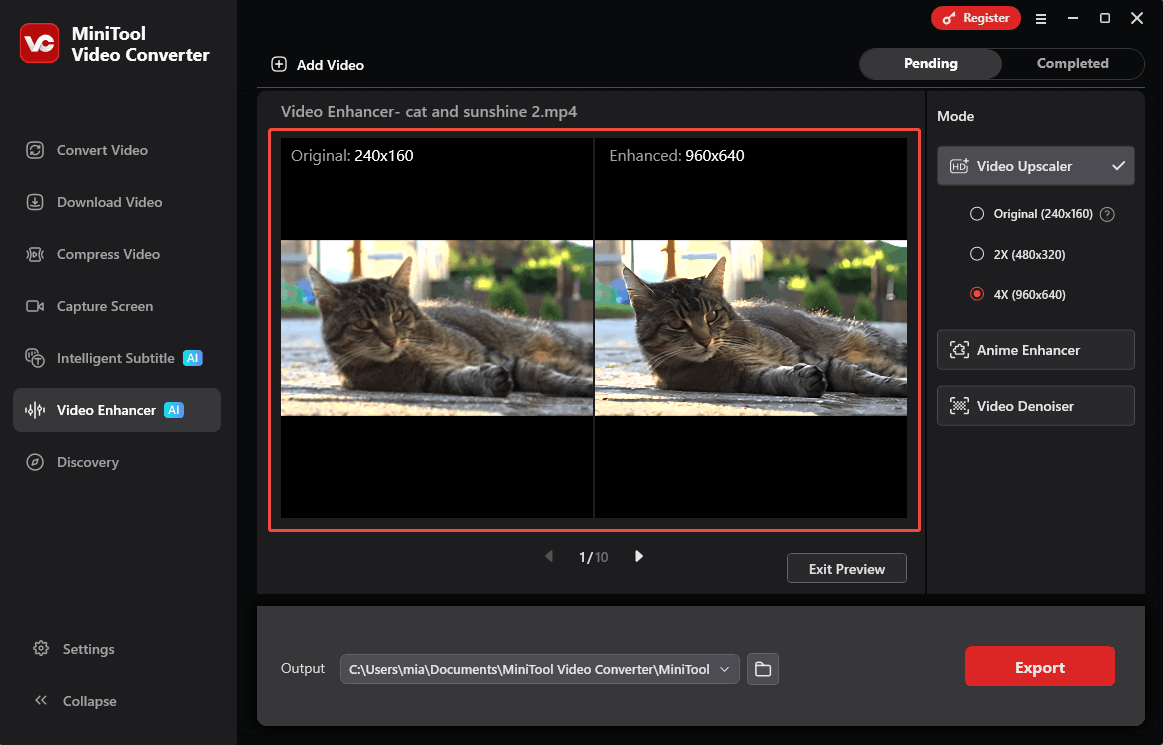
After choosing an enhancement mode, click Preview to see the improved video image.
Step 5: Set Save Destination and Export the Video
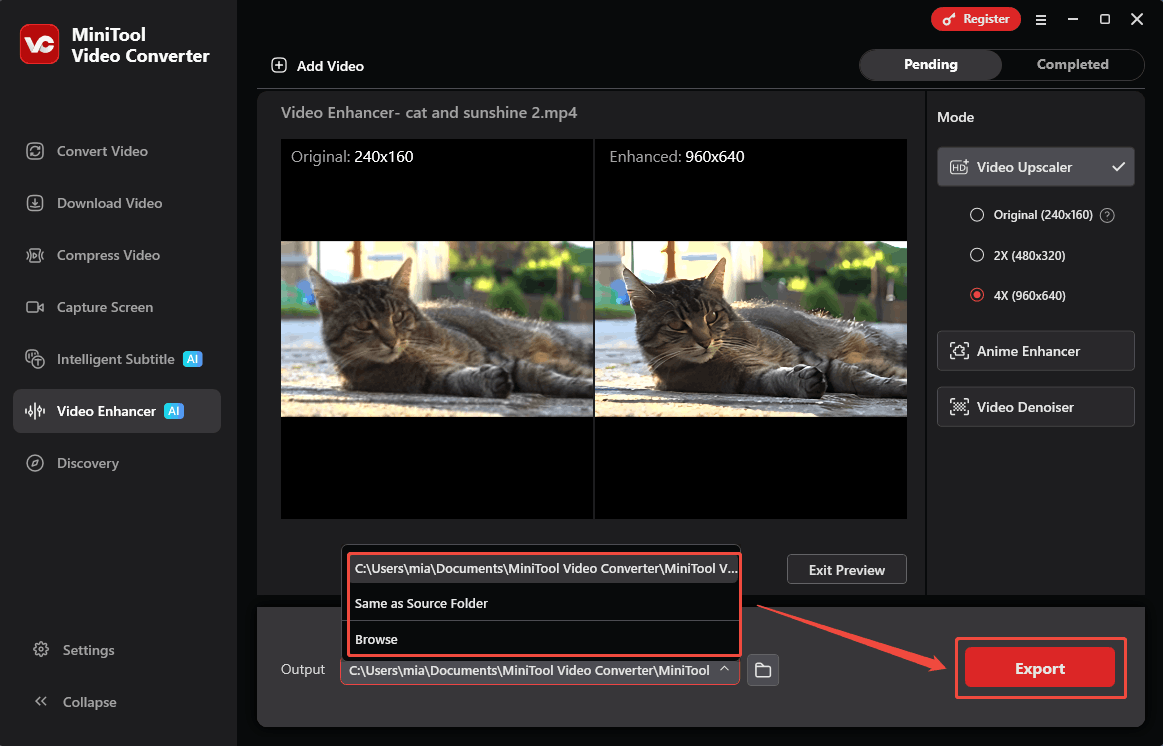
Open the Output section at the bottom of the interface and select a destination folder for the enhanced video. Then click the Export button in the lower-right corner to begin processing. The final file will be saved to the chosen location once export is complete.
Step 6: Locate the Exported Video
After processing ends, the Completed tab opens to show all finished tasks. Click the play icon to watch a preview of the enhanced video, or select the folder icon to directly navigate to the video.
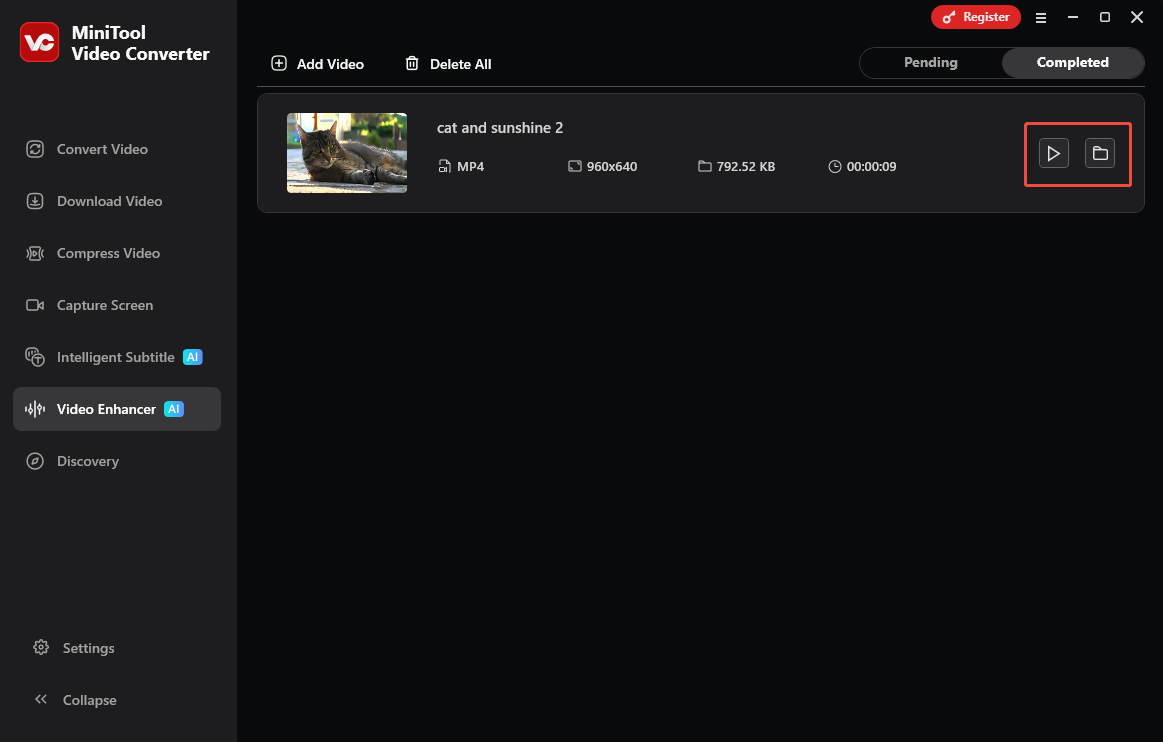
There are no watermarks, no file size limits, and no caps on how many videos can be processed. This makes MiniTool Video Converter a reliable choice for anyone who wants better video quality without hassle.
MiniTool Video Converter uses AI to improve clarity by upscaling resolution, reducing noise, and sharpening blurry details. It supports upscaling video to 4K through intelligent pixel processing, which keeps images smooth and natural.
What’s more, MiniTool Video Converter supports a broad range of formats, covering MP4, WMV, FLV, MKV, MOV, AVI, and more. Videos are automatically saved as MP4 after processing, ensuring easy playback on most devices and platforms.
Beyond video enhancement, MiniTool Video Converter also supports converting file formats, compressing videos, transcribing audio or video to text, and more.
Method 2: Adjusting Color Settings
Adjusting a video's brightness, contrast, saturation, and other parameters can make it appear sharper. While this method does not actually increase pixel count like AI upscaling, it improves visual vividness, thereby making the quality of the MP4 footage appear higher. Many video editors offer these adjustments, and MiniTool MovieMaker is one option.
MiniTool MovieMaker is a simple, free tool that supports basic editing functions, such as cropping, splitting, and resizing. Also, it allows adding background music, effects, transitions, and motions. The following steps explain how to adjust color settings in MiniTool MovieMaker:
Step 1: Download and Install MiniTool MovieMaker
Get the MiniTool MovieMaker installation package and follow the on-screen prompts to install it on the Windows PC.
MiniTool MovieMakerClick to Download100%Clean & Safe
Step 2: Add the Target Video
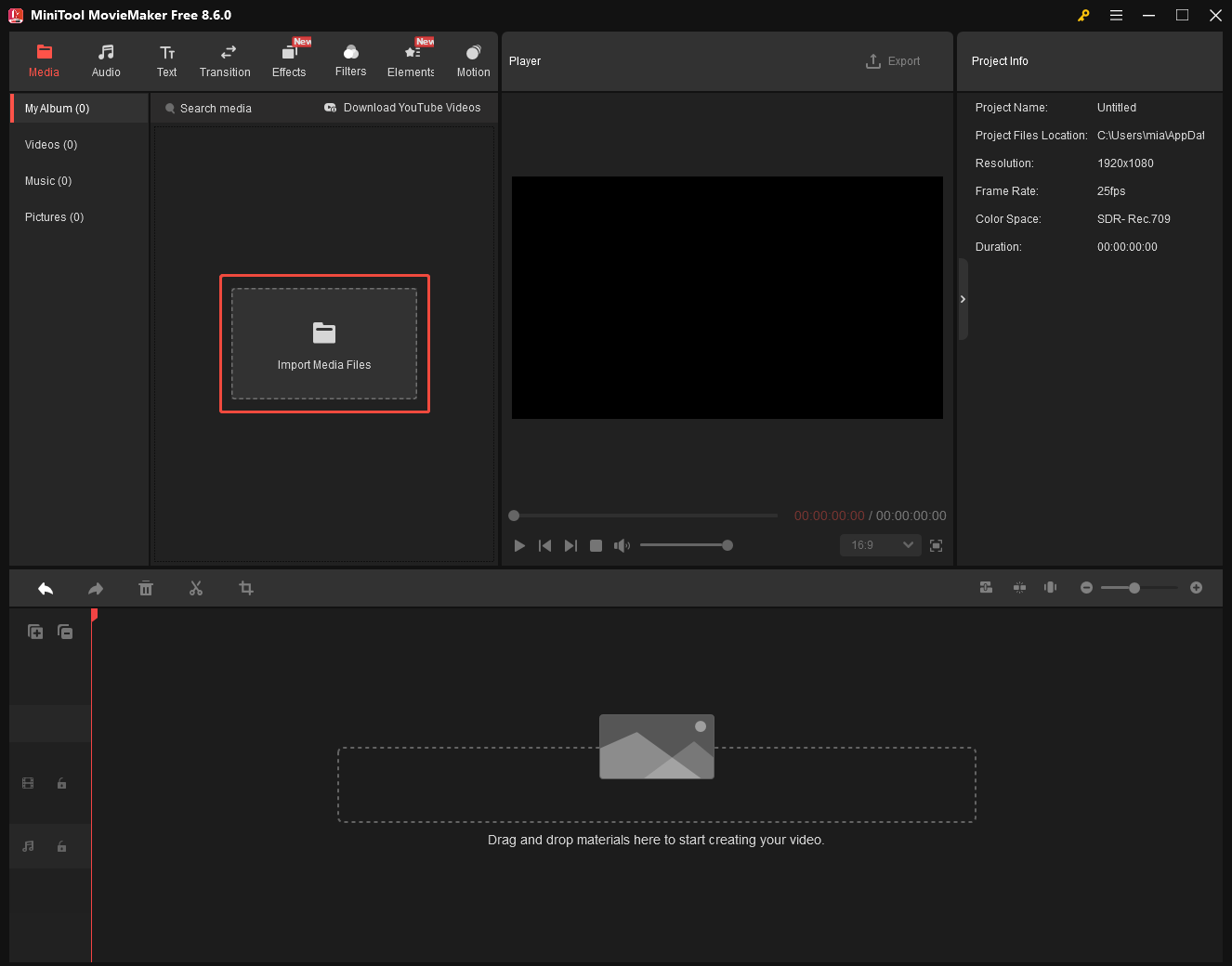
Launch MiniTool MovieMaker. Then, I close the promotion window, click the Import Media Files option to add the target MP4 video.
Step 3: Drag the Video to the Timeline
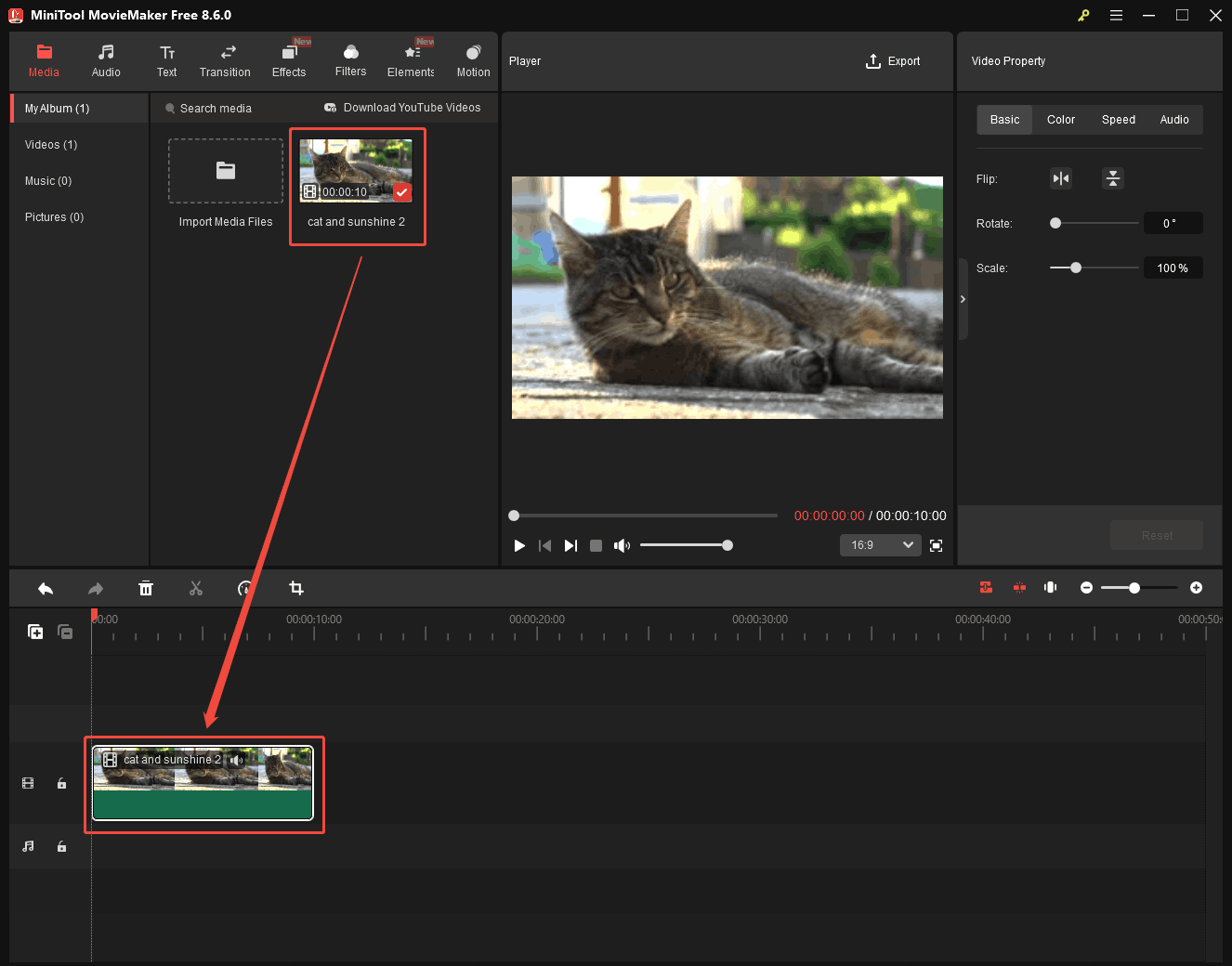
Drag the MP4 video to the timeline area at the bottom of the interface.
Step 4: Adjust the Color Settings
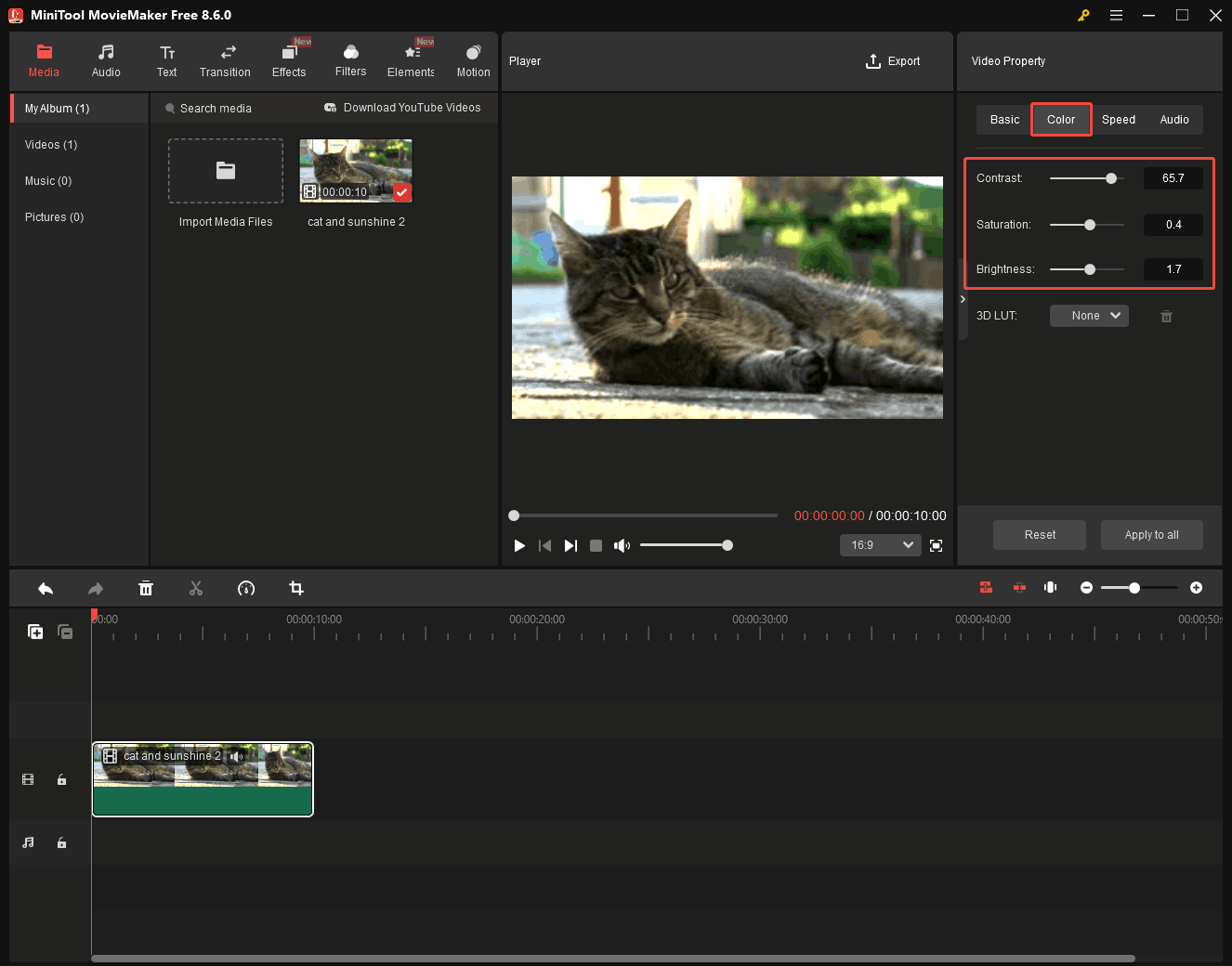
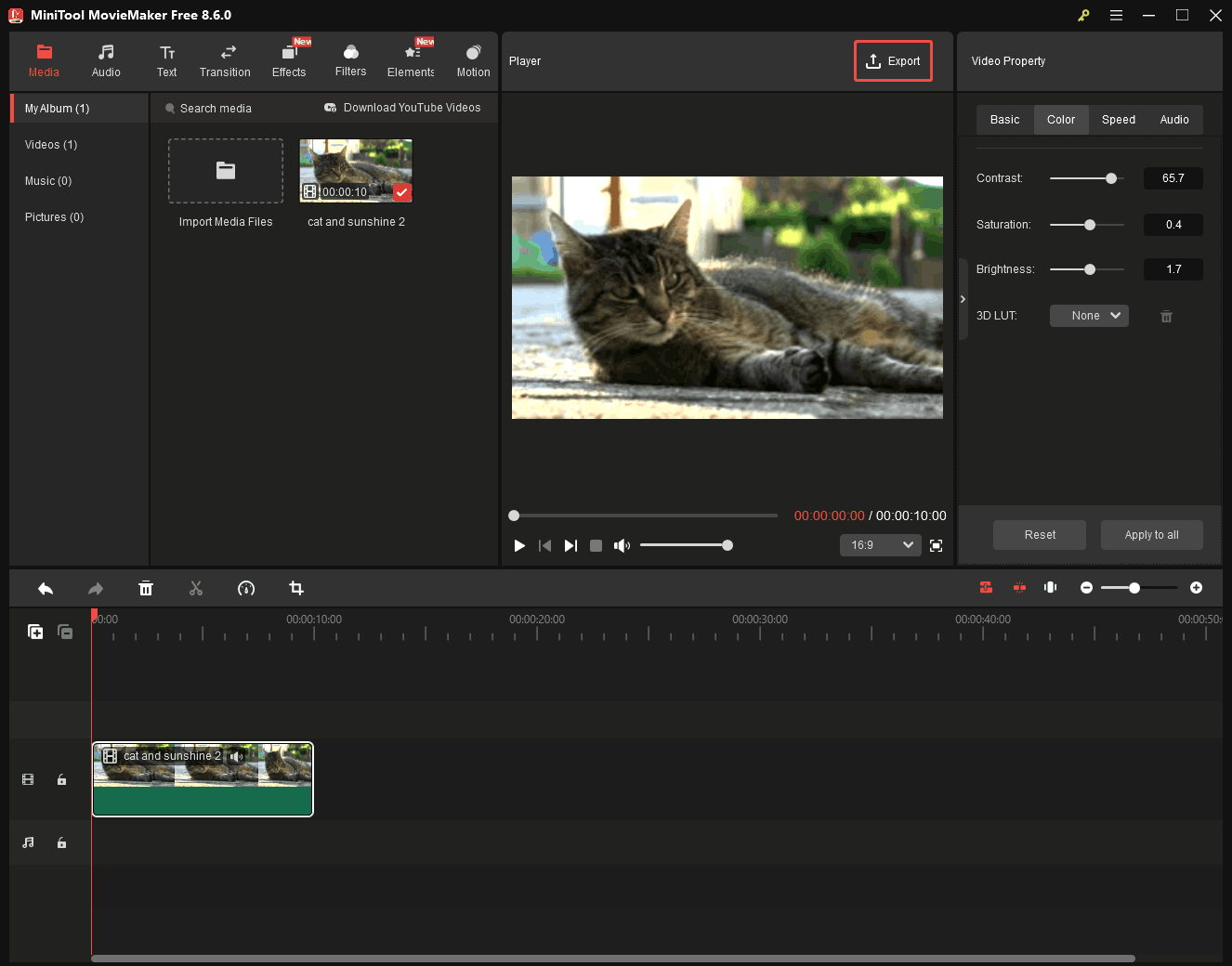
First, I select the clip on the timeline. To enhance MP4 video quality, choose Color in the Video Property section. After that, adjust the contrast, saturation, and brightness. While adjusting these values, I observe the video in the playback window on the left to achieve my desired effect.
Step 5: Export the Video
After adjusting the video's color parameters to achieve the desired effect, I clicked the Export option in the top-right corner of the video playback window. In the pop-up window that appeared, I selected the save location, export format, resolution, frame rate, and other settings. Then, I clicked Export to save the video to my computer.
Methods 1 and 2 are both designed for situations involving low video resolution. If the video quality is poor due to camera shake during recording, you can use the post-production stabilization feature.
Method 3: Use Video Stabilization
Shooting handheld without a stabilizer often causes shaky, blurry footage. Post-production stabilization can fix this by keeping the main subject steady and reducing unwanted camera shake. Desktop applications like CapCut, Adobe Premiere Pro, and Davinci Resolve support this feature. However, because the software shifts frames to smooth out movement, some edges of the video may get cropped.

Why Enhance MP4 Video Quality
Here are several reasons to improve MP4 video quality.
1. Better Viewing Experience
For creators, uploading high-quality videos to video platforms is absolutely essential. High-quality videos provide viewers with a superior viewing experience. Compared to blurry, pixelated footage, clear and sharp high-resolution videos are much easier on the eyes, allowing viewers to focus on the content.
2. More Professional Brand Image
Blurred or unclear visuals often erode audience trust in a brand. Conversely, high-quality video serves to better showcase the professional image of brands, businesses, and content creators.
3. Compatible with High-Resolution Displays
Videos recorded at low resolutions often appear blurry and pixelated when played back on modern 4K televisions, large monitors, or high-definition smartphone screens. Upscaling technology resolves this issue by enhancing the video's clarity and detail, elevating its image quality to a level commensurate with today's display devices.

Bottom Line
This article shows how to enhance MP4 video quality free with MiniTool Video Converter, an AI-powered video enhancement tool, to achieve clearer results. It also covers additional methods like sharpening, color adjustment, and video stabilization to further improve target footage.
For help with MiniTool Video Converter, contact the official support team at support@minitool.com and include details of your issue for quicker assistance.
User Comments :