

This article explains the definition of an HTML5 video and clarifies whether web browsers support AVI. Meanwhile, it offers you two feasible methods to get HTML5 video AVI browser support: using a reliable AVI video converter or a JavaScript player.
Some people may ask, does HTML5 video tag AVI support Chrome? Unfortunately, AVI is not a video format supported HTML5. To get HTML5 video AVI browser support, just read the following content to find out the methods.
What Is an HTML5 Video
As the latest version of HTML (Hypertext Markup Language), HTML5 refers to a coding language that aims to format the Internet content. It tells web browsers how to display the content on webpages. Compared with earlier versions of HTML, HTML5 introduced the <video> element, making it possible to add video to web pages.
An HTML5 video can be defined as embedding and playing video in different web pages using the <video> element without any browser plugins, such as Adobe Flash. In one word, an HTML5 video offers you a more secure and faster video loading across different devices and browsers, including tablets, mobile phones, Firefox, Google Chrome, and more.
Can Browsers Use AVI as an HTML5 Video
Browsers don’t support AVI as an HTML5 video. Specifically, the video formats that are supported by HTML5 videos include MP4 (H.264 video codec, AAC audio codec), WEBM& (VP8/VP9 video codec, Vorbis audio codec), and OGG (Theora video codec, Vorbis audio codec).
How to fix the issue of videos not playing? If you want to directly play your AVI videos with web browsers, it is workable for you to convert the AVI videos to a format with better compatibility, like MP4.
How to Get HTML5 Video AVI Browser Support
To get HTML5 video AVI support browsers, you can try to convert AVI videos to MP4 or use a JavaScript player.
Method 1. Convert AVI Videos to MP4
4 remarkable AVI converters, including MiniTool Video Converter, MiniTool MovieMaker, FreeConvert, and CloudConvert, will be recommended to help you to convert your AVI videos to MP4.
Option 1. MiniTool Video Converter (Offline)
MiniTool Video Converter is a can’t-miss AVI converter that doesn’t set any file size limit for you. Meanwhile, it supports various output formats, including MP4, MP3, MOV, AIFF, MKV, OGG, M2TS, WMA, and so on. More importantly, MiniTool Video Converter empowers you to convert up to 5 AVI videos simultaneously.
MiniTool Video Converter is completely free and offers you advanced options that enable you to customize the encoder, frame rate, sample rate, and other parameters. Below is a step-by-step tutorial on how to convert AVI to MP4 with MiniTool Video Converter.
Step 1. Download and install MiniTool Video Converter.
 MiniTool Video Converter
-
 Batch convert video/audio files among 1000+ formats.
 - Quickly compress videos for easy storage and transfer.
- Accurately extract subtitles from video/audio files.
- Effectively enhance video quality.

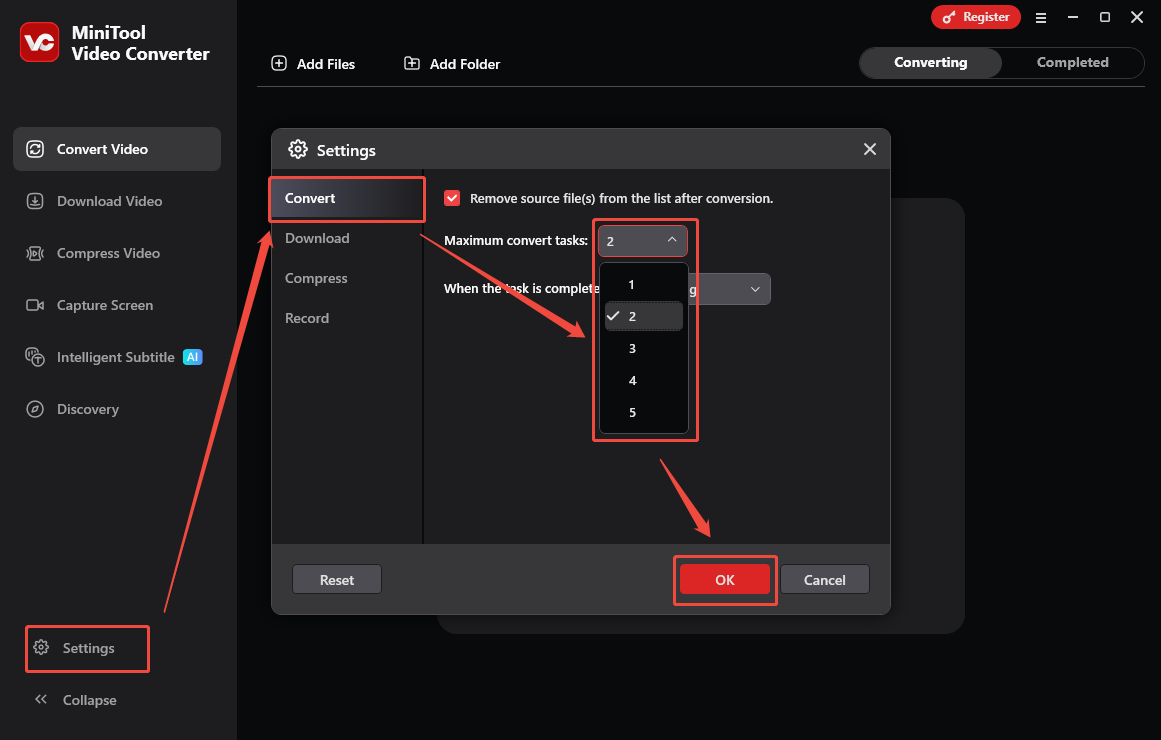
Download MiniTool Video Converter by clicking on the download button above. Then, follow the on-screen prompt to install this AVI to MP4 converter on your PC. Then, launch this application.
Step 2. Import the AVI videos.
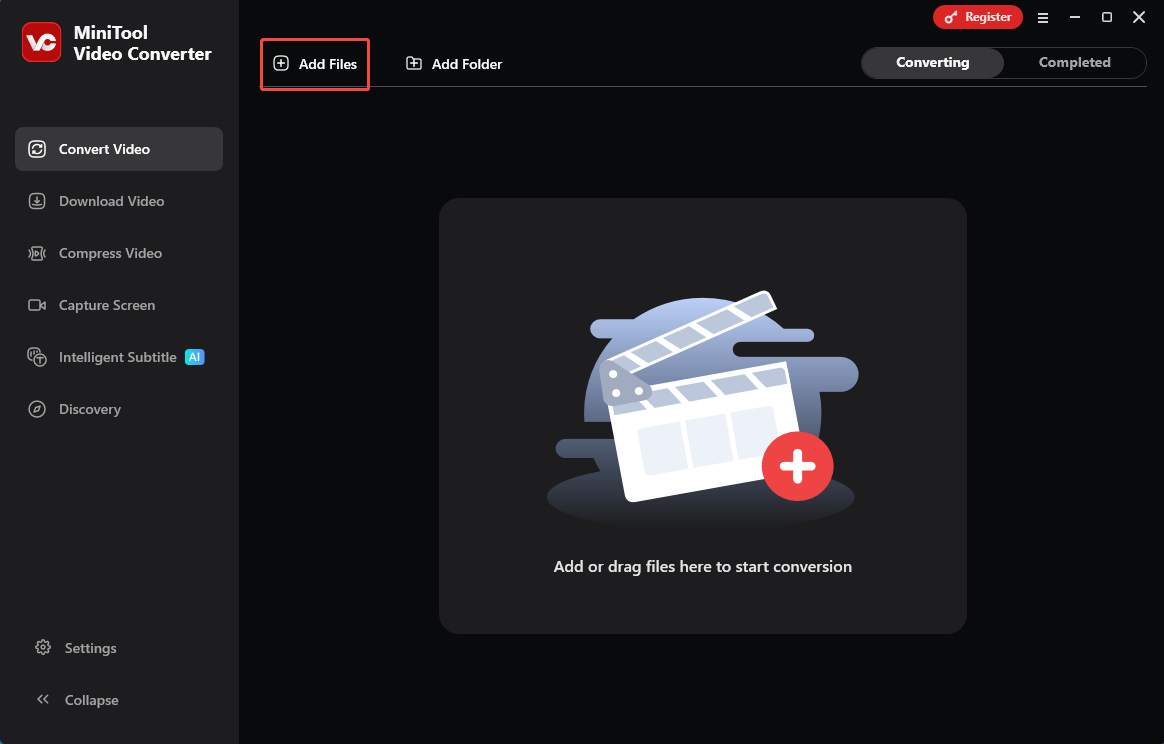
Click on the upper-left Add Files option to upload the AVI files that you want to convert.
Step 3. Set MP4 as the output format.
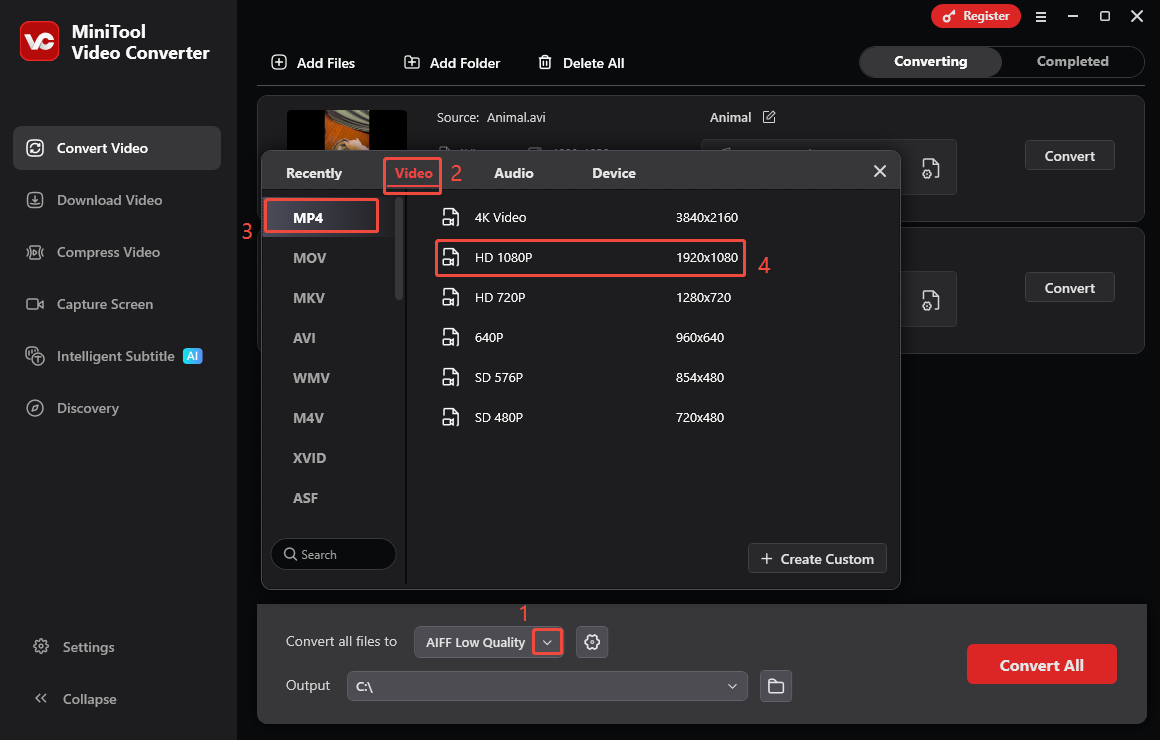
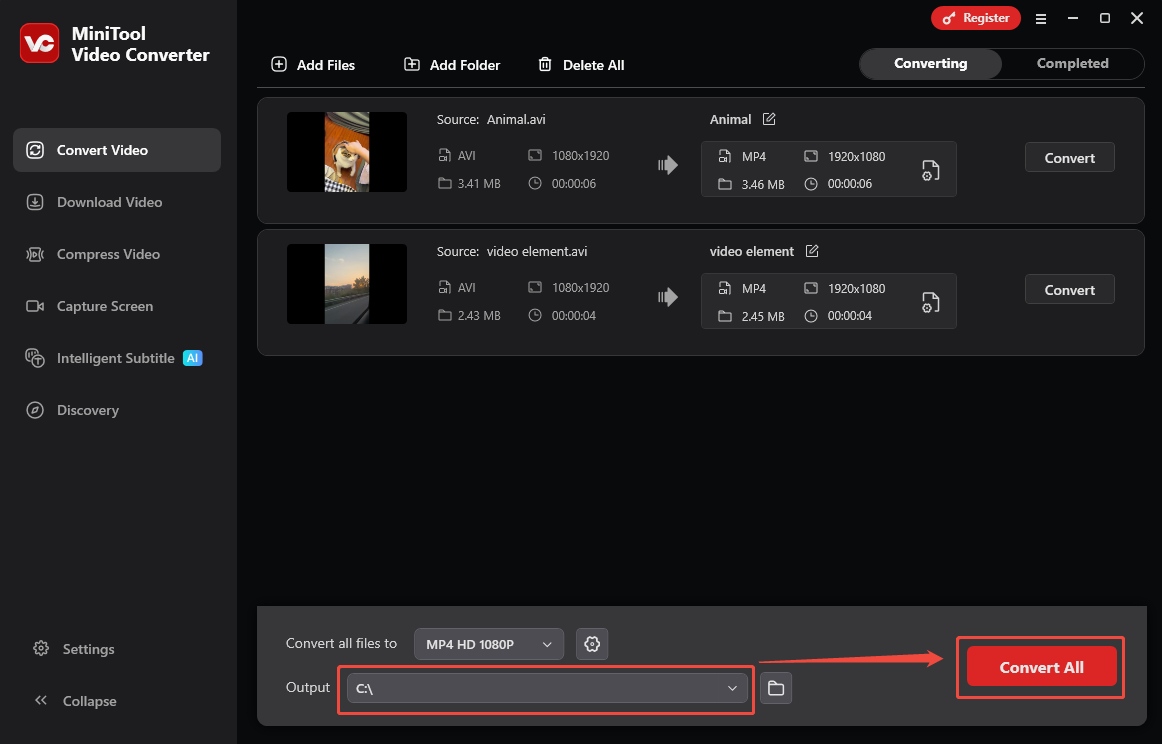
Expand the bottom Convert all files to option to enter the output format window. There, switch to the Video tab and select MP4. Then, choose the resolution you want. Here, I select MP4 HD 1080P as an example.
Step 4. Set an output folder and start conversion.
Expand the bottom Output option to select a saving path for the output video. Then, begin the conversion process by clicking on the bottom-right Convert All button.
Step 5. Check the converted videos.
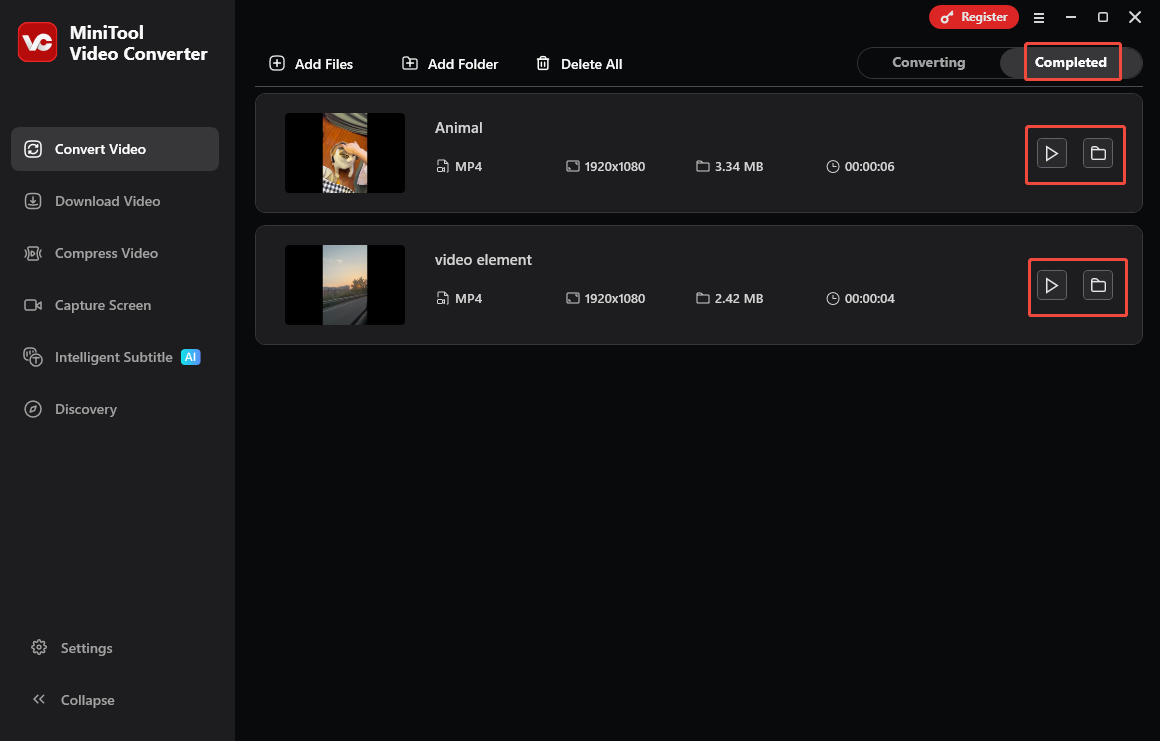
When the file conversion process ends, this video converter will automatically switch to the Completed section. There, click on the Play icon to view the converted files. If you want to locate the files, click on the Folder icon.
Tweet: MiniTool Video Converter can be a great choice for you to get HTML5 video AVI browser support!
Undoubtedly, MiniTool Video Converter is a standout video converter. Additionally, it serves as a professional video compressor, enabling you to adjust the parameters that influence video size. Plus, MiniTool Video Converter is a top-grade video/audio to text converter.
Option 2. MiniTool MovieMaker (Offline)
Another application that enables you to convert your AVI videos for browser HTML5 support is MiniTool MovieMaker. It is not only a video editor but also a video converter. MiniTool MovieMaker empowers you to save your AVI videos in multiple formats, including MP4, GIF, MOV, MP3, MKV, WEBM, WMV, and more.
Even if you want to change the speed, aspect ratio, color, and volume of your AVI video, MiniTool MovieMaker can still meet your needs. Furthermore, there are a variety of elements available, including transitions, motions, effects, filters, and more. Below is a step-by-step guide on how to get MP4 from AVI using MiniTool MovieMaker.
Step 1. Download and install MiniTool MovieMaker.
MiniTool MovieMakerClick to Download100%Clean & Safe
Click on the download button above to download and install MiniTool MovieMaker on your PC.
Step 2. Upload the AVI video.
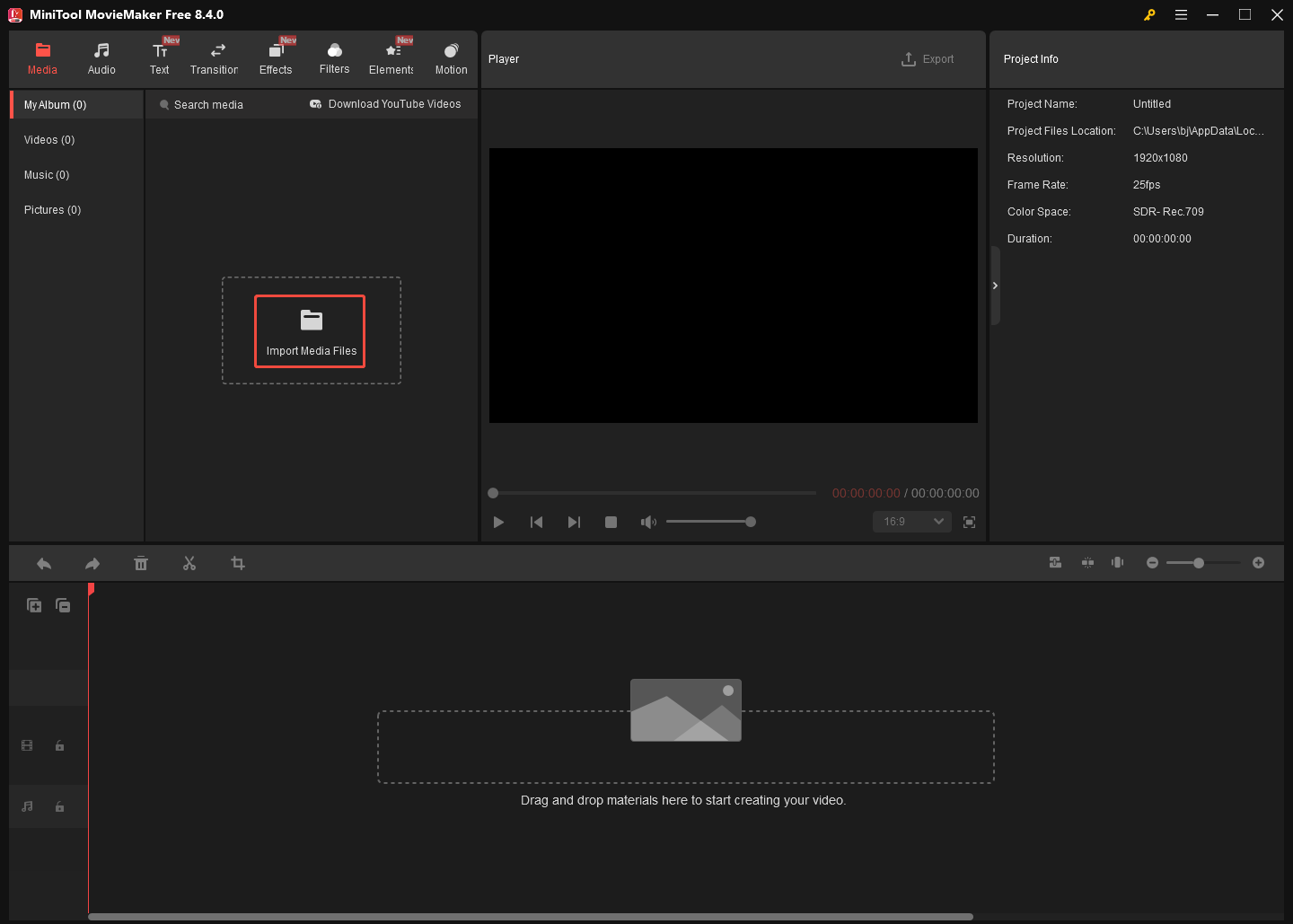
Click on the Import Media Files area to import the AVI video that you want to convert. Then drag the video file onto the timeline below. If necessary, use the editing functions to edit the AVI video.
Step 3. Configure the output settings and start conversion.
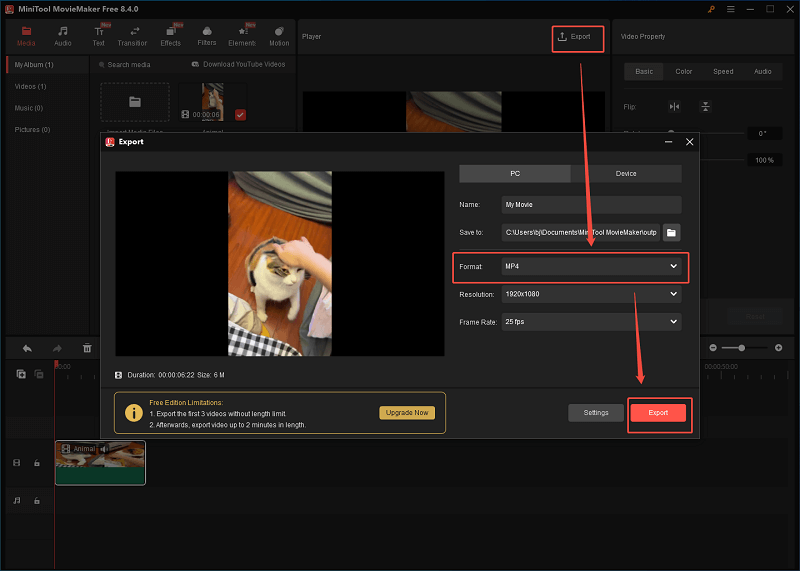
Click on the Export icon at the upper right of the Player section to enter the Export window. There, you can specify an output folder for the converted video. Then, expand the Format option and choose MP4. Also, you can configure the frame rate and resolution based on your needs. Finally, click on the bottom-right Export button to save the output video.
Step 4. Check the output video.
When the video saving process completes, click on the Find Target button in the pop-up to locate the output video.
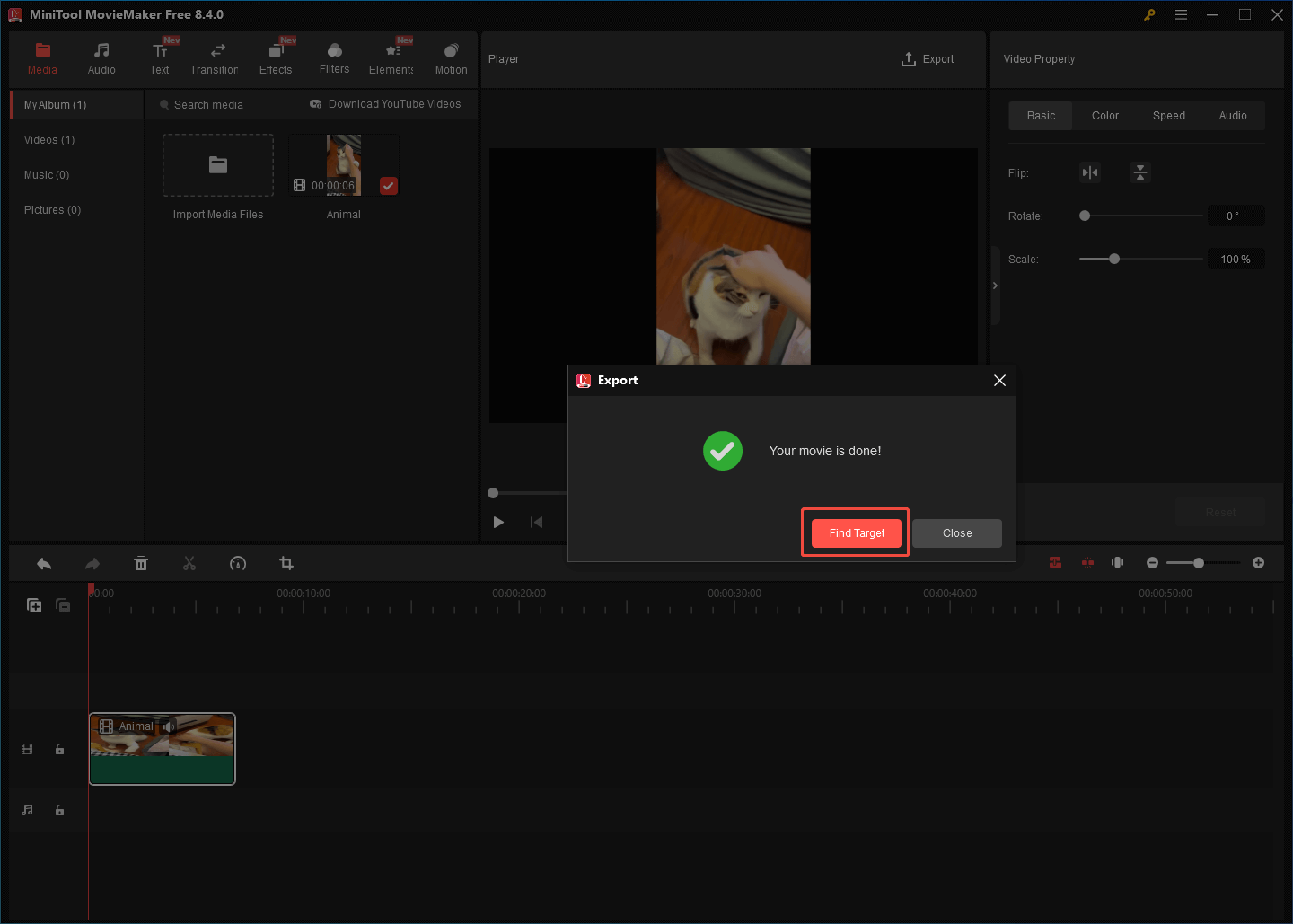
As you can see, MiniTool MovieMaker allows you to convert your AVI videos while editing them easily and quickly.
Option 3. Convertio (Online)
If you want to convert AVI videos to MP4 without downloading extra software, Convertio can meet your needs. It is an online converter that is compatible with Windows, macOS, Linux, iOS, Android, and major web browsers. Moreover, Convertio is a feature-rich tool that enables you to convert various files, including videos, audio, images, and documents.
As a robust AVI converter, Convertio allows you to convert AVI to various video formats, including MP4, MOV, MPEG, WMV, and so on. Additionally, it enables you to upload your AVI videos from multiple sources, including Google Drive, Dropbox, and your device. Below is an in-depth guide on how to convert AVI to MP4 using Convertio.
Step 1. Go to the AVI to MP4 Converter page of Convertio.
Visit https://convertio.co/avi-mp4/.
Step 2. Import the AVI Files.
Import the AVI videos by clicking on the Choose Files button.
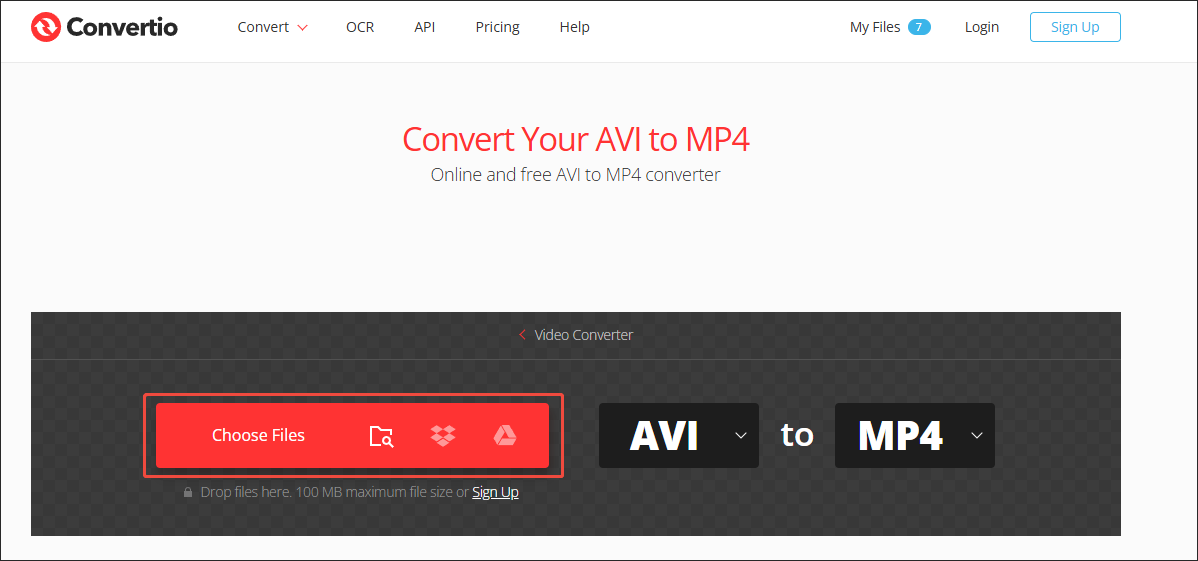
Step 3. Configure the conversion settings.
Click on the Settings icon to enter the Settings window. There, you can customize the codec, frame rate, and other parameters. Also, you can determine whether to flip or rotate the converted files. If you want to configure uniform conversion settings for all files, check the Apply to all conversions option. To save the changes, click on the Ok button.
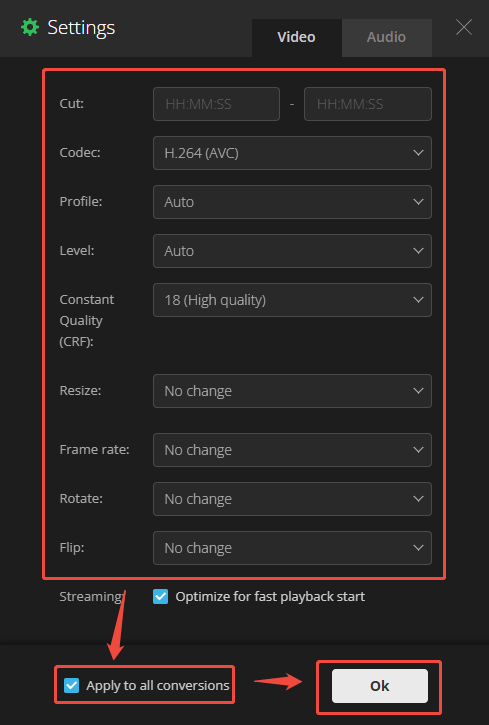
Step 4. Start conversion.
Begin the conversion process by clicking on the Convert button.
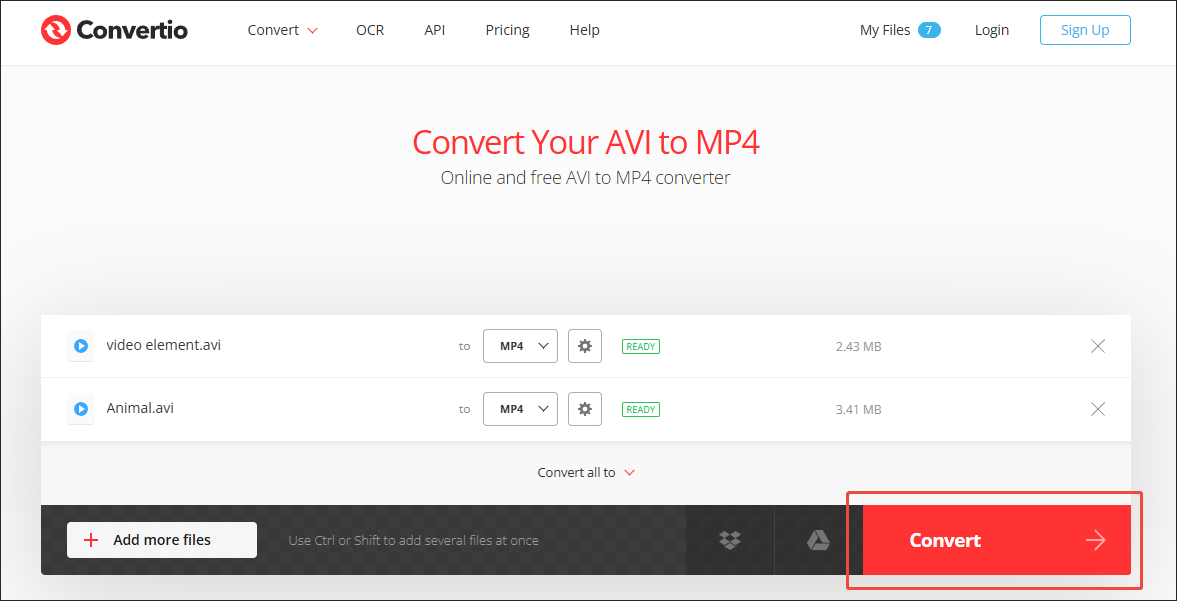
Step 5. Download and check the output files.
When the file conversion process completes, click on the Download button to download and check the converted files.
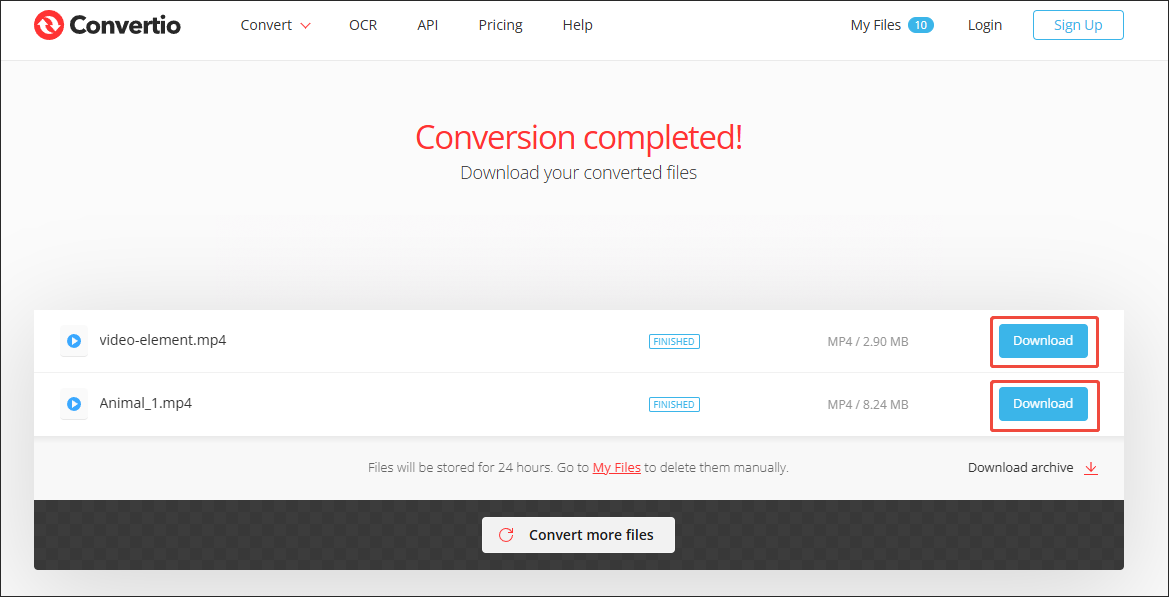
With the above-detailed steps, it will never be difficult for you to convert AVI to MP4. Although Convertio is an easy-to-use tool with a clean interface, it sets a 100MB file size limit for free users.
Option 4. FreeConvert (Online)
The 100MB file size limit of Convertio may be a limitation for those who want to convert multiple large AVI videos online. To fix that issue, you can also try FreeConvert. It has a 1 GB file size limit. Meanwhile, FreeConvert features an intuitive interface, which enables every entry-level user to accomplish their conversion tasks without hassle.
Additionally, FreeConvert is a one-stop solution for converting or compressing different files, including videos, audio, images, GIFs, and documents. Simultaneously, it allows you to import the AVI videos from more sources, including Google Drive, OneDrive, Dropbox, your device, and URL. Below is a step-by-step tutorial on how to get MP4 from AVI using FreeConvert.
Step 1. Go to the AVI to MP4 Converter interface of FreeConvert.
Visit https://www.freeconvert.com/avi-to-mp4.
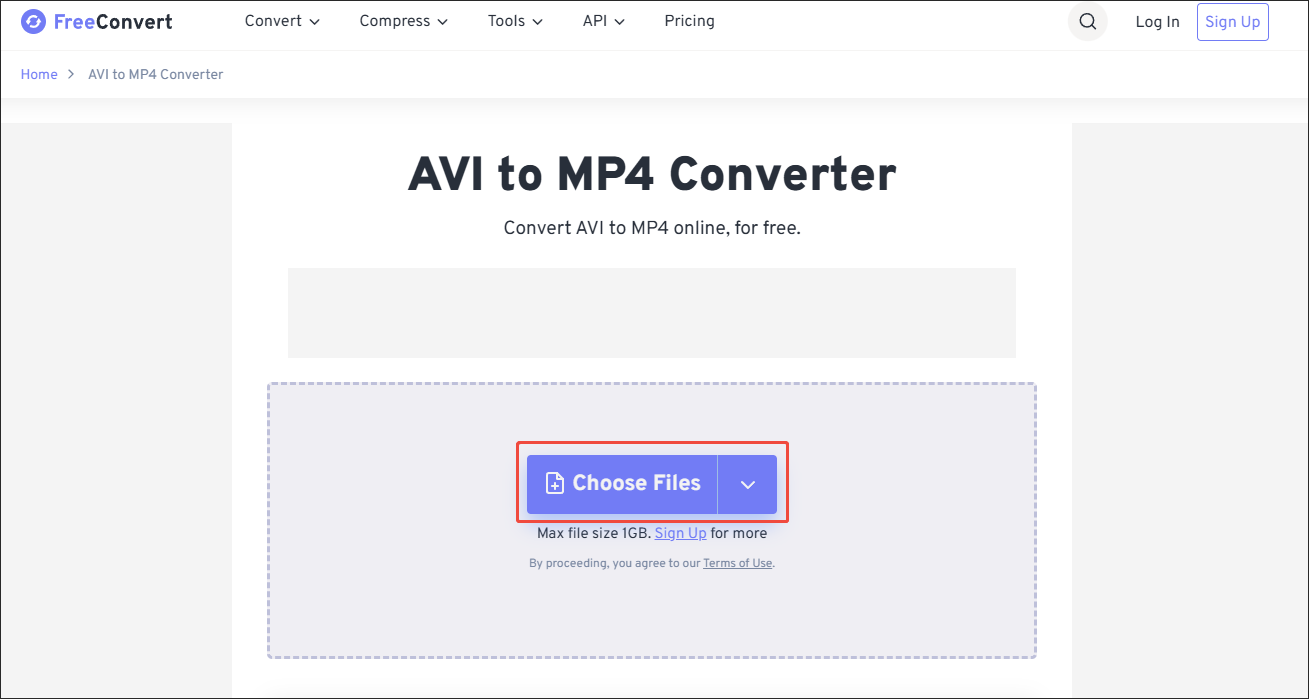
Step 2. Upload the AVI videos.
Import the AVI videos by clicking on the Choose Files option.
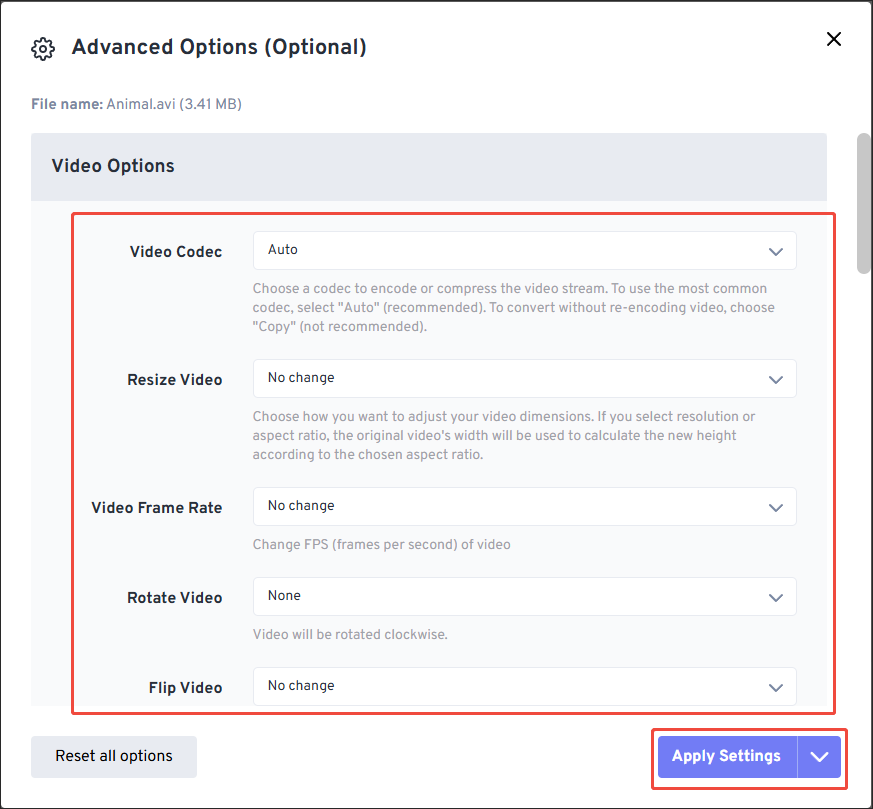
Step 3. Specify the conversion settings.
Click on the Settings icon to access the Advanced Options window. There, you can adjust the video codec, frame rate, and file size. Also, you are free to flip or rotate the output files. To confirm the customization, click on the bottom-right Apply Settings button.
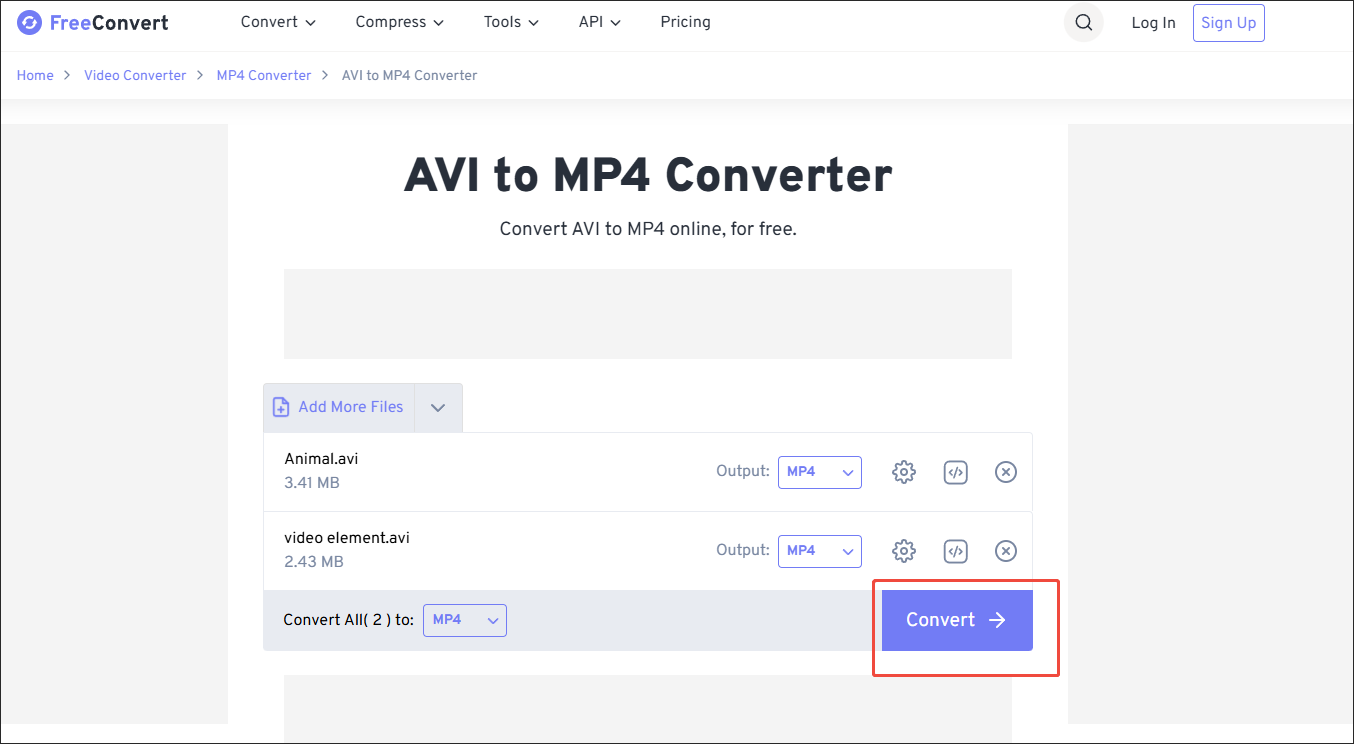
Step 4. Begin conversion.
Start the conversion process by clicking on the Convert button.
Step 5. Check the converted files.
When the file conversion process ends, click on the Download All button to download and check the output videos.
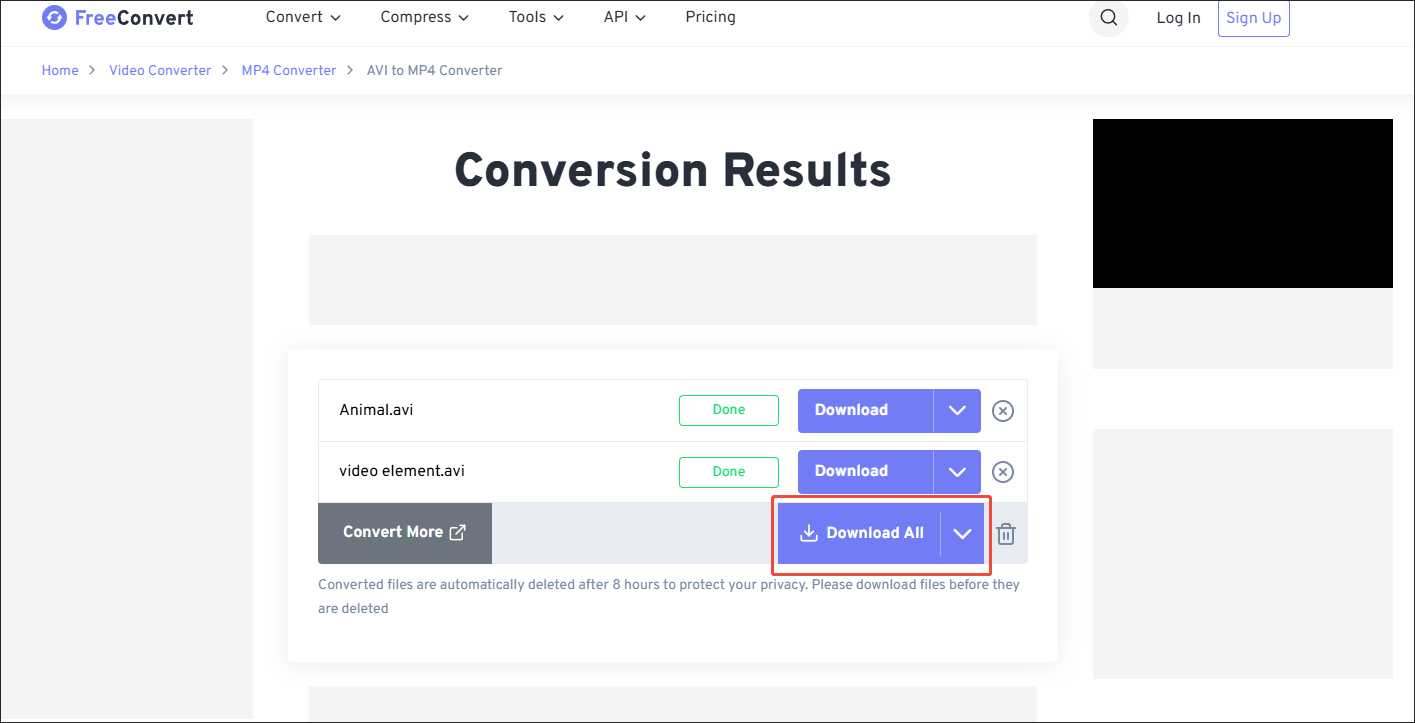
FreeConvert is a remarkable online AVI to MP4 converter. If you want a file size limit higher than 1 GB, remember to sign up. Does HTML5 video AVI support Chrome? If not, try the method below.
Method 2. Use a JavaScript Player
Here, 5 outstanding JavaScript players are recommended to help get Chrome HTML5 video AVI support.
What Is a JavaScript Player
Applying the JavaScript programming language, a JavaScript player can be defined as a media player that enables you to customize, control, or deliver audio/video playback within web browsers.
JavaScript players support fallback mechanisms. Simply put, they can detect whether the web browsers can play the video or not. If the web browser you are using doesn’t support AVI, these players can fall back to different playback technologies or alternative sources.
This way, you are more likely to get HTML5 video AVI browser support. There are many JavaScript players that you can try.
Player 1. Video.js
Video.js is a free JavaScript player with an open-source nature. It is equipped with a multitude of customizable options and plugins. Furthermore, Video.js supports different modern streaming formats, including DASH (Dynamic Adaptive Streaming over HTTP) and HLS (HTTP Live Streaming).
Player 2. Shaka Player
Shaka Player is also an open-source JavaScript player. Created by Google, it offers you streaming capabilities with robust adaptability. For example. Shaka Player supports HLS and DASH. Besides, it does well in coping with errors and supporting cross-browser DRM (Digital Rights Management).
Player 3. JW Player
JW Player is a JavaScript player that requires payment. It is widely used for commercial cases due to its built-in analytics, advertising integration, and powerful support for multiple streaming formats. If you are not on a tight budget and desire more advanced commercial support, never miss JW Player.
Player 4. THEOplayer
Created by THEO Technologies, THEOplayer is a JavaScript player with great compatibility with Web, Android, iOS, and Smart TVs. It has versatile SDKs (Software Development Kits), which ensure seamless and high-quality video playback with no plugins. In addition to supporting HLS, DASH, DRM, and ads, THEOplayer has much to offer in sustaining low-latency streaming.
Player 5. Plyr
Plyr is the final JavaScript Player that you can try. It features a clean user interface. In addition, Plyr supports easy customization with CSS (Cascading Style Sheets). As such, if you emphasize simplicity, this player can be a great choice.
![[2 Ways] How to Convert SWF to HTML5 on PC and Online?](https://images.minitool.com/videoconvert.minitool.com/images/uploads/2022/11/convert-swf-to-html5-thumbnail.png)
To Wrap Things Up
AVI files can’t be used as an HTML5 video. To get HTML5 video AVI browser support, you can convert AVI to MP4 with MiniTool Video Converter (Offline, without a file size limit), MiniTool MovieMaker (Offline, with rich editing functions), Convertio (Online, 100MB file size limit), or FreeConvert (Online, 1 GB file size limit). Alternatively, you can use a reliable JavaScript player.
If you have encountered any problems when using MiniTool Video Converter or MiniTool MovieMaker, please ask for help by sending an email to support@minitool.com. You can also directly share your problems with me on Twitter. I will help you as quickly as possible.
User Comments :