

This post explains how to open OGG files on iPhone using two simple methods. Use an audio converter to convert OGG to an iPhone-supported format like MP3, or use a dedicated OGG player on your iPhone.
Can iPhone Play OGG
Can iPhone play OGG files? The answer is no. As an audio file format, OGG, which utilizes less bandwidth, empowers users to save more storage space and has won great popularity. However, iPhone, which is barely compatible with audio formats like MP3, AAC, WAV, AIFF, and Apple Lossless, doesn’t support playing OGG files. Don’t worry. Please read on for two effortless solutions to this problem.
How to Open OGG Files on iPhone
- Convert OGG to an iPhone-supported format
- Install OGG players on iPhone
Method1: Transform OGG into an iPhone-Supported Format
How to open OGG files on iPhone? One of the best ways is to convert your OGG files to a more compatible format like MP3. This way, you can even play OGG files on iPad effortlessly.
For this task, an audio converter like MiniTool Video Converter is a good choice. The software handles various media file formats and converts OGG to MP3, WAV, FLAC, and other common audi formats. Plus, the application has an intuitive interface, bringing more convenience to a novice.
 MiniTool Video Converter
-
 Batch convert video/audio files among 1000+ formats.
 - Quickly compress videos for easy storage and transfer.
- Accurately extract subtitles from video/audio files.
- Effectively enhance video quality.

How to convert OGG to MP3 with the application? Here are the steps.
- Install MiniTool Video Converter.
- Import your OGG file.
- Set the output format to MP3.
- Select the output folder.
- Start the conversion.
1. Download and install
Download and install the OGG to MP3 converter on your computer.
2. Import the OGG file
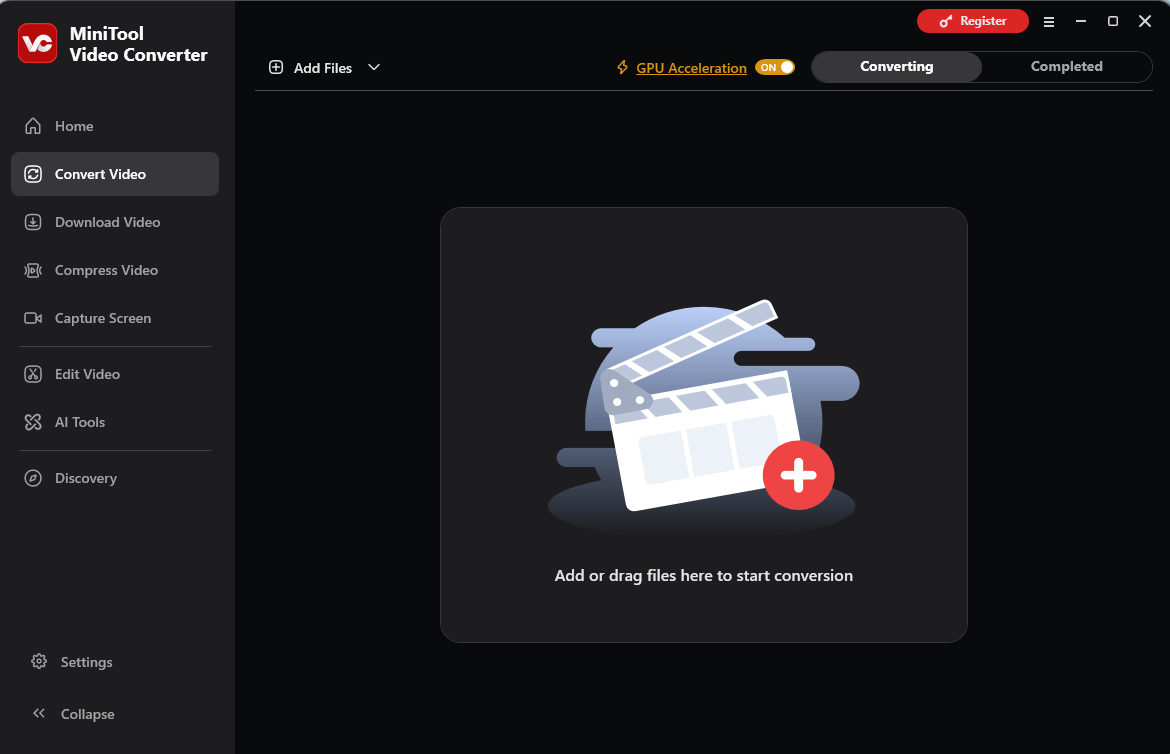
After launching the software, switch to the Convert Video tab, click Add Files at the top to add the target OGG file, or drag and drop it into the software.
3. Set the output format to MP3
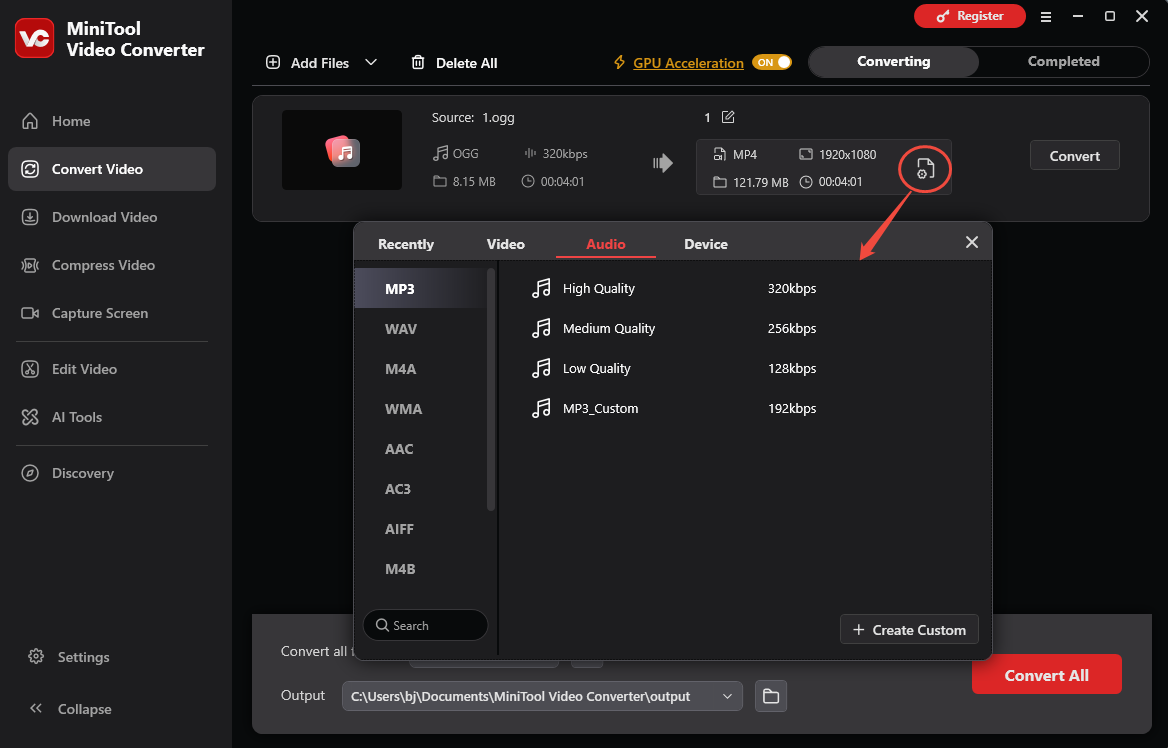
Click the Settings icon on the right side. From the next pop-up window, go to the Audio tab, select MP3 on the left sidebar, and click the desired preset to set it as the output format.
4. Choose the save path
Click the Output bar at the bottom and select a folder to save the converted file.
5. Convert OGG to MP3
Click the Convert or Convert All button to begin the conversion from OGG to MP3. After that, switch to the Converted section and click the Show in folder button to check your converted files.
MiniTool Video Converter is more than an OGG converter. It can also extract audio from videos, convert between common video formats, change the video encoder, resolution, bitrate, and frame rate, compress videos, cut and merge videos, improve video quality with AI, etc.
Method 2: Download and Install OGG Players on Your iPhone
How to open OGG files on iPhone without conversion? Another way is to download and install OGG players on your iPhone. This section will help you know better about how to listen to OGG files on iPhone.
Fast track steps:
- Download VLC or OPlayer Lite from the App Store to your iPhone.
- Find the target OGG file on your phone.
- Open the file with VLC or OPlayer Lite.
iPhone OGG Player 1. VLC Media Player
As a remarkable OGG player for iPhone users, VLC Media Player can satisfy your needs for playing OGG files on iPhone very well. Below is a step-by-step guide on how to play OGG files on iPhone with VLC Media Player.
1. Install VLC
After unlocking your iPhone, go to the App Store and search for VLC. Then tap VLC Media Player. Next, tap the Get button next to the app icon to download and install VLC Media Player on your iPhone.
2. Locate the OGG file
Go to the Files app and tap the Browse button. In the pop-up interface of the Locations page, navigate to the location where your OGG files are kept.
3. Open the OGG file
Tap the Select button at the upper right of the page and choose the OGG files that you want to play. Then, tap the Share button at the bottom left and choose Open in VLC. In the VLC files menu, click the OGG files to play them.
How to play OGG files on iPhone? VLC Media Player is a tremendous choice for you.
iPhone OGG Player 2. OPlayer Lite
Without conversion or VLC Media Player, how to open OGG files on iPhone? OPlayer Lite is another dandy choice for you. Below is detailed guidance on how to listen to OGG files on iPhone with OPlayer Lite.
1. Install OPlayer Lite
Download and install OPlayer Lite from the App Store.
2. Find the OGG file
Open the Files app, click the Browse button, and choose the saving path where your OGG files are located. At the upper right of this interface, tap the Select option and choose the OGG files that you want to play.
3. Play the OGG file
At the bottom of your screen, tap the document icon and tap On My iPhone. In the pop-up option, select the OPlayer Lite folder and click the Copy button in the upper right corner of your screen. Launch your OPlayer Lite app and tap the My Documents option. Then, tap the OGG file to play it on OPlayer Lite.
How to open OGG files on iPhone effortlessly? The methods mentioned above can do you a big favor!
Final Verdict
How to open OGG files on iPhone without hassle? This article has elaborated on the approaches to solving this problem. Choose a method according to your needs. In addition, if you have any trouble while using MiniTool Video Converter, email support@minitool.com for help.
People Also Ask
About The Author

Position: Columnist
Cora is a tech writer specializing in digital media workflows, with over six years of hands-on experience in video post-production, media transcoding, and screen capture. Her writing is always clear and practical. Cora also produces in-depth software reviews for users across skill levels to help them find the right tool and enjoy video editing.
User Comments :