

This post explains two simple ways to merge videos on Windows using MiniTool Video Converter (a one-stop solution for video conversion/compression/enhancement) and Photo Legacy. The process is straightforward: upload two or more clips, delete redundant footage, apply transitions, and export them as a single video file.
I often need to combine multiple video clips into one smooth movie after returning from a trip to share with friends or manage them conveniently. I’ve tried several applications for this, such as CapCut and DaVinci Resolve.
However, these powerful editing tools are a bit overkill for me, and my computer isn't very powerful either. I just want to merge a few clips and remove unnecessary clips. Later, I found two simple and effective applications: MiniTool Video Converter and Photos Legacy to merge videos. Here's a quick comparison table.
| Video Merger | MiniTool Video Converter | Photos Legacy |
| Watermark | No | No |
| Output resolution | 1080P | 1080P |
| Output format | MP4 | MP4 |
| Transitions | Several presets | No |
| Frame-accurate cutting | Supported | No |
| Unlimited clip count | Yes | Yes |
How to Merge Videos
Fast Track Steps:
- Open a video merger and import multiple videos.
- Arrange the clips in order.
- Cut off edges or delete the unwanted part in the middle.
- Apply transitions between clips if necessary.
- Combine and export these clips as a single video file.
Method 1: Use MiniTool Video Converter
MiniTool Video Converter is my favorite application for converting video/audio files, compressing large video files, and generating subtitles for videos. Each tool works great on its own, but once I've processed multiple clips, I still have to find another app to stitch them together.
With the new video merger tool, I can now combine multiple video clips into a single file right inside the same software. Thanks to its wide format support, I can import videos in different formats and combine them into one MP4 video, without worrying about compatibility issues.
 MiniTool Video Converter
-
 Batch convert video/audio files among 1000+ formats.
 - Quickly compress videos for easy storage and transfer.
- Accurately extract subtitles from video/audio files.
- Effectively enhance video quality.

How to merge videos together using MiniTool Video Converter? Follow me.
1. Organize Video Files
First, place the video files I want to merge into the same folder. That way, I can locate and import them all at once.
2. Import Videos to the Video Merger
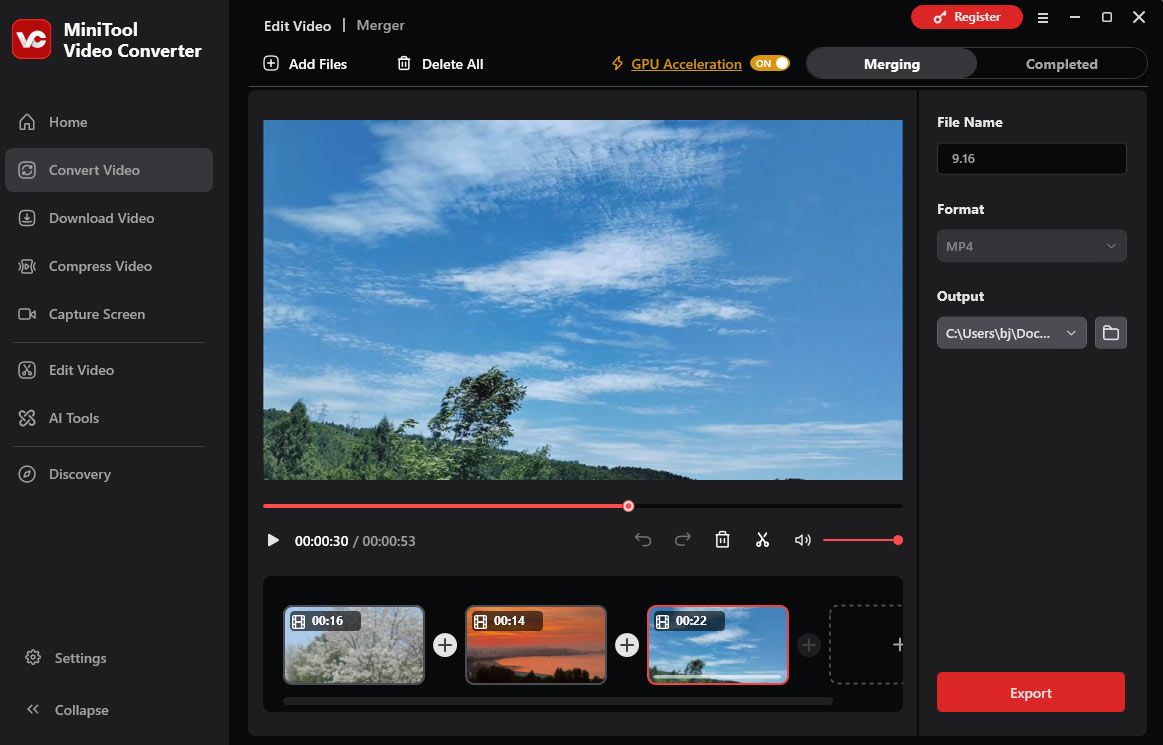
Launch the software, select Merge Video on the home page, or select Edit Video in the left sidebar and click Merge Video to open the merger tool. Then, click Add files at the top to add videos. Next, drag and drop to change the clip’s order.
3. Cut Videos
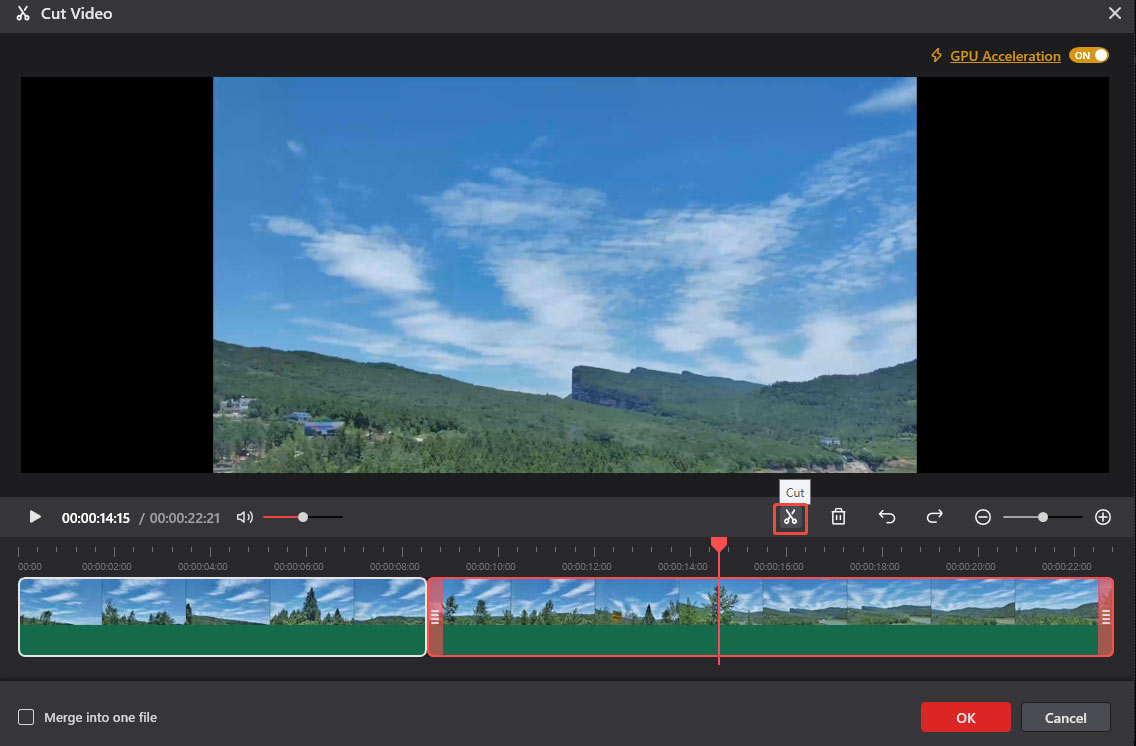
To remove unwanted footage from a video, select it and click the Cut icon (scissors).
- To trim edges, hover over the start or end of the clip and drag the trim handle (a double-sided arrow) inward.
- To delete a middle section, move the playhead to the start of the unwanted clip, click the Cut icon, then drag it to the end of that clip, and click the Cut icon again to separate it from the entire video. Select that clip and click the Delete icon.
- Next, click OK to return to the Merger window.
4. Apply Transitions
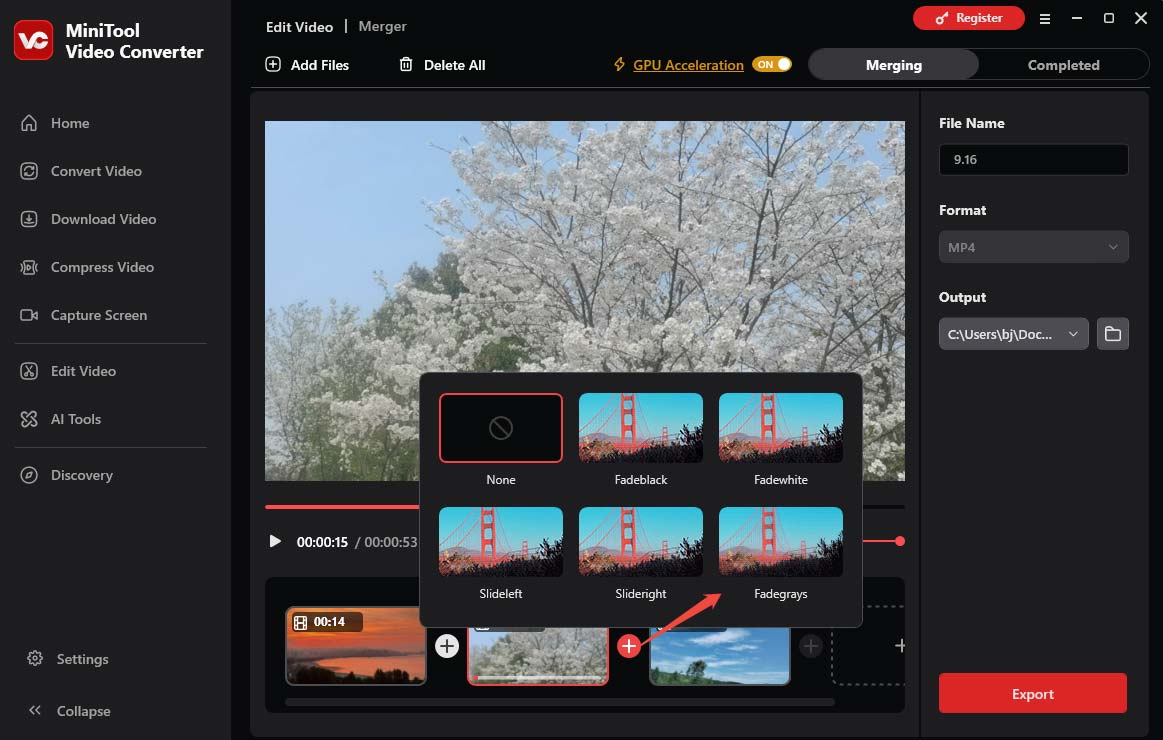
Click the + icon between any two videos, and a pop-up window will appear. Hover over the thumbnail to preview the effect, and click a transition to apply it. This way, the first video can creatively move to the next. Select None to delete the added transition.
6. Merge and Export
From the right sidebar, click the Output menu to change the save path, and click Export at the bottom to start merging and exporting the video.
Method 2: Use Photos Legacy
Photos Legacy includes a free Video Editor tool for simple tasks, such as trimming, splitting, and combining videos, changing speed, adding title cards, and applying filters. How to merge multiple videos into one using the native tool in Windows? Follow my steps.
1. Start a New Project
Open Photos Legacy, select Video Editor at the top, and click New video project to access the main interface.
2. Add Videos
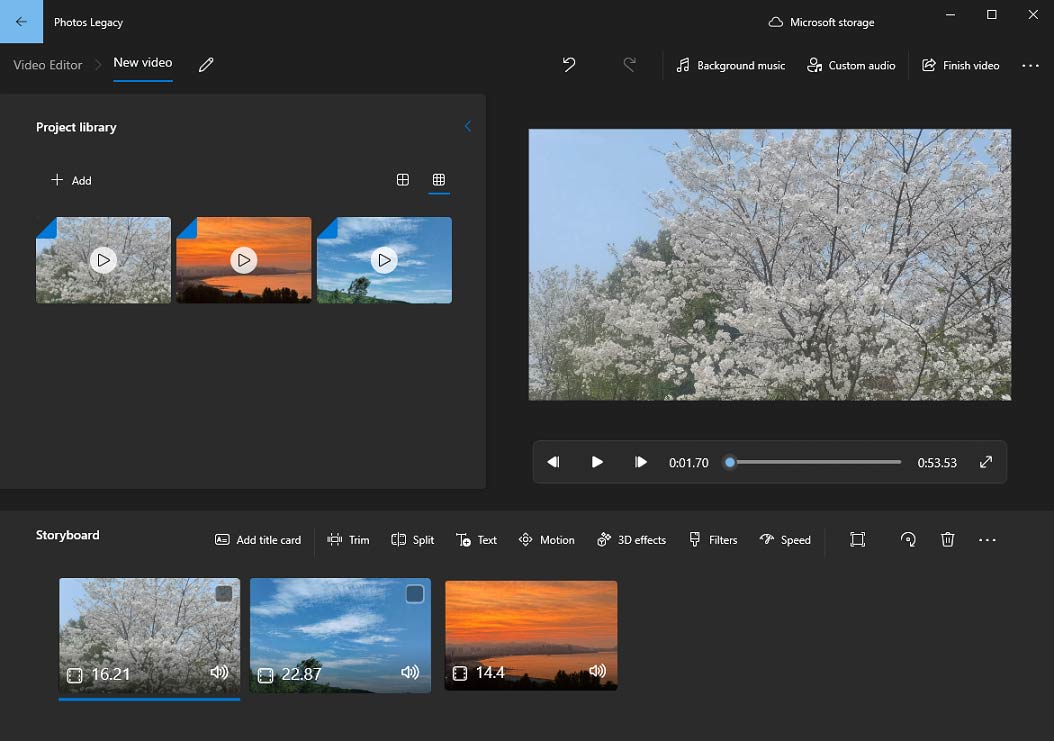
Click the + Add option in the project library and choose a way: From the PC, From my Collection, or From the web, to import the target video files. Next, drag and drop them onto the storyboard in order.
3. Delete Unwanted Parts
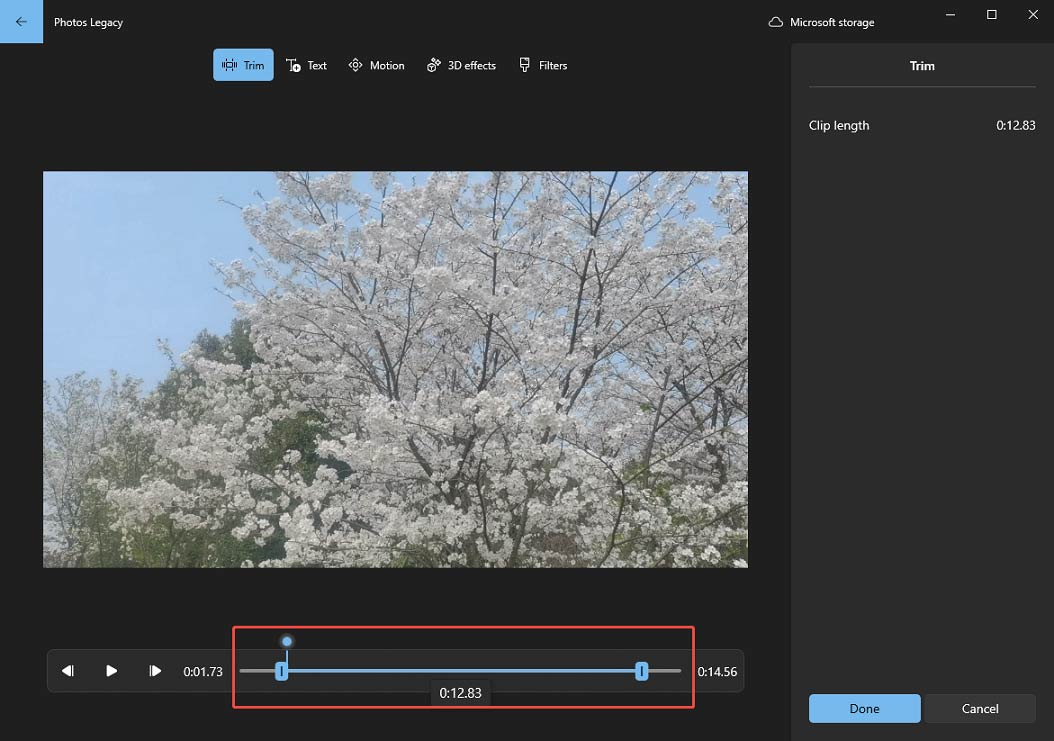
Select a clip on the storyboard and click Trim. In the next window, drag the handles at the bottom to choose the desired portion of the video, and click Done to trim the edges.
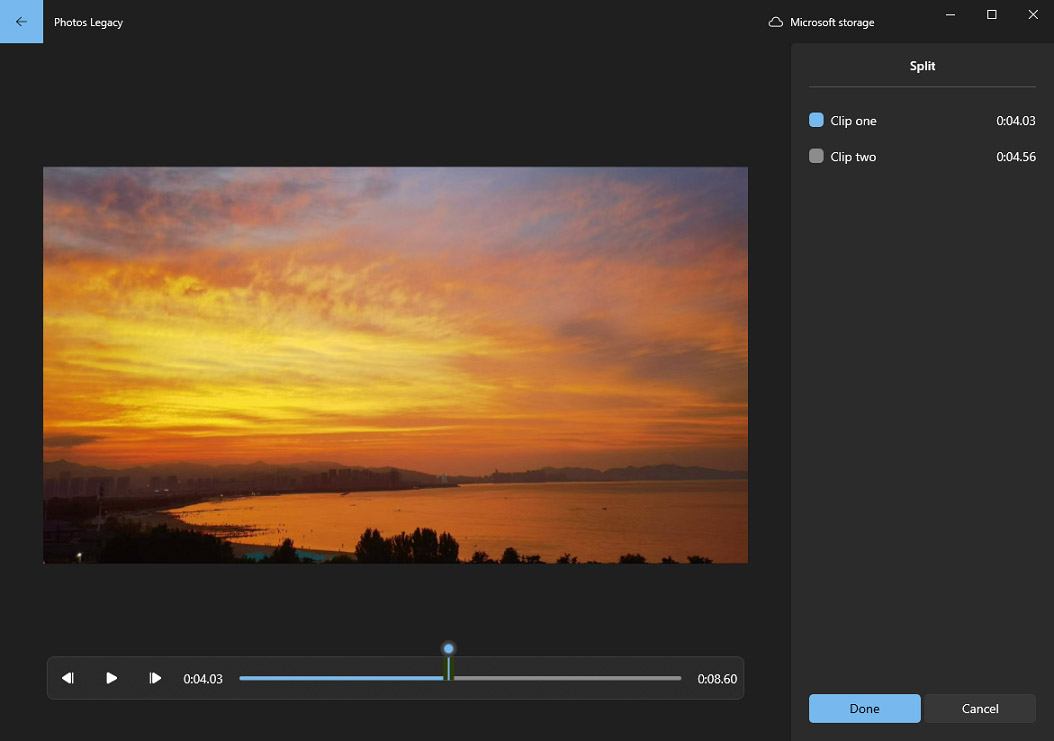
To delete a middle section of a clip, select it and click Split. Drag the slider to the beginning of the unwanted part and click Done — the clip splits into two. Select the second clip, click Split again, move the slider to the end of the unwanted part, and click Done. Then select the middle section and click the Delete icon.
4. Merge and Save
Click Finish video in the top-right corner. On the pop-up, choose the video quality: 1080p, 270p, or 540p. Then, click Export, choose a folder, and select Export again to save the merged video.
Conclusion
With the rapid development of video editing software, merging videos on Windows has never been easier, whether you're a beginner or an experienced user. Of course, you don't always need a full-featured editor. If you need a simple way to combine multiple videos without extra features, MiniTool Video Converter and Photos Legacy are reliable choices.
Finally, if you have problems using MiniTool Video Converter, email support@minitool.com for assistance.
People Also Ask
2. Go to the Uploads tab on the left sidebar and click Upload files to add videos.
3. Drag and drop the clips to the timeline and arrange them in order.
4. Trim the clip to remove unwanted sections and apply transitions.
5. Click Share in the top-right corner and select Download to save the merged clips as an MP4 file.
2. Import your video and audio files.
3. Add the video to the timeline and make some changes.
4. Drag the audio to the timeline, adjust the volume, or apply fade-in/out effects.
5. Export the video with audio.
About The Author

Position: Columnist
Cora is a tech writer specializing in digital media workflows, with over six years of hands-on experience in video post-production, media transcoding, and screen capture. Her writing is always clear and practical. Cora also produces in-depth software reviews for users across skill levels to help them find the right tool and enjoy video editing.
User Comments :