

This guide introduces how to convert FLV to M4A with MiniTool Video Converter and HD Video Converter Factory Pro. It also lists the advantages of this conversion.
FLV is an older container format, the full name of which is Flash Video. This format was formerly used for streaming video playback within Adobe Flash Player. The FLV format previously enjoyed a relatively high level of popularity. However, due to security vulnerabilities, Adobe discontinued support for Flash Player in 2020. Today, its usage has declined sharply.
M4A is an audio file extension. It refers to audio files encoded using Advanced Audio Coding (AAC) or Apple Lossless Audio Codec (ALAC). This format is widely prevalent within the Apple ecosystem and serves as the default format for digital music, podcasts, and audiobooks.
Obviously, M4A offers greater compatibility and popularity than FLV. Therefore, I recommend that you convert FLV to M4A.
How to Convert FLV to M4A
In my experience, a good conversion tool can quickly resolve conversion issues. Below are two tools that I have personally tested.
1. Use MiniTool Video Converter
MiniTool Video Converter has always been my go-to tool for converting audio and video files. Unlike many free converters on the market, it has no file size limits or restrictions on the number of conversions. Plus, since I have a lot of conversion needs, MiniTool Video Converter’s batch convert feature supports handling up to five files at once, which has greatly improved my workflow efficiency.
In addition to basic format conversion, MiniTool Video Converter also allows me to adjust the parameters of audio and video files. I can precisely adjust the frame rate, resolution, bitrate, and audio sample rate to meet my specific needs. It perfectly combines powerful performance, flexible operation, and a truly free user experience.
How do I convert FLV to M4A using MiniTool Video Converter? I will outline the steps based on my own experience.
Step 1: Install MiniTool Video Converter
Get the latest version of MiniTool Video Converter with one click. Then, run this FLV to M4A converter.
 MiniTool Video Converter
-
 Batch convert video/audio files among 1000+ formats.
 - Quickly compress videos for easy storage and transfer.
- Accurately extract subtitles from video/audio files.
- Effectively enhance video quality.

Step 2: Import FLV File
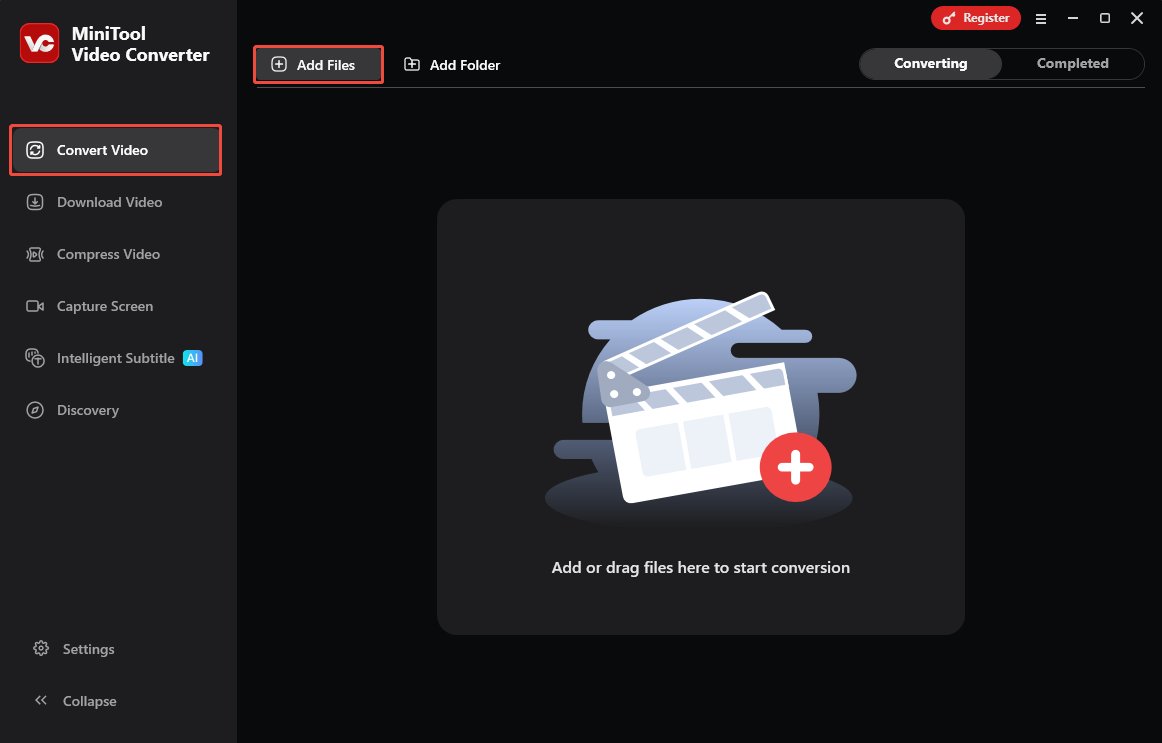
When I launch this free converter, I land on the Convert Video page. I typically click Add Files to upload my files. You can also drag and drop files directly into the workspace if you prefer.
Step 3: Choose Output Format
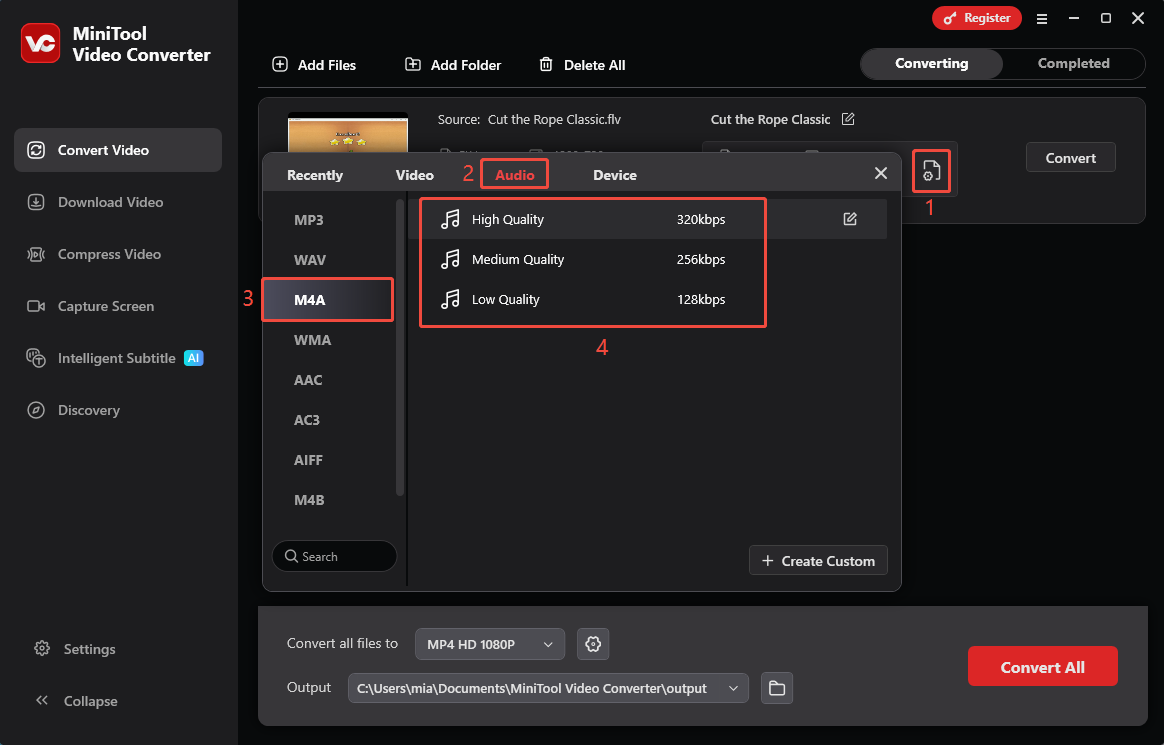
Open the output format window by clicking the gear icon. I navigate to Audio, select M4A in the left column, then choose the quality on the right. You can configure it the same way.
Step 4: Set Output Location and Start Conversion
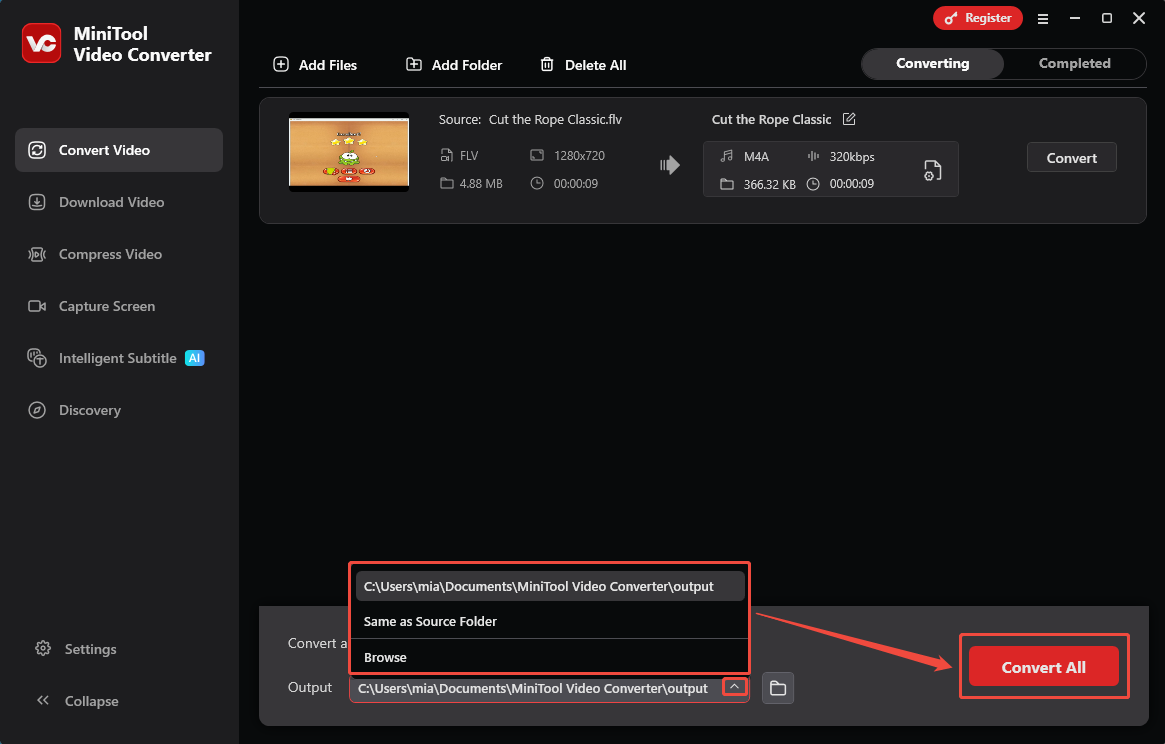
I expand the Output option at the bottom of the workspace and select my destination folder for converted files. Then I click Convert All to begin.
Step 5: Locate the Converted File
Once my conversion finishes, I will land on the Completed tab. Then, I will click the play icon to check my output audio, and then click the folder icon to find exactly where it landed.
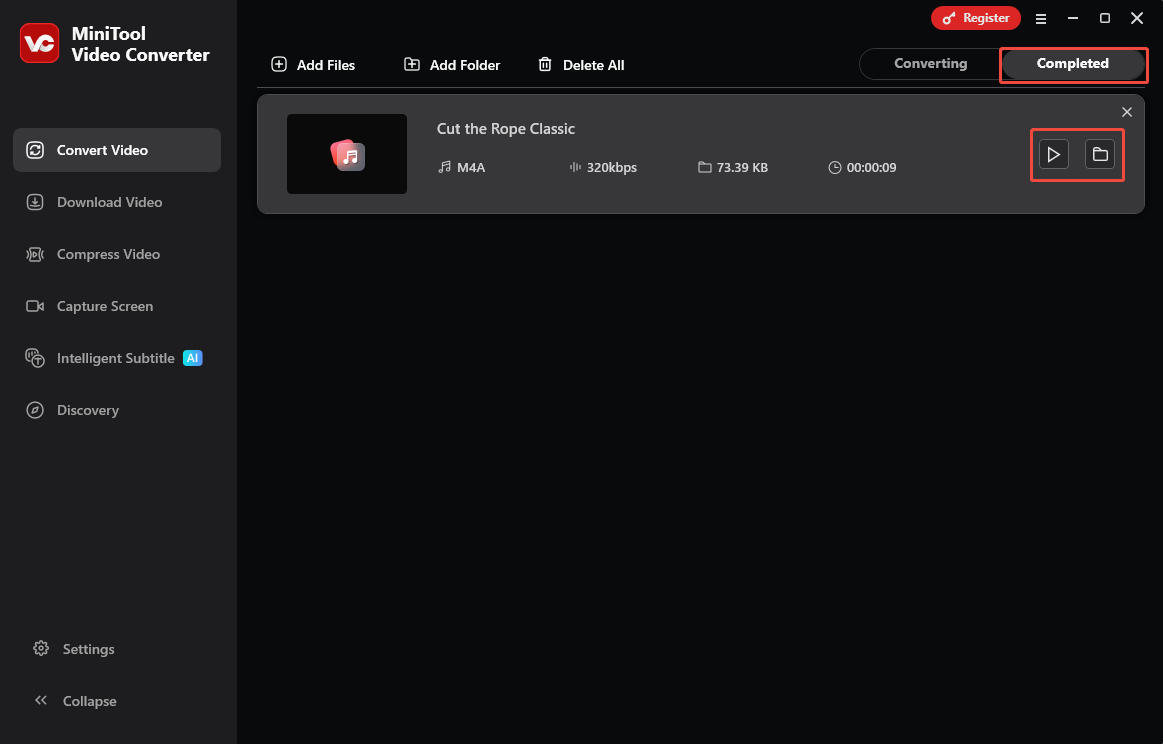
Converting files with MiniTool Video Converter is just that simple! I also discovered that it supports features like video compression and subtitle generation, which is a huge plus for me.
2. Use HD Video Converter Factory Pro
HD Video Converter Factory Pro is a comprehensive file converter. It supports seamless conversion between a wide range of formats, including popular options such as FLV and M4A. Although the software offers a free trial, it is not entirely free of charge. Unsubscribed users face strict limitations, being permitted to convert video or audio content totaling no more than 5 minutes in duration.
How to convert FLV to M4A with HD Video Converter Factory Pro? Follow the steps below:
Step 1: Add the FLV Video
Open HD Video Converter Factory Pro and click on the Converter module. Next, click the + button to import the FLV file into the workspace.
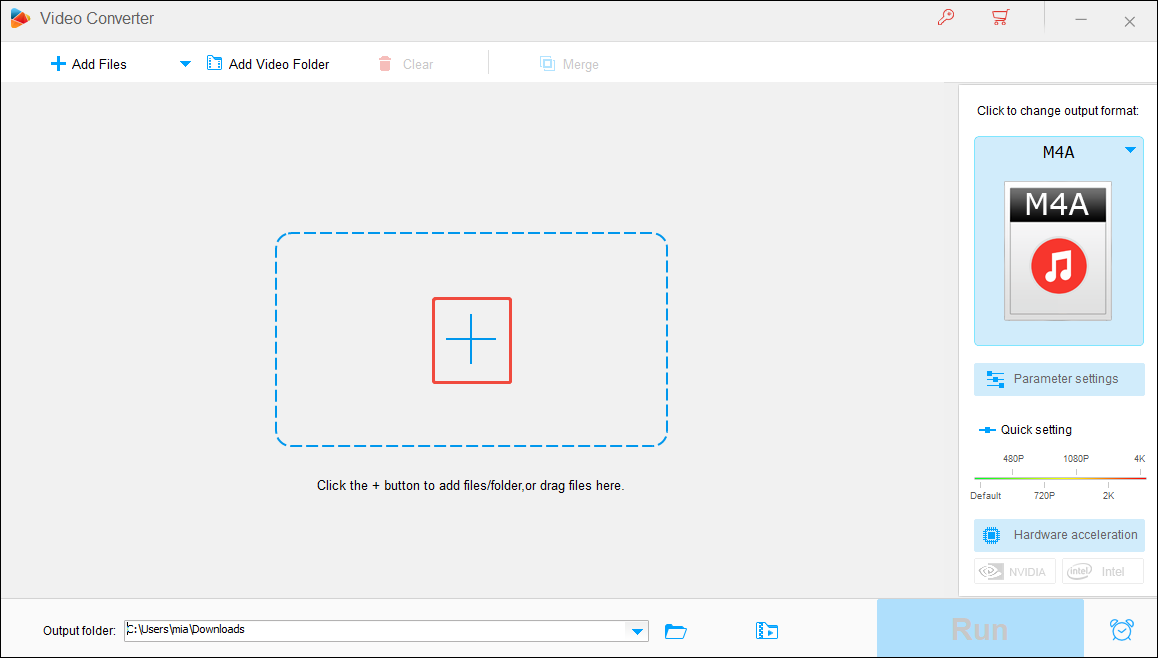
Step 2: Choose the Output Format
On the right panel, click Select an output format. When the format window expands, navigate to Audio and select M4A as the output format.
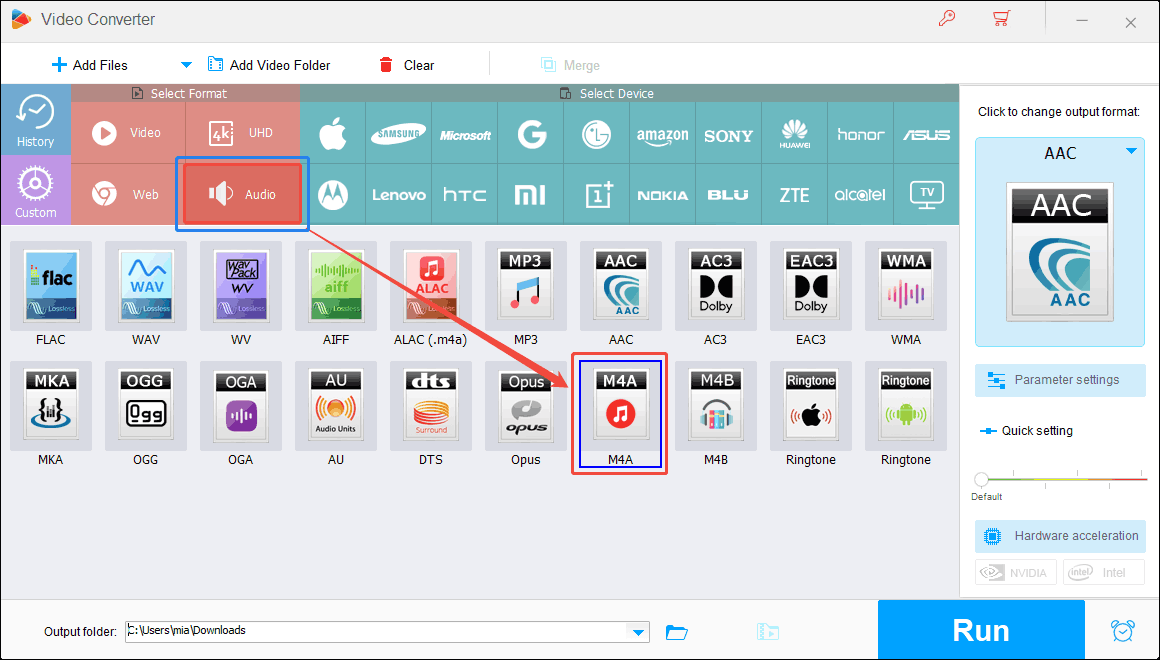
Step 3: Set the Output Folder and Start Conversion
Next, I click the small triangle icon in the Output folder option to open the Browse For Folder window. Then, I choose a folder as my save location, click OK, and click RUN to start converting.
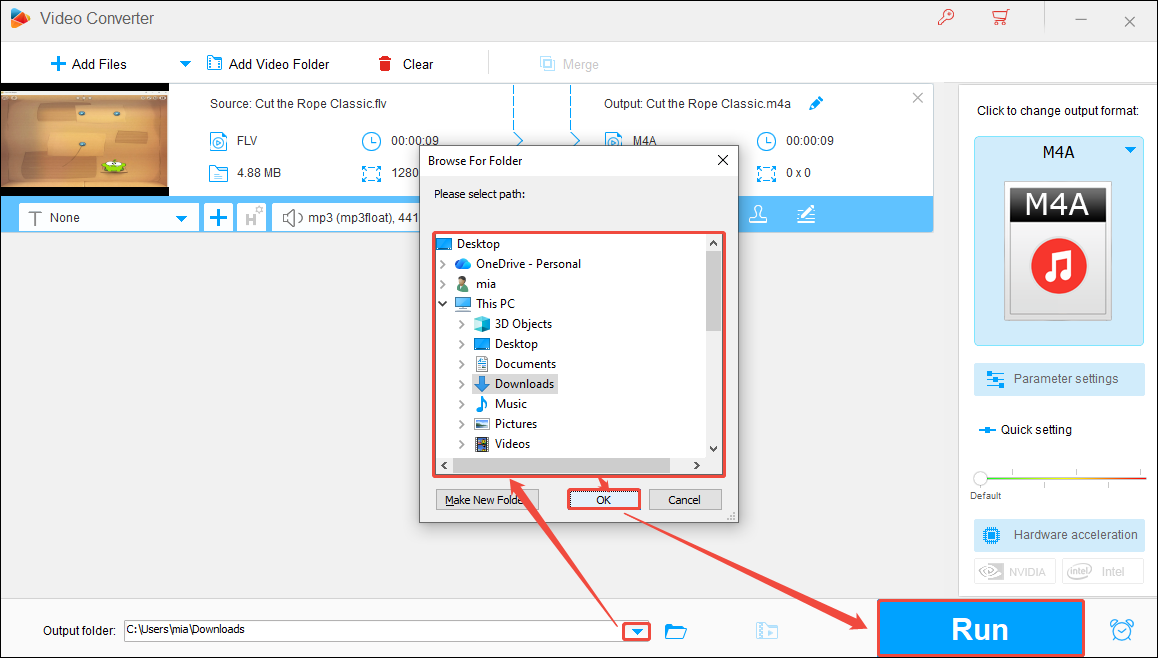
There’s no denying that HD Video Converter Factory Pro supports a wide range of formats and converts files quickly. However, any file longer than five minutes requires a paid subscription to process.
Advantages of Converting FLV to M4A
In addition to M4A's broader compatibility, several practical advantages prompted my decision to convert FLV files:
- Better Audio Quality: M4A outperforms FLV in audio quality, leveraging modern AAC or lossless ALAC codecs rather than the older, lower-bitrate codecs typically found in FLV containers.
- Smaller File Sizes: M4A boasts exceptional compression efficiency. It allows you to extract the audio track from FLV videos and store it as a significantly smaller file, thereby effectively saving storage space.
- Ideal for Audio Sharing: M4A is well-suited for storing music, making it an excellent choice for sharing music on streaming platforms.
Conclusion
Now you know how to convert FLV to M4A with MiniTool Video Converter and HD Video Converter Factory Pro. Which one do you prefer? If you want free and unlimited format conversion, the former is the better choice!
User Comments :