

What Is the WebM Format?
WebM is a free media format. It uses Mastroska as a container, VP8, VP9, or AV1 as video codecs, and Opus or Vorbis as audio codecs. Because it provides smooth webpage playback, WebM is the preferred format for playing streaming media in many modern browsers, such as Chrome, Firefox, and Edge.
What Is the M4A Format?
M4A, also known as MPEG-4 Audio, is an audio file format. It is usually encoded with AAC or ALAC. This allows it to maintain quality while reducing file size.
Additionally, M4A is ideal for the Apple ecosystem, including iPhones, iPads, and Macs. It is also the standard format for the iTunes Store. M4A files can include album art, artist names, and lyrics, so they are commonly used to store podcasts and audiobooks.
Reasons for Converting WebM to M4A
For many users who like to store music and podcasts, the M4A format is better because it can preserve album art, lyrics, and artist names. WebM, on the other hand, does not support preserving the metadata.
Furthermore, the M4A format is also well-suited for video editing. However, WebM's native audio format is Opus, which is generally unsuitable for audio editing. Therefore, converting WebM to M4A is necessary.
How to Convert WebM to M4A
There are many converters on the market. I've selected two that support converting WebM to M4A. Below are their features and conversion steps.
Option 1: MiniTool Video Converter
MiniTool Video Converter is a free audio and video converter I've been using. If you want to convert between WebM and M4A, I highly recommend it. This software supports a huge number of formats, including WebM, M4A, MOV, MKV, WMV, XviD, and more.
Furthermore, MiniTool Video Converter allows you to customize format parameters. For example, you can modify the video resolution, frame rate, sample rate, and audio channels to meet your specific needs. It also supports batch conversion of up to five files, saving you time.
In addition, the application is watermark-free, free of bundled software, and free of ads. Now, follow these steps to convert WebM to M4A using MiniTool Video Converter:
Step 1: Download and Install MiniTool Video Converter
Click the button below to get the installer of MiniTool Video Converter, then open the file to install it on your computer.
MiniTool Video ConverterClick to Download100%Clean & Safe
Step 2: Add Your WebM File
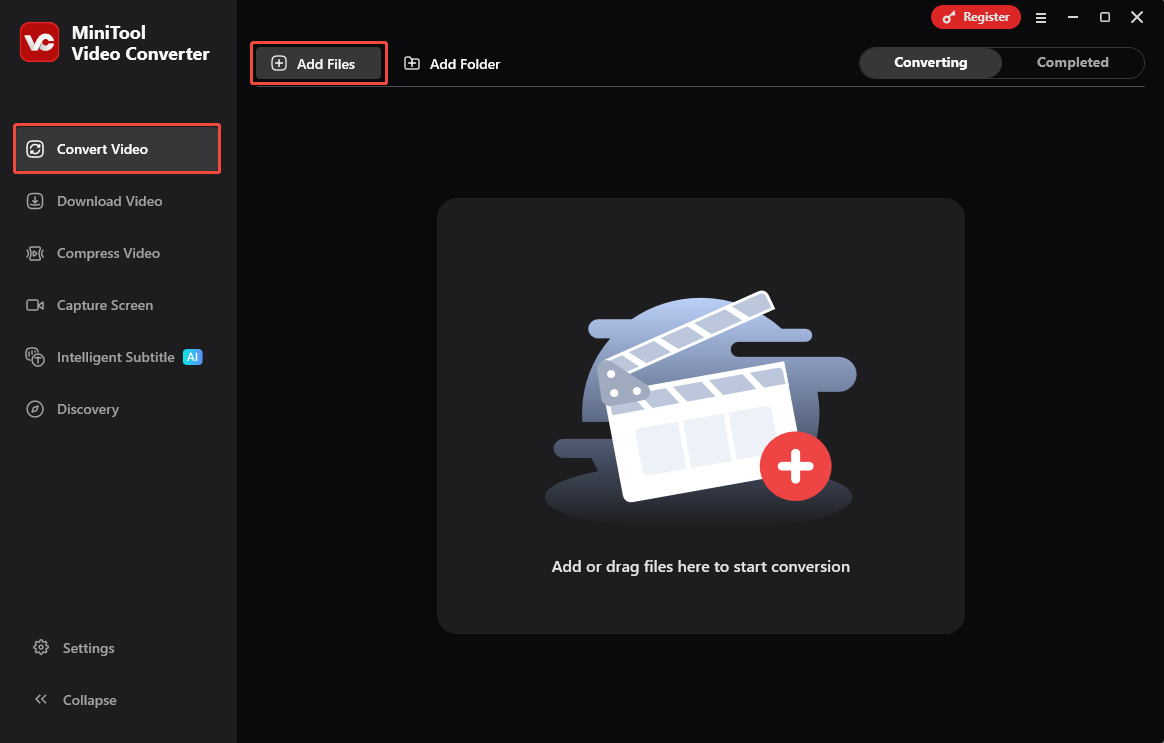
Launch this software, leave the Convert Video screen displayed, and click Add Files to upload your WebM file.
Step 3: Select the Output Format
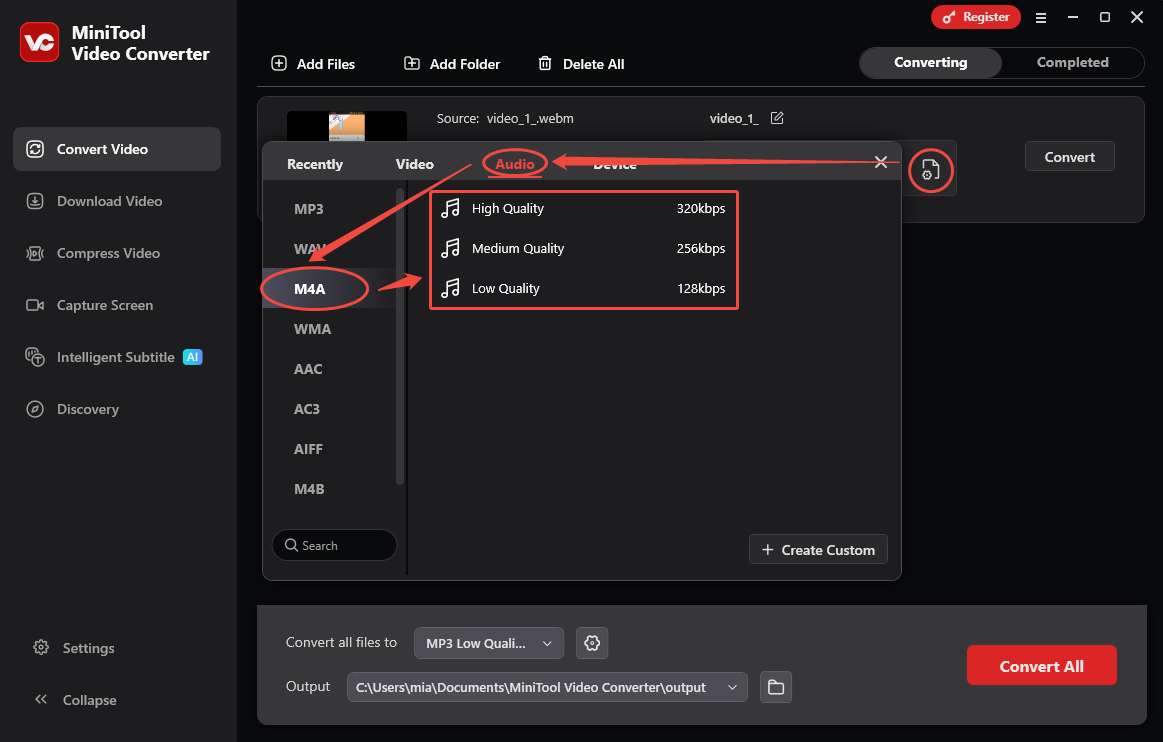
Click the settings icon for output, go to the Audio tab, select M4A on the left side, then choose your desired audio quality.
Step 4: Set the Save Location
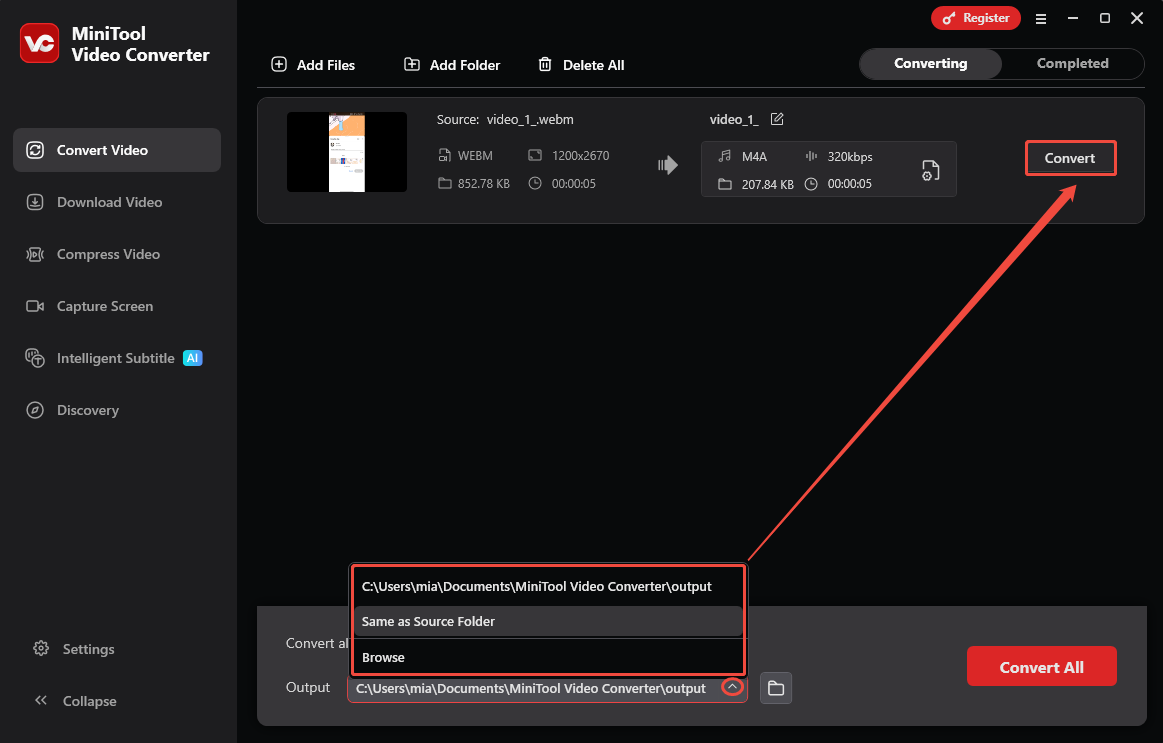
Expand the Output list, choose your preferred folder to save the converted file.
Step 5: Begin Conversion Process
Click the Convert button to start conversion.
Step 6: Navigate to the New Audio
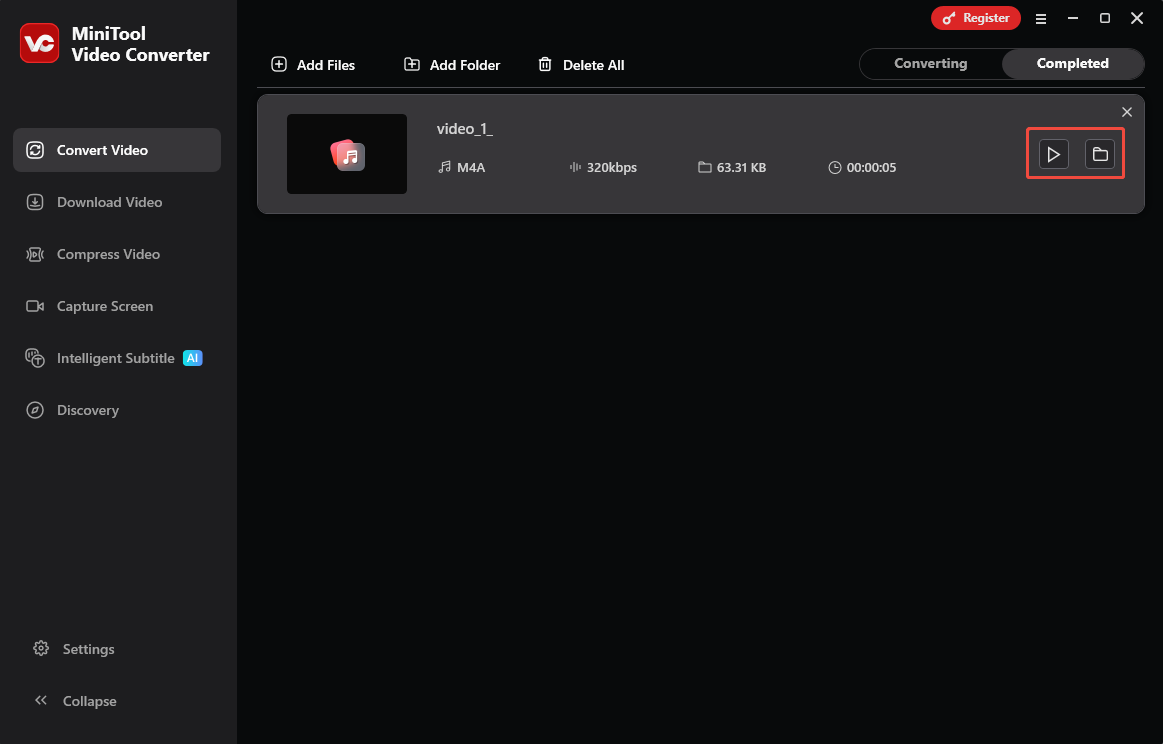
Once the conversion finishes, switch to the Completed tab and click the play icon to open the new audio, or click the folder icon to jump to its save location.
The above are the steps for converting using MiniTool Video Converter. If your internet connection is good, you can also choose to use some online video converters, such as FreeConvert.
Option 2: FreeConvert
FreeConvert is a web-based converter that supports many popular formats, such as WebM, M4A, MP4, MOV, MKV, and more. Furthermore, it can convert media files such as audio, documents, images, and e-books. However, it's worth noting that FreeConvert only allows uploading files smaller than 1 GB.
As an online conversion tool, FreeConvert can be used in a browser on any operating system without installing an application. How to complete the WebM to M4A conversion using FreeConvert? Here is a guide.
Step 1: Go to the FreeConvert Conversion Page
Navigate to https://www.freeconvert.com/webm-to-m4a.
Step 2: Import Your File
Click the Choose Files button to upload the WebM file you want to convert.
Step 3: Customize Advanced Options
Click the Advanced settings icon (gear icon) to open the Advanced Options window. Then, you can change the audio volume, set whether to fade in or fade out the audio. Once everything is set up, click Apply Settings.

Step 4: Start Conversion
Click the Convert button to start conversion.
Step 5: Download the New File
Click the Download button to download the converted file.
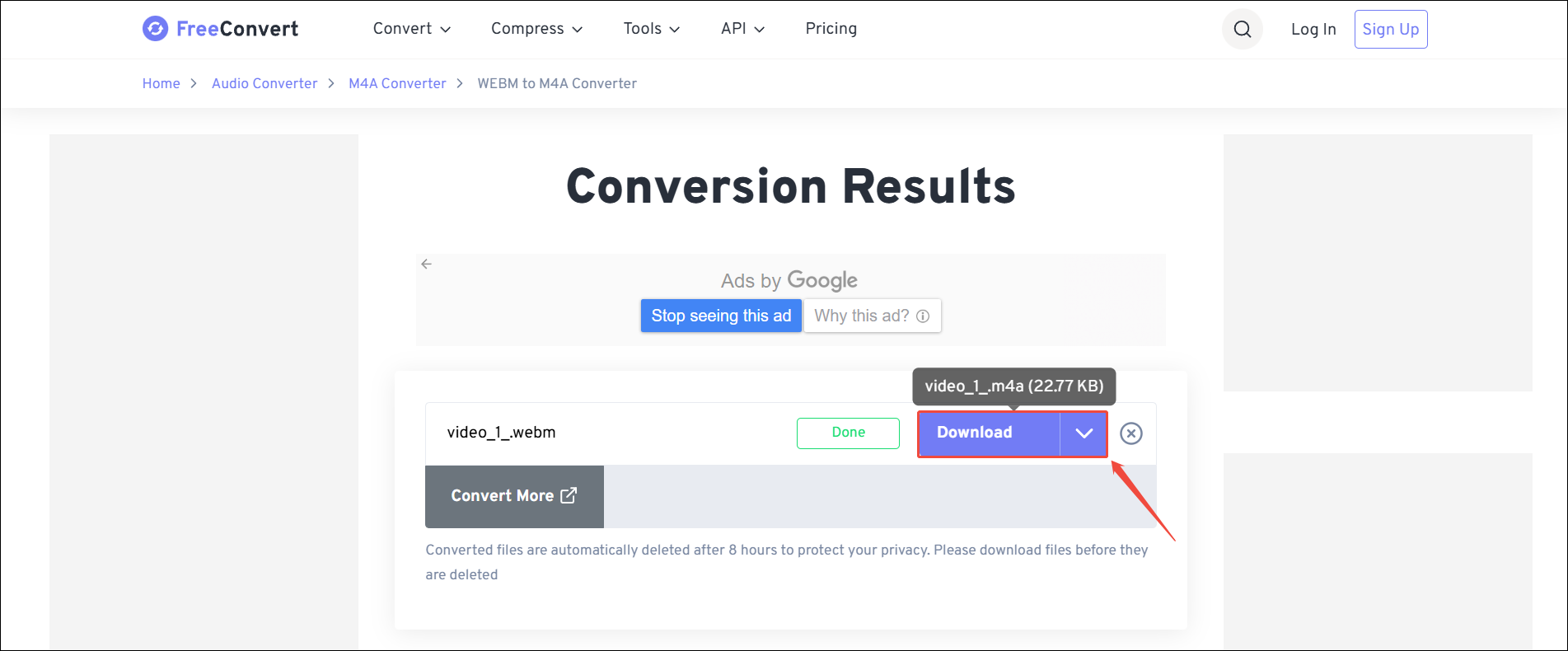
The converted files will automatically be deleted after 8 hours to protect your privacy.
Conclusion
Now, you know how to do WebM to M4A conversion with MiniTool Video Converter (Offline) and FreeConvert (Online). Overall, online conversion tools are more convenient. However, most of them have file size limitations, including FreeConvert. Therefore, I recommend using MiniTool Video Converter instead.
User Comments :