

What Are WebM and AAC Formats
WebM is a video format known for its efficient compression. It commonly uses video codecs such as VP9/AV1 and audio codecs such as Opus/Vorbis. WebM is frequently used for high-quality web video transmission. You can play WebM videos in various browsers without installing any plugins.
AAC is a digital audio file format. It provides excellent audio quality at low bitrates. Therefore, it is widely used in music streaming services such as YouTube Music and Spotify, and in Apple devices such as iPhone, iPad, and iPod Touch.
Why Convert WebM to AAC
If you want to retain the background music or vocals in your WebM video, you can convert it to AAC format. AAC offers better sound quality. It can effectively remove sounds inaudible to the human ear. Plus, AAC has strong compatibility and is the default audio format on many Apple devices. The Opus audio codec used in WebM may not play on some older devices.
Additionally, if you want to edit the audio in your WebM video, it’s also recommended to convert it to AAC. Many popular audio and video editing software programs, such as Adobe Audition, Final Cut Pro, and Premiere Pro, reliably support the AAC format.
How to Convert WebM to AAC Quickly
I successfully converted WebM to AAC using MiniTool Video Converter and HD Video Converter Factory Pro. Next, I will walk you through what each one offers and how to use them.
1. Use MiniTool Video Converter
When it comes to file format converters, what we care about is how many formats they handle and whether they’re free. MiniTool Video Converter is a free audio and video format converter that supports a variety of formats. I’ve been using this application for a long time, and it’s been flawless so far.
MiniTool Video Converter allows you to customize video and audio parameters, including video resolution, bitrate, and frame rate, as well as audio sample rate and channel count. It also supports converting up to 5 files simultaneously. This is ideal for users who want to convert multiple files efficiently.
How to convert WebM to AAC with MiniTool Video Converter? Here are the steps:
Step 1: Install MiniTool Video Converter
MiniTool Video ConverterClick to Download100%Clean & Safe
Click the download button above to get MiniTool Video Converter on your computer. Then launch this application when it’s ready.
Step 2: Import the WebM File
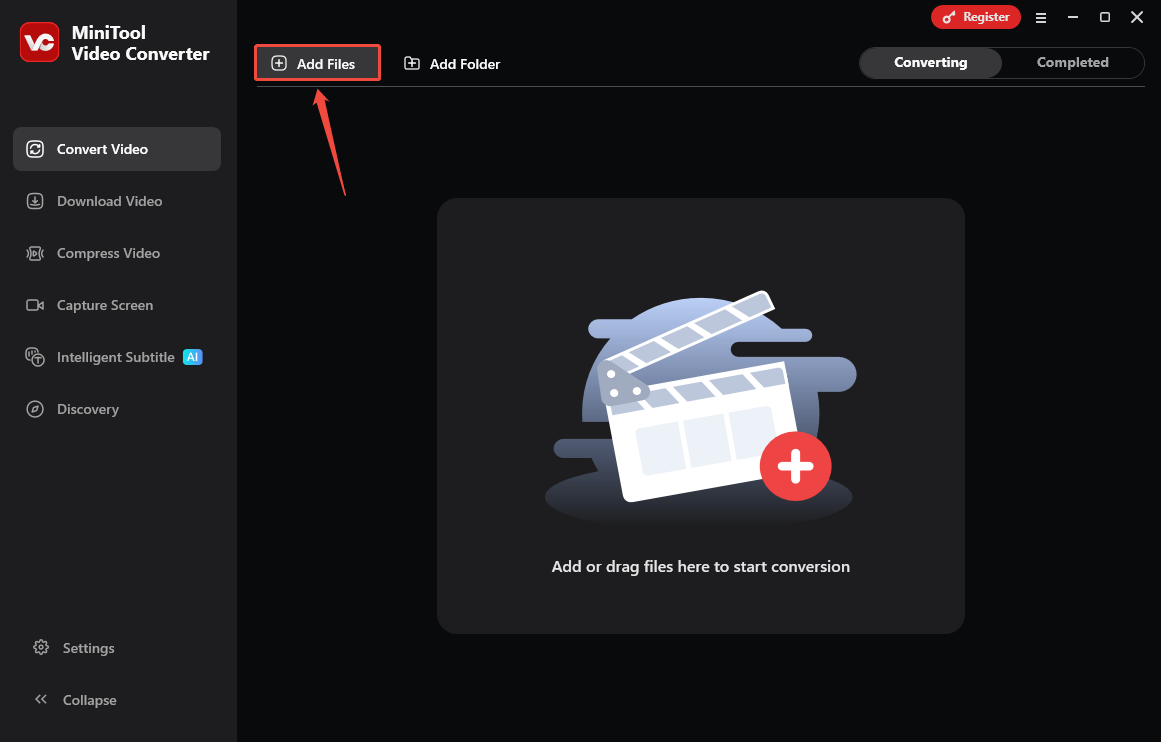
By default, the application lands on the Convert Video tab. Here, click the Add Files option, select the WebM file you want to convert, and click OK.
Step 3: Choose AAC as the Output Format
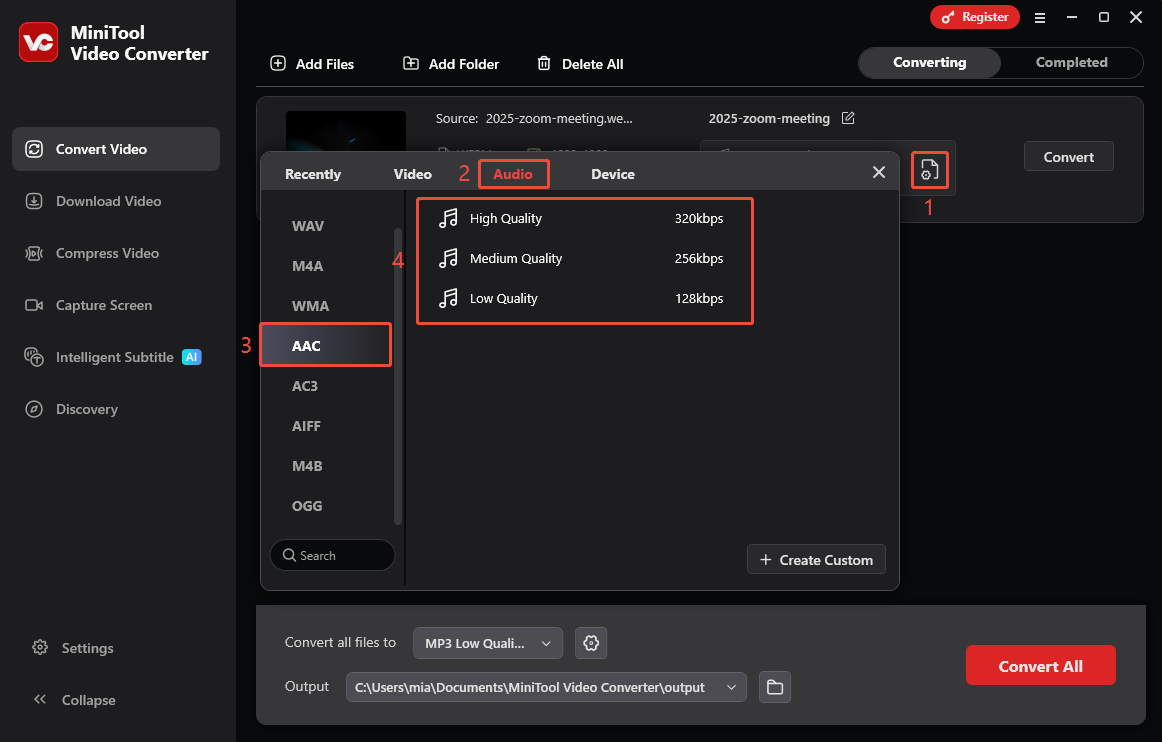
Click the gear icon to open the output formats window. Then, select the Audio tab, choose AAC from the left column, and select the audio quality you want.
Step 4: Choose the Save Folder and Start Conversion
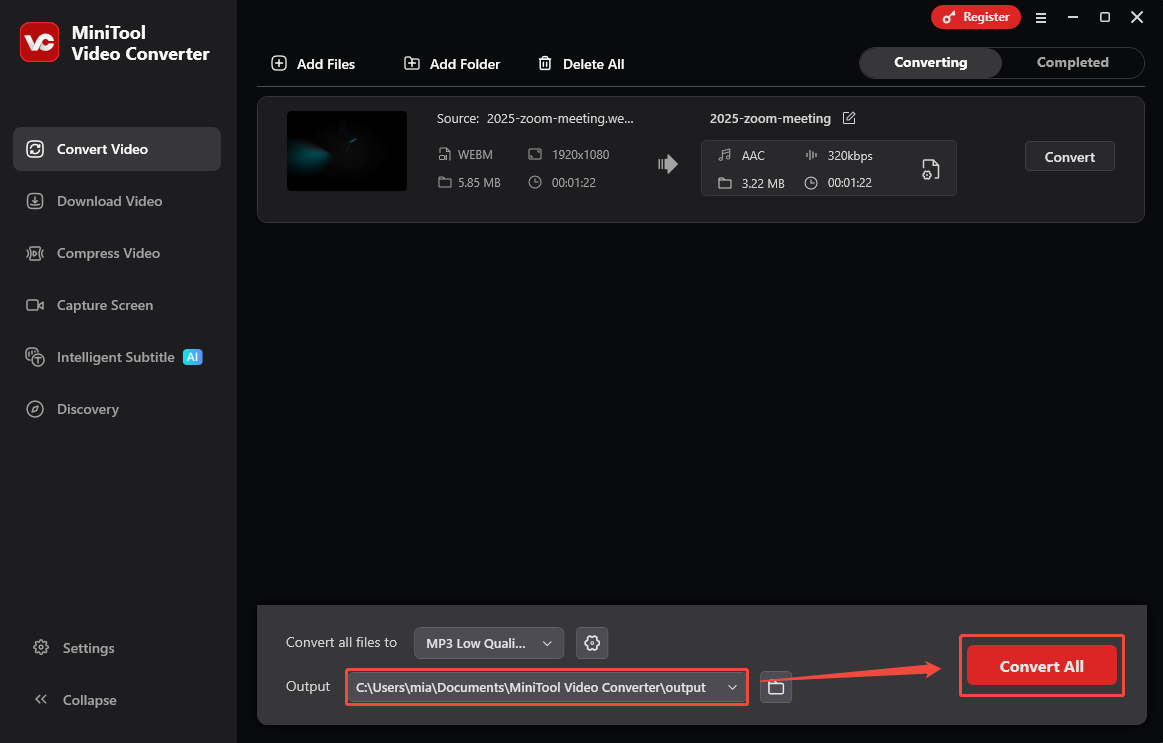
At the bottom of the interface, expand the Output menu to choose an output folder, and click Convert to start conversion.
Step 5: Locate the Converted Files
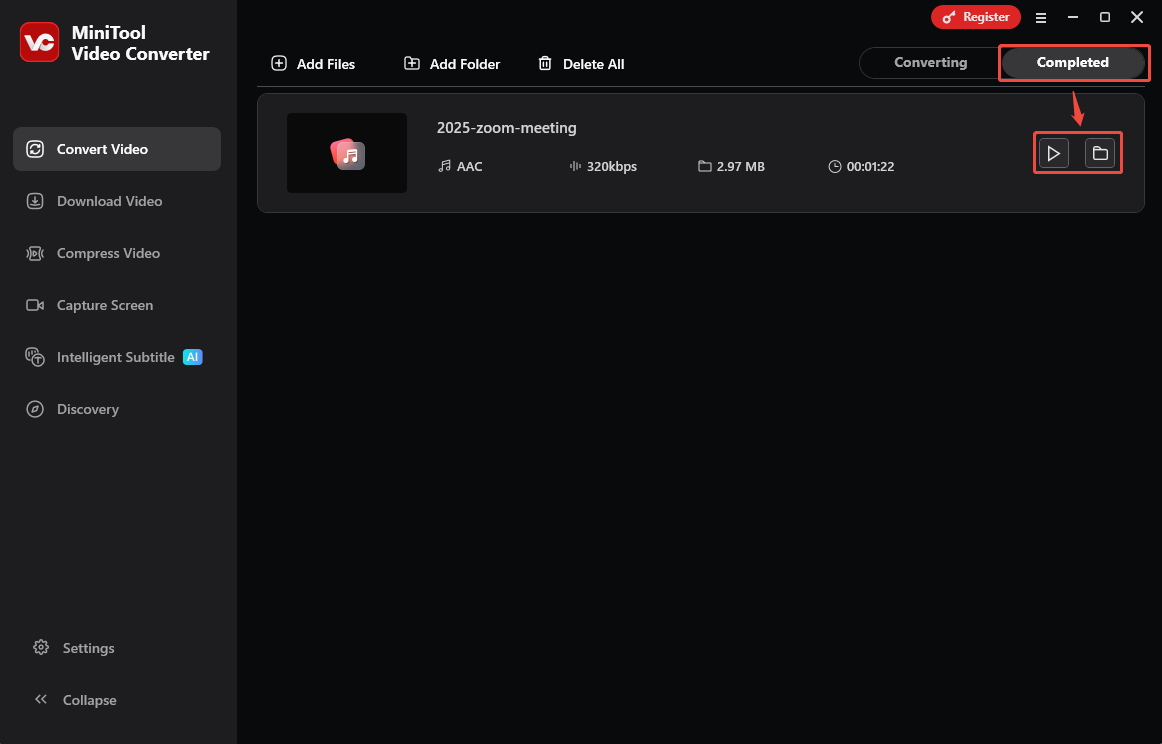
Once conversion ends, the program will automatically move to the Completed tab. Here, you can click the play icon to listen to the audio or click the folder icon to find the converted file.
Run through the steps and your WebM file becomes an AAC file in minutes! In addition to audio and video format conversion, MiniTool Video Converter also allows you to compress clips, convert speech to text, add captions to your videos, and more.
2. Use HD Video Converter Factory Pro
HD Video Converter Factory Pro is a desktop application mainly focused on converting, compressing, editing, and recording. It supports conversions between 500+ formats, including WebM and AAC. However, this software is not completely free. Users without a subscription can only convert videos or audio files totaling 5 minutes in length.
If the video you need to convert is relatively short, you can use this tool to convert WebM to AAC:
Step 1: Add Your WebM Video
Launch HD Video Converter Factory Pro and click Converter. Then, click the + button to add your WebM file to the workspace.
Step 2: Choose the Output Format
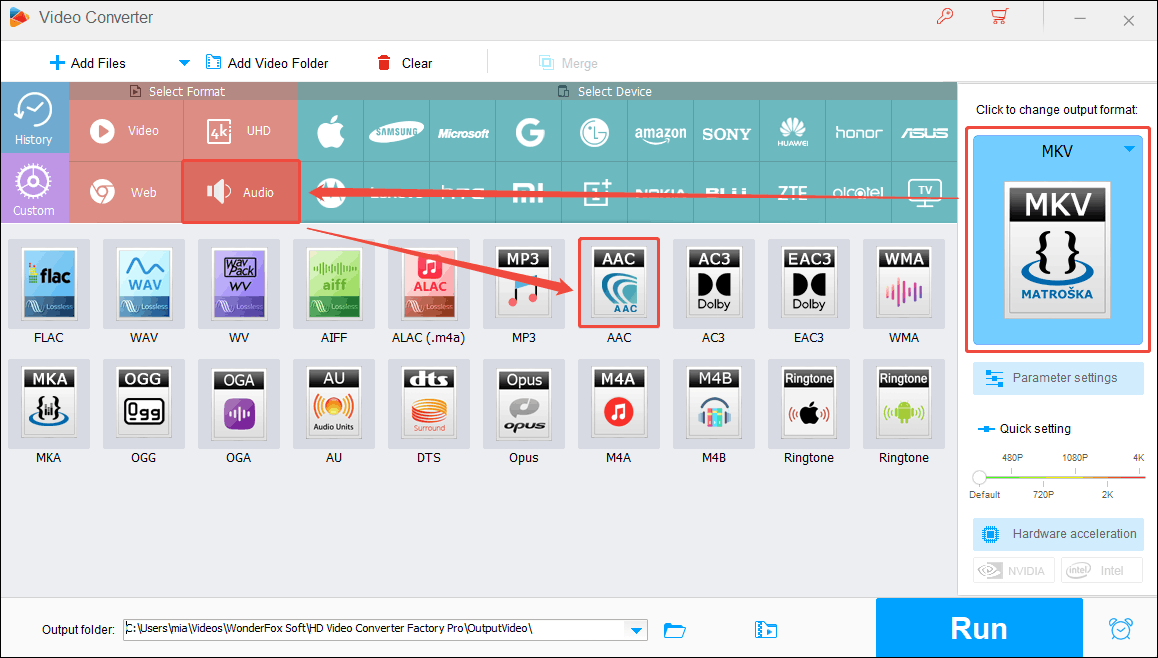
In the right panel, click the Select an output format option. In the expanded window, select Audio, and choose AAC as the exported format.
Step 3: Set the Output Folder and Start Conversion
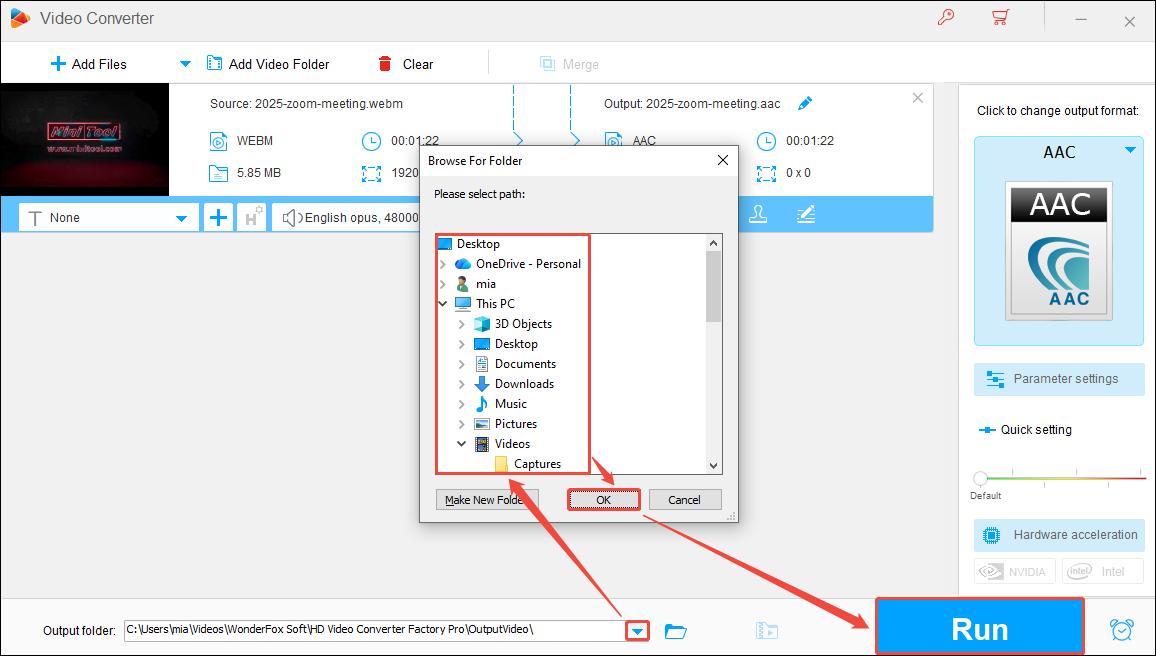
Click the small triangle icon in the Output folder option to open the Browse For Folder window. Then, choose a folder as the save folder, click OK, and click RUN to start converting.
HD Video Converter Factory Pro only offers free users a total of 5 minutes of conversion credit. To convert more files, you will need a paid subscription.
Conclusion
This article introduces two WebM to AAC converters: MiniTool Video Converter and HD Video Converter Factory Pro. The former offers completely free conversion functionality with no limitations on video length, making it more suitable for users with extensive conversion needs!
User Comments :