

How to convert video to MPEG4 encoding? This post provides an overview of MPEG-4 and the benefits of this conversion. It also shows you 2 fabulous free video converters: MiniTool Video Converter and Online Video Converter.
Overview of MPEG-4
MPEG-4 is an international standard for compressing storage formats, including digital videos and audio, multimedia systems, and documents. It is mainly used in encoding audiovisual data for CD (Compact Disc) distribution, telephone and videophone voice, and broadcast television applications.
MPEG-4 standard improves the adaptability and flexibility of software and hardware multimedia objects. Besides, it is protected by IPMP (Intellectual Property Management and Protection) in the MPEG community. MPEG-4 can reuse and synchronize data associated with media objects for efficient transmission over networks.
The Relationship Between MPEG-4 and MP4
MPEG-4 is a video encoding standard that determines the content of a video. MP4 (MPEG-4 Part 14) is a digital multimedia container format that contains the compressed content of a video. Therefore, MP4 and MPEG-4 are related as content and container.
Benefits of Converting Video to MPEG-4 Encoded
What are the merits of converting video to MPEG-4? I would like to show them in terms of compatibility, compression efficiency, and patent protection, which may be the common aspects you are concerned about in daily life.
1. Compatibility
MPEG-4 supports broader compatibility. It can usually be compatible with Windows and macOS. MPEG-4 is also a format-compatible standard, supporting multiple formats, including MP4, AVI, MKV, MOV, and 3GP. Plus, it does well in applications and platforms, such as Google Chrome, Firefox, Safari, YouTube, VLC Media Player, and more.
2. Compression Efficiency
MPEG-4 supports HD video (High-definition video). It offers excellent compression algorithms, enabling you to compress video into a smaller file size. MPEG-4 also maintains excellent video quality at high resolutions.
3. Patent Protection
The intellectual property protection of the MPEG-4 standard brings significant advantages, providing users with unique services and a superior product experience.
What Traits Does an Excellent Converter Possess
How to find a suitable video to MPEG4 converter? I think you should pay attention to the following aspects of a converter.
#1. Simple and Quick Conversion
The first thing you need to focus on is whether the conversion steps are easy and the conversion is quick, which benefits your conversion efficiency.
#2. Customizable Parameters Support
Besides, an excellent converter usually allows you to adjust the converted video’s basic parameters, such as resolution, frame rate, encoder, sample rate, bitrate, and more, which also affect the size of the video file. Therefore, a custom feature is notable.
#3. Batch Conversion Support
What’s more, if you need to convert a large number of videos, a batch video converter makes your conversion process more organized and efficient. Therefore, it's definitely worth considering when choosing a converter.
#4. High-quality Conversion
When you convert your high-quality video to MPEG-4 encoded, choose a converter that won’t let the converted videos lose much quality, avoiding blurry video and color distortion. Also, this converter should balance between the video quality and file size.
How to Convert Video to MPEG-4 Encoded
Is there a converter that supports converting video to MPEG-4 encoded? I want to recommend 2 tools to you for a quick and easy conversion.
1. Use MiniTool Video Converter
MiniTool Video Converter is a completely free video converter that allows you to easily and instantly convert video to MPEG4 encoded. It enables you to customize the parameters of the converted videos. Also, MiniTool Video Converter provides a batch conversion feature, which can process 5 tasks at the same time.
What’s more, MiniTool Video Converter allows a custom setting for the converted videos, such as changing the resolution, frame rate, encoder, sample rate, and bitrate. More importantly, it has no size limitations and no built-in bundles. Moreover, there are no watermarks added to the converted videos.
Below is how to convert video to MPEG4 encoded using MiniTool Video Converter.
Step 1. Get MiniTool Video Converter
Click on the download button below to download and install MiniTool Video Converter. Then, launch it.
MiniTool Video ConverterClick to Download100%Clean & Safe
Step 2. Import the Target Video
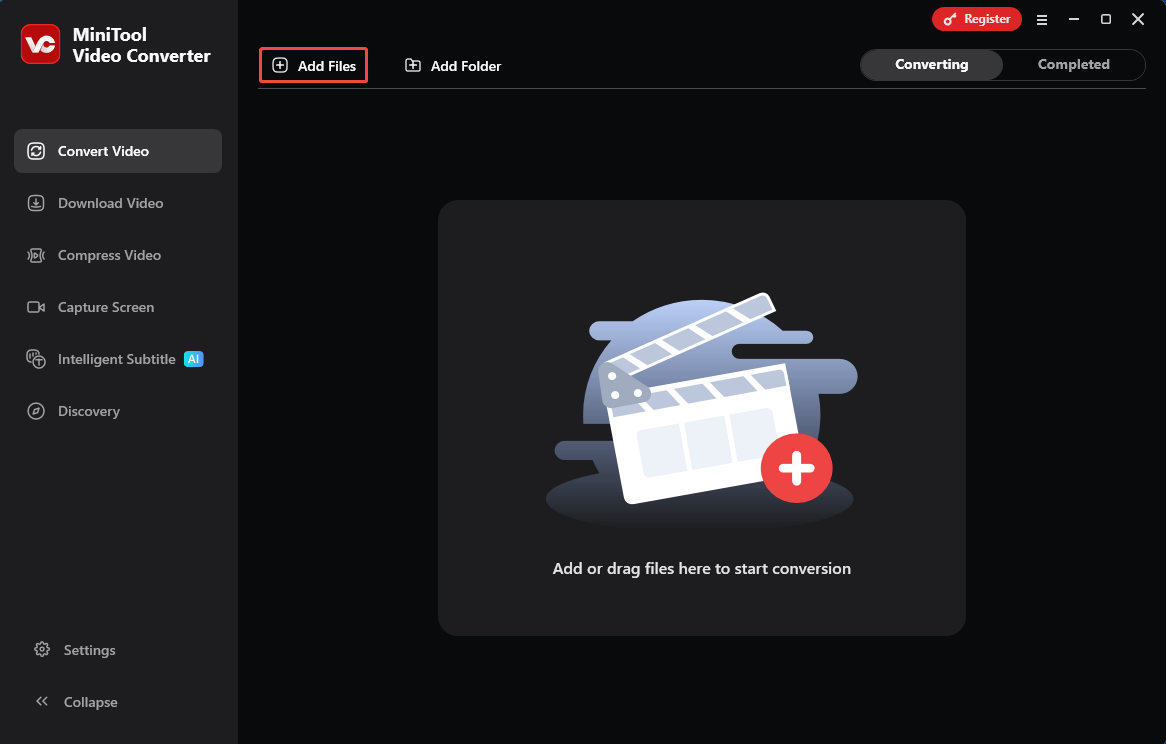
After launching this application, click on the Add Files option to import the target video.
Step 3. Choose MPEG-4 for the Converted Video
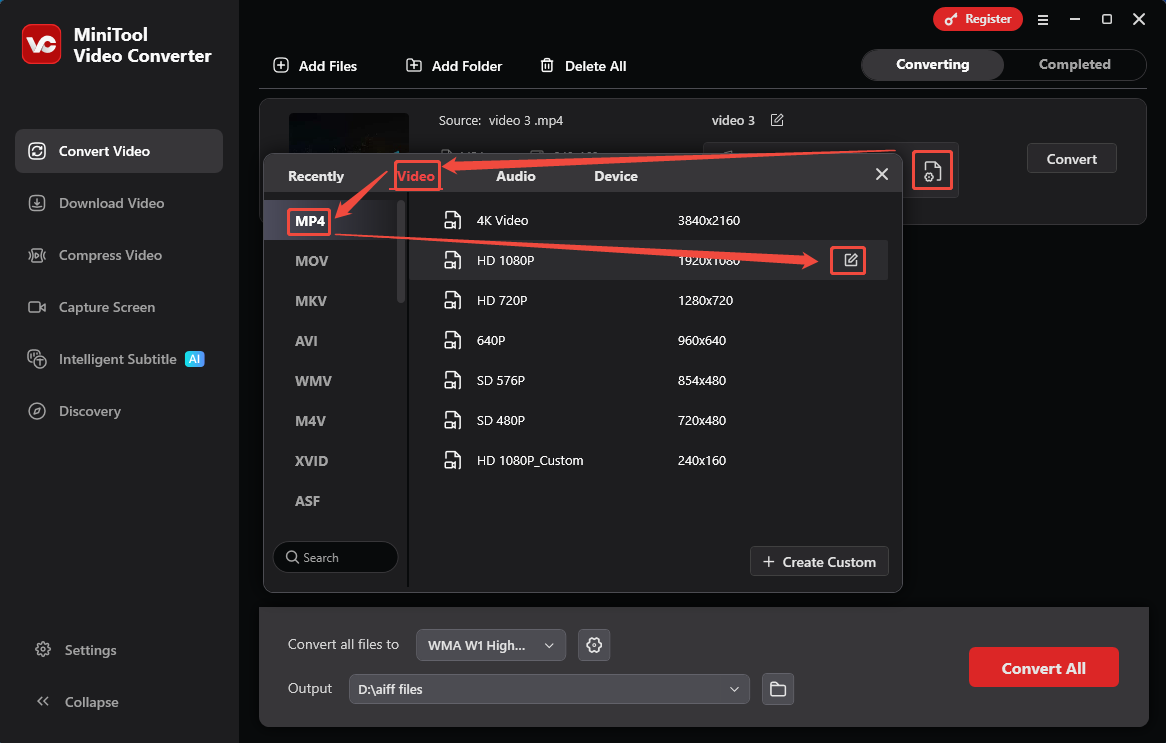
Click on the Settings icon to open the output format window. There, toggle to the Video tab and choose MP4. Then, click the Edit icon on a resolution option to trigger the Settings window.
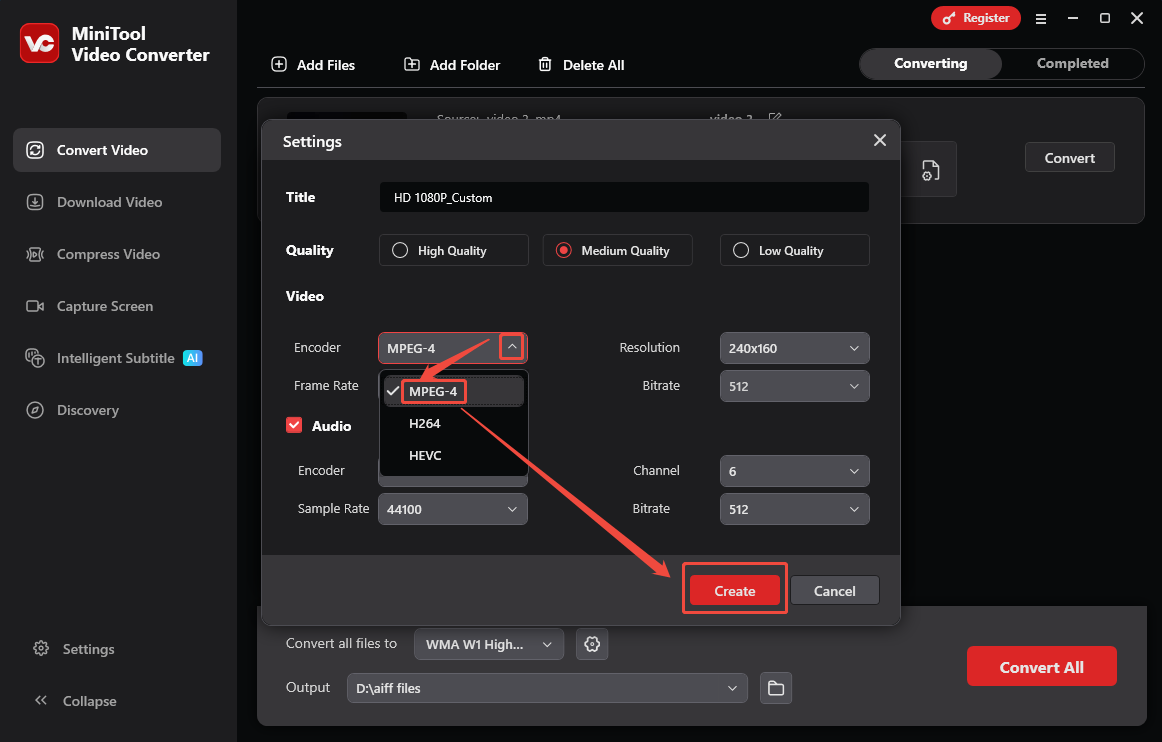
In the Settings window, expand the Encoder option to select MPEG-4. Then, click on the Create button to apply this encoder.
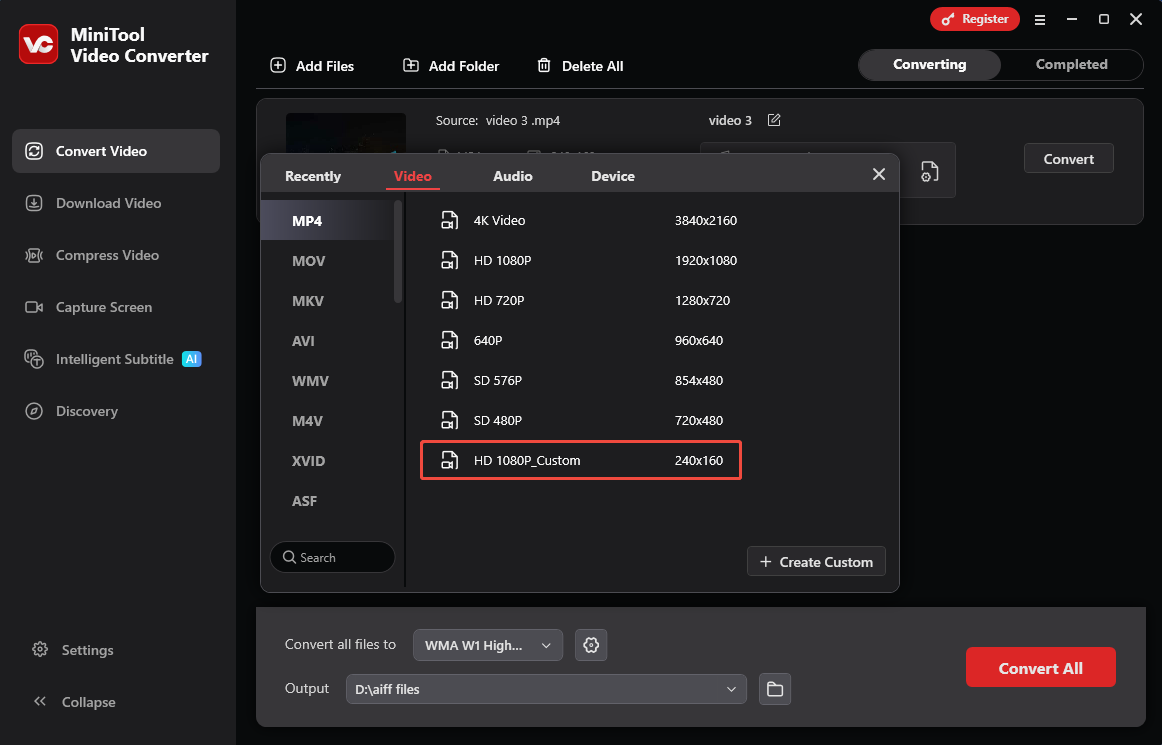
After setting the encoder, this converter will return to the output format window. Then, choose the HD 1080P_Custom option you created just now.
Step 4. Start the Conversion
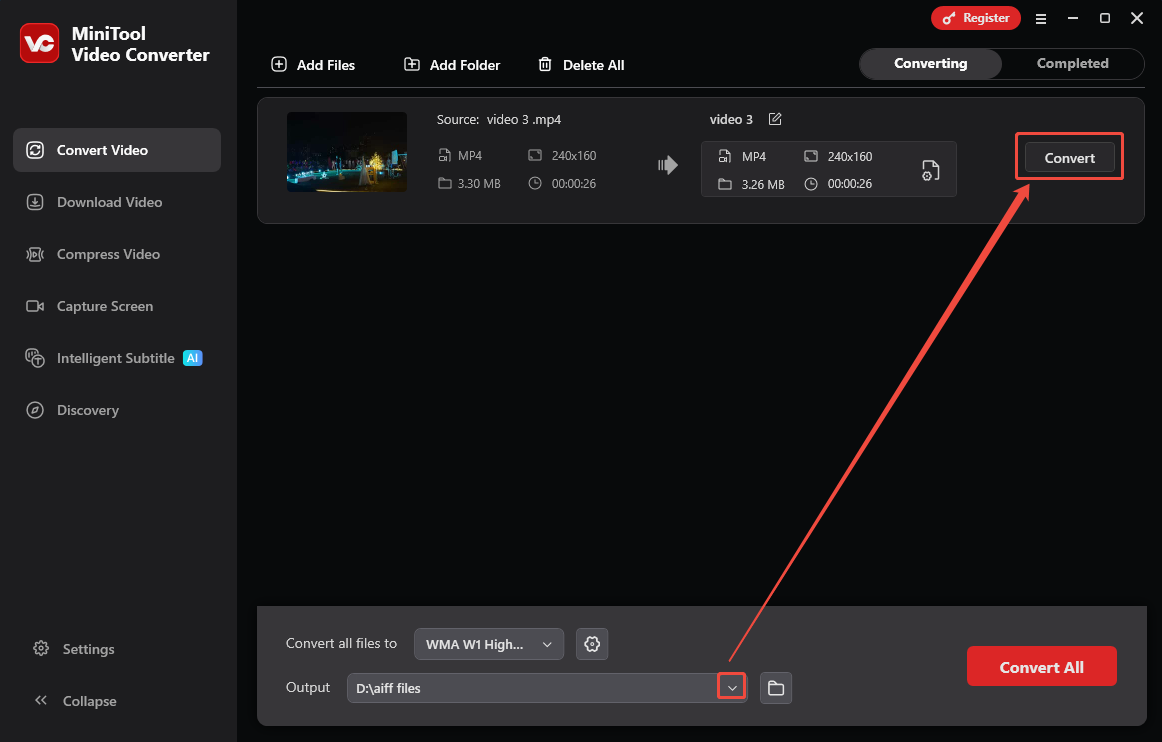
Expand the Output option to specify a storage location. Then, click on the Convert button to start the conversion.
Step 5. View the Converted Video
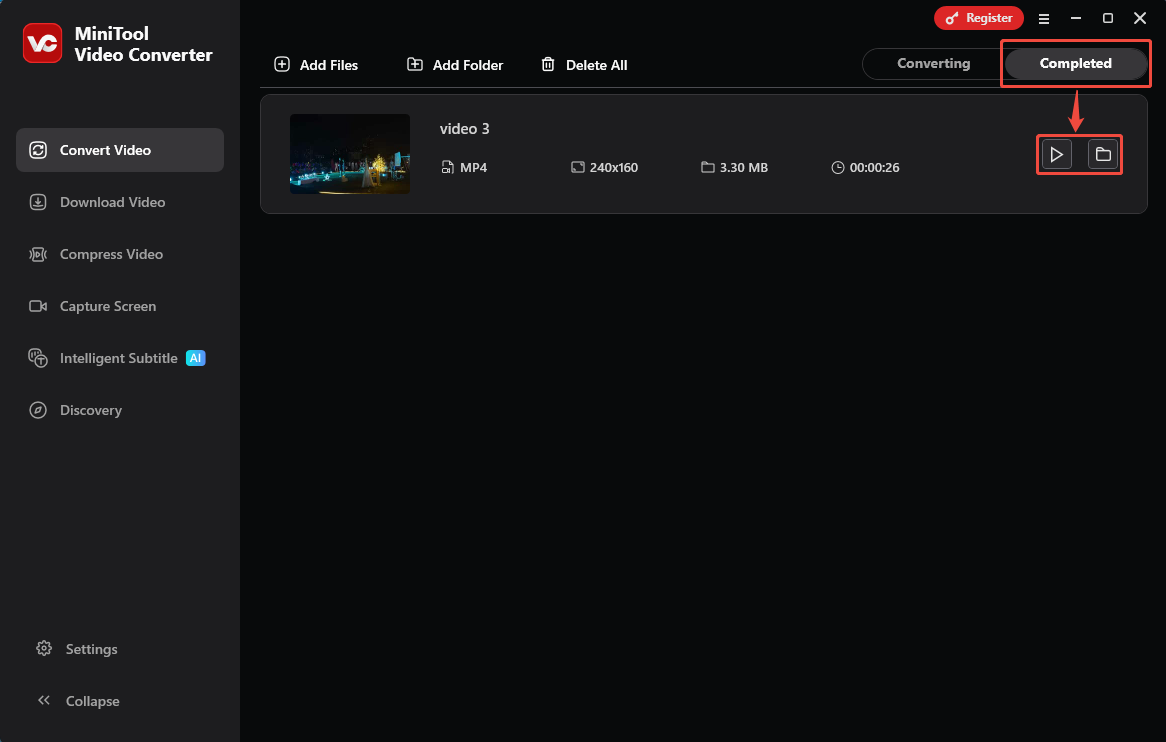
Once the conversion task finishes, you will go to the Completed tab. There, click on the Play icon or the Folder icon to view or locate this converted video.
Following the guide above, you can easily handle video to MPEG4 conversion.
2. Use Online Video Converter
Online Video Converter is a web-based which is a part of the 123 APPS suite. It empowers you to convert video to MPEG4 encoding. It supports conversions between over 300 formats. However, Online Video Converter only allows you to upload files up to 4GB. The following section is about how to convert videos to MPEG-4 encoded.
Step 1. Navigate to Online Video Converter’s Homepage
Visit https://video-converter.com/ to open Online Video Converter’s homepage.
Step 2. Upload the Video You Want to Convert
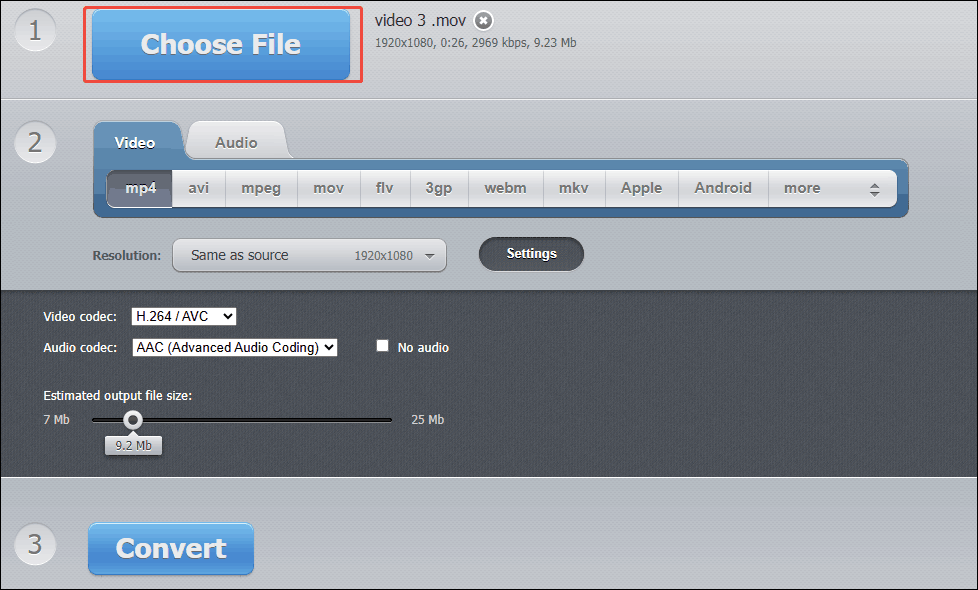
Click on the Choose File option to upload the video you want to convert.
Step 3. Configure the Codec and Begin the Conversion
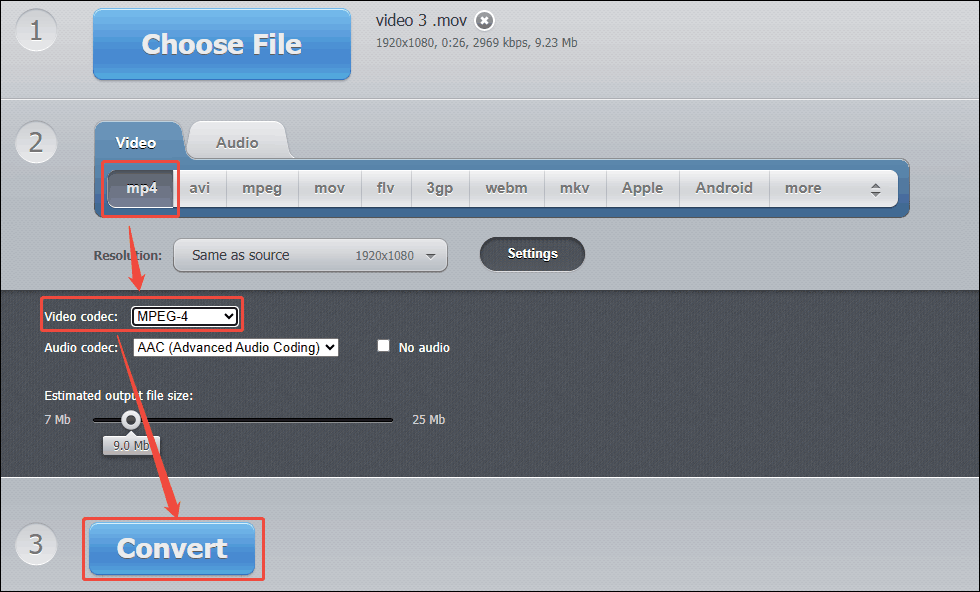
Choose a format in the Video tab. Next, expand the Video codec option to select MPEG-4 as the codec of the converted video. Then, click on the Convert button to begin the conversion.
Step 4. Check the Converted Video
When the conversion completes, click on the Download button to save the converted video.
Online Video Converter is a great browser-based converter for converting videos into MPEG-4.
Conclusion
This article explains MPEG-4 and the benefits of turning video into MPEG-4. It also shows what a fantastic converter should be. What’s more, this post tells you how to convert video to MPEG4 encoding with 2 practical video converters, including MiniTool Video Converter and Online Video Converter.
If you have any problems when using MiniTool Video Converter, please send an email to support@minitool.com to ask for help. Also, you can directly send me a message on X. I will help you as quickly as possible.
User Comments :