

How to overcome the 2GB Telegram video size limit? Use video compression tools, including MiniTool Video Converter and FreeConvert, to upload videos, adjust the compression percentage, and compress videos to under 2GB. Or use cloud services, like Google Drive, to generate shareable links.
Telegram is a cloud-based, cross-platform communication app popular worldwide. It is clean, fast, secure, and free, offering an ideal messaging environment. Additionally, Telegram is supported on multiple platforms, including Android, iOS, Windows, macOS, Linux, and web browsers. Users can send messages, share media and files, and make private or group voice and video chats.
What’s the Telegram Video Size Limit
Regular users: Up to 2 GB
Premium members: Up to 4 GB available
Under this limit, users can generally share HD videos directly, but high-resolution content may still be unable to be sent due to exceeding the limit. Sending videos from your mobile device’s photo album will result in compression, while sending them as files or from a computer will maintain the original image quality.

How to Bypass Telegram Video Size Limit
If the video exceeds the 2GB or 4GB size limit, the following two effective methods can be used to solve the problem of not being able to send oversized files.
- File compression
- Cloud storage services
Method 1: Compressing Videos for Telegram
Compression can reduce file size without dramatically lowering image quality. I recommend 2 professional video compressors and show you how to use them to compress videos step by step.
- MiniTool Video Converter
- FreeConvert
How to use the 2 compressors? The following are some common and easy steps.
Fast Steps:
- Choose a video compressor
- Upload a video
- Customize the compression percentage
- Start the compression
- Check the compressed video
Option 1: MiniTool Video Converter
MiniTool Video Converter is a clean and free video converter that includes a video compression feature. It lets you set the estimated output file size according to your needs. Additionally, it supports multiple output formats, including MP4, WEBM, MKV, and more. The compressed videos will have no watermarks. To speed up the compression process, you can compress up to five files at once.
Now, you can follow the specific steps below to compress videos for Telegram on Windows.
1. Download and Install MiniTool Video Converter
Click the download button below to download this program and install it on your PC.
 MiniTool Video Converter
-
 Batch convert video/audio files among 1000+ formats.
 - Quickly compress videos for easy storage and transfer.
- Accurately extract subtitles from video/audio files.
- Effectively enhance video quality.

2. Import the Target Video
Launch MiniTool Video Converter, go to the Compress Video section, and click the Add Files option to add the video you want to compress.
3. Set the Estimated File Size and Format
Click the Settings icon on the compression task to open the Compression Settings window. Next, drag the red slider to specify the output estimated file size. Then, open the Format option to select the output format you want. After that, click OK to save the changes.
4. Start the Compression Process
Open the Output option at the bottom and choose a save path for the compressed video. Then, click the Compress button to start compression.
5. Check and Locate the Compressed Video
Once done, find the compressed video in the Completed section. You can click the Play icon to view the video or click the Folder icon to locate it.
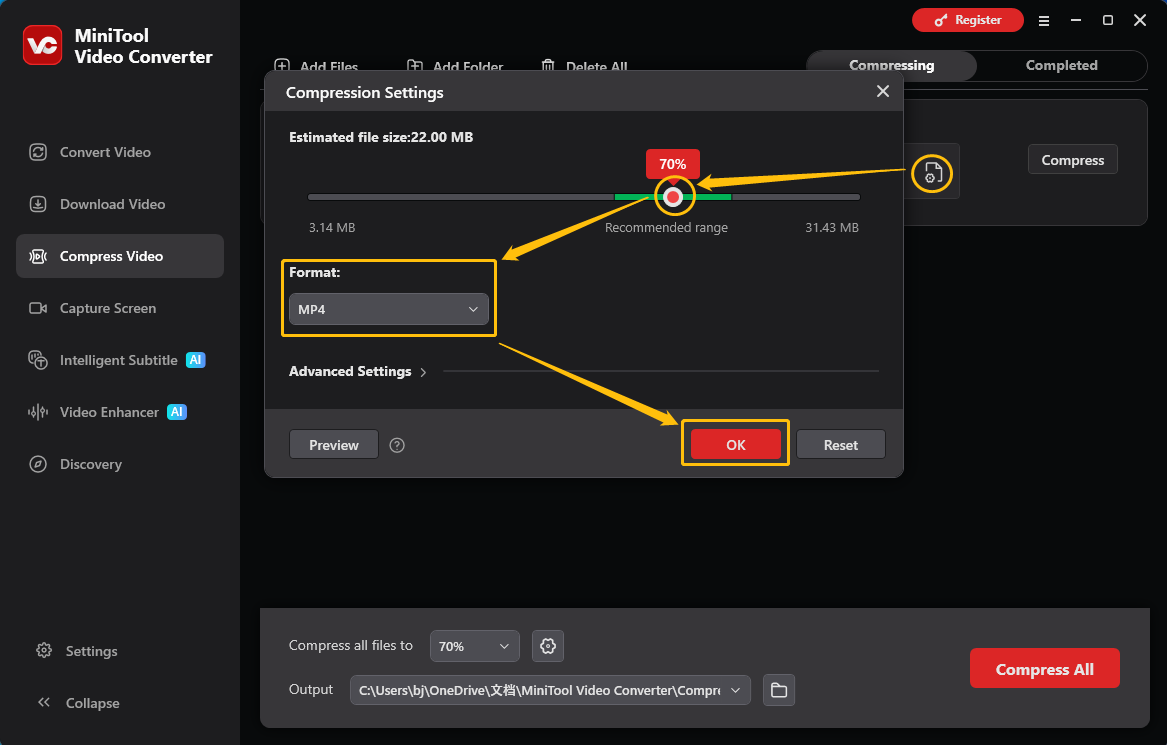
So easy! With MiniTool Video Converter, you can quickly compress videos for Telegram.
Option 2: FreeConvert
The last video compressor I’d like to recommend is FreeConvert. It is a browser-based video compressor that can be used without extra installation. As long as your device has an internet connection, you can use this tool smoothly. In addition, FreeConvert offers multiple compression options, enabling you to compress videos by adjusting quality, bitrate, resolution, or setting a preferred target file size. Follow the details below.
1. Go to FreeConvert
Launch your browser, type FreeConvert (https://www.freeconvert.com/) into the search bar, and then navigate to the main interface.
2. Access Video Compressor
Expand the Compress option from the top menu and click Video Compressor.
3. Import the Target Video
Click on the Choose Files button to import the video you want to compress.
4. Select an Output Format
Expand the Output option to select an output format. For example, MP4. Next, click the gear icon next to Output to open the Advanced Options (Optional) window.
5. Set Compression Settings
In the Advanced Options (Optional) window, select a preferred video codec, a compression method, and a target output video size. Then, click on the Apply Settings button to save the changes.
6. Start compressing.
Click the Compress Now! button to start compression. Once finished, click the Download button to save the file to the local folder.
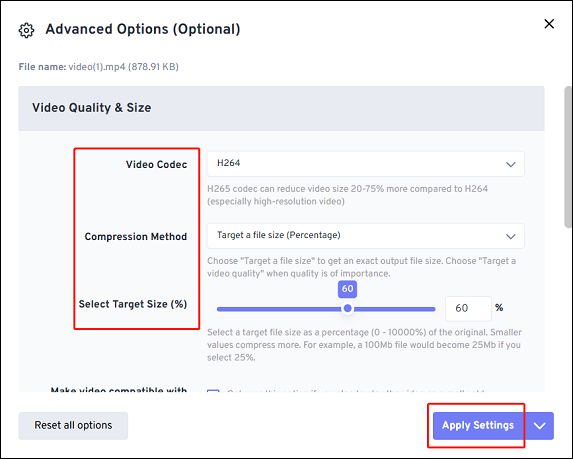
Moreover, this online video compressor supports multiple output formats, like MP4, FLV, MKV, AVI, MOV, and 3GP.
Method 2: Using Cloud Storage Services
The last method to avoid the Telegram video size limit is to use a Cloud storage service. Upload the large video to Cloud services, like Google Drive, OneDrive, iCloud, Dropbox, Filemail, etc., copy the provided shareable link, and then send the video link on Telegram chats. Below is the handy guide.
1. Log in to your Google Drive account.
2. Click the New button to expand the dropdown list. Then, choose File upload to upload the target video.
3. Expand the More option, click the Share option, and choose Get Link.
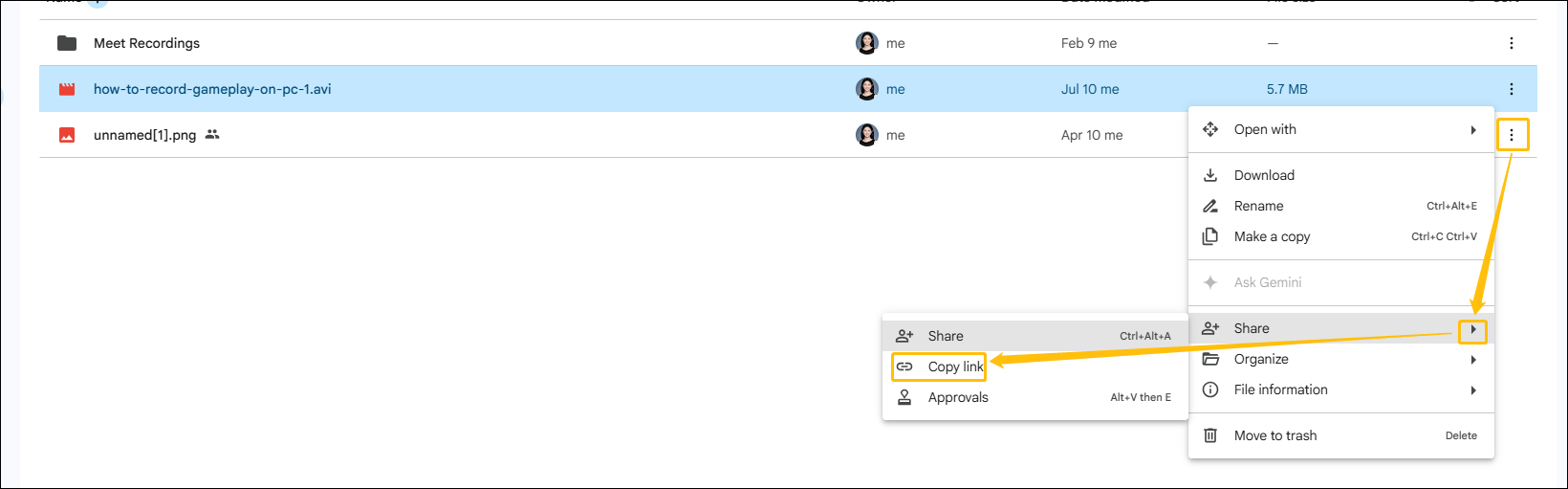
People you share the link with can just click it and watch the video. This method preserves the video’s original image quality. For those who infrequently need to share large videos, this is a great choice.

In Summary
This article shares how to bypass Telegram video size limit with 2 effective methods, including using video compressors and using Google Drive to generate shareable links.
You can contact us at support@minitool.com if you have any questions about using MiniTool Video Converter.
User Comments :