

How to compress a video to send via text? Choose a video compressor, import a video, specify the compression percentage, start the compression process, and check or locate the compressed video.
In daily life, we frequently use direct messaging to send text messages to friends on social media platforms. We send not only text messages but also video ones. However, sometimes sending videos in direct messages fails. One common reason is that the video file size exceeds the limits required by social media direct messaging.
How to Compress a Video to Send via Text on Social Media
Want to reduce a video size to send via text on social media? There are 2 compressors you should know.
- MiniTool Video Converter
- Online File Compressor
Are these two compressors easy to operate? Below are simple operating instructions for these two compressors.
Fast Track Steps:
- Choose one of the compressors
- Import the video to be posted on text
- Specify the compression percentage
- Start the compression
- Check the result
1. Use MiniTool Video Converter
MiniTool Video Converter is a free video compressor that allows you to compress a video to send via text on social media platforms. It enables you to compress a video by 90% of the original video without quality loss. What’s more, it also offers batch compression of up to 5 compression tasks. MiniTool Video Converter doesn’t have ads, size limitations, or watermarks. Let’s take a look at how to compress a video to send via text message using this compressor.
1. Obtain MiniTool Video Converter
Download, install, and launch MiniTool Video Converter.
 MiniTool Video Converter
-
 Batch convert video/audio files among 1000+ formats.
 - Quickly compress videos for easy storage and transfer.
- Accurately extract subtitles from video/audio files.
- Effectively enhance video quality.

2. Import Your Target Video
Switch to the Compress Video module. There, click on the Add Files option to import your target video.
3. Adjust the Compression Percentage
Click on the Settings icon to open the Compression Settings window. There, drag the red slider to adjust the compression percentage as needed. Next, expand the Format option to choose an output format for the compressed video. Then, click OK.
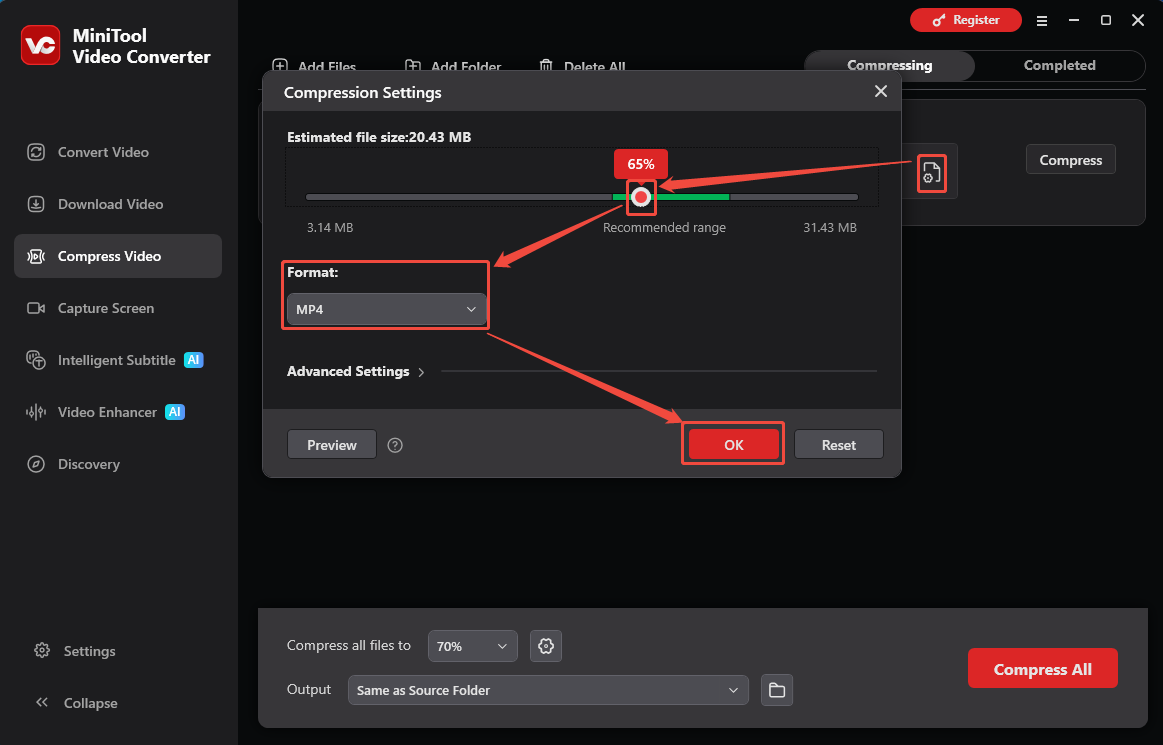
Besides, expand the Advanced Settings option to specify the encoders, frame rates, resolutions, sample rates, and channels. Also, click on the Preview option to preview the compressed video. Then, click on the OK button to apply the compression settings.
4. Start the Compression
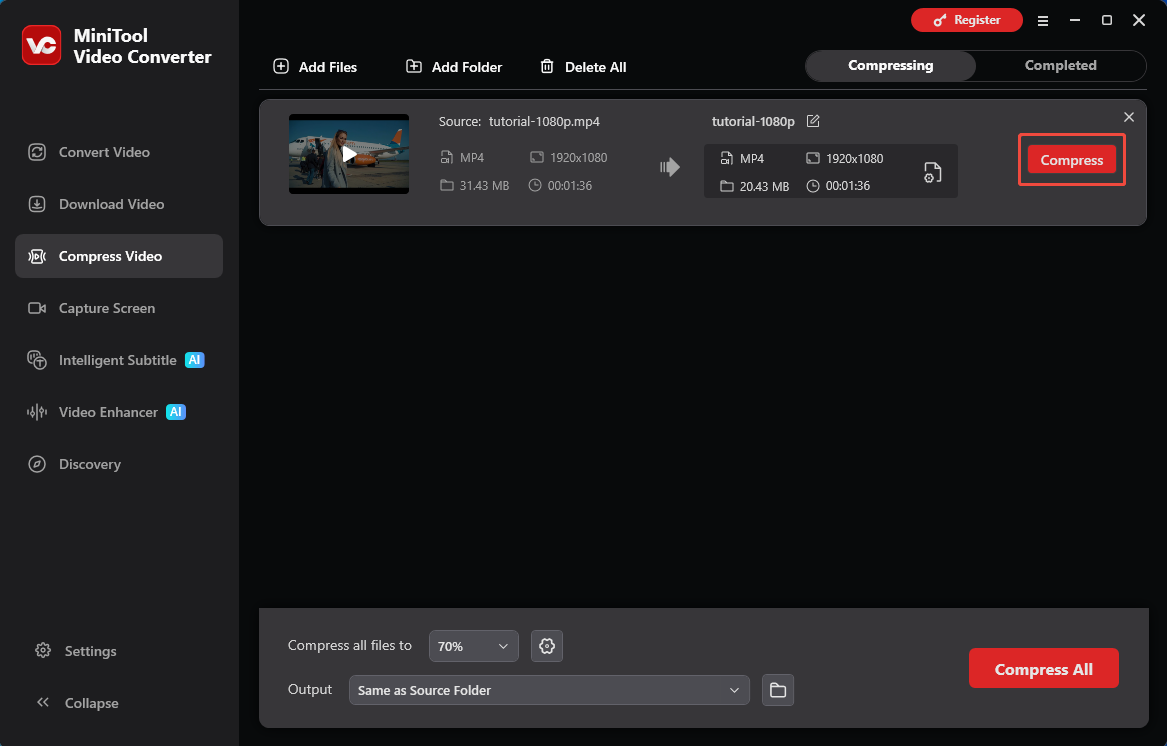
Expand the bottom Output option to choose a saving folder for the compressed video. Then, click on the Compress button to start the compression.
5. Check the Compressed Video
Click on the Play icon or the Folder icon to view or locate the compressed video.
MiniTool Video Converter is an ideal compressor to reduce video size for text messages.
MiniTool Video Converter supports batch lossless video compression with no size limitations.https://minitool-video-converter.en.uptodown.com/windows
2. Use Online File Compressor
Online File Compressor is a convenient video compressor. It allows you to add video files from local files, OneDrive, Dropbox, and Google Drive. Moreover, Online File Compressor supports compressing video size from 1 to 65536MB freely. The guide below shows how to reduce video size for text with Online File Compressor.
1. Navigate to the Online File Compressor’s Homepage
Visit https://www.compress2go.com/compress-video to open the Online File Compressor’s homepage.
2. Upload the Video
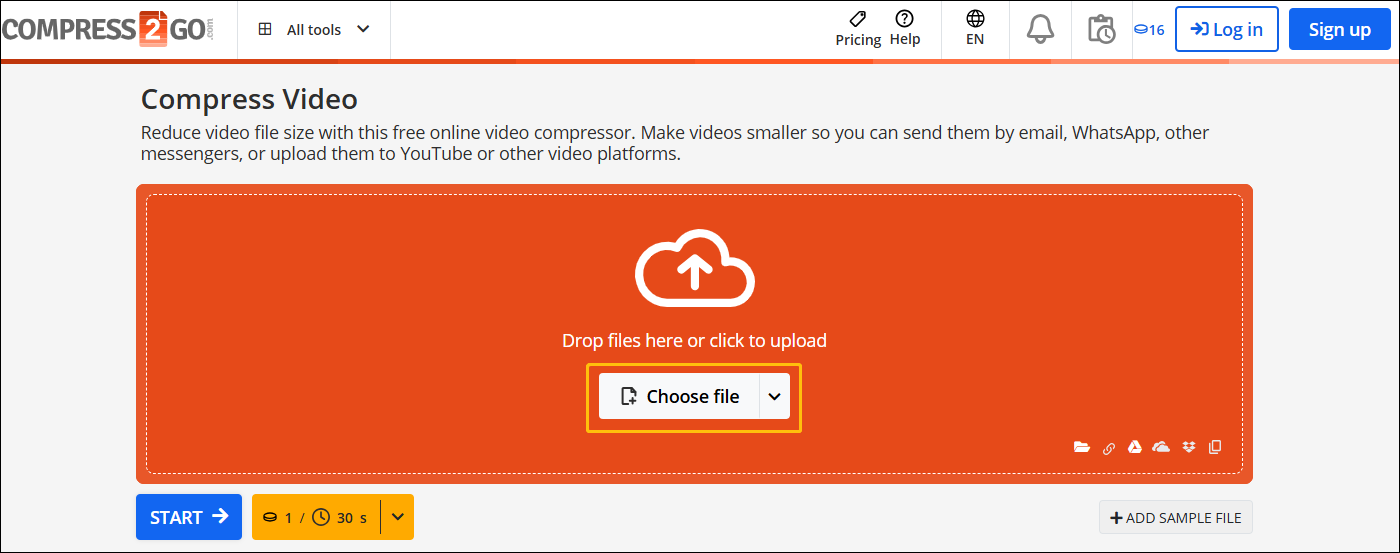
Click on the Choose File option to upload the video you want to direct message on social media platforms.
3. Begin the Compression
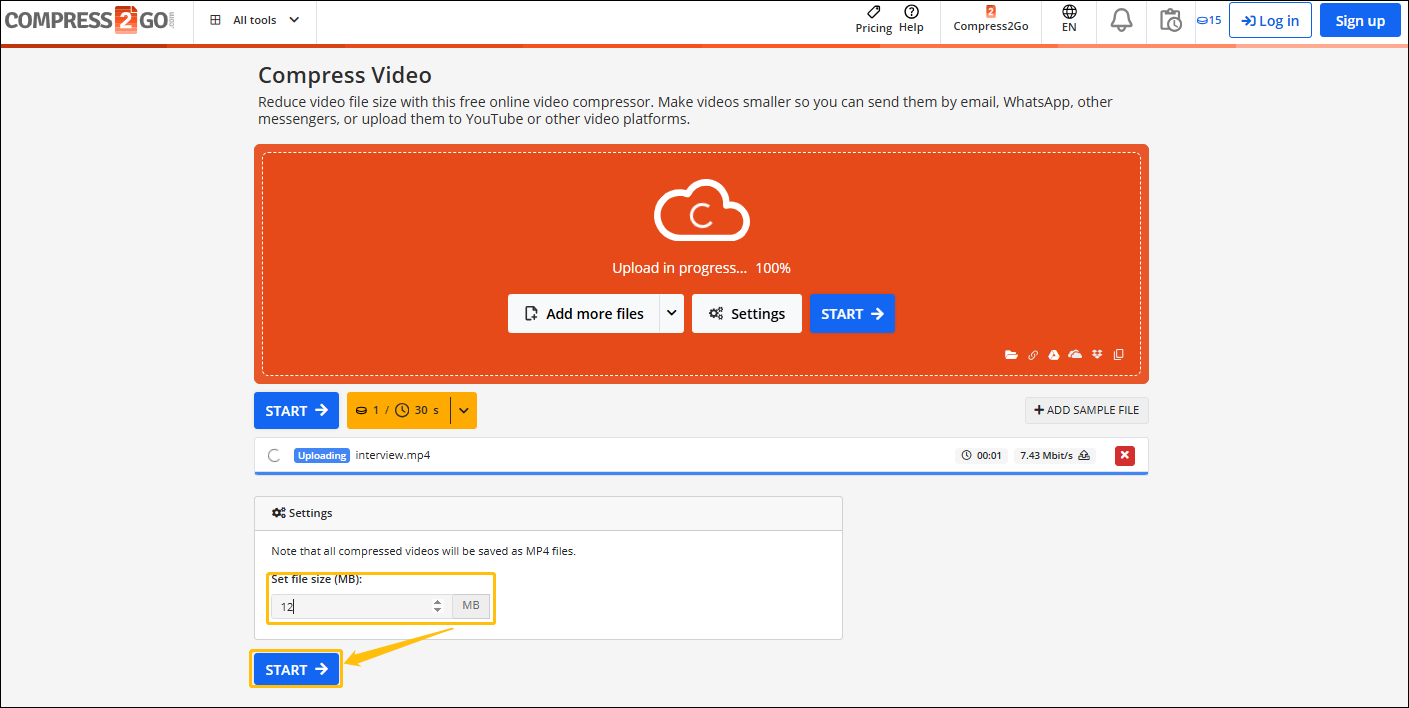
After uploading the target video, enter the compression parameters in the Set file size (MB) option. Then, click on the START button to begin the compression process.
4. Download the Compressed Video
Click on the Download button under the File List tab to save the compressed video.
Using Online File Compressor to compress a video for text message is a quick and easy way.
Why Compress a Video to Send Videos via Text
Different social media platforms have different limits on video size. The text message feature of WhatsApp and Telegram has a 2GB video size limit. Facebook officially limits video sent via direct message to a maximum size of 100MB.
An overly large video size may cause video corruption, inability to play, blurry video quality, or even failure to send. Therefore, it is necessary to compress the video size before sending. What factors are considered to reduce video size? Video encoder, resolution, frame rate, bitrate, and bit depth all affect video size. Lowering these parameters can ensure that the video is successfully sent and played. You can adjust parameters to reduce video size or use video compressors to shrink the video file size as well.
Bottom Line
This article shows how to compress a video to send via text with 2 effective video compressors, including MiniTool Video Converter and Online File Compressor.
If you have any problems when using MiniTool Video Converter, please send an email to support@minitool.com to ask for help.
User Comments :