

It is easy to compress DIVX files to save storage space or improve compatibility. This post shows how to make DIVX files smaller with video compressors, such as MiniTool Video Converter and VideoSmaller, by managing compression settings.
DivX is a video compression format. Although it can preserve high video quality within a small file size, the file size will still increase when saving video at higher resolutions. Video compression offers an effective solution to this issue.
Why Compress DIVX Files
DIVX compression enables a smaller file size. For people whose storage space is limited, it is an ideal choice to compress DIVX file.
Since DIVX has low compatibility, you may not play your DIVX videos with most media players. In contrast, MP4 is a format with more efficient compression and higher compatibility. Therefore, you can also consider converting your DivX videos to MP4.
How Can I Compress DIVX Videos
The easiest way to compress DIVX files is to use video compression tools, such as MiniTool Video Converter and VideoSmaller, which are introduced in this article.
Brief Comparison
| Tool | MiniTool Video Converter | VideoSmaller |
| Batch Compression | Yes | Yes |
| Maximum File Size | No limit | 500MB |
| Compression Level Adjustable | Yes | No |
| Preview | Yes | No |
| Watermark | No | No |
Fast Track Steps:
- Open the video compression tool
- Import a DIVX file
- Adjust the available video settings
- Compress video
- Check the compressed video
Method 1. Try MiniTool Video Converter (Offline)
One of the best applications that can help you compress DIVX file is MiniTool Video Converter.
Is MiniTool Video Converter a Fantastic Video Compressor
MiniTool Video Converter is a watermark-free video compression tool without a file size limit. I have used it to compress a wide range of video files, including MP4, AVI, WMV, MOV, MKV, FLV, F4V, and so on. What’s more, its batch compression feature enables me to compress up to five files at a time.
More importantly, MiniTool Video Converter is completely free and features an intuitive interface. Hence, it is an ideal choice for those who are on a tight budget or know little about file compression. In addition, MiniTool Video Converter offers you more advanced options to adjust relevant parameters.
Below is a step-by-step tutorial on how to compress DIVX file using MiniTool Video Converter.
 MiniTool Video Converter
-
 Batch convert video/audio files among 1000+ formats.
 - Quickly compress videos for easy storage and transfer.
- Accurately extract subtitles from video/audio files.
- Effectively enhance video quality.

1. Download and install MiniTool Video Converter.
Download MiniTool Video Converter by clicking on the download button above. Then, follow the on-screen prompts to install this DIVX compressor on your PC.
2. Import your DIVX files.
After launching this tool, switch to the Compress Video tab. There, click on the upper-left Add Files option to import the DIVX videos that you want to compress.
3. Specify the compression settings.
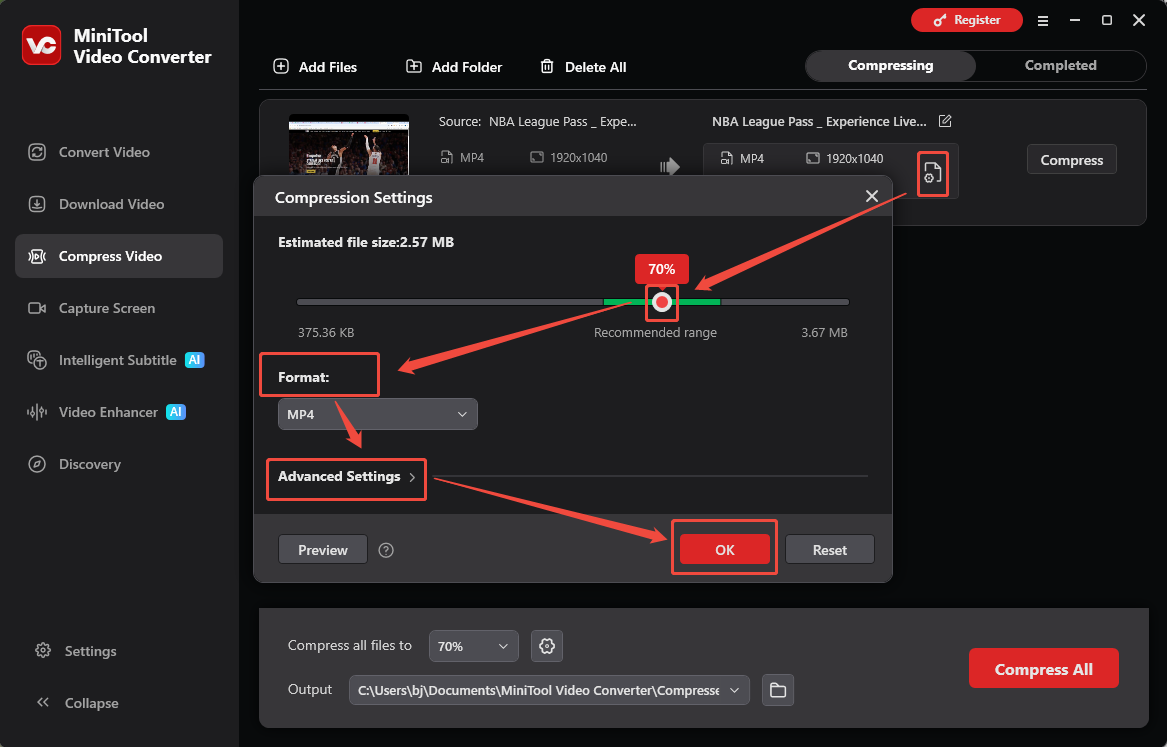
Click on the Settings icon to enter the Compression Settings window. In the pop-up window, drag the red slider to adjust the output file size. Then, expand the Format option and choose an output format you want. Expand the Advanced Settings option to customize the video encoder, resolution, frame rate, audio encoder, audio channel, and sample rate. Click on OK to save the changes.
4. Choose a saving path for the compressed videos.
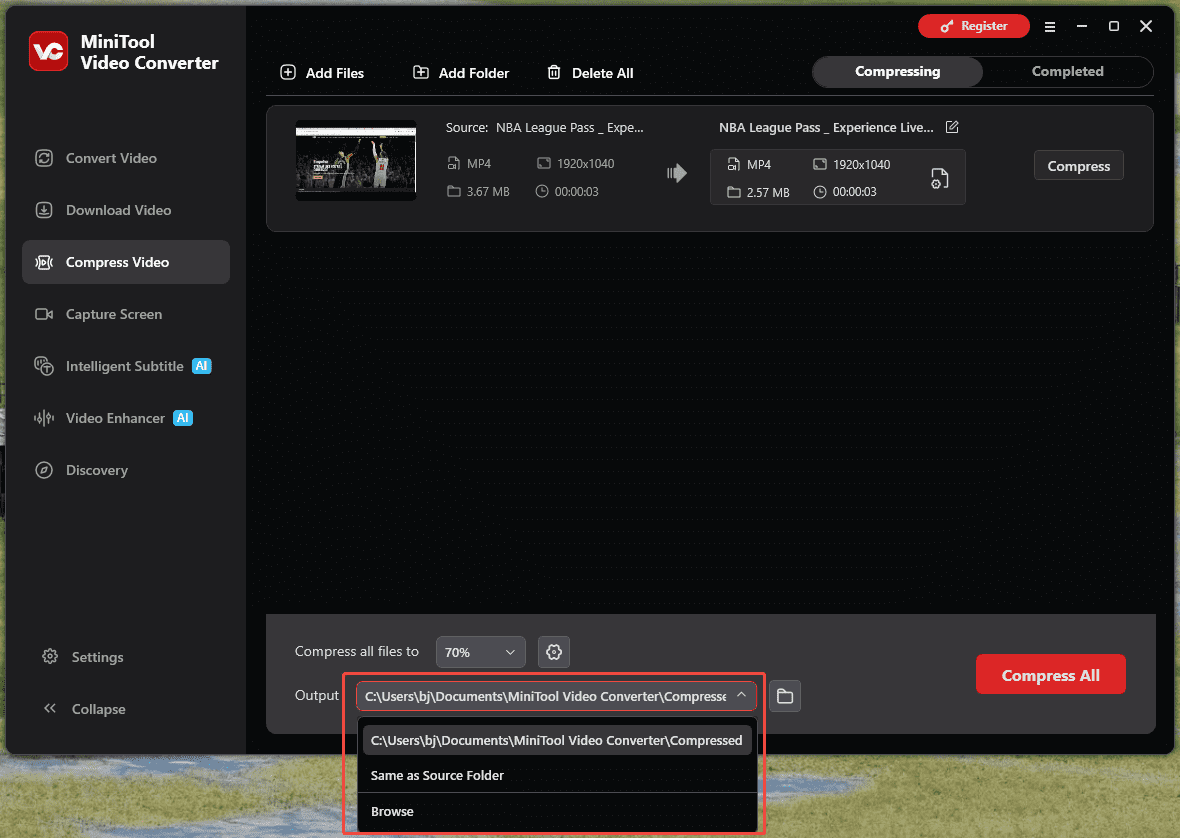
Expand the bottom Output option to choose an output folder for the compressed files.
5. Start compression.
Begin the compression process by clicking on the Compress All button.
6. Check the compressed videos.
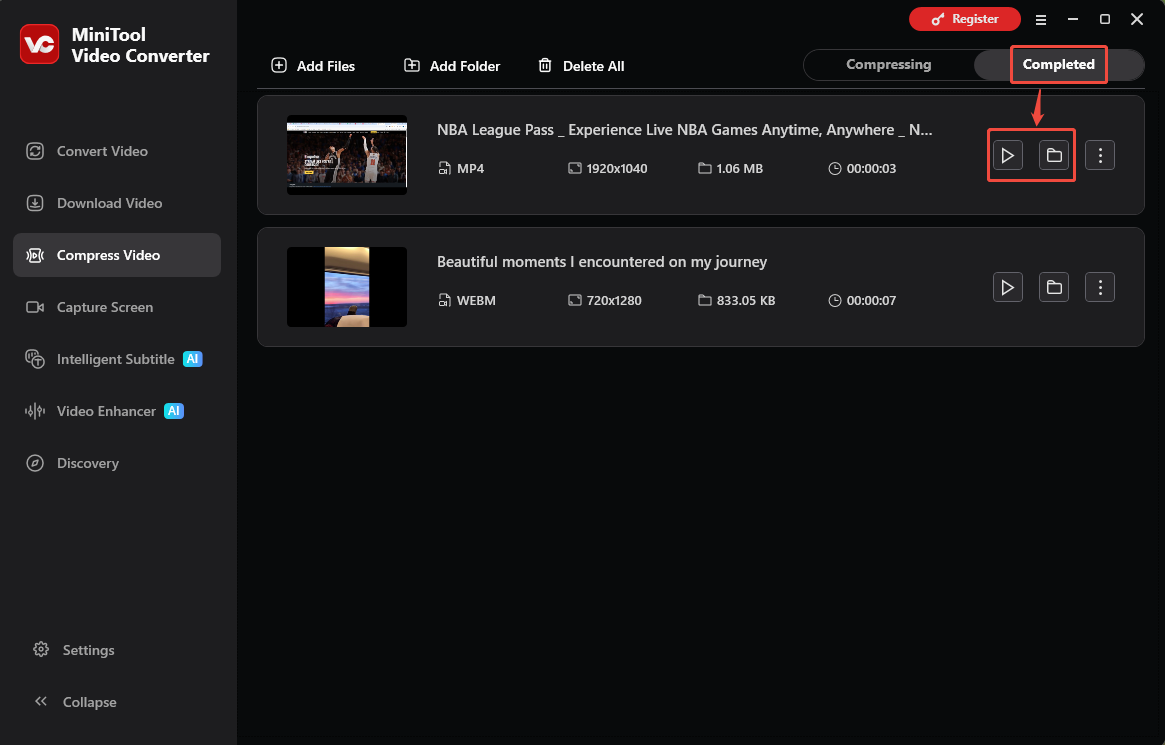
When the file compression process ends, this file compressor will automatically switch to the Completed section. There, click on the Play icon to view the compressed videos. If you want to locate these files, click on the Folder icon.
Method 2. Try VideoSmaller (Online)
Some people may ask if there is an online method that helps compress DIVX files. The answer is yes. VideoSmaller is a web-based video compressor that empowers you to compress your DIVX files easily. It supports exporting files in MP4, MPEG, AVI, MOV, and other formats.
However, this tool has a 500MB file size upload limit, and the compression level is fixed at the lowest setting. Therefore, it is well-suited for compressing files that are not excessively large.
1. Go to the DIVX to MP4 Converter page of VideoSmaller.
Visit the VideoSmaller website: https://www.videosmaller.com/.
2. Import your DIVX files.
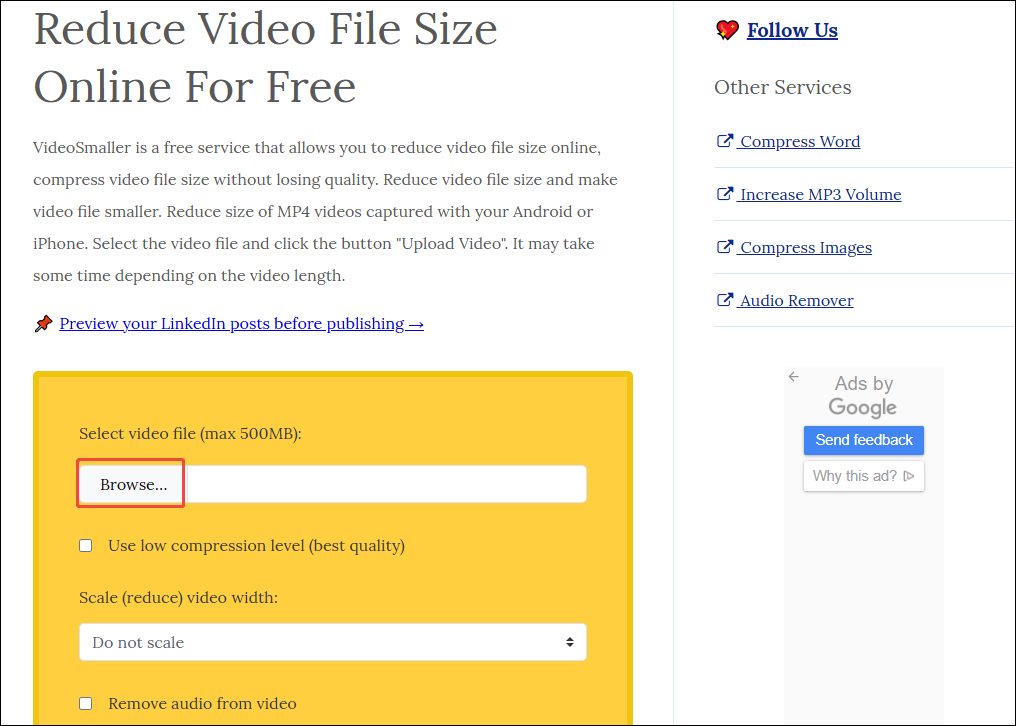
Upload your DIVX videos by clicking the Browse option.
3. Configure the conversion settings.
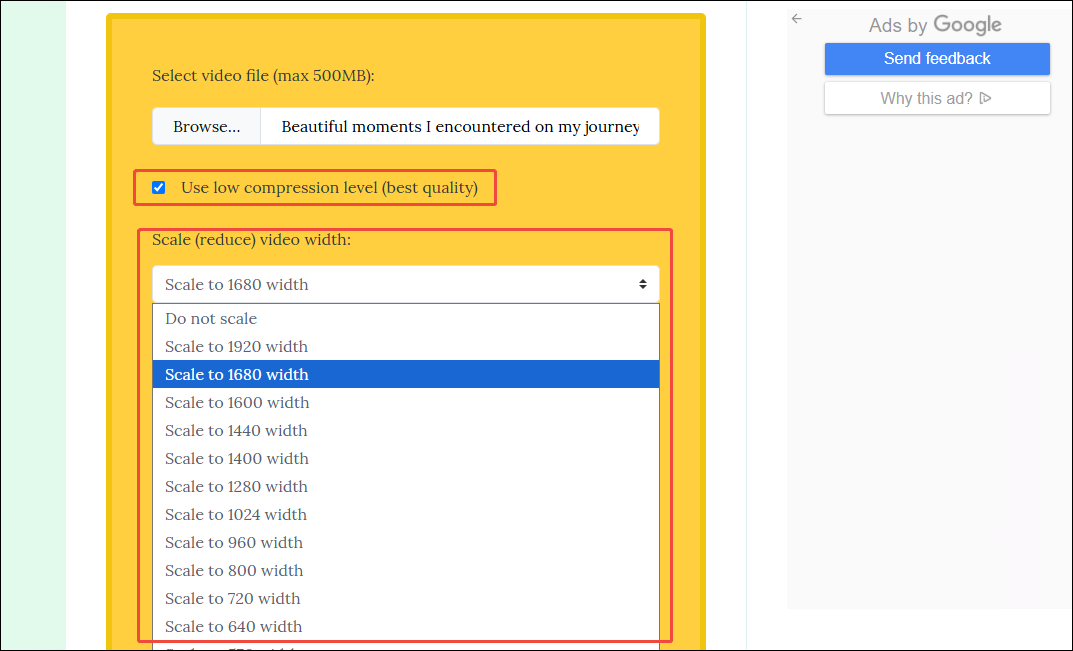
Check the Use low compression level (best quality) option. Then you can expand the Scale option to adjust the video width.
4. Start conversion.
Click the Upload Video option to start the video compression process.
5. Check the compressed file.
When the file compression process ends, click the Download File option to save and check the compressed DIVX video.
Undoubtedly, VideoSmaller is a remarkable DIVX video compressor that you can try.
To Wrap Things Up
This article summarizes two tools that enable you to compress DIVX files, including MiniTool Video Converter and VideoSmaller. If you worry about the file size limit, try MiniTool Video Converter. On condition that you prefer an online tool, never miss VideoSmaller.
If you have encountered any problems when using MiniTool Video Converter, please ask for help by sending an email to support@minitool.com.
People Also Ask
About The Author

Position: Columnist
Jade is an experienced multimedia tech writer who has authored hundreds of guides on screen recording, video editing, and software troubleshooting. Dedicated to bridging the gap between complex technical concepts and user-friendly solutions, she specializes in providing clear, actionable advice.
User Comments :