

How do I convert VOB to FLAC for better compatibility? Simply download a video-to-audio converter or go to an online conversion page, upload a VOB file, choose FLAC as the output format, start the conversion, and check the result.
VOB, also known as DVD Video Object, is a container format in DVD-Video media that can store digital video, digital audio, subtitles, etc. The video in the VOB format is encoded with MPEG-1 Part 2 or H.262/MPEG-2 Part 2 codecs, while the audio is encoded with Linear PCM, DTS, AC-3, MPEG-1 Audio Layer II, and MPEG-2 Audio Layer II codecs.
Why Convert VOB to FLAC
What are the benefits of VOB to FLAC conversion? Actually, FLAC has some Irreplaceable merits compared to VOB. VOB is usually a lossy video container format. FLAC is a lossless audio container format. By converting VOB to it, you can protect the file’s quality. Moreover, VOB is mainly used in DVD devices. Converting it to FLAC can make the file compatible with more devices and software.
![2 Effective Ways to Convert TS to VOB Easily [Offline & Online]](https://images.minitool.com/videoconvert.minitool.com/images/uploads/2024/11/ts-to-vob-thumbnail.png)
How to Convert VOB to FLAC
If I want to convert VOB to FLAC? Are there any effective video-to-audio converters that I can easily use? Sure. Below are 3 useful conversion tools.
- MiniTool Video Converter
- VLC Media Player
- FreeConvert
Can I turn VOB to FLAC myself? OF course! The conversions are easy and common. You can master them in a few seconds.
Fast Steps:
- Go to the conversion interface
- Upload a VOB video
- Configure FLAC as the output format
- Start converting
- Check or save the converted audio
Option 1: MiniTool Video Converter
MiniTool Video Converter helps you convert VOB to FLAC quickly and effortlessly. It also supports converting other videos to audio, such as AVI to FLAC, MPEG to MP3, MKV to FLAC, and more. Below is a quick conversion guide using this converter.
1. Download MiniTool Video Converter
Download and install MiniTool Video Converter. Then, open this application on your computer.
MiniTool Video ConverterClick to Download100%Clean & Safe
2. Upload a VOB File
Drag the VOB video into the Add or drag files here to start conversion area to upload it.
3. Set FLAC
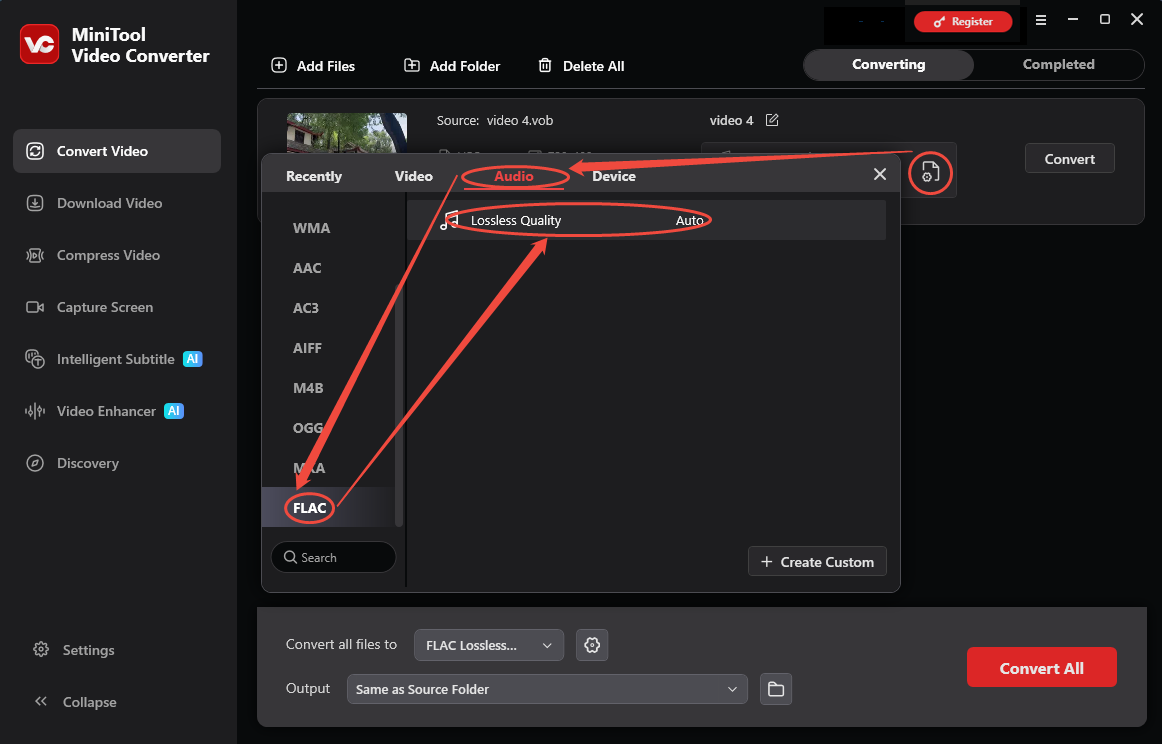
Click on the Gear icon to open the output format window, switch to Audio, select FLAC, and specify the Lossless Quality option.
4. Start the Conversion Process
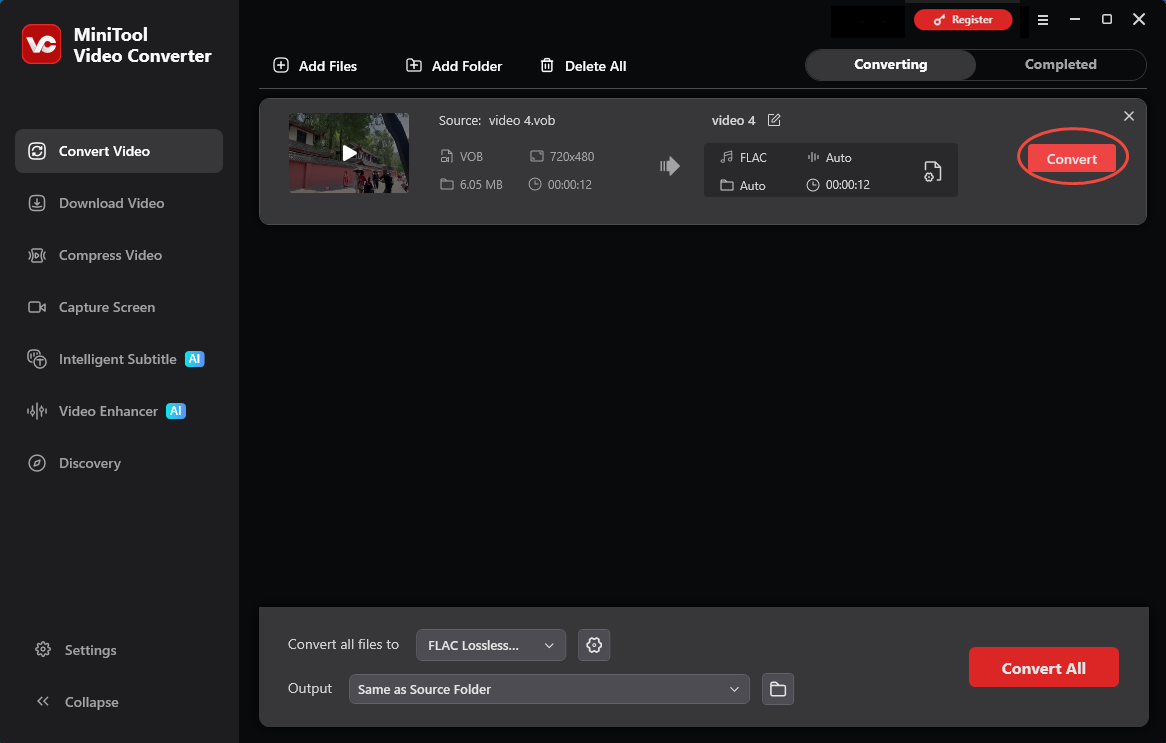
Click on the Convert button to start converting.
5. Check the Result
Click on the Play icon or the Folder icon to check or locate the converted audio.
MiniTool Video Converter can convert videos at a fast speed. It also supports batch file conversion. Moreover, if you need to output advanced audio, you can customize the bitrate, sample rate, and number of channels.
Option 2: VLC Media Player
VLC Media Player is a feature-rich and open-source media player that supports various video and audio formats. In addition to being a media player, it can serve as a file converter that processes a variety of format conversions, including VOB to FLAC, MTS to MP3, VTS to MP4, MP3 to FLAC, OGG to FLAC, etc. You can follow the details below:
1. Obtain VLC Media Player
Head to the VLC Media Player’s official website to download and install this software on your PC.
2. Import VOB File
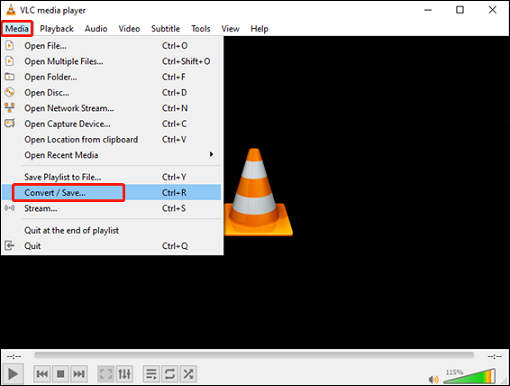
Launch this program to enter its main interface. Click the Media tab at the top left to expand the menu, and then click the Convert / Save… button.
In the Open Media window, click the + Add… button to import the target VOB file, and then click the Convert / Save button.
4. Configure FLAC and Begin the Conversion
Click the down-arrow button next to the tool icon to open the format list, and then select FLAC as the output format. Next, click Browse to choose an output destination. After that, click the Start button to start the conversion.
Besides, VLC Media Player offers a wide range of customizable parameters for users to configure, such as quality, codec, size, bitrate, channels, and more. It is completely free and draws a lot of users.
Option 3: FreeConvert
FreeConvert is an online file converter that supports VOB to FLAC conversion. It also enables you to customize audio codec, volume, and more advanced settings. The following is how to do this conversion via FreeConvert.
1. Navigate to https://www.freeconvert.com/vob-to-flac
2. Click Choose Files to import the VOB file.
3. Click Convert to start the conversion.
4. Click the Download option to save the converted audio.
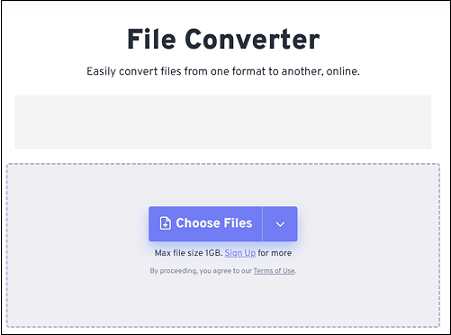
Plus, this browser-based file converter is compatible with different devices, including Windows, Linux, Mac, and more, allowing users to complete the conversion task conveniently.
Conclusion
This article recommends 3 reliable VOB to FLAC converters on Windows, including MiniTool Video Converter and VLC Media Player. It also explains why to do this conversion. Commonly, converting to FLAC can improve compatibility and preserve audio quality.
If you have any questions or suggestions about MiniTool Video Converter, feel free to contact MiniTool’s official support team via email at support@minitoo.com for assistance.
User Comments :