

How do I convert MKV to FLAC? Simply get a video-to-audio converter or access an online conversion website, import an MKV video, configure FLAC as the output format, begin the conversion, and check or download the output audio.
FLAC is a digital audio format that can save audio in lossless quality. Furthermore, FLAC preserves the original audio quality while reducing file size. MKV is a multimedia container format. Its key feature is its multi-track capability, allowing it to store video, audio, and subtitle tracks simultaneously.
Why Convert MKV to FLAC
- Converting MKV to FLAC can get pure audio material for editing or playback.
- FLAC has broader compatibility than MKV. Converting to FLAC can open audio on more devices.
- FLAC is a lossless audio format. Converting MKV can preserve the original audio quality.
How to Convert MKV to FLAC
There are many video-to-audio converters. Below are 3 effective conversion tools that help you convert MKV to FLAC quickly and easily.
- MiniTool Video Converter
- CloudConvert
- Convertio
How convenient are these converters? Here’s a summary of some general steps.
Quick Steps:
- Go to the conversion interface
- Upload MKV files
- Choose FLAC as the output format
- Start the conversion
- Check the result
Method 1. Use MiniTool Video Converter
MiniTool Video Converter is a can’t-miss MKV to FLAC converter. It allows you to convert video to audio without sound quality loss. Moreover, it also supports batch conversion of up to 5 tasks. Below is a detailed tutorial to do this conversion.
1. Download and Install MiniTool Video Converter
Download MiniTool Video Converter from the official website and set it up on your computer.
MiniTool Video ConverterClick to Download100%Clean & Safe
2. Upload a MKV File
In the main interface, click on the Plus icon in the default Convert Video tab to import a MKV video.
3. Configure FLAC
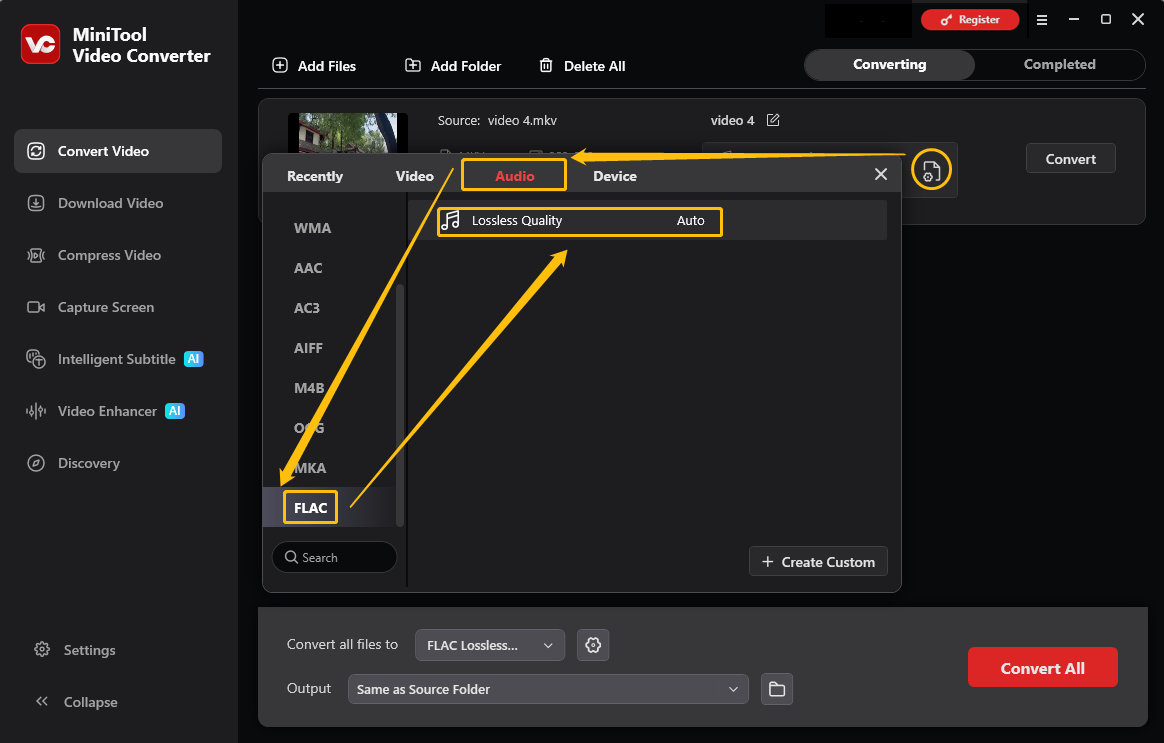
Click the Gear icon to trigger the output format settings window, go to the Audio tab, choose FLAC, and specify Lossless Quality.
4. Start Converting and Check the Result
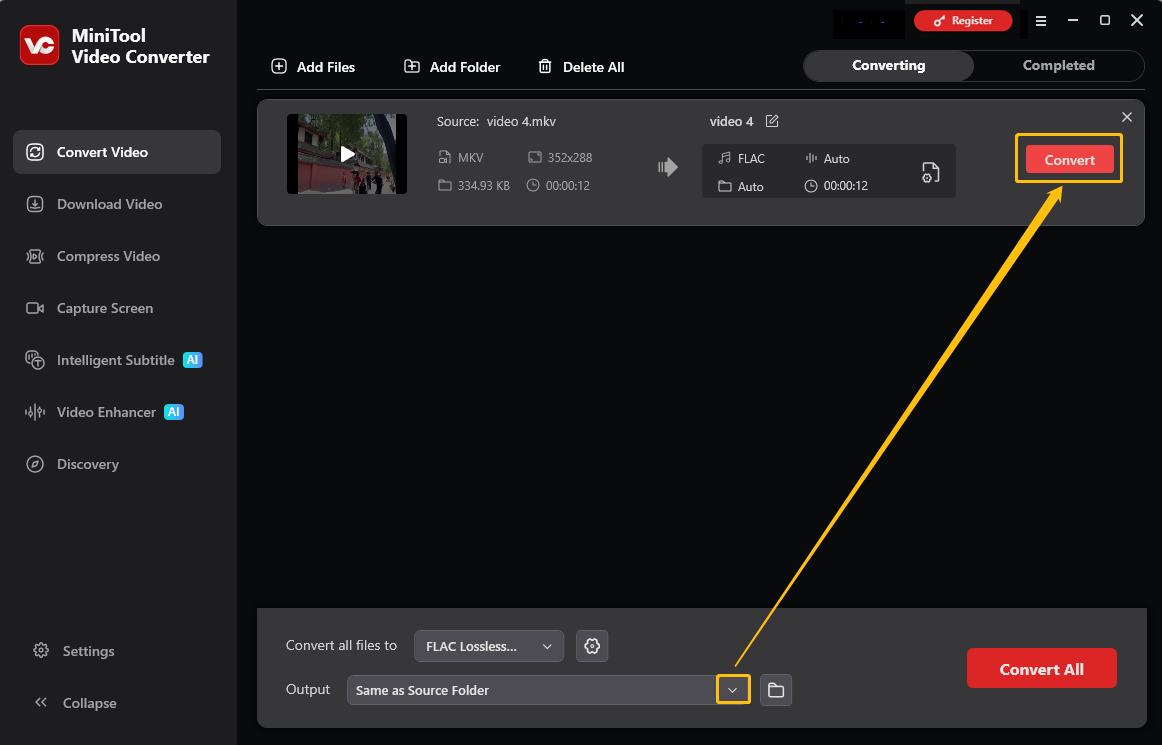
As soon as FLAC is set, expand Output to choose a storage location. Next, click on the Convert button to start the conversion. After a few seconds, click on the Play icon or the Folder icon to check the converted audio or locate it.
MiniTool Video Converter is also an ideal tool for advanced parameter tuning. You can use it to adjust the bitrate and sample rate before conversion.
Method 2. Use CloudConvert
CloudConvert is a useful online file converter. Hence, you can use it to convert MKV to FLAC. What’s more, before starting conversion, it allows you to change the audio bitrate, codec, or sample rate and make other settings. Here’s how to convert MKV to FLAC via CloudConvert.
1. Navigate to CloudConvert’s Conversion Page
Visit the CloudConvert website and click the Select File button to load the MKV video you want to convert. In addition to uploading files from your device, you can also upload from OneDrive or Dropbox by pasting URLs.
2. Select FLAC as the Converted Format
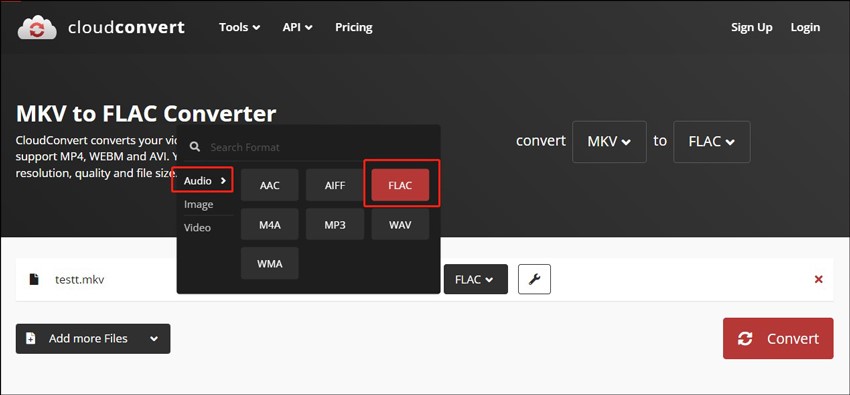
Click the inverted arrow next to Convert to, move to Audio, and select the FLAC option.
3. Start the Conversion Process
Click the red Convert button to start the MKV to FLAC conversion. When the conversion is complete, you can click the Download button to save the audio file.
CloudConvert also supports batch audio conversion. Moreover, it enables you to convert videos, audio, images, presentations, fonts, and other kinds of files.
Method 3. Use Convertio
Convertio is a versatile file converter that support MKV to FLAC conversion. As a useful video and audio converter, it also enables you to convert video to audio like MKV to FLAC or WebM to OGG. Here's how:
1. Upload MKV Files
Open your browser, go to the website of Convertio, and click Choose Files to import the target MKV file.
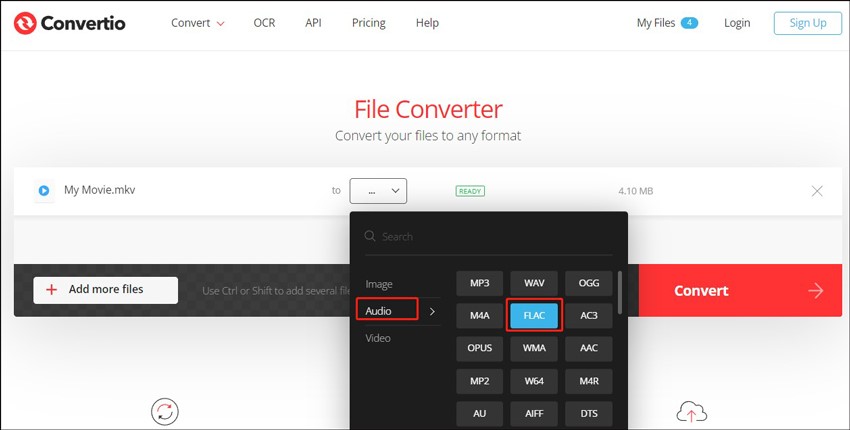
2. Choose FLAC
Open the output format list, navigate to the Audio tab, and click the FLAC option.
3. Begin the Conversion
Click Convert to begin the conversion process, and click Download to save the FLAC file locally.
All its file conversions take place in the cloud and will not consume any capacity from your computer. Additionally, it provides you with customizable settings. For instance, you can cut the audio, change the audio channel or codec, and adjust the audio volume.
Final Words
This article introduces how to convert MKV to FLAC, including using MiniTool Video Converter, CloudConvert, and Convertio. It also explains that the conversion was due to factors such as reducing file size and improving compatibility, and more.
If you need any help with MiniTool Video Converter, feel free to contact MiniTool via email at support@minitool.com.
User Comments :