

This article introduces SWF and M4V and shows a comparison of them. It also tells the reasons to convert SWF to M4V. Besides, the post brings out 2 converters, including Filestar and Converter App.
Overview of SWF and M4V
SWF (Small Web Format) is a vector graphic animation format. It was the default format of Adobe Flash. SWF contains various interactive and functional animations or applets. Plus, it is mainly used for multimedia and vector graphics. However, it is no longer supported by Adobe and relies heavily on Flash plug-ins. Therefore, it is incompatible with multiple modern devices.
M4V is a lossy video container format developed by Apple. It is protected by DRM (Digital Rights Management) and is one of the popular formats used in iTunes. Additionally, M4V utilizes the H.264 video codec and AAC audio codec for compression. Besides, it can be played on a variety of players, including Apple iTunes, QuickTime player, RealPlayer, MPlayer, and more.
Comparison of SWF and M4V
What are the differences between SWF and M4V? I want to compare them from 3 aspects: compression, compatibility, and loading speed.
#1 Compression
SWF uses a lossless compression method, which means it compresses files without losing quality. On the other hand, M4V is a lossy container format. It can shrink video size, making it easy to store, transform, and share.
#2 Compatibility
SWF is an outdated vector graphic format. Therefore, it is only suitable for some old players and devices, but well-suited for many advanced players. Although M4V has copyright protection restrictions, it can support many players and devices. Moreover, not all M4V files need to be authenticated.
#3 Loading Speed
One of the design goals of SWF is to be used in browsers, enabling it to load games, movies, vector graphics, and ads quickly. M4V is a lossy compression, which gets rid of unnecessary data and reduces video size to accelerate loading.
Benefits of Converting SWF to M4V
Adobe doesn’t provide technical support for SWF. So, Current SWF files may have many risks. Moreover, SWF probably can’t be compatible with emerging players and other devices. Converting SWF is a can’t-miss choice for security and compatibility.
Converting SWF to M4V with 2 Tools
Based on the above understanding and comparison. Have you started looking for an SWF to M4V converter? Below are an offline converter and an online converter for you.
1. Filestar
Filestar is a professional converter that accepts 1206 file types. It can efficiently convert SWF to M4V. Apart from the video format, Filestar also supports processing audio, documents, e-books, fonts, subtitles, presentations, images, and more. Next, let’s take a look at how to complete SWF to M4V conversion using Filestar.
Step 1. Download and Install Filestar
Download and install Filestar from the official website. Then, run it.
Step 2. Import Your SWF Video
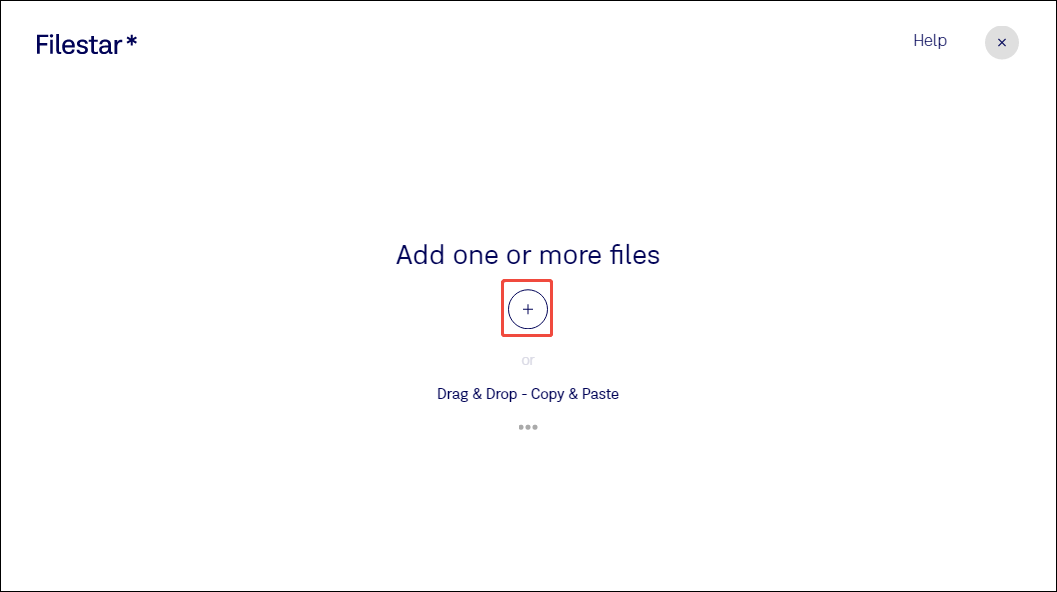
After launching Filestar, click on the Plus icon to import the SWF file.
Step 3. Set M4V as the Output Format
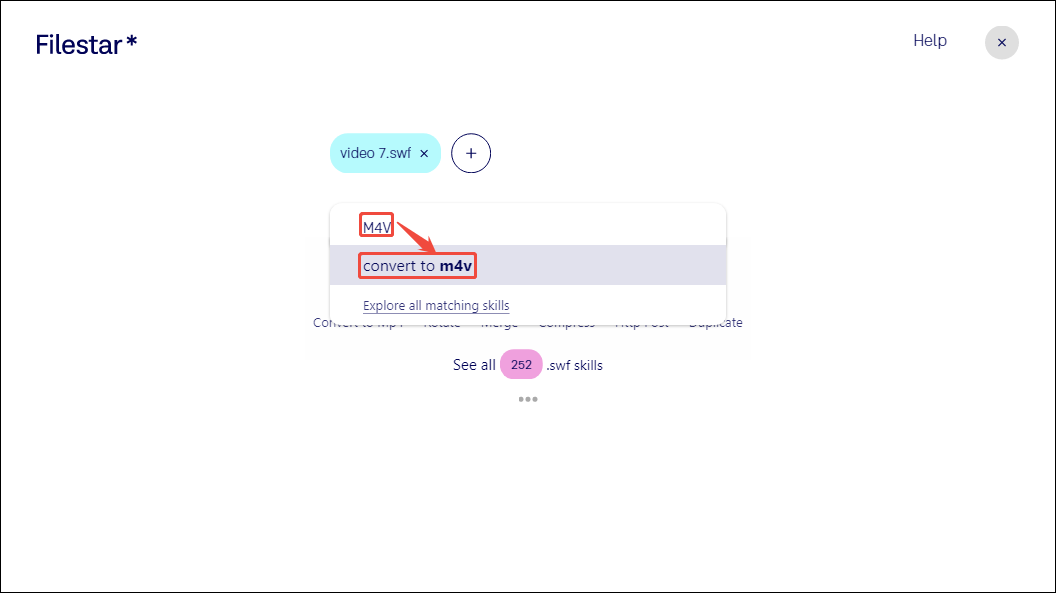
Enter M4V into the search bar and choose the convert to m4v option. After completing this step, M4V is set to the output format.
Step 4. Start the Conversion Process
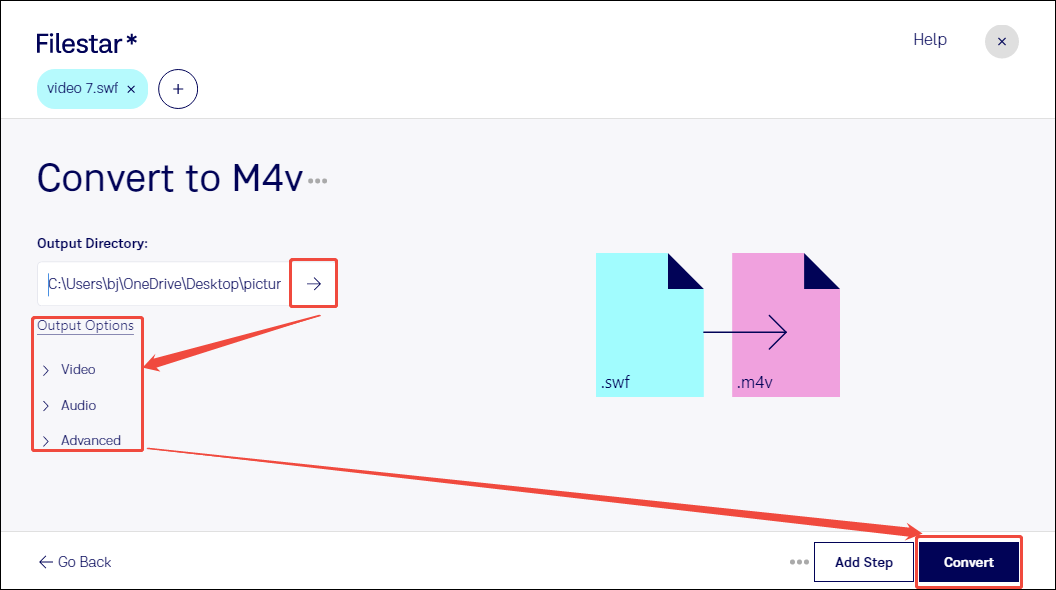
Once you set the output format, this video converter will switch to the conversion interface. There, expand the Output Directory option to specify a storage destination. Also, you can expand the Output Options option to customize more parameters. Then, click on the Convert button to start the conversion process.
Step 5. Check the Converted Video
When the conversion is completed, the Status bar will display Done. Then, you can click on the Start Over button to close the conversion page and go to your destination folder to check the converted video.
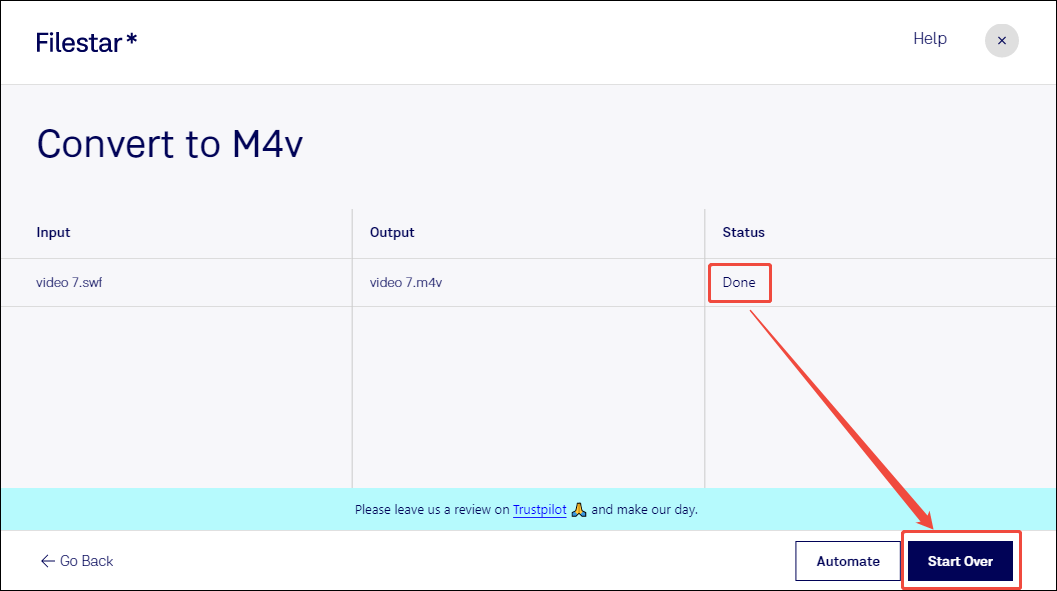
Filestar is easy to use and can help you instantly convert SWF to M4V. It is a desktop worth trying.
MiniTool Video ConverterClick to Download100%Clean & Safe
2. Converter App
Converter App is a fabulous online converter that enables you to convert SWF to M4V. It allows you to convert various other formats, including MP4, MKV, MOV, and AVI. Furthermore, if you need to convert images, documents, or e-books, Converter App can help. The following tutorial is on how to convert SWF to M4V with Converter App.
Step 1. Access Converter App’s Conversion Webpage
Visit https://converter.app/swf-to-m4v/ to open Converter App’s conversion webpage.
Step 2. Upload the Target SWF Video
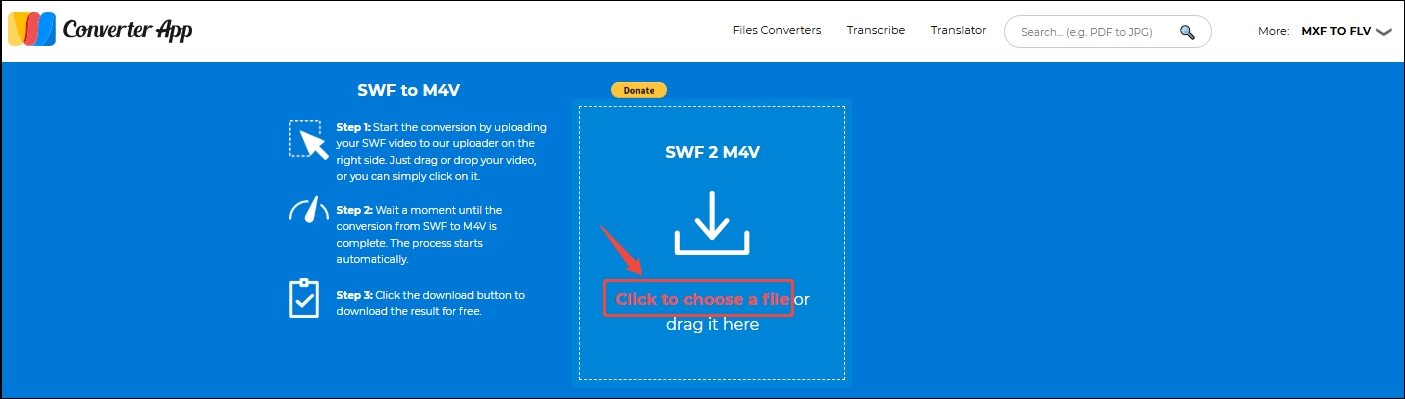
Click on the Click to choose a file option to upload the SWF video. After uploading, this converter will automatically begin the conversion.
Step 3. Save the Converted Video
Once the conversion finishes, click on the Download button to save the converted video.
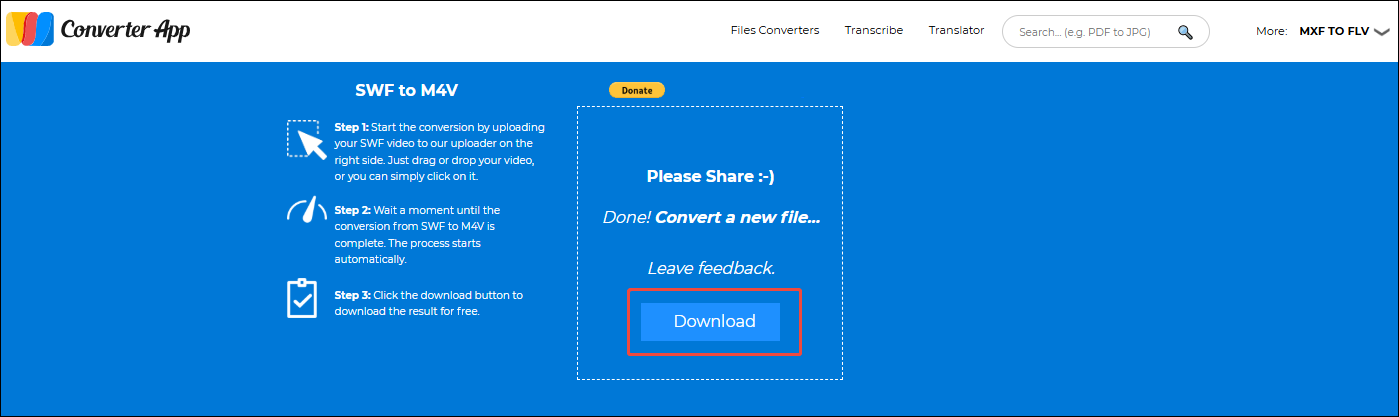
Using the Converter App online converter to convert SWF to M4V is quick and convenient. However, sometimes you may have to tolerate ads on conversion pages.
Wrap Up
This article compares SWF and M4V in terms of compression, compatibility, and loading speed. It also explains why to convert SWF to M4V. More importantly, it spotlights 2 marvelous converters: Filestar and Convert App.
User Comments :