

Overview of SWF and Xvid
SWF (Shockwave/Small Web Format) is a vector graphics animation format developed by Adobe Systems. It is a versatile format used for multimedia, vector graphics, and ActionScript. SWF can contain various interactive and functional animations and applets. It can also be used to create browser games by ActionScript. SWF commonly uses Sorenson Spark and On2 VP6 as its video codecs.
Xvid is a video codec library defined by the MPEG-4 video encoding standard, particularly ASP (Advanced Simple Profile). It adopts the MPEG-4 standard to encode its files. Xvid is mainly used for storing, transforming, and sharing videos. It can be compatible with most players, such as VLC Media Player, GOM Player, and Windows Media Player.
Differences Between SWF and Xvid
What are the key differences between SWF and Xvid? The following part analyzes their differences in terms of usage, compatibility, and patent restrictions.
#1 Usage
SWF is primarily used for vector graphics in animations and applets for browser-based games. On the other hand, Xvid is an open-source codec library mainly used for encoding and decoding videos.
#2 Compatibility
SWF is an abandoned format by Adobe Flash Player and other web browsers due to its security concerns. Xvid is still supported by many media players in Windows macOS, and Online applications.
#3 Patent Restriction
SWF is currently not subject to patent restrictions. Adobe previously held several patents related to SWF. To expand its reach, the company has waived these patent restrictions. As an implementation of MPEG-4, Xvid is subject to several patented technologies.
Why Convert SWF to Xvid
Due to the increasing usage of more advanced HTML5 in the gaming and animation fields. Besides, there are multiple security issues with the Adobe SWF player. Therefore, SWF is no longer in use. Converting SWF to Xvid allows compatible with more players and ensures video safety.
How to Convert SWF to Xvid
Looking for a good SWF to Xvid converter? I want to recommend 2 tools to you that I have used recently.
Option 1. iDealshare VideoGo
iDealshare VideoGo is an excellent desktop SWF to Xvid converter. It enables you to convert, trim, crop, clip, play, and merge your videos. What’s more, iDealshare VideoGo allows you to add effects to your videos. It provides advanced settings, which help you export more desirable videos. Let’s try to convert SWF to Xvid with iDealshare VideoGo.
Step 1. Download and Install iDealshare VideoGo
Download and install iDealshare VideoGo from the official website. Then, open it.
Step 2. Import Your SWF Video
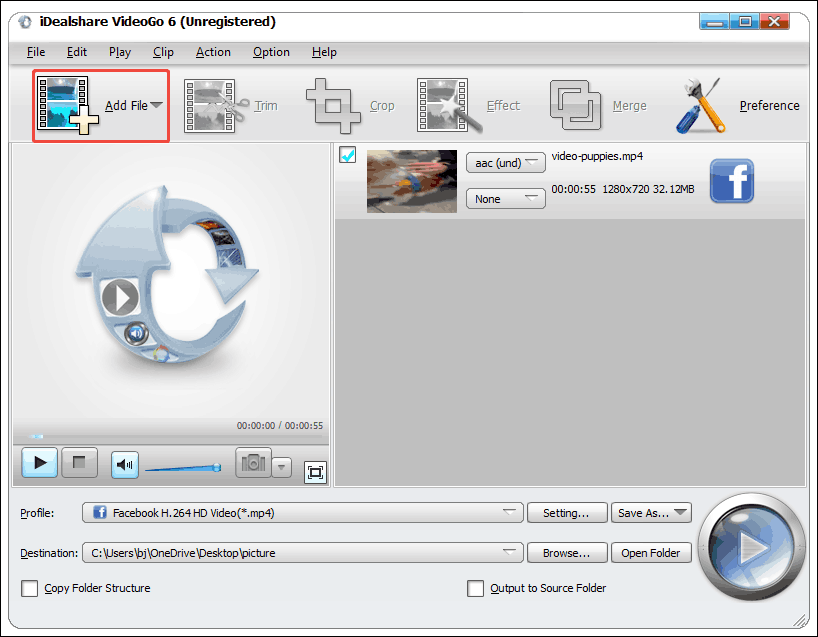
After opening iDealshare VideoGo, close the registration pop-up window. Then, expand the Add File option to import the SWF file you chose.
Step 3. Set Xvid as the Output Format
Expand the Profile option and enter XVID into the search bar. Then, choose the XivD option on the right page.

Step 4. Start the Conversion
After setting Xvid as the output format, expand the Destination option to choose a save location. Then, click on the Play-shaped button to start the conversion.

Step 5. Locate Your Converted Video
Once the conversion finishes, this video converter will go to the save folder on your computer.
iDealshare VideoGo is a useful tool for processing SWF to Xvid conversion.
Option 2. ConvertFiles
ConvertFiles is a browser-based video converter that helps you quickly and easily convert SWF to Xvid. It supports converting videos, audio, e-books, archives, presentations, documents, images, and more. ConvertFiles also enables you to download instantly or send via email. Below is a tutorial on how to convert SWF to Xvid using ConvertFiles.
Step 1. Go to ConvertFiles’s Conversion Page
Navigate to https://www.convertfiles.com/convert/document/swf-to-xvid to enter the ConvertFiles’s conversion webpage.
Step 2. Upload the SWF Video
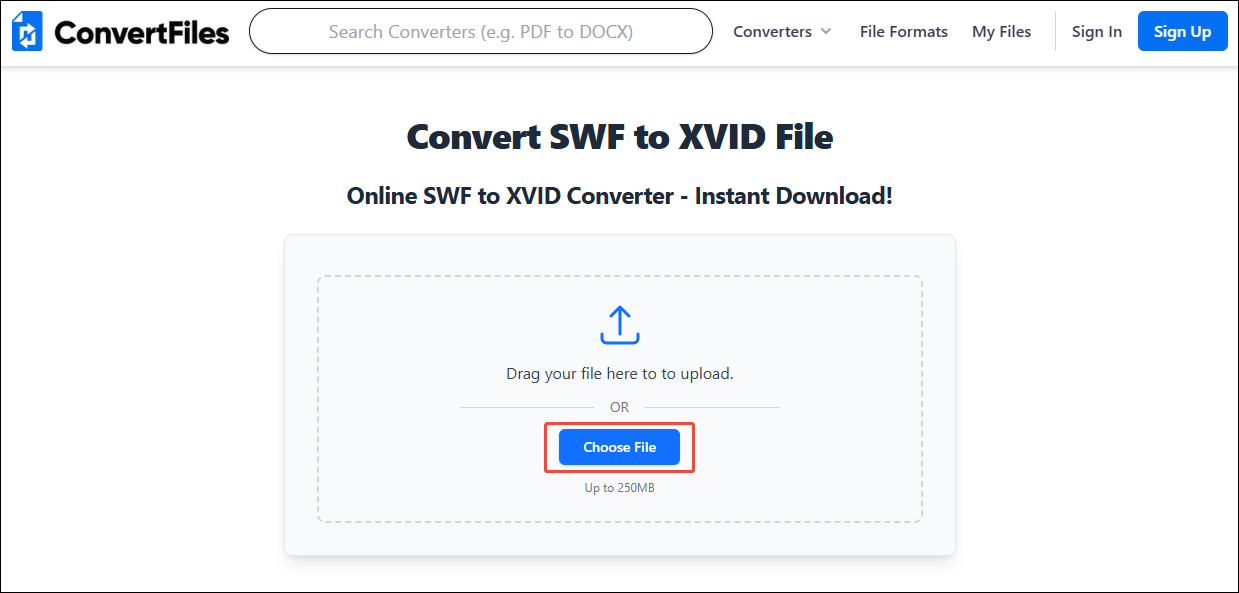
Click on the Choose File option to upload the SWF video.
Step 3. Begin the Conversion
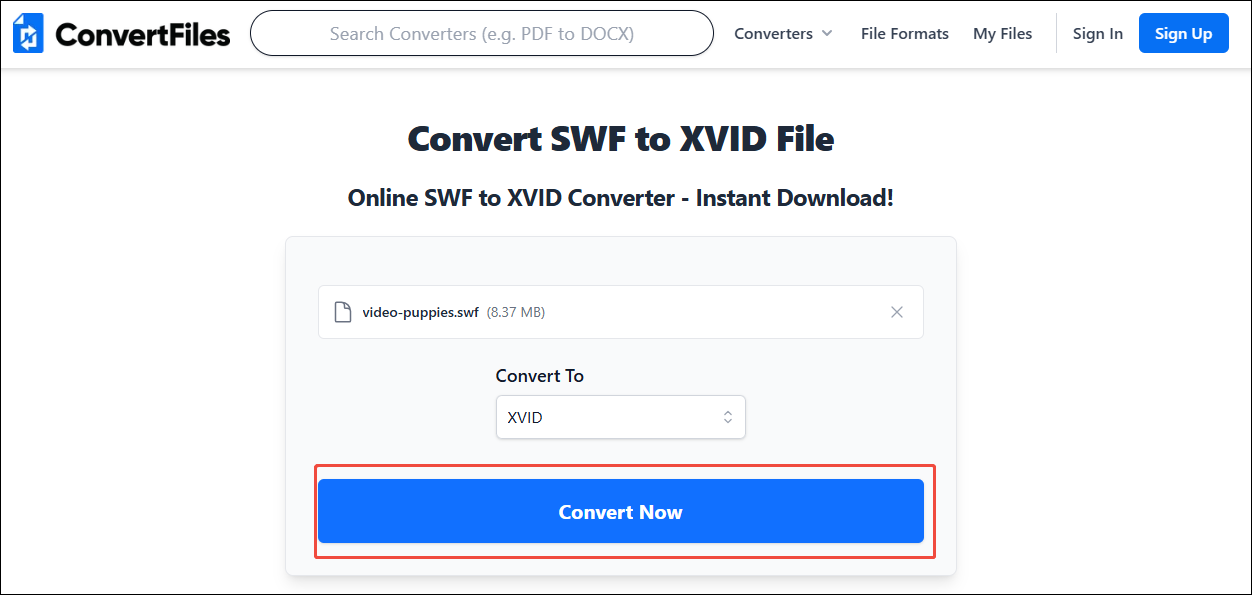
Click on the Convert Now button to begin the conversion.
Step 4. Save the Converted Video
When the conversion completes, click on the Download button to save the converted video.
ConvertFiles is a very efficient file converter. However, it has limitations on video uploads by unregistered users, allowing only videos up to 250MB per upload.
Bonus: How to Convert Other Formats to Xvid
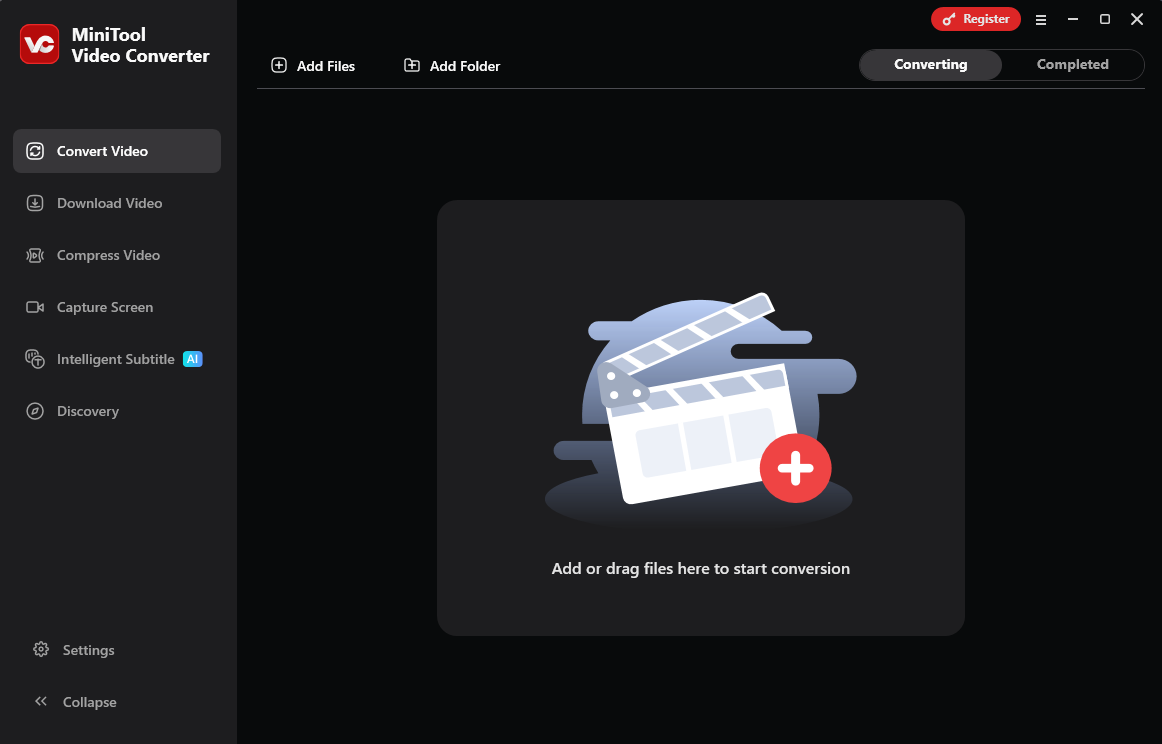
Among desktop software, I prefer the free video converter: MiniTool Video Converter. It is completely ad-free, has no bundled software, and has no watermark. MiniTool Video Converter accepts various conversions, including MOV to FLV, MP4 to DivX, M2TS to WebM, MPEG to AIFF, AAC to OGG, and more.
MiniTool Video Converter also allows you to process batch conversions of up to 5 tasks. In addition, it empowers you to adjust advanced parameters, such as resolution, frame rate, and sample rate.
MiniTool Video ConverterClick to Download100%Clean & Safe
Conclusion
This post lists the key differences between SWF and Xivd. It also explains how to convert SWF to Xvid for better compatibility. What’s more, this article shows one offline and one online converter, including iDealshare VideoGo and ConvertFiles.
User Comments :