

This article gives you the reasons why to convert MPEG to AIFF and shows you the changes after the conversion. It also shows 2 conversion methods using MiniTool Video Converter and Convertio.
Overview of MPEG
MPEG (Moving Picture Experts Group) is a standardized video file format developed by the Moving Picture Experts Group. It is primarily used for the compression and transmission of audio and video.
One of the traits of MPEG is that video and audio are compressed separately using MPEG-1 or MPEG-2 and MP3 tracks. It uses lossy compression to minimize unnecessary data in the audio and video with a little quality loss.
Overview of AIFF
AIFF (Audio Interchange File Format) is a lossless audio format developed by Apple. Its extension name is .aiff or .aif. AIFF. AIFF is commonly used on macOS. Its lossless compression attribute results in a large storage location. However, it is highly editable and can be used for professional audio editing.
Why Convert MPEG to AIFF
If you want to edit an audio in MPEG using professional editing software that doesn’t support MPEG, you can convert it to the more widely used AIFF. Besides, AIFF saves more complete metadata, making it smoother to edit and suitable for audio editing.
Changes After MPEG to AIFF Conversion
Converting MPEG to AIFF will noticeably increase the file size, which makes the audio contain more details. What’s more, this converted audio will have stronger compatibility with the Apple ecosystem. Also, AIFF audio can be freely edited to create new audio files.
How to Convert MPEG to AIFF
Haven’t found a great MPEG to AIFF converter? Here, I would like to recommend 2 options that I have tried many times.
Option 1. MiniTool Video Converter
MiniTool Video Converter is a free video converter. Is it suitable for beginners? Of course! MiniTool Video Converter has an intuitive interface and simple conversion steps. It enables you to quickly and easily convert MPEG to AIFF.
MiniTool Video Converter doesn’t include watermarks, ads, or size limits, enabling you to have a clean and safe conversion experience. In addition, it helps you customize the advanced parameters of the converted file, such as resolution, frame rate, bitrate, sample rate, encoder, and channel, enriching your customization.
Below is about how to efficiently turn MPEG to AIFF with MiniTool Video Converter.
Step 1. Get and Set Up MiniTool Video Converter
To get MiniTool Video Converter, simply click on the download button to download and install it on your computer. Then, launch it.
MiniTool Video ConverterClick to Download100%Clean & Safe
Step 2. Add the MPEG Video Selected
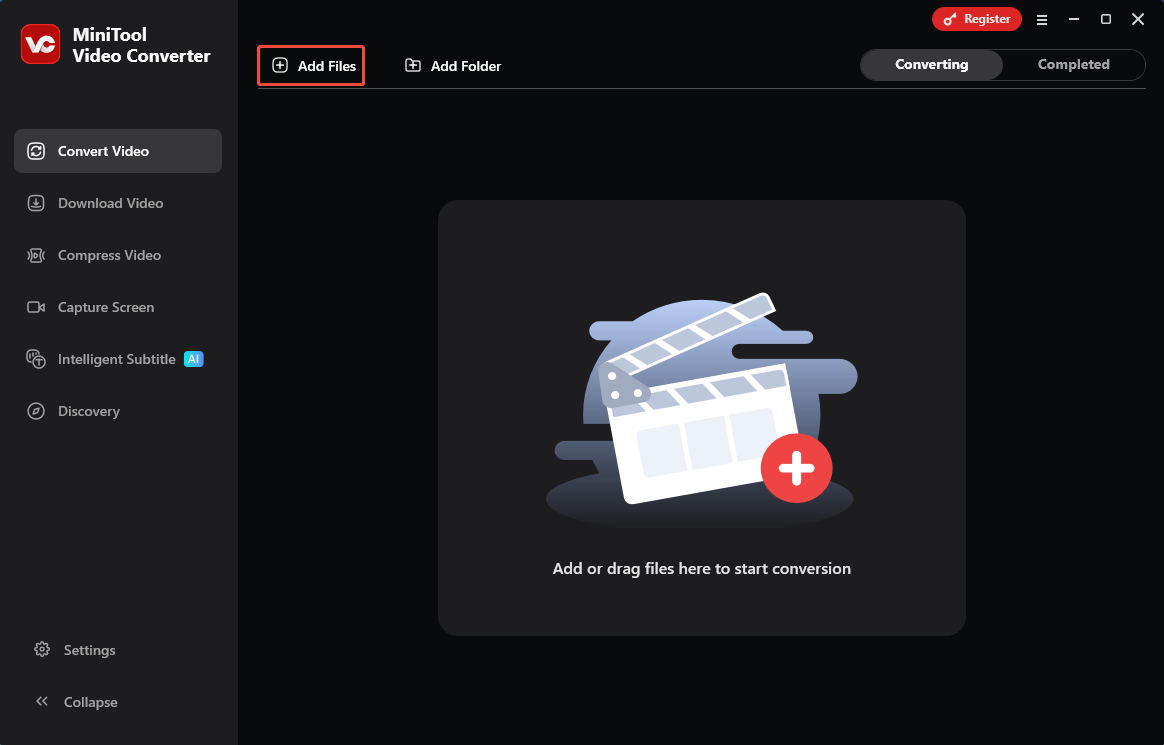
After opening this application, add the video prepared on your device by clicking on the Add Files option.
Step 3. Configure AIFF as the Output Format
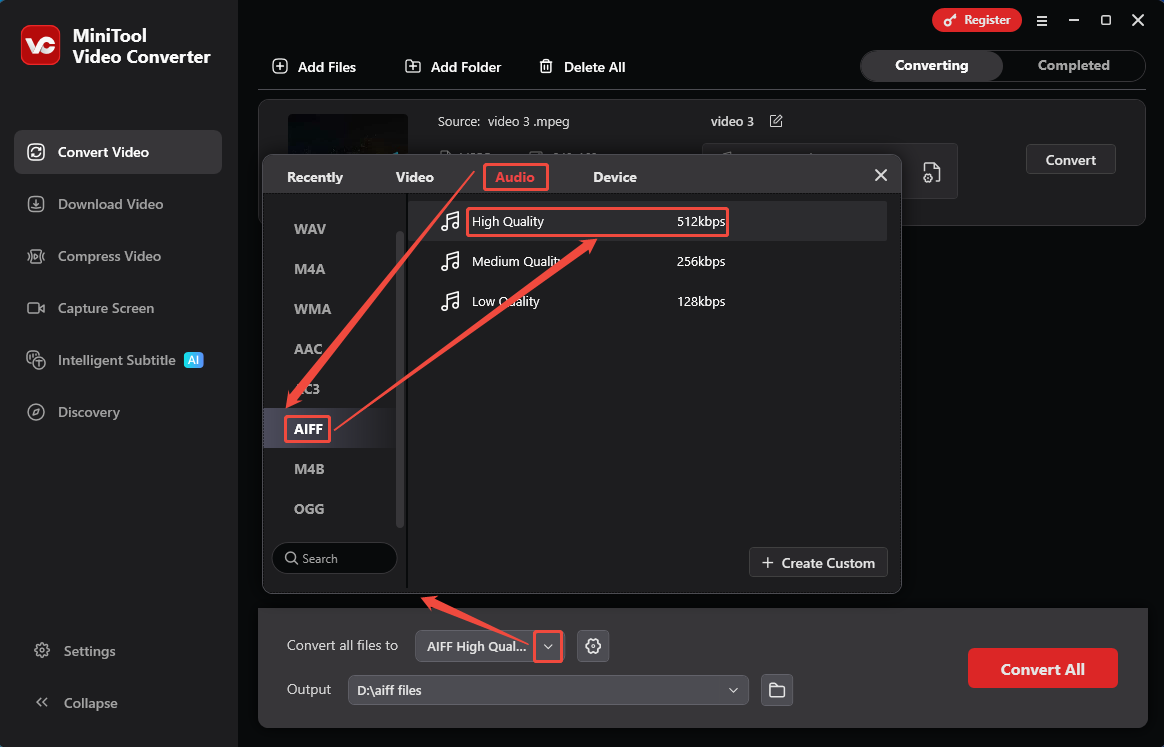
After importing the target video, expand the Convert all files to option to open the output format window. There, switch to the Audio tab and choose AIFF. Then, specify an audio quality option you need. Here, I pick High Quality as a demonstration.
Step 4. Start the Conversion Process
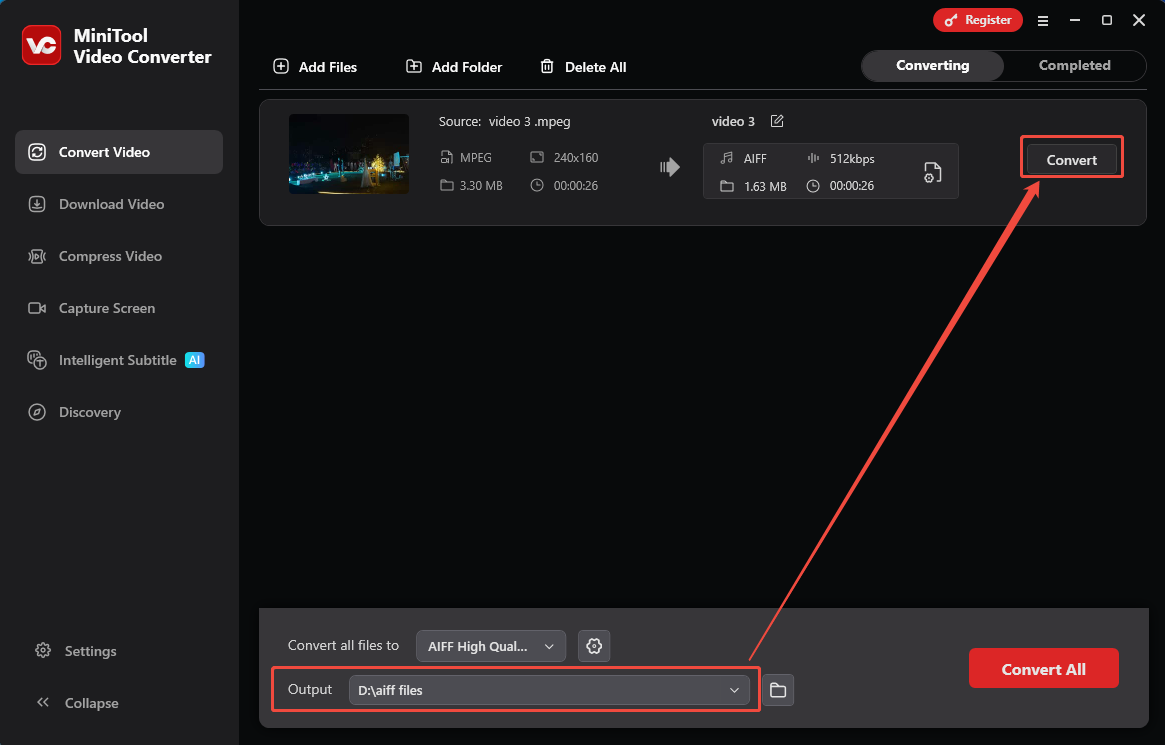
Once the output format is set, expand the Output option to select a storage location on your hard drive. Then, click on the Convert button to start the conversion process.
Step 5. Check the Converted Audio
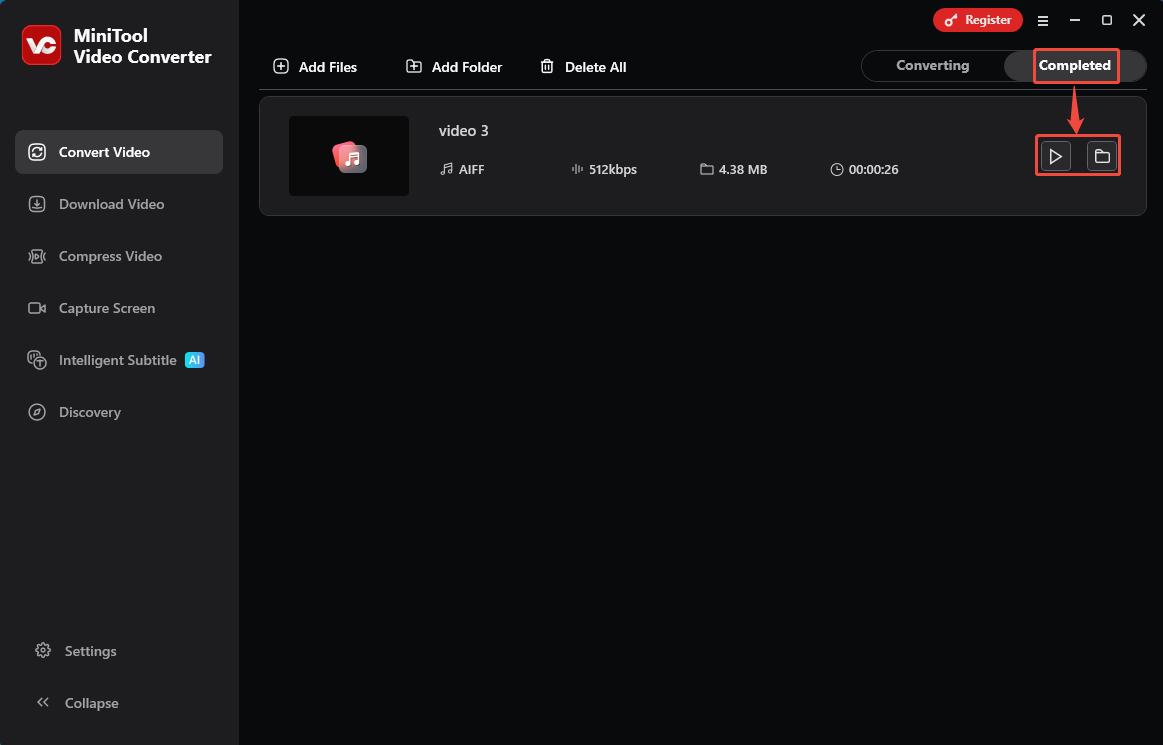
When the conversion ends, this converter will switch to the Completed module. Here, if you want to check or find the converted audio on the PC, click on the Play icon or the Folder icon.
MiniTool Video Converter is a simple and fast MPEG to AIFF converter, taking your conversion efficiency to the next level.
Option 2. Convertio
Convertio offers an online conversion for MPEG to AIFF. It also supports 300 formats for various conversions. Convertio also empowers you to convert files in bulk. In addition to importing files from a local folder, it can upload files from Google Chrome and Dropbox. Next, let’s take a look at how to convert MPEG to AIFF with Convertio.
Step 1. Access Convertio’s Conversion Webpage
Copy and paste this URL into your browser: https://convertio.co/mpeg-aiff/ to enter Convertio’s MPEG to AIFF conversion webpage.
Step 2. Upload MPEG File
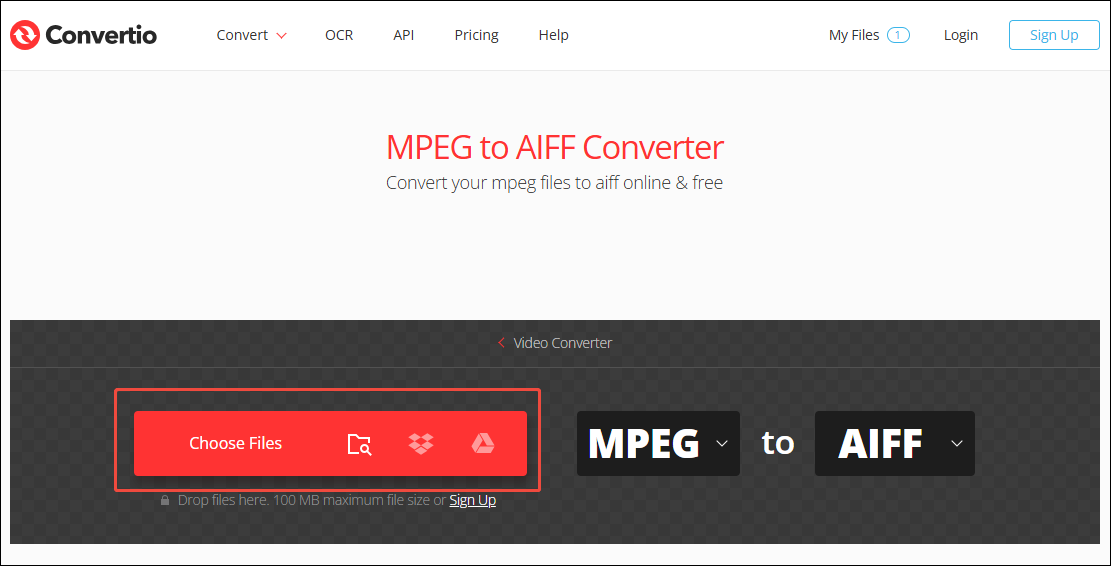
Click on the Choose Files option to upload the MPEG file.
Step 3. Begin the Conversion
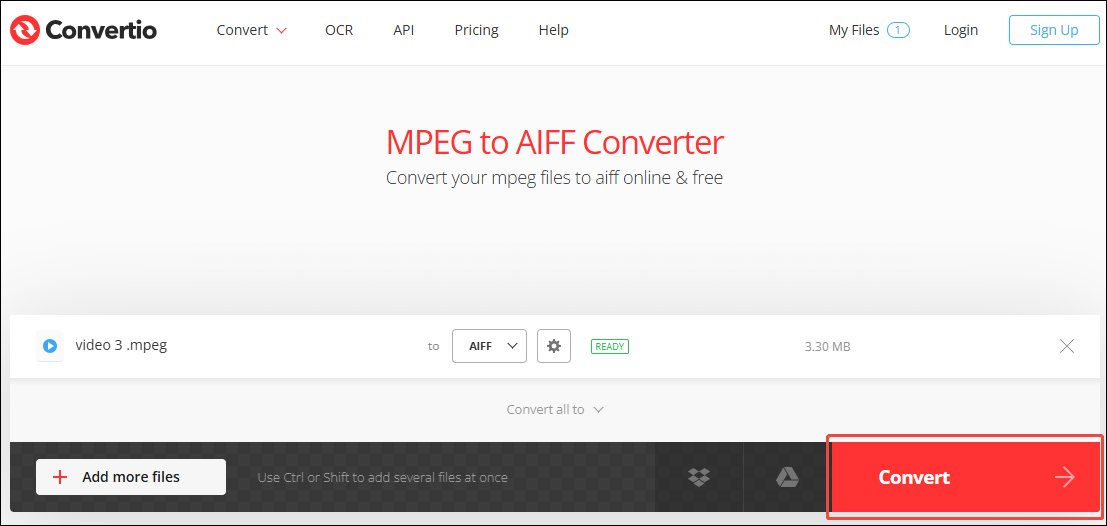
After uploading the MPEG file, click on the Convert button to begin the conversion.
Step 4. Archive the Converted Audio
After a few seconds, click on the Download button to save your converted audio. Then, you can check it in the Downloads tab of your browser.
Convertio can greatly facilitate your conversion. However, note that if you are not logged into this website, your uploaded file must be less than 100MB.
Final Words
In this article, you can learn the reasons to convert MPEG to AIFF. Besides, this article walks you through how to complete the conversion with MiniTool Video Converter and Convertio. How to choose between these two converters? If you don't want to download additional software, choose Convertio. To convert large files, choose the MiniTool Video Converter.
User Comments :