

What Are the Uses of WebM Format?
WebM is a common multimedia container format. Developed by Google, it’s used for streaming video online. WebM delivers real-time, high-quality video across various devices and browsers. It has excellent compression efficiency. So, it is usually used for putting video and audio on web pages.
What Are the Uses of AIFF Format?
AIFF is an audio format with lossless quality. It is commonly used for high-quality and lossless audio storage. AIFF provides CD-quality audio. Therefore, it is often used for music production and mastering. Additionally, AIFF is used by GarageBand and iTunes for recording and editing. Due to its lossless nature, AIFF files are typically large in size.
Why Convert WebM to AIFF?
Converting WebM to AIFF preserves its sound quality. AIFF has a wider range of uses for those working in music-related fields. For example, it is ideal for audio editing. Additionally, AIFF effectively preserves audio metadata, such as artist and album names.
How to Convert WebM to AIFF for Free?
Here are two free methods for converting formats.
1. Use MiniTool Video Converter
If you want to convert between various audio and video formats, MiniTool Video Converter is a practical application you can try! It is a Windows-based file converter that supports various formats, including WebM, MP4, M4V, MOV, AIFF, AAC, WAV, and more.
MiniTool Video Converter offers a smooth conversion experience. It doesn’t limit the size or duration of the files you upload. Furthermore, it doesn’t add watermarks to the converted videos. When you have multiple files to convert, you can also use batch conversion to improve efficiency. In short, it’s a free and easy-to-use WebM to AIFF converter.
Here is a guide on how to convert WebM to AIFF using MiniTool Video Converter:
Step 1: Install MiniTool Video Converter
Click the download button to obtain MiniTool Video Converter. Then, start the application once installation is complete.
MiniTool Video ConverterClick to Download100%Clean & Safe
Step 2: Import Your WebM File
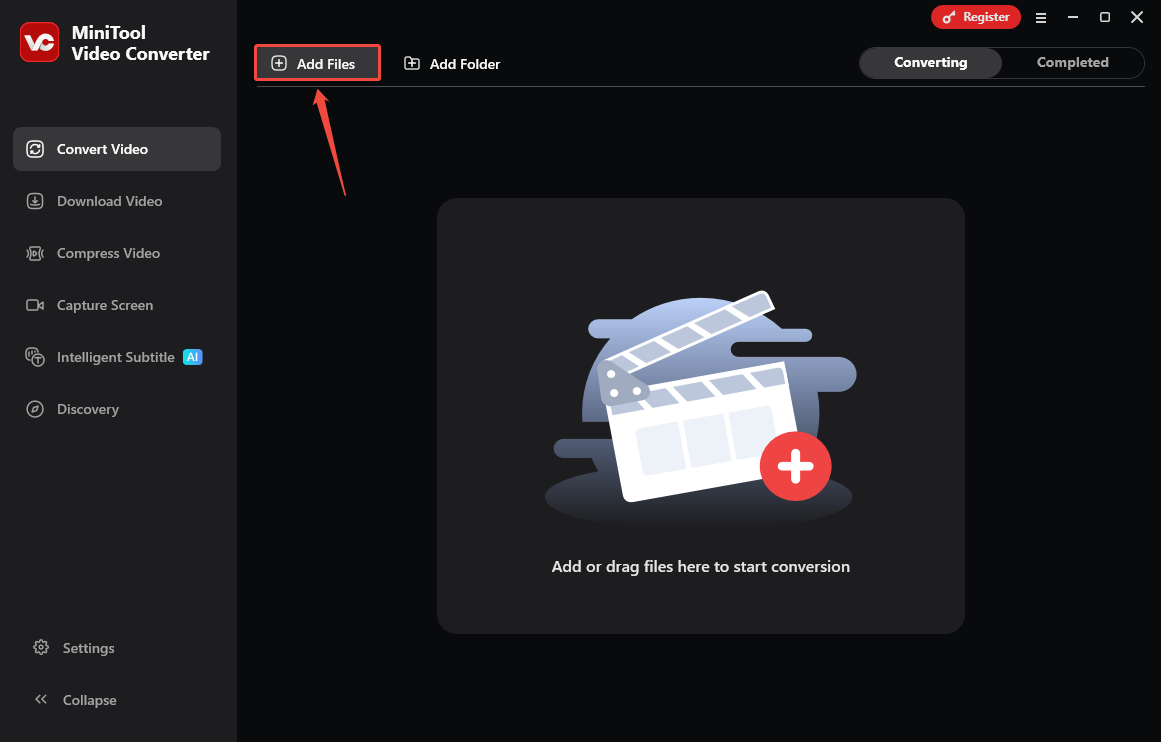
In the Convert Video tab, click the Add Files option at the upper-left of the workspace. Then, choose the WebM file in the pop-up window.
Step 3: Choose AIFF as the Output Format
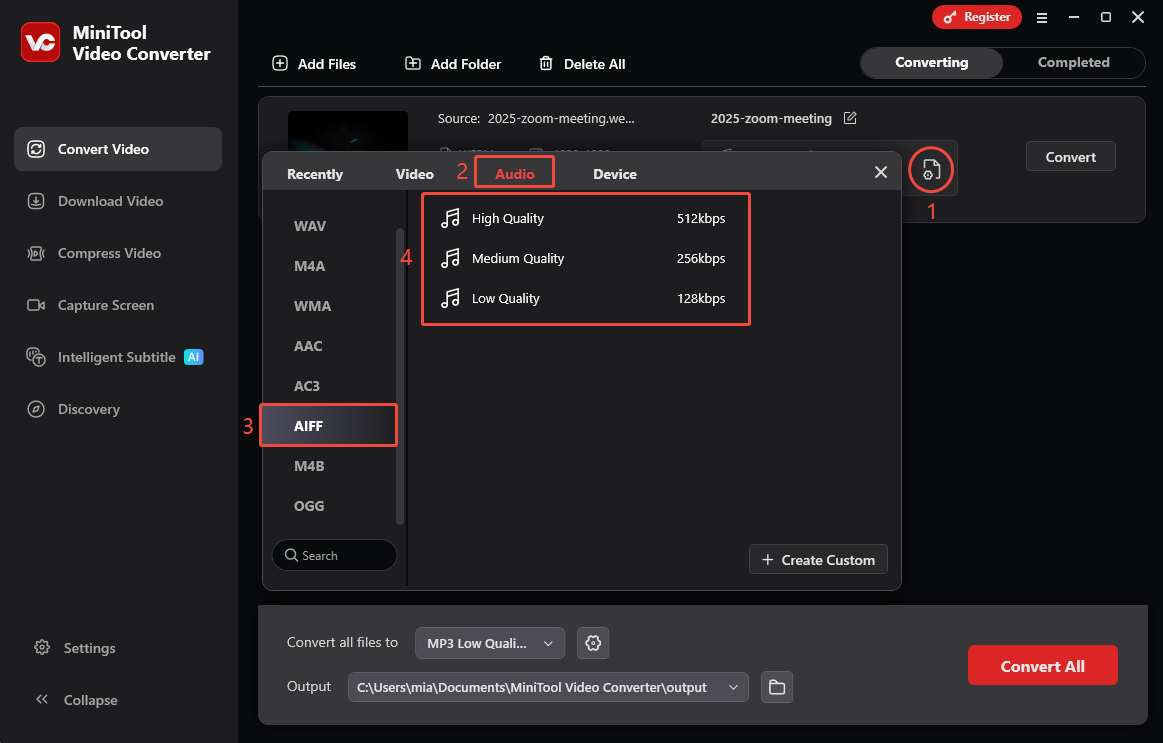
Once the file is uploaded, click the settings icon, switch to the Audio tab, pick AIFF from the left-hand list, and choose your preferred quality.
Step 4: Choose the Save Destination
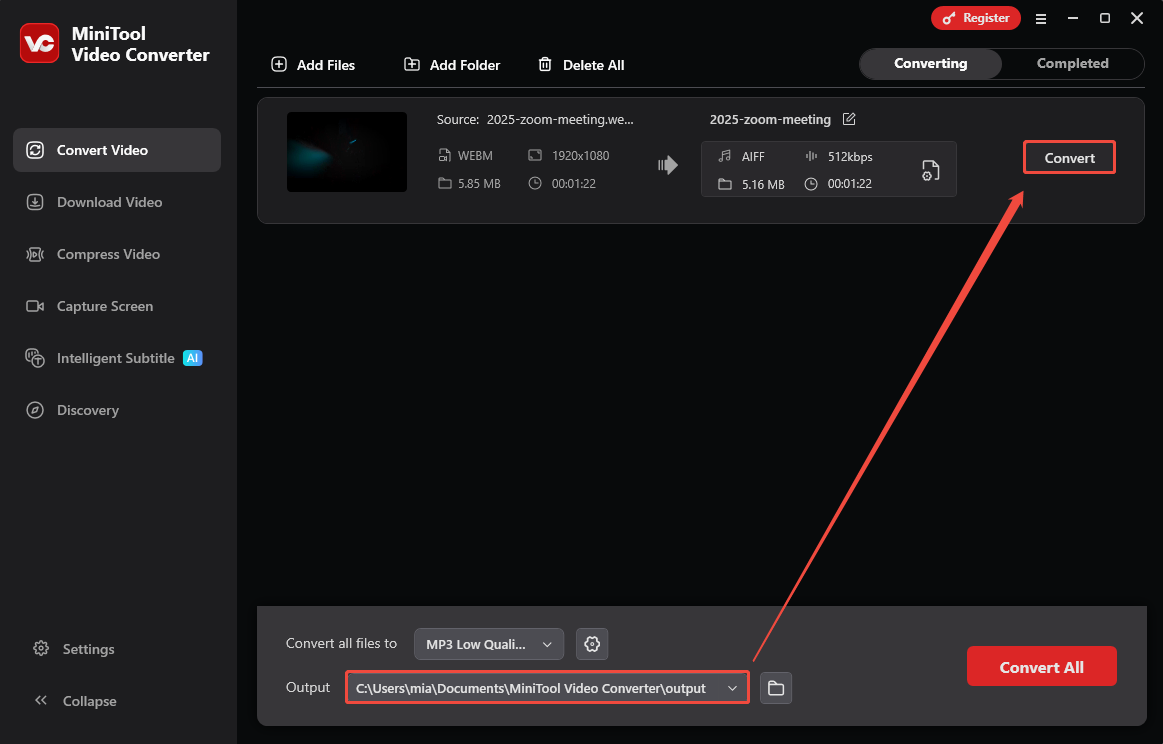
Expand the Output option and pick a folder for the new file.
Step 5: Start Conversion
Click Convert to begin the conversion instantly.
Step 6: Navigate to the Converted Files
Once the conversion is complete, the application will jump to the Completed tab. Then, you can click the play icon to play the audio or click the folder icon to open its location.
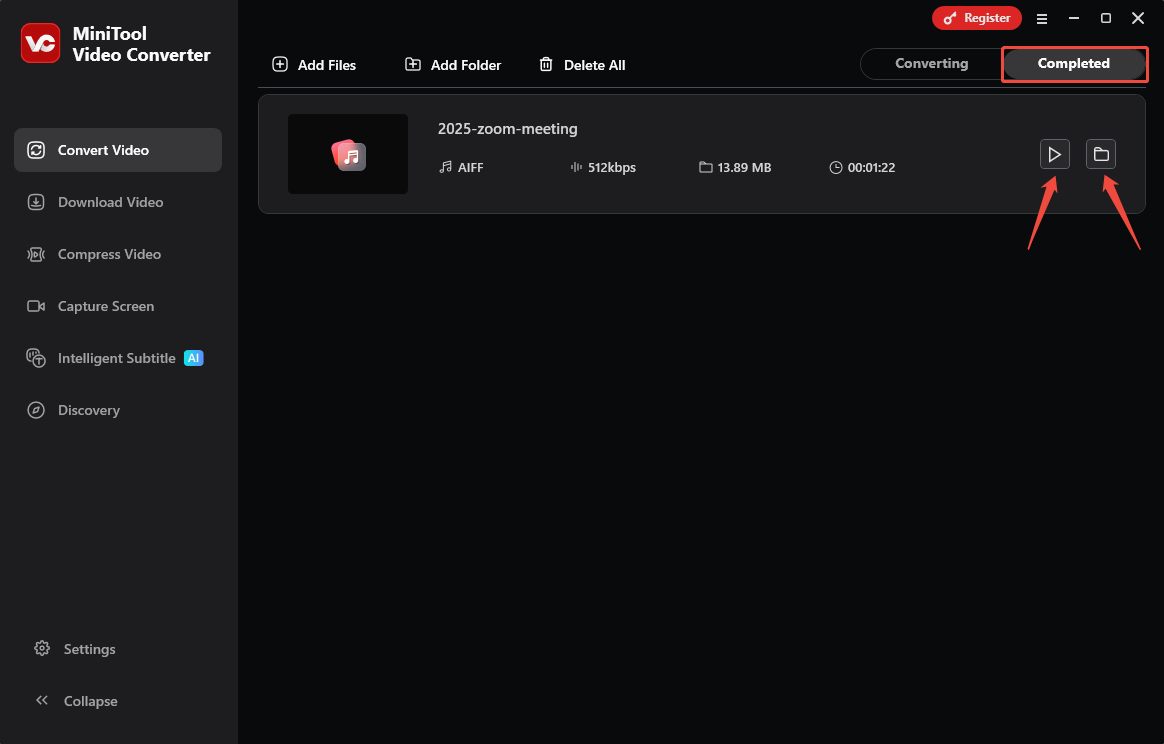
In just a few steps, the files can be quickly converted to your desired format using MiniTool Video Converter. If you have multiple files to convert, you can click the Settings button on the left side of the interface to set the number of files to convert simultaneously, which improves efficiency.
2. Use VLC Media Player
VLC Media Player is a cross-platform video player. Besides playing various audio and video file formats, it can also convert formats, synchronize subtitles, adjust video effects, and record from webcams, among other things. If you already have this software installed on your computer, you can try using it to convert WebM to AIFF. Here’s how:
Step 1: Add Your WebM File
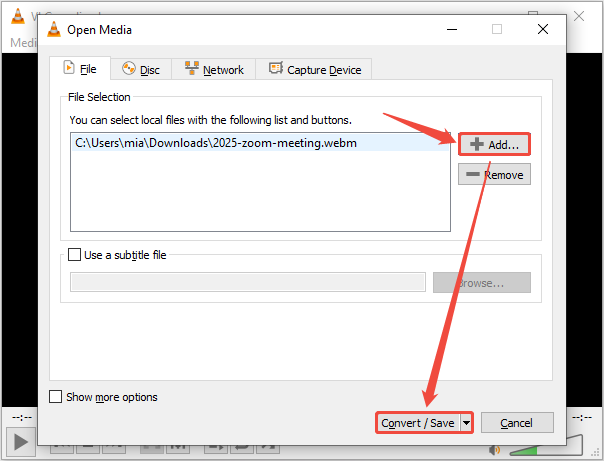
Open VLC on your computer. Click Media and select Convert/Save from the drop-down. In the Open Media window, click the Add… option to upload your WebM file. Then, click Convert/Save.
Step 2: Select the AIFF Output Format
In the pop-up Convert window, click the wrench icon next to the Profile dropdown. Then, switch to the Audio codec tab, select AIFF as the codec, and click Save. Then, select it from the main Profile dropdown menu.
Step 3: Set Save Location
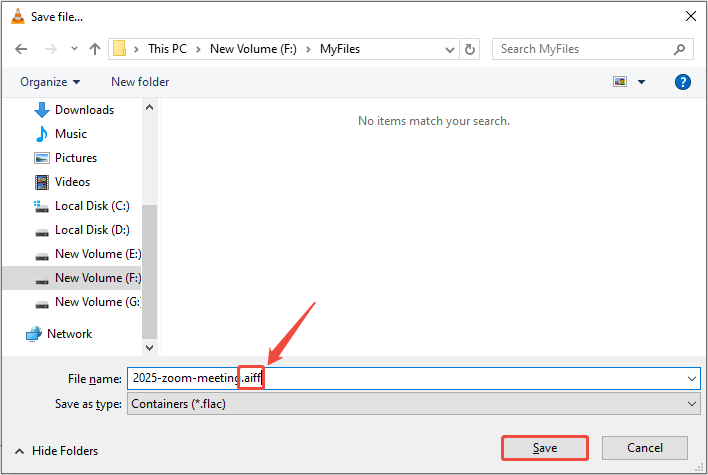
Click the Browse button in the Convert window. Then, manually add the .aiff file extension to the file name and click Save.
Step 4: Start Conversion
Click the Start button to begin the process.
Step 5: Open the Converted File
The conversion progress will be displayed at the bottom of the VLC window. Once the conversion is complete, check the target folder to confirm that the new AIFF file has been created.
VLC Media Player can convert multiple files for free. However, the process can be quite complicated.
Conclusion
This article introduces two methods for converting WebM to AIFF. One method involves using a converter like MiniTool Video Converter for direct conversion. The other method uses the conversion function of VLC Media Player. For beginners, I recommend using MiniTool Video Converter. It’s simpler, easier to use, and converts much faster.
User Comments :