

What Is MPEG
MPEG (Moving Picture Experts Group) is a digital video standard organized by ISO (International Organization for Standardization) and IEC (International Electrotechnical Commission) for encoding media. It is responsible for encoding video, audio, multimedia objects, and more.
MPEG can compress video according to the differences in every frame. Besides, it had a variety of uses in the early days and was encoded by MPEG-1, MPEG-2, and MPEG-4 AVC.
What Is M4R
M4R is a high-quality compression audio file format designed by Apple, which is used for storing ringtones on iPhones without much audio quality loss. It shares multiple similar traits with M4A. The only difference is the file extension, which M4R adopts .m4r, making the iPhone recognize a ringtone but a song. Commonly, the length of an M4R audio is 40 seconds.
M4R is protected by DRM (Digital Rights Management) copyright, which means this format is only compatible with Apple ecosystems, such as QuickTime Player and iTunes. However, if M4R is not authorized for protection, it can be played on any player.
Comparison of MPEG and M4R
How about the differences between MPEG and M4R? Below are abstractions in terms of format type, compatibility, and contents.
#1. Format Type
MPEG is used for audio and video compression, but it can’t be used to turn audio into ringtones on iPhones. M4R is specifically designed for iPhone ringtones, offering better recognition and compatibility within the Apple ecosystem.
2. Compatibility
MPEG is highly compatible with various devices and platforms. M4R is only a common iPhone format used for iPhone ringtones or notification sounds.
#3. Contents
MPEG is a video compression container format that includes video, audio, and metadata with different codecs. M4R is an audio file format and contains audio and data commonly with the AAC codec.
Practical Reasons for MPEG to M4R Conversion
Reason 1: iPhone's custom ringtones, text message sounds, and notification sounds only support the M4R format. Therefore, audio in other formats must be converted to be compatible with the iPhone.
Reason 2: On condition that you have many MPEG videos that are ready to set as ringtones on an iPhone. However, it is mixed with your other audio. Therefore, you can convert them to M4R, which is convenient for managing your audio library.
How to Convert MPEG to M4R
Want to find a suitable MPEG to M4R converter to set as an iPhone ringtone? Here are 2 options I highly recommend.
Option 1. Leawo PROF.Media 13
Leawo PROF. Media 13 is an all-in-one multimedia software created for Windows and Mac. It features strong video and audio conversion. Therefore, you can easily use Leawo PROF. Media 13 to convert MPEG to M4R. What’s more, it also supports conversions from other formats, such as MP4, MKV, MOV, AVI, MP3, AAC, FLAC, and more.
The following are how to convert MPEG to M4R with Leawo PROF. Media 13.
Step 1. Import MPEG File
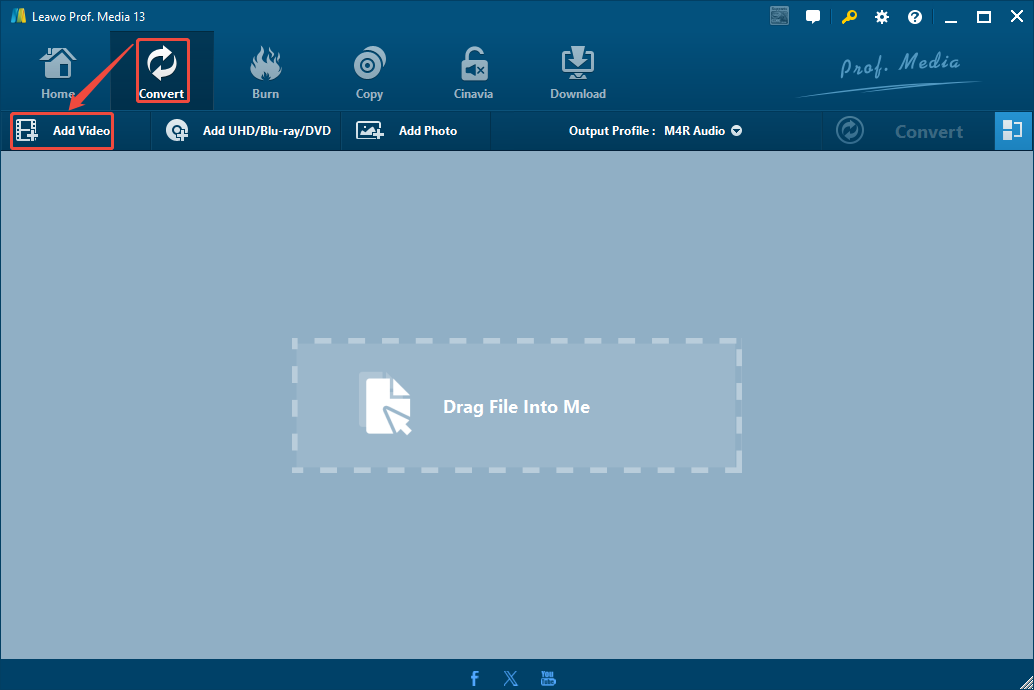
Get and launch Leawo PROF. Media 13. There, switch to the Convert tab. Then, click on the Add Video option to choose an import file or folder. Here, I select to upload an MPEG file.
Step 2. Set M4R as the Output Format
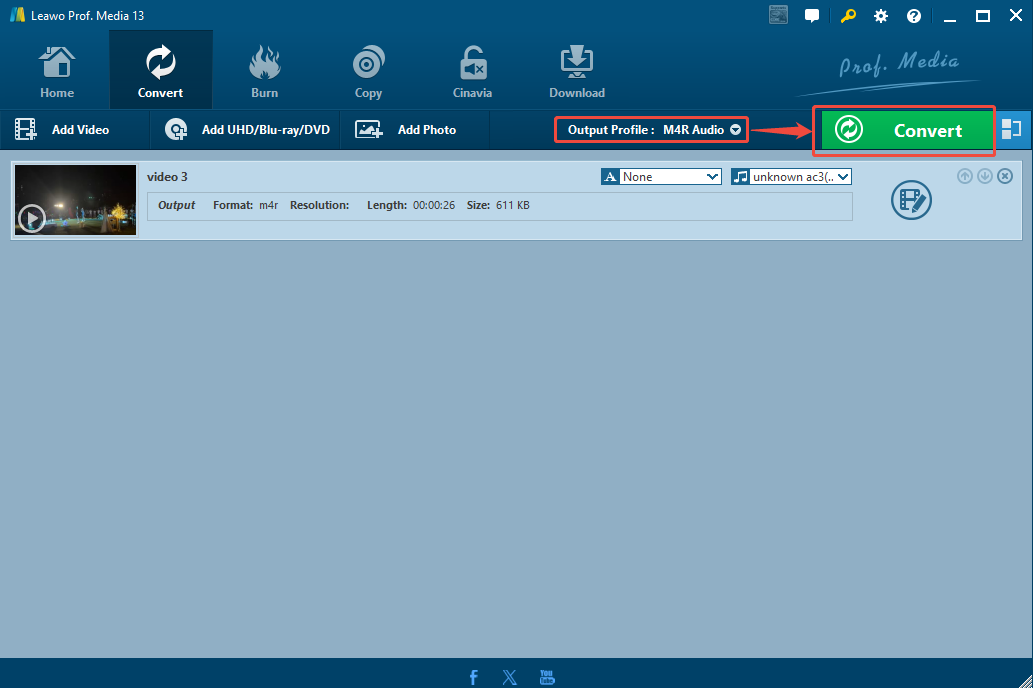
After importing the MPEG file, expand the Output Profile option to select the M4R audio format. Then, click on the Convert option to open the conversion page.
Step 3. Start the Conversion
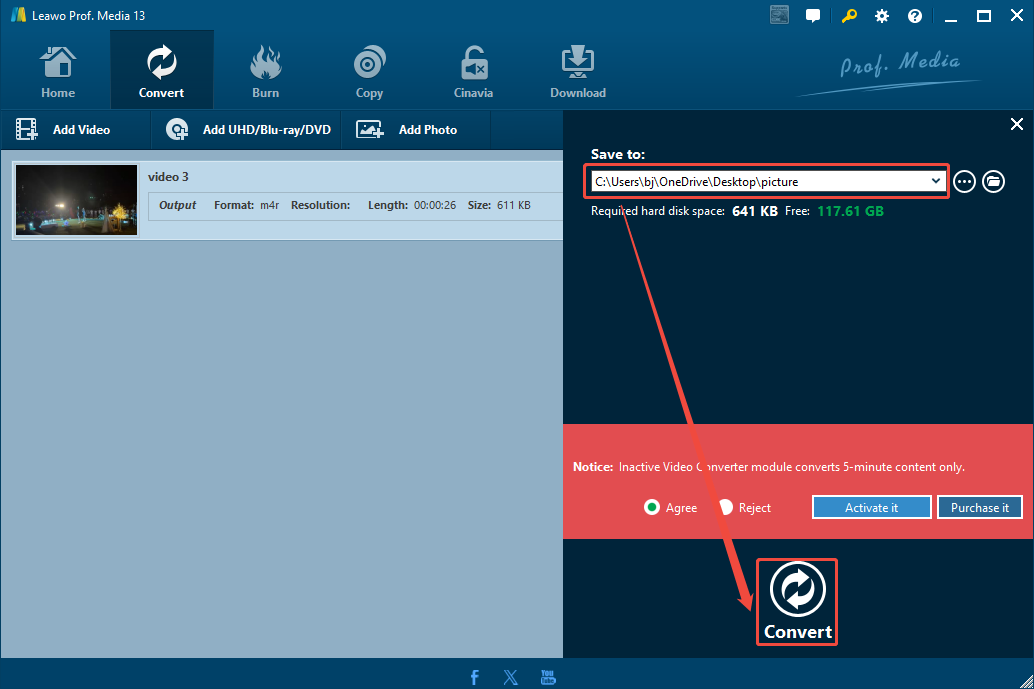
In the conversion page, expand the Save to option to specify a saving folder. Next, check the Agree option in the notice. Then, click on the Convert button to start the conversion.
Step 4. Locate the Converted Audio
Once the conversion finishes, click on the Folder icon to locate the converted audio.
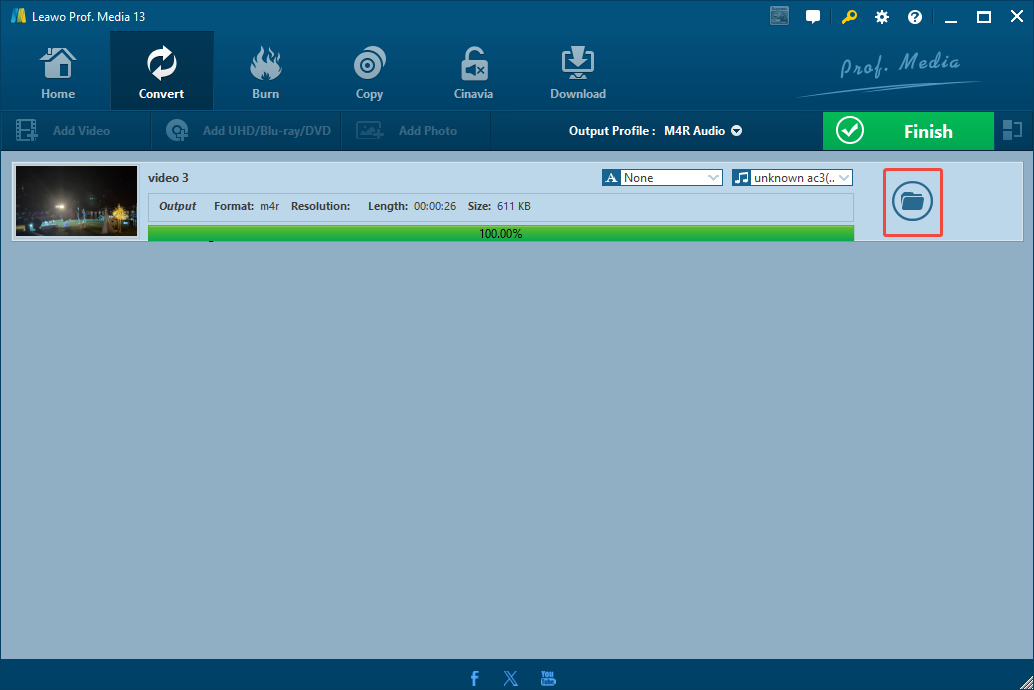
Leawo PROF. Media 13 makes it easier to convert MPEG to M4R.
Option 2. Movavi Video Converter
Movavi Video Converter is a professional video converter. It provides you with an online and offline video, audio, and image converter. Movavi Video Converter supports more than 180 formats. Moreover, before converting MPEG video, it allows you to fine-tune the video resolution and the video quality.
Step 1. Go to Movavi Video Converter’s Homepage
Navigate to https://www.movavi.com/audio-converter/m4r-converter.html to enter Movavi Video Converter.
Step 2. Upload MPEG Video Prepared
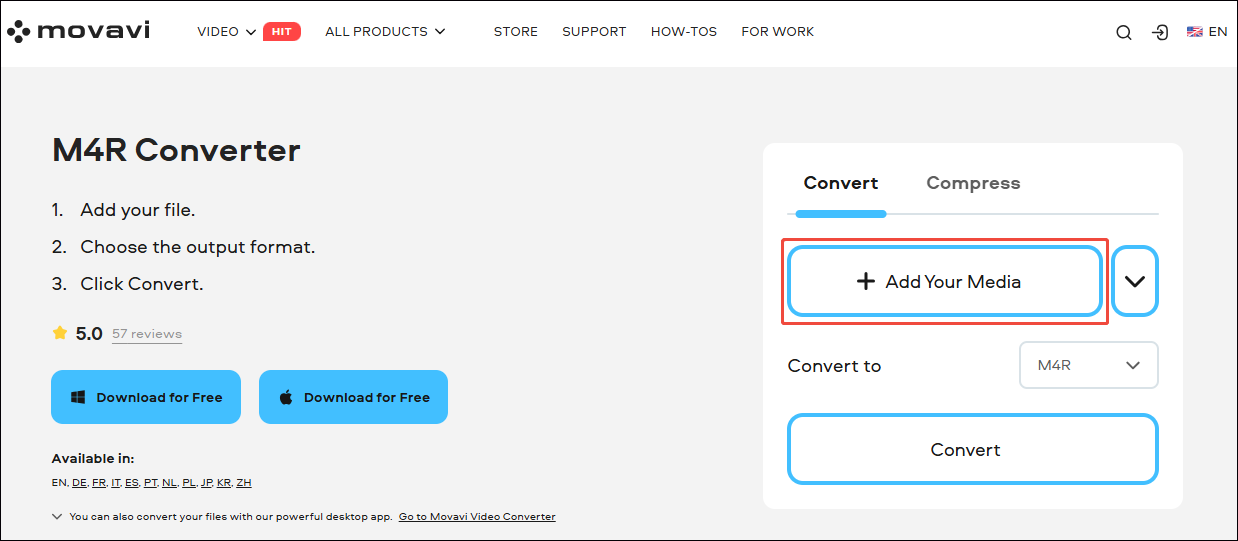
Click on the + Add Your Media option to upload the MPEG video you have prepared.
Step 3. Begin the Conversion
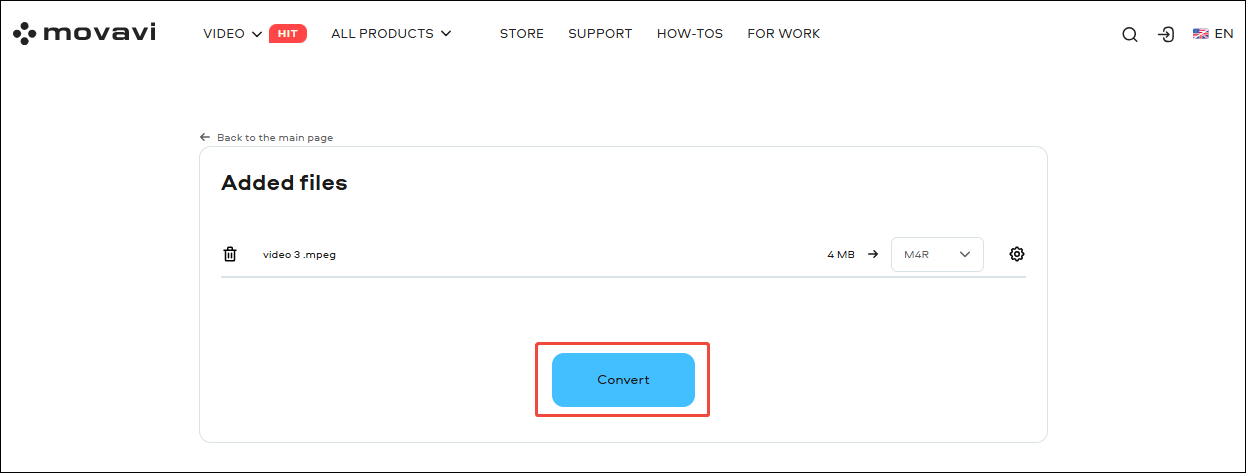
When you upload the MPEG video, this online converter will go to the conversion interface. Here, click on the Convert button to begin the conversion.
Step 4. Store the Converted Audio
Click on the Download button to store the converted audio.
Converting MPEG to M4R with Movavi Video Converter is an instant and easy choice.
Extended: How to Convert MPEG to Other Formats
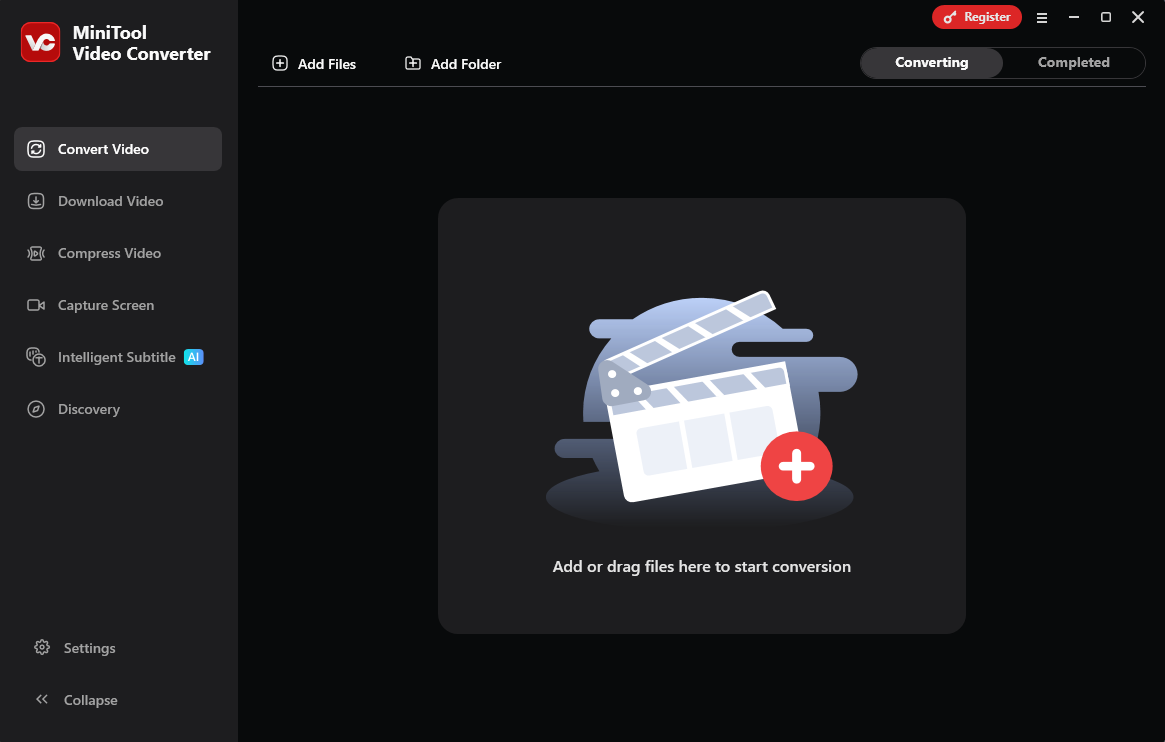
MiniTool Video Converter is committed to making the MPEG conversion to other formats smooth and easy. Apart from this, it allows you to freely convert between more than 1,000 video and audio formats, such as MP4 to WMA. WebM to MP3, FLV to AIFF, AVI to OGG, and more. What’s more, MiniTool Video Converter can meet the needs of batch conversion.
MiniTool Video Converter allows you to turn video formats into be compatible with various social platforms, including Vimeo, YouTube, Facebook, and Instagram. In addition, it is a synchronous tool that enables you to synchronize video and audio by bitrate, resolution, and frame rate.
MiniTool Video Converter is a completely free video converter. It doesn’t have any built-in ads or bundles. Also, MiniTool Video Converter is 100% clean and safe. You can use it without any worries.
MiniTool Video ConverterClick to Download100%Clean & Safe
Bottom Line
To convert MPEG to M4R to get a ringtone on iPhone, this article shows you comparisons of these 2 formats and explains why to complete this conversion. It also introduces 2 conversion methods to you: using Leawo PROF. Media 13 and Movavi Video Converter.
User Comments :