

Get to Know FLV and WMA
Before converting FLV to WMA, we should have a basic understanding of them.
About FLV
FLV (Flash Video) is a digital container video file format developed by Adobe Systems. It is the basic format of ISO and can contain video, audio, text, and data. FLV and SWF use the same encoding method. Besides, FLV is a standard for streaming video over the web. It can be used by platforms such as Hulu, VEVO, and Reuters.com.
FLV adopts the H.263, VP6, and Sorenson video codecs. It can be played on most operating systems using Adobe Flash Player, web browser plugins, or some third-party programs. Apple iOS devices and almost all other mobile devices are incompatible with the Flash Player plugin. However, FLV has been replaced by other Adobe products.
About WMA
WMA stands for Windows Media Audio. It is an audio compression format made by Microsoft. It keeps good sound quality even at high compression levels. WMA was widely used on Windows systems and for streaming media playback in the past years. Plus, it is protected by DRM (Digital Rights Management).
WMA is a Microsoft-only format. Therefore, it has compatibility limitations, which means it doesn’t work well on non-Windows devices. Now, it is gradually replaced by more common formats like MP3 and AAC.
Why Convert FLV to WMA
FLV is a network format used for streaming media. WMA is an audio compression format that produces smaller file sizes. It is compatible with older Windows devices and players. If you want to extract audio from FLV videos and play them on early devices, you can convert FLV to WMA for better compatibility and smooth playback.
FLV to WMA Converter 1: MiniTool Video Converter
MiniTool Video Converter is a free video converter that makes FLV to WMA conversion easier. It supports various conversions from 1,000 formats, including FLV to WMA, MKV to MP4, WebM to WMA, OGV to AAC, and more.
MiniTool Video Converter also allows you to convert formats to be compatible with mobile devices, such as Apple, Huawei, Samsung, and Android. Also, it has an intuitive interface and simple conversion steps.
Step 1. Download MiniTool Video Converter on PC
Click on the download button to download and install MiniTool Video Converter. Then, install and run this software.
 MiniTool Video Converter
-
 Batch convert video/audio files among 1000+ formats.
 - Quickly compress videos for easy storage and transfer.
- Accurately extract subtitles from video/audio files.
- Effectively enhance video quality.

Step 2. Upload the FLV Video
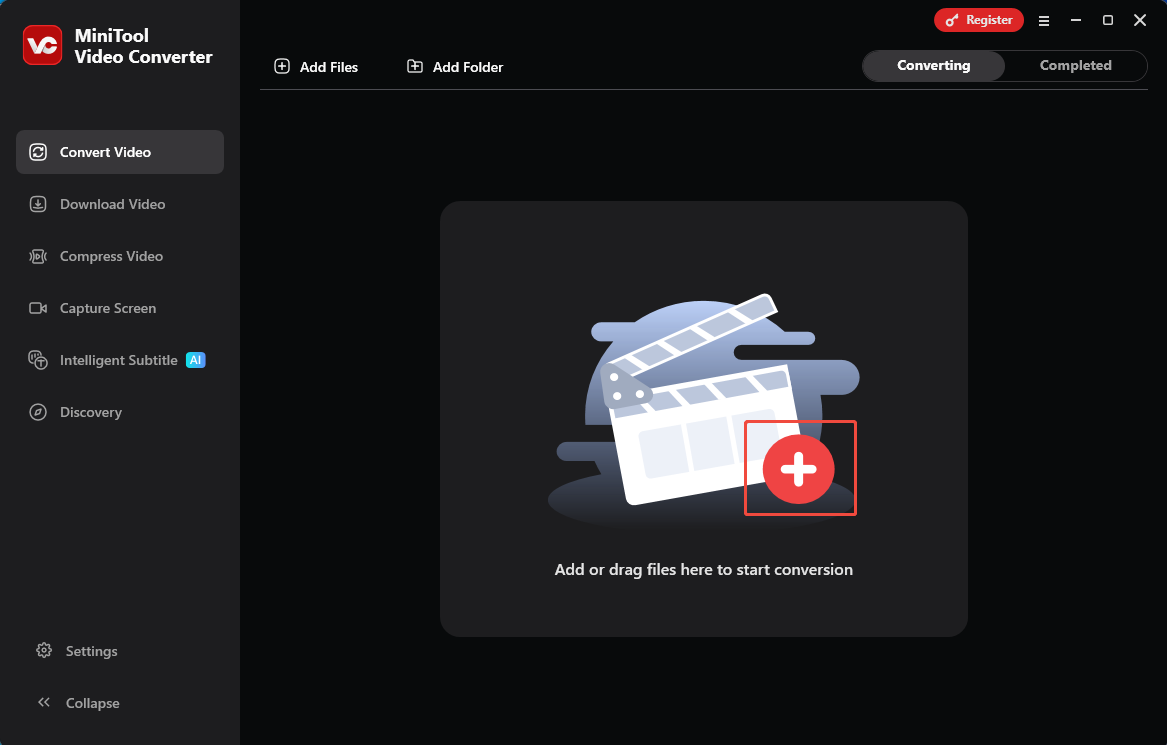
Click on the Plus icon to upload the FLV video you prepared.
Step 3. Configure WMV as the Output Format
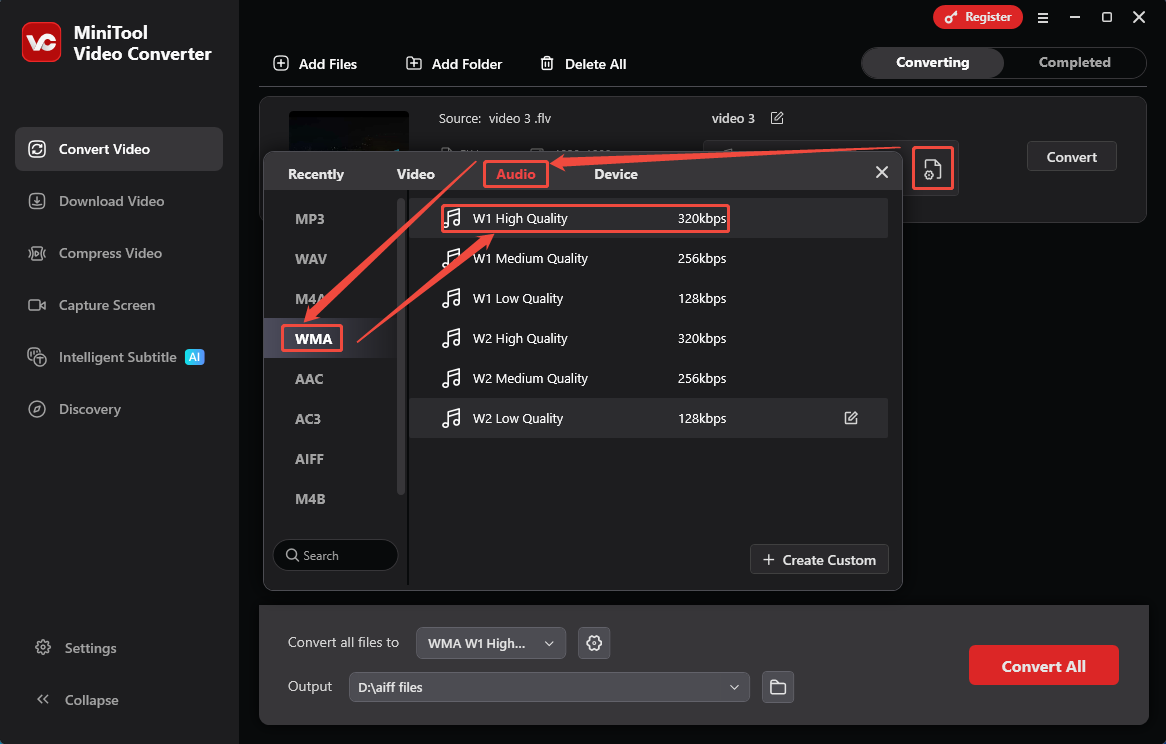
Click on the Gear icon to get the output format window. There, switch to the Audio tab and choose WMA. Then, select an audio quality option in the right section. Here, I pick W1 High Quality.
Step 4. Start the Conversion
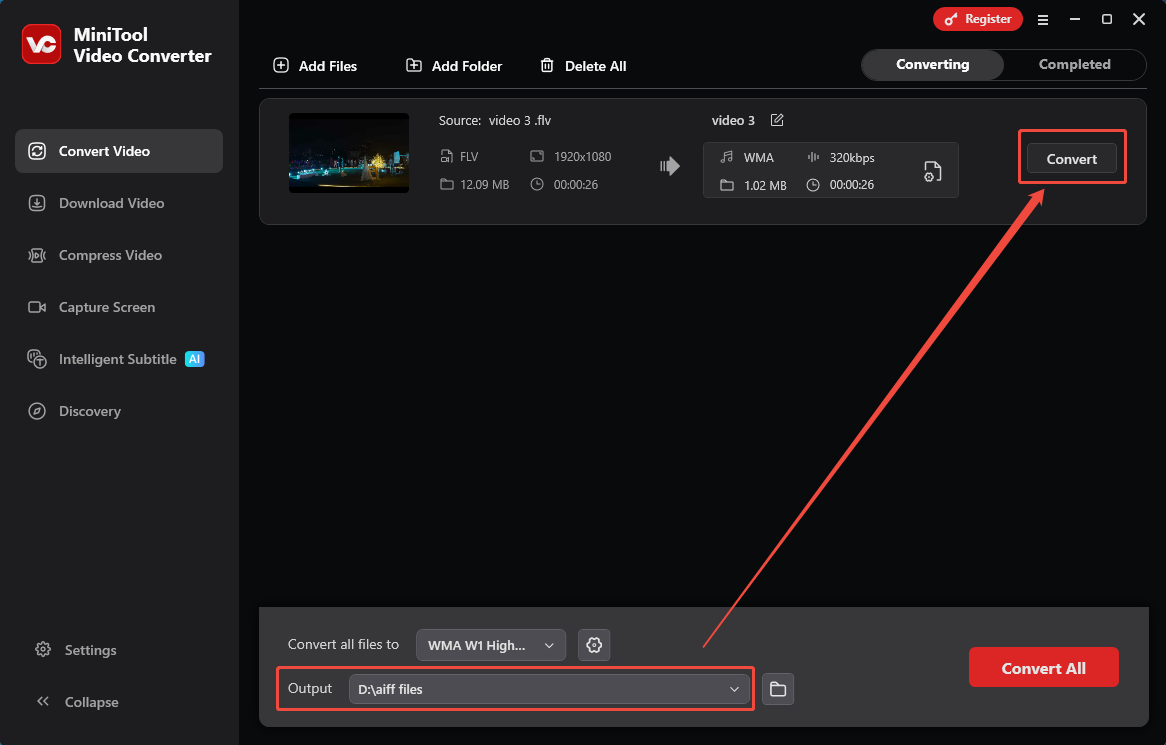
After configuring the output format, you will go back to the main interface. There, expand the Output option to choose a saving path from your local folders. Then, click on the Convert button to start the conversion.
Step 5. Check the Converted Audio
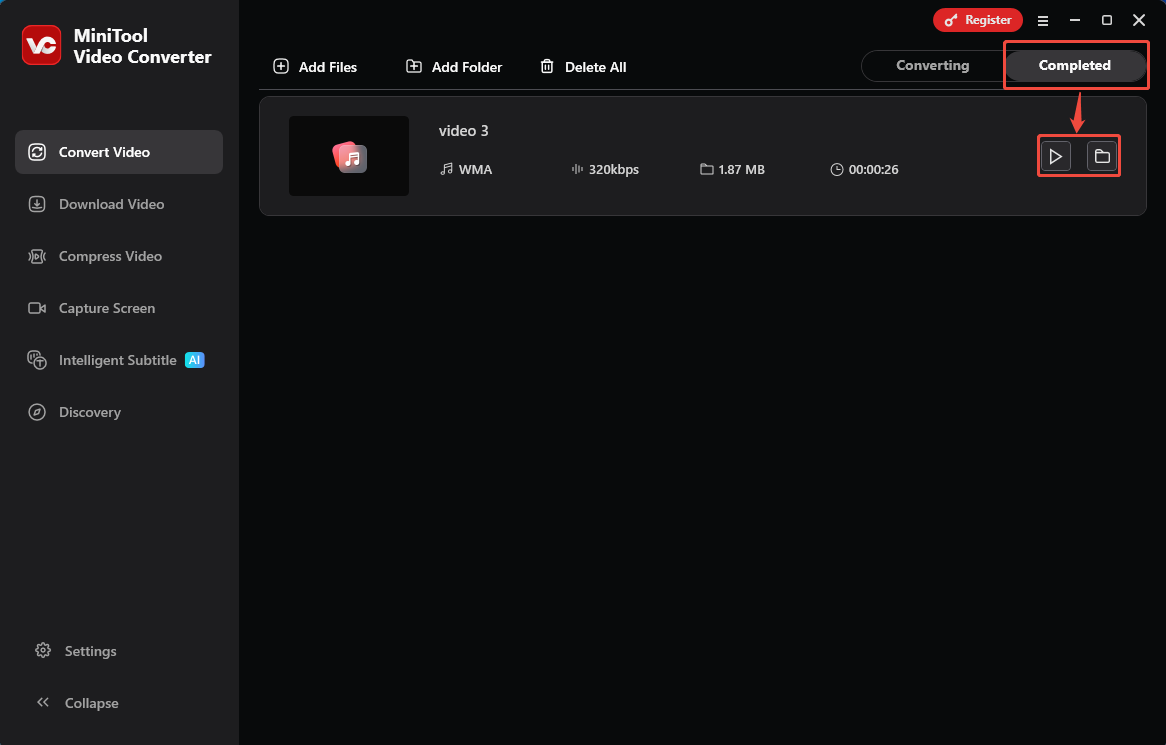
When the conversion finishes, this converter will switch to the Completed tab. Here, to check the converted audio, click on the Play icon. Or click on the Folder icon to find it.
Main features:
- No watermarks, ads, or size limits
- Maximum batch conversion of up to 5 tasks
- Customizable video and parameters
- Conversion between video and audio
- High-resolution video conversion
Using MiniTool Video Converter to convert FLV to WMA is convenient and fast, which can meet all your conversion needs.
FLV to WMA Converter 2: Convertio
Convertio is a browser-based FLV to WMA converter. It allows you to convert 300+ formats freely. Additionally, Convertio also enables you to change the audio codecs, bitrates, channels, frequency, and volume. However, it only allows you to upload files under 100MB. Now, let’s try to use Convertio to convert FLV to WMA.
Step 1. Navigate to Convertio’s Webpage
Visit https://convertio.co/flv-wma/ to access Convertio’s webpage.
Step 2. Import an FLV File
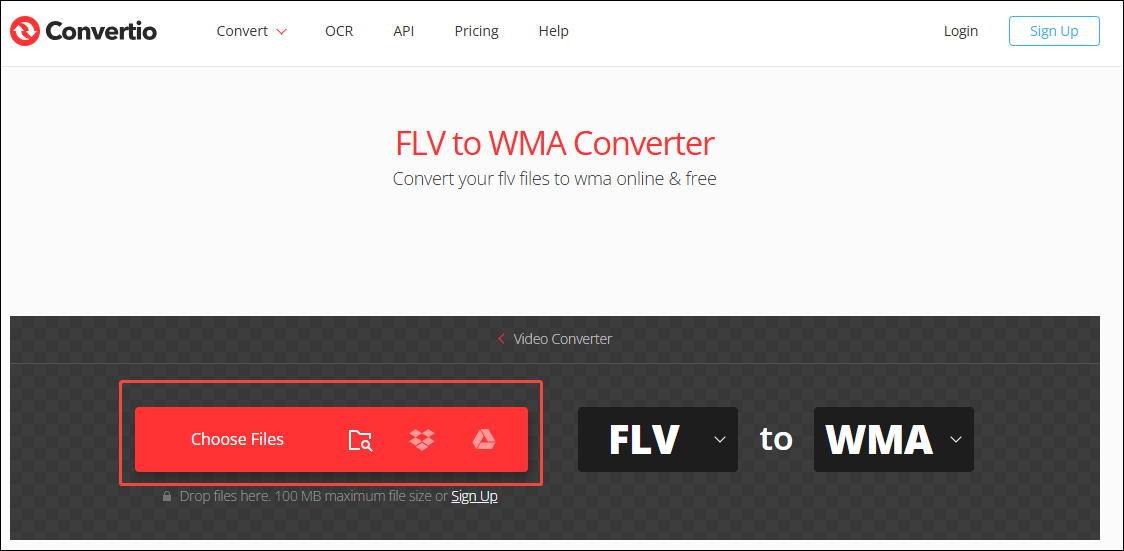
Click on the Choose Files option to add an FLV video.
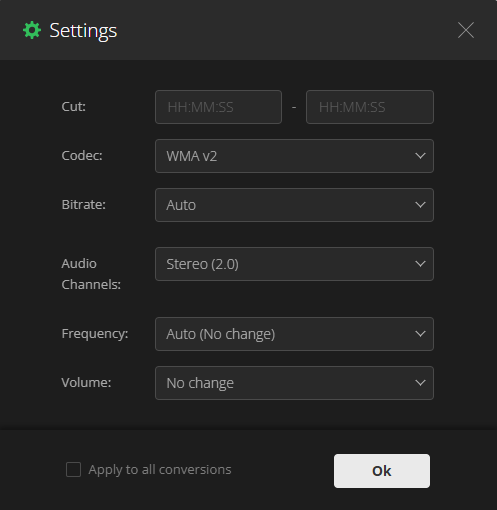
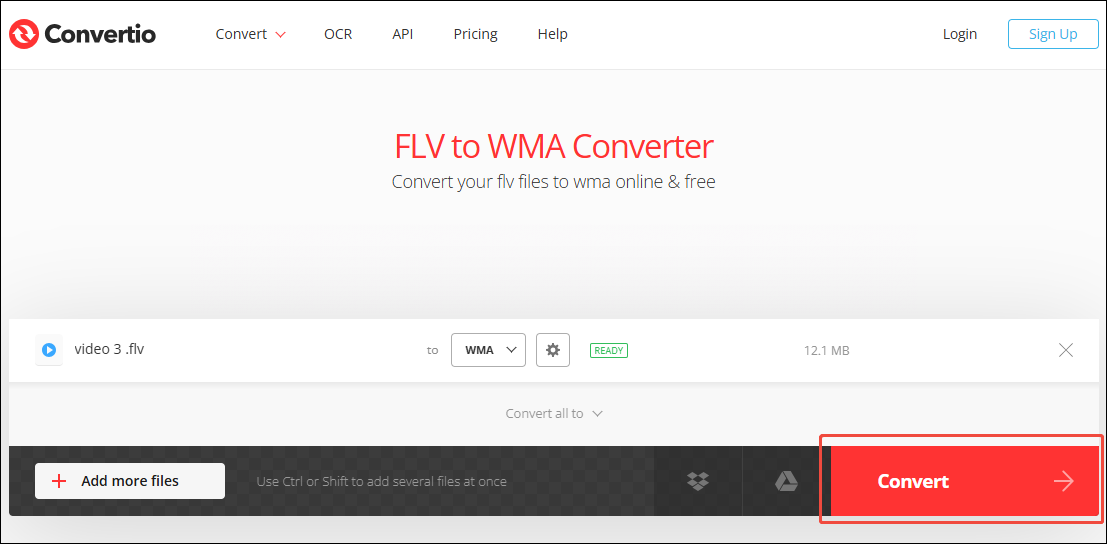
Click on the Wrench icon to open the Settings window. Here, you can customize parameters for the converted audio. Then, click on the OK button to apply these changes.
Step 3. Begin Converting
After setting the parameters, click on the Convert button to begin the conversion process.
Step 4. Download the Converted Audio
Click on the Download button to store the converted audio.
Main features:
- No download and installation
- Batch conversion
- Multiple import methods
- Custom settings
If you want to convert FLV files to WMV and keep each file under 100MB, Convertio is an ideal tool.
Final Words
This article introduces what FLV and WMA are and explains the reasons to convert FLV to WMA. It also gives you 2 enhanced methods to complete this conversion using MiniTool Video Converter and Convertio.
User Comments :