

This article will tell you what WebM and WMA are. It also gives you 2 fantastic methods to complete WebM to WMA conversion, including using MiniTool Video Converter and CloudConvert.
WebM Explained
WebM (Web Media File Format) is a digital video format developed by Google. It is open-source and royalty-free. WebM not only boasts high compression efficiency but also maintains high-quality video, making it an ideal choice for use with HTML5.
WebM is a subset of Matroska. It uses VP8, VP9, and AV1 as its video codecs. For audio codecs, WebM uses Vorbis and Opus. It can be compatible with various browsers, such as Firefox, Opera, Google Chrome, and Edge.
WMA Explained
WMA (Windows Media Audio) is a series of audio formats developed by Microsoft, which also refers to the corresponding digital audio codecs. It comes with a series of audio codecs, including WMA, WMA Pro, WMA Lossless, and WMA Voice, each serving different purposes.
With the same low audio quality, WMA files are usually smaller than MP3 files, making them ideal for web streaming and mobile devices. It also has excellent compatibility, making it a strong competitor to MP3 in the past. Besides, WMA supports various players such as Windows Media Player, RealPlayer, and VLC Media Player.
Why Turn WebM to WMA
WebM can’t be played on older versions of Windows systems, requiring specific codecs or third-party players. It is a proprietary Google format. Therefore, converting WebM to WMA would be more compatible with older Microsoft ecosystems.
In addition, WMA offers high compression efficiency, resulting in a small audio file size under low audio quality. Turning WMA to WebM can save storage space.
How to Convert WebM to WMA
Are there any recommended WebM to WMA converters? Of course! As an experienced user, I strongly suggest you try the following 2 methods.
Method 1. MiniTool Video Converter
MiniTool Video Converter, the free video converter, is a great way to get a smooth, effective WebM to WMA conversion without losing much quality. It supports over 1,000 video and audio formats, such as WebM, MP4, MOV, OGV, AVI, and MPEG. MiniTool Video Converter enables you to convert video to audio, video to video, and audio to audio.
MiniTool Video Converter allows you to perform batch conversion, which can be up to 5 conversion tasks at the same time. It also empowers you to convert formats to be compatible with mainstream social media, including YouTube, Instagram, Vimeo, and Facebook.
MiniTool Video Converter can synchronize video and audio by adjusting bitrate, resolution, and frame rate. What’s more, it supports changing the video and audio quality among high quality, medium quality, and low quality. Now, let’s try to turn WebM to WMA with MiniTool Video Converter quickly.
Step 1. Download and Install MiniTool Video Converter
Click on the download button to download and install MiniTool Video Converter to your hard drive. Then, install and launch it.
MiniTool Video ConverterClick to Download100%Clean & Safe
Step 2. Import the WebM Video
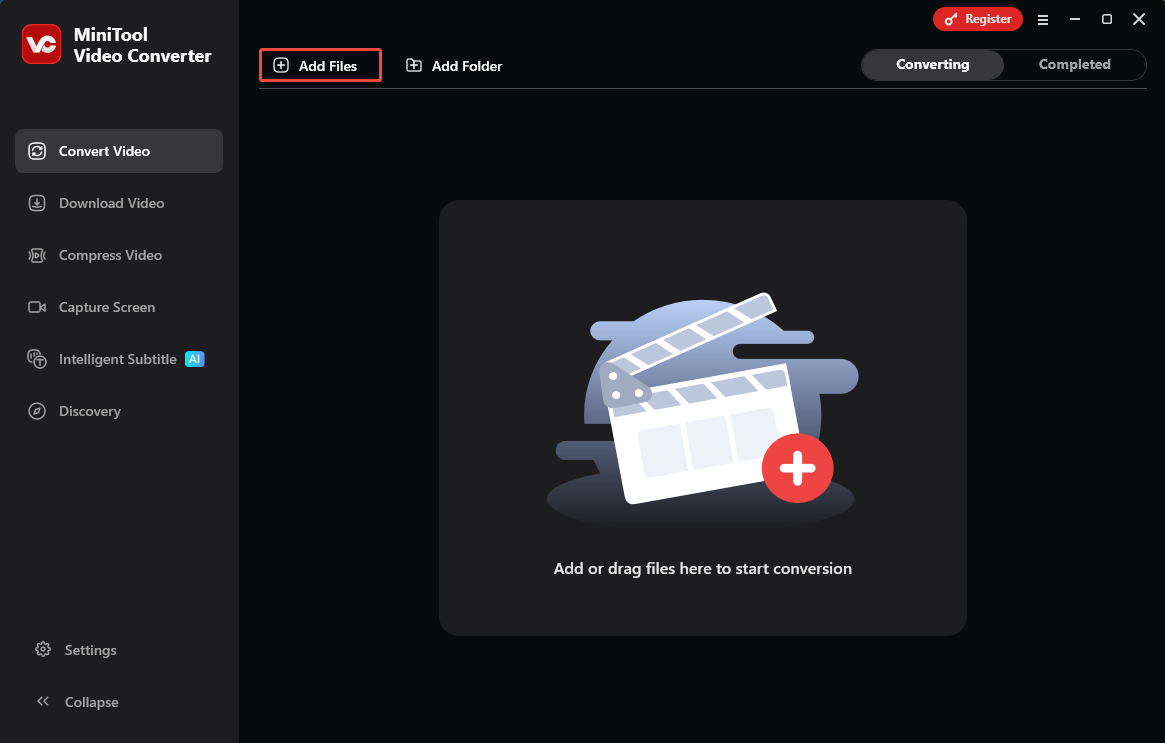
After opening this application, import the video you want to convert on your device by clicking the Add Files option.
Step 3. Select WMV as the Output Format
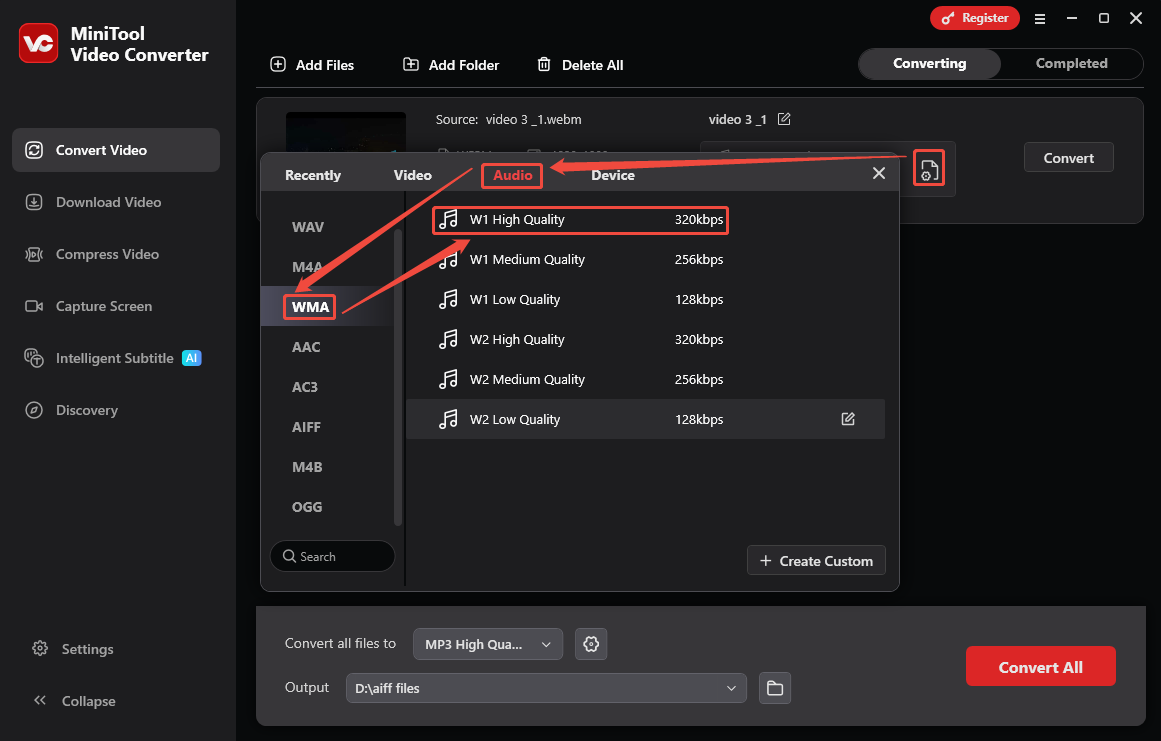
Click on the Settings icon to open the output format window. There, switch to the Audio tab and choose the WMA format. Then, select an audio quality you need. Here, I pick W1 High Quality.
Step 4. Start the Conversion
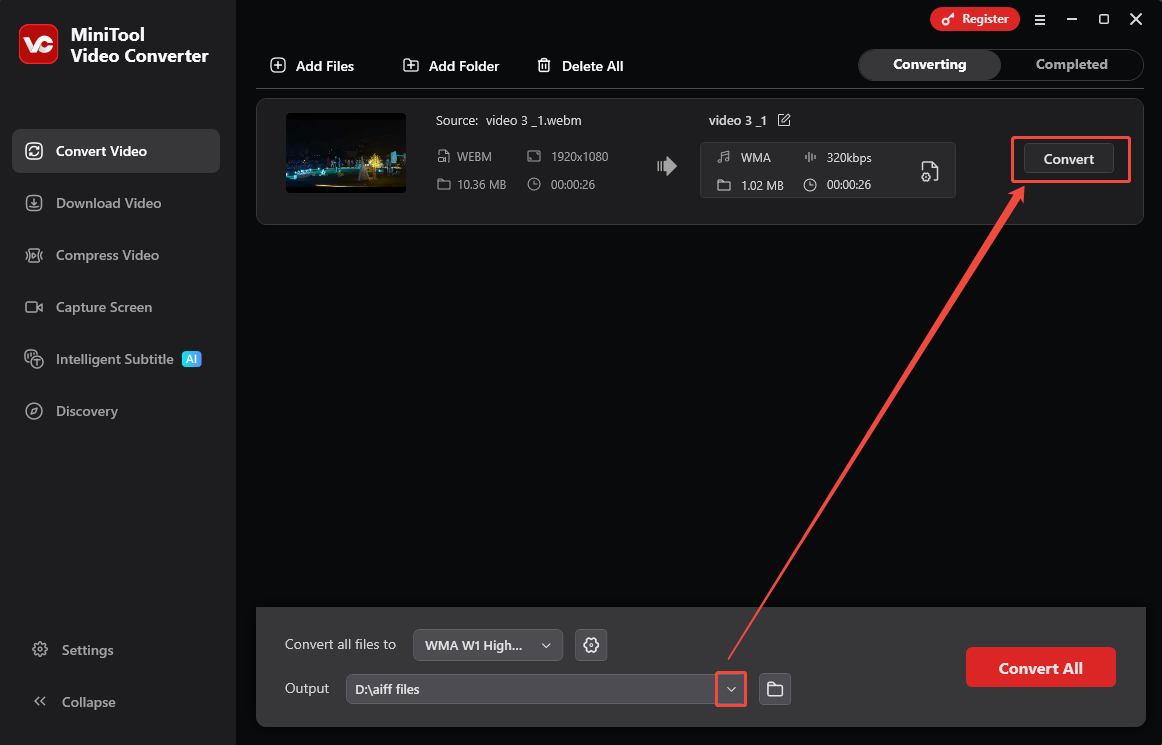
After setting the target format, expand the Output option to specify a storage location on your PC. Then, click on the Convert button to start the conversion.
Step 5. Check the Converted Audio
When the conversion ends, this file converter will switch to the Completed tab. Here, to check the converted audio, click on the Play icon. Or click on the Folder icon to locate it.
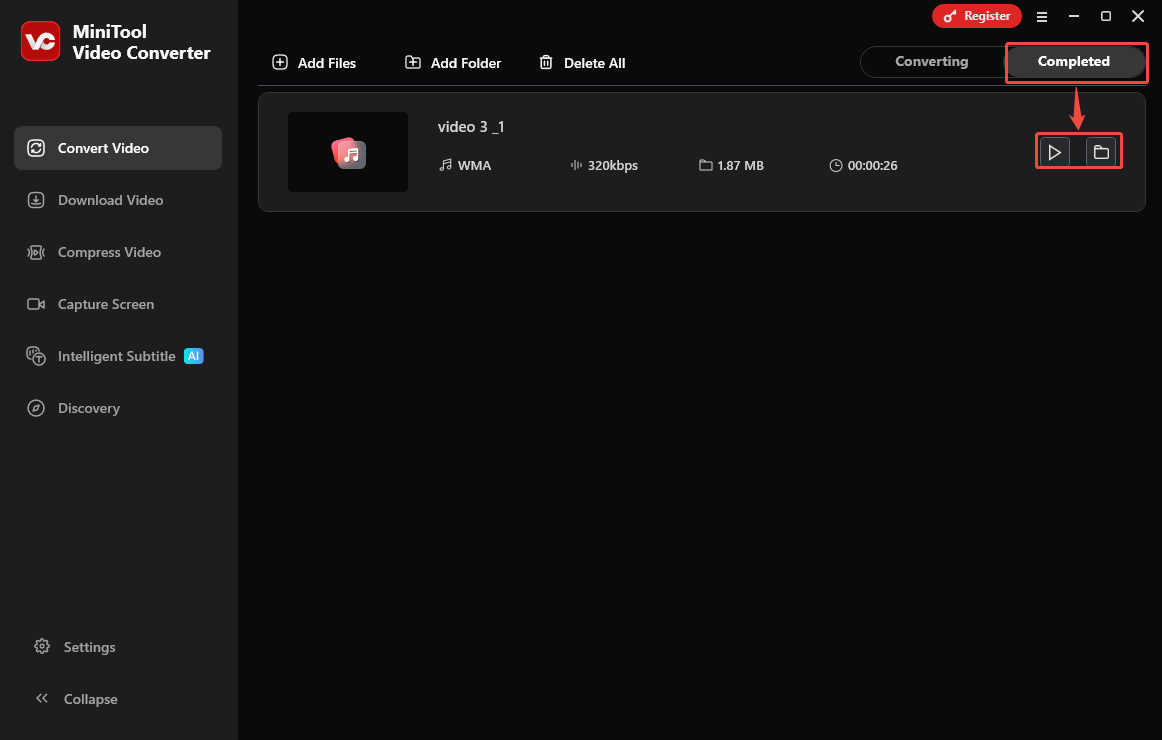
MiniTool Video Converter enables fast conversion from WebM to WMA.
Method 2. CloudConvert
CloudConvert is an online file converter that enables instant conversion from WebM to WMA. It supports converting videos and audio in bulk. CloudConvert’s advantage lies in the ability to change parameters, such as the codec, aspect ratio, and resolution of the converted video.
Next, we will use CloudConvert to convert WebM to WMA.
Step 1. Access CloudConvert’s Webpage
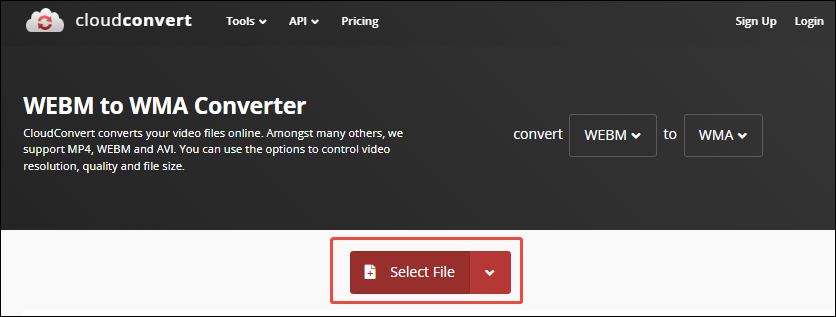
Use this link https://cloudconvert.com/webm-to-wma to access the CloudConvert homepage for converting WebM to WMA.
Step 2. Add WebM Video
Click on the Select File option to add a WebM video.
Step 3. Perform the Conversion
Click on the Convert button to start the conversion.

Step 4. Save the Converted Audio
When the conversion ends, click on the Download button to save the converted audio.
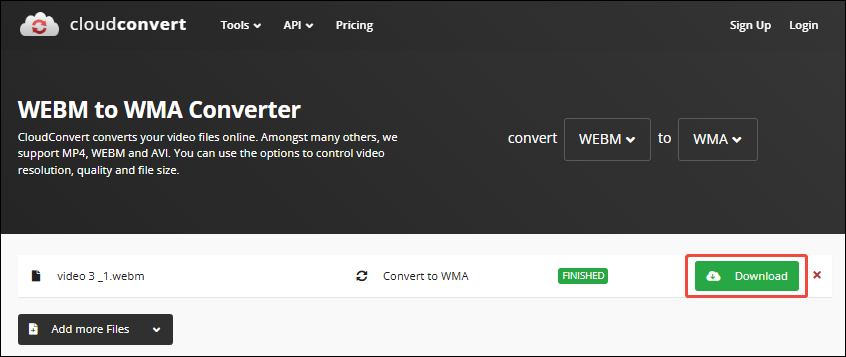
Converting WebM to WMA using CloudConvert is very convenient, even for beginners.
Conclusion
This article introduces you to the WebM and WMA formats. It also explains how to convert WebM to WMA for compatibility with older Windows systems. Besides, the post shows an offline and an online converter: MiniTool Video Converter and CloudConvert.
User Comments :