

Why RealPlayer can’t play MKV? That’s because the player doesn’t support the MKV format. To solve this problem, this post presents three effective methods: convert MKV to RealPlayer-supported formats, install a codec pack, or try MKV players.
What Is MKV?
MKV, also called Matroska Video, is an open-source video container format. It can hold media types including video, audio, and subtitles. This format is free to use and is usually used for storing high-quality videos with multiple language options. MKV is natively supported by many players, like VLC Media Player.
What Is RealPlayer?
RealPlayer is a full-featured media management software. This application supports syncing media files on your device, such as videos, audio, and images. You can use it to organize files on your device. You can also use it to create playlists, burn CDs, and more.
What Formats Does RealPlayer Support?
RealPlayer supports many popular formats, including MP3, WMV, AVI, FLV, MP3, WMA, WAV, M4A, AAC, and more. This player plays files by default using built-in support or codecs already on your system. If you want to see the file types that your current RealPlayer version can play, follow these steps:
Step 1: Launch RealPlayer on Your PC
Launch RealPlayer on your desktop.
Step 2: Go to Preferences
Click the RealPlayer icon at the top-left corner of the interface. Then, choose Preferences in the dropdown.
Step 3: Check the File Types that RealPlayer Supports
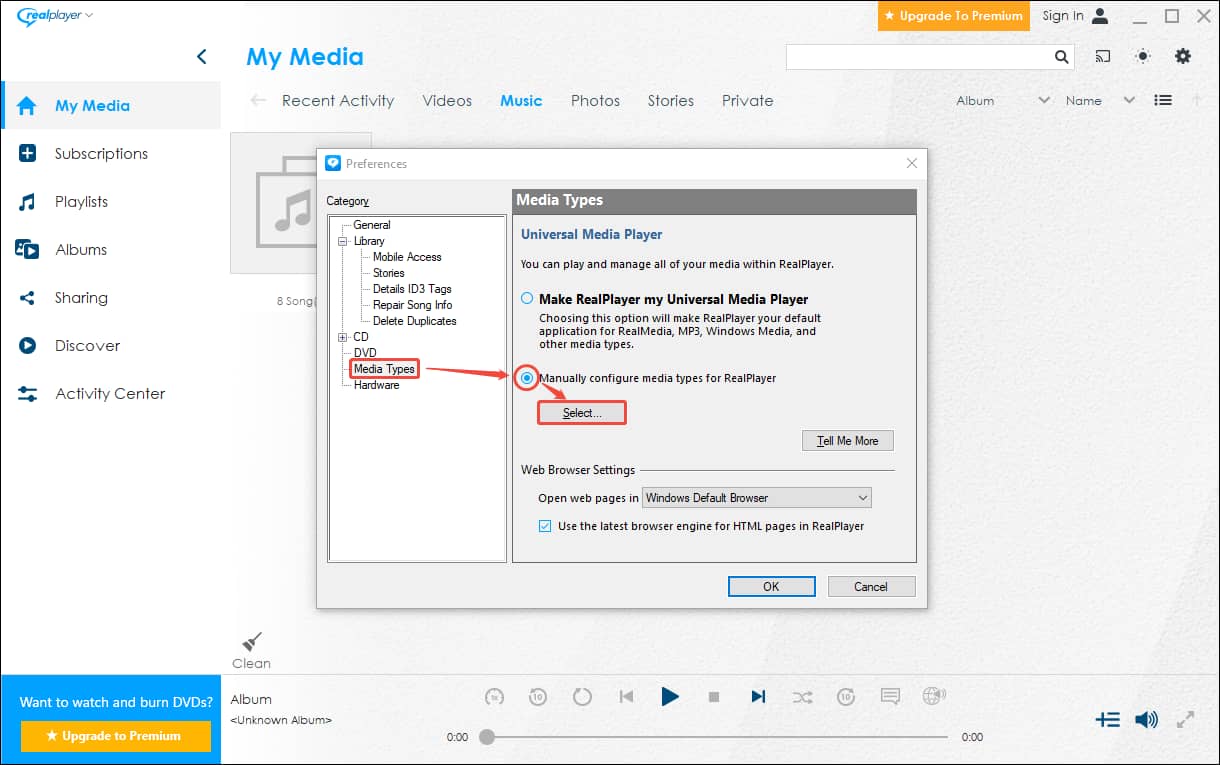
In the Preferences window, click the Media Types option in the left category. Then, check the Manually configure media types for RealPlayer option. After that, click the Select… button.
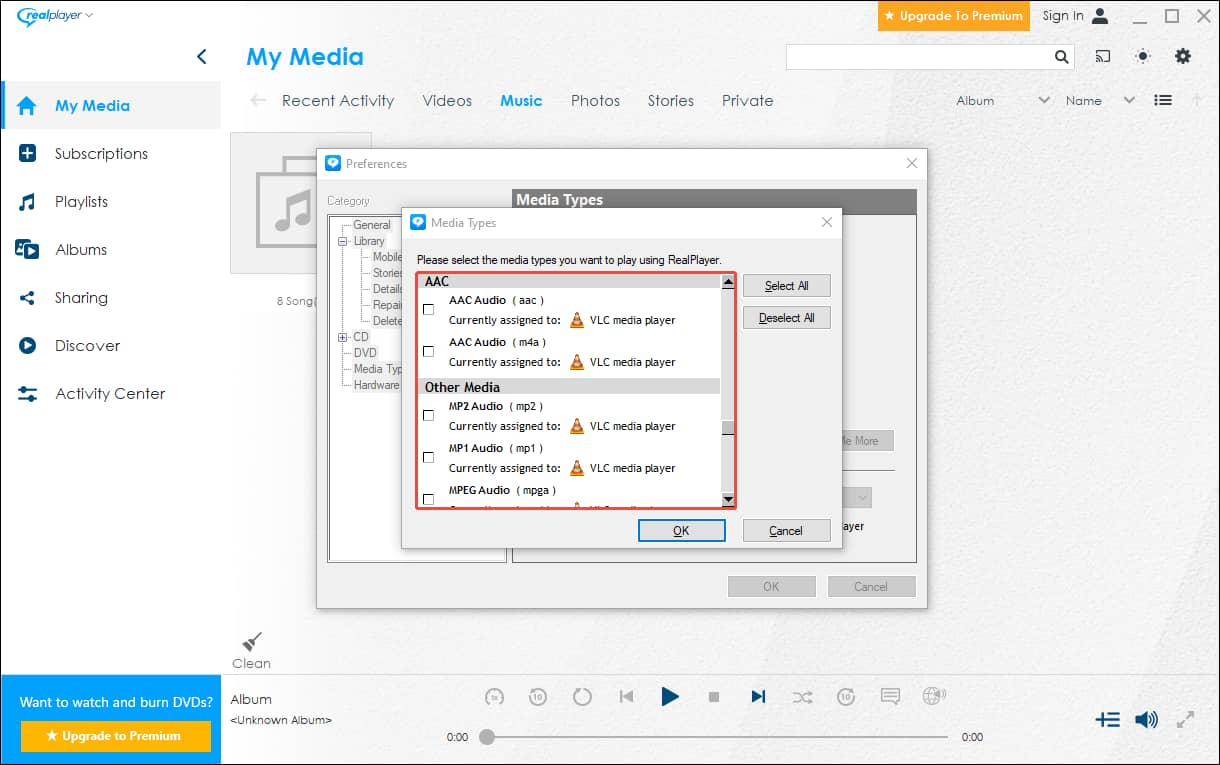
In the Media Types window, you can see all the media file types that your RealPlayer version can play. The selected options are types that this program plays by default.
Can RealPlayer Play MKV Files?
RealPlayer supports a variety of media file formats. However, many users are unable to play MKV video files when using the free RealPlayer player. Why can’t RealPlayer play MKV? This is because RealPlayer’s built-in codecs do not include the MKV format. To play your MKV video successfully, try the methods in the next section.
How to Fix RealPlayer Can’t Play MKV?
Here I found 3 methods to let you play MKV video in RealPlayer.
1. Convert MKV to RealPlayer-Supported Formats
First, if you don’t have any requirements for the video format, then converting the MKV video to another format supported by RealPlayer is the fastest solution! That’s where a reliable video converter becomes essential.
After trying several converters, I finally want to recommend MiniTool Video Converter. Its conversion function is completely free! What’s more, it supports over 1,000 formats, including MKV, MP4, VOB, AVI, FLV, MP3, AAC, AIFF, and more. Most importantly, it allows you to modify various video parameters, such as resolution, frame rate, and sample rate. In addition, it also supports batch conversion.
If you want to know how to use MiniTool Video Converter, here is a quick guide that can help you!
Step 1: Download and Install MiniTool Video Converter
Download and install the latest version of MiniTool Video Converter by clicking the button below.
MiniTool Video ConverterClick to Download100%Clean & Safe
Step 2: Add Your MKV File
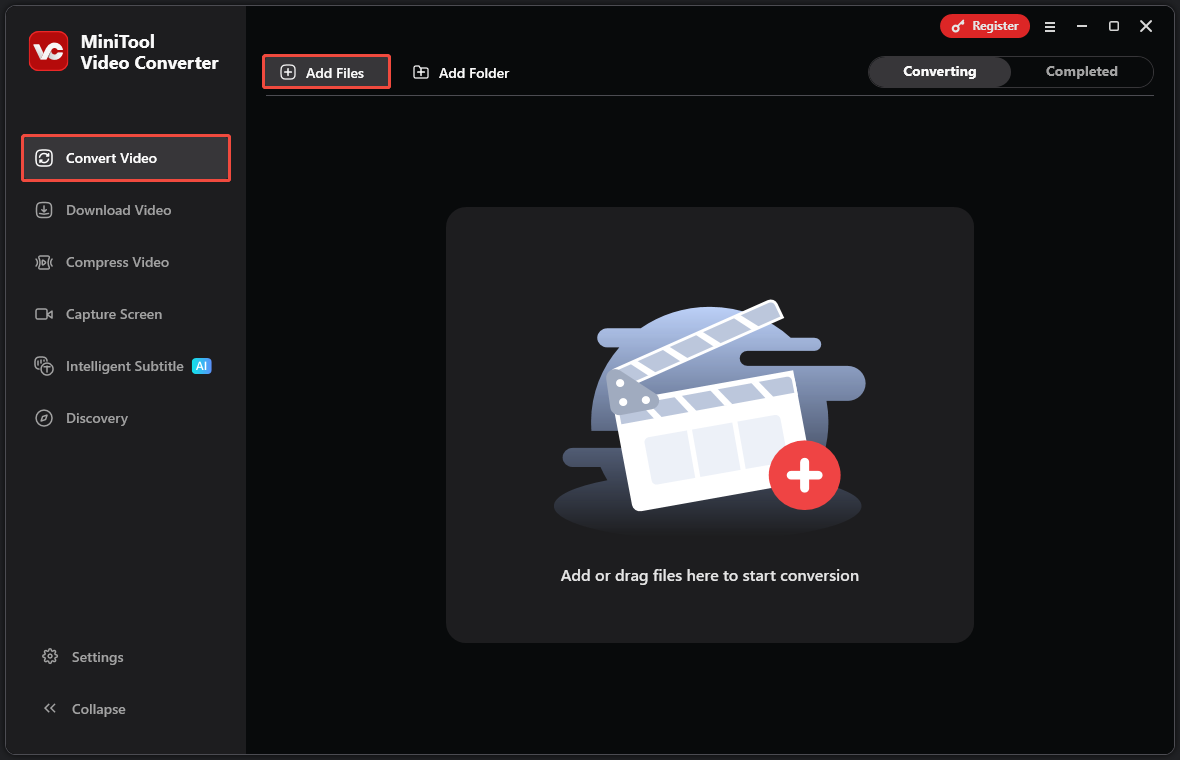
In the Convert Video tab, click the Add Files option. Then, choose the MKV file in the pop-up window and select OK.
Step 3: Choose the Output Format
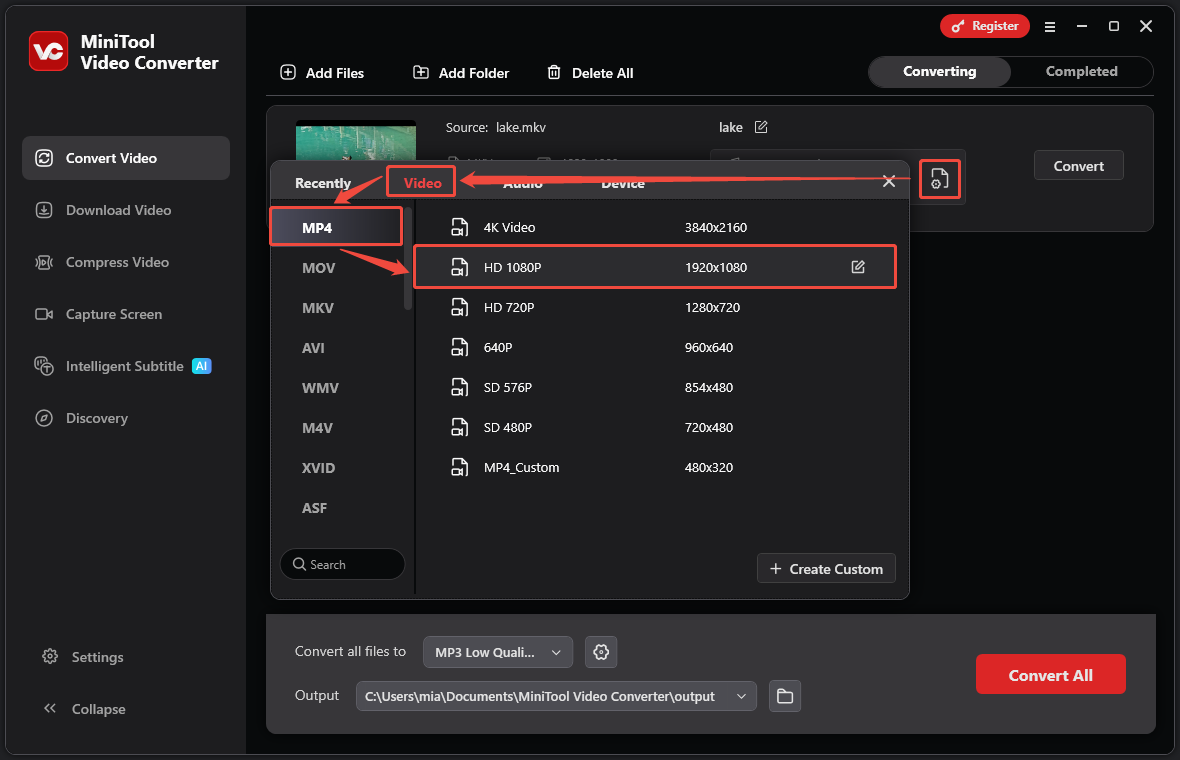
Click the gear icon to open the output format window. Then, switch to the Video tab, select a format supported by RealPlayer in the left panel (I select MP4 as an example), and select the video quality in the right panel (Here I select HD 1080P, for instance).
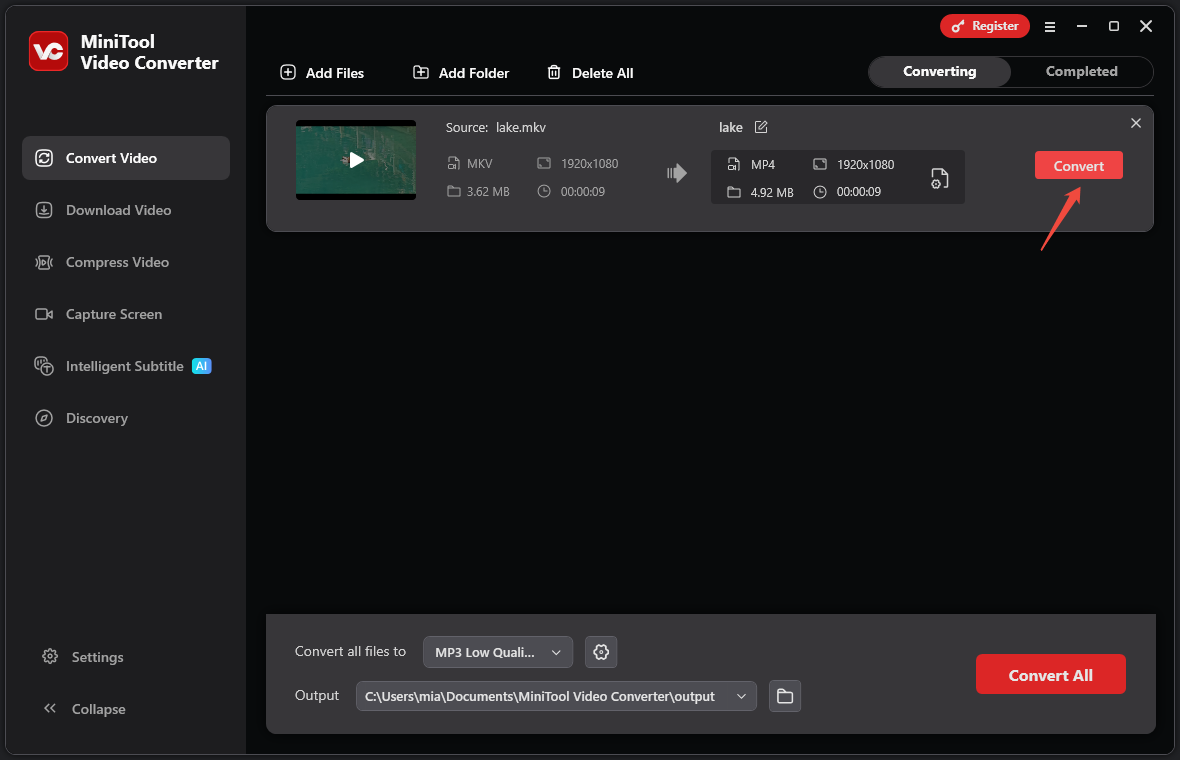
Step 4: Start Conversion
Click the Convert button to start converting.
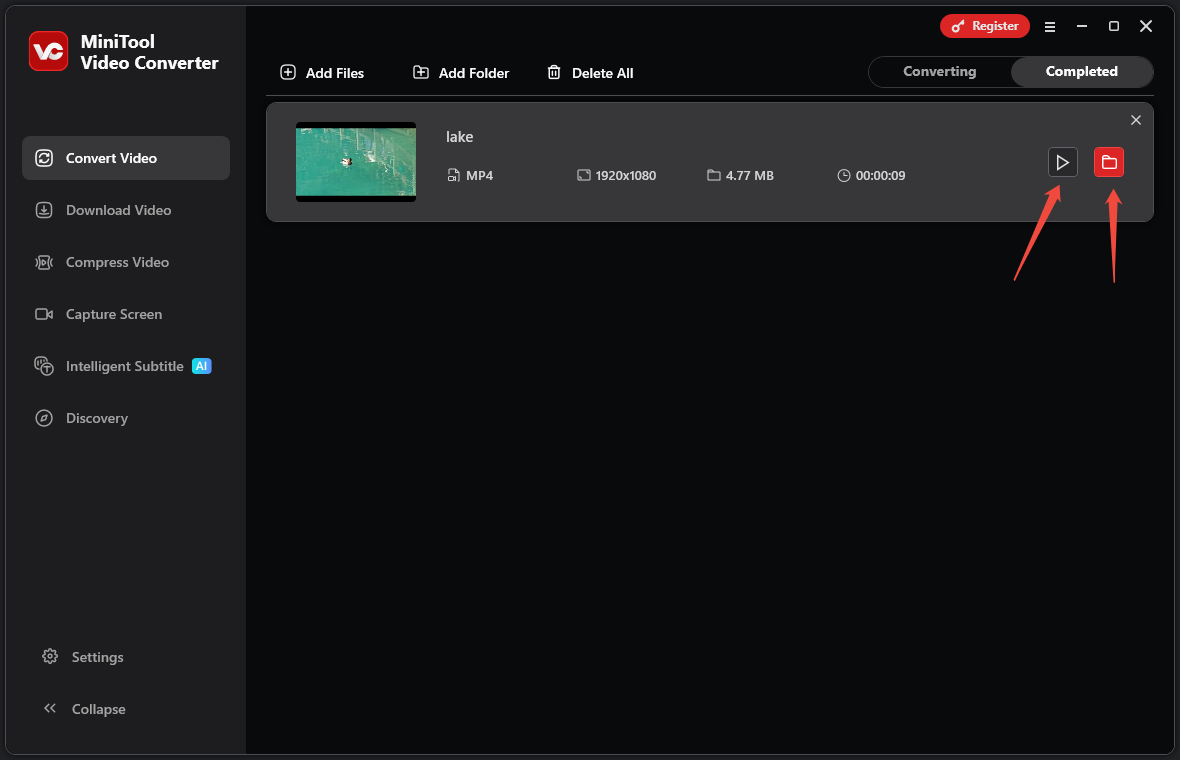
Step 5: Check the Converted File
Once the file conversion is done, you will be taken to the Completed section. Then, click the play icon to preview the videos, or hit the folder icon to find where they’re saved.
In addition to the above methods for converting formats, you can also install a codec that includes MKV.
2. Install a Codec Pack
RealPlayer cannot play MKV files because its built-in codecs do not support the format. Therefore, you can solve this problem by installing a codec pack. Packs like the K-Lite Codec and DivX Plus Codec Pack are suitable.
For example, if you want to download and install the K-Lite Codec on your Windows PC, just go to https://codecguide.com/download_kl.htm and choose a version to download. Then, follow the on-screen instructions to install it on your computer.

3. Try MKV Players
If you have other media players on your computer, you can also try using other media players to play MKV videos. Video players such as PotPlayer, VLC Media Player, KMPlayer, GOM Player, and 5KPlayer all support MKV format videos.
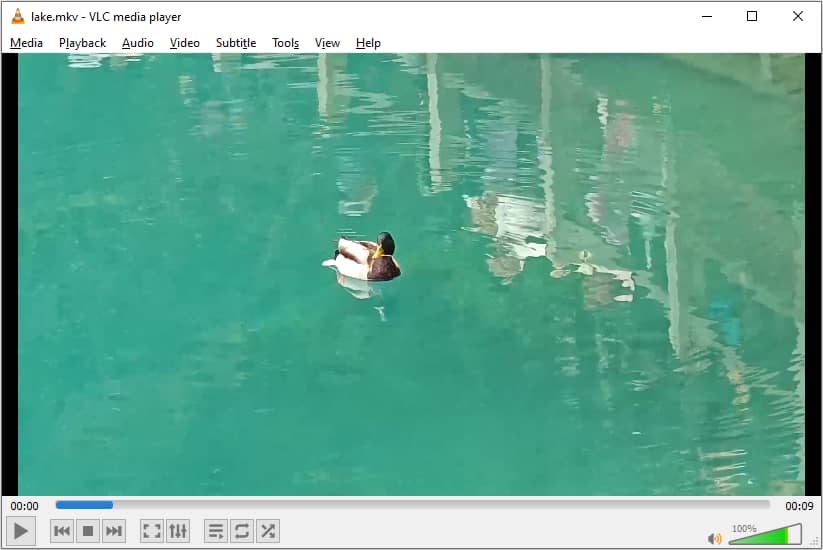
VLC Media Player is a media player I highly recommend. It supports playing almost all video formats. Furthermore, it can stream over networks and even play internet radio and podcasts.

Conclusion
This post explains how to fix RealPlayer can’t play MKV issue. You can convert MKV to other formats that are supported by RealPlayer. This is the best solution. Also, installing a codec pack and trying other players are good methods.
User Comments :