

Many people find that GOM Player won’t play RMVB files. This may be because GOM Player’s built-in RMVB decoder is outdated. This article lists three solutions: convert the RMVB file to another format supported by GOM, download an RMVB decoder package, or use another player.
What Is GOM Player?
GOM Player is a versatile multimedia player capable of handling a wide range of audio and video formats, including damaged or incomplete files. It features an integrated subtitle library that can automatically find and sync subtitles for your videos. What’s more, this player also supports 360-degree video playback.
Why GOM Player Can’t Play RMVB?
Does GOM player support RMVB? Yes. GOM Player supports multiple formats, including RMVB. However, many users find they cannot play RMVB files with GOM Player. This is likely because GOM Player’s built-in RMVB decoder is outdated, while the RMVB file you want to play is a newer format. Therefore, you need to choose a compatible, newer decoder to resolve this issue.
How to Fix GOM Player Won’t Play RMVB Files?
If you encounter a problem that GOM Player cannot play RMVB files, you can try the following three solutions.
1. Convert RMVB to GOM Player-Supported Formats
GOM Player supports various video formats, such as AVI, OGM, MKV, MP4, WMV, WMA, MOV, and MPG. If you find that RMVB files cannot be played on GOM Player, converting them to another supported format is the simplest and most direct method!
For better compatibility, smooth streaming playback, and editing experience, converting RMVB to MP4 is the best choice. GOM Player also supports MP4 format videos. To quickly complete the conversion, you can use some online file converters. This way, you can start converting directly without downloading any software.
When I searched for online converters to convert RMVB to MP4 on Google, FreeConvert was the first result. After using it, I found it to be indeed feasible and easy to use. Below, I’ll show you how to use it to convert RMVB to MP4.
Step 1: Go to FreeConvert Converting Page
Visit https://www.freeconvert.com/rmvb-to-mp4.
Step 2: Import RMVB Files from Your PC
Click Choose Files and select your RMVB files to upload.
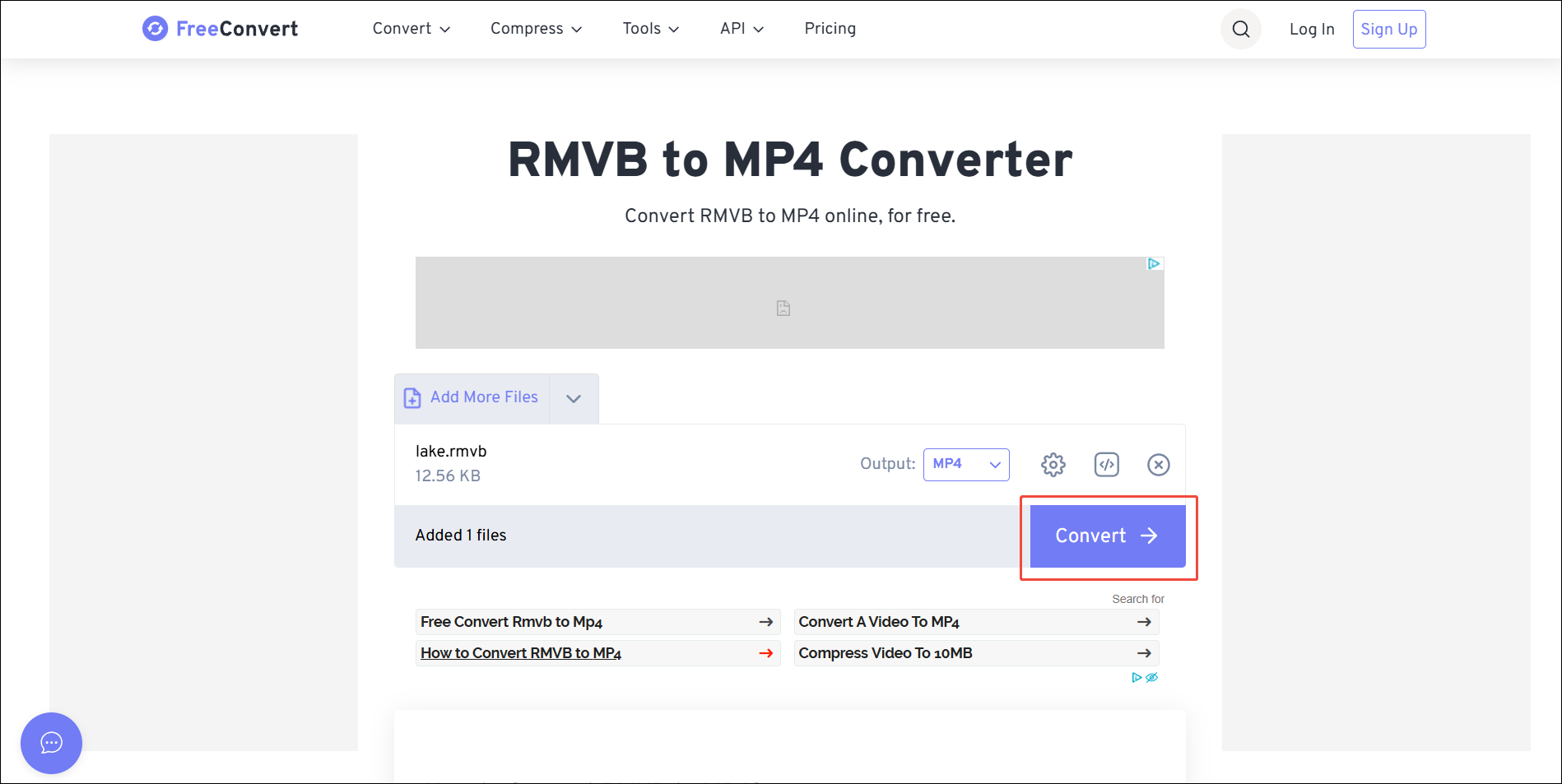
Step 3: Start Conversion
Click the Convert button to start conversion.
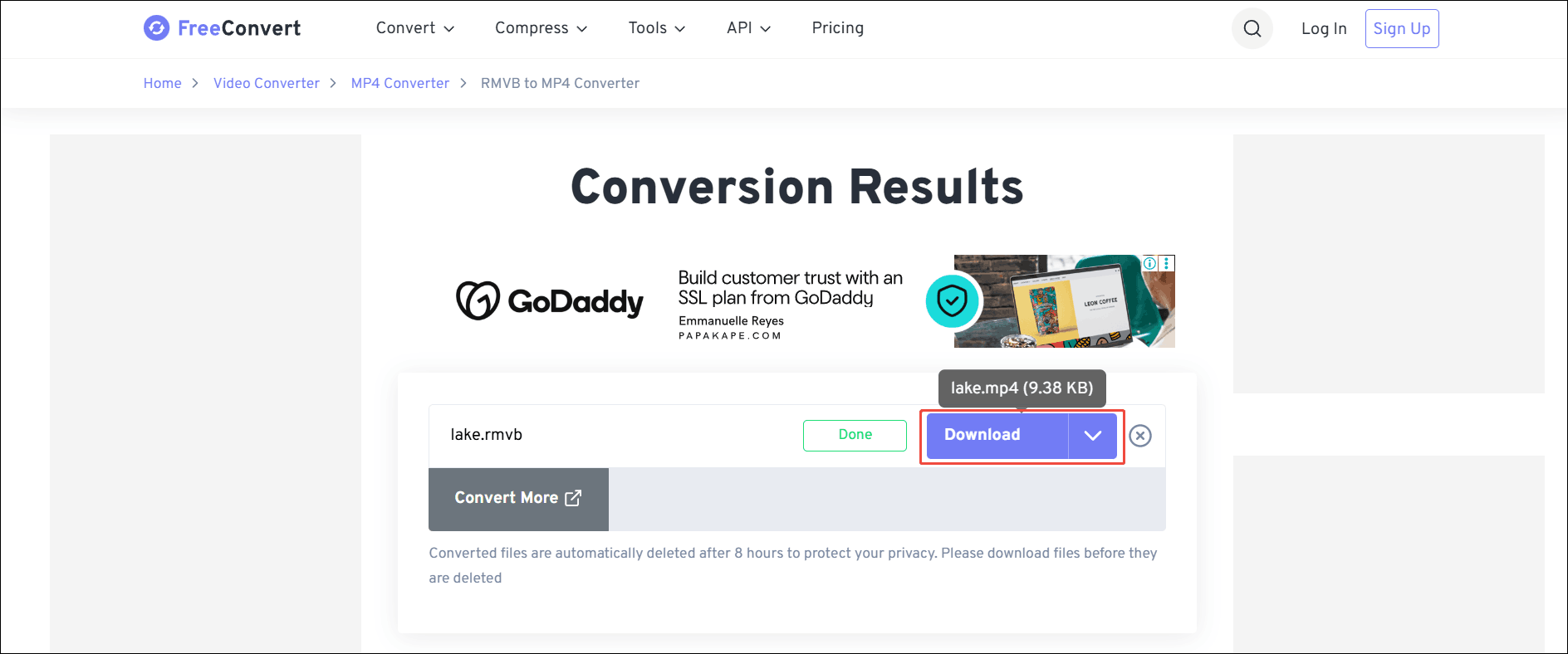
Step 4: Download the Converted Video
Click on Download to get the converted file.
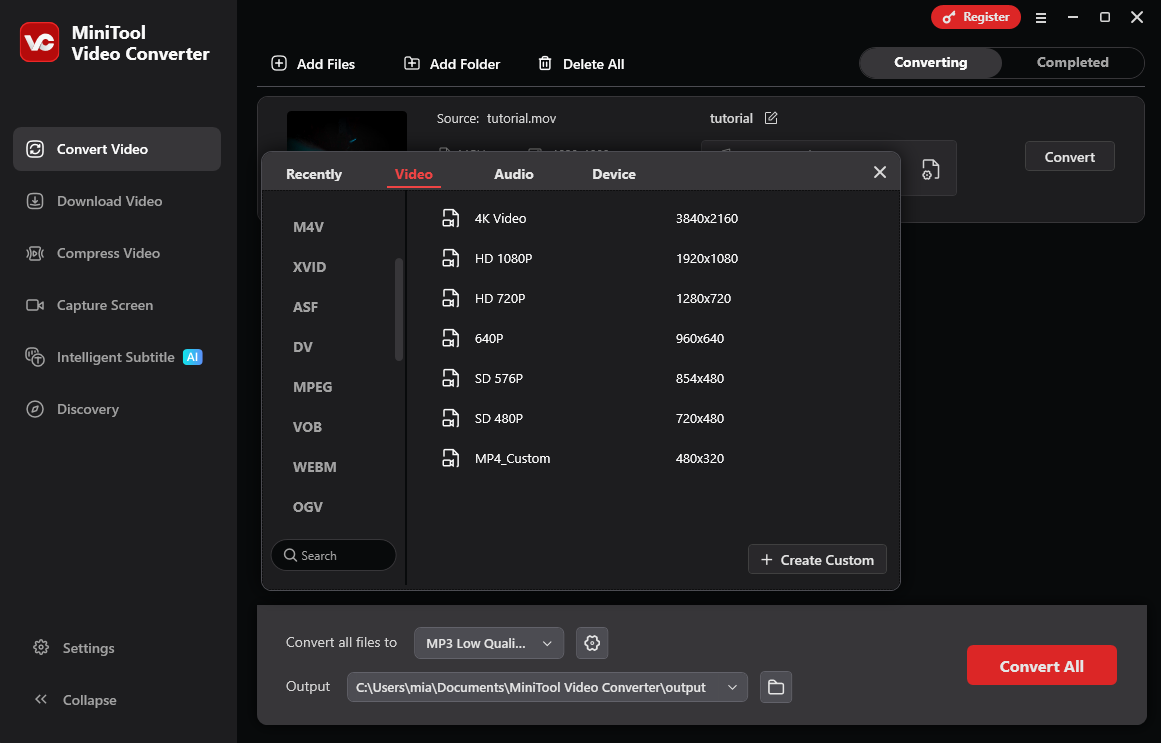
GOM Player supports many audio and video formats. However, some commonly used formats, such as M2TS, F4V, TRP, MXF, DIVX, OGV, WebM, AIFF, M4R, M4B, and AC3, cannot be played by GOM Player. If you still want to play files in these formats on GOM Player, you can use MiniTool Video Converter instead.
MiniTool Video Converter supports over 1000 formats, allowing you to convert formats not supported by GOM Player to those it does. MiniTool Video Converter’s conversion process is quick and simple. It also supports batch conversion of up to 5 files. Additionally, it’s a free video compressor and speech-to-text converter. If you’re interested, you can click the button below to securely download the latest version of MiniTool Video Converter.
MiniTool Video ConverterClick to Download100%Clean & Safe
2. Download and Install K-Lite Codec Pack
GOM Player won’t play RMVB file? The problem may be that the RMVB codec used by GOM Player is outdated. In this case, you can easily solve the problem by downloading and installing a new RMVB codec into GOM Player. K-Lite Codec Pack is a toolkit that includes an RMVB codec. You can download and install it on your computer, enabling GOM Player to play RMVB files successfully.
Here is a guide on how to download and install it:
Step 1. Download K-Lite Codec Pack
Open your web browser and search for K-Lite Codec Pack. Choose a proper one to download onto your computer.
Step 2. Unzip the Package and Install It
The downloaded installation package is usually in ZIP format. You need to unzip this package file, and then follow the on-screen instructions to install the K-Lite Codec Pack. The decoder package will be automatically activated the next time you load an RMVB file.
Step 3. Restart Your Computer
Restart your computer, then open GOM Player to enable the K-Lite Codec Pack on the player. After that, you should be able to play RMVB videos in GOM Player.
3. Try Other Players
If GOM Player cannot play RMVB files, you can try other players that support RMVB. VLC Media Player is a powerful multimedia player. It can play almost any video or audio file format, including RMVB, MP4, AVI, MKV, MP3, AAC, FLAC, and more. You don’t need to install any additional codec packs to play various files, including some incomplete or corrupted files. VLC Media Player supports almost all operating systems, whether it’s a computer system (Windows, Mac, and Linux) or a mobile device system (iOS or Android), you can use this player on these systems to play audio and video files.
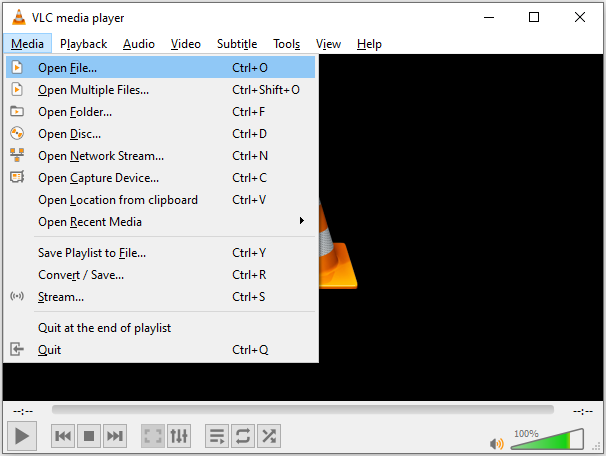
Taking a Windows computer as an example, after downloading VLC Media Player, open the software. Then, click the Media option in the upper left corner, choose the Open File option, select the RMVB file you want to play, and it will play successfully.
Of course, if you don’t want to use VLC Media Player, you can choose other players that support playing RMVB format videos, such as RealPlayer and PotPlayer.

Conclusion
This post shows you three ways to fix GOM Player won’t play RMVB files. In my opinion, the most effective method is to convert RMVB to other common formats that GOM Player supports, such as MP4.
User Comments :