

Slack says your video is too big? Don’t worry. The maximum video upload size is 1GB per file. If your video exceeds 1 GB, try the video compressors mentioned in this article to bypass Slack video size limit.
What Is Slack?
Slack is a communication and collaboration platform for businesses and teams. Team members can share files, including videos, audio, documents, and images, on this platform. It supports multiple video formats, including AVI, MKV, WMV, MP4, 3GP, M4V, MPG, and MPEG.
Slack also supports voice and video calls, improving communication efficiency among team members. Furthermore, Slack integrates with thousands of applications, including Google Drive, Trello, and GitHub. This reduces the need for users to switch between different platforms, significantly improving work efficiency.

Maximum Video Upload Size of Slack
Slack allows you to upload videos to channels or private messages. You can upload up to 10 files at a time, including videos, documents, and images. However, the maximum video size on Slack is 1GB. In addition, different pricing plans offer different file storage capabilities. The free version offers only 5GB of total file storage, the Pro version offers 10GB, and the Business version offers 20GB.
How to Bypass Slack Video Size Limit?
Videos larger than 1GB cannot be uploaded to Slack. This will affect your workflow. Therefore, check your video file size before uploading. Videos larger than 1GB need to be compressed beforehand.
You can use MiniTool Video Converter to compress video for Slack. This application supports compressing videos from your computer. It has no file size or quantity limitations, and it has no ads or bundles.
Unlike some web-based compression tools, MiniTool Video Converter will not add watermarks. I highly recommend using this application to compress video for Slack. How to do that? Follow the steps below:
Step 1: Download and Install MiniTool Video Converter
Simply click the button below to download MiniTool Video Converter and follow the on-screen instructions to install it.
 MiniTool Video Converter
-
 Batch convert video/audio files among 1000+ formats.
- Quickly compress videos for easy storage and transfer.
- Accurately extract subtitles from video/audio files.
- Effectively enhance video quality.
Step 2: Import Your Video
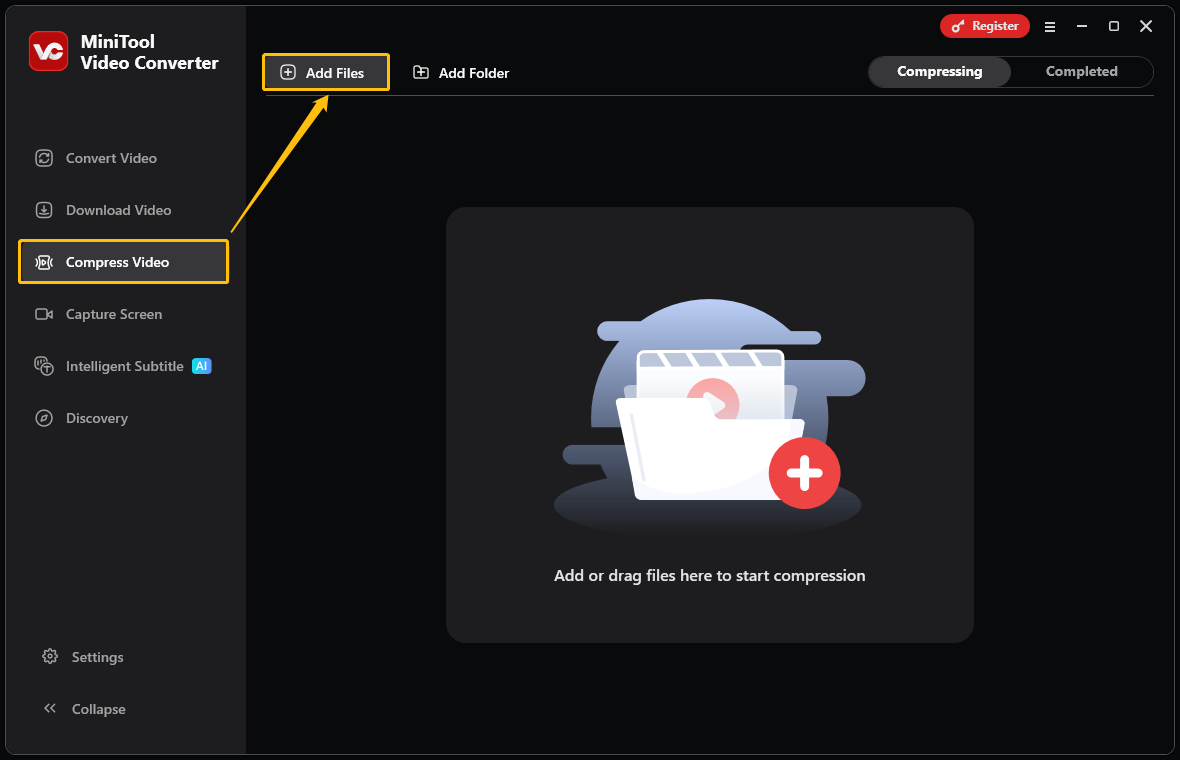
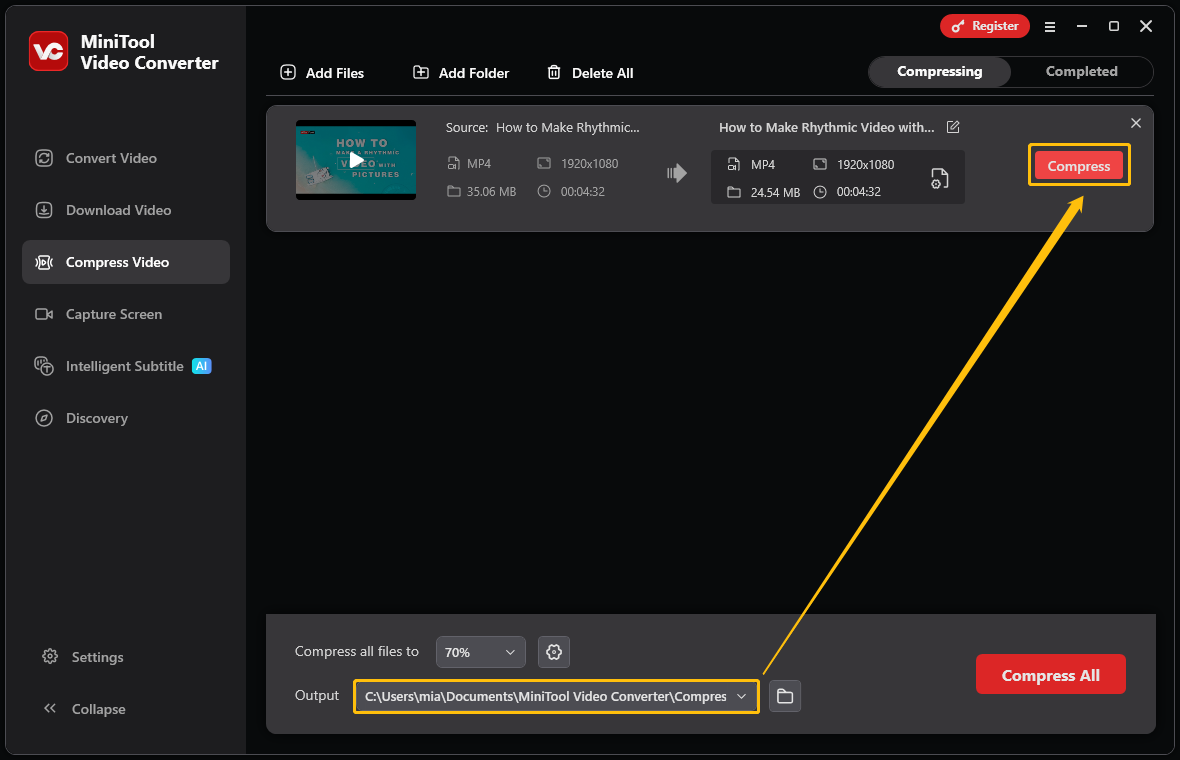
Launch this free compressor. Then, switch to the Compress Video tab, click Add Files to import the video you want to compress.
Step 3: Set the Compression Level
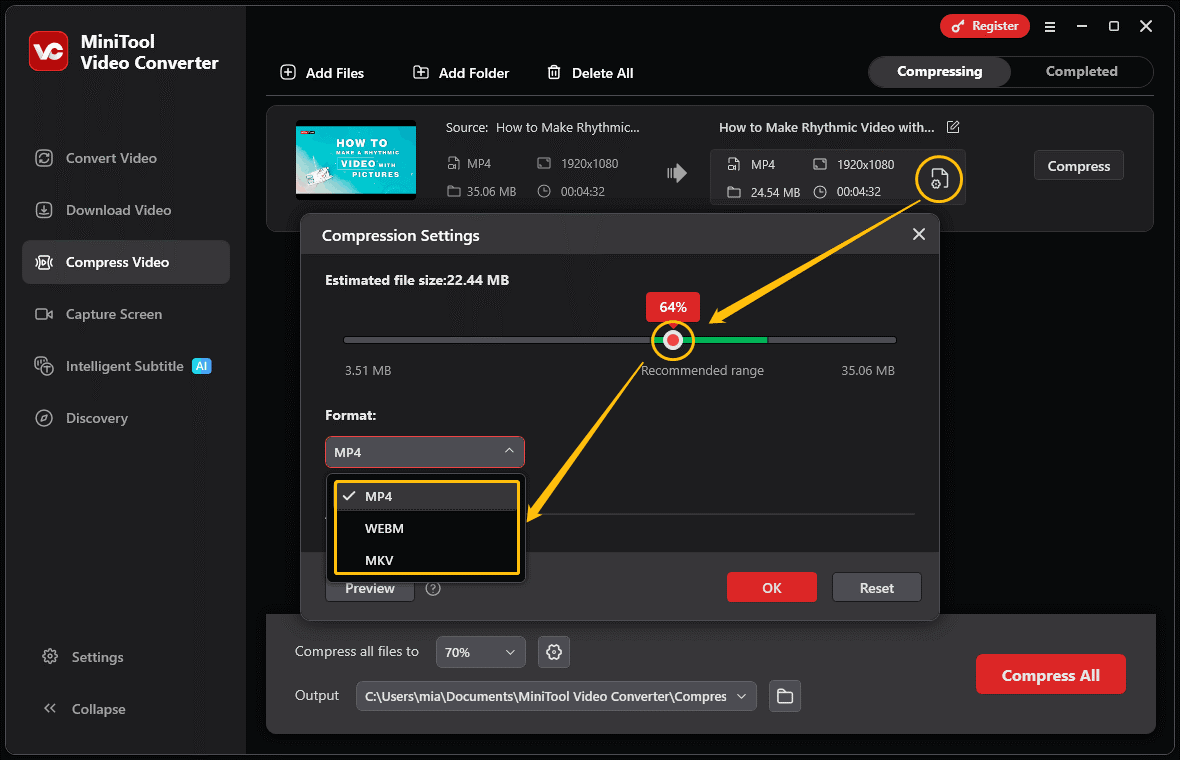
Click the settings icon to open the Compression Settings window. Then, drag the red dot on the slider to adjust the compression percentage.
Step 4: Choose Output Format
Expand the Format option and select the output format (MP4, WebM, and MKV).
Step 5: Preview the Video
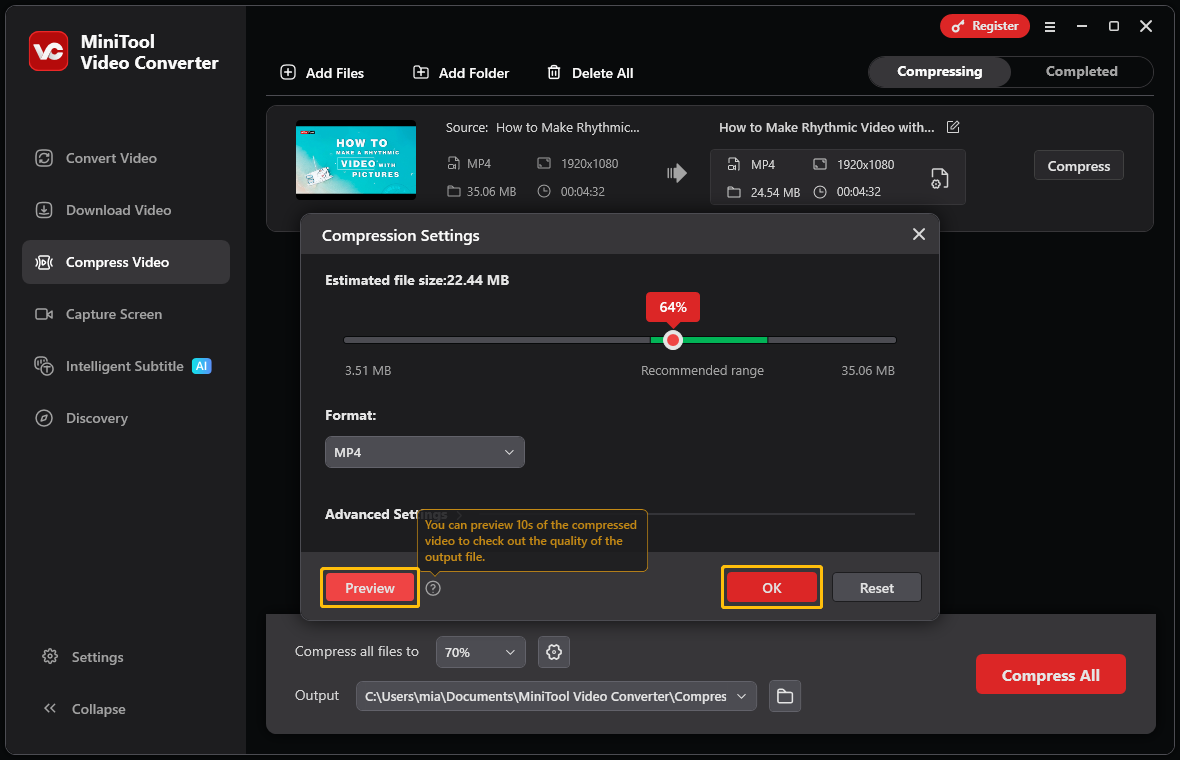
You can click the Preview button to preview the quality of the compressed video. Then click OK to confirm your compression level and export format.
Step 6: Pick Where to Save the File
Expand the Output option and choose a folder to save the compressed video.
Step 7: Start Compression
Click the Compress button to initiate the compression process.
Step 8: Locate the Compressed Video
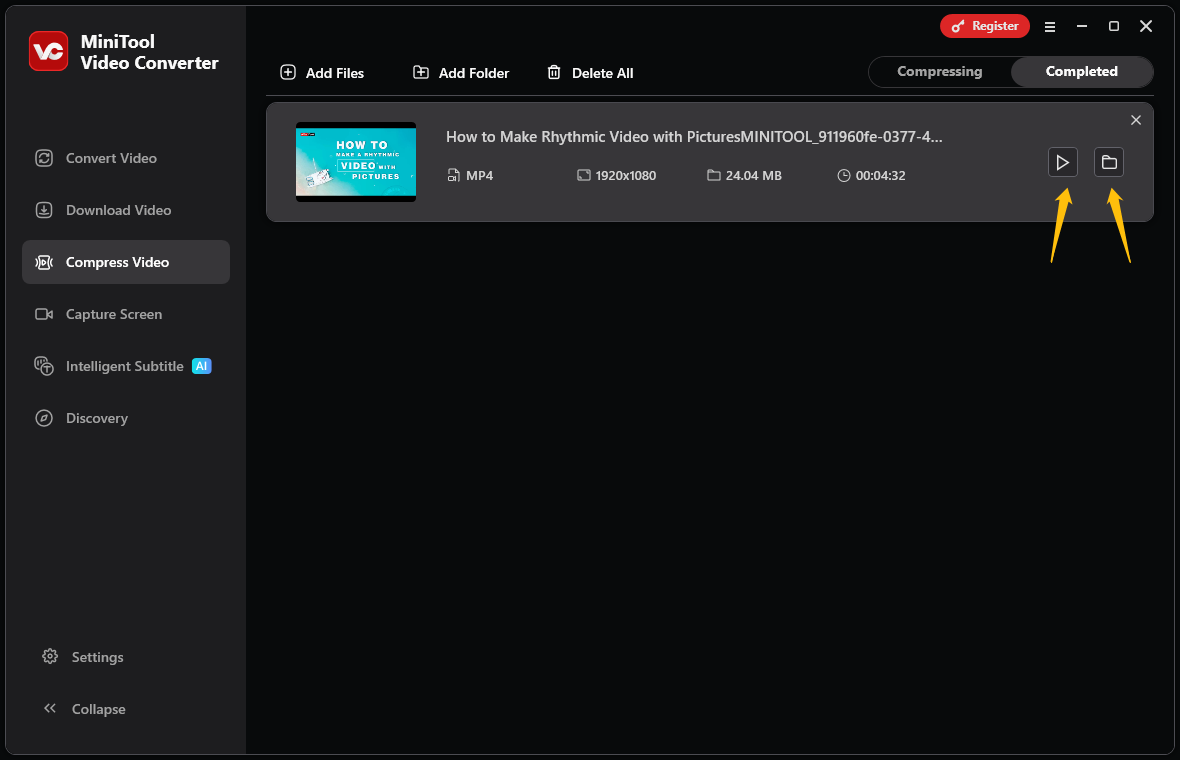
Once finished, you’ll land on the Completed tab. Hit the play icon or the folder icon to watch and locate the compressed file.
If you have multiple video files that need to be compressed, you can also import the videos in batches and compress them together. By the way, MiniTool Video Converter can also convert video and audio files, convert speech to text, generate subtitles for your videos, and more.

How to Upload Video to Slack?
Slack allows you to upload 10 files at once, including videos, audio, images, documents, etc. You can upload video files to any public channel, private channel, or direct message within a workspace. Let’s see how to upload a video from your PC to Slack:
Step 1: Log in to Slack
Visit https://app.slack.com/ and sign in to your account.
Step 2: Choose a Channel
In the left panel, select a channel you want.
Step 3: Upload Your Video
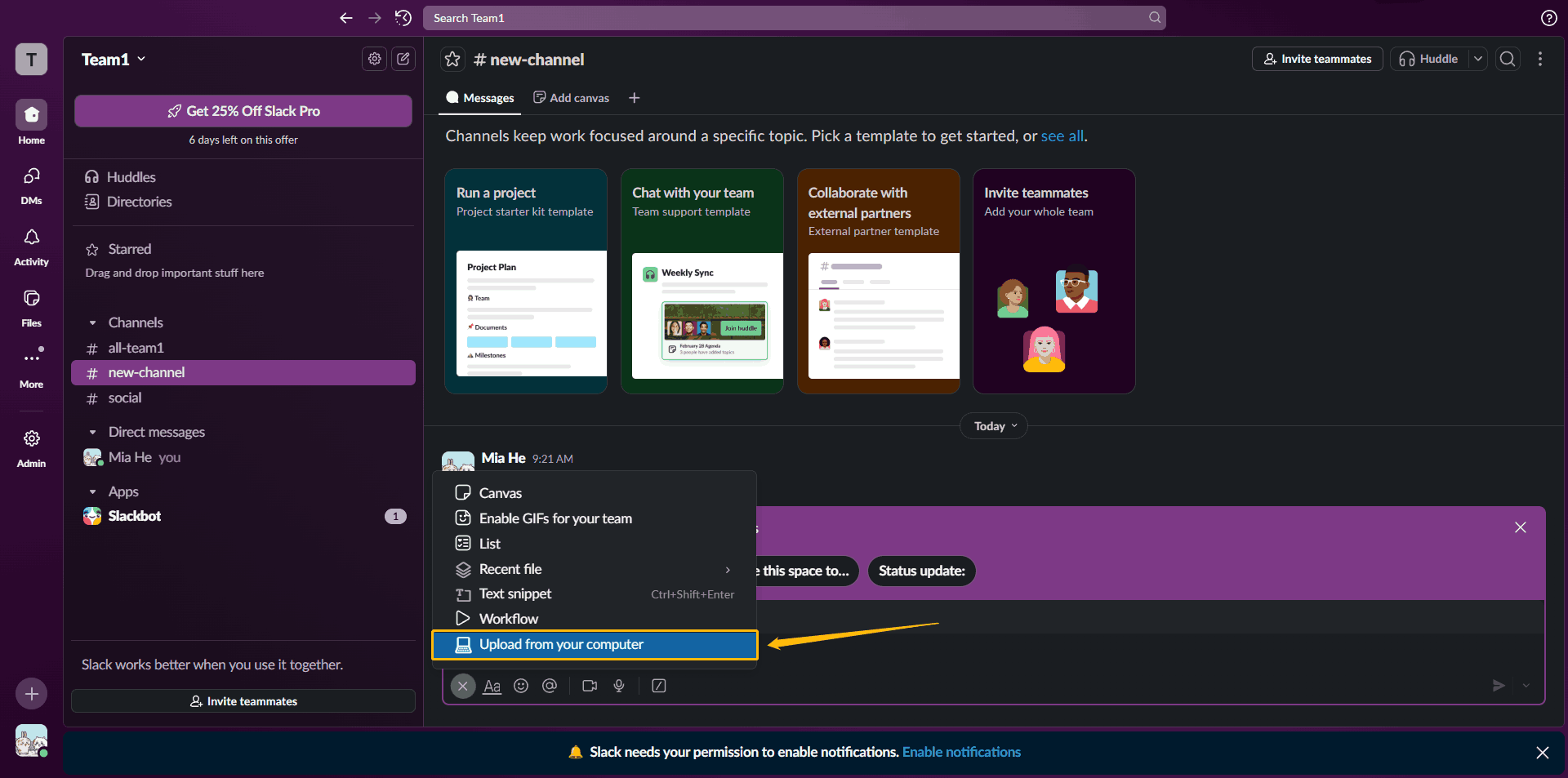
Go to the message box and click the plus icon. Then, choose Upload from your computer from the dropdown menu. After that, choose the video you want to upload.
Step 4: Choose the Thumbnail
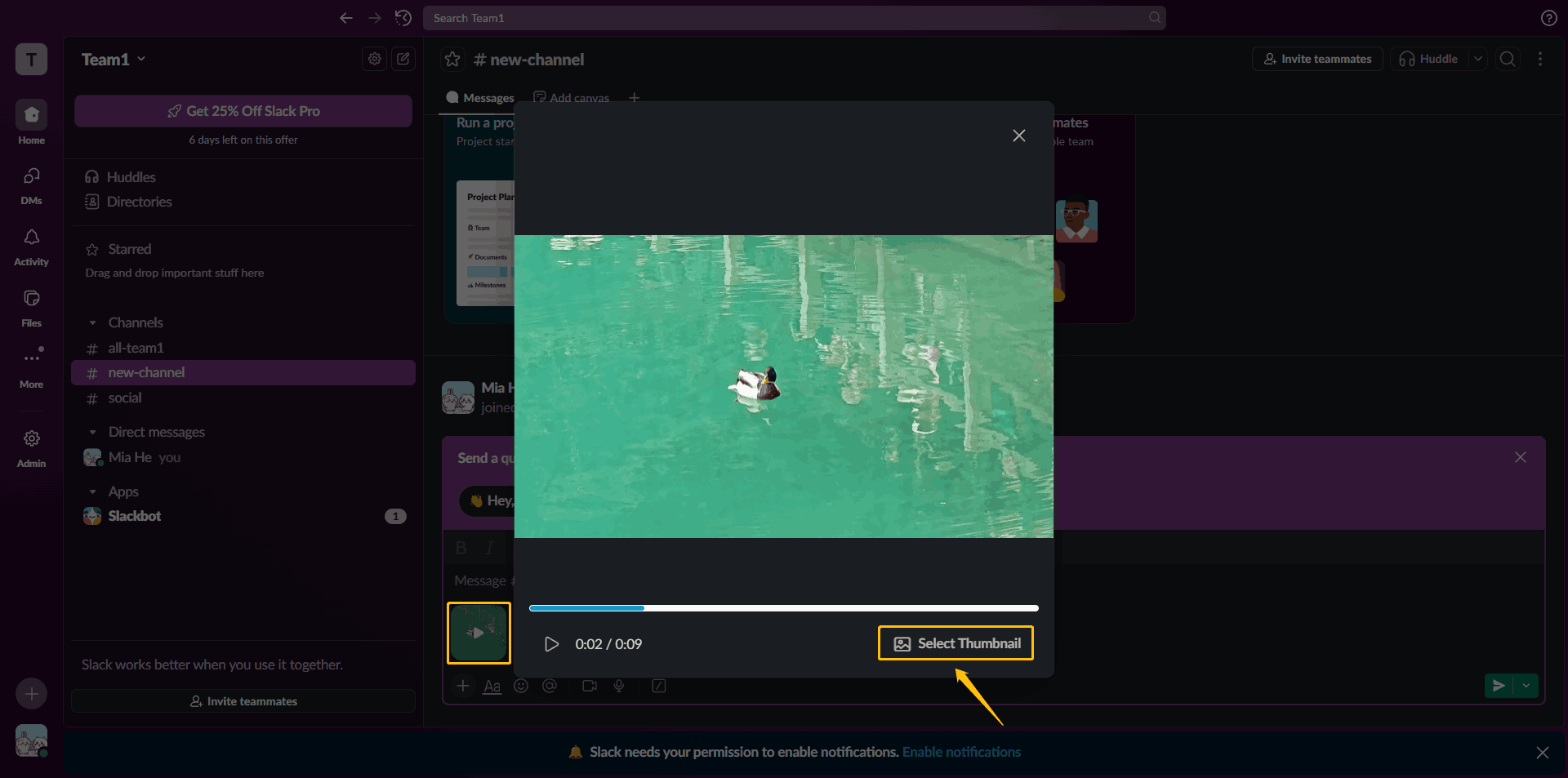
After the video upload is complete, click on the video in the message box. Then, in the pop-up window, select the Select Thumbnail option to set a frame as the video cover.
Step 5: Send Your Video
Click the Send now option at the bottom-right of the message box to send the video to the selected channel.
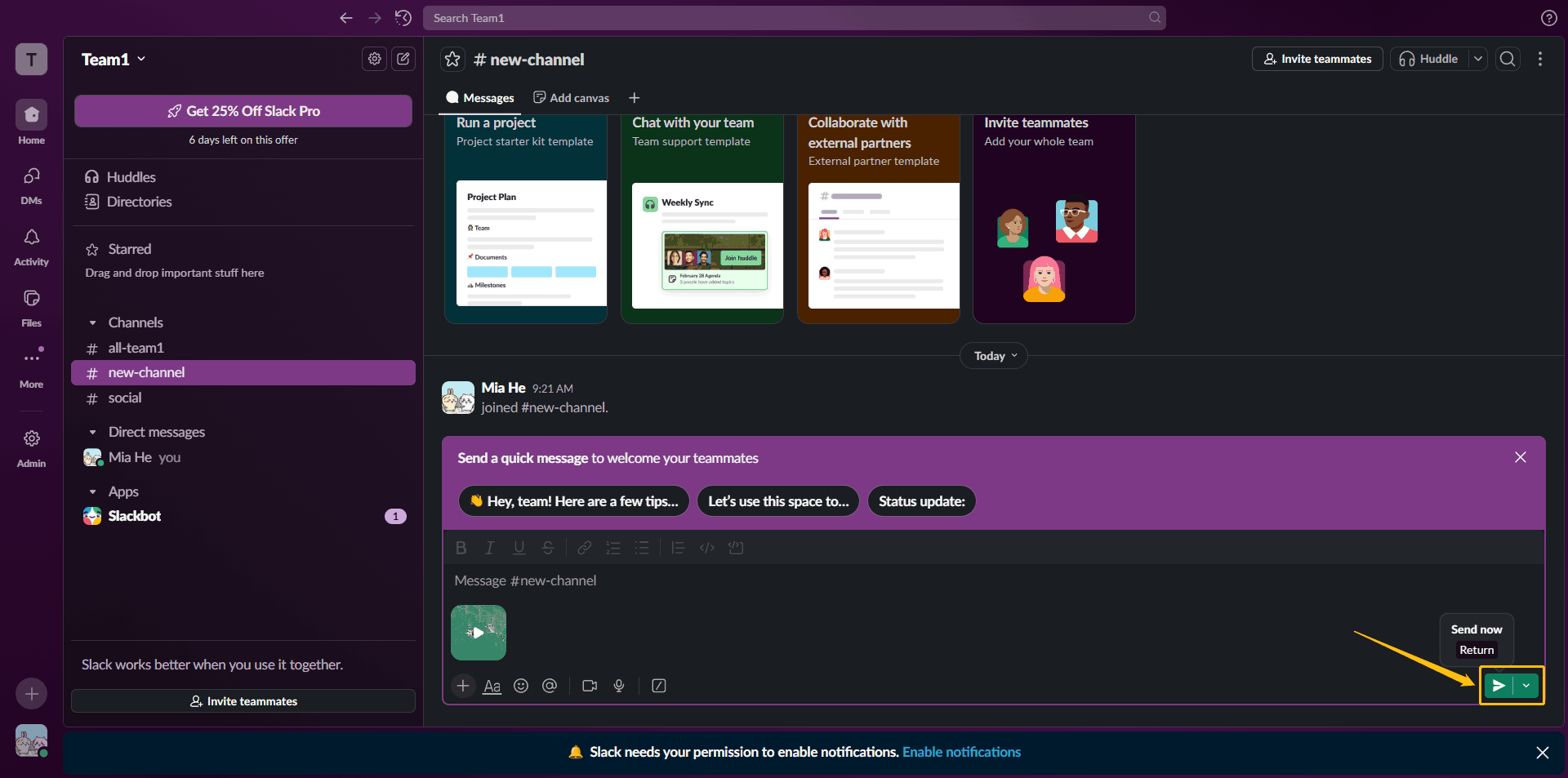
You can edit or delete your video at any time after posting it. I also found that Slack can generate video transcripts. You just need to click Generate transcript below the video, and the transcript will appear. It’s a convenient feature.

Bottom Line
If your video exceeds Slack’s maximum video upload size, you only need to use MiniTool Video Converter to compress the video to bypass the Slack video size limit. After compressing, follow the instructions provided in this article to upload your video.
User Comments :