

This article walks you through the OGG and M4B formats. Meanwhile, it shows you how to convert OGG to M4B and vice versa with MiniTool Video Converter or FreeConvert.
OGG and M4B are two audio formats that differ in many aspects. Sometimes, you may want to convert OGG to M4B and vice versa for certain purposes. To facilitate your conversion tasks. The following content is written here.
Understanding OGG
With an open-source nature, OGG refers to a container format to store a wide range of files, including audio, video, metadata, and text. With high flexibility, it has much to offer in sustaining high-quality streaming. If you don’t want to be bothered by software patents, OGG can be an ideal choice.
Understanding M4B
As an audio file format, M4B is widely used for audiobooks. Based on the MPEG-4 container, it enables you to enjoy multiple audiobook functions, such as bookmarking and chapter breaks. Apple products give native support for M4B. However, M4B files from those sources are often protected with Digital Rights Management.
How to Convert OGG to M4B
If you want to convert OGG to M4B easily and quickly, MiniTool Video Converter can meet your needs. More than a free video converter, it enables you to convert OGG to various audio/video formats, including M4B, MP4, AIFF, AVI, MP3, MKV, WAV, MOV, and so on.
With MiniTool Video Converter, you can convert up to 5 OGG files simultaneously. Furthermore, it doesn’t have any file size limit. Even if you are a novice, you can access MiniTool Video Converter easily. Below is an in-depth guide on how to get M4B from OGG using MiniTool Video Converter.
Step 1. Download and Install MiniTool Video Converter
MiniTool Video ConverterClick to Download100%Clean & Safe
Click on the download button above to download and install MiniTool Video Converter on your PC. Then, launch this converter.
Step 2. Import the OGG Files
Upload the OGG files by clicking on the upper-left Add Files option.

Step 3. Set M4B as the Output Format
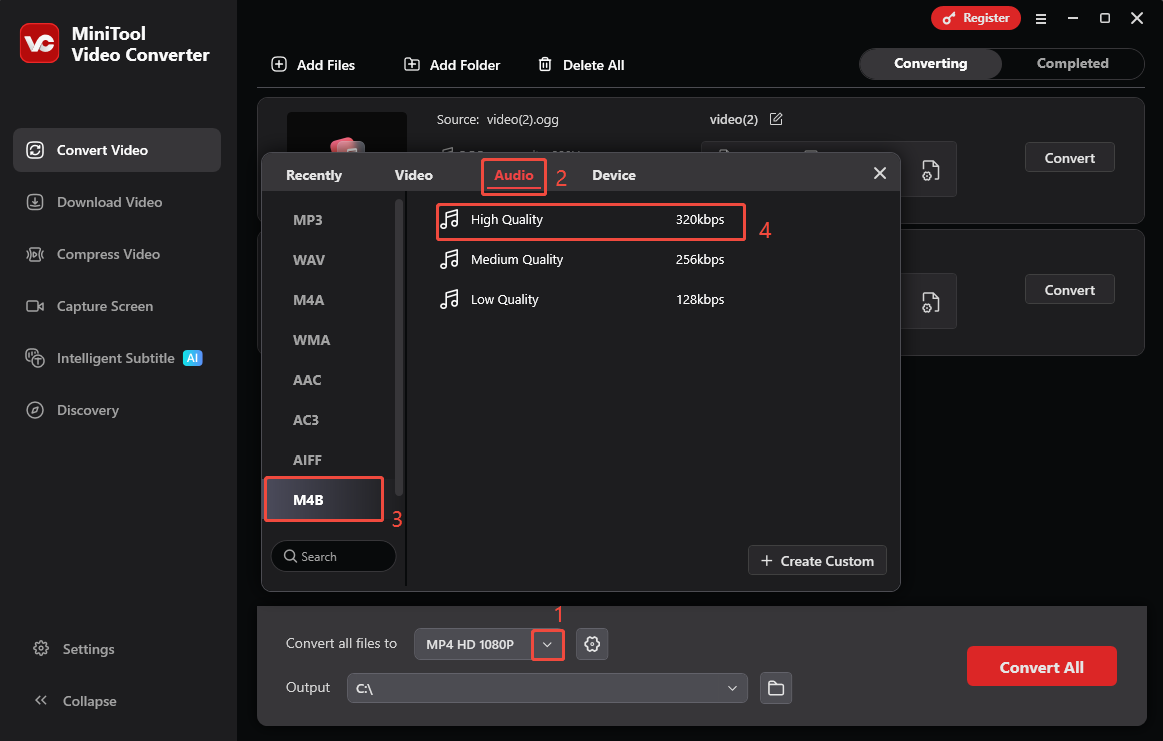
Expand the bottom Convert all files to option to enter the output format window. There, switch to the Audio tab and click on M4B. Then, choose the audio quality you want. Here, I select High Quality.
Step 4. Set an Output Folder and Start Conversion
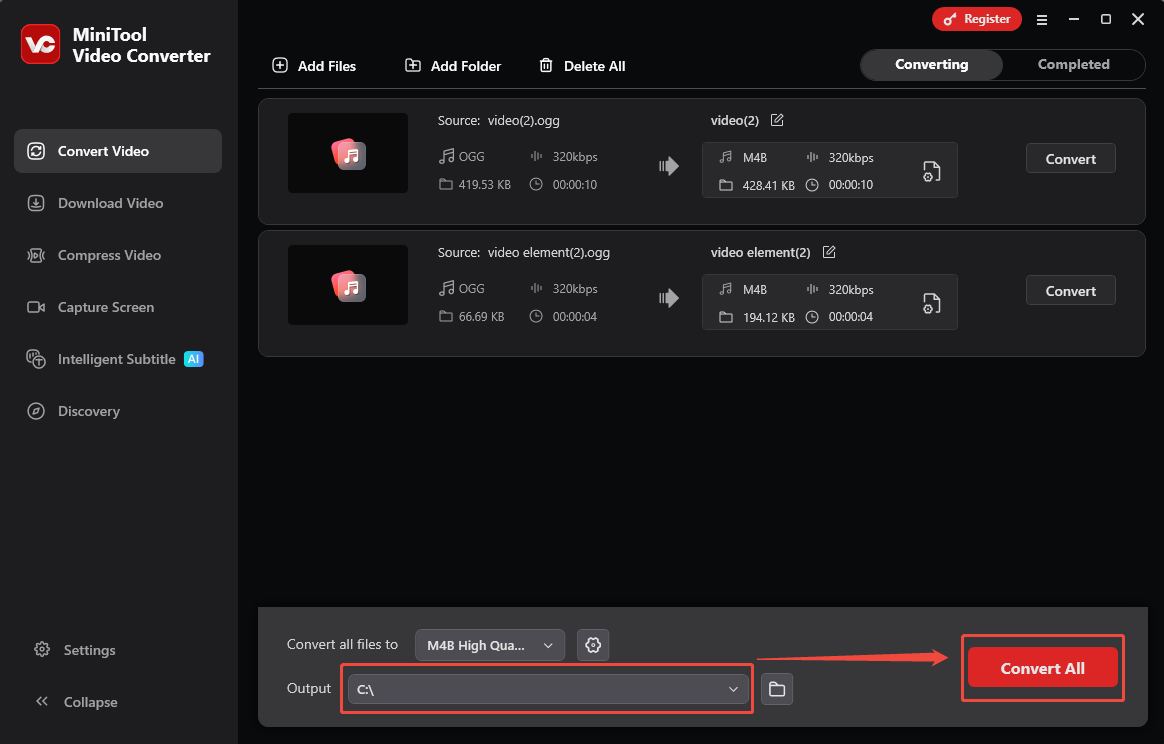
Expand the bottom Output option to choose a saving path for the converted files. Next, click on the bottom-right Convert All button to begin the conversion process.
Step 5. Check the Output Files
When the file conversion process completes, this conversion tool will automatically switch to the Completed section. There, click on the Play icon to view the output files. If you want to locate these files, click on the Folder icon.
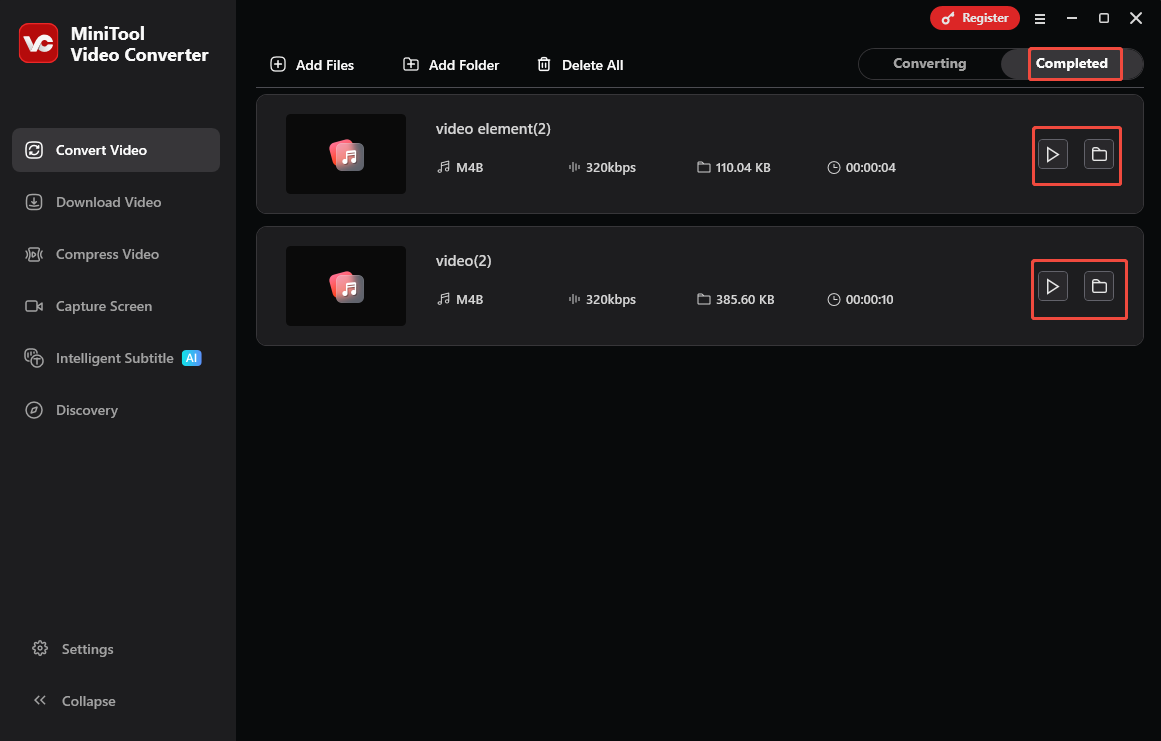
As you can see, MiniTool Video Converter is a can’t-miss converter. More surprisingly, it also functions as a video compressor and an audio/video to text converter. By the way, MiniTool Video Converter supports the M4B to OGG conversion.
How to Convert M4B to OGG
Provided that you want to convert M4B to OGG online, FreeConvert can be an ideal option. It is a powerful online converter that enables you to convert M4B to OGG, MP3, AAC, AMR, WMA, and so on. Meanwhile, FreeConvert allows you to upload your M4B files from different sources, including Google Drive, OneDrive, Dropbox, your device, and URL.
Below are the detailed instructions on how to convert M4B to OGG with FreeConvert.
Step 1. Go to the M4B to OGG Converter Page of FreeConvert
Visit https://www.freeconvert.com/m4b-to-ogg.
Step 2. Import the M4B File
Click on the Choose Files option to import the M4B file that you want to convert.
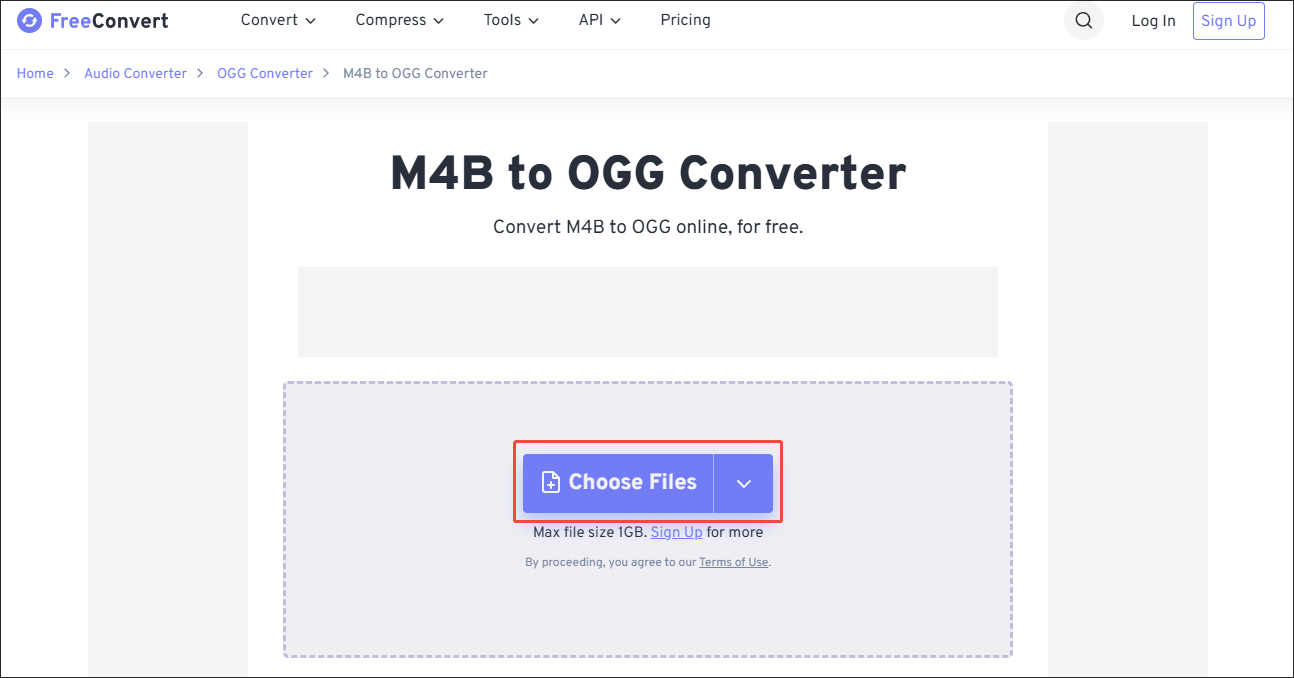
Step 3. Configure the Conversion Settings
Click on the Settings icon to enter the Advanced Options window. There, you can customize the audio codec and volume. Based on your needs, you can also determine whether to fade in/out the audio. Finally, click on the bottom-right Apply Settings button to save the changes.
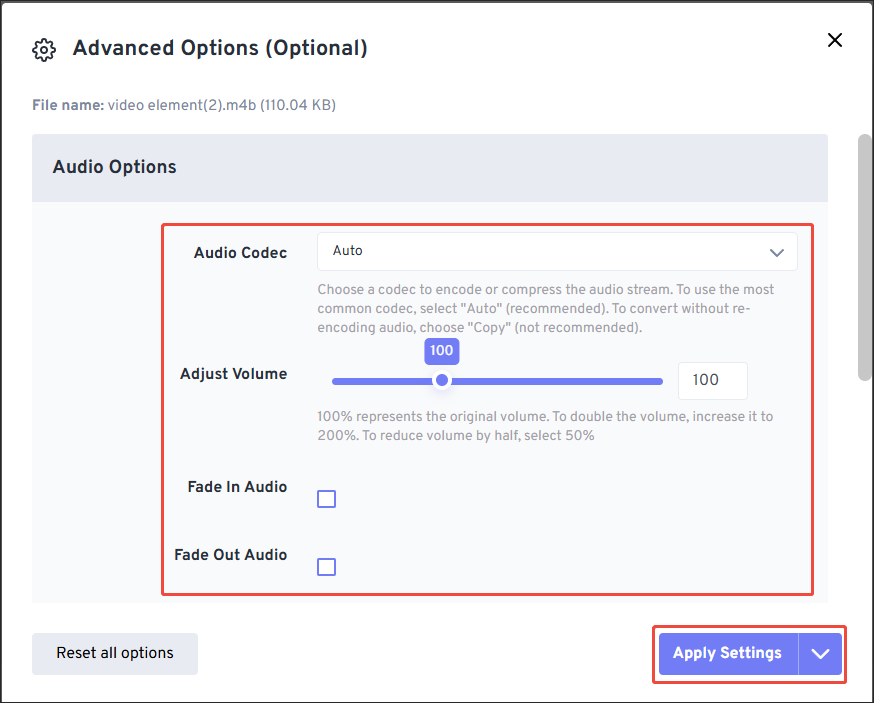
Step 4. Start Conversion and Check the Output File
Start the conversion process by clicking on the Convert button. When the file conversion process completes, download and check the converted files.
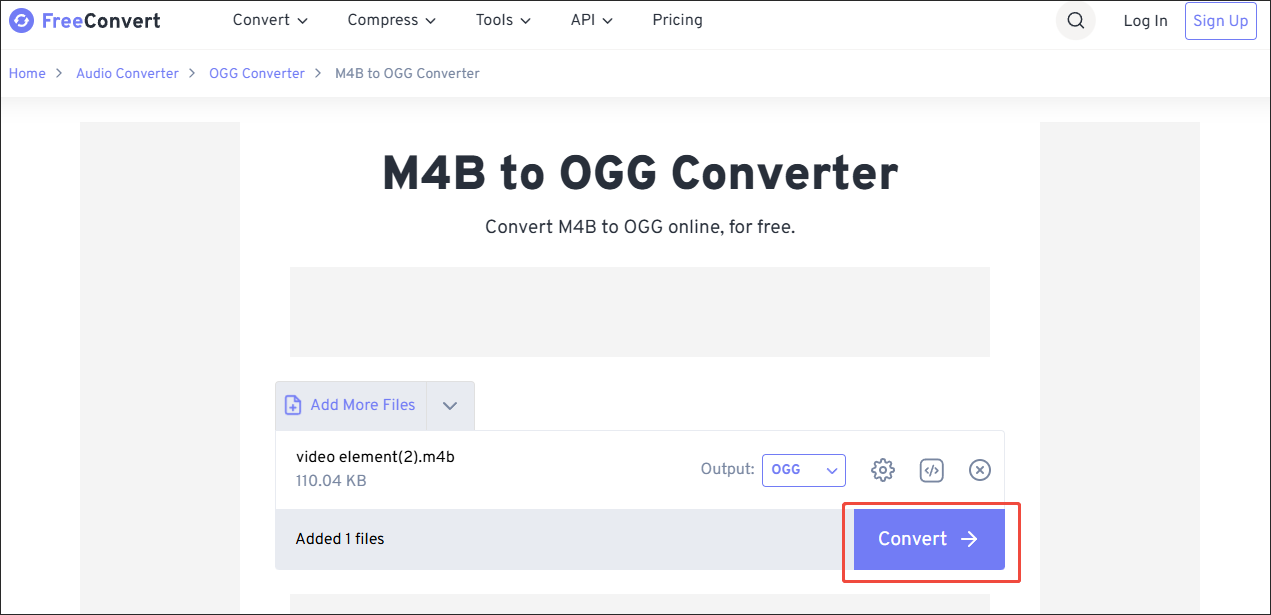
Undoubtedly, FreeConvert is an easy-to-use file converter. However, it sets a 1GB file size limit.
Bottom Line
If you want to use the OGG audio as audiobooks, it is advisable to convert OGG to M4B. FreeConvert enables you to accomplish such a conversion task without downloading extra software, while MiniTool Video Converter protects you from the file size limit.
About The Author

Position: Columnist
With over 6 years of experience as a tech writer, Eien specializes in creating clear, simple guides for video conversion, transcription, screen recording, etc. He stays connected with the tech community and its readers to understand the real-world problems users face. By combining their feedback with his own hands-on testing, Eien always provides proven solutions to complex software problems in time.
User Comments :