

This article explains the FLV and M4B formats to you. Meanwhile, it walks you through why you need to convert FLV to M4B. Finally, this post shows you how to do that step by step using MiniTool Video Converter and recommends a fabulous FLV editor: MiniTool MovieMaker.
Understanding FLV
Standing for Flash Video, FLV refers to a video with an open-source nature. Adobe developed this format for video streaming over the internet. An FLV video has much to offer in sustaining the storage of video/audio data. It was widely applied by YouTube and other websites. However, as more advanced formats, like MP4, come into people's views, FLV is less popular now.
Understanding M4B
M4B is a popular audiobook format based on the MPEG-4 container. With it, you can enjoy a lot of features, including bookmarking, chapter markers, and so on. However, influenced by Digital Rights Management, some M4B files are only playable on authorized devices.
Why Convert FLV to M4B
Extracting M4B audio from an FLV video enables you to stylize your audiobooks. Meanwhile, the chapter breaks feature enables you to grasp the key points of a long FLV video in order. In addition, it is more convenient to listen to an audio file than watch a video on some occasions, such as driving home.
How to Convert FLV to M4B
If you want to get M4B from FLV easily and quickly, I highly recommend MiniTool Video Converter.
Why Select MiniTool Video Converter
As a free video converter, MiniTool Video Converter enables you to convert FLV to a wide range of audio/video formats, including M4B, MP4, M4A, AVI, WAV, MKV, AIFF, MOV, and so on. It also allows you to convert up to 5 files simultaneously.
With an intuitive interface, MiniTool Video Converter is accessible to users ranging from beginners to experts. More importantly, it never sets any file size limit for free users. Besides, MiniTool Video Converter allows you to customize various parameters, including encoder, frame rate, sample rate, resolution, bitrate, and more.
How to Extract M4B Audio from FLV Videos with MiniTool Video Converter
Below is a detailed guide on how to convert FLV to M4B using MiniTool Video Converter.
Step 1. Download and Install MiniTool Video Converter
MiniTool Video ConverterClick to Download100%Clean & Safe
Download MiniTool Video Converter by clicking on the download button above. Then, follow the on-screen prompts to install this FLV to M4B converter on your PC.
Step 2. Import the FLV Videos
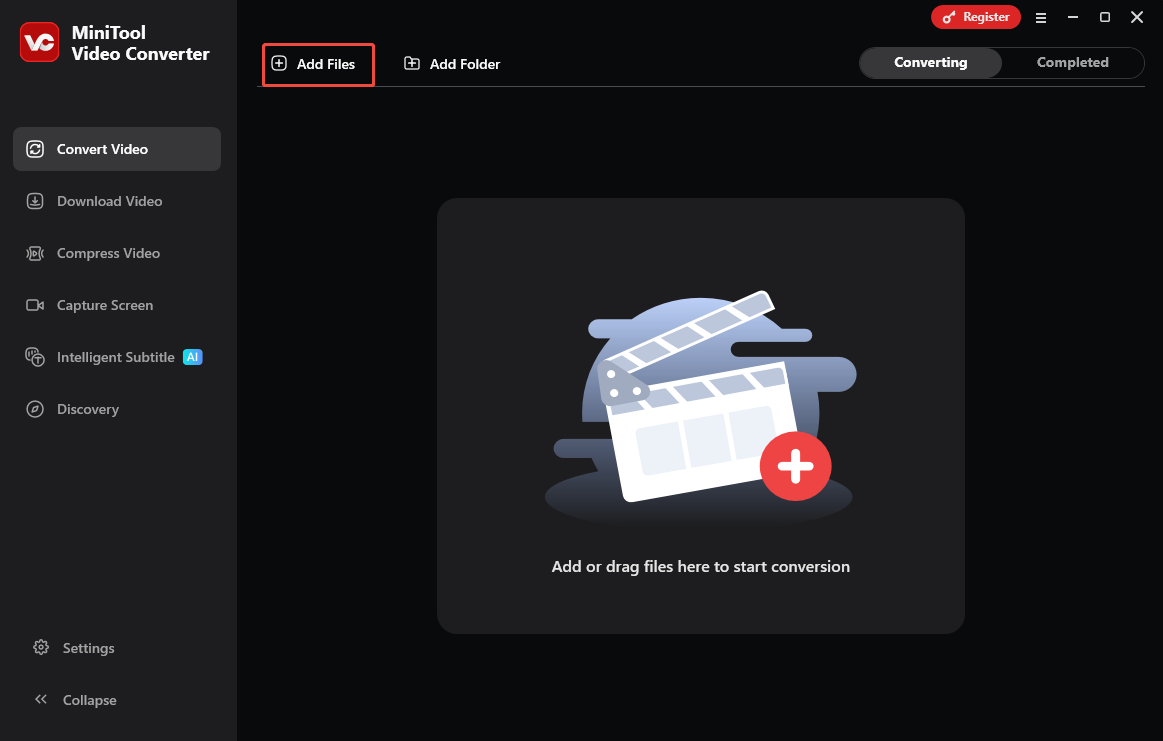
After launching MiniTool Video Converter, click on the upper-left Add Files option to import the FLV videos.
Step 3. Set M4B as the Output Format
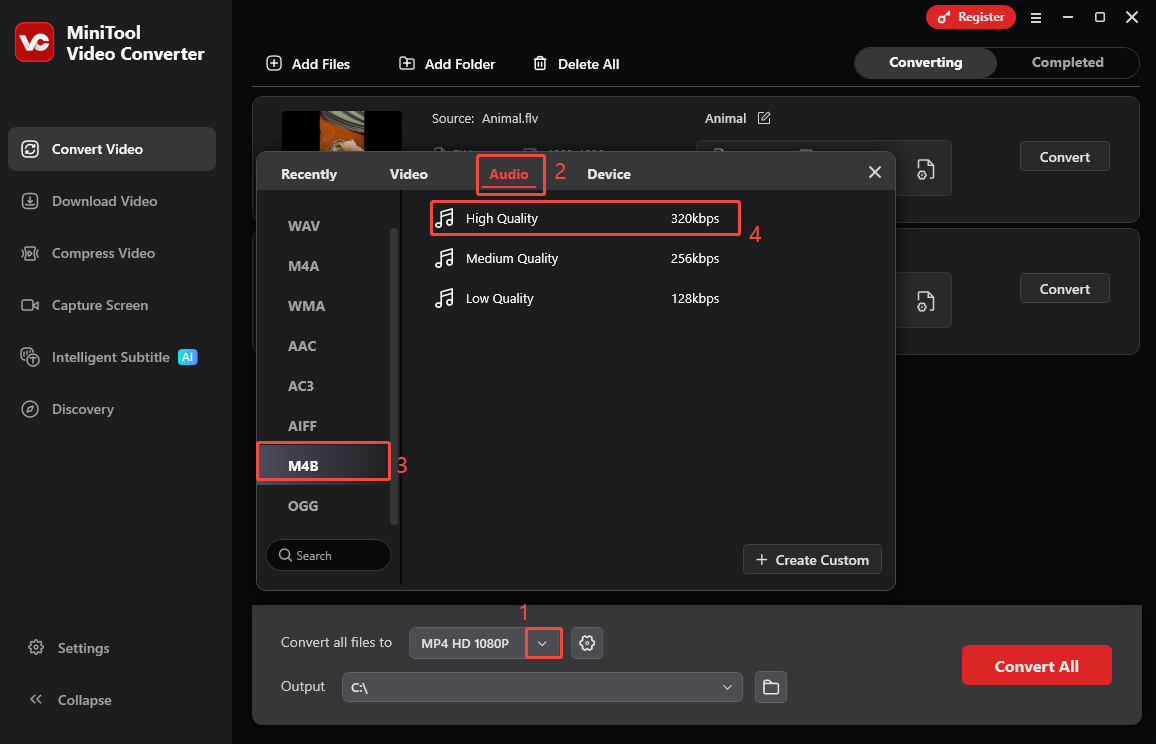
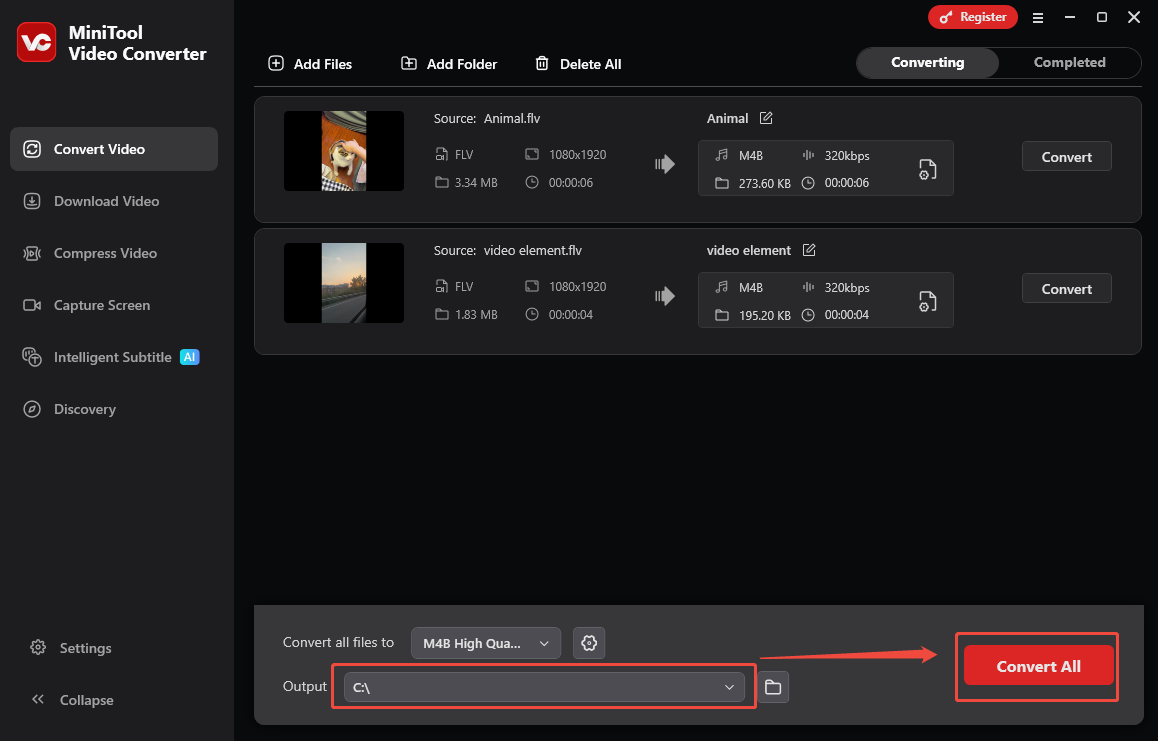
Expand the bottom Convert all files to option to enter the output format window. There, switch to the Audio tab and click on M4B. Then, choose the audio quality you want. Here, I select High Quality.
Step 4. Set an Output Folder and Start Conversion
Expand the bottom Output option to choose a saving path for the converted files. Then, click on the bottom-right Conver All button to begin the conversion process.
Step 5. Check the Results
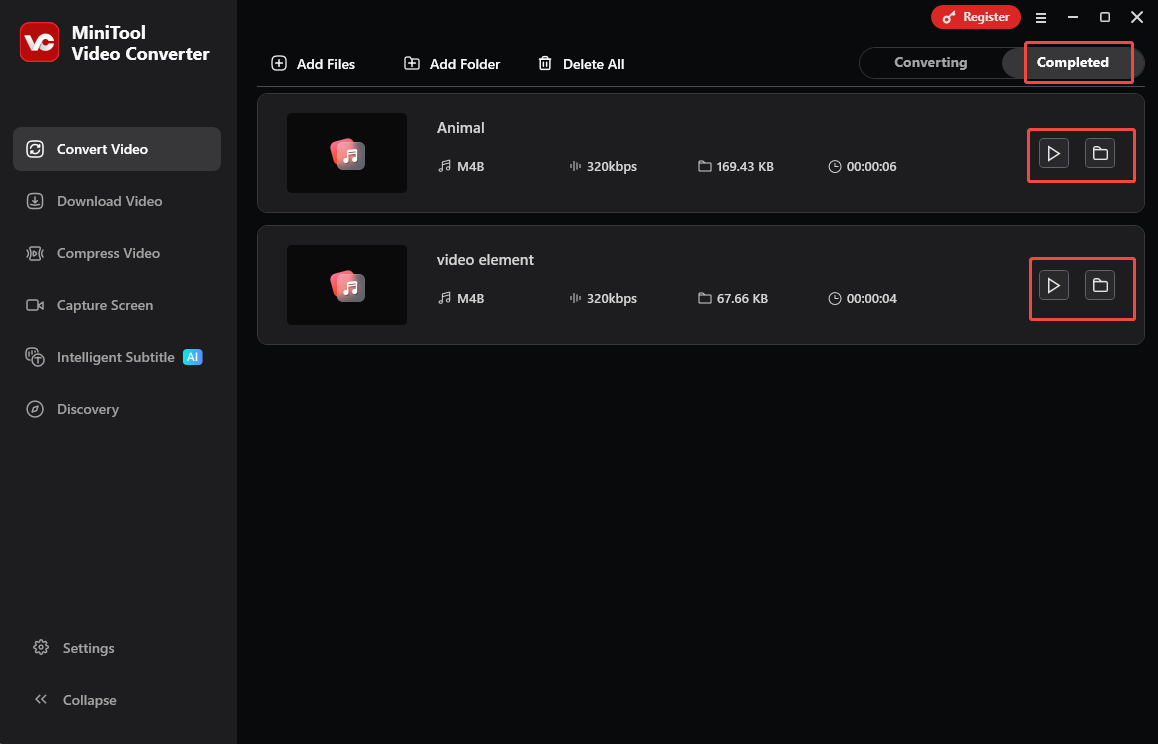
When the file conversion process ends, this application will automatically switch to the Completed section. There, click on the Play icon to view the converted files. If you want to locate the output videos, click on the Folder icon.
More importantly, MiniTool Video Converter also allows you to compress FLV videos or convert FLV to text. By the way, it is an M4B to FLV converter.
Bonus: How to Edit an FLV Video
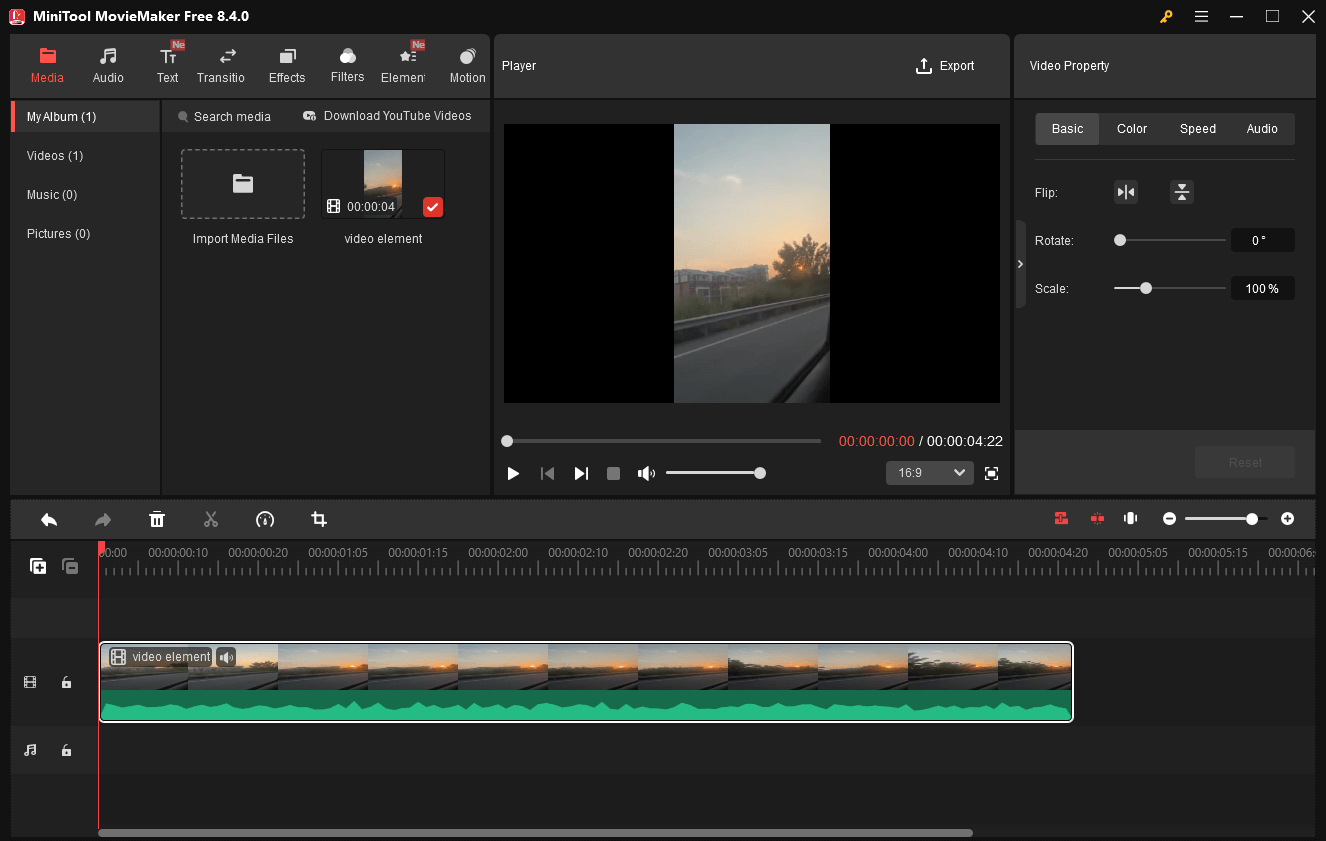
Before creating an audiobook from your FLV videos, you may want to edit your FLV files. To facilitate your video editing, never miss MiniTool MovieMaker. It allows you to add a wide range of elements, including motions, transitions, effects, filters, and so on, to your FLV videos.
Meanwhile, MiniTool MovieMaker enables you to split, merge, speed up, reverse, flip, rotate, or crop the FLV video with simple clicks. Plus, it empowers you to save an FLV video in multiple formats, including MP4, AVI, MOV, GIF, MP3, etc.
MiniTool MovieMakerClick to Download100%Clean & Safe
In Summary
If you want to convert FLV to M4B and vice versa without any payment, MiniTool Video Converter can be a top-grade option. Provided that you need to edit your FLV files, try MiniTool MovieMaker.
About The Author

Position: Columnist
With over 6 years of experience as a tech writer, Eien specializes in creating clear, simple guides for video conversion, transcription, screen recording, etc. He stays connected with the tech community and its readers to understand the real-world problems users face. By combining their feedback with his own hands-on testing, Eien always provides proven solutions to complex software problems in time.
User Comments :