

MOD Explained
MOD is a video file format created by JVC. It primarily uses the MPEG-2 standard and the AC3 audio codec for encoding. MOD is mainly used for videos recorded by some JVC, Canon, and Panasonic camcorders. Due to its rarity, its file extension is also rarely used. Most standard media players don’t support opening such files.
WMV Explained
WMV (Windows Media Video) is a digital video format that uses Windows Media compression technology. It incorporates the DRM (Digital Rights Management) system. Therefore, WMV has gained popularity among online high-definition movie streaming services. Besides, it is lossless compression, which means WMV compresses video without sacrificing quality.
Benefits of Converting MOD to WMV
MOD has limited compatibility. Converting it to WMV improves compatibility with Windows devices. WMV offers higher compression without video quality loss, making it easier to save and share. What’s more, it supports streaming playback and video editing.
2 Methods to Convert MOD to WMV
Need a suitable MOD to WMV converter? I want to recommend an offline converter and an online converter to you.
Method 1. Use VLC Media Player
VLC Media Player is a powerful tool for MOD to WMV conversion. It has universal compatibility, supporting a variety of digital video and audio formats. What’s more, VLC Media Player is still a batch converter, which allows you to add various files at the same time. It utilizes multiple advanced and common codecs, including H.264, H.265, VP8, Vorbis, and more.
The following section is MOD to WMV conversion with VLC Media Player.
Step 1. Obtain VLC Media Player
Download and install VLC Media Player from the official website. Then, launch it.
Step 2. Import VLC Media Player
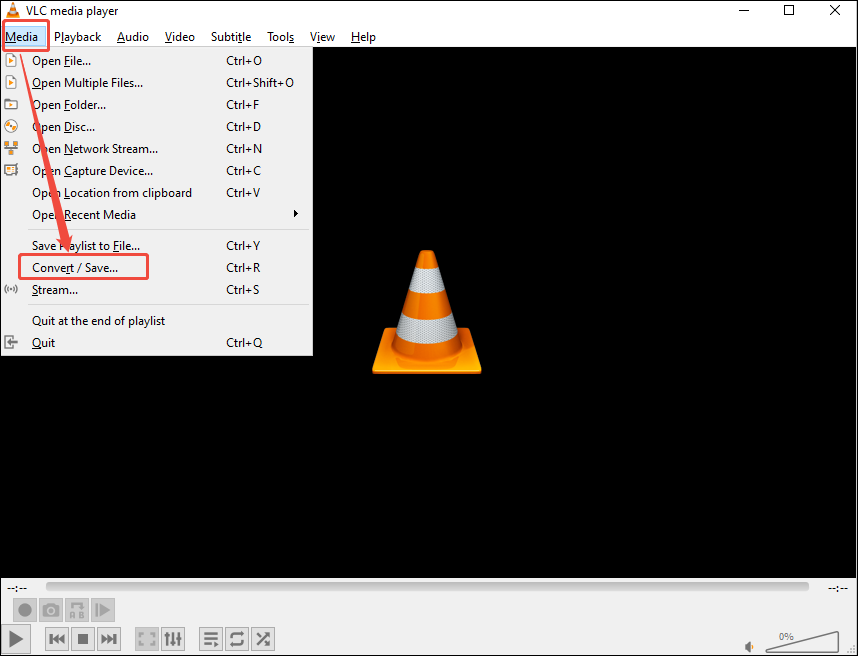
Expand the Media option to choose the Convert/Save…option. Then, this converter will enter the Open Media window.
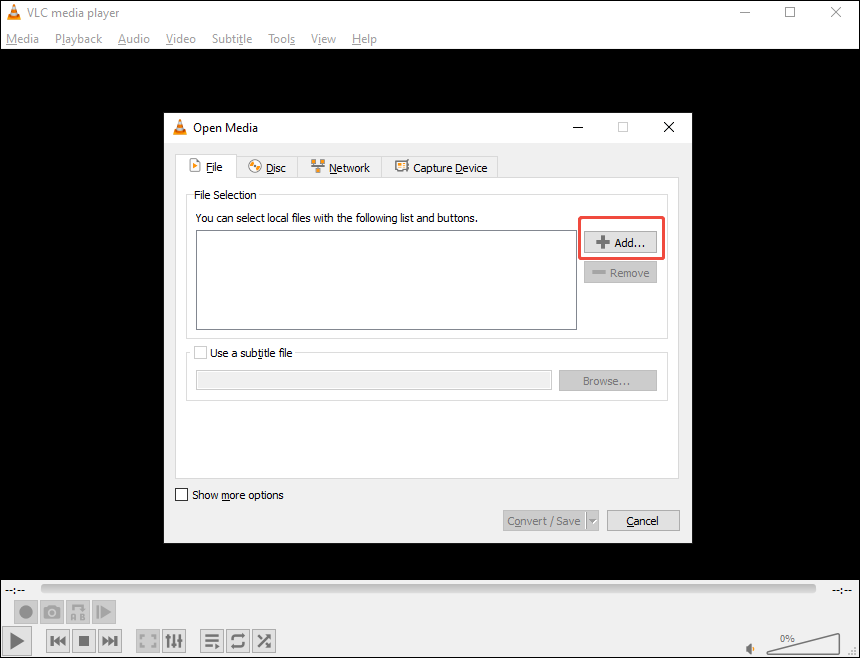
In the Open Media window, click on the + Add… option to import a MOD video. Then, click on the Convert/Save button to switch to the Convert window.
Step 3. Configure WMV as the Output Format
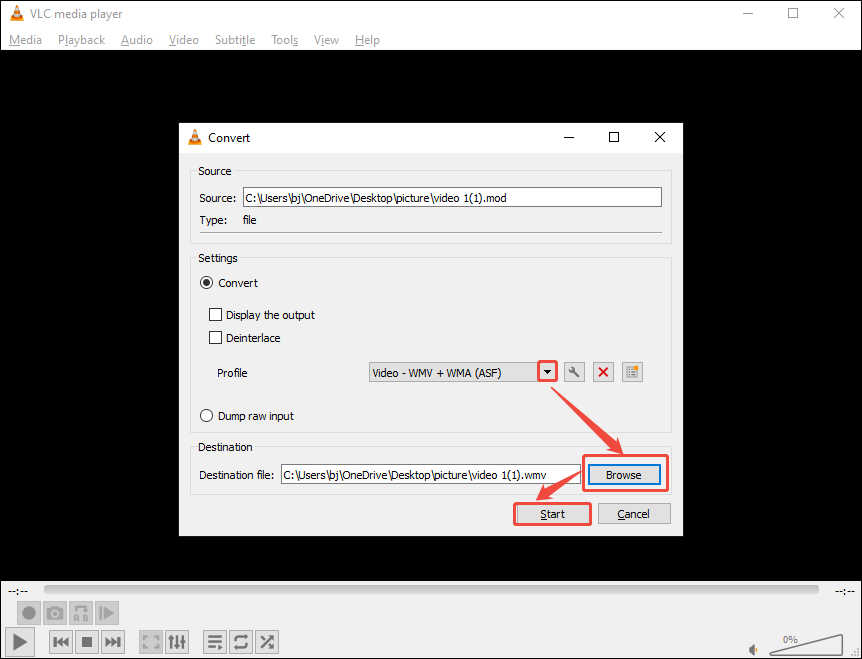
In the Convert window, expand the Profile option to select Video - WMV + WMA (ASF) as the output format. Then, click on the Browse button to choose a storage folder. When you pick the folder, you need to change the .mod extension to .wmv extension. Then, click on the Start button to begin the conversion.
Step 4. Check the Converted WMV Video
Go to the saving folder you specified just now to check the converted WMV video.
VLC Media Player is a well-known media player. It also performs well in converting video formats. If you want to convert MOD to WMV, don’t miss VLC Media Player.
MiniTool Video ConverterClick to Download100%Clean & Safe
Method 2. Use Convertio
Convertio is a browser-based converter that efficiently converts MOD to WMV. It enables you to convert over 300 formats, including MKV, AVI, FLV, MP4, MPEG, M4V, and more. In addition to importing videos from local files, Convertio also provides 2 other ways to import files, allowing you to easily add files, including importing from Google Drive and Dropbox.
Next, let’s try to convert MOD to WMV using Convertio.
Step 1. Navufate to Convertio’s Webpage
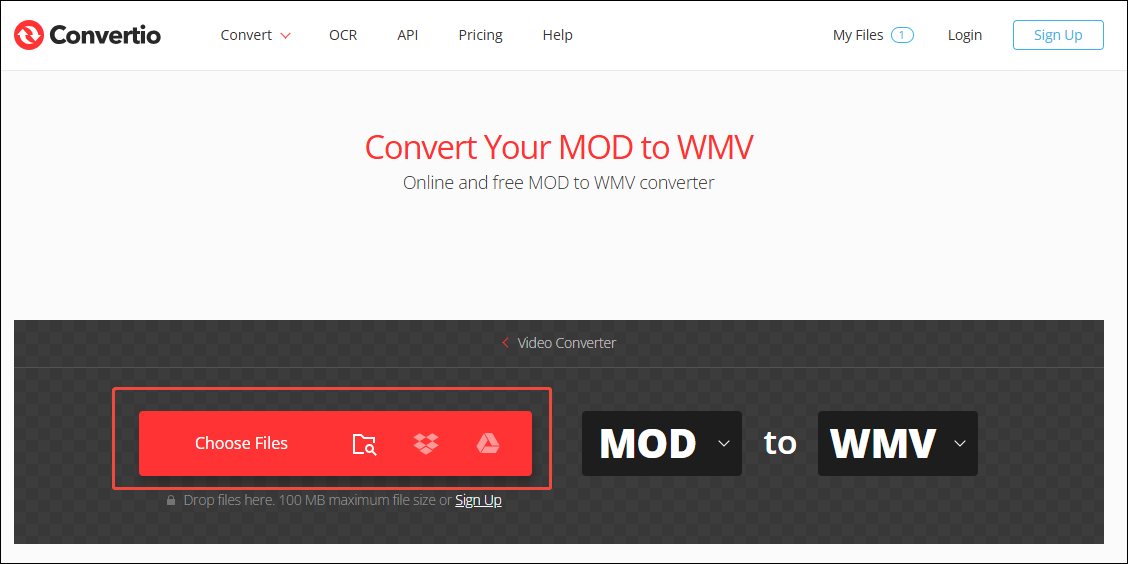
Copy https://convertio.co/mod-wmv/ and paste it in the browser to open Convertio’s webpage.
Step 2. Add MOD Video
Click on the Choose Files option to add the target MOD video.
Step 3. Begin the Conversion Process
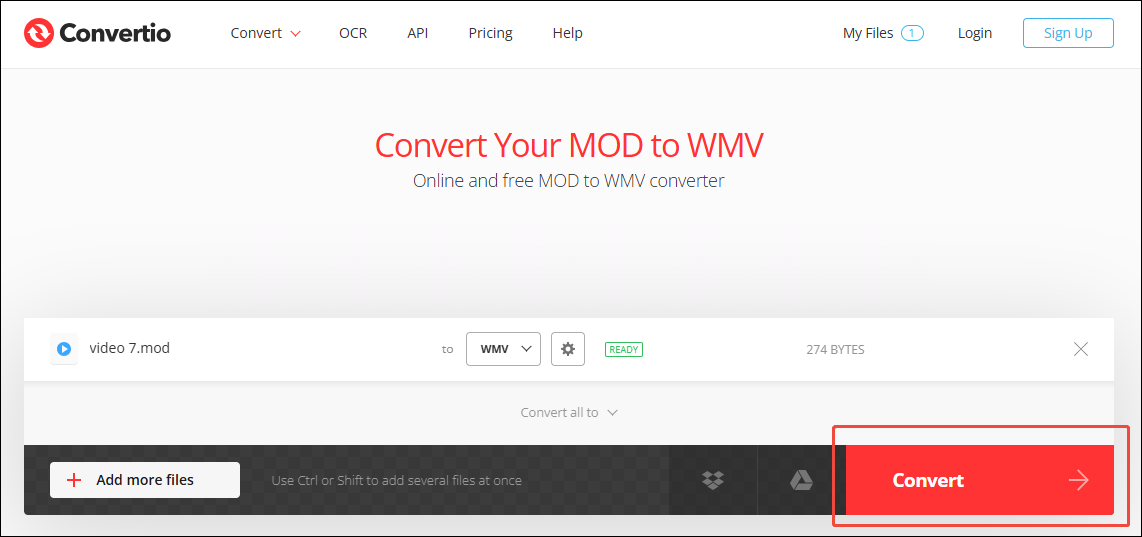
After importing the MOD video, click on the Convert button to begin the conversion process.
Step 4. Download the Converted Video
Once this conversion ends, click on the Download button to save the converted video.
Convertio is my preferred choice among online converters. It’s not only convenient and fast for video conversion, but it also supports batch conversion. However, I think Convertio has one drawback when I use it. It limits unregistered users to converting files smaller than 100MBat a time.
Final Words
This article shows the benefits of MOD to WMV conversion. WMV has better compatibility for various applications and players. This post also shares with you 2 excellent converters: VLC Media Player and Convertio.
User Comments :