

Understanding H.263
H.263 is a video compression standard defined by ITU-T (International Telecommunication Union Telecommunication Standardization Sector). It belongs to the H.26X series family. H.263 video codec is designed specifically for video compression in remote conferencing. The core technology of H.263 is that it can compress and transmit video at a lower bitrate.
Due to H.263 focusing on breakthroughs in compression and transmission and compression efficiency, it doesn’t have high requirements for video quality. Besides, H.263 can not only be used in video conferencing, but also applies to Flash video on the internet in the early years.
Understanding H.264
H.264 (Advanced Video Coding/AVC) is the successor of H.263. It is a video compression standard that is commonly used nowadays. The core trait of H.264 is that it is based on block-oriented, motion-compressed coding, which means it maintains the variation in frame rates instead of repeatedly recording pixels.
H.264 boosts the video quality based on H.263. Plus, it has stronger compatibility, especially well-compatible with various platforms on networks and systems, such as online streaming, video conferencing, broadcast, and physical media.
H263 vs H264: What Are the Key Differences
What are the differences between H263 and H264 codecs? The following section will tell you the comparisons in terms of compatibility, compression efficiency, and latency.
#1. Compatibility
H.264 outperforms H.263 in compatibility. H.263 is better suitable for early video conferencing and hardware. However, it is no longer popular nowadays. H.264 supports HD streaming, Blu-ray, and modern video calls. It is also compatible with various devices and browsers, such as smartphones, PCs, Google Chrome, and Safari.
#2. Compression Efficiency
H.264 is more efficient than H.263. H.263 can compress video size at low bitrates while ensuring smooth playback. H.264 not only does what H.263 can do, but it also provides high-quality video and optimizes the viewing experience.
#3. Latency
H.264 is better than H.264 in latency and real-time performance. H.263 offers low-latency and smooth video playback at a low bitrate, which is vital for video conferencing. H.264 supports high resolution and frame rate in the video, enabling users to enjoy a better experience.
Based on the comprehensive comparison results between H.263 and H.264, H.264 is the most worthwhile codec to choose.

How to Convert H.263 to H.264
From H263 vs H264, we can get to know that H.264 is more applicable than H.263. So, if you want to convert H.263 to H.264, I would like to recommend the top 2 converters to you.
1. MiniTool Video Converter
MiniTool Video Converter is a free video converter that is committed to offering an optimal H263 to H264 conversion experience. It supports various formats that are encoded by H263 and H264 codecs, including 3GP, MP4, MOV, AVI, FLV, MKV, M4V, MPEG, and more. What’s more, MiniTool Video Converter also allows you to process up to 5 video conversions at the same time.
MiniTool Video Converter enables you to convert to formats that streaming platforms support, including YouTube, Vimeo, Facebook, and Instagram. It also allows you to synchronize video and audio by adjusting frame rate, resolution, and bitrate. Is MiniTool Video Converter suitable for beginners? Of course! It has an intuitive interface and is easy to use.
Let’s master how to convert H.263 encoded video to H.264 with MiniTool Video Converter.
Step 1. Download and Install MiniTool Video Converter
Simply click on the download button below to download MiniTool Video Converter. Then, complete the setup by following the on-screen instructions.
MiniTool Video ConverterClick to Download100%Clean & Safe
Step 2. Add the Video Encoded by H.263
Launch MiniTool Video Converter. Then, click on the Plus icon to import the video encoded by H.263.

Step 3. Set the Output Format Encoded by H.264
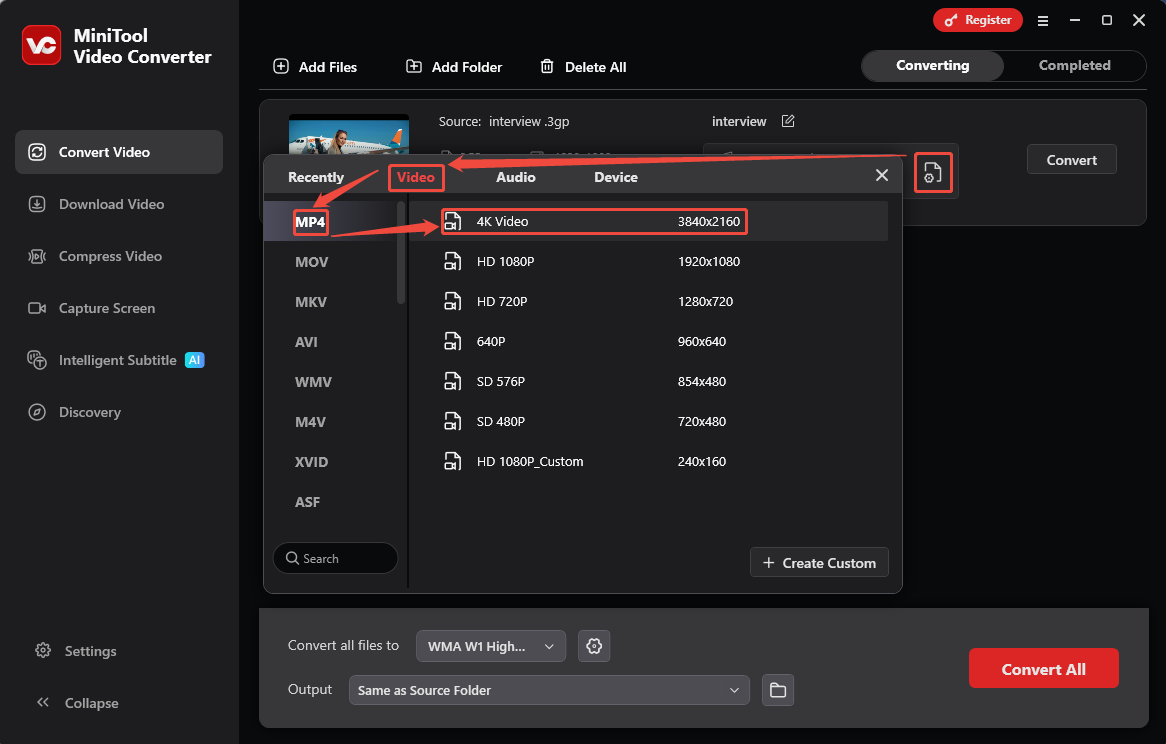
Click on the Settings icon to trigger the output format settings window. There, toggle to the Video tab and choose default MP4 encoded with H.264. Then, select a resolution for the converted video. Here, I take 4K Video as an example.
Step 4. Start Converting
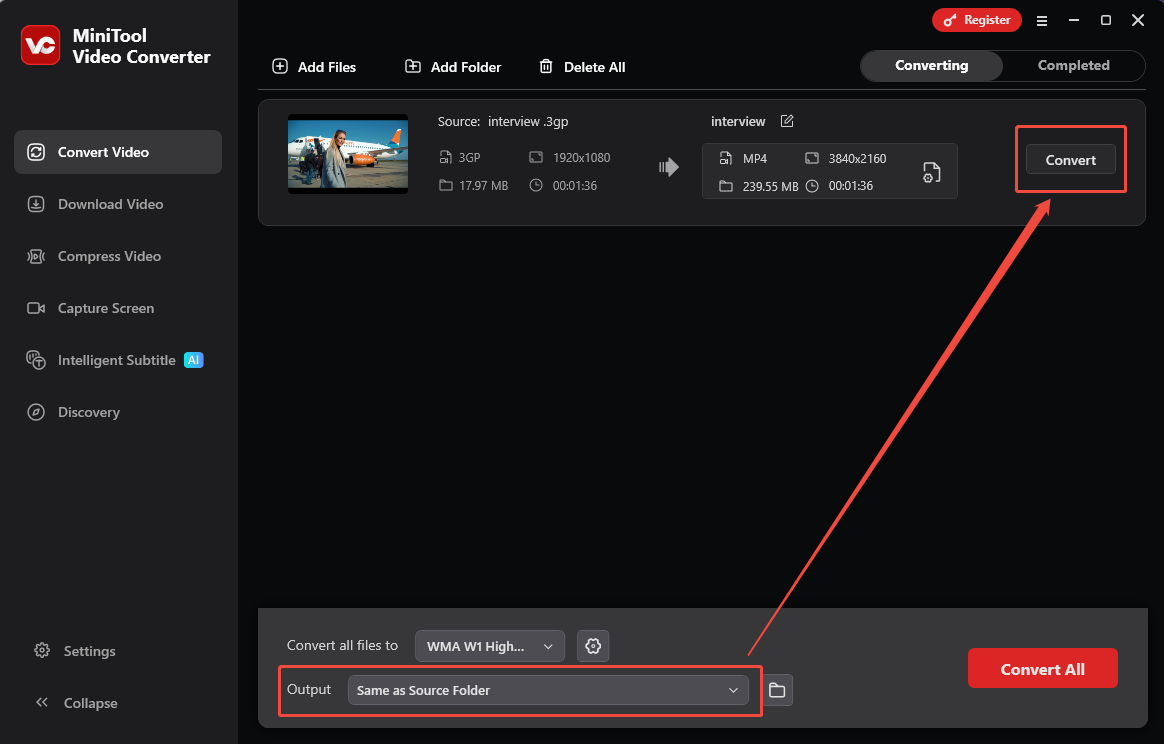
After setting the format with H.264 codec, expand the Output option to pick a saving path. Then, click on the Convert button on the conversion task to start the conversion process.
Step 5. Check the Converted Video
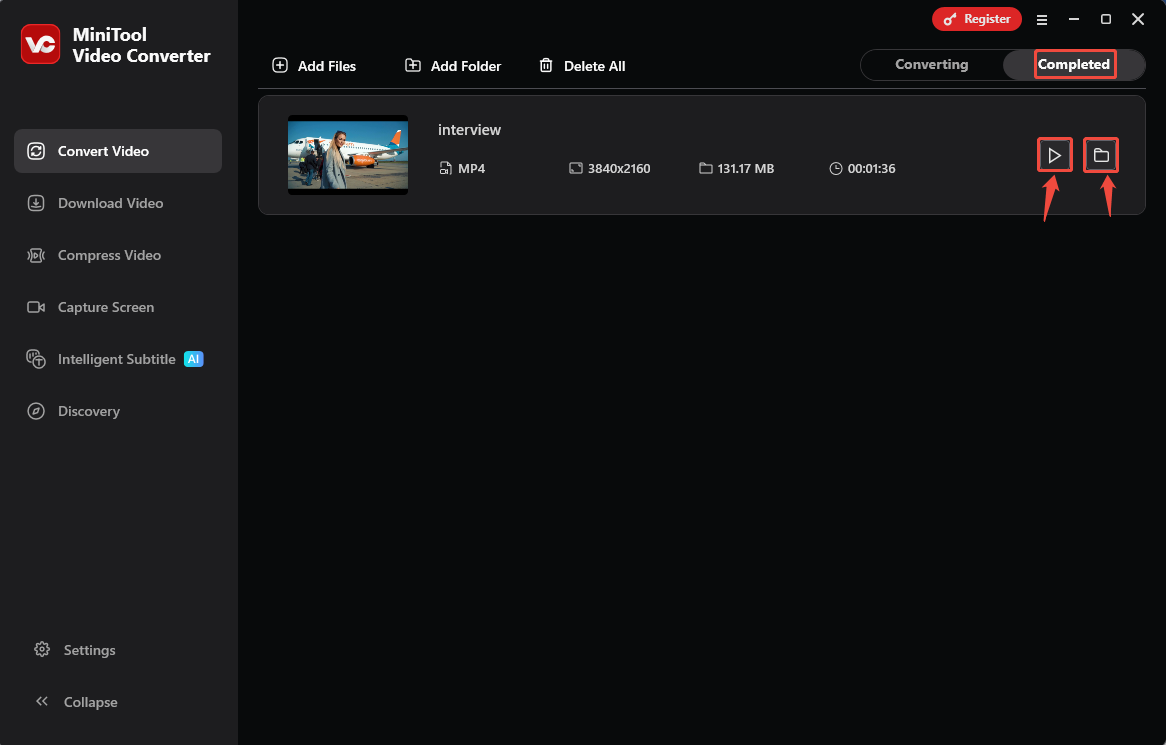
Upon this conversion task finishes, this video converter will transition to the Completed tab. There, check the converted video by clicking the Play icon. Or click on the Folder icon to find its storage location.
MiniTool Video Converter is a robust converter that supports converting between H263 and H264. Therefore, you can also refer to the tutorial above to complete H.264 to H.263.
2. Convertio
Convertio is an excellent online converter. It supports converting H.263 to H.264 quickly and easily. Convertio accepts over 300 formats for different conversions. Furthermore, it allows you to change the video codec, quality, aspect ratio, and frame rate. However, Convertio’s conversion page may contain built-in ads. It only allows you to convert videos under 100MB.
The following guide is on how to convert H263 to H264 with Convertio.
Step 1. Visit the Conversion Page of Convertio
Navigate to https://convertio.co/3gp-mp4/ to open Convertio’s conversion webpage.
Step 2. Upload H.263 encoding Video
Click on the Choose Files option to upload the H.263 encoding video.

Step 3. Set H264 as the Output Codec
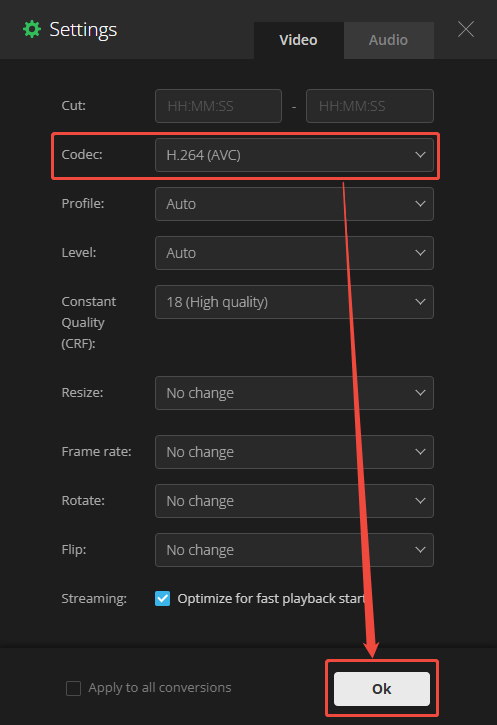
After importing the target video, click on the Settings icon to open the Settings window.
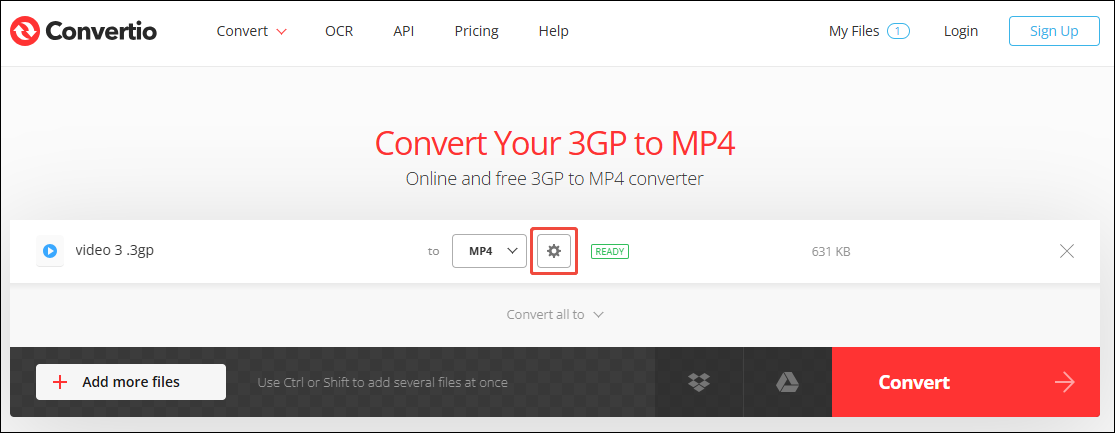
In the Settings window, expand the Codec option to choose H.264(AVC). Then, click on the Ok button to save this change.
Step 4. Begin the Conversion
Click on the Convert button to begin the conversion.

Convertio is an efficient online converter to convert H.263 to H.264. It is worth a try among many online converters.
Wrap Things Up
According to H263 vs H264, we can know that H.264 is a better choice than H.263 in terms of compatibility, compression efficiency, and latency. This article also introduces an offline converter and an online converter, which are MiniTool Video Converter and Convertio.
User Comments :