

How to convert FLV to AAC without audio damage? This article walks you through what FLV and AAC are. It also shows you how to process this conversion with 2 converters, including MiniTool Video Converter and MiniTool MovieMaker.
Understanding FLV and AAC
FLV (Flash Video) is a web video file format developed by Adobe Systems. It uses the H.263 and H.264 video codec and the MP3 audio codec. FLV is primarily used for playing multimedia content on the internet. It overcomes the drawback of large SWF files.
FLV is heavily bundled with Flash Player, which may cause compatibility issues on other players. However, due to its difficulty in editing and limited applicability, FLV is no longer widely used. Instead, it was replaced by HTML5 (HyperText Markup Language 5).
AAC (Advanced Audio Coding) is an audio codec for lossy compression of digital audio. It is also a digital audio format, currently standardized by the MPEG-4, to replace the MP3 format. AAC can deliver better sound quality than MP3 at the same bitrate.
Furthermore, AAC utilizes more advanced algorithms, resulting in higher compression efficiency compared to MP3. Therefore, it is used as the default or standard audio format in many products, such as Apple's iTunes Store and Sony's PlayStation.
Why Convert FLV to AAC
FLV is a format that is difficult to edit. If you want to edit the audio of an FLV video, you can convert it to AAC. Converting FLV to AAC can greatly improve the compression efficiency of the audio format, saving space for transmission and sharing.
More importantly, AAC has excellent sound quality, even surpassing MP3 at the same bitrate. Therefore, to achieve a smaller audio size and high-quality audio, converting FLV to AAC is an excellent choice.
Are you still looking for a practical FLV to AAC converter? Read the content below to get 2 useful converters.
How to Convert FLV to AAC with MiniTool Video Converter
When choosing a converter, our first consideration is whether it's free. Of course, just being free isn't enough, right? We also worry about whether the converted files will have watermarks or whether the quality of the converted files will be intact. MiniTool Video Converter is a great tool that I have tried recently.
As a free video converter, MiniTool Video Converter can convert video to audio without damaging the file quality, including FLV to AAC, MXF to AAC, OGV to AIFF, SWF to M4B, VOB to OGG, and more. Also, it doesn’t embed any annoying ads, built-in watermarks, or size limitations.
MiniTool Video Converter allows you to adjust the audio sample rate, channels, bitrate, and codec, making the converted audio closer to your target. What’s more, these parameters can also help you solve video and audio synchronization issues.
Step 1. Download and Install MiniTool Video Converter
To obtain MiniTool Video Converter, simply click on the download button. Then, complete the installation according to the instructions.
 MiniTool Video Converter
-
 Batch convert video/audio files among 1000+ formats.
 - Quickly compress videos for easy storage and transfer.
- Accurately extract subtitles from video/audio files.
- Effectively enhance video quality.

Step 2. Import the FLV File
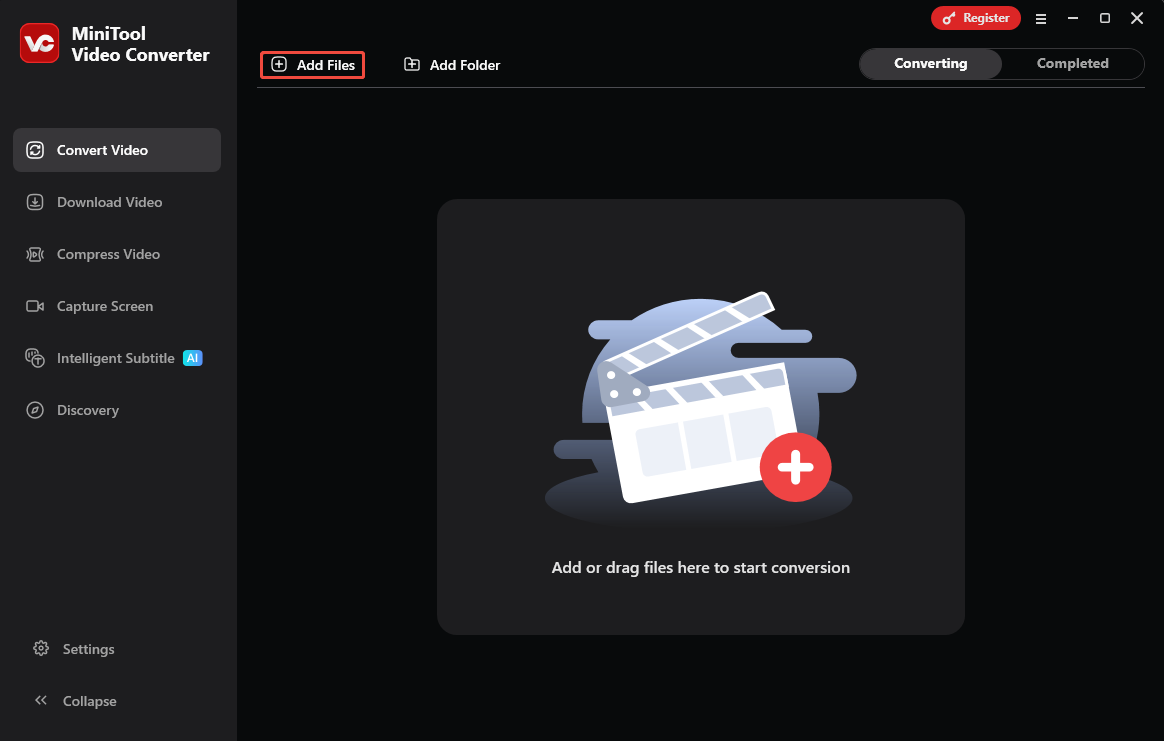
Run MiniTool Video Converter. Then, click on the Add Files option to import the FLV file.
Step 3. Configure AAC as Output Format
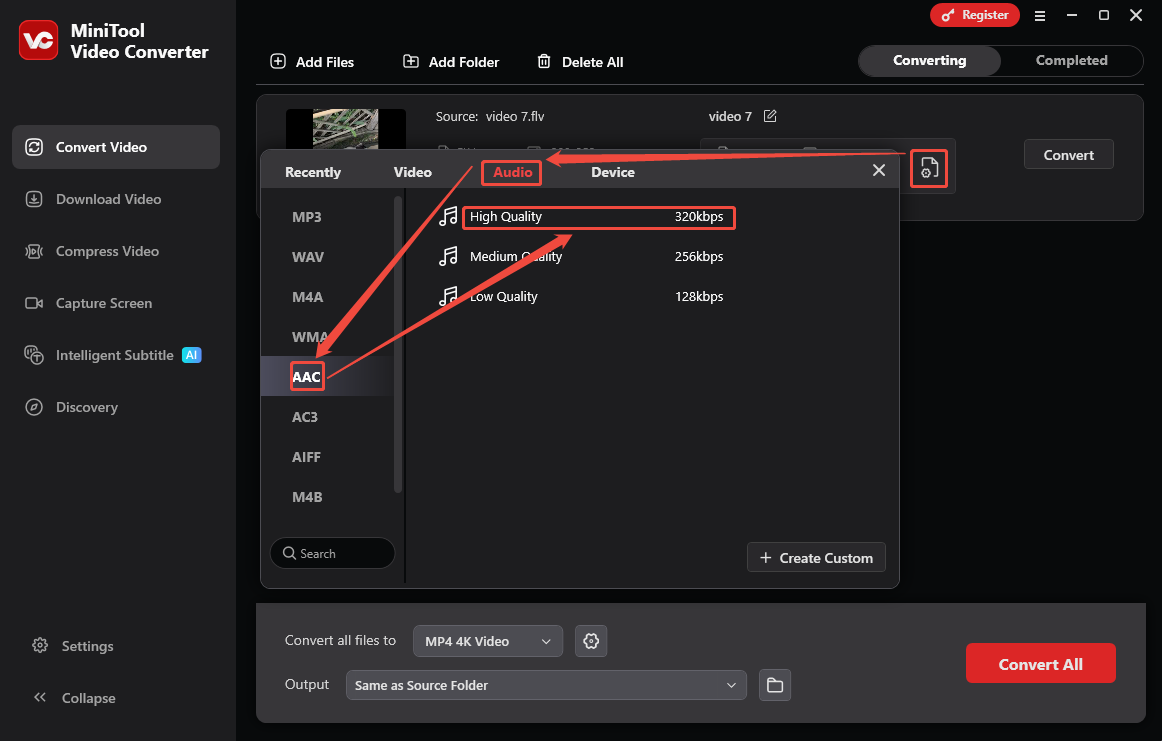
Click on the Gear icon to open the output format window. There, toggle to the Audio tab and choose AAC. Then, choose an audio quality for the converted audio. Here, I select High Quality.
Step 4. Start the Conversion
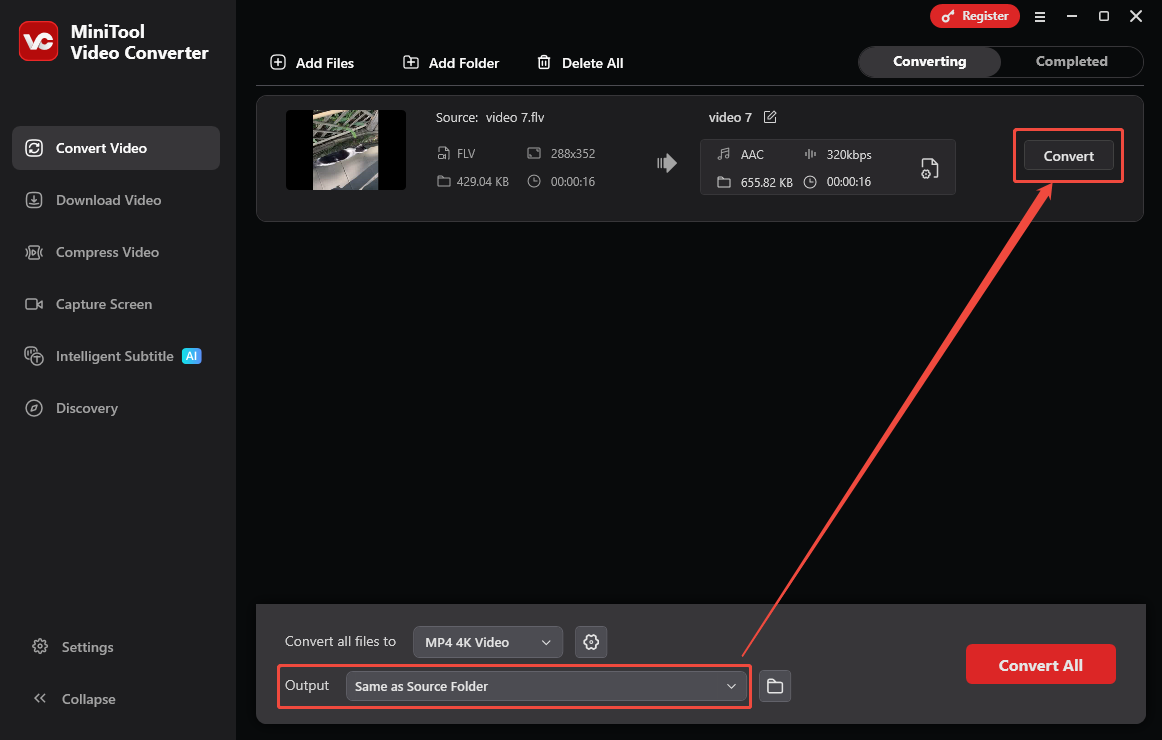
Expand the Output option to pick a storage location. Then, click on the Convert button to start the conversion.
Step 5. Check the Converted Audio
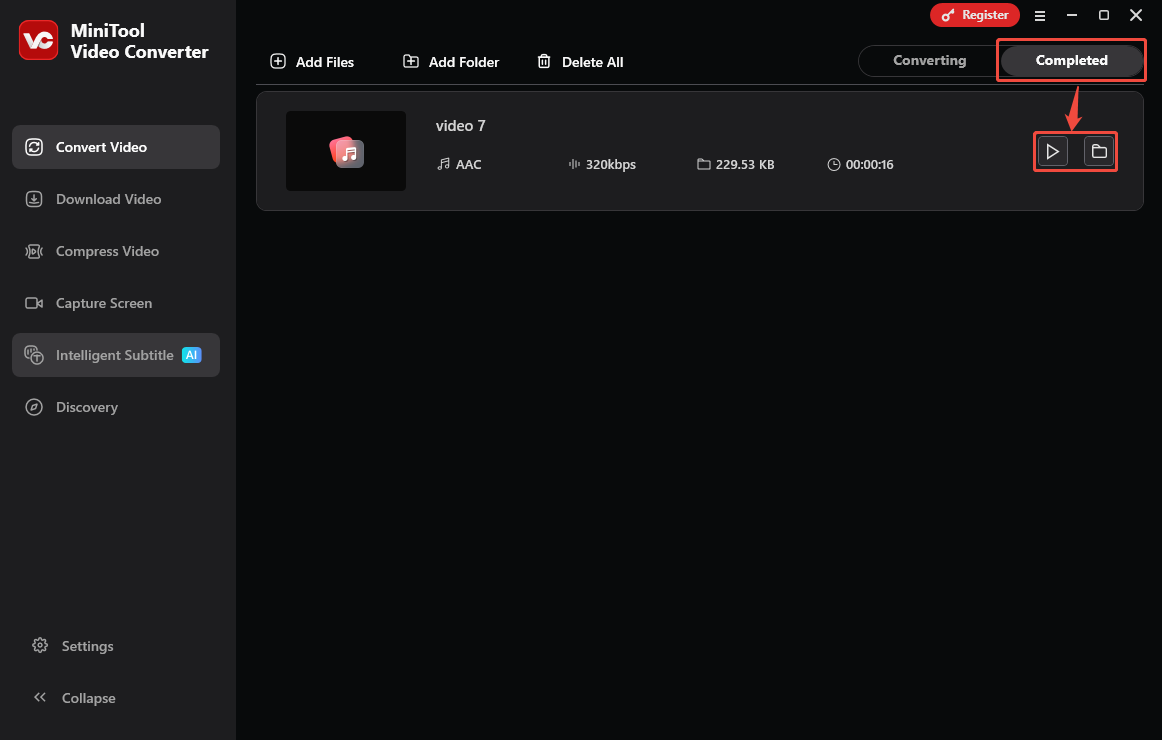
Once the conversion task ends, you will go to the Completed tab. There, click on the Play icon or the Folder icon to check or locate this converted audio on your PC.
Using MiniTool Video Converter, you'll find that FLV to AAC conversion is highly efficient, so that even beginners can easily master it.
How to Convert FLV to AAC with MiniTool MovieMaker
MiniTool MovieMaker is an excellent editor that supports crop, split, trim, merge, reverse, flip, and rotate your files. It also offers various sound effects, texts, transitions, motions, elements, and filters to add to your videos.
MiniTool MovieMaker enables you to customize the video and audio properties, such as contrast, brightness, saturation, fade-in/out, and audio volume. In addition, it empowers you to change the color and opacity of the subtitles you add. Moreover, MiniTool MovieMaker allows you to change the output formats, resolution, frame rate, and aspect ratio.
Step 1. Get MiniTool MovieMaker
Click on the download button below to download and set up MiniTool MovieMaker. Then, open it.
MiniTool MovieMakerClick to Download100%Clean & Safe
Step 2. Import FLV Video
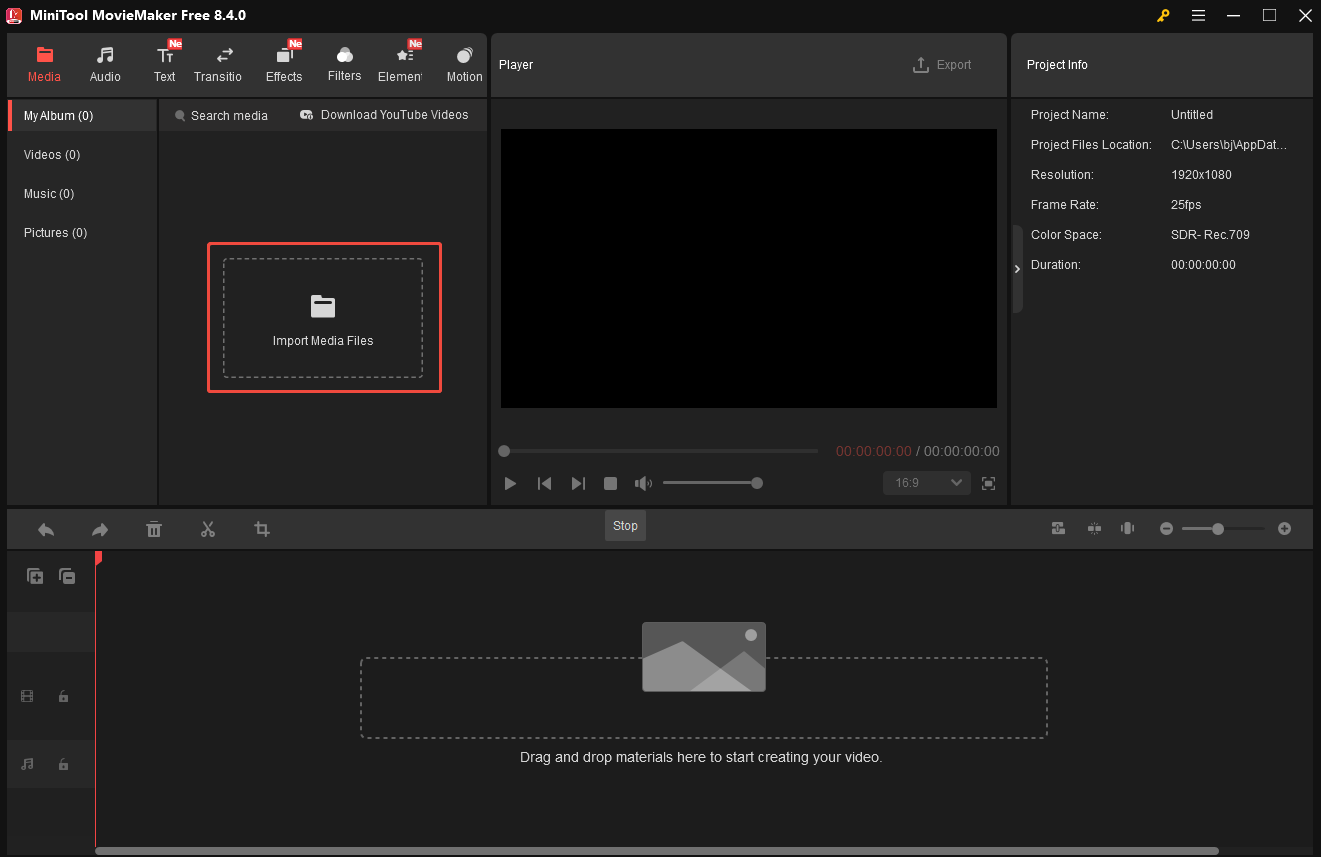
After opening MiniTool MovieMaker, close the promotion window. Then, click on the Import Media Files option to import the FLV video.
Step 3. Add FLV Video onto Timeline
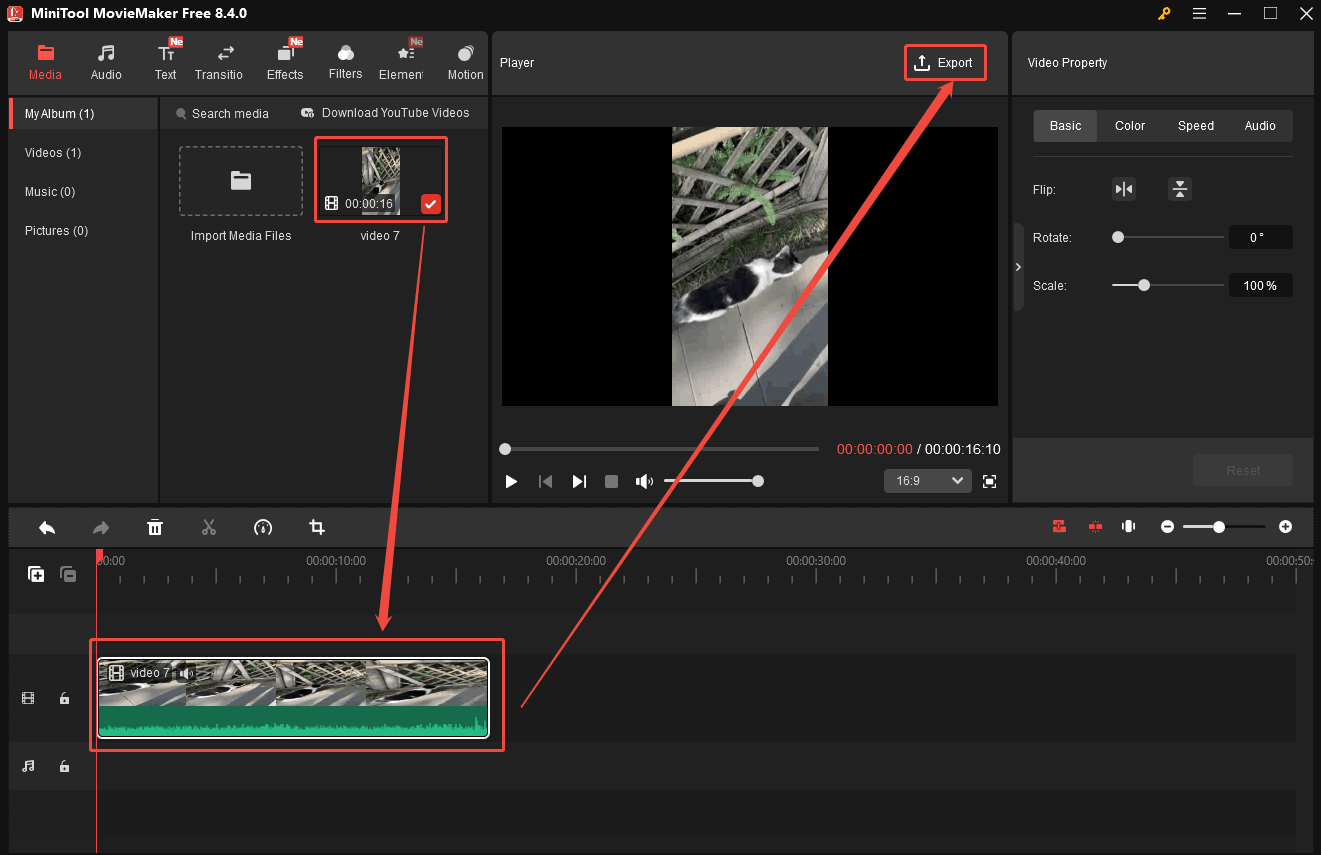
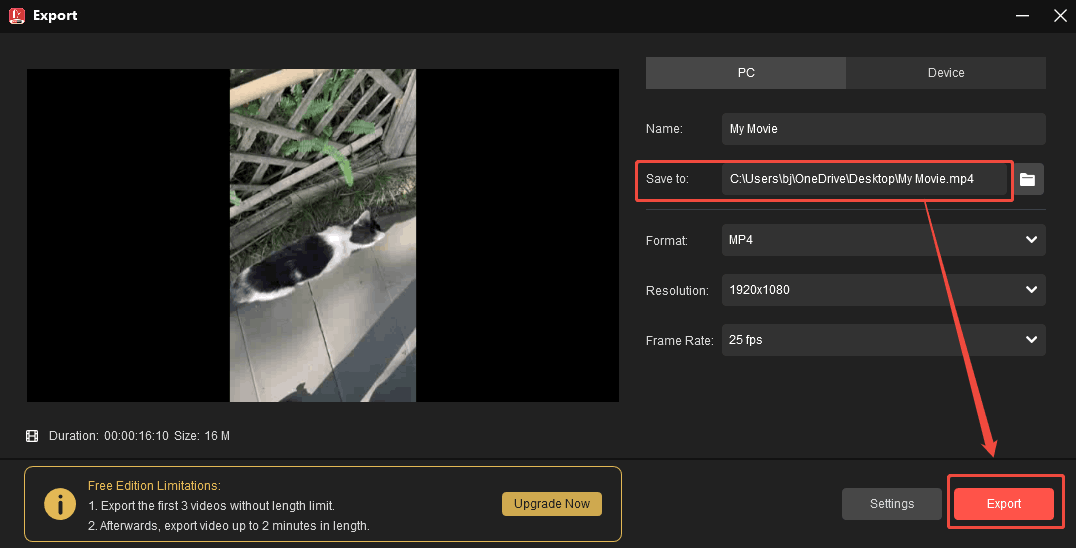
Drag the FLV video onto the timeline. Then, click on the Export option to open the Export window.
Step 4. Export the AAC Audio
In the Export window, expand the Save to option to specify a storage location. Then, click on the Export button. Then, click on the Find Target button to locate your converted audio.
Converting FLV to AAC using MiniTool MovieMaker is also very convenient. Furthermore, this conversion doesn’t degrade audio quality.
Conclusion
This article analyzes why to convert FLV to AAC. It focuses on how to accomplish this conversion using two converters, including MiniTool Video Converter and MiniTool MovieMaker.
User Comments :