

In this article, I will introduce two free 3GP to OGG converters, including MiniTool Video Converter and FreeConvert, and walk you through their conversion steps.
3GP is a relatively old multimedia container format. In the early 2000s, this format was commonly used by mobile phones to store video content. However, it is rarely encountered today. While OGG is a modern, high-quality multimedia format that is widely used today. It maintains superior audio fidelity while avoiding excessive file sizes.
Converting 3GP to OGG format not only enhances audio quality but also reduces file size through the use of efficient Vorbis compression technology. Furthermore, the OGG format offers greater compatibility, ensuring that the converted files receive broader support across modern streaming applications and platforms.
In the following section, I will introduce a desktop converter and an online converter to you. Both of them support converting 3GP to OGG.
Best 3GP to OGG Converter
I’ve selected two of the most convenient audio/video converters from those I’ve used. Below, I’ll briefly introduce their functions and provide a detailed step-by-step guide.
1. MiniTool Video Converter (Desktop App)
The first tool I would like to recommend to you is MiniTool Video Converter. It is a fast, simple, and reliable tool for all my video and audio conversion needs. This software features a clean, intuitive interface and supports an extensive range of formats, including 3GP, OGG, MP4, MKV, AVI, M4V, WMV, MOV, MP3, M4A, WMA, WAV, and more.
What sets MiniTool Video Converter apart is its flexibility. Within the encoder configuration, I can fine-tune parameters such as resolution, frame rate, sample rate, and bitrate. Furthermore, it handles batch conversion tasks with great efficiency. I can upload multiple files at once and it can process up to five of them simultaneously. This makes it an ideal choice for users who need to convert multiple videos.
Most importantly, MiniTool Video Converter produces completely watermark-free results, giving you clean and professional output every time.
How to convert 3GP to OGG with this free 3GP to OGG converter? Follow these steps:
Step 1: Install MiniTool Video Converter
Click the download button below to get MiniTool Video Converter on your Windows computer. Then, launch this free converter.
 MiniTool Video Converter
-
 Batch convert video/audio files among 1000+ formats.
 - Quickly compress videos for easy storage and transfer.
- Accurately extract subtitles from video/audio files.
- Effectively enhance video quality.

Step 2: Add the File You Want to Convert
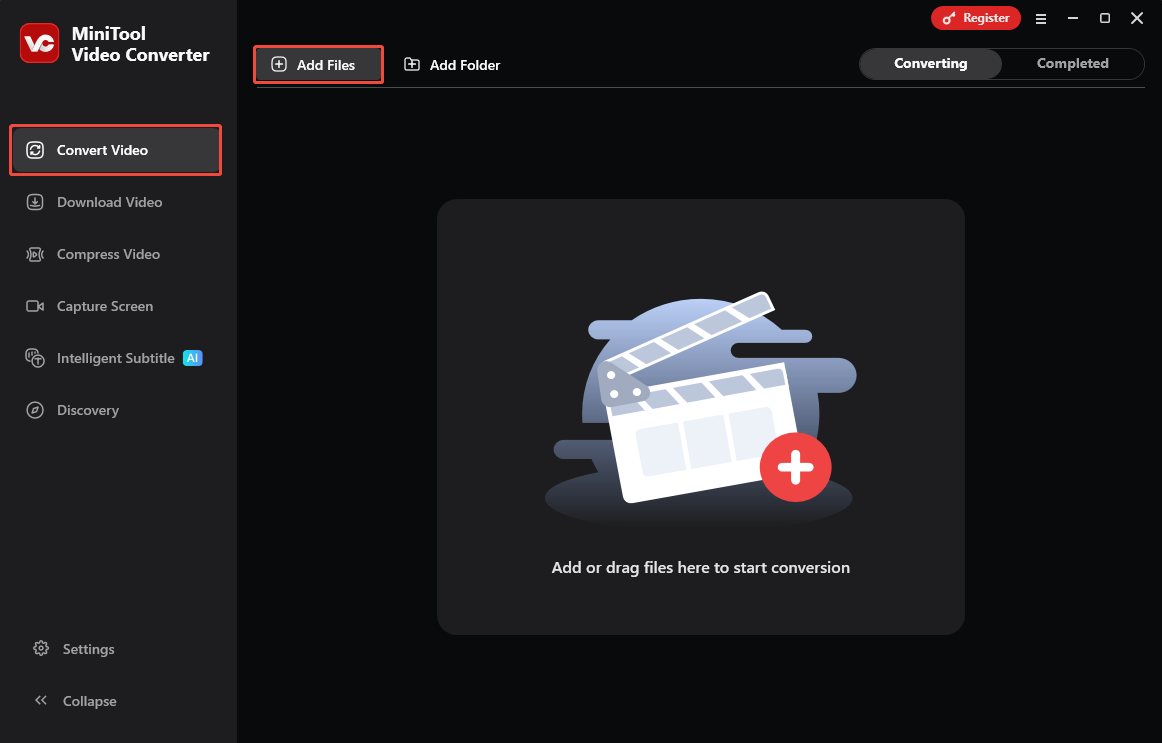
In the Convert Video tab, click the Add Files option to upload the 3GP file.
Step 3: Select Output Format and Quality
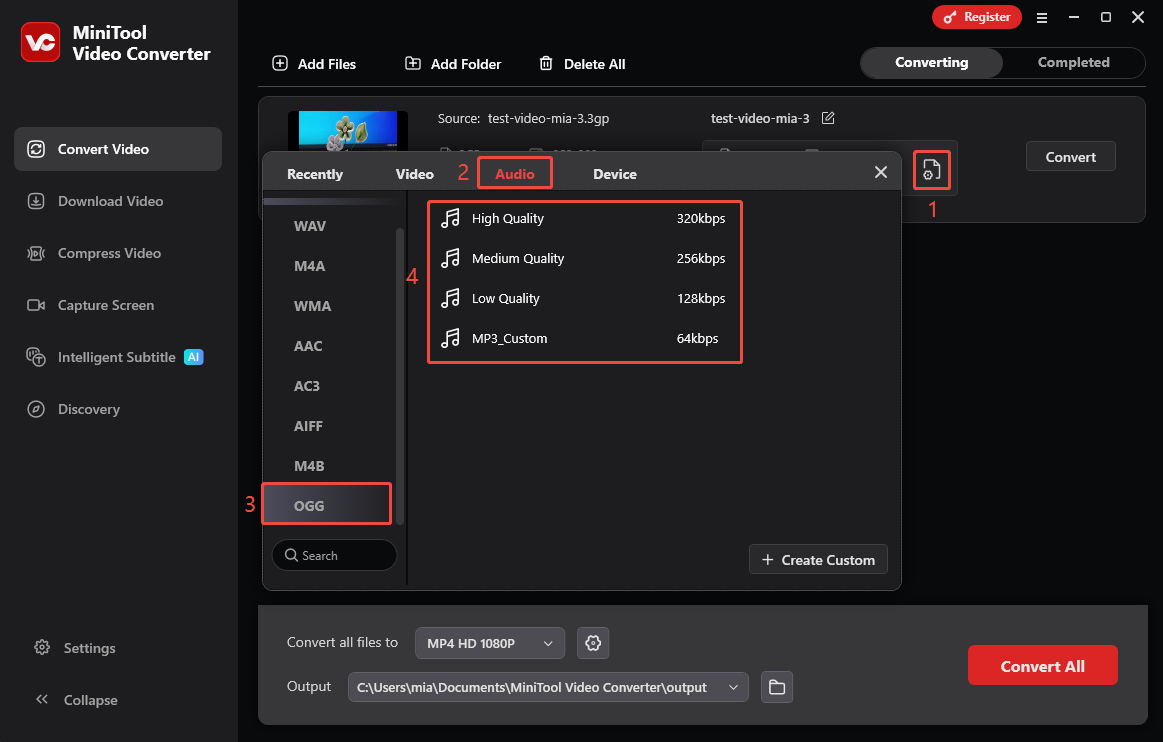
Click the settings icon to open the output format window. Go to the Audio tab, scroll the left menu to find the OGG option, and select the video quality according to your needs.
Step 4: Set Save Location
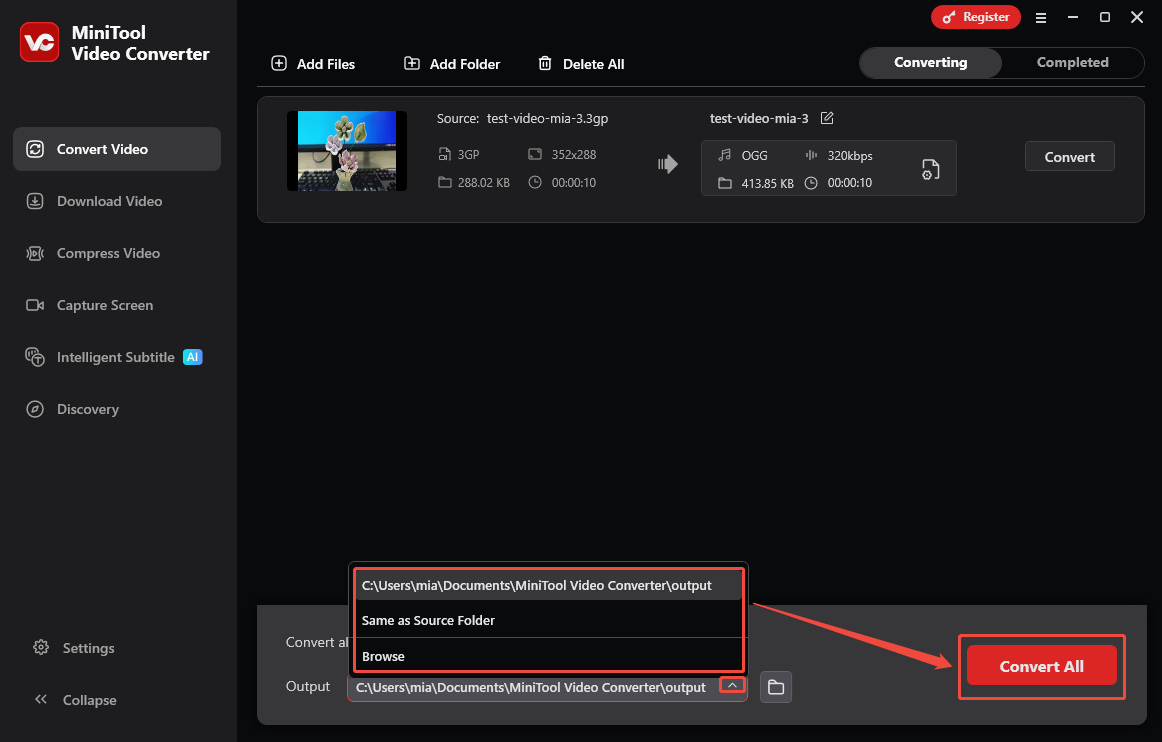
Look to the bottom of the interface and click to expand the Output option. From there, select your preferred destination folder for the converted files.
Step 5: Start Conversion
Click the Convert All option to start the conversion.
Step 6: Check and Locate the Converted File
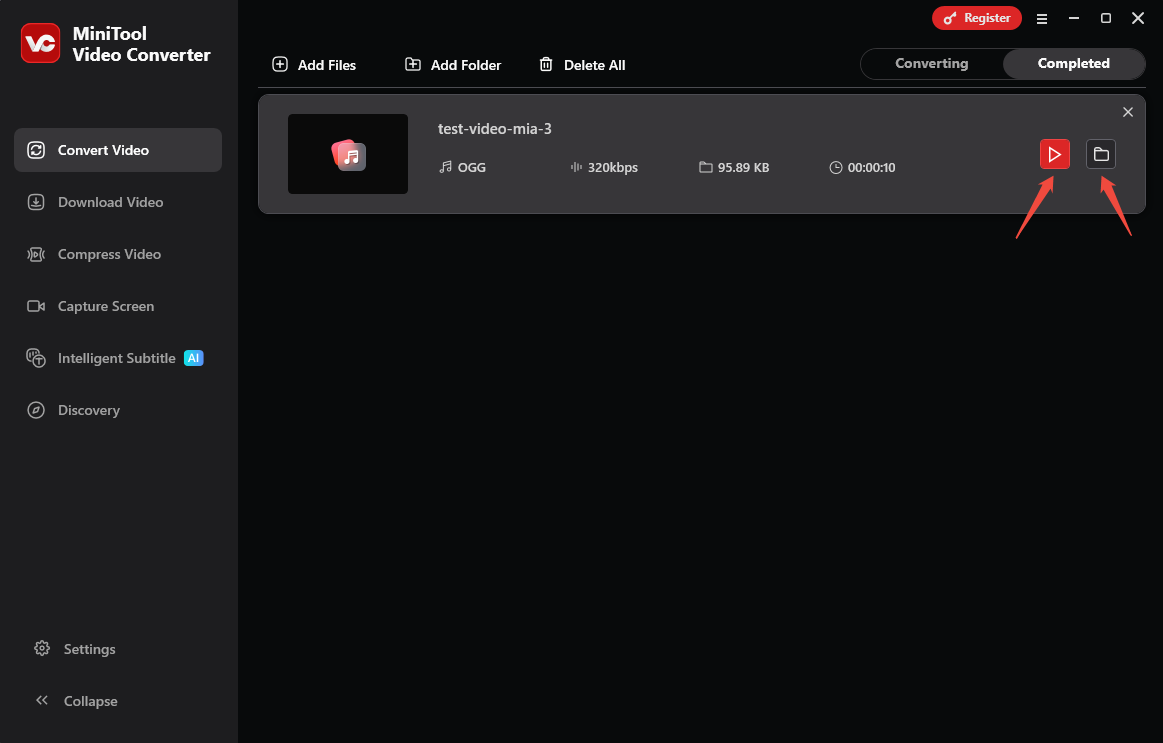
Once the conversion is complete, the interface automatically switches to the Completed tab. Here, you can view all finished tasks. Click the play icon to listen to the OGG file, or click the folder icon to open its save location.
In addition to converting formats, MiniTool Video Converter can also compress videos and transcribe your audio or video into text.
2. FreeConvert (Online Tool)
FreeConvert is a web-based 3GP to OGG converter. I frequently use it to convert audio and video formats. However, I discovered that it also supports converting other media file types, such as images and e-books. Although FreeConvert is merely an online tool, it is quite professional, offering support for fine-tuning conversion settings.
The only drawback I’ve found is that FreeConvert limits free users to files up to 1 GB. Because of this, I generally use it only for smaller audio and video files.
Here is how to convert 3GP to OGG with FreeConvert:
Step 1: Visit the FreeConvert Website
Go to https://www.freeconvert.com/.
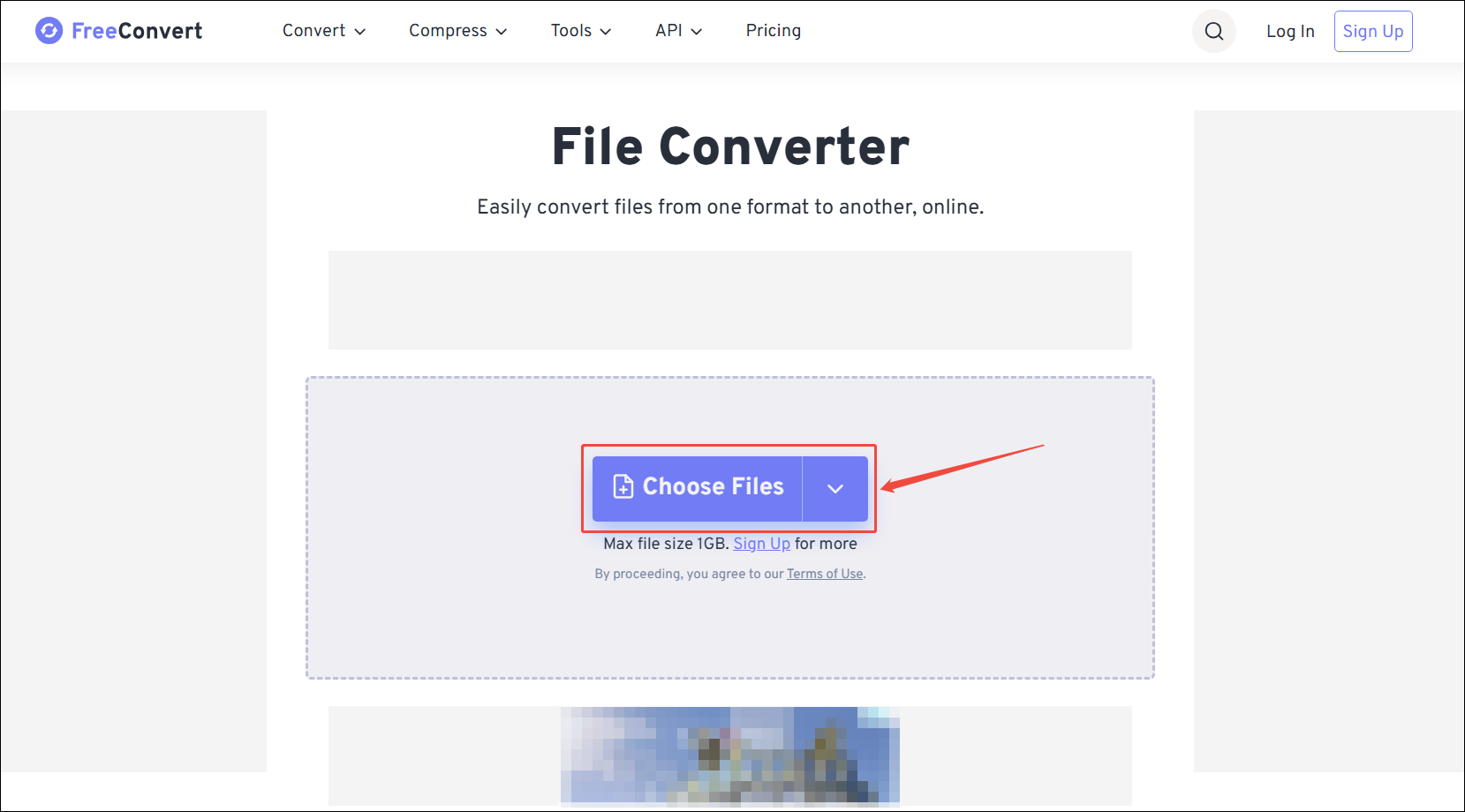
Step 2: Upload Your File
Click Choose Files to upload the files you want to convert directly from your computer.
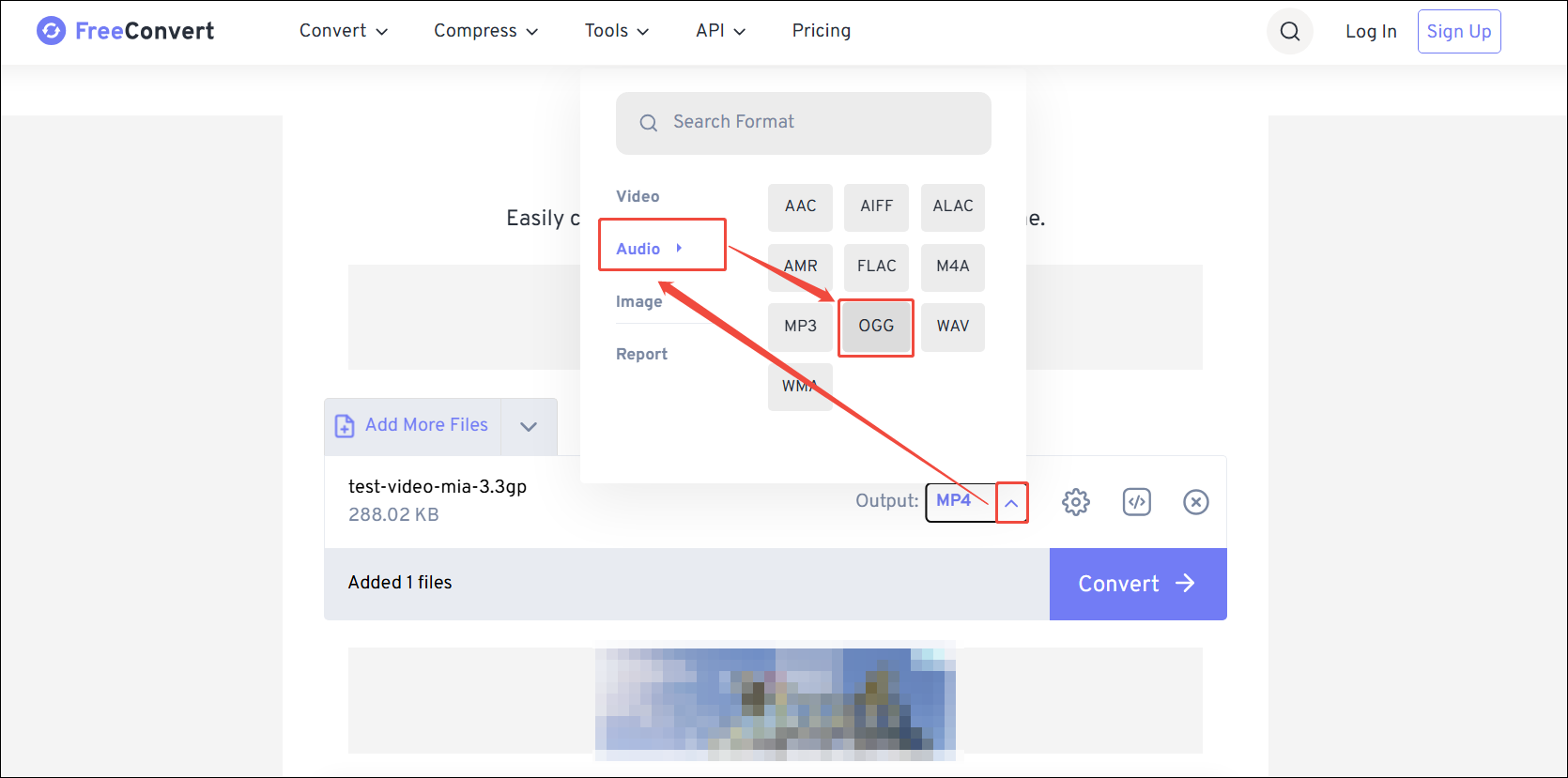
Step 3: Select Output Format
Expand the Output option and select OGG in the Audio tab.
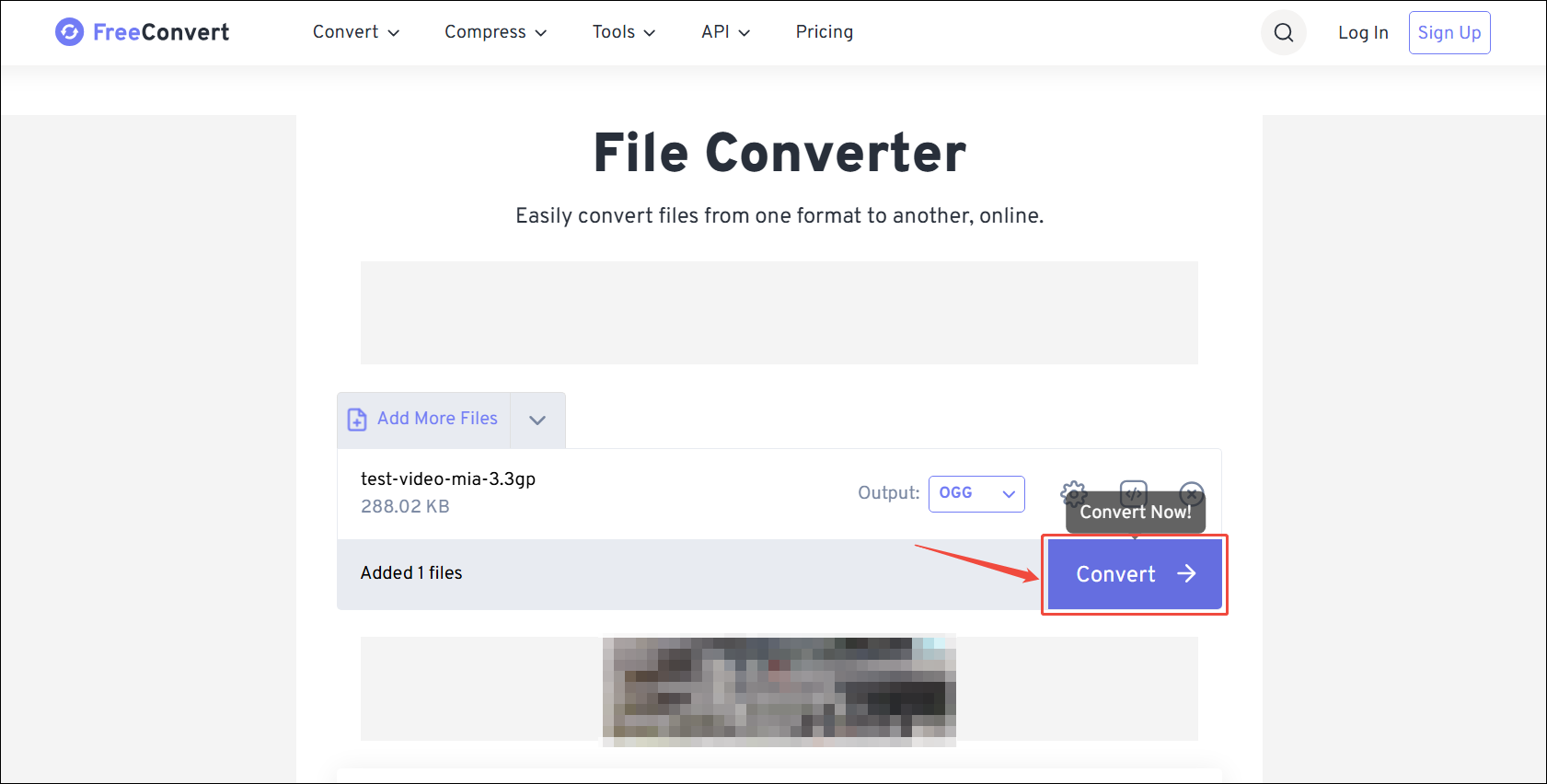
Step 4: Convert the File
Click on the Convert option to start conversion.
Step 5: Download the Converted File
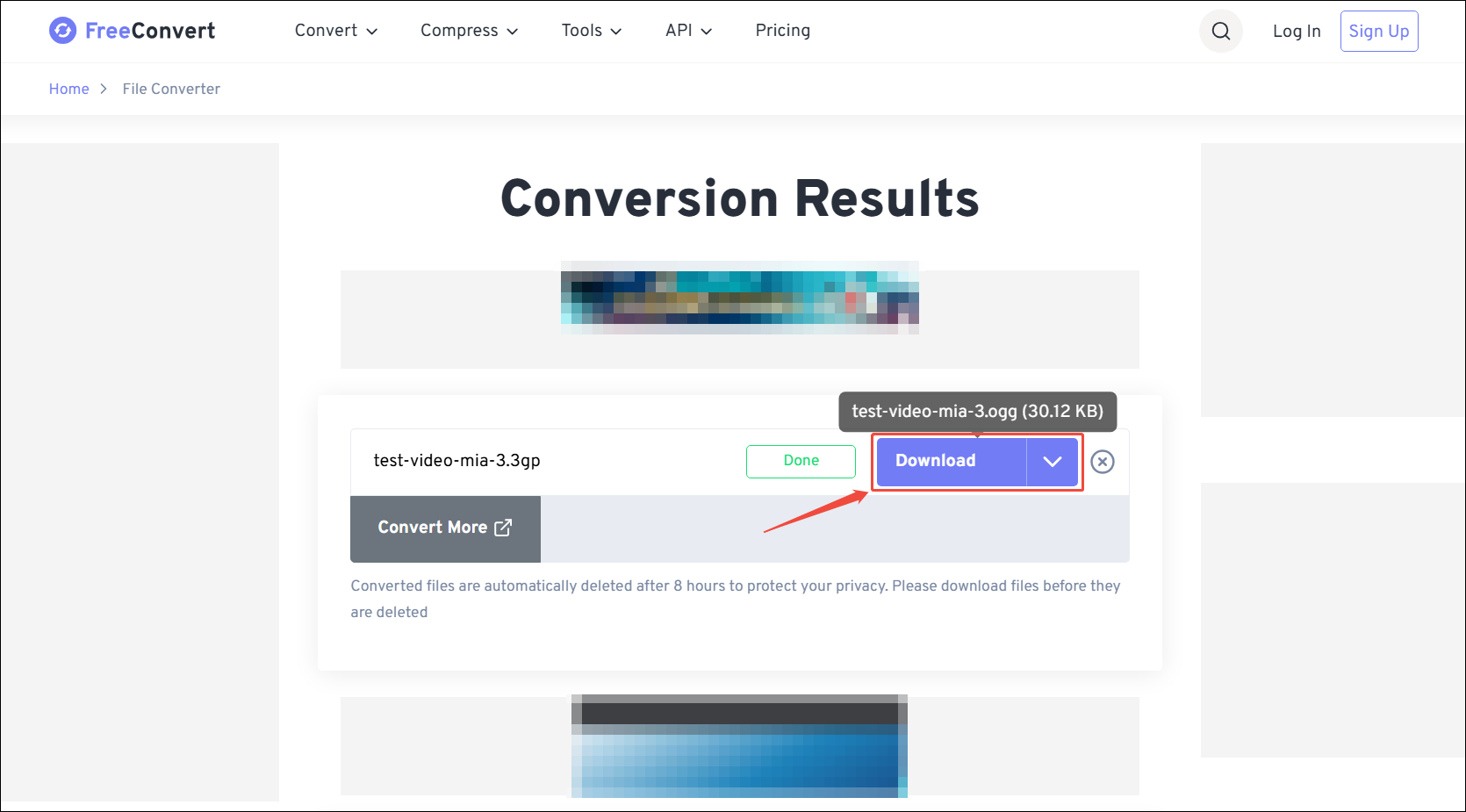
Once the conversion is complete, click the Download button to save the OGG file to your computer.
Overall, FreeConvert is a good option for converting files smaller than 1 GB.
Benefits of Converting 3GP to OGG
Converting 3GP to OGG removes the video stream and generates a separate audio file. This conversion offers two key benefits:
- Better Audio Quality: OGG uses open-source codecs like Vorbis or Opus that deliver superior sound, preserving more detail even at lower bitrates.
- Wider Compatibility: 3GP was built for early mobile phones and remains largely restricted to legacy devices. In contrast, OGG offers seamless compatibility across a wide range of applications, web platforms, and popular streaming services.
Bottom Line
What do you think of the two 3GP to OGG converters recommended in this article? MiniTool Video Converter is better suited for those with ongoing conversion needs, like me. Of course, if you prefer not to download any software, you can also use FreeConvert to convert your files. However, please ensure that your files do not exceed the 1 GB file upload limit.
User Comments :