

3GP is a low-resolution multimedia container, typically used for storing video on older mobile devices. WMA is a Windows native audio format, which plays smoothly in Windows Media Player, Groove Music, and other Microsoft applications. WMA offers higher audio compression. Compared to WMA, 3GP is an outdated format with limited compatibility. To allow files to play on more devices or software, I usually convert 3GP to WMA.
How to Convert 3GP to WMA
I've tried a few different approaches, and these two methods actually worked well for converting 3GP to WMA.
1. Use MiniTool Video Converter
MiniTool Video Converter is a converter I've been using consistently. I've always used it because it is a free converter that doesn't add watermarks. It also doesn't limit the number or size of files I upload.
Since I have extensive conversion needs, I typically use MiniTool Video Converter for batch processing. It handles up to 5 files simultaneously, which speeds up my workflow. Additionally, I can fine-tune audio and video parameters such as frame rate, resolution, bitrate, and sampling rate to match my exact requirements.
Here is how I use MiniTool Video Converter to convert 3GP to WMA:
Step 1: Install MiniTool Video Converter
Simply click the download button below to download and install MiniTool Video Converter with one click.
MiniTool Video ConverterClick to Download100%Clean & Safe
Step 2: Import 3GP File
When I launch this free converter, I land on the Convert Video page. I typically click Add Files to upload my files. You can also drag and drop files directly into the workspace.
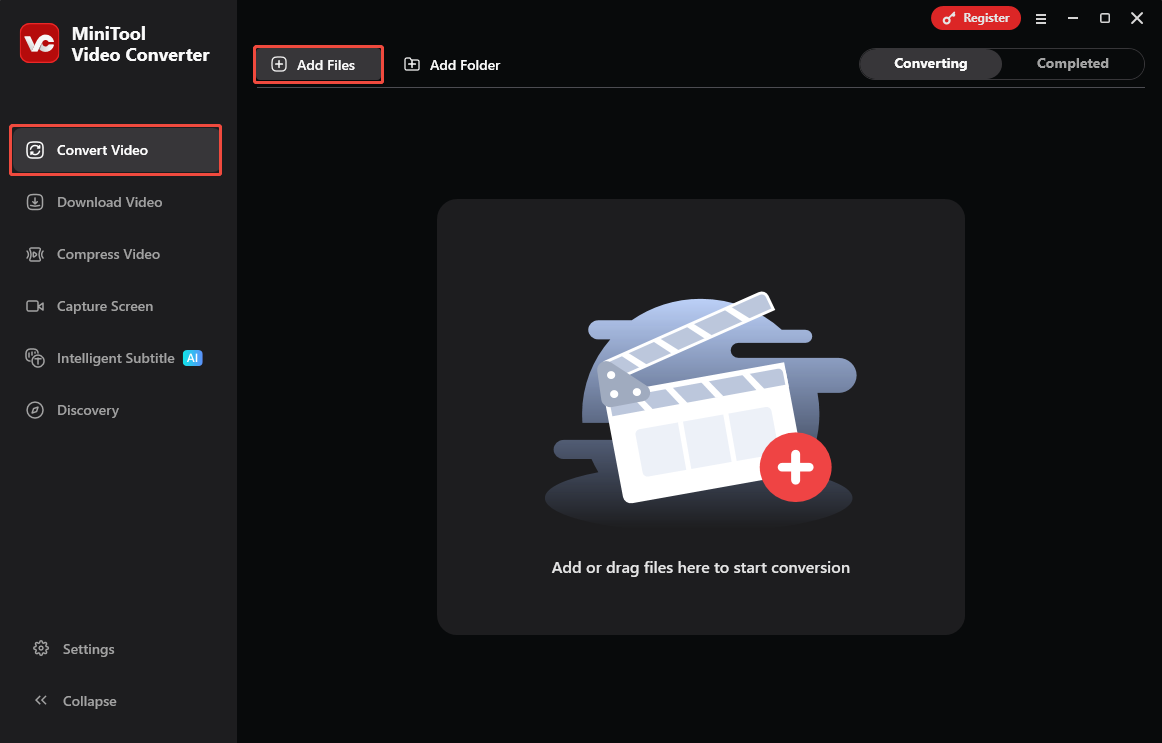
Step 3: Choose Output Format
Click the gear icon to open the output format window. Then, click Audio, select WMA on the left column, and choose the video quality on the right area.
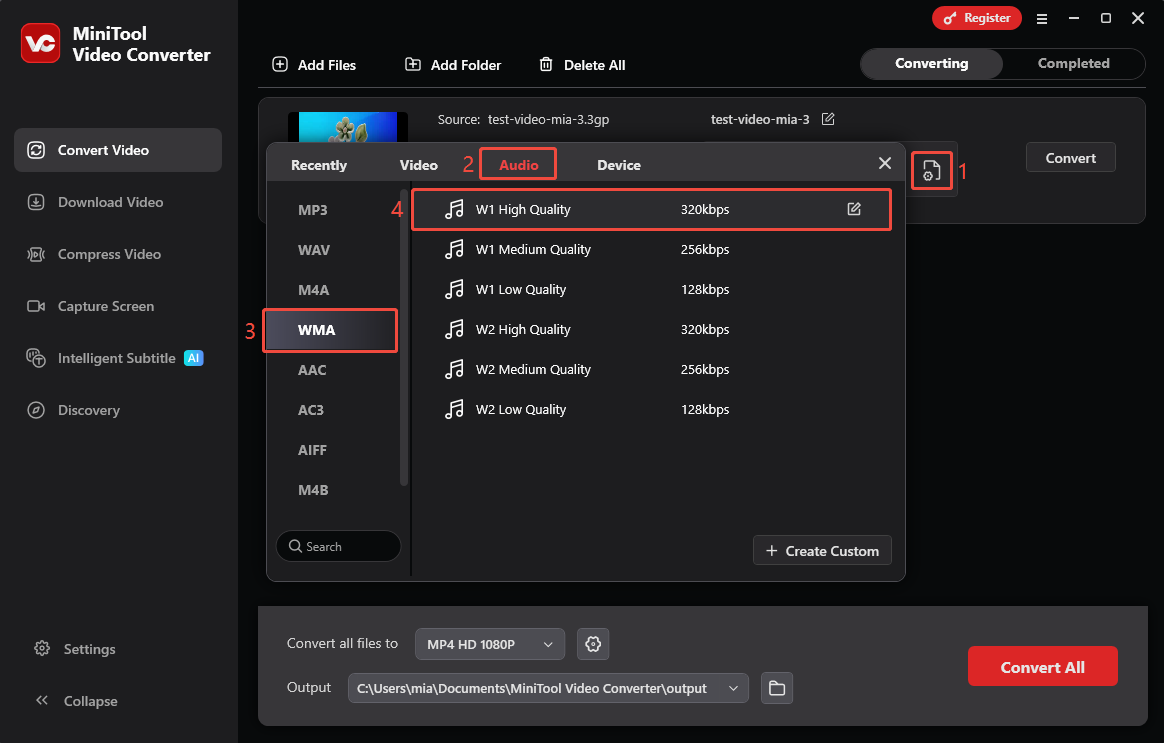
Step 4: Set Output Location and Start Conversion
At the bottom of the workspace, expand the Output option and select a folder to save converted files. Then, I click the Convert button to start the conversion.
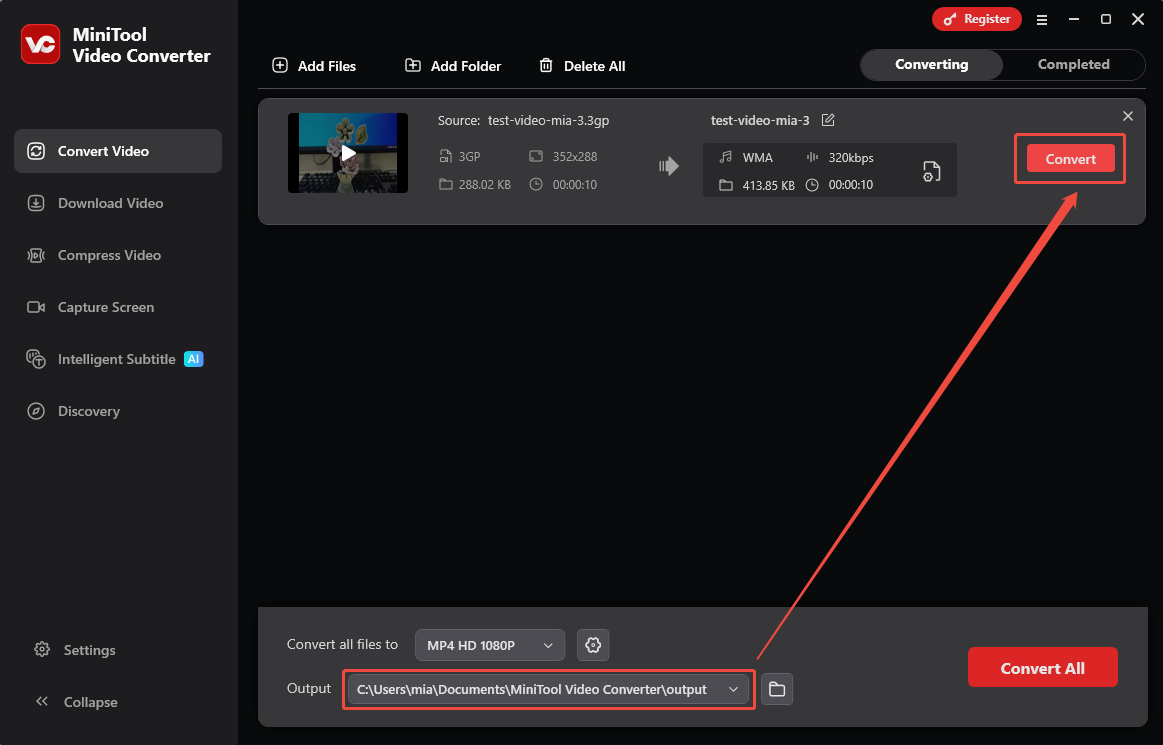
Step 5: Locate the Converted File
After my file conversion completes, I get redirected to the Completed tab. I usually click the play icon first to check if the converted file is complete, and then click the folder icon to locate its saved location.
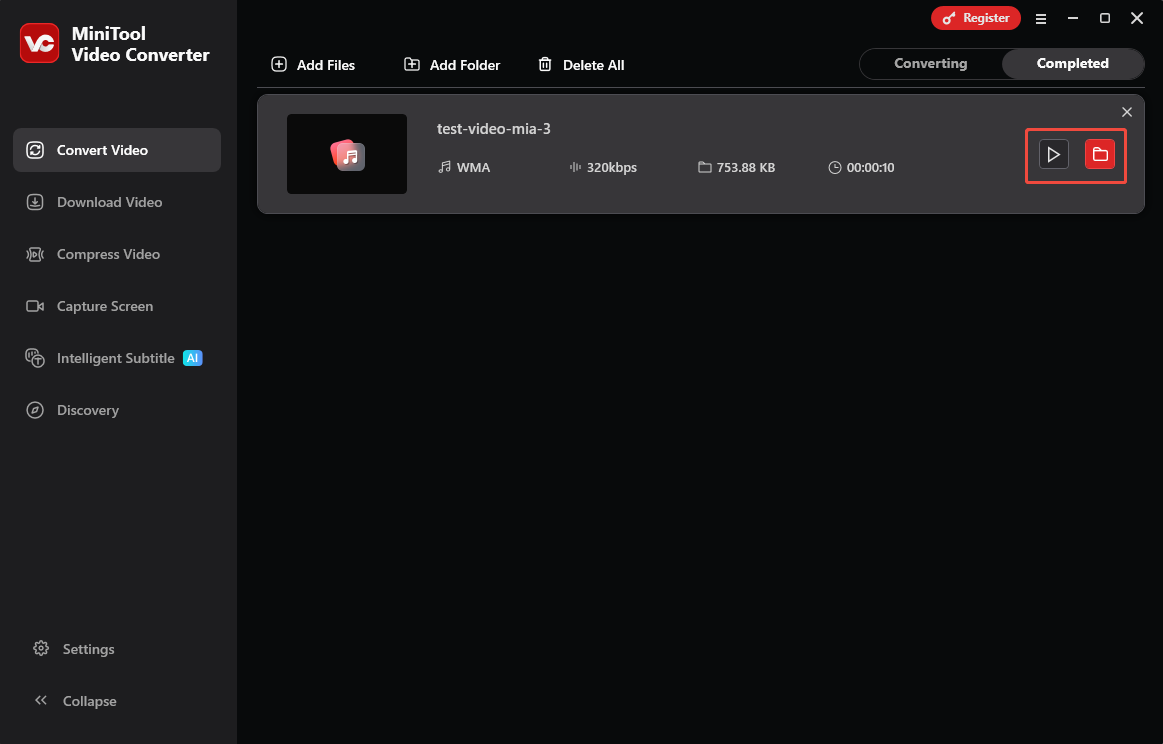
Converting files with MiniTool Video Converter is that simple! It can successfully convert file formats even offline.
2. Use MConverter
MConverter is an online converter I discovered by chance. I found that it can upload files from computers, Google Drive, OneDrive, and Dropbox. This allows me to convert files on my cloud drive directly without downloading them to my computer. Furthermore, MConverter supports batch conversion.
The only drawback I found is that this online converter has file size limits. The lowest-priced plan supports up to 1 GB of files, while the most expensive plan only allows up to 10 GB. Also, because it's a web-based tool, it requires an internet connection to use.
It’s easy to use this tool to convert 3GP to WMA. Here’s how:
Step 1: Go to MConverter
Search for “MConverter” in a search engine, or visit this address directly: https://mconverter.eu/.
Step 2: Upload Your 3GP Files
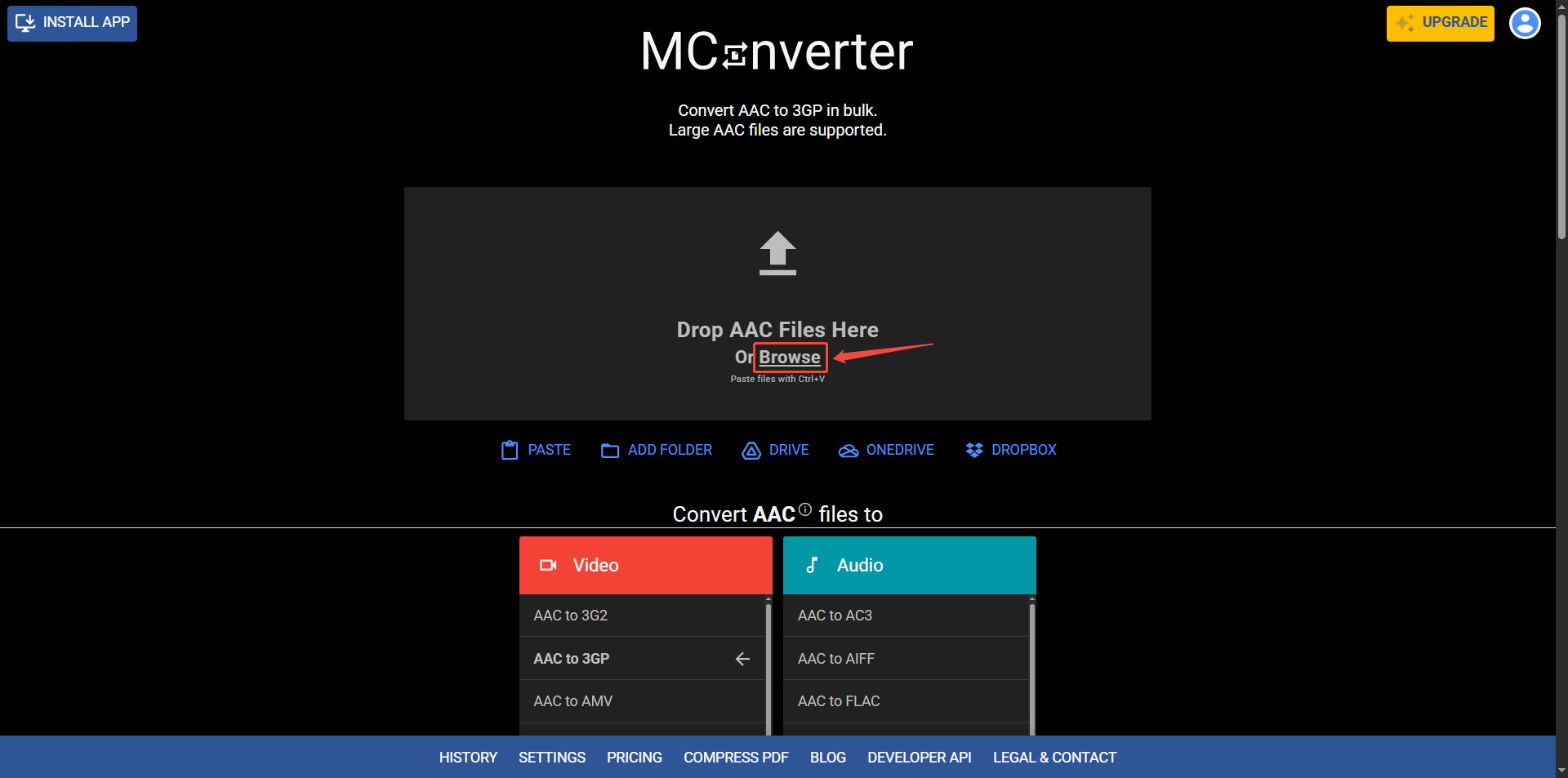
Click the Browse option to upload the 3GP file from your computer.
Step 3: Select Target Format
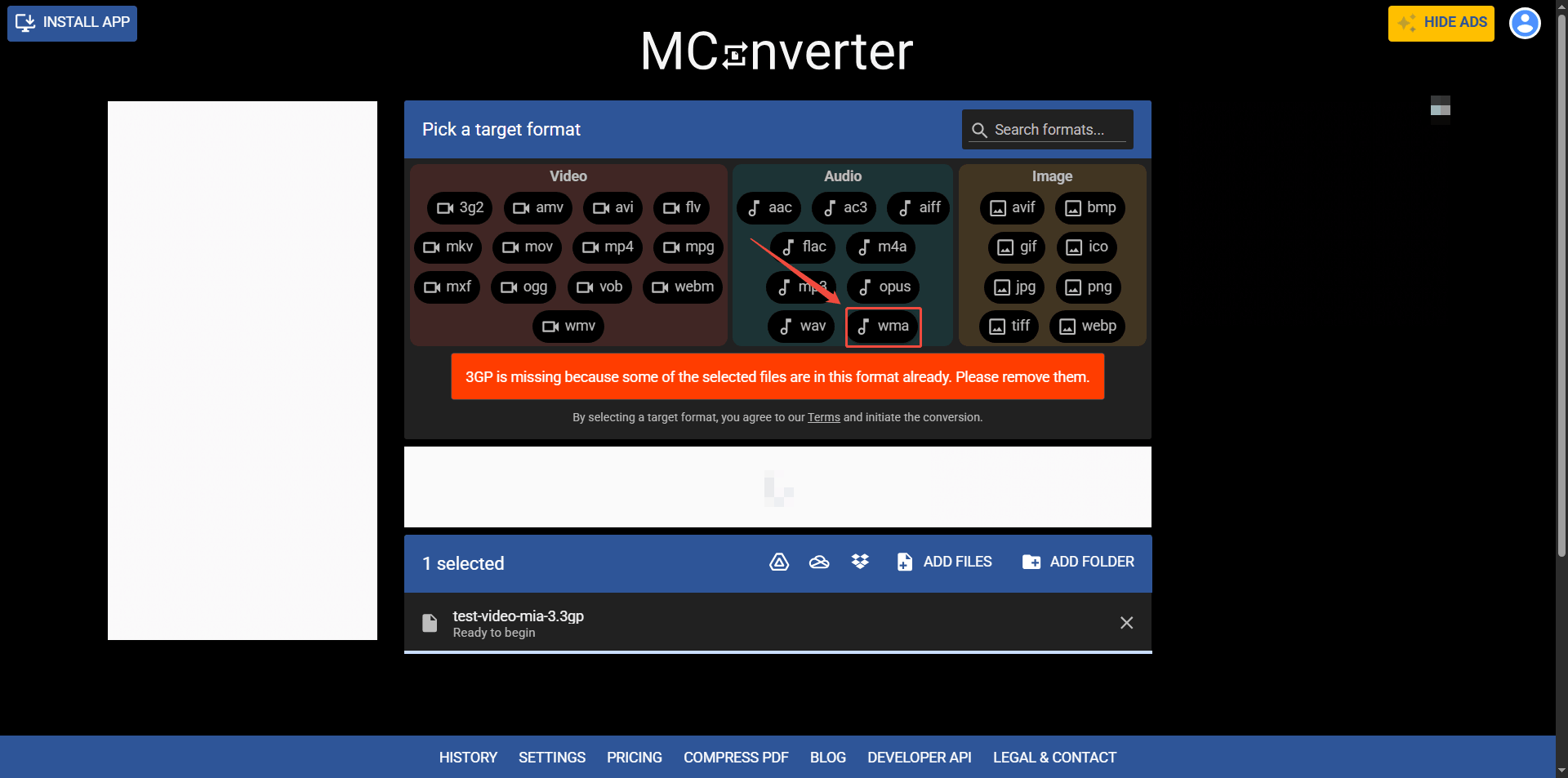
In the Pick a target format section, click the WMA option. The file will then be automatically converted.
Step 4: Locate the Converted File
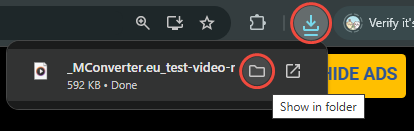
Once the file conversion is complete, you can find it in your browser’s download options. Take Chrome as an example, click the Downloads option in the upper right corner, and choose Show in folder to navigate to the file's location.
MConverter doesn't specify the maximum file size that free users can upload, but I do know that even the lowest paid plan only allows uploading files up to 1 GB. Therefore, choosing a converter without file size limits is a wiser choice.
What Are the Uses of WMA Files
Converting 3GP to WMA files allows them to be played on more software and devices, such as VLC Media Player. Furthermore, you can use various audio editing software, such as MiniTool MovieMaker, Audacity, and Adobe Audition, to edit WMA audio. Additionally, WMA files are ideal for burning to audio CDs for playback in car stereos.
Common Problems and Fixes of Converting
You may encounter some problems during or after the conversion process. Below are common problems and their solutions.
1. File Won’t Convert
If audio or video files cannot be uploaded, it may be because the source file is corrupted. In this case, you can use file repair software, such as MiniTool Video Repair. If the file fails to convert, it may be due to network issues. You need to check your network connection.
2. Conversion too Slow
High-quality video will significantly increase the load on the CPU and GPU. If performance is insufficient, the conversion process will take a long time. In this case, it's recommended that you close other background applications. For some online converters, poor network conditions may also cause slow conversion speeds.
3. No Sound After Conversion
If the converted file has no sound, it might be because the Audio option is not selected in the encoder settings. Additionally, setting the sample rate or audio bitrate to zero or disabling it will also result in a silent converted file. In this case, try enabling audio and converting the file again.
Bottom Line
This post shows you two 3GP to WMA converters: MiniTool Video Converter and MConverter. For users who have a long-term need to switch, I think the former is more suitable for you.
User Comments :