

Many people want to extract AC3 audio from VOB files. This article will briefly introduce these two formats and explain why you should do that. It will also show you how to convert AC3 to VOB using MiniTool Video Converter and DigitalOfficePro.
Understand VOB and AC3 Format
VOB is a multimedia container format. It is the primary container format for DVD video discs, capable of holding MPEG-2 video, subtitle tracks, menu data, and audio streams (AC3, DTS, PCM). VOB format can be played on DVD players and media players such as VLC. However, most new mobile phones and smart TVs do not support native playback.
AC3, also known as Audio Codec 3, is a lossy audio compression technology developed by Dolby Laboratories. It is commonly used in DVDs, Blu-ray discs, and digital televisions. Furthermore, AC3 supports multiple channels, up to 5.1 channels (left channel, right channel, center channel, two rear channels, and one subwoofer channel). Therefore, it is also widely used in cinemas to provide an immersive sound experience.

Why Convert VOB to AC3
As mentioned above, VOB files can contain AC3 audio. If you want the audio included in the VOB to be playable on more modern devices, such as mobile phones, tablets, and smart TVs, you can extract the AC3 audio tracks embedded in a VOB file. Next, I will recommend 2 tools that support VOB to AC3 conversion.
How to Convert VOB to AC3 (Offline/Online)
Below, I will introduce two converters to help you convert VOB format videos to AC3 audio: one is offline, and the other is online.
1. Use MiniTool Video Converter (Offline)
Looking for a free and offline video converter? MiniTool Video Converter is a great option. It's a Windows video converter that supports converting VOB files to AC3 or over 1,000 other formats. Plus, it doesn't add any watermarks. Its interface is clean and intuitive, making it easy for beginners to use.
Furthermore, MiniTool Video Converter has no file size limit. No matter how long the video or audio file is, it can be successfully imported and converted. Need to convert multiple files? You can adjust the batch conversion limit (up to 5 files) in the settings to improve your efficiency.
The following is a guide on how to use MiniTool Video Converter to turn a VOB file into AC3:
Step 1: Download and Install MiniTool Video Converter
 MiniTool Video Converter
-
 Batch convert video/audio files among 1000+ formats.
 - Quickly compress videos for easy storage and transfer.
- Accurately extract subtitles from video/audio files.
- Effectively enhance video quality.

Click the button above to download and install MiniTool Video Converter on your Windows PC. Then, launch this application.
Step 2: Add Your VOB File
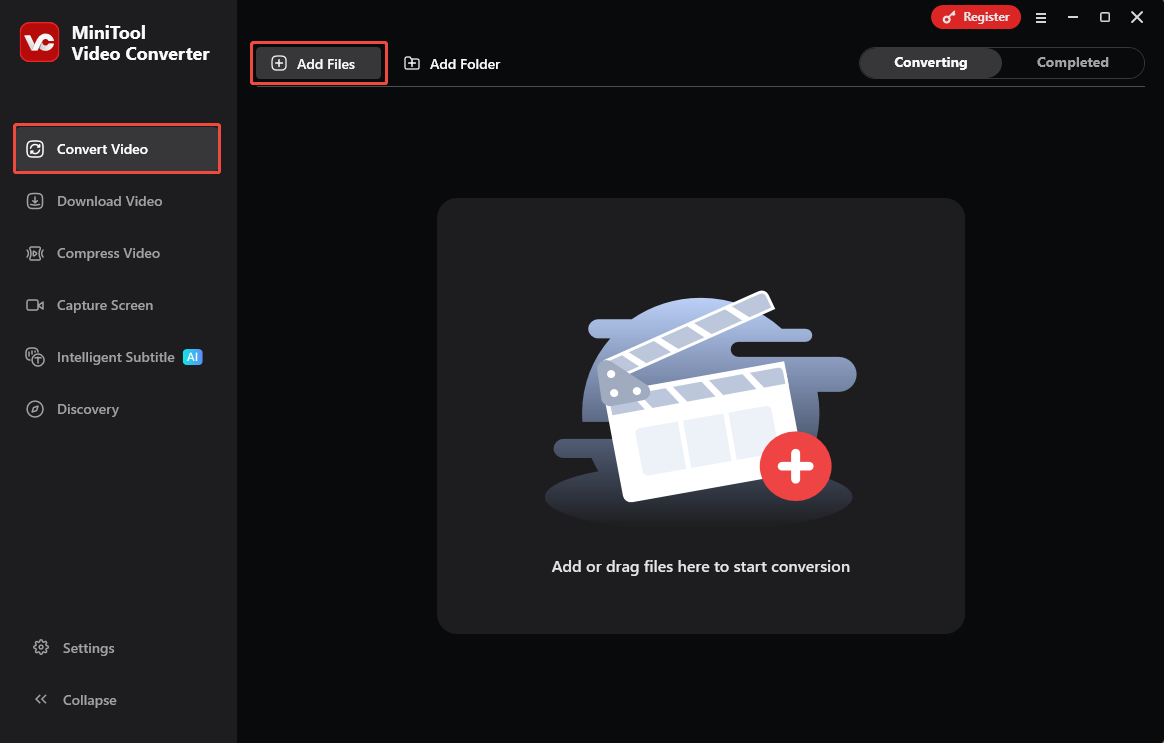
In the Convert Video page, click Add Files to import the VOB video.
Step 3: Select the Output Format
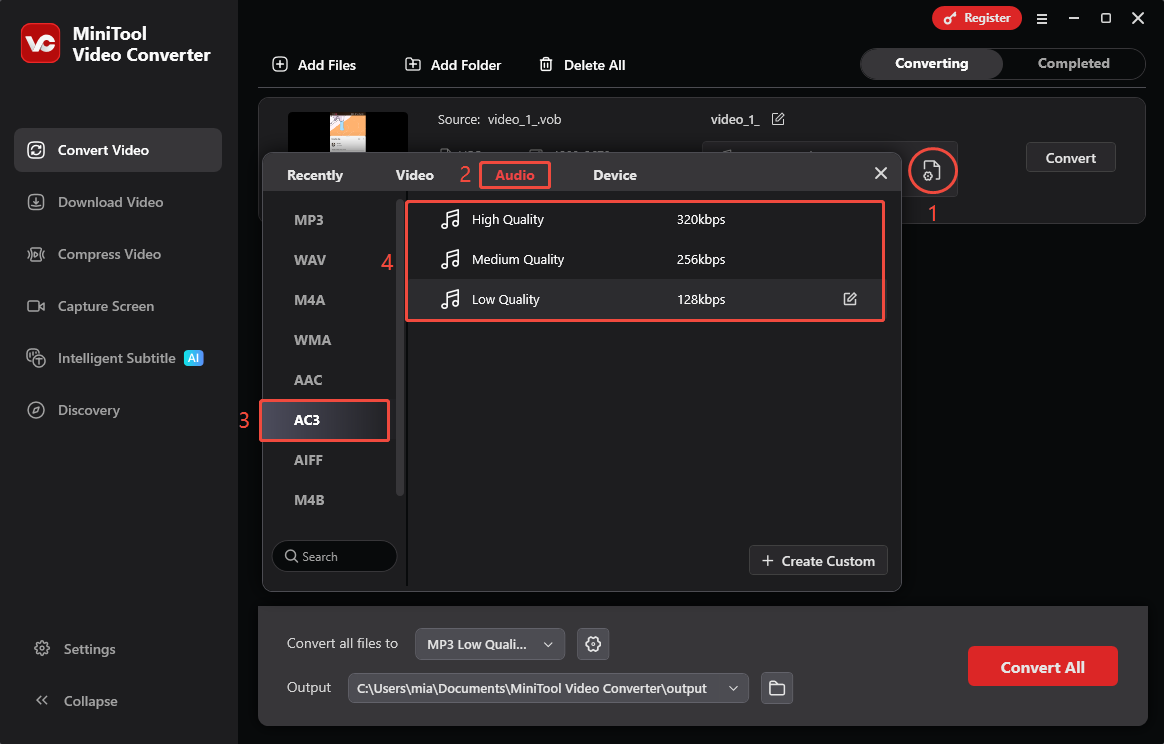
Click the gear icon to open the output options window. Then, head to the Audio tab, choose AC3 on the left menu, and define the audio quality on the right.
Step 4: Pick Where to Save the Output File
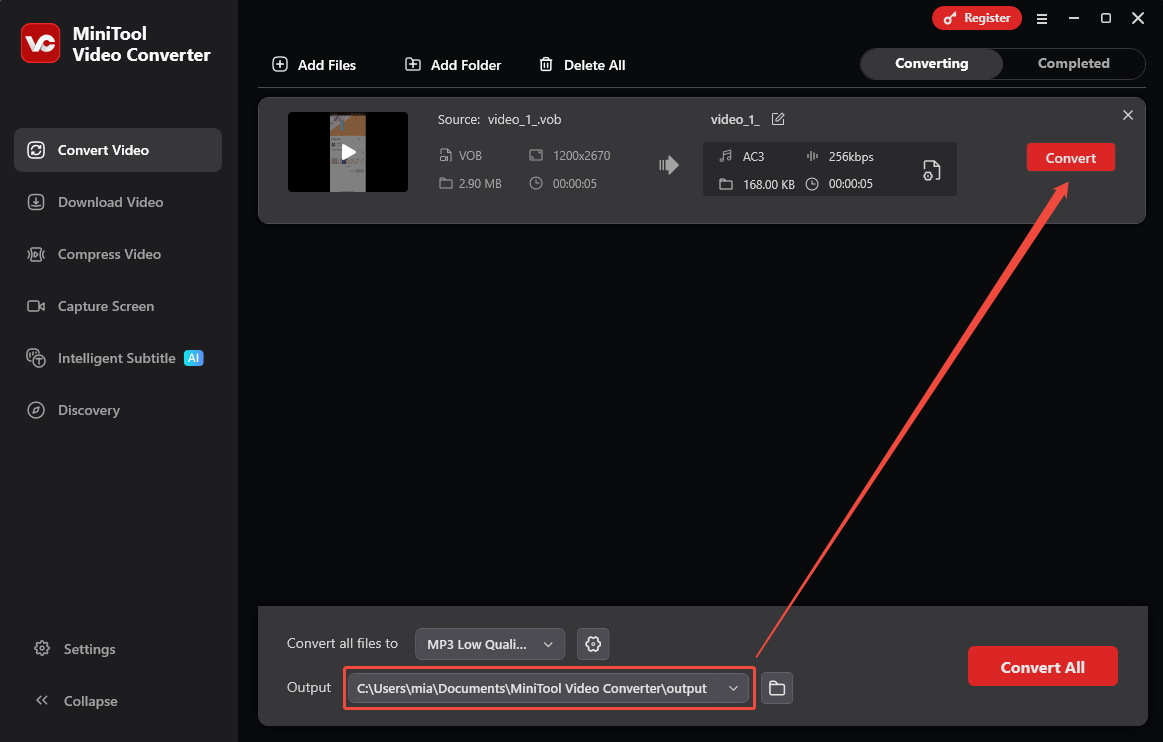
Expand the Output option and select a folder for saving the converted file.
Step 5: Start Conversion
Click Convert and let the app begin the conversion right away.
Step 6: Locate the New File
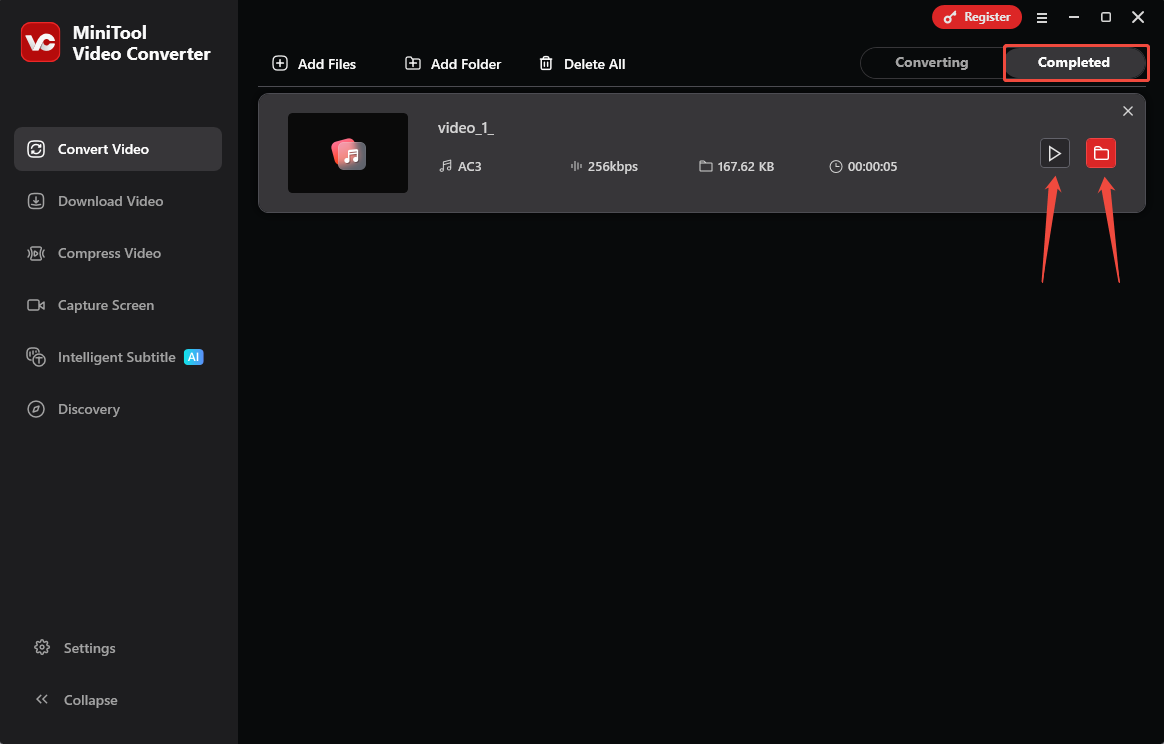
When conversion ends, the program will move to the Completed tab. Then, you can click the play icon for instant playback, or click the folder icon to locate the file.
MiniTool Video Converter can convert videos and compress video file sizes, as well as convert speech to text. If you are interested, go to the corresponding tab to try it out.
2. Use DigitalOfficePro (Online)
DigitalOfficePro is an online conversion platform that supports converting documents, audio, video, images, and other files. Supported video and audio formats include MP4, MKV, AVI, MOV, MP3, WAV, WMA, M4A, and FLAC. This conversion tool can be used on Windows, Mac, Linux, and mobile devices. In addition, DigitalOfficePro also supports converting PowerPoint presentations into HTML5 videos.
Here is a guide on how to complete VOB to AC3 conversion with DigitalOfficePro:
Step 1: Visit DigitalOfficePro Website
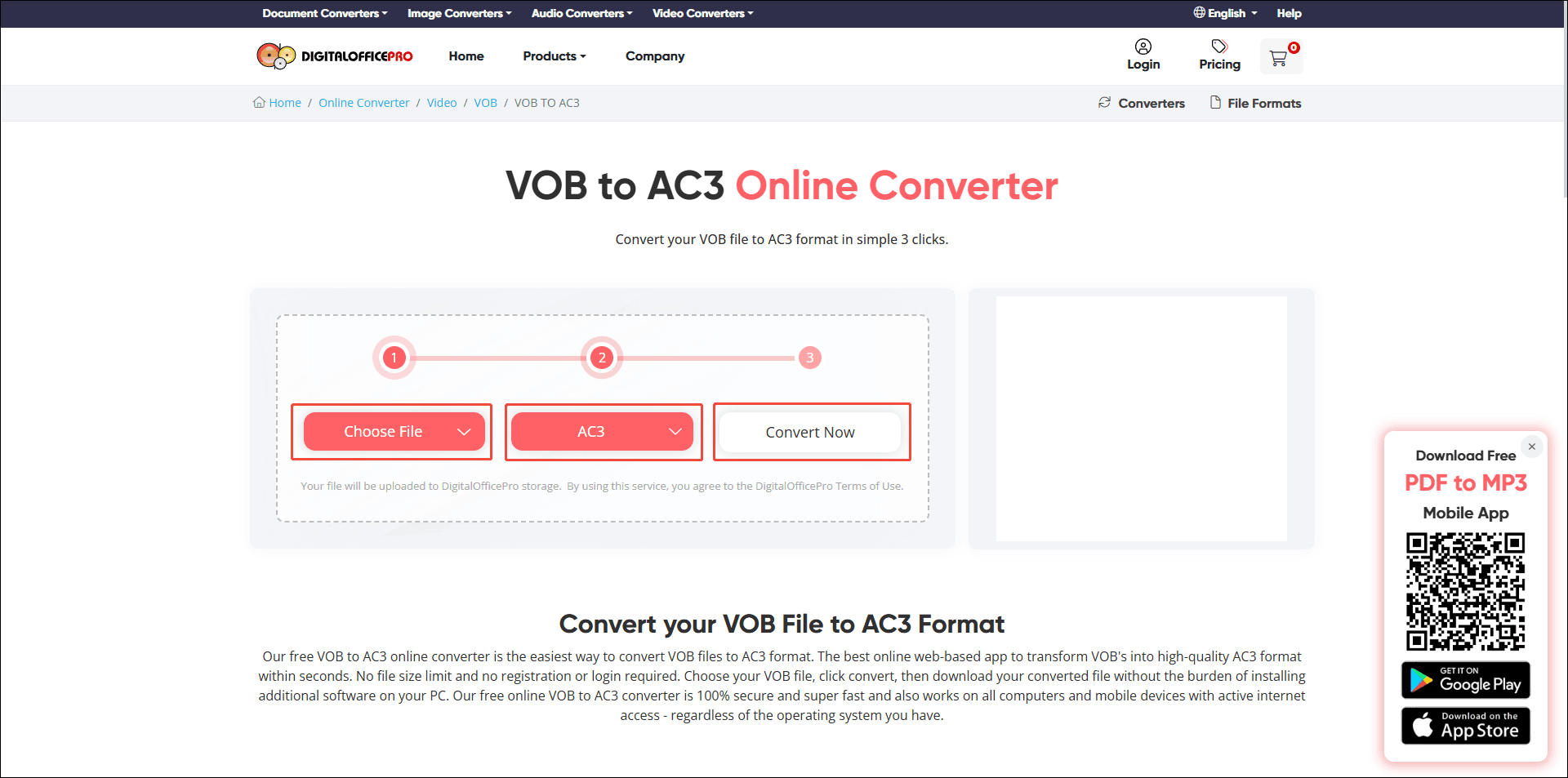
Go to https://www.digitalofficepro.com/convert/vob-to-ac3.
Step 2: Upload the VOB File
Click the Choose File option to upload your VOB file from your computer.
Step 3: Choose the Output Format
Expand the second option and choose AC3 as the output format.
Step 4: Convert the File
Click the Convert Now button to start converting the VOB file to AC3.
Step 5: Download the Converted File
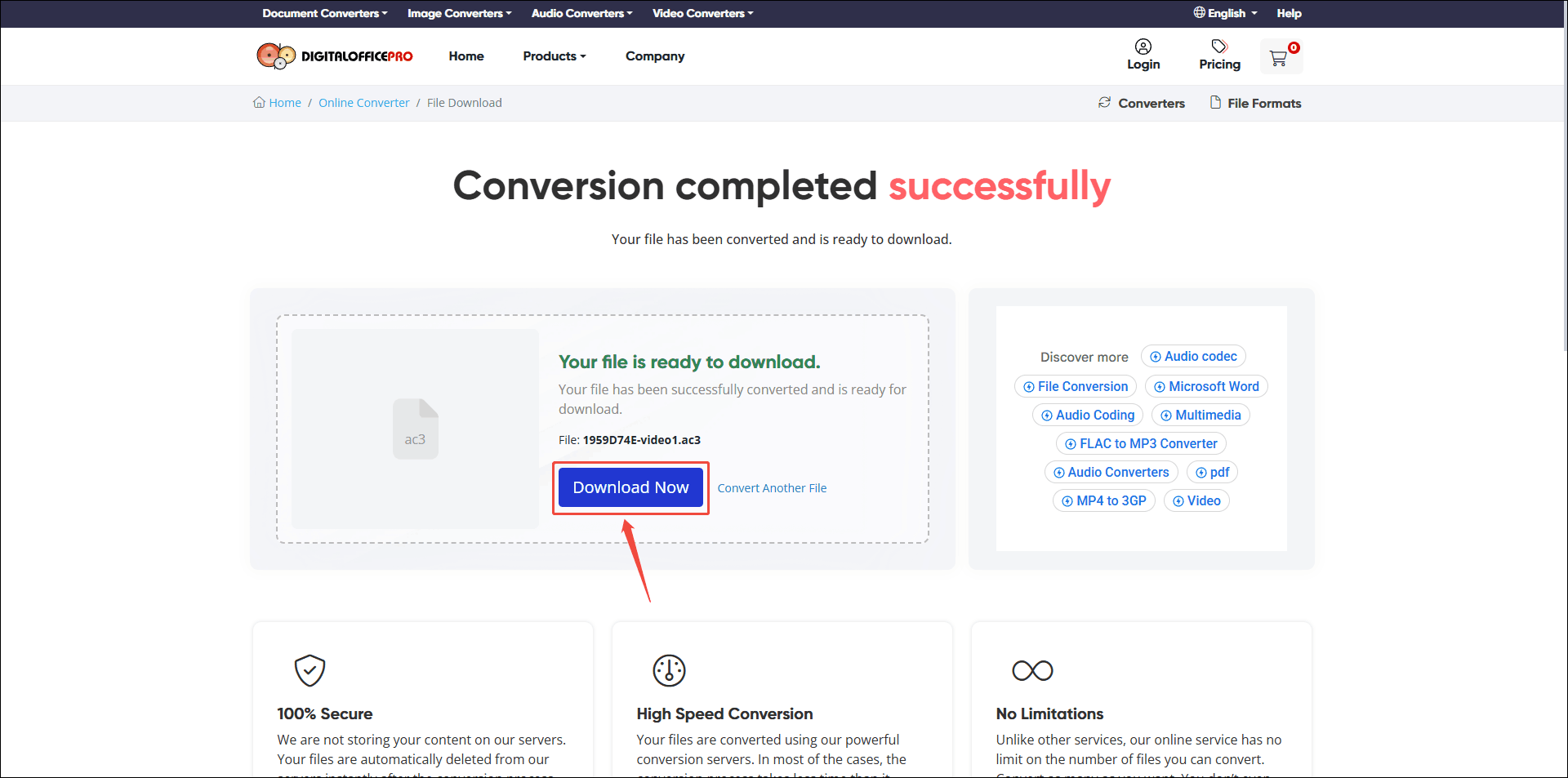
Once the file conversion is complete, you will be redirected to a new page. Click the Go to Download Page button to open the download page. After that, click Download Now to get the AC3 file.
Conclusion
This article introduces two simple tools that can convert VOB to AC3: MiniTool Video Converter and DigitalOfficePro. If you need to convert large VOB files in batches, MiniTool Video Converter is recommended. However, if you only convert files occasionally, DigitalOfficePro is a simpler option.
User Comments :