

What Is a DivX File?
DivX is a space-saving video format that compresses MPEG-4 video into AVI or .divx files, making them easy to share online. These files can be played on any computer (Windows, Mac, or Linux) using a DivX-compatible player, including VLC Media Player.
What Is an OGG File?
OGG is a free and open-source multimedia container format. It can hold almost any type of content, including music, video clips, subtitles, chapter markers, and even lyrics. Browsers and many mobile applications can play OGG audio/video directly without the need for additional plugins. This format is ideal for podcasts, internet radio, HTML5 video, and more.
Why Convert DivX to OGG?
DivX and OGG use different audio codecs. Some older DivX files typically use MP3 or AC3 encoding. Some newer DivX files also use AAC encoding. OGG, on the other hand, usually uses Vorbis as its audio encoding.
Vorbis provides better quality than MP3 at the same file size. Therefore, converting older DivX files to OGG can result in higher audio quality. Furthermore, Vorbis has higher compression efficiency. Converting DivX to OGG can also save storage space.
How to Convert DivX to OGG with Ease?
Now that you understand the benefits of converting DivX to OGG, where do you begin? Here are two convenient and simple methods I often use.
1. Use MiniTool Video Converter
If you need a free, fast DivX to OGG converter, I recommend MiniTool Video Converter. It supports many mainstream audio and video formats, including DivX, OGG, MOV, MKV, AVI, MP3, AAC, WMA, and AIFF.
Most importantly, the program supports batch conversion. You can process up to five video or audio files simultaneously, improving your workflow. It's also worth mentioning that MiniTool Video Converter does not add watermarks to the converted videos and has no limit on the size of the uploaded files.
Want to know how to use MiniTool Video Converter to convert DivX to OGG? Please continue reading the following steps.
Step 1: Download and Install MiniTool Video Converter
Click the download button below to get the latest version of MiniTool Video Converter
 MiniTool Video Converter
-
 Batch convert video/audio files among 1000+ formats.
 - Quickly compress videos for easy storage and transfer.
- Accurately extract subtitles from video/audio files.
- Effectively enhance video quality.

Step 2: Add the DivX File
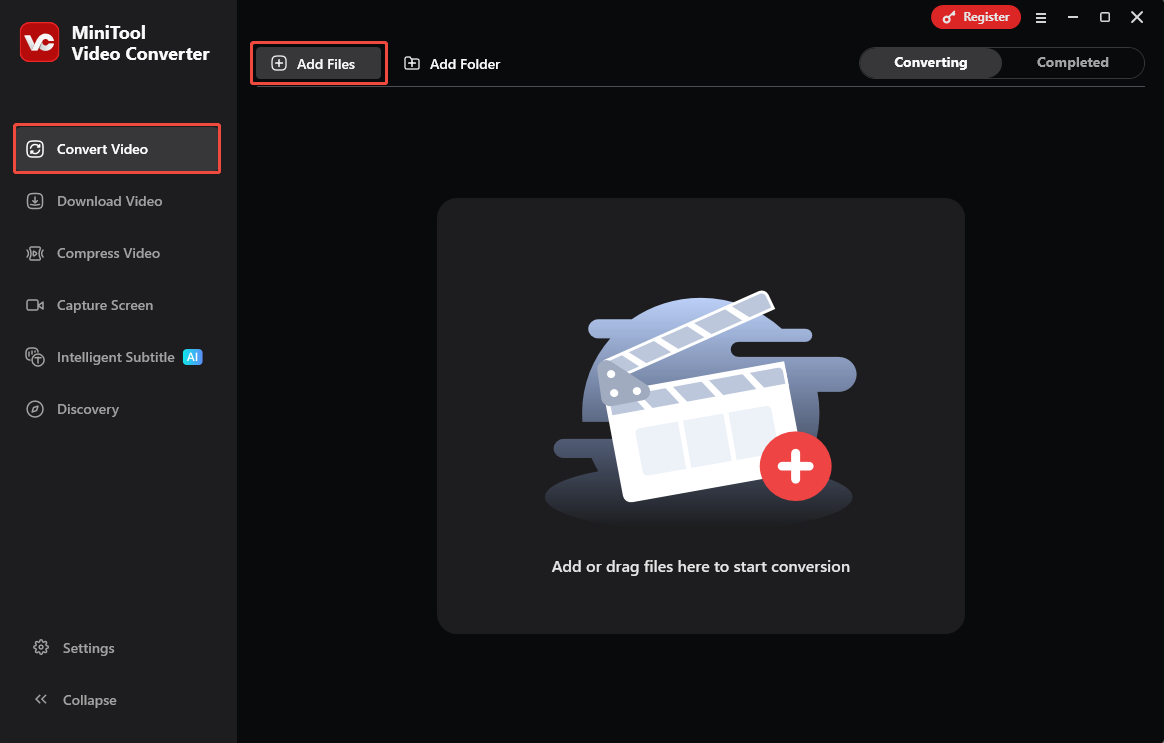
After the program opens, remain on the Convert Video tab and choose Add Files to load the DivX video.
Step 3: Select the Output Format
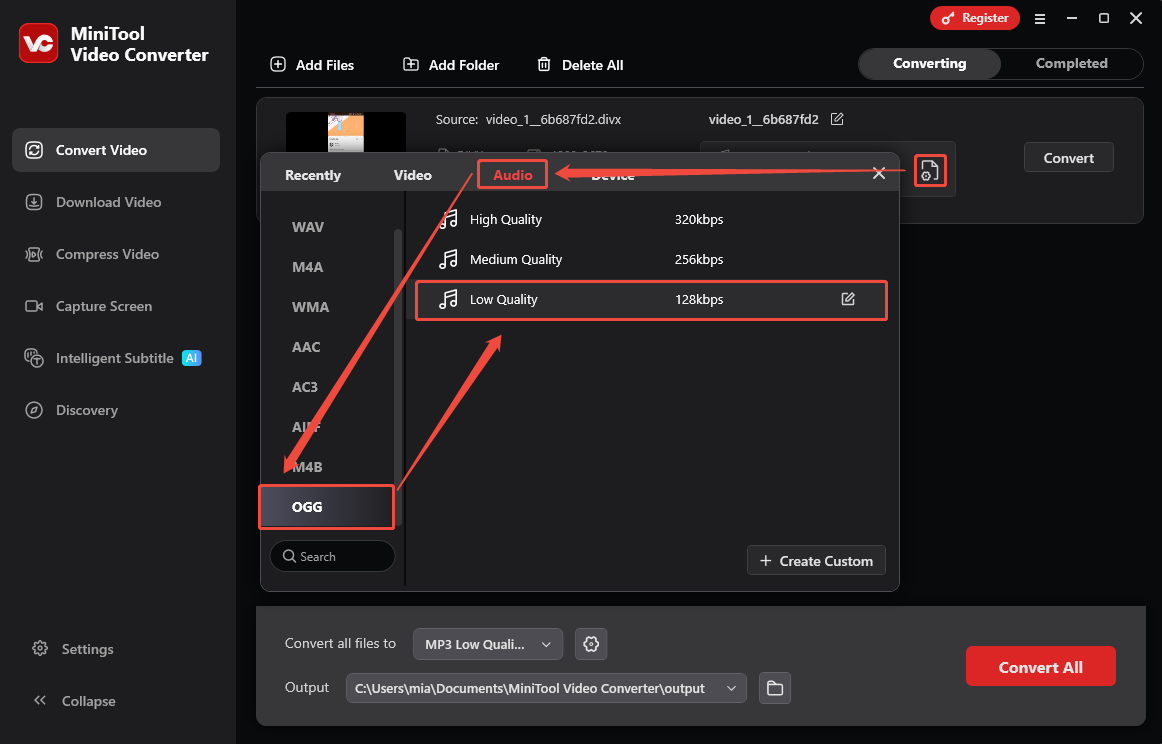
Click the output settings icon. Then, switch to the Audio tab, choose OGG on the left, and set the audio quality you want.
Step 4: Set the Destination Folder
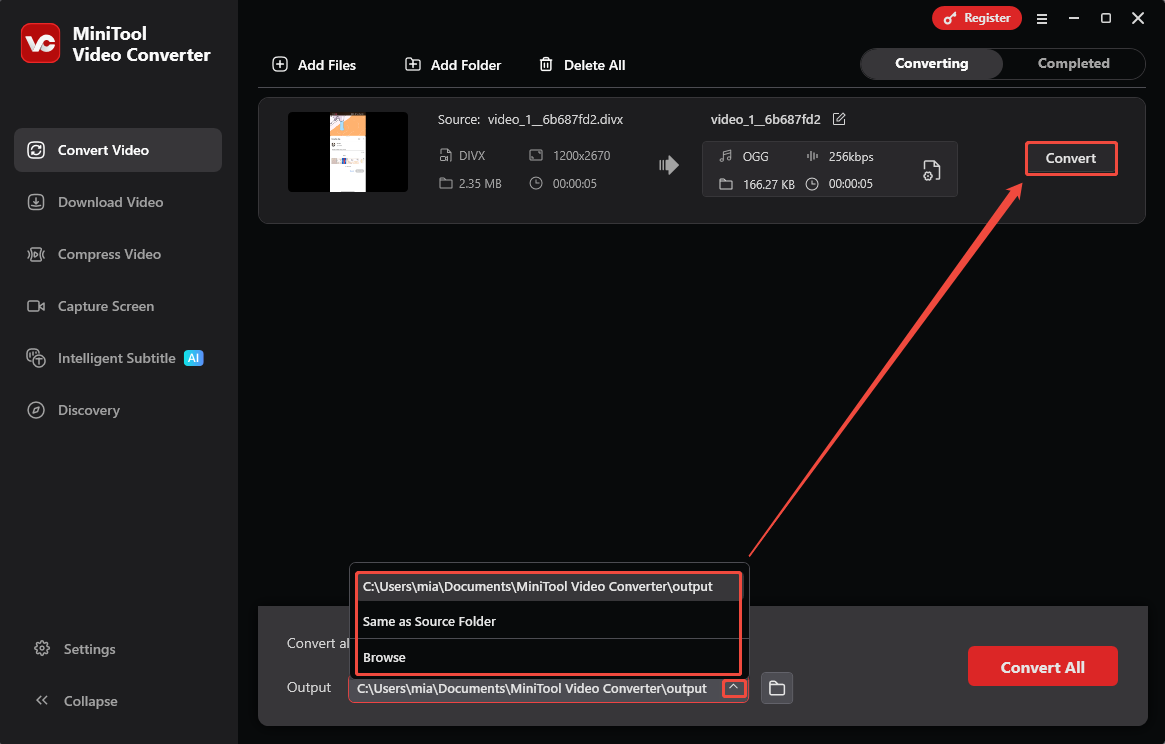
Expand the Output option, navigate through your directories, and designate the destination folder where the converted OGG file will be stored.
Step 5: Start Conversion
Click the Convert button to start turning your DivX file into OGG.
Step 6: Locate the New Audio
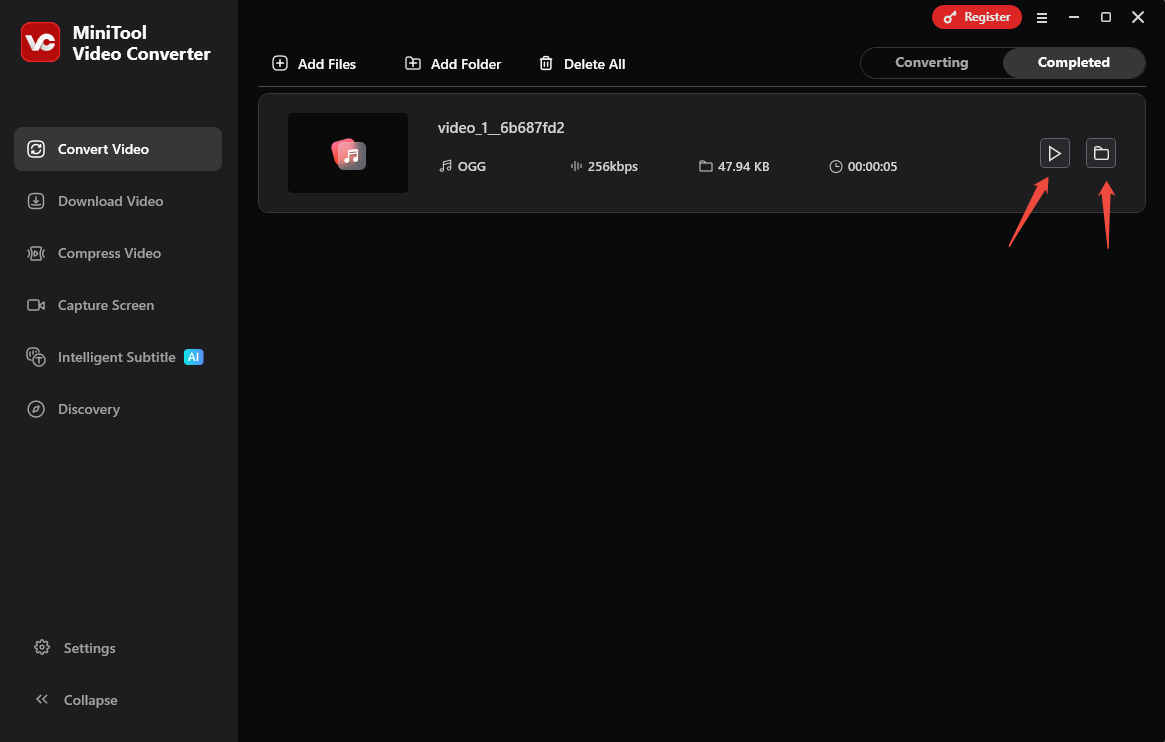
As soon as the conversion is over, you’ll land on the Completed tab. Then, you can click the play icon to open it, or click the folder icon to see where the file is saved.
MiniTool Video Converter is simple to use. However, if you don't want to download any software and you already have the VLC Media Player on your computer, you can try to use it to convert DivX videos to OGG audio.
![Guide on How to Convert F4V to DivX– 3 Converters [Proven Steps]](https://images.minitool.com/videoconvert.minitool.com/images/uploads/2025/11/f4v-to-divx-thumbnail.png)
2. Use VLC Media Player
VLC Media Player is a video player. It supports almost all video and audio formats, including DivX, OGG, MP4, MOV, 3GP, AVI, OGG, MP3, WAV, and more. Besides playing videos, it also supports converting video and audio formats. How to convert DivX to OGG with VLC? Follow the steps below:
Step 1: Import Your File
Launch VLC Media Player. Then, click the Media tab on the top-left of the interface, and select Convert / Save… from the dropdown.
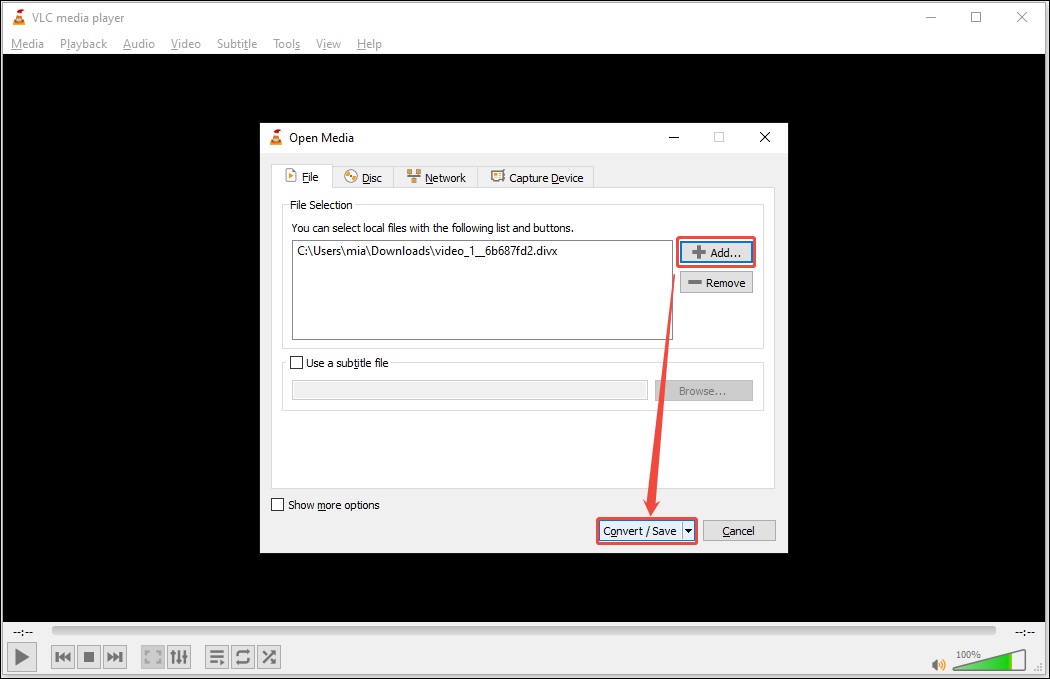
In the Open Media window, click the Add button and choose the DivX file from your computer. Then, click the Convert / Save button.
Step 2: Choose OGG as the Output Format
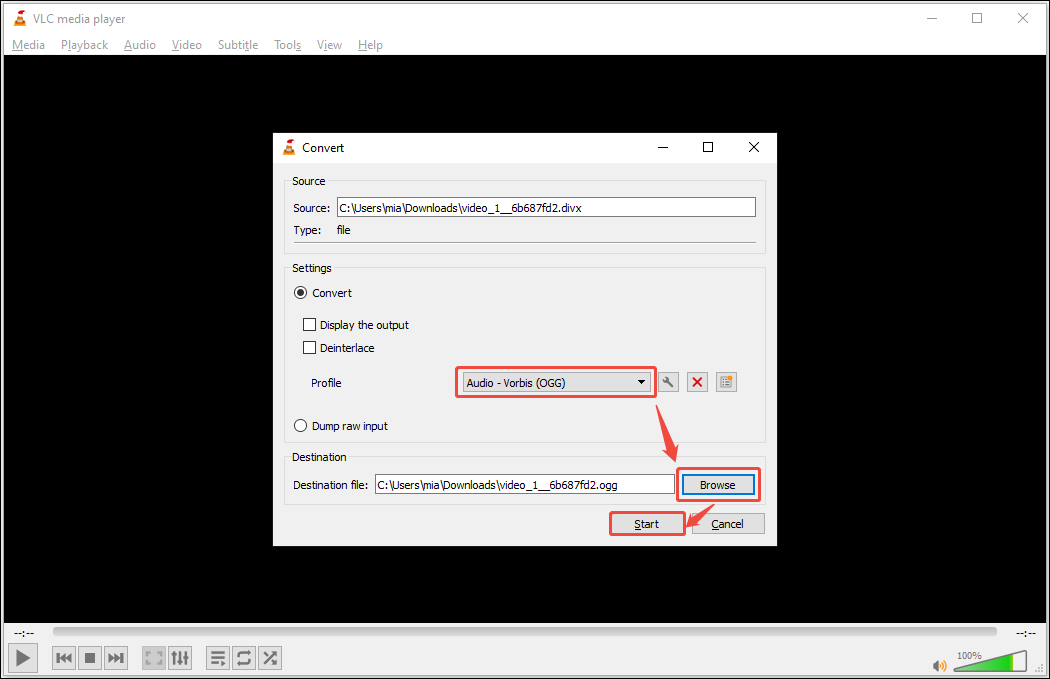
In the Convert window, expand the option in the Profile section and select Audio – Vorbis (OGG).
Step 3: Set the Output Folder
Then, click the Browse button in the Destination section to set up the save path.
Step 4: Start Conversion
Click the Start button to begin the conversion right away. The converted file can be found in the exported folder you just selected.
VLC Media Player includes multiple formats, allowing you to easily convert DivX to OGG.
Conclusion
Many people want to convert DivX to OGG for better audio quality. The 2 conversion methods (using MiniTool Video Converter and VLC Media Player) in this post are both feasible. However, if you prioritize simplicity and speed, I would recommend MiniTool Video Converter.
User Comments :