

This guide walks you through how to enhance video quality with MiniTool Video Converter step by step. Whether you want to upscale video, improve animation quality, or eliminate grain, this tool delivers professional results in minutes.
Video Enhancer Features
- Upscale videos by 2x or 4x to higher resolutions.
- Enhance anime or cartoon videos’ quality.
- Denoise videos to remove grain and optimize clarity.
- Preview video quality before exportation.
How to Enhance Video
MiniTool Video Converter also supports AI-powered video quality enhancement for sharper and clearer results. Here’s how to enhance video with this free video enhancer.
Step 1: Download and Install MiniTool Video Converter
Click the button below to download and install the latest version of MiniTool Video Converter. Then, launch it.
MiniTool Video ConverterClick to Download100%Clean & Safe
Step 2: Add Your Files
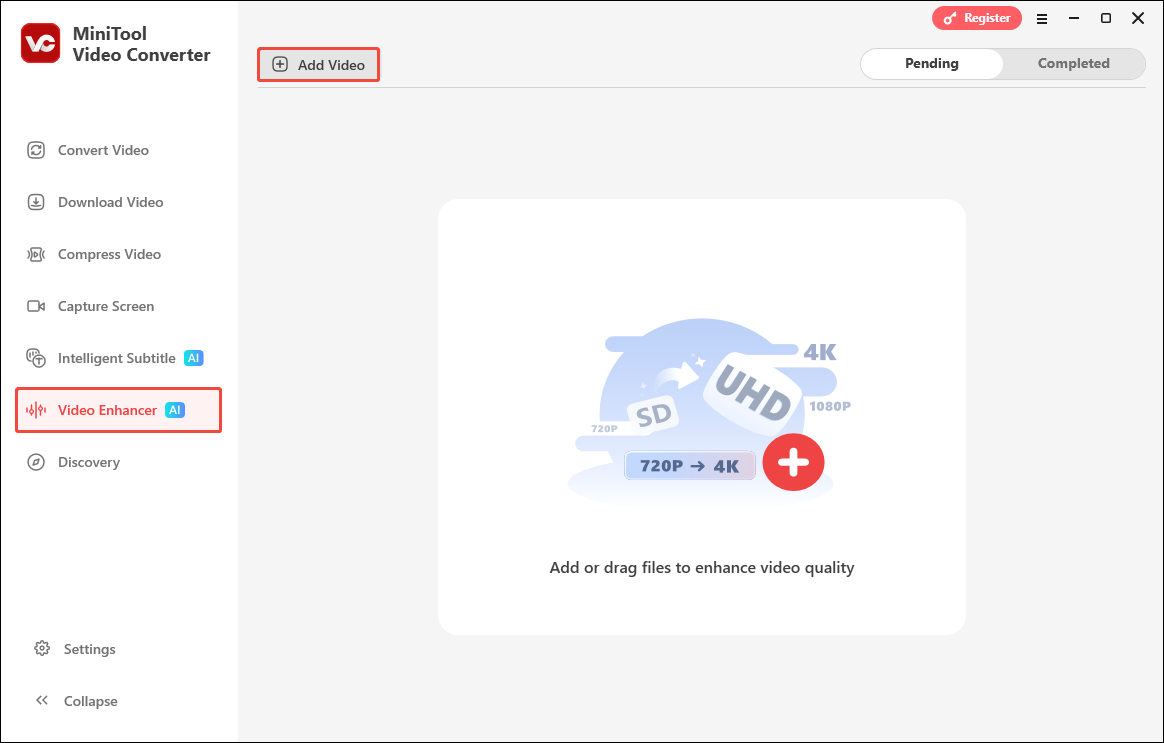
Switch to the Video Enhancer tab and click Add Video to import the video you want to enhance.
Step 3: Choose Enhance Mode
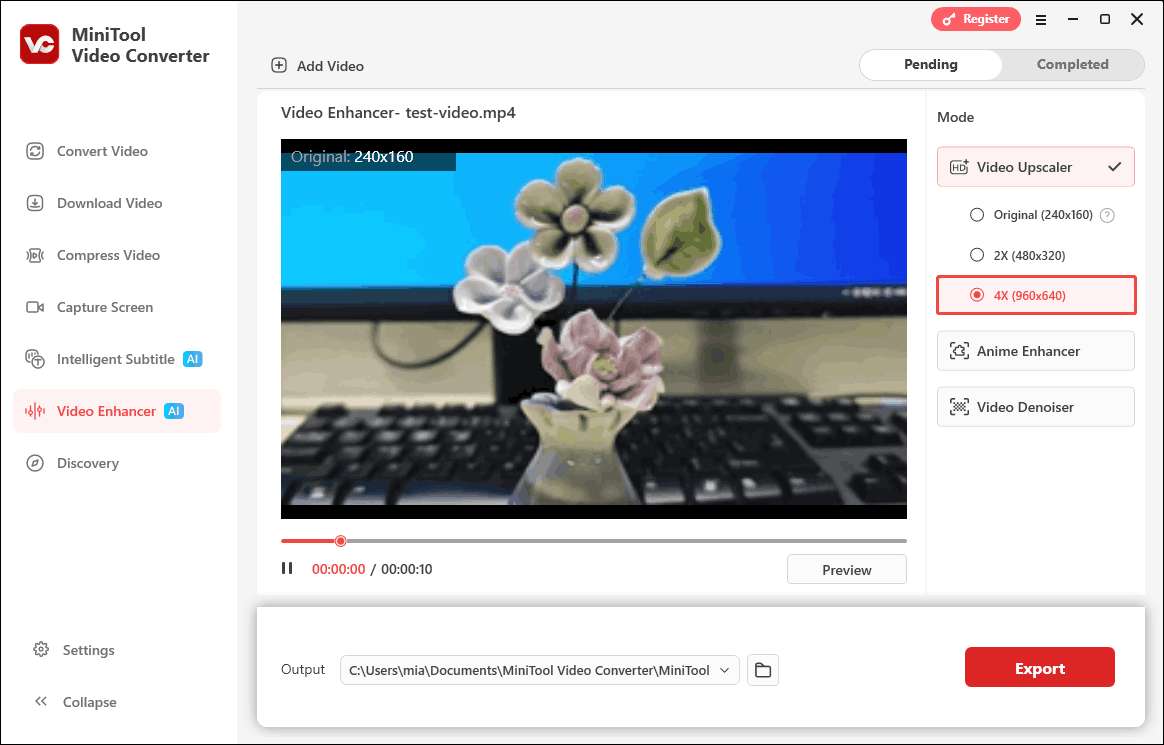
Once the video is uploaded, choose your enhancement type (Video Upscaler, Anime Enhancer, or Video Denoiser) from the Mode section to improve video quality. Then, select the resolution.
Step 4: Preview the Video
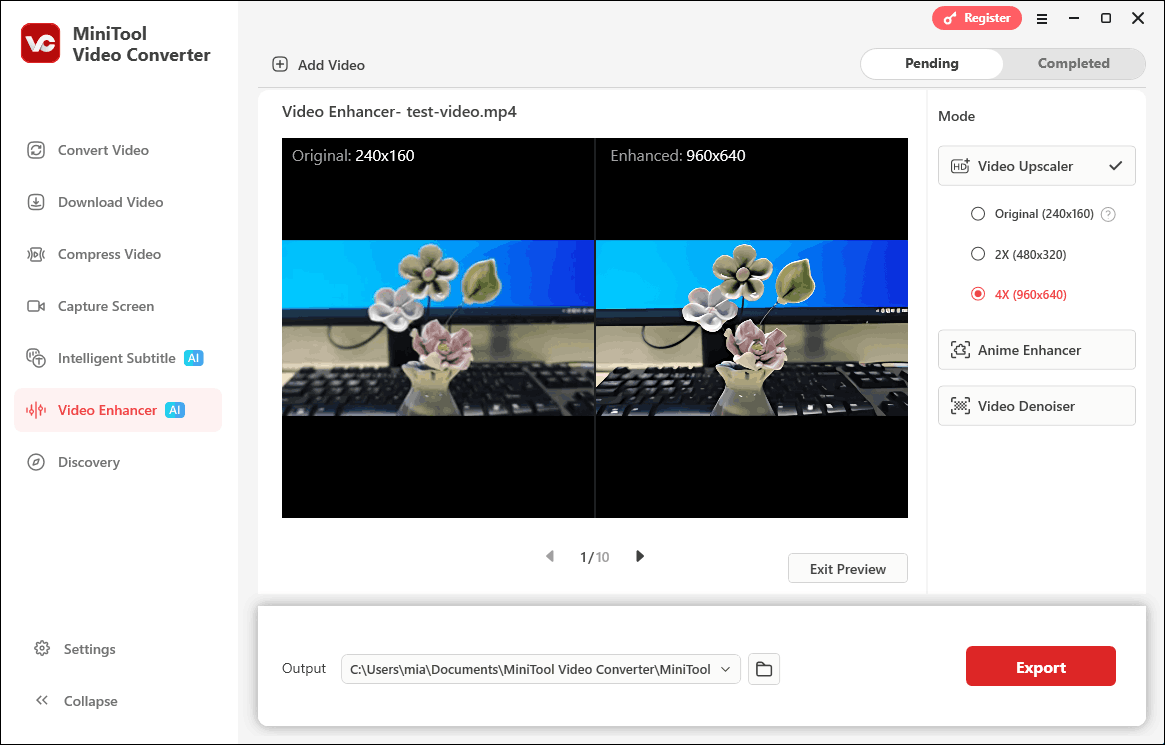
Click the Preview button in the bottom-right corner to see a 10-frame before-and-after comparison.
Step 5: Choose Save Location
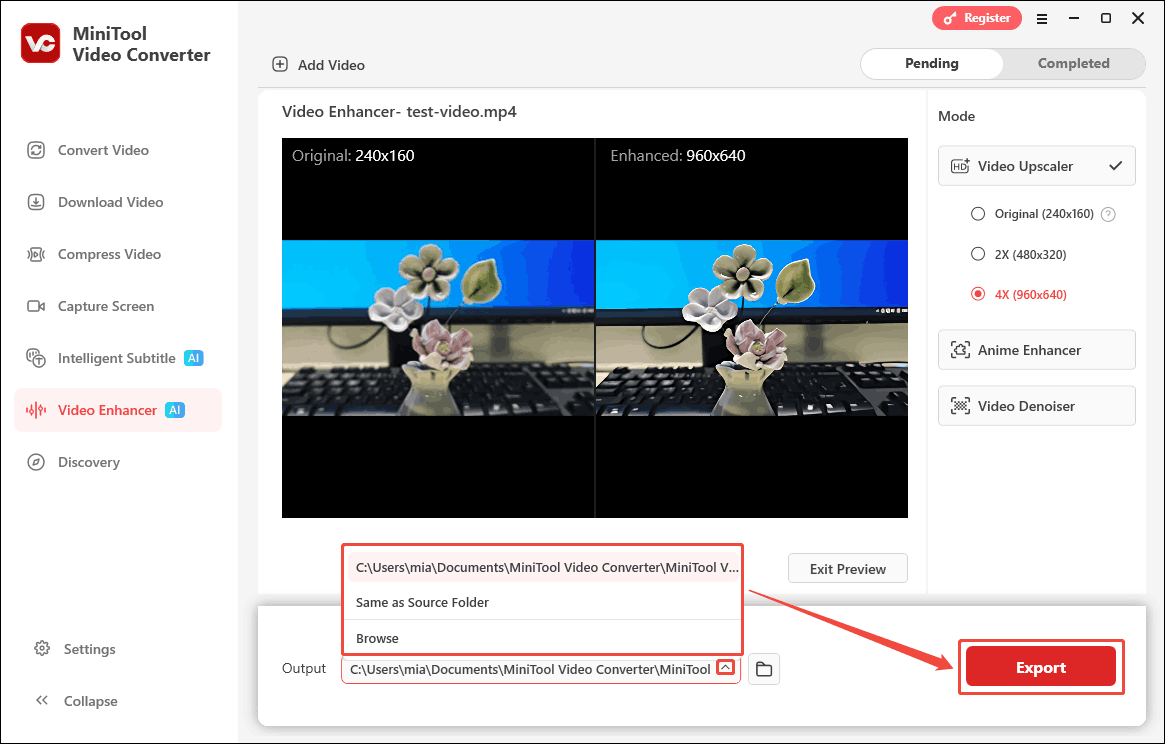
Expand the Output option and select a folder to save the enhanced video.
Step 6: Export the Enhanced Video
Click Export to start the enhancement process and save your finished video.
Step 7: Play and Locate the Exported Video
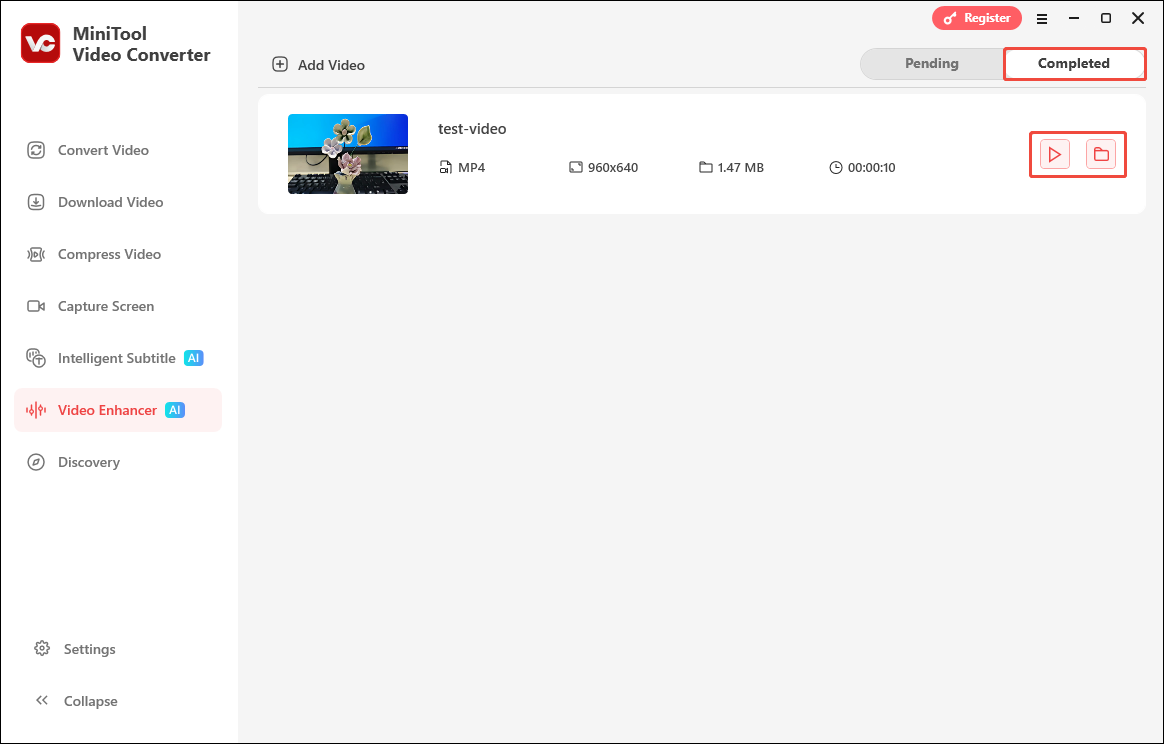
Once exporting finishes, you'll land on the Completed screen. Click the play icon to preview the enhanced video, or the folder icon to locate it.
Through upscaling, denoising, and other targeted enhancement, your video can be clearer and more professional-looking. In addition video enhancer, this application also supports converting video and audio formats, compressing videos, and transcribing audio or video.
User Comments :