

This post explains how to improve video quality after recording using a Windows video enhancer: MiniTool Video Converter. Import the recorded video, select an enhancement level, and start the process to improve the quality.
Since I’m not good at recording, my videos are usually not clear enough to upload directly to social media or share with others. Therefore, I use enhancement tools to improve video quality before uploading. After trying several tools, I found MiniTool Video Converter to be the best choice for improving the quality of my recorded videos.
How to Improve Video Quality After Recording
Fast Track Steps:
- Download and install MiniTool Video Converter
- Import the target recording
- Set an enhancement level
- Preview the enhanced video effect
- Start enhancement.
- Check the enhanced video
MiniTool Video Converter includes an AI-powered video enhancer that can improve the video quality after recording. The process is straightforward. I just need to upload my video and choose the right mode - no complex settings. Thanks to its simple interface, I can enhance my recording with a few clicks.
1. Obtain the Video Enhancer
Download the software and follow the on-screen prompts to install it.
 MiniTool Video Converter
-
 Batch convert video/audio files among 1000+ formats.
 - Quickly compress videos for easy storage and transfer.
- Accurately extract subtitles from video/audio files.
- Effectively enhance video quality.

2. Import the Recording
Open the application and switch to the Video Enhancer tab. There, I click on the Add Video option to upload the target recording file.
3. Set an Enhancement Level
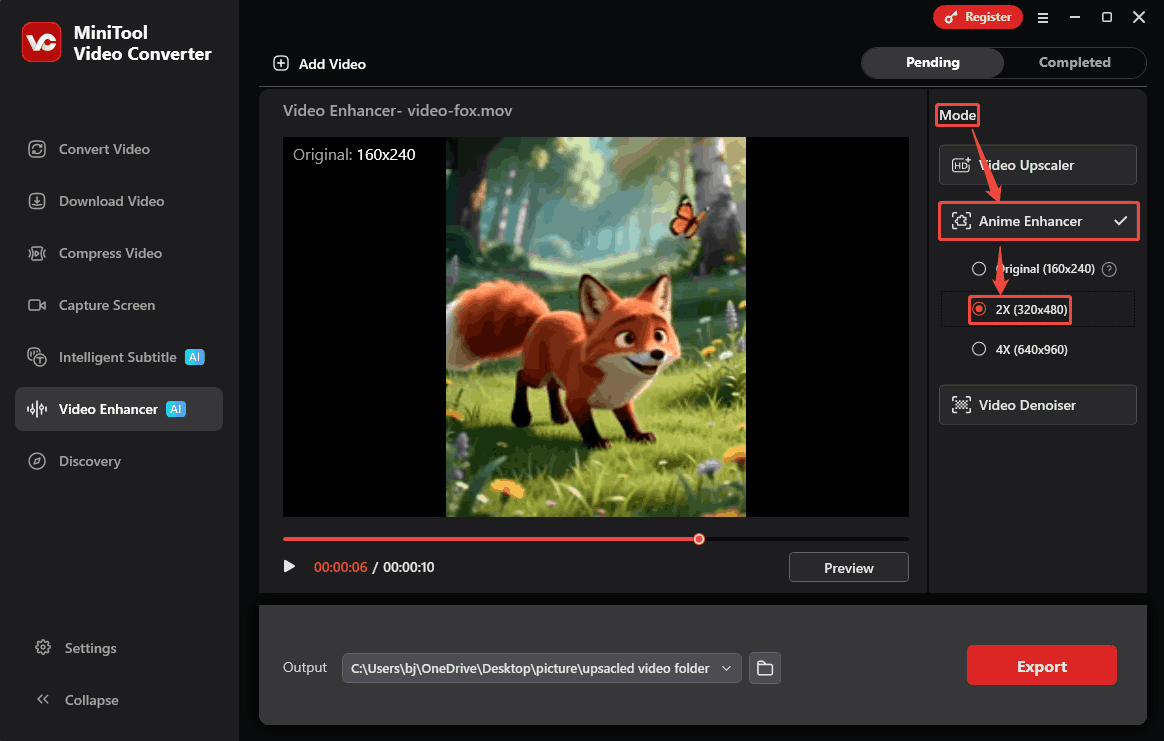
On the right side of the imported recording, I go to the Mode section. Under that, expand the Anime Enhancer mode. From here, choose a desired enhancement level. I select the 2X (320x480) option.
4. Preview the Enhanced Video at Key Frames
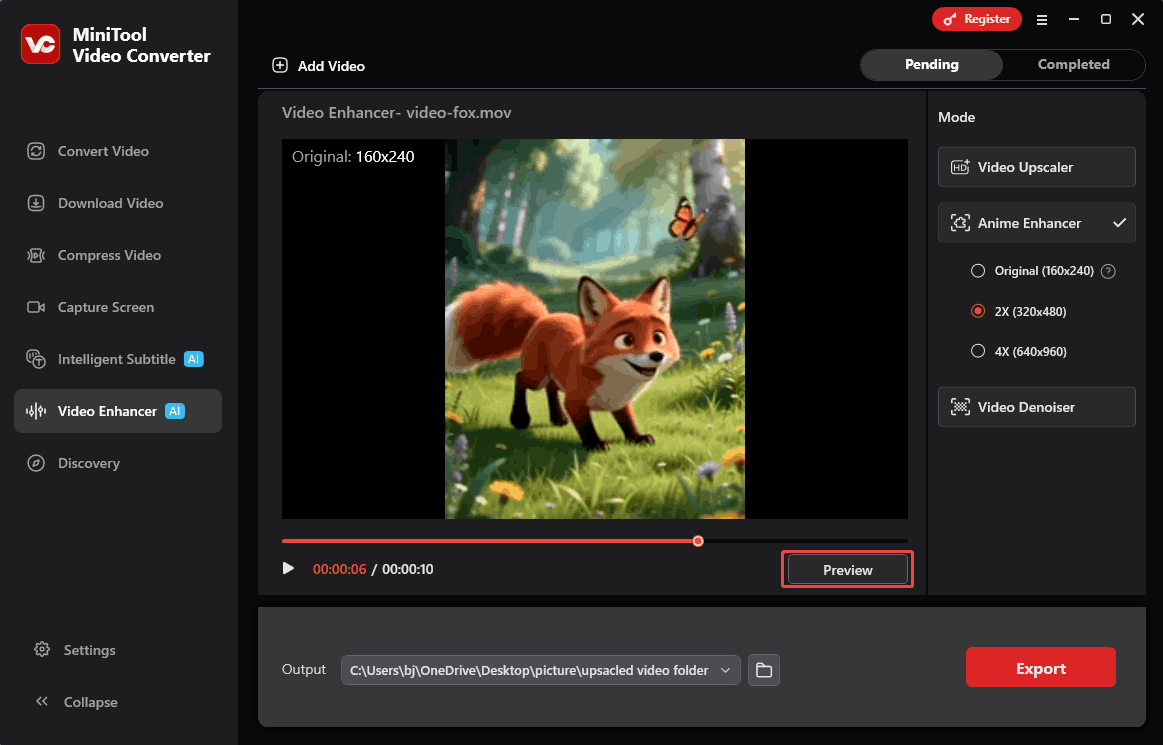
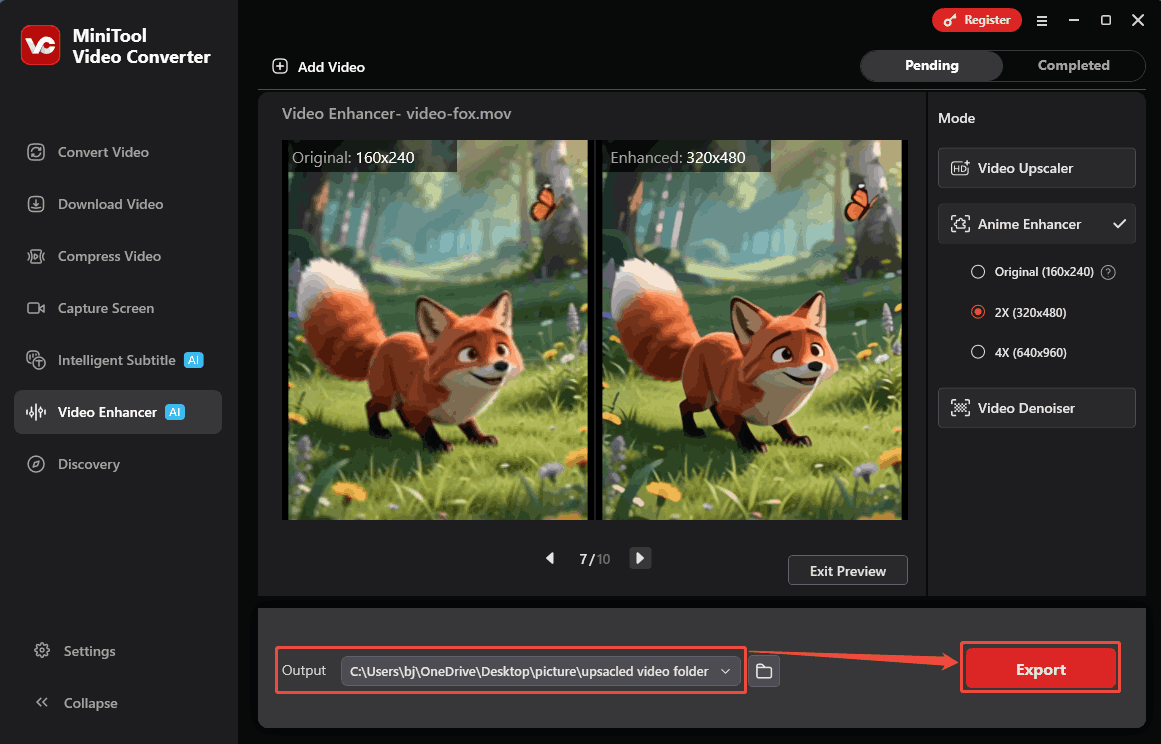
After that, I click on the Preview button under the video player to view the before-and-after effect side by side at key frames.
5. Start the Export Process
Before exporting my video, I expand the Output option to specify a storage location for the enhanced recording. Then, click on the Export button to start the output process.
6. Check the Enhanced Video
When the export process ends, this exported video will automatically appear on the Completed tab. Here, I can click on the Play icon to check it. Or click on the Folder icon to locate this enhanced video on my computer.

Why Improve Video Quality After Recording
Quick Answer:
- Better visual effects
- Application scenarios
- Sharing and spreading
1. Visual Effects: Enhancing recordings can sharpen blurry lines, restore natural colors, and brighten dull clips. The improved clips are clearer and offer a more comfortable viewing experience.
2. Application Scenarios: Most recorded videos are used in various daily and professional settings. For commercial uses such as product promotions and online courses, high-quality videos enhance professionalism and earn trust. Therefore, it is necessary to enhance the video quality after recording to meet different application needs.
3. Sharing and Spreading: Videos will be compressed during upload to social media, and over-compression can make blurry images even blurrier. Improving recording quality ensures better display and sharing, gaining more likes, comments, and shares after uploading.
Tips to Avoid Recording Low-quality Videos
Before recording, keep the 3 tips below in mind to effectively avoid recording a poor-quality video.
1. Recording Environment
The shooting environment directly determines the original video quality. Try your best to shoot under soft natural light with a clean, simple background, and keep the footage stable. Shaky footage affects the viewing experience. A suitable environment can avoid many quality problems.
2. Recording Parameters and Software Updates
Proper software settings are key to shooting high-quality videos. Before recording, adjust to a suitable resolution and frame rate, and regularly update your recording software. Suitable settings can reduce the need for post-production adjustments.
3. Recording Format
The recording format affects video quality, as it determines the codec used. Lossy compression degrades image quality, while lossless compression preserves original quality to the greatest extent. Therefore, choose a high-quality lossless compression format to retain more original details. A proper format ensures both clarity and good compatibility.
MiniTool Screen RecorderClick to Download100%Clean & Safe
Bottom Line
With MiniTool Video Converter, it's easy to improve video quality after recording. Next, you can use or share your high-quality videos in any situation. If you have any questions about MiniTool Video Converter or Screen Recorder, contact the support team at support@minitool.com for assistance.
People Also Ask
Import high-resolution videos whenever possible
Adjust colors and lighting in the editor
Set the export format to MP4 to upscale the final video to 4K resolution
About The Author

Position: Columnist
Cora is a tech writer specializing in digital media workflows, with over six years of hands-on experience in video post-production, media transcoding, and screen capture. Her writing is always clear and practical. Cora also produces in-depth software reviews for users across skill levels to help them find the right tool and enjoy video editing.
User Comments :