

This post explains how to enhance AVI video quality using an excellent video enhancer: MiniTool Video Converter. Import your AVI video into the application, set your preferred quality level, and start enhancement with one click.
The AVI format, developed by Microsoft, is a widely used container that provides decent video quality with moderate compression for playback. But what if your AVI videos don't look as good as you'd like? That's where video enhancement technology helps. It can sharpen edges, brighten colors, and bring out hidden details. Below, I'll introduce a powerful enhancer that can help you enhance AVI video quality in just a few simple steps.
How to Enhance AVI Video Quality
Fast Track Steps:
- Download and install MiniTool Video Converter
- Import your AVI video.
- Set an enhancement level
- Preview the enhanced video.
- Start enhancement.
- Check the enhanced video.
Last time, I received a blurry video and tried various tools to improve it. However, the results weren’t very satisfactory. It wasn’t until I used MiniTool Video Converter that I truly solved my problem. It can restore video to HD quality.
The software uses AI technology to retain the original artistic style of imported videos while sharpening the lines, enhancing colors, and improving clarity. It allows me to increase the video quality to 2X or 4X of the original level. Moreover, it is free and easy to use, even suitable for beginners.
The application also lets me preview the video after enhancement, allowing me to compare the enhanced and unenhanced videos at key frames. In addition, it will save the video as an MP4 file to achieve broader compatibility.
Next, I will demonstrate how to enhance AVI video quality using the software.
1. Download and Install
Download the AVI video enhancer and set it up by following the on-screen prompts.
 MiniTool Video Converter
-
 Batch convert video/audio files among 1000+ formats.
 - Quickly compress videos for easy storage and transfer.
- Accurately extract subtitles from video/audio files.
- Effectively enhance video quality.

2. Upload the Target AVI Video
Launch the software and navigate to the Video Enhancer tab. There, I click the Add Video option to upload the target file.
3. Choose an Enhancement Level
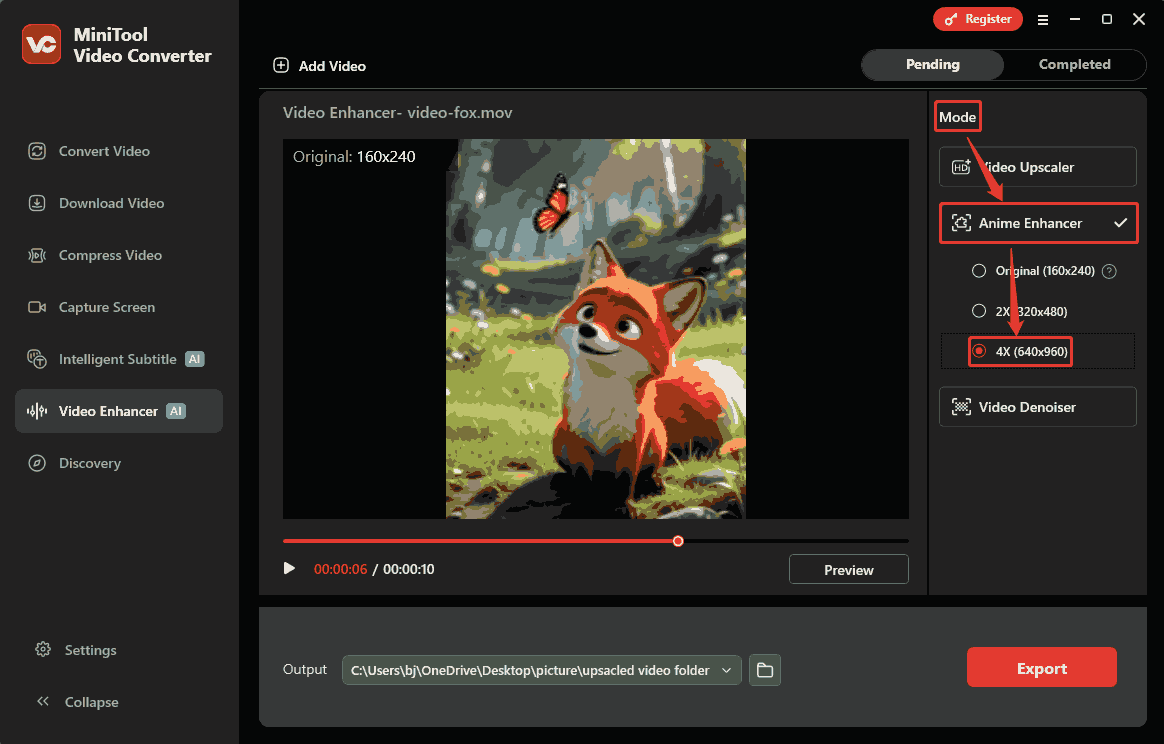
Head over to the Mode section. From there, expand the Anime Enhancer mode and choose a proper enhancement level. I want a high-quality video. Therefore, I select the 4X option, which scales my imported video to 640x960.
4. Preview the Enhanced Video
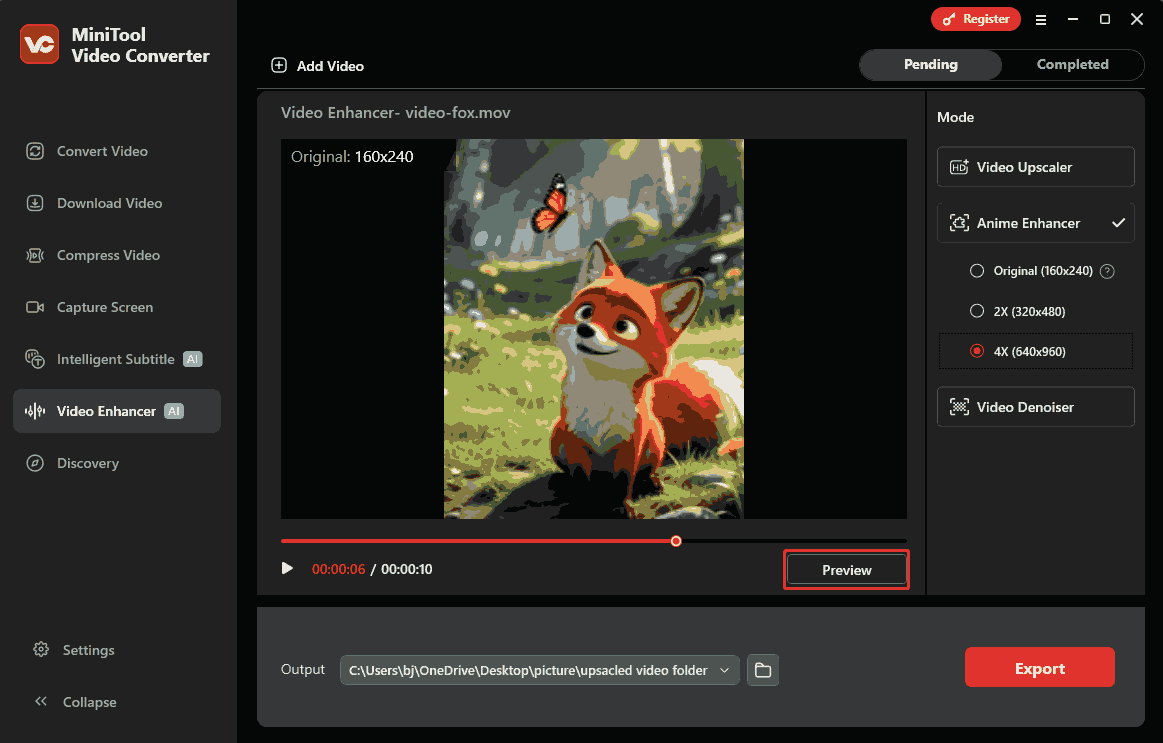
After that, I click on the Preview button to preview the before-and-after videos side by side at key frames.
5. Start the Enhancement Process
I expand the Output option and specify the Same as Source Folder option as the output storage location for the enhanced video. Then, click on the Export button to start the export process.
6. Check and Locate the Exported Video
Once the enhancement process ends, the enhanced video will appear on the Completed tab. Here, click on the Play icon to check it. Or I can also click on the Folder icon to find my video file on my computer.

Common Issues with Low-quality AVI Video
- Blurry Details: Low-quality videos are typically blurry, with indistinct edges on objects and text. Important details are indistinguishable, resulting in a poor viewing experience.
- Dull and Unnatural Colors: Low-quality videos often have dull colors, lacking brightness and vibrancy, and lacking artistic expression, providing viewers with a lifeless visual experience.
- Numerous Noise and Imperfections: Many low-quality videos have noticeable noise and imperfections. These imperfections make the image rough and severely reduce the overall quality.
- Audio-Video Desynchronization: Low-quality videos often suffer from audio-video desynchronization, stuttering, or poor compatibility. They may not play smoothly on certain devices and platforms.
Final Words
This post shows how to enhance AVI video quality using a professional video enhancer: MiniTool Video Converter. Besides, it lists 4 common issues with low-quality AVI videos, including blurry details, dull and unnatural colors, excessive noise and imperfections, and audio/video desynchronization.
If you have any questions or suggestions about MiniTool Video Converter, contact the support team at support@minitool.com for assistance.
People Also Ask
2. Upload your AVI file.
3. Click the Edit icon.
4. Go to the Video tab, select MP4, and click the video quality you want.
5. Click the Convert button to start the AVI to MP4 conversion task.
About The Author

Position: Columnist
Cora is a tech writer specializing in digital media workflows, with over six years of hands-on experience in video post-production, media transcoding, and screen capture. Her writing is always clear and practical. Cora also produces in-depth software reviews for users across skill levels to help them find the right tool and enjoy video editing.
User Comments :