

This guide mainly shows how to increase video resolution using MiniTool Video Converter. Just add your video, select the enhancement level, and improve the quality instantly. It also explains how AI upscaling makes videos look better and why better resolution matters.
How to Increase Video Resolution
Fast Track Steps:
- Install MiniTool Video Converter.
- Import the video.
- Choose the upscaling level.
- Preview the enhanced video.
- Export the video.
- Find the upscaled video.
MiniTool Video Converter is a free and practical tool for improving video quality, especially when dealing with blurry or low-resolution footage. The software uses AI-based enhancement to rebuild details. It also supports edge sharpening and noise reduction, making videos look cleaner.
1: Download and Install the Video Enhancer
Get the latest version of the video enhancement tool. Then, run the installer and follow the on-screen prompts to install it on the desktop.
 MiniTool Video Converter
-
 Batch convert video/audio files among 1000+ formats.
 - Quickly compress videos for easy storage and transfer.
- Accurately extract subtitles from video/audio files.
- Effectively enhance video quality.

2: Import the Video
Switch to the Video Enhancer tab in the left menu. Then, click Add Video to import the target video.
3: Choose Upscaling Level
Once the video is added, the enhancement settings will be displayed on the right-side panel. Enable the Video Upscaler feature and then pick the upscaling level. Here, I select 4X.
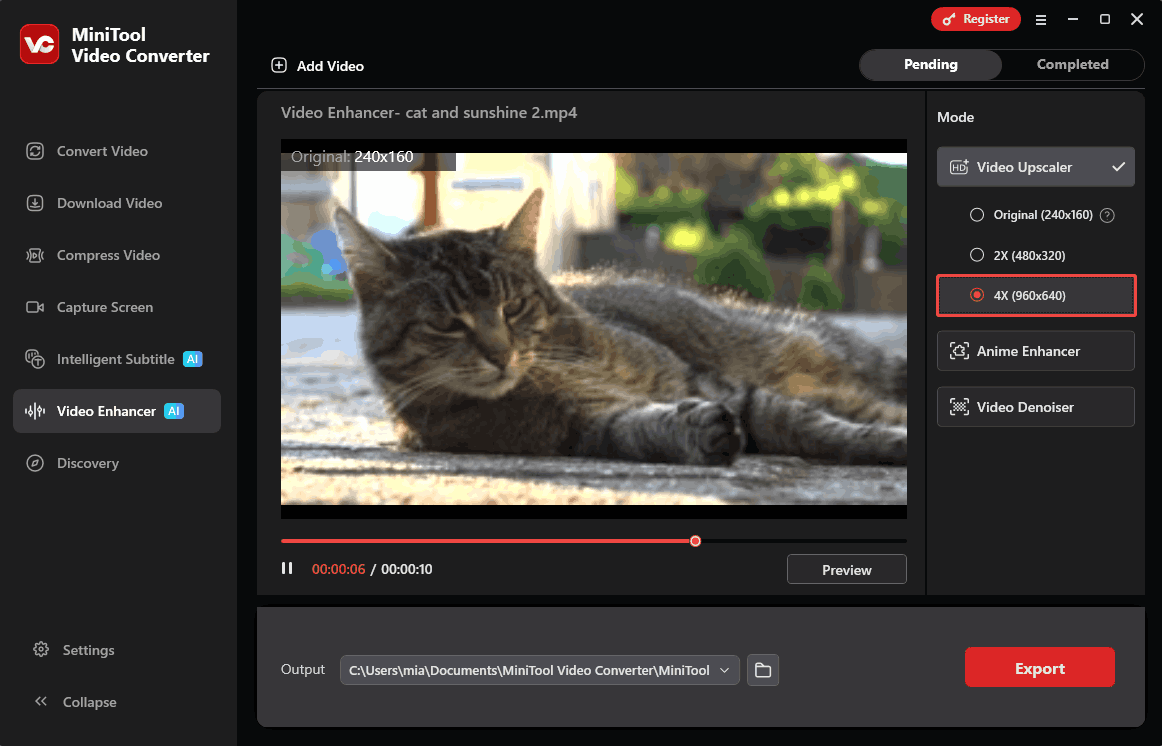
4: Preview the Enhanced Video
After choosing an enhancement option, click Preview to check the upgraded video quality.
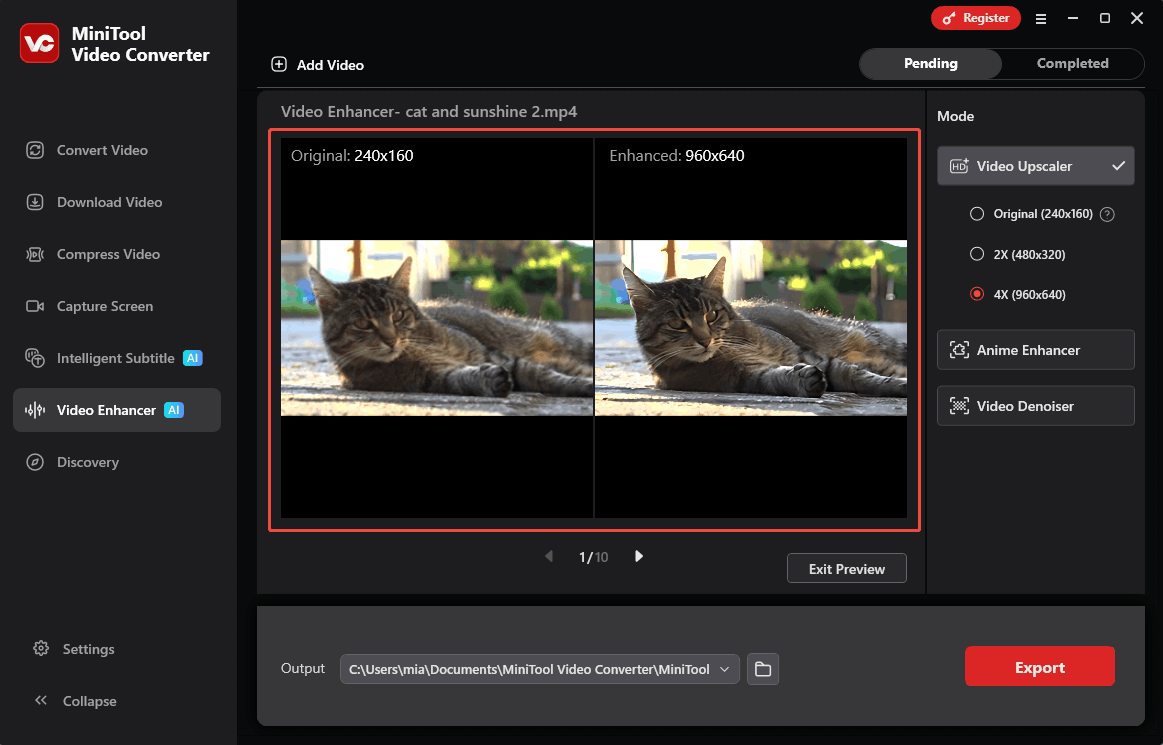
5: Choose a Save Location and Export the Video
Go to the Output section at the bottom of the window and select the folder to save the enhanced video. After that, click the Export button in the bottom-right corner to begin the enhancement process.
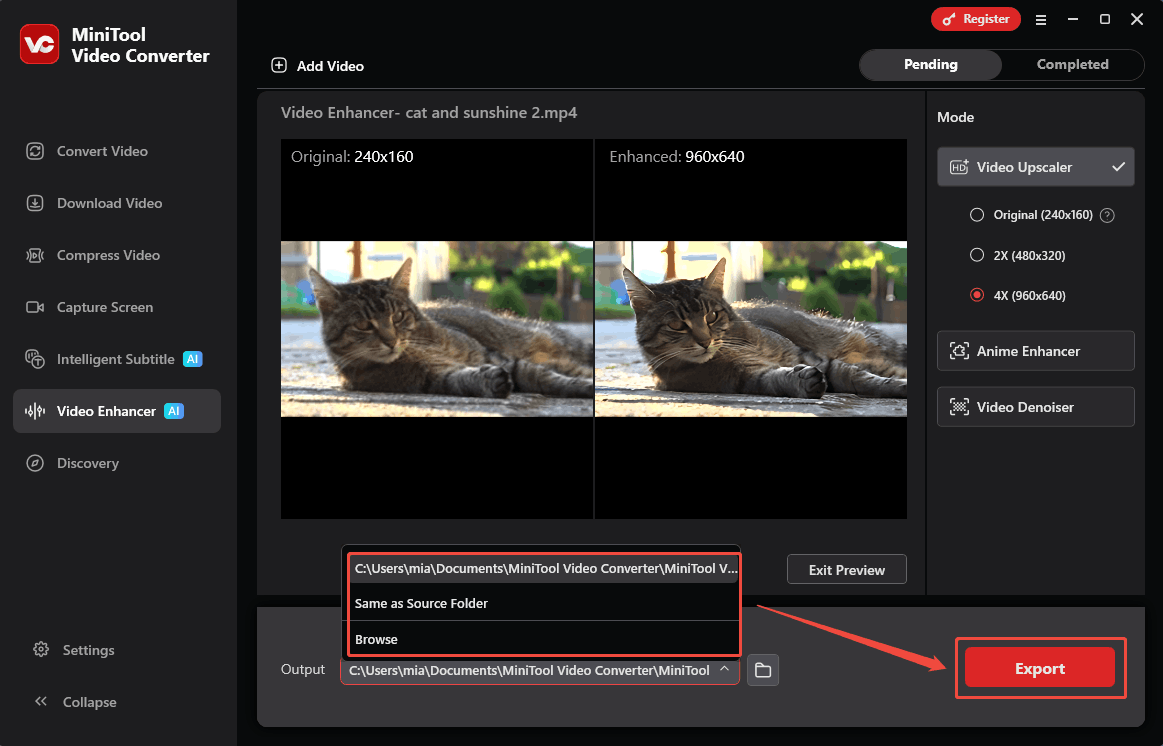
6: Find the Exported Video
Once the export is completed, the program will automatically move to the Completed tab, where all processed videos are listed. Click the play icon to watch a preview of the upscaled video, or select the folder icon to open the output folder and locate the saved file.
By following the above steps, low-resolution videos can be effectively upscaled, resulting in clearer details.
In addition to quality enhancement, the software supports a wide range of video formats, including MP4, MKV, MOV, WebM, AVI, WMV, 3GP, and FLV. This means users can work with different types of files without worrying about conversion issues.
MiniTool Video Converter has an intuitive interface, so users can complete enhancement tasks quickly without technical knowledge. It also stands out by offering watermark-free exports. Overall, the application allows users to enhance video clarity while maintaining a simple and flexible workflow.
What Causes Video Low Resolution
Video resolution refers to the number of pixels shown in each frame of a video. A higher resolution means more pixels are used, which makes the video look clearer and more detailed. If a video looks low in resolution, it may be caused by one or more of the following reasons:
- Low Camera Resolution Settings: If the camera or recording device is set to a lower resolution, such as 720p, the recorded video will naturally have lower image quality.
- Insufficient Lighting: In dark places or areas with uneven lighting, the camera increases its sensitivity (ISO) to capture more light. This can add visible grain or noise to the video and make the resolution appear lower.
- Outdated Hardware or Software: Videos recorded with older cameras usually have lower resolution and less detail. Also, if the video is played using outdated software that does not fully support modern HD formats, the video may appear in lower quality.
- Low Bitrate Settings: Even when a video has a high resolution, using a very low bitrate means there is not enough data to properly show every pixel, which ultimately results in pixelation artifacts appearing in the image.
How to increase a video's resolution without reshooting it? After trying many methods, I found that using an AI video enhancer was the only way to truly fix the problem and achieve the best results. Among the tools I tested, MiniTool Video Converter delivered the most noticeable improvement in video resolution and overall quality.
How Does Video Upscaling Work
Video upscaling refers to the process of increasing a video's resolution by stretching its pixels. Generally, this can be achieved simply by selecting a resolution higher than the original video's within a video editor and exporting the file. However, this traditional method only stretches the existing pixels instead of adding real detail, so the video may still look blurry or even worse than before.
Today, video upscaling usually refers to AI-based increase resolution. AI models are trained using thousands of image pairs to learn how to restore missing details, improve edges and textures, and reduce compression artifacts.
Modern AI video enhancers use these advanced AI models to analyze patterns in video frames. They then rebuild details, sharpen blurry areas, and remove noise to improve the video's resolution while keeping the image clear and sharp.
Why Increase Video Resolution
Here are some benefits of increasing video resolution:
- Improve Viewing Experience: Higher-resolution videos look sharper and more detailed, making them more enjoyable for viewers to watch.
- Attract More Viewers: For content creators, better video quality can make videos appear more professional, helping increase watch time and attract subscribers.
- Enhance Playback on Large Screens: Low-resolution videos often look blurry or pixelated on high-resolution displays because the image must be stretched. Increasing the resolution helps keep the picture clear and sharp on larger displays.

Bottom Line
This article provides a step-by-step guide on how to use MiniTool Video Converter to increase video resolution. The processed video features sharper edges and more vivid colors, with a significant overall improvement in clarity. If any issues arise while using the software, contact the support team at support@minitool.com.
People Also Ask
1. Major social media platforms like YouTube and Facebook automatically compress uploaded videos to reduce file sizes and speed up loading times.
2. When exporting, if the bitrate does not match the 1080P resolution, the video quality can also be affected.
3. Playing a 1080p video on a 4K monitor with incorrect system scaling causes the image to stretch.
4. If your internet connection is poor, the platform will automatically lower playback resolution.
About The Author

Position: Columnist
Cora is a tech writer specializing in digital media workflows, with over six years of hands-on experience in video post-production, media transcoding, and screen capture. Her writing is always clear and practical. Cora also produces in-depth software reviews for users across skill levels to help them find the right tool and enjoy video editing.
User Comments :