

How to enhance AVI video quality? This article shares an excellent video enhancer: MiniTool Video Converter. In addition, it also shows four common problems with low-resolution AVI videos.
AVI (Audio Video Interleave) is a multimedia container format developed by Microsoft. AVI files can contain both audio and video data within an uncompressed file container, enabling synchronized audio and video playback. The commonly used codec for AVI is MPEG-4 ASP. These codes offer moderate compression, provide video quality suitable for everyday viewing, and produce file sizes significantly smaller than uncompressed videos.
Video enhancement refers to improving the image quality of a video and enhancing the overall viewing experience. It can enhance video details, making edges clearer and the image sharper. Video enhancement can also improve color and contrast, making the image richer in detail.
How to Enhance Video Quality
It’s ideal to use an effective enhancer to improve AVI video quality, such as MiniTool Video Converter. To enhance video quality, it only needs a few simple steps, including launching the enhancer, importing the target video, choosing an enhancement level, and starting the export process.
Last time I received a blurry video and tried various tools to improve it. However, the results weren’t very satisfactory. It wasn’t until I used MiniTool Video Converter that I truly solved my problem. It can restore video to HD quality.
MiniTool Video Converter utilizes AI technology to retain the original artistic style of imported videos while sharpening the lines, enhancing the colors, and improving the clarity. Additionally, it supports importing videos in various formats, including AVI, MP4, MKV, MOV, WebM, WMV, and FLV, etc.
MiniTool Video Converter allows me to increase the video quality based on the original resolution. It also supports increasing the video quality to 2X or 4X of the original level. Moreover, MiniTool Video Converter empowers me to preview the video after enhancement processing, allowing me to compare the enhanced and unenhanced videos at key frames. In addition, it will save the video as an MP4 file to achieve broader compatibility.
Next, I will demonstrate how to enhance AVI video quality with MiniTool Video Converter.
Step 1. Download and Install MiniTool Video Converter
Download MiniTool Video Converter and set it up following the on-screen prompts.
MiniTool Video ConverterClick to Download100%Clean & Safe
Step 2. Upload the Target Video
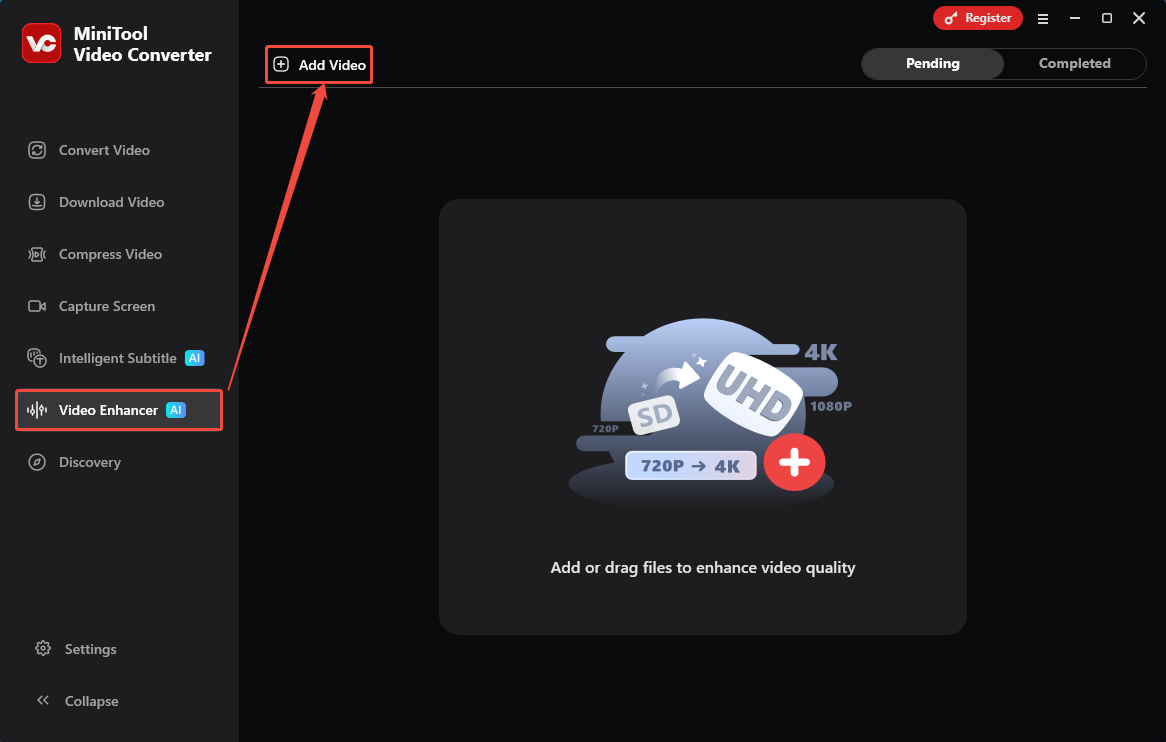
Launch MiniTool Video Converter. Navigate to the Video Enhancer tab. There, I click on the Add Video option to upload it.
Step 3. Choose an Enhancement Level
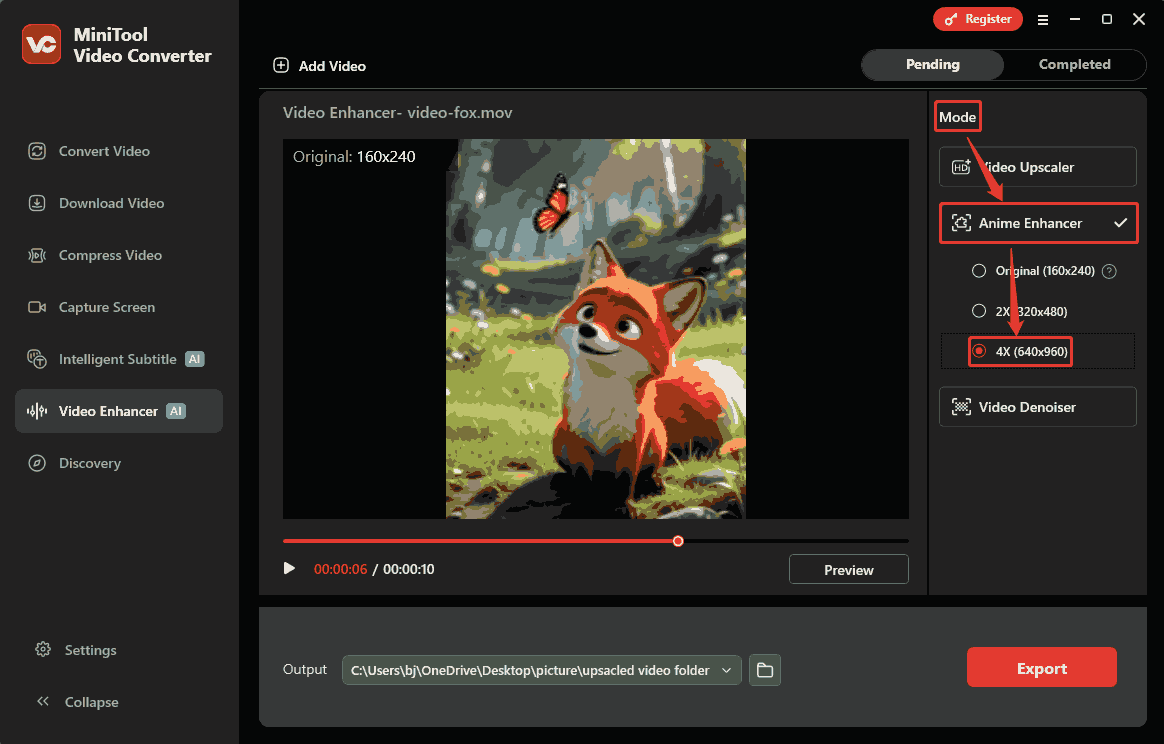
Head over to the Mode section. From there, expand the Anime Enhancer mode and choose a proper enhancement level. I want a high-quality video. Therefore, I select the 4X option, which scales my imported video to 640x960.
Step 4. Preview the Enhanced Video
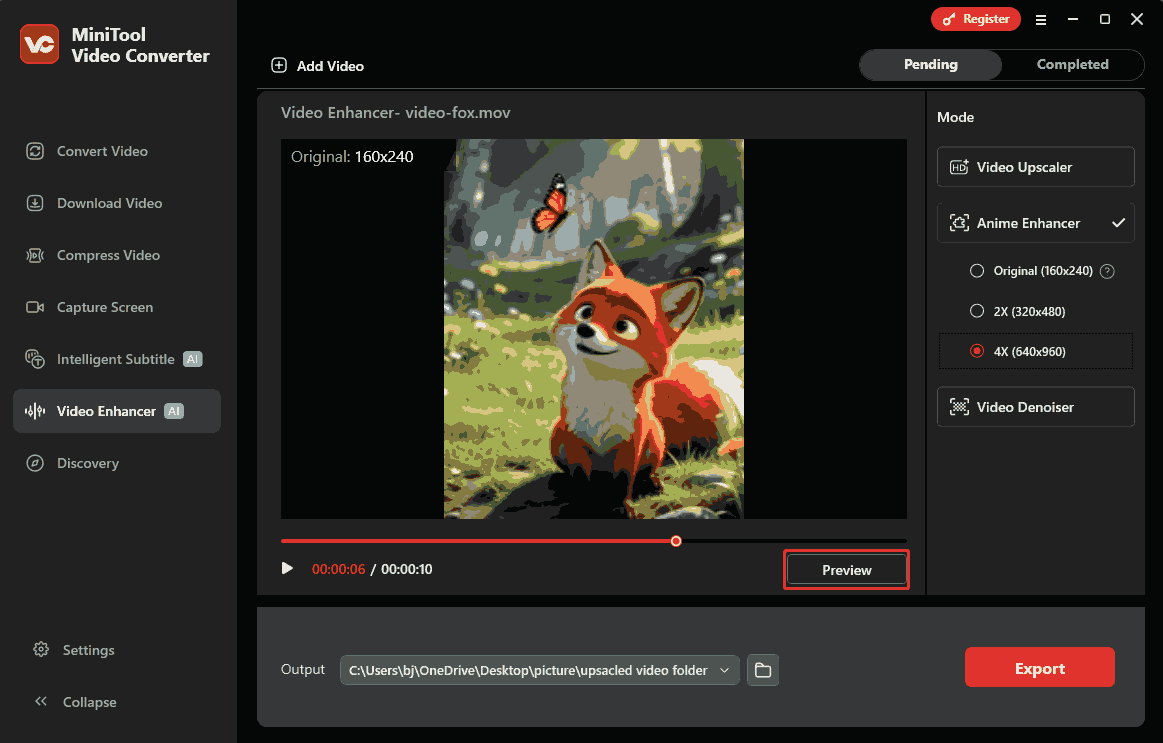
After that, I click on the Preview button to preview the before-and-after videos side by side at key frames.
Step 5. Start the Enhancement Process
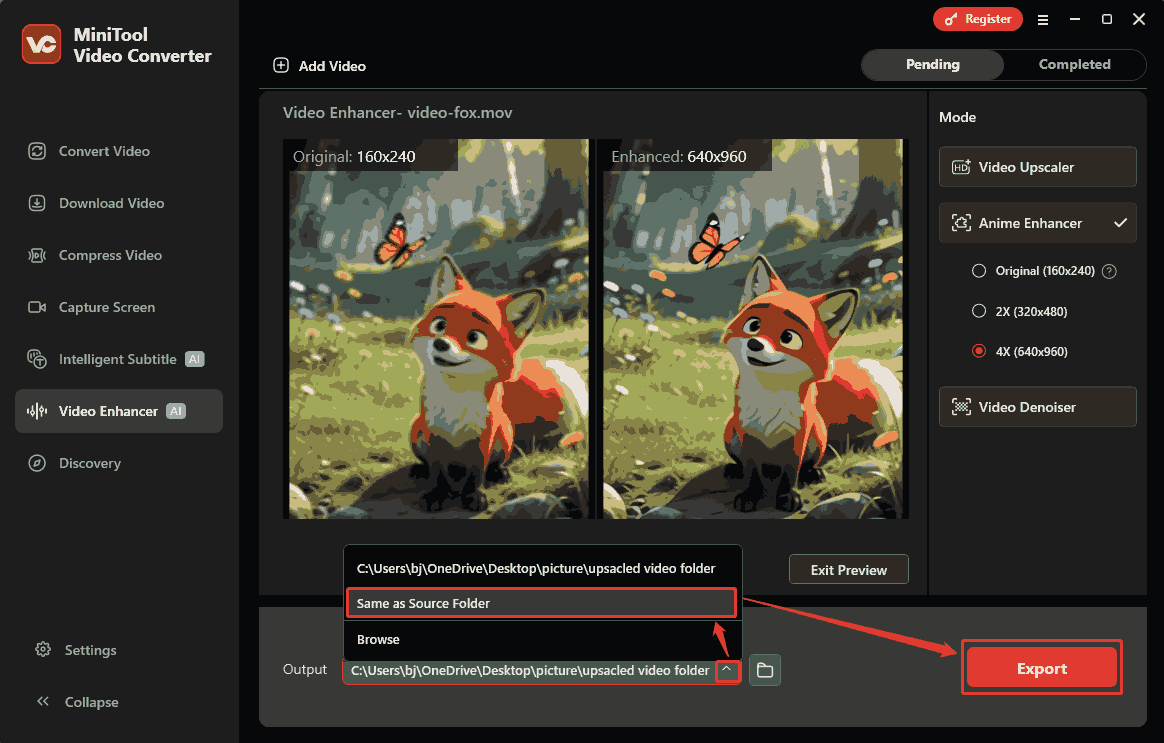
I expand the Output option and specify the Same as Source Folder option as the output storage location for the enhanced video. Then, click on the Export button to start the export process.
Step 6. Check and Locate the Exported Video
Once the enhancement process ends, the enhanced video will land on the Completed tab. Here, click on the Play icon to check it. Or I can also click on the Folder icon to find my video file on my computer.
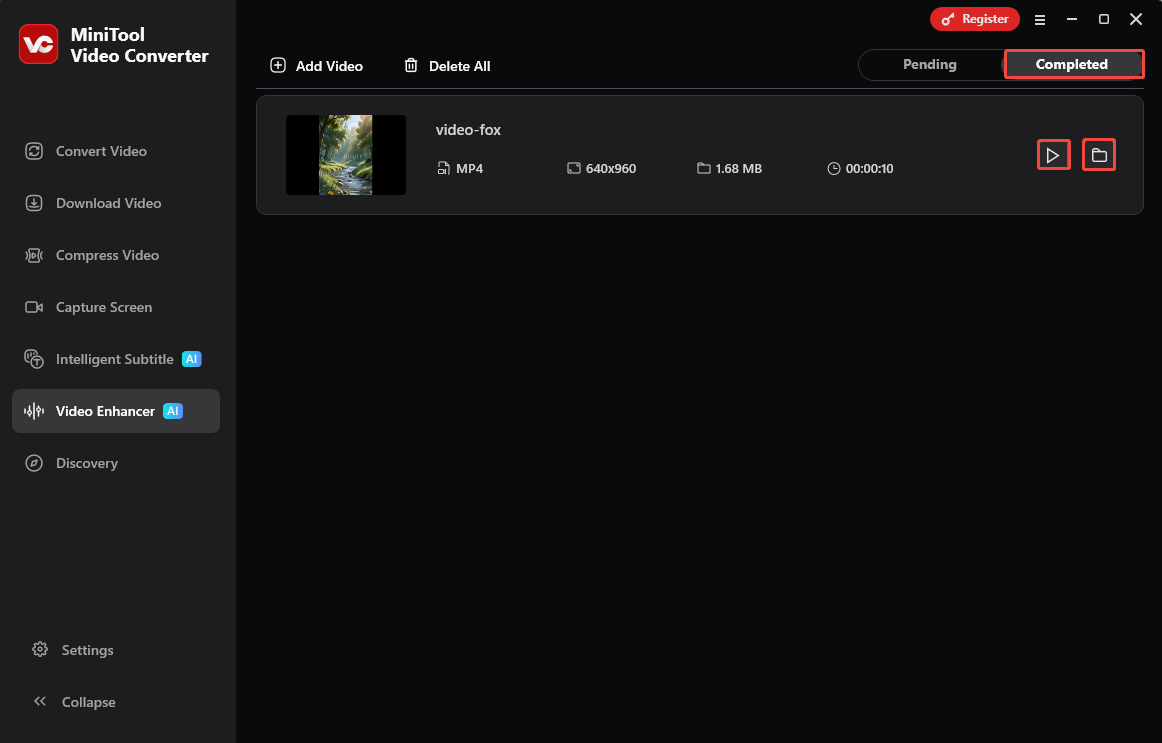
MiniTool Video Converter can truly improve AVI video quality. Moreover, it is free and easy to use, even suitable for beginners.

Common Issues with Low-quality AVI Video
- Blurry Details: Low-quality videos are typically blurry, with indistinct edges on objects and text. Important details are indistinguishable, resulting in a poor viewing experience.
- Dull and Unnatural Colors: Low-quality videos often have dull colors, lacking brightness and vibrancy, and lacking artistic expression, providing viewers with a lifeless visual experience.
- Numerous Noise and Imperfections: Many low-quality videos have noticeable noise and imperfections. These imperfections make the image rough and severely reduce the overall quality.
- Audio-Video Desynchronization: Low-quality videos often suffer from audio-video desynchronization, stuttering, or poor compatibility. They may not play smoothly on certain devices and platforms.
Final Words
This article introduces what AVI and video enhancement are and shows how to enhance AVI video quality using a professional video enhancer: MiniTool Video Converter. Besides, it lists 4 common issues with low-quality AVI videos, including blurry details, dull and unnatural colors, numerous noise and imperfections, and audio/video desynchronization.
If you have any questions or suggestions about MiniTool Video Converter, feel free to contact MiniTool official via email at support@minitool.com for support.
User Comments :