

How to trim Snapchat videos before uploading? Use Snapchat's built-in trimming feature or MiniTool Video Converter to shorten the video on your phone or PC. To trim a video after posting, download it from Snapchat, then use a desktop video editor or your phone's built-in video editor to remove unwanted footage
Snapchat supports individual video uploads of up to 60 seconds for Snaps and Spotlight. Video ads can range from 3 seconds to 30 minutes, as long as the file size does not exceed 1 GB. Additionally, Snapchat generally supports MP4 and MOV video formats.
How to Trim Snapchat Video Before Uploading
If you are preparing to upload a video to Snapchat and find that it exceeds the maximum duration supported by the platform, you can trim the video using these three methods:
- Use Snapchat's Built-in Trimming Feature
- Use MiniTool Video Converter
- Use Your Phone's Built-in Editor
Option 1. Use Snapchat's Built-in Trimming Feature
If you don’t want to use the built-in video editor on your phone, you can also trim or make other adjustments to your video before uploading it to Snapchat.
Follow the steps below to trim your video in Snapchat:
- Open Snapchat and tap the Memories icon to access your saved videos.
- Select the video you want to upload from Camera Roll or Memories.
- Open the video editing interface. If available, tap the Edit Video option.
- Open the Timeline Editor and select the video clip.
- Drag either end of the clip inward to remove unwanted footage.
- Preview the edited video and tap Send To to share it with friends or post it to your Story.
Snapchat does not currently offer a built-in video trimming tool on its desktop upload page. You can use a video editor to shorten your video before uploading it.
Option 2: Use MiniTool Video Converter
Fast steps:
- Launch MiniTool Video Converter.
- Go to the Edit Video feature.
- Import the video.
- Trim the video.
- Choose the output destination.
- Save the video.
Snapchat supports uploading videos on PC using the Web version. If the video you want to upload is on your computer, you can try a desktop video editor to trim it first and then upload it on Snapchat.
MiniTool Video Converter supports video conversion and editing, making it a convenient option for trimming Snapchat videos. Here are some of its key advantages:
- Supports trimming, splitting, and cutting videos.
- Supports combining multiple videos into a single file.
- Supports conversion between various formats.
- Supports adjusting video resolution and parameters.
- Supports exporting without watermarks.
- Free to use.
 MiniTool Video Converter
-
 Batch convert video/audio files among 1000+ formats.
- Quickly compress videos for easy storage and transfer.
- Accurately extract subtitles from video/audio files.
- Effectively enhance video quality.

Here is how to use MiniTool Video Converter to trim a video:
1. Launch MiniTool Video Converter.
Download and install this converter on your Windows PC. Then, open this software.
2. Go to the Edit Video feature.
Click the Edit Video tab on the left menu. Then select the Cut Video option on the right.
3. Import the video.
In File Explorer, choose the video you want to trim, and click Open.
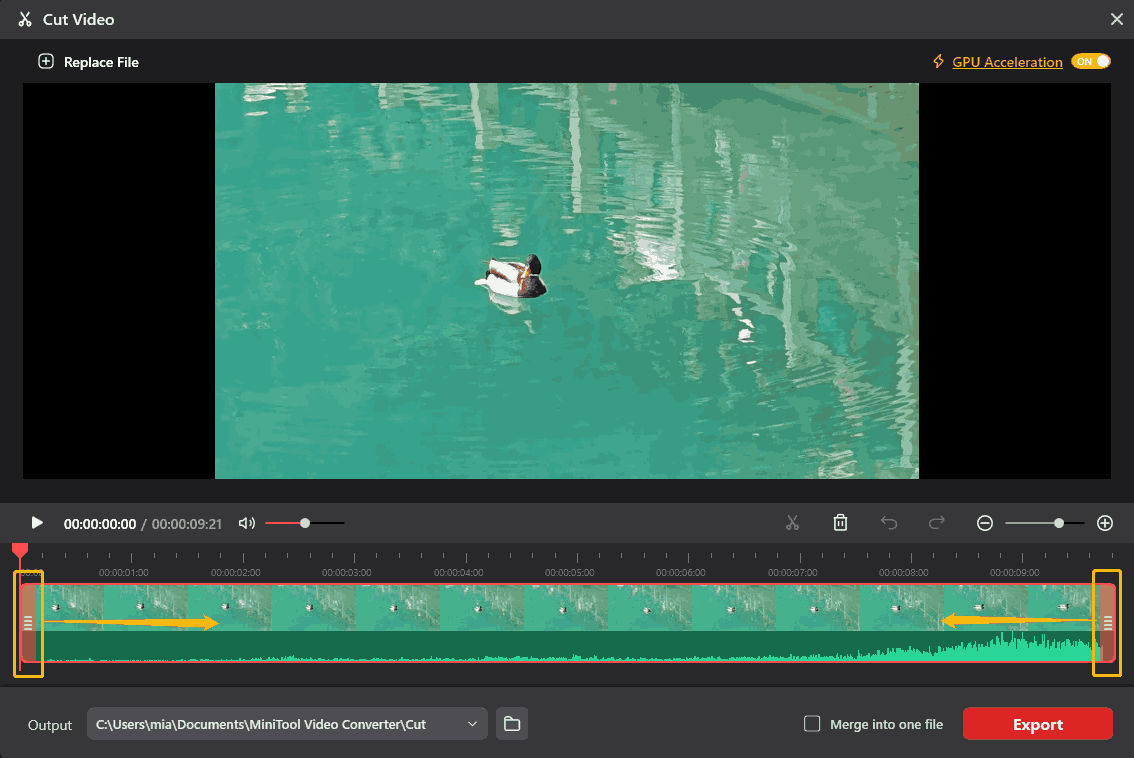
4. Trim the video.
In the Cut Video tab, drag the left and right trimming handles along the timeline to set the start and end points of the video. The section outside the selected range will be removed.
5. Choose the output destination.
Expand the Output menu and select a folder to save the video.
6. Save the video.
Click the Export option to save the video on your computer.
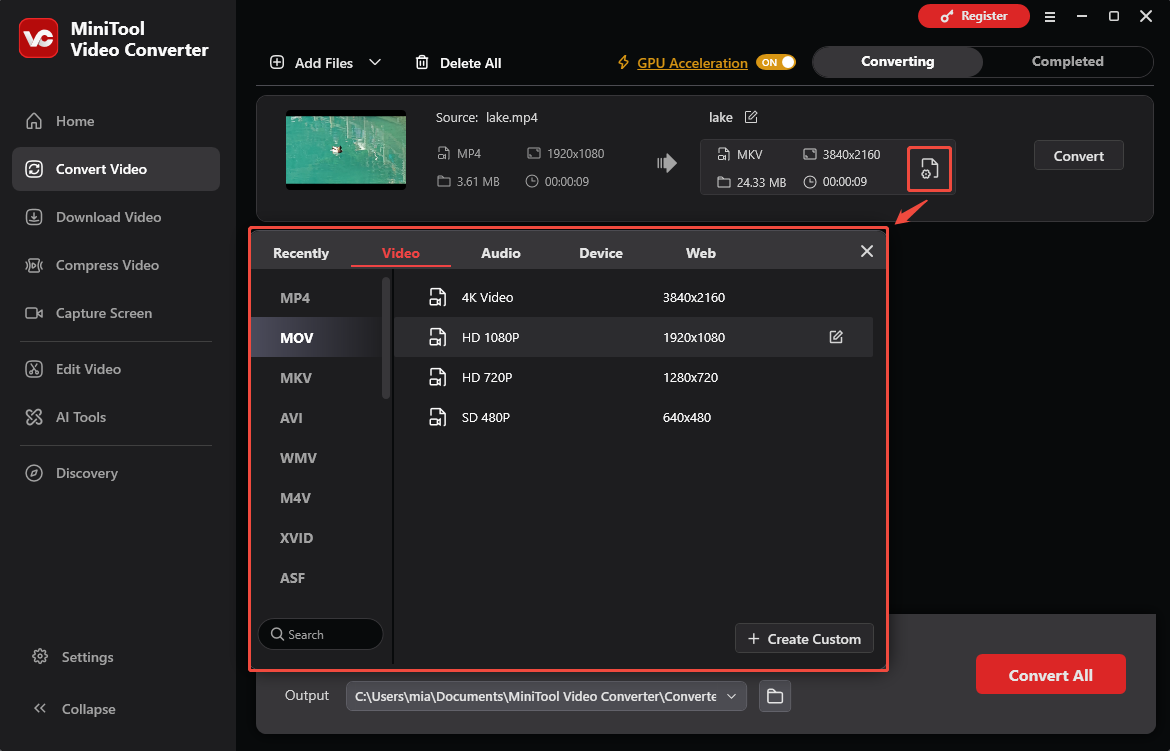
If your video is not in MP4 or MOV format, you can also use MiniTool Video Converter to convert it to a Snapchat-supported format. Open the Convert Video tab, import your video, select the desired output format and quality, and start the conversion.
Option 3. Use Your Phone's Built-in Editor
You can trim the video directly in your phone's Gallery or Photos app before uploading it.
- Open the Gallery or Photos app on your phone.
- Find and select the video you want to trim.
- Tap Edit to open the video editor.
- Drag the trimming handles to remove unwanted footage from the beginning or end.
- Tap Save to save the trimmed video.
The exact names and locations of these options may vary depending on your phone model, but the steps are generally similar. Using your phone's built-in video editor is usually the easiest way to trim a video before uploading it to Snapchat.

How to Trim a Snapchat Video After Posting
What if you want to trim a video that’s already on Snapchat? You can start by following the steps below to see if you can download the video you want directly from Snapchat.
# On the Snapchat app:
- Open Snapchat and go to your Profile or Memories.
- Find the video you want to trim.
- Tap the three-dot menu or sharing options and select Save or Download.
# On Snapchat for Web:
- Visit Snapchat's web uploader (https://profile.snapchat.com/) and sign in.
- Open My Posts.
- Find the video under My Story or Spotlight Snaps.
- Select the video you want to save.
- Click Download to save it to your computer.
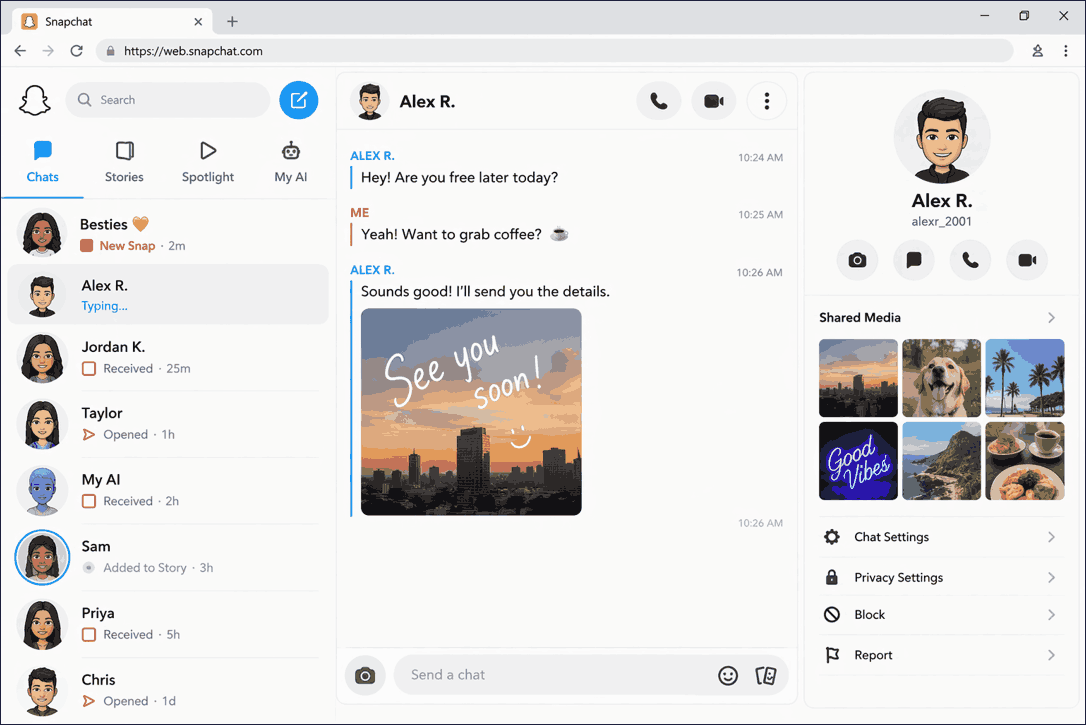
If you can download the video, you can use MiniTool Video Converter on your computer to trim it. Alternatively, you can use the built-in video editing tools in your phone's photo gallery to trim your video.

Conclusion
It is easy to trim Snapchat videos with Snapchat's built-in editor or a third-party video editor. To ensure your video meets Snapchat’s format and resolution requirements, I recommend using MiniTool Video Converter. It allows you to trim your video, convert video formats, and adjust video resolution.
For questions about MiniTool Video Converter's features or functions, please contact support@minitool.com.
User Comments :