

MKA is a pure audio container format (MKV) without video. It can contain multiple audio tracks. MKA supports chapters, text, and metadata, and is often used to store movie and television soundtracks. AAC is a lossy audio encoding format. It typically offers better sound quality than MP3. It has a wide range of applications and extensive compatibility.
Why Convert MKA to AAC
MKA is a relatively niche audio format, and many software programs and players cannot open it. On the other hand, AAC is a universal standard format that can be played on various devices. MKA contains multiple audio tracks; converting it to AAC retains only the mono or stereo audio. Converting to AAC results in smaller file sizes, making it easier to transfer and share.
How to Convert MKA to AAC
- MiniTool Video Converter
- ConvertFiles
Are there any quick steps for converting MKA to AAC? The conversion steps for the 2 converters mentioned above are both simple and have commonalities.
Fast Steps:
- Obtain the desktop or online converter
- Import an MKA audio file
- Set AAC as the output format
- Start the conversion
- Check or download the converted audio
#1 MiniTool Video Converter
MiniTool Video Converter supports MKA to AAC conversion. It also features batch processing capable of converting up to 5 tasks simultaneously. Let’s start the conversion using this desktop converter.
1. Get MiniTool Video Converter
Download and install MiniTool Video Converter. Then, run this application.
 MiniTool Video Converter
-
 Batch convert video/audio files among 1000+ formats.
 - Quickly compress videos for easy storage and transfer.
- Accurately extract subtitles from video/audio files.
- Effectively enhance video quality.

2. Import the MKA File
In the default Convert Video tab, click on the Add Files option to import the target file.
3. Specify AAC as the Output Format
Click on the Gear icon on the imported conversion task to trigger the output format window. Next, go to the Audio tab and specify AAC. Then, select the Lossless Quality option.
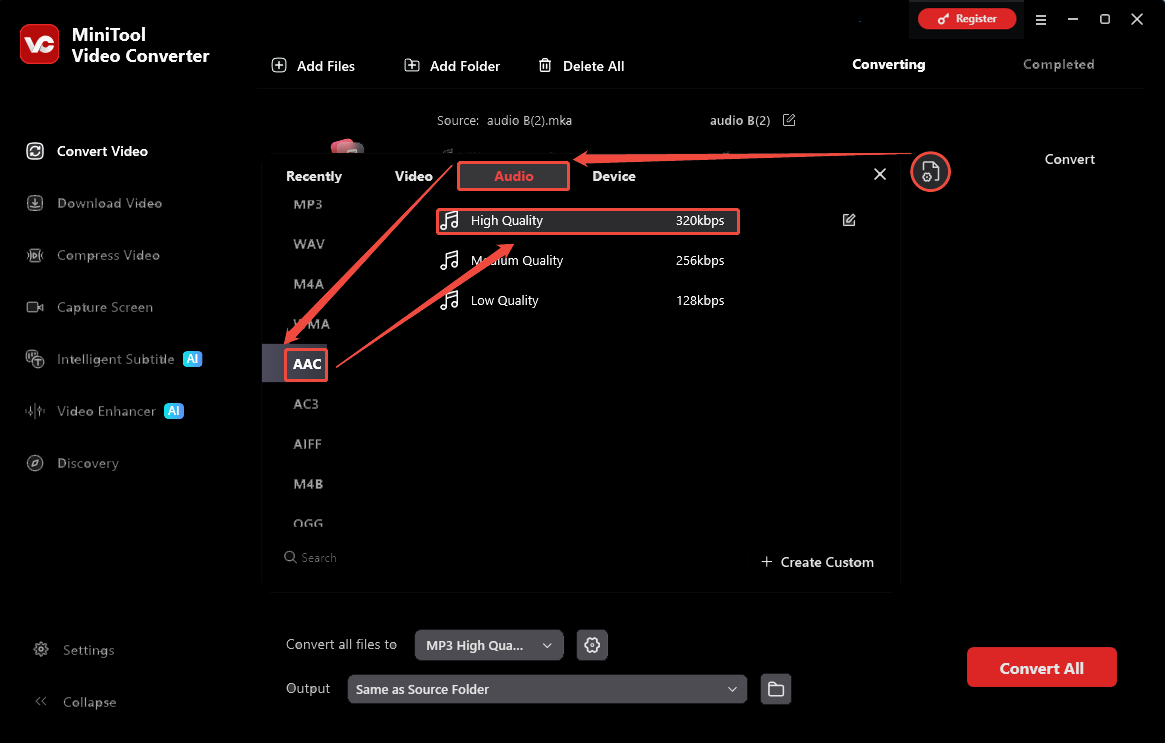
4. Start the Conversion
To begin, open the Output option and choose where you would like to save the converted audio files. Once your destination folder is selected, simply click the Convert button to launch the process.
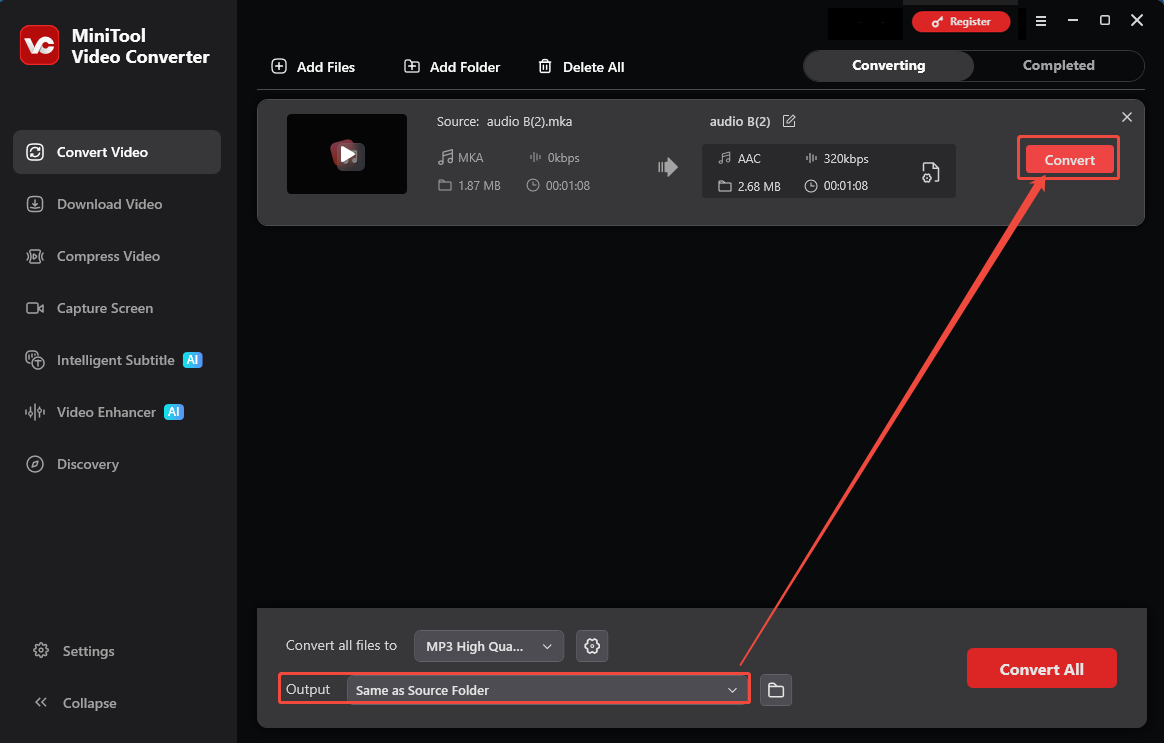
5. Check and Locate the Result Audio
As soon as the conversion ends, this desktop converter will go to the Completed tab. Here, click on the Play icon to check the converted audio. Or click on the Folder icon to locate it on the PC.
MiniTool Video Converter is a practical audio converter. It also allows you to convert between videos and audio. Moreover, it supports adjusting the bitrate and sample rate for the converted audio.
#2 ConvertFiles
ConvertFiles is a browser-based MKA to AAC converter. It also enables you to convert WMA, M4A, and MP3 to AAC. ConvertFiles is also secure and user-friendly. The following are the detailed steps for converting MKA to MP3 easily.
1. Navigate to https://www.convertfiles.com/convert/audio/mka-to-aac to go to the MKA to AAC conversion page.
2. Click the Choose File option to upload the MKA file.
3. Click the Convert Now button to begin the conversion process.
4. After conversion, click on the Download button to save the converted audio.
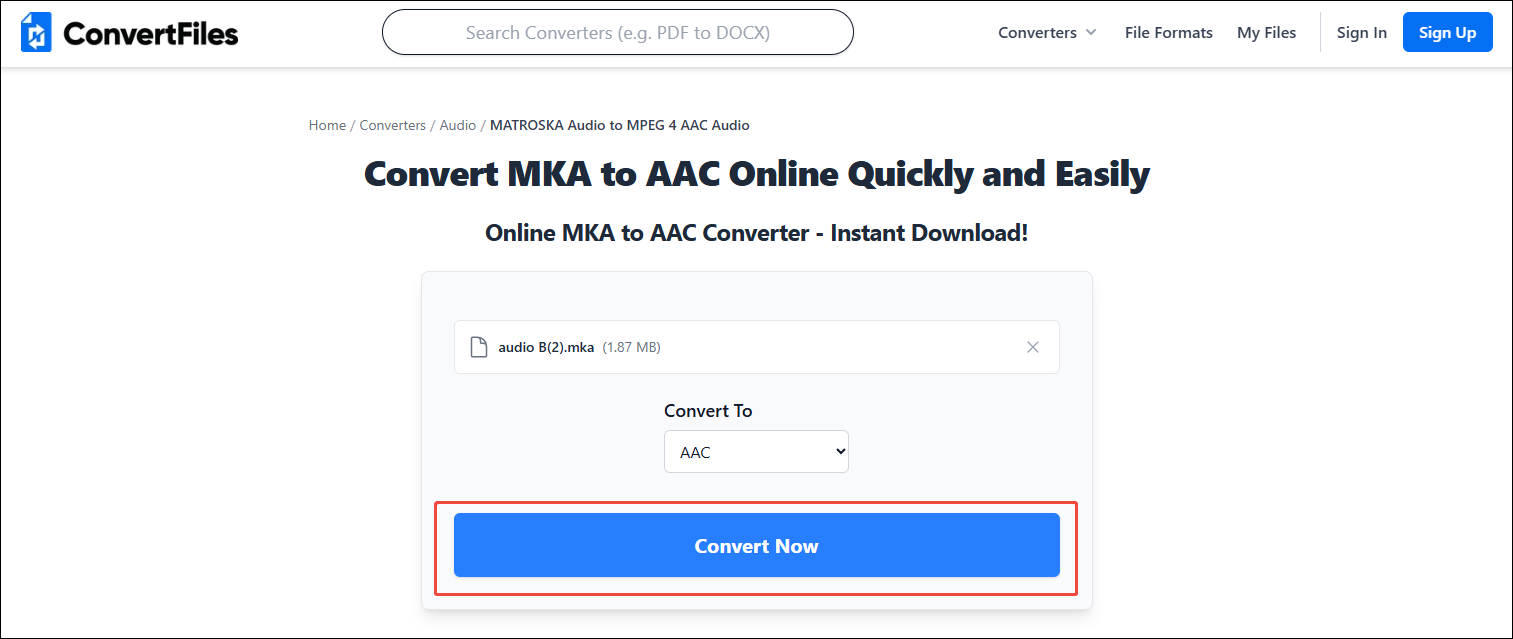
ConvertFiles is a worthy online converter that won’t require you to download or install any software. However, there is only a 250MB conversion file size for the unregistered users.
MKA vs AAC: What’s the Difference Between Them
How about the differences between MKA and AAC? Below is a comparison table for a quick understanding of the differences.
| MKA | AAC | |
| Compatibility | Weak | Strong |
| Audio Quality | High | Medium/High |
| File Size | Large | Small |
| Multitrack/Subtitle Support | Excellent | Limited |
Compatibility
MKA has limited compatibility and may not open on standard devices. It requires a specific media player, such as VLC Media Player or PotPlayer. AAC is compatible with almost all smartphones, car audio systems, and operating systems. Using AAC makes your life and work very convenient.
Audio Quality
MKA uses lossless compression to preserve pure and lossless sound quality. It is often used in studio mastering and professional audio archiving. AAC uses advanced technology to compress data while maintaining high clarity. The difference is almost imperceptible to the human ear in everyday listening.
File Size
MKA’s focus on preserving sound quality data results in larger file sizes, consuming a significant amount of storage space. Saving MKA files requires considerable storage space. AAC’s efficient data compression algorithm makes file sizes very small. It allows you to store large amounts of audio content in limited portable storage space.
Multi-Track/Subtitle Support
MKA is a powerful container that supports multiple language audio tracks and subtitles. It is ideal for cinematic audio setups and audio editing. AAC is optimized for single-track stereo or surround sound playback. However, it lacks the ability to process complex audio data and multitrack audio.
Bottom Line
How to convert MKA to AAC? This article shares 2 effective audio conversion tools, including MiniTool Video Converter and ConvertFiles. It also compares the 2 audio formats in terms of compatibility, audio quality, file size, and multi-track/subtitle support.
If you are interested in MiniTool Video Converter, feel free to contact MiniTool’s official via email at support@minitool.com.
User Comments :