

The Relationship of WebM and Opus
WebM is an audio and video media file format funded by Google. It is open-source and copyright-free. WebM has high compression efficiency, enabling smooth playback on HTML web pages. Furthermore, it uses VP8, VP9, and AV1 video codecs and Vorbis and Opus audio codecs.
Opus is a free and open-source lossy audio encoding format developed by the Xiph.Org Foundation. Its development goal is to reduce the size of audio files to achieve low latency in sound transmission.
Opus audio is actually included in WebM video and is the default audio format for WebM. Both are designed for streaming media, such as live broadcasts, web pages, and short video playback. Furthermore, they all strive for high compression efficiency, small file size, low latency, and smooth playback.
Why Convert WebM to Opus
WebM contains video, audio, and metadata, resulting in a large file size. If you only want the Opus audio content from WebM, you can convert WebM to Opus. Opus audio files are smaller in size and take up less space, making them more suitable for playback with music players.
How to Convert WebM to Opus
Need a WebM to Opus converter to extract audio? Here are one offline and one online conversion method you can try.
Option 1. Filestar
Filestar is a professional tool for processing media files. It can convert WebM to Opus quickly and easily. Filestar supports converting various videos to audio formats, such as MP4 to MP3, AVI to AAC, MOV to WAV, and more. It has a clear interface and is user-friendly. What’s more, it enables you to split, merge, and resize your converted videos.
Below is a detailed guide on how to convert WebM to Opus without ads or watermarks.
Step 1. Download and Install Filestar
Go to Filestar’s official website: https://filestar.com/ to download and install the Filestar application. Then, launch it.
Step 2. Upload WebM Video
After running Filestar, click on the Plus icon to import WebM file.
Step 3. Configure the Opus as the Output Format
Enter the Opus and choose the convert to opus option.
Step 4. Select a Storage Location and Start the Conversion
When you set the output format, this converter will go to the Convert to Opus page. Here, choose a saving path and adjust the parameters for the converted audio. Then, click on the Convert button at the bottom to start conversion.
Step 5. Check the Converted Audio
Once the conversion finishes, the conversion status will appear in the Done status. Then, check the converted audio in your save folder.
Filestar is a safe and stable tool to convert WebM to Opus.
 MiniTool Video Converter
-
 Batch convert video/audio files among 1000+ formats.
 - Quickly compress videos for easy storage and transfer.
- Accurately extract subtitles from video/audio files.
- Effectively enhance video quality.

Option 2. Convertio
Convertio is an online video and audio converter that supports WebM to Opus conversion. It also accepts converting over 300+ other formats. What’s more, Convertio allows you to fine-tune advanced settings, such as quality, codec, bitrate, channel, and aspect ratio.
Convertio also enables you to import files from Google Drive and Dropbox. However, if you aren’t logged into your Convertio account, you can only convert files up to 100MB at a time.
The following steps are how to convert WebM to Opus using Convertio.
Step 1. Navigate to Convertio’s Webpage
Paste the URL: https://convertio.co/webm-opus/ to go to Convertio’s webpage of WebM to Opus.
Step 2. Upload the WebM Video
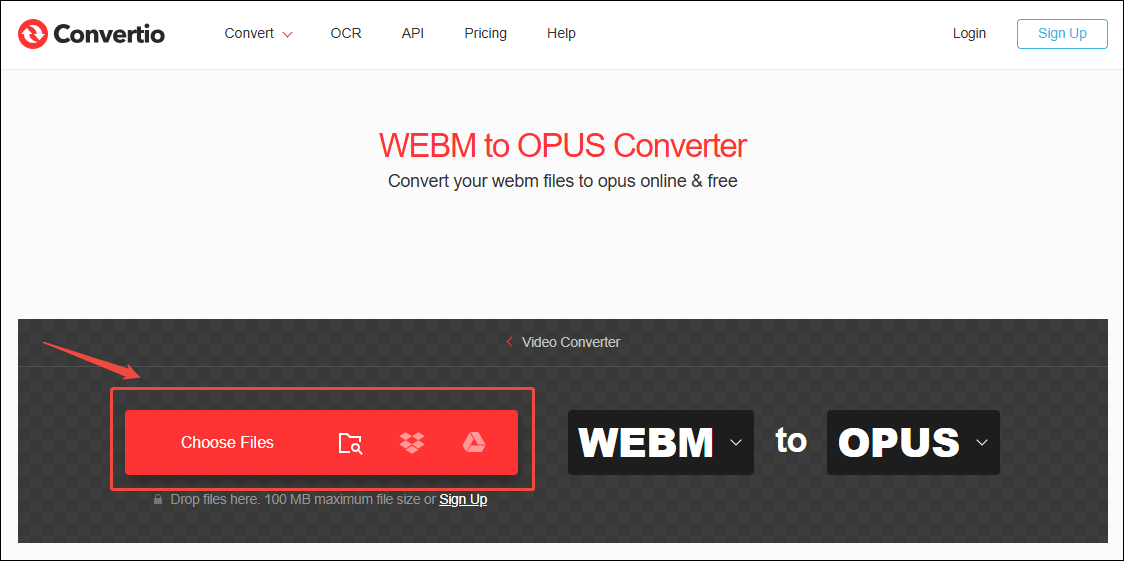
Click on the Choose Files option to upload the WebM video.
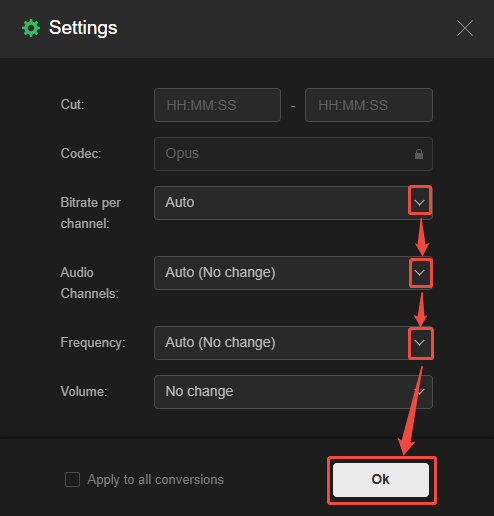
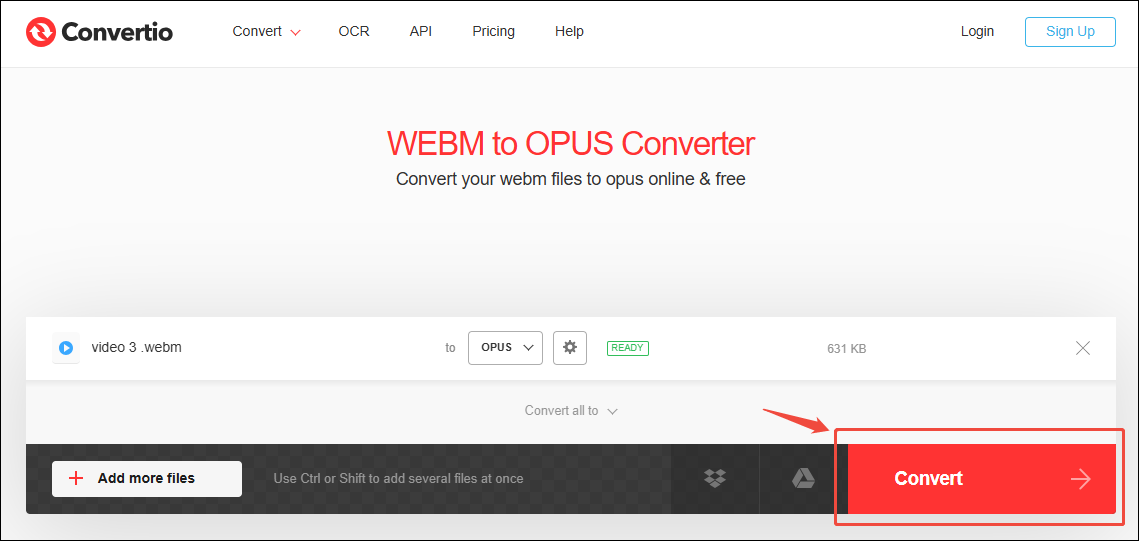
After importing the target video, click on the Gear icon to open the Settings window. Here, you can adjust the bitrate, channel, and frequency for the converted audio. Then, click on the OK button to save the changes.
Step 3. Start the Conversion
Click on the Convert option to start the conversion process.
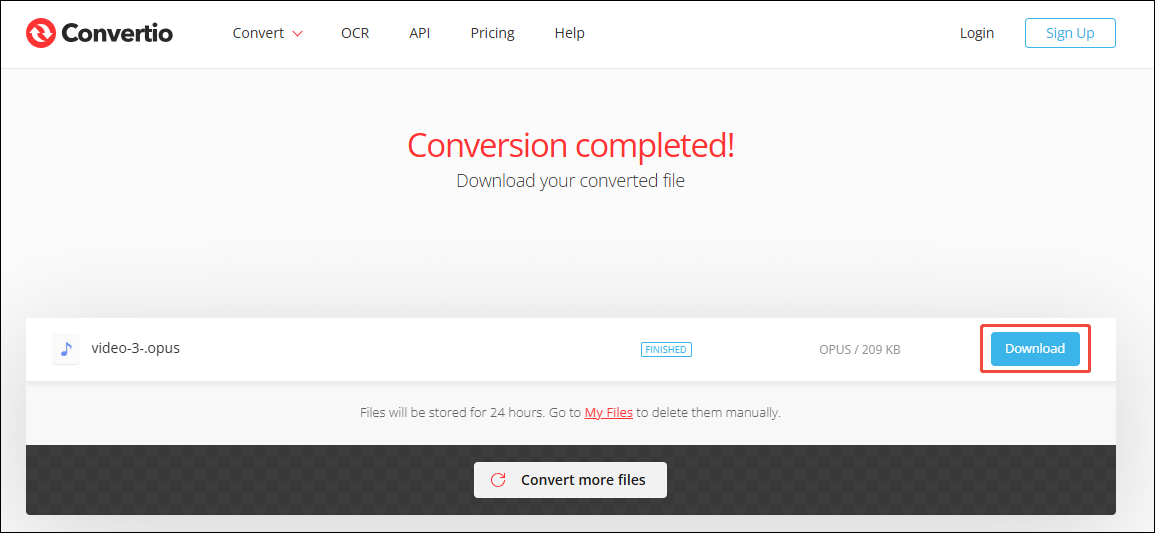
Step 4. Download the Converted Audio
Once the conversion finishes, this online converter will take you to the download page. There, click on the Download button to save the converted audio on your computer.
Convertio makes it easier to convert WebM to Opus. If you want to convert files in batches, it is also an ideal choice.
Conclusion
This article introduces the relationship of WebM and Opus and explains why convert WebM to Opus. It also shows how to complete the conversion with 2 excellent converters, including Filestar and Convertio.
User Comments :