

This post explains VOB and OGG and lists their differences. You will also learn the two best ways to convert VOB to OGG, including using MiniTool Video Converter and Convertio.
What Are VOB and OGG Formats
VOB (Video Object) is a multimedia container format. Because it can contain various types of content, including MPEG-2 encoded video, audio, menus, and subtitles, it is often used as the standard format for physical optical discs. Media players such as VLC Media Player and Windows Media Player all support playing VOB videos.
OGG is a multimedia container format. It can transmit video, audio, text, and metadata, and is widely used for streaming media. Major browsers such as Firefox, Chrome, and Edge all support the OGG format for playing online video and audio.
Difference Between VOB and OGG
Both VOB and OGG are multimedia container formats, but VOB is more commonly used for video and OGG for audio. Additionally, VOB uses MPEG-2 for video encoding, and OGG uses codecs such as Vorbis, Theora, and FLAC for audio.
Why You Should Convert VOB to OGG
Here are many reasons for converting VOB to OGG format. For example:
- Improve Compatibility: The VOB format is incompatible with many modern players and editing software. Converting it to OGG format will improve compatibility.
- Reduce Your File Size: VOB typically uses MPEG-2 for file compression, which has lower compression efficiency and results in larger file sizes. OGG, on the other hand, usually uses the more efficient Vorbis codec for compression, significantly reducing file size. Therefore, all other things being equal, converting VOB to OGG can reduce file size.
How to Convert VOB to OGG
Next, I will introduce two VOB to OGG converters and their conversion steps.
1. MiniTool Video Converter (Offline)
When it comes to offline video converters, my first recommendation is MiniTool Video Converter. It can convert various formats without an internet connection, including VOB to OGG, MP4 to MP3, MOV to MP4, and more. The conversion function is completely free. Furthermore, you can adjust parameters for the exported OGG format, such as audio sample rate, number of channels, and bitrate.
What’s more, if you want to batch convert audio files, MiniTool Video Converter is also a good choice. This software supports converting up to 5 audio and video files simultaneously. You can set the maximum number of tasks to be converted in advance in the settings.
How to use this VOB to OGG converter? Here is a guide:
Step 1: Download and Install MiniTool Video Converter
Download and install the latest version of MiniTool Video Converter by clicking the button below.
MiniTool Video ConverterClick to Download100%Clean & Safe
Step 2: Add Your VOB File
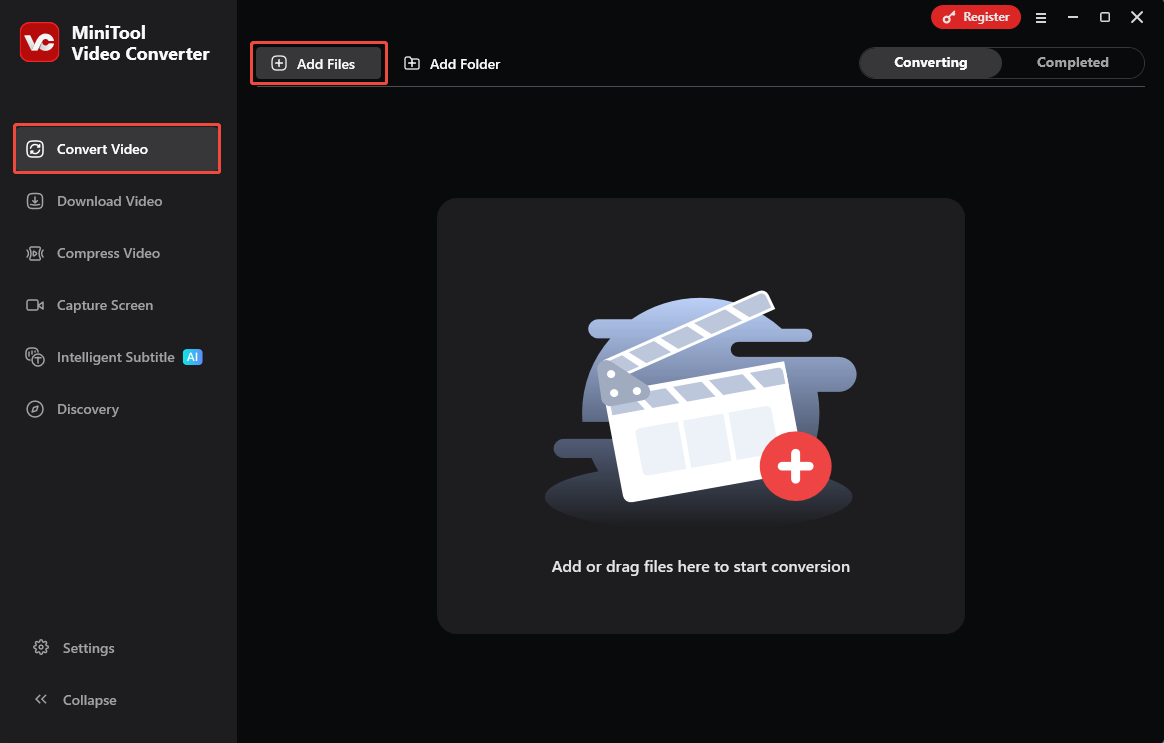
Launch the app and stay on the Convert Video panel. Then, click Add Files to upload your VOB file.
Step 3: Select the Output Format
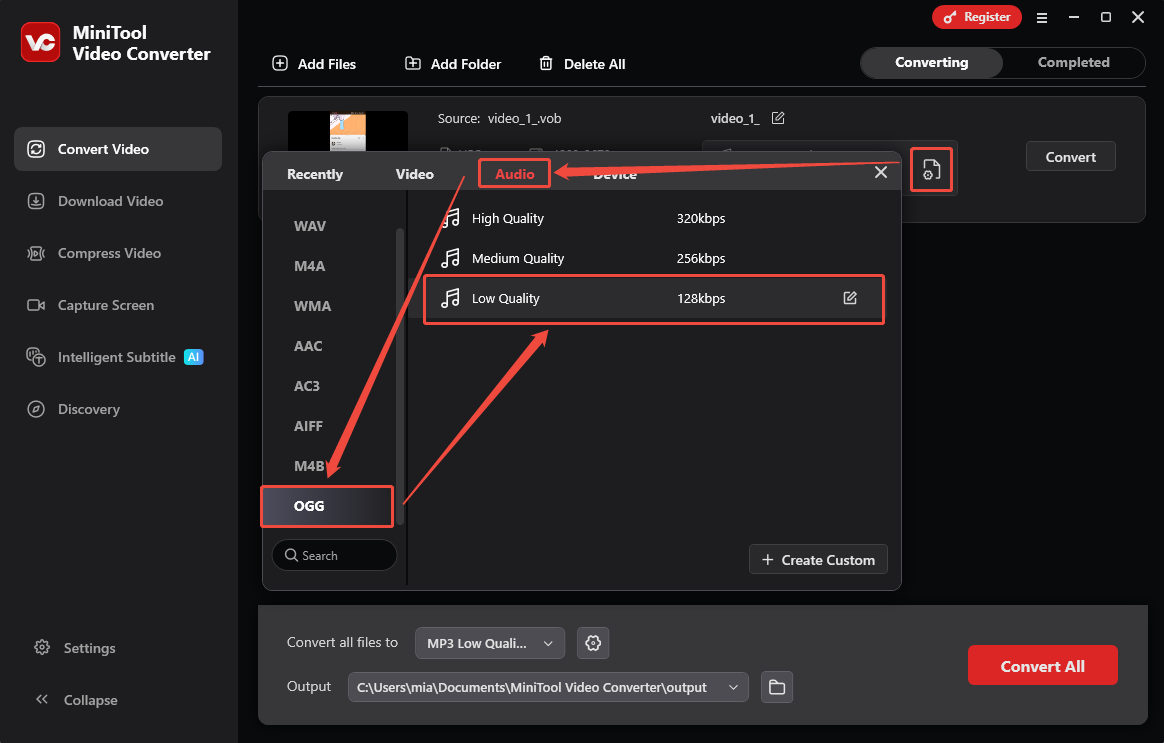
Click the output settings icon, move to the Audio tab, pick OGG from the left-hand list, and specify the audio quality you want.
Step 4: Pick the Save Location
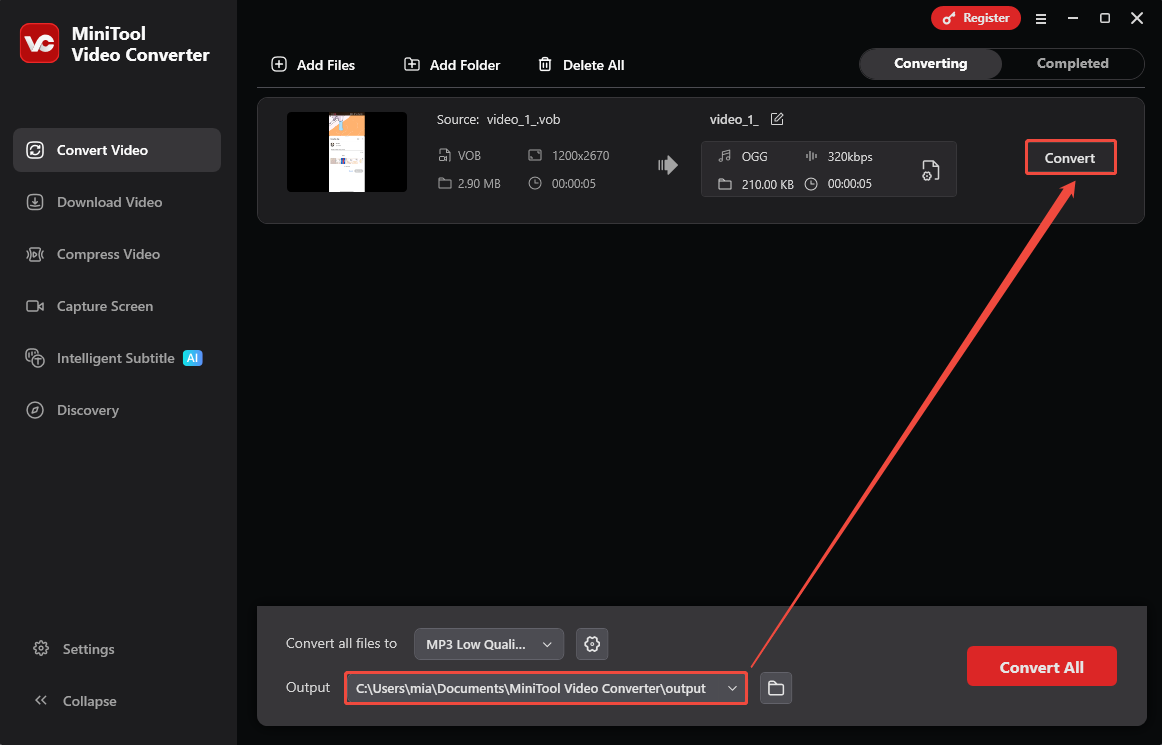
Open the Output menu, browse to the folder you want, and set it as the save location for the converted file.
Step 5: Press the Convert button
Activate the conversion process by clicking the Convert button.
Step 6: Locate the Converted File
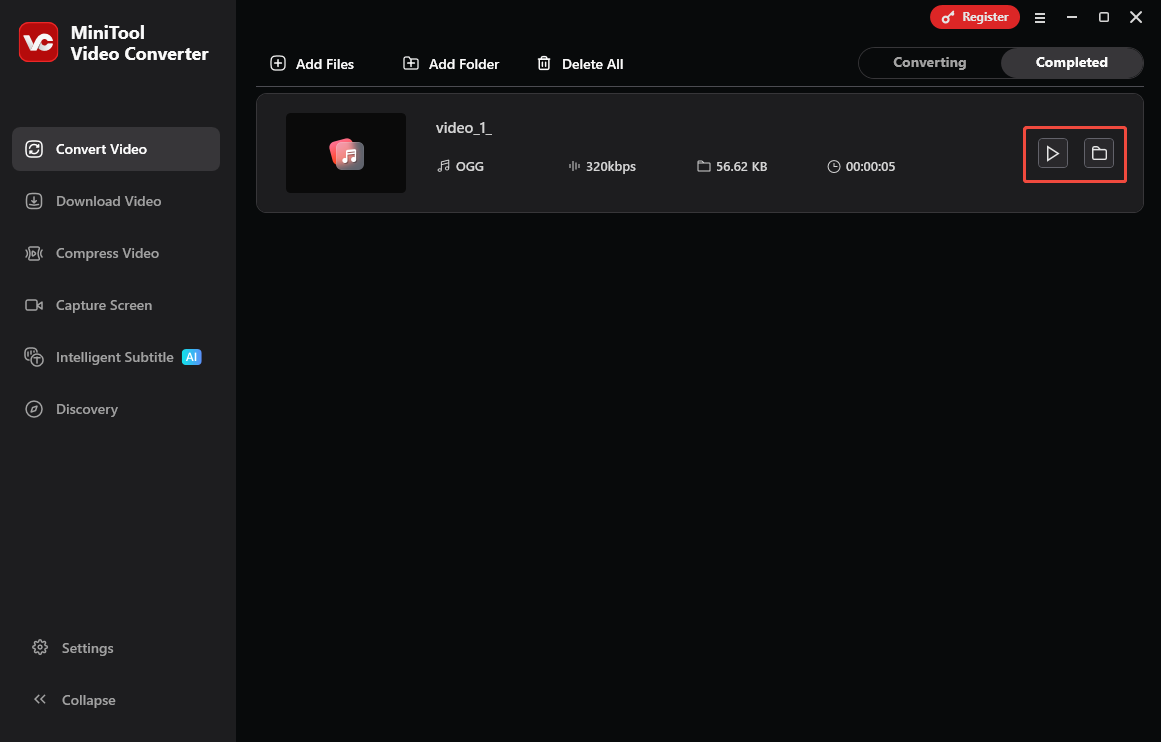
After conversion, the Completed tab appears. Click the play symbol to listen to the OGG audio immediately, or click the folder symbol to navigate to the file in Explorer.
By following the steps above, you can successfully convert VOB to OGG. Follow the similar steps above, you can also convert your other videos or audio files to a desired format.
2. Convertio (Online)
Convertio is a web-based media file converter. It supports conversion of over 300 formats, including VOB to OGG audio. It also allows you to change parameters for the exported format, such as audio codec, bitrate, and channels. Note that Convertio limits the size of a single file to no more than 100 MB.
Here is a guide on how to convert VOB to OGG with Convertio:
Step 1: Go to the Website of Convertio
Navigate to https://convertio.co/vob-ogg/.
Step 2: Upload Your VOB File
Click the Choose Files option to import your VOB video.
Step 3: Adjust Audio Quality
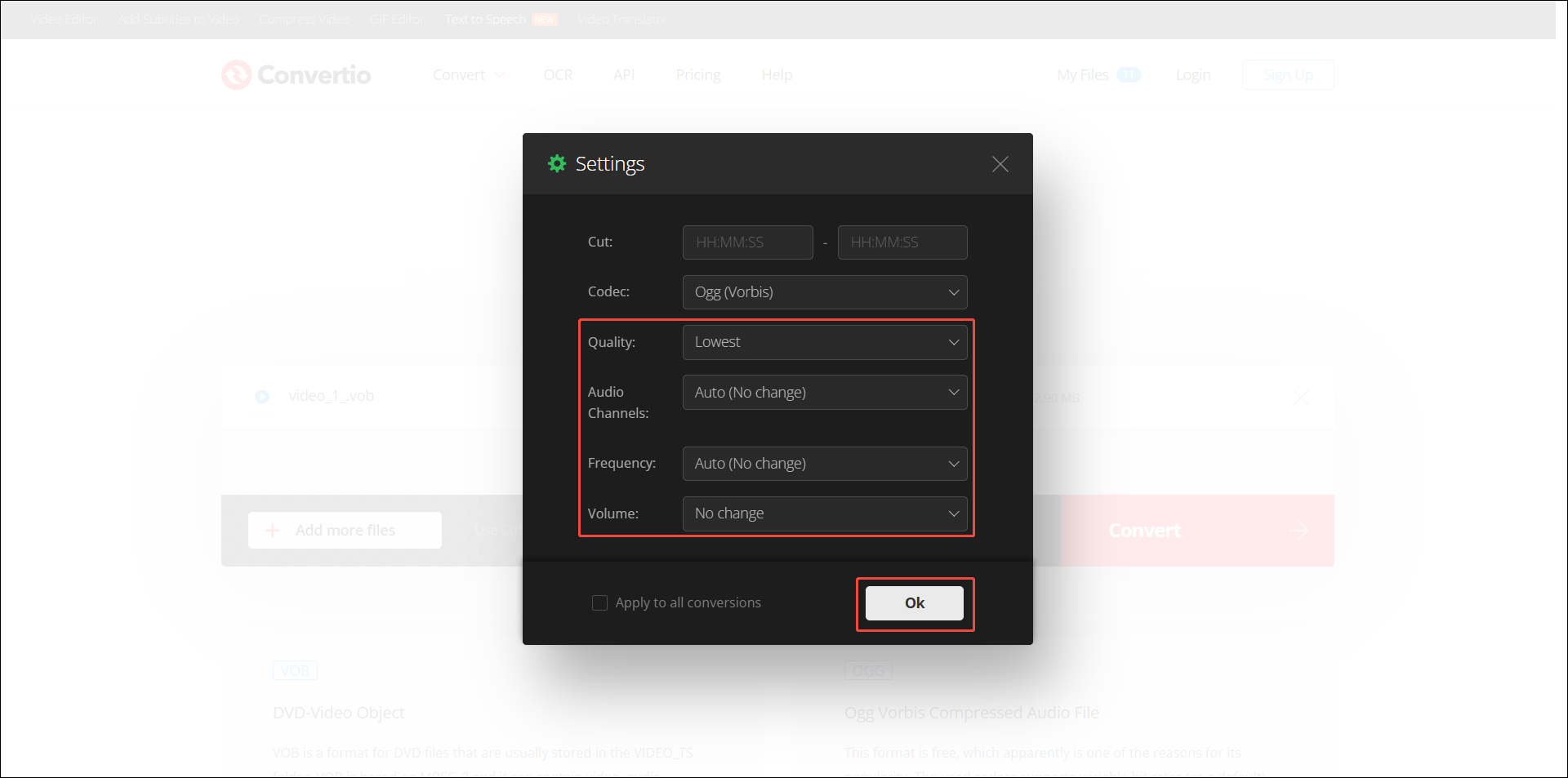
Click the gear icon next to the OGG option to open the Settings window. Then, modify the audio quality, audio channels, frequency, and volume. After that, click OK to confirm.
Step 4: Start Conversion
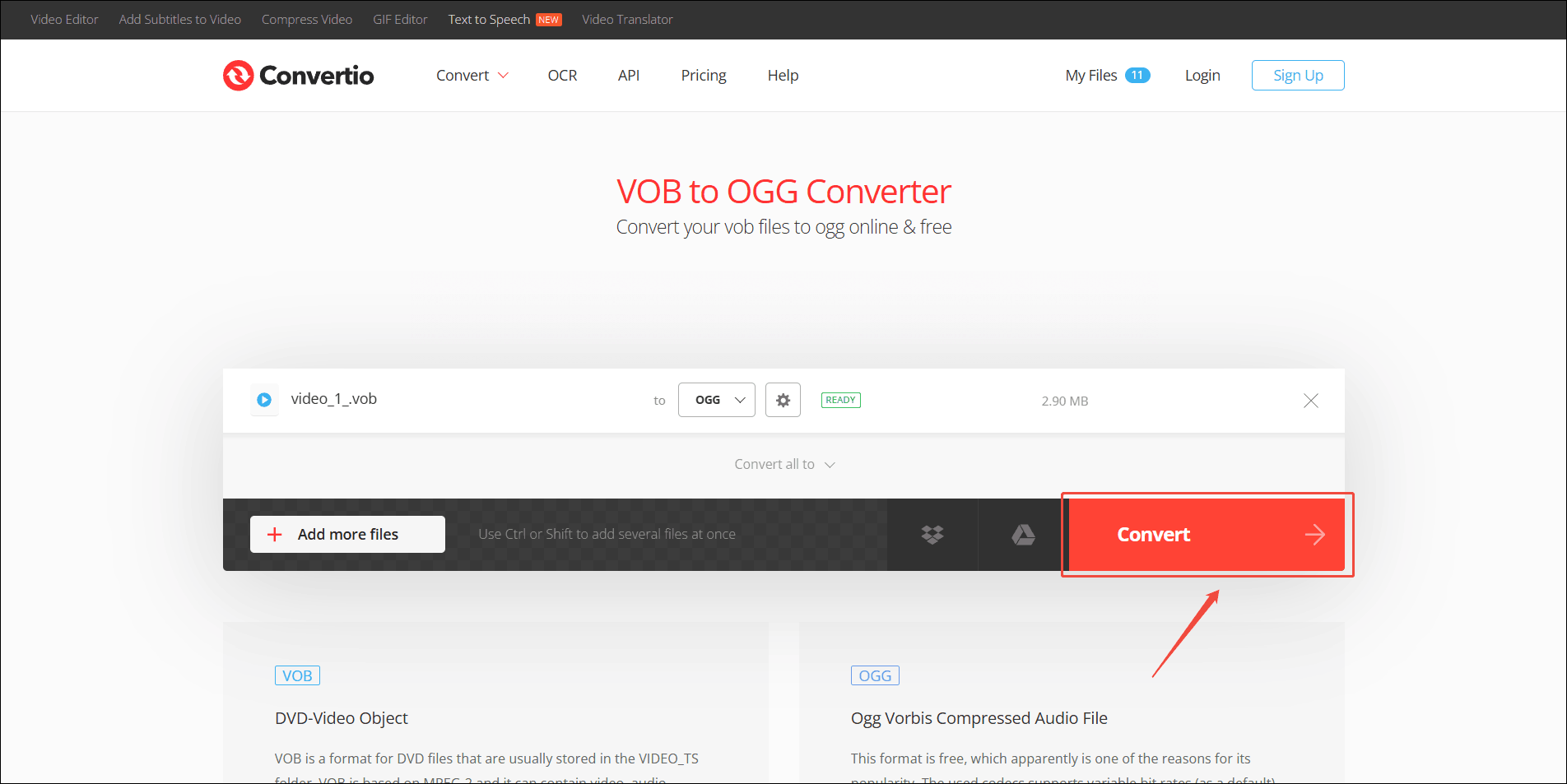
Click the red Convert button to start conversion.
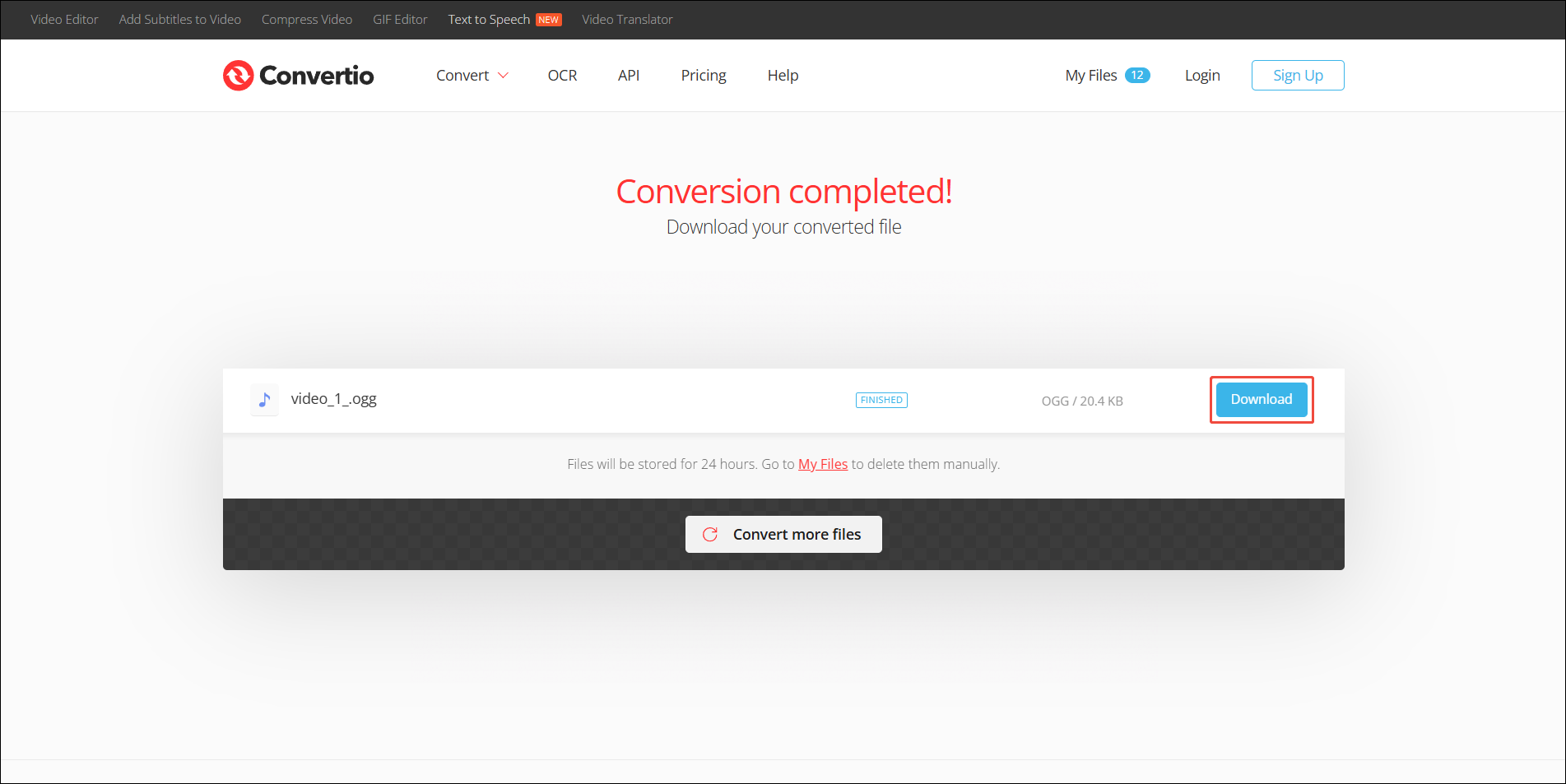
Step 5: Download the Converted File
Click the Download button to save the converted OGG file on your computer.
Convertio is ideal for users who want to convert a small number of files. If you urgently need to convert your files, you can choose it. However, be careful not to exceed its 100 MB file size limit.
Conclusion
There are several methods for converting VOB to OGG. This post lists the 2 most effective ways: use MiniTool Video Converter and Convertio, the former is an offline software and the latter is an online tool. Between them, MiniTool Video Converter has no file size limitations.
User Comments :