

OGV (OGG Video) and WebM are both open-source video container formats. OGV adopts the Theora codec, while WebM utilizes VP8, VP9, and AV1 codecs. It is designed for HTML5. Therefore, WebM is highly compatible with browser playback.
OGV vs WebM: What Are the Differences
What are the core differences between OGV and WebM? The 3 aspects below make a clear comparison.
1. Usage
OGV is an older format that is compatible with legacy systems and web pages. It is an ideal choice if you have OGV files that need to be processed on older operating systems or played on older web pages.
WebM is a popular modern open-source web format that supports HTML5 embedded video. What’s more, it works well with low-bandwidth environments and live streaming to ensure smooth and clear playback.
2. Compression Efficiency
Additionally, compression efficiency is also a different aspect between OGV and WebM. OGV adopts the Theora video codec and the Vorbis audio codec, which are early encoding forms. Therefore, OGV’s compression performance is weak.
WebM utilizes VP8, VP9, or AV1 as a video codec and uses Opus as the audio codec. Among these codecs, VP9’s compression efficiency is the highest, which is close to H.265. Due to higher compression efficiency, WebM’s file size is smaller than OGV in the same video quality
3. Browser Compatibility
Due to OGV's poor performance, people are gradually abandoning it because of its outdated codec and lack of official support. As a result, OGV isn’t supported by many browsers. However, WebM is sponsored by Google and is the HTML5 recommended open-source format. So, it is compatible with almost all browsers, such as Chrome, Firefox, Edge, Safari, and more.
All in all, OGV vs WebM, the latter is the best. The newer WebM is more suitable for modern browsers.
How to Convert Between OGV and WebM
Need an OGV to WebM converter? I like to use MiniTool Video Converter. It is a professional video converter that allows you to convert between OGV and WebM efficiently. It also supports various video conversions between more than 1,000 formats, including MP4 to MOV, MKV to FLV, WMV to AVI, and more. What’s more, I usually use its advanced settings to customize video resolution, frame rate, audio sample rate, and more.
Does MiniTool Video Converter have conversion size limitations? No, it empowers you to convert videos without size limits. Besides, MiniTool Video Converter doesn’t have ads, bundles, or watermarks. Moreover, it supports converting formats that are compatible with social media, including YouTube, Instagram, Facebook, and Vimeo.
Let’s explore how to convert between OGV and WebM using MiniTool Video Converter with simple steps.
Step 1. Get MiniTool Video Converter
Download MiniTool Video Converter by simply clicking the download button below. Then, follow the on-screen installation instructions to set it up.
MiniTool Video ConverterClick to Download100%Clean & Safe
Step 2. Import the OGV Video
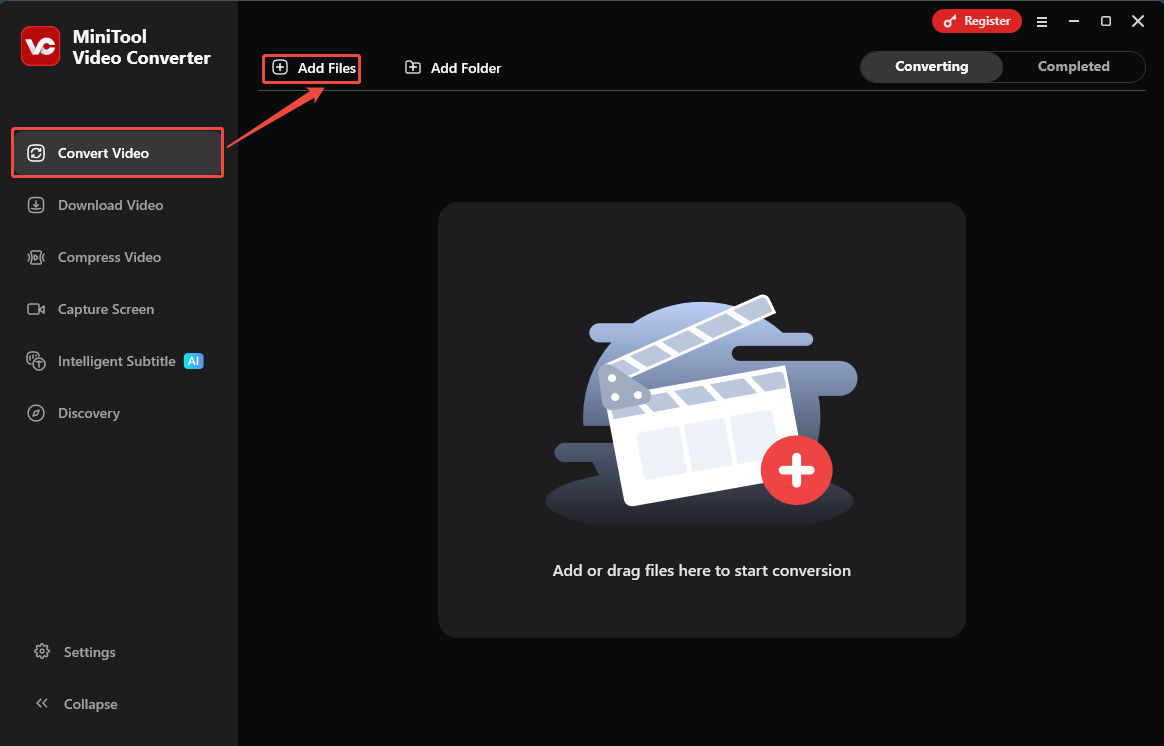
Run MiniTool Video Converter and click on the Add Files option in the Convert Video tab to import the OGV video.
Step 3. Use WebM as the Output Format
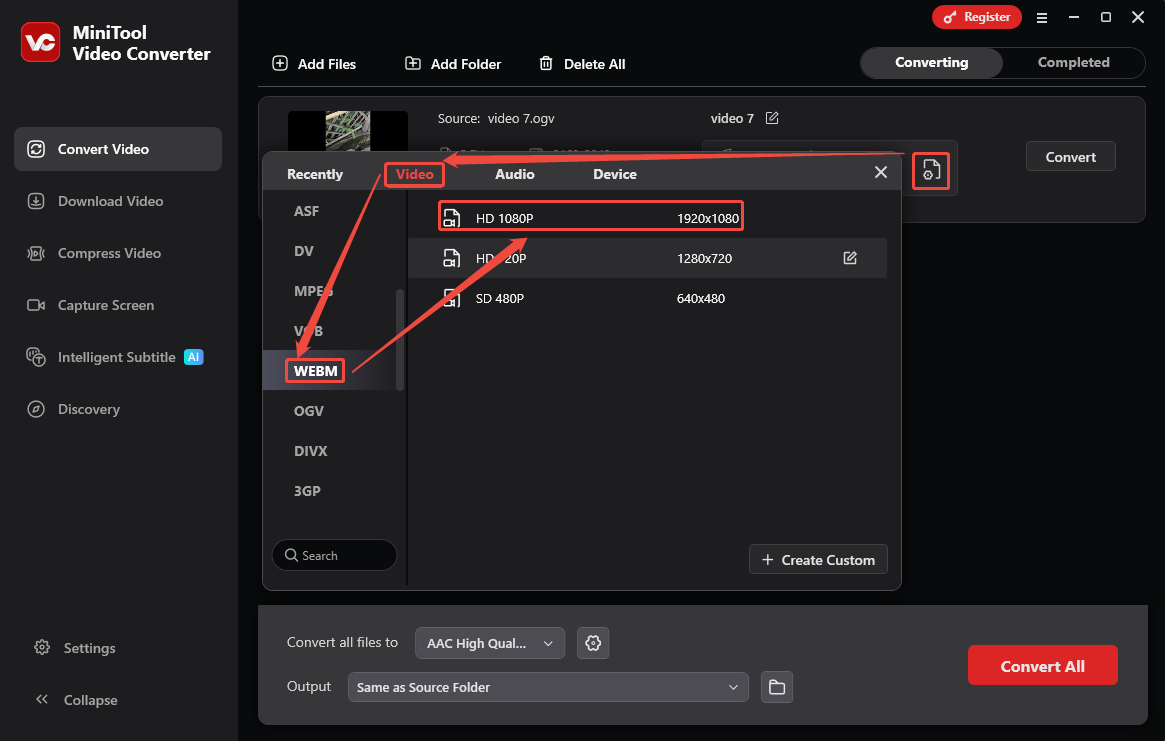
Click on the Output Format Settings icon on the conversion task to trigger the output format settings window. Next, switch to the Video tab and choose WebM as the output format. Then, pick a resolution for the converted video. Here, I want a high-quality output video, so I select HD 1080P.
Step 4. Start the Conversion
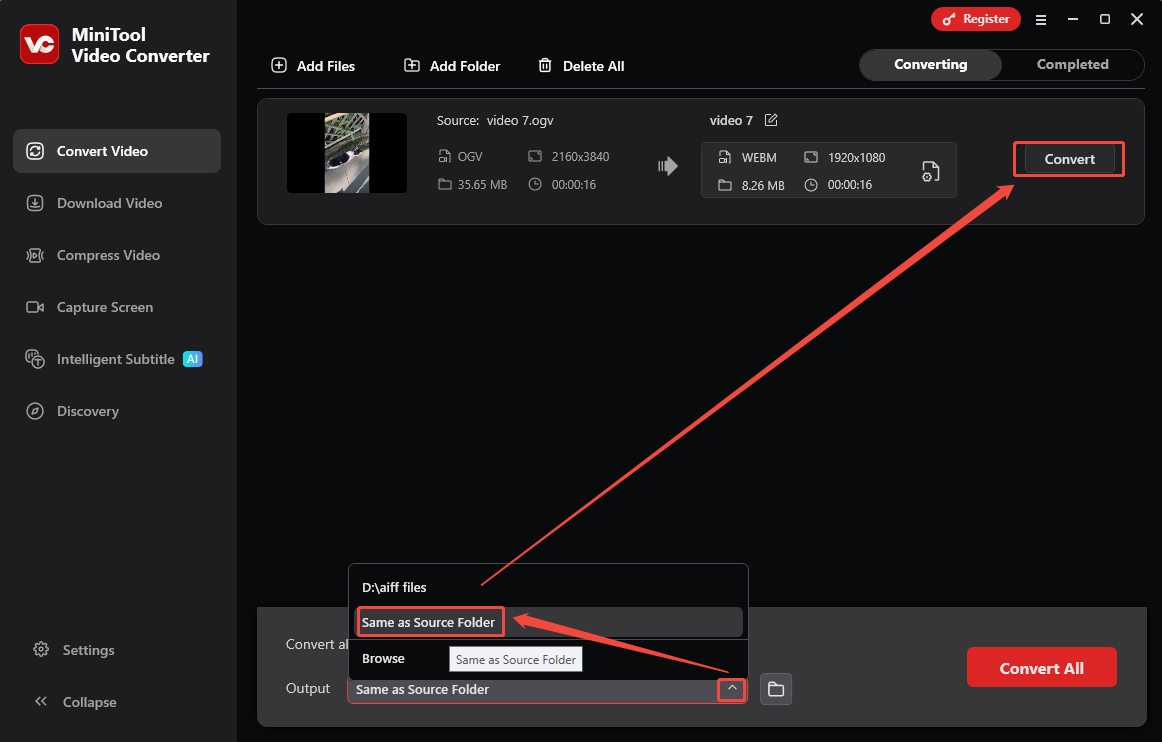
After completing the output format settings, expand the Output option on the main interface to set a storage location. Then, click on the Convert button to start the conversion.
Step 5. Check and Locate the Converted Video
When this conversion finishes, the converted video will land under the Completed tab. From there, you can either click the Play icon to preview it. Or click the Folder icon to choose a save location on your computer.
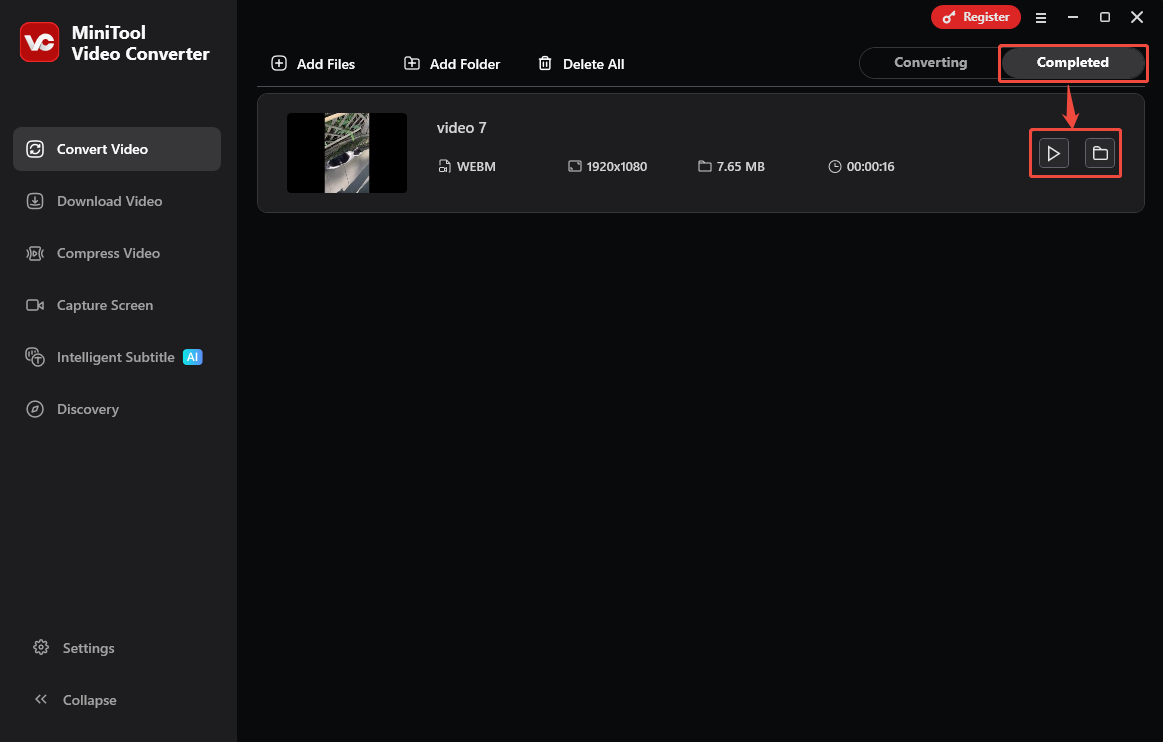
MiniTool Video Converter makes it easier to convert OGV to WebM. Additionally, you can also refer to the steps above to convert WebM back to OGV quickly.
Conclusion
OGV vs WebM, this article focuses on the differences in their usage, compression efficiency, and browser compatibility. Besides, it also shows how to convert OGV to WebM and vice versa with MiniTool Video Converter.
User Comments :