

What Is M4R
As an audio file format, M4R is widely used for iPhone ringtones. It uses the AAC codec to compress the audio data. In essence, M4R is another version of M4A, which enables users’ ringtone customization on Apple devices.
What Is AC3
AC3 is an audio format that applies efficient compression. Also known as Dolby Digital, it helps you to enjoy high-quality audio and avoid a large file size. AC3 is widely used for DVD content, streaming services, and more.
How to Convert M4R to AC3 Online
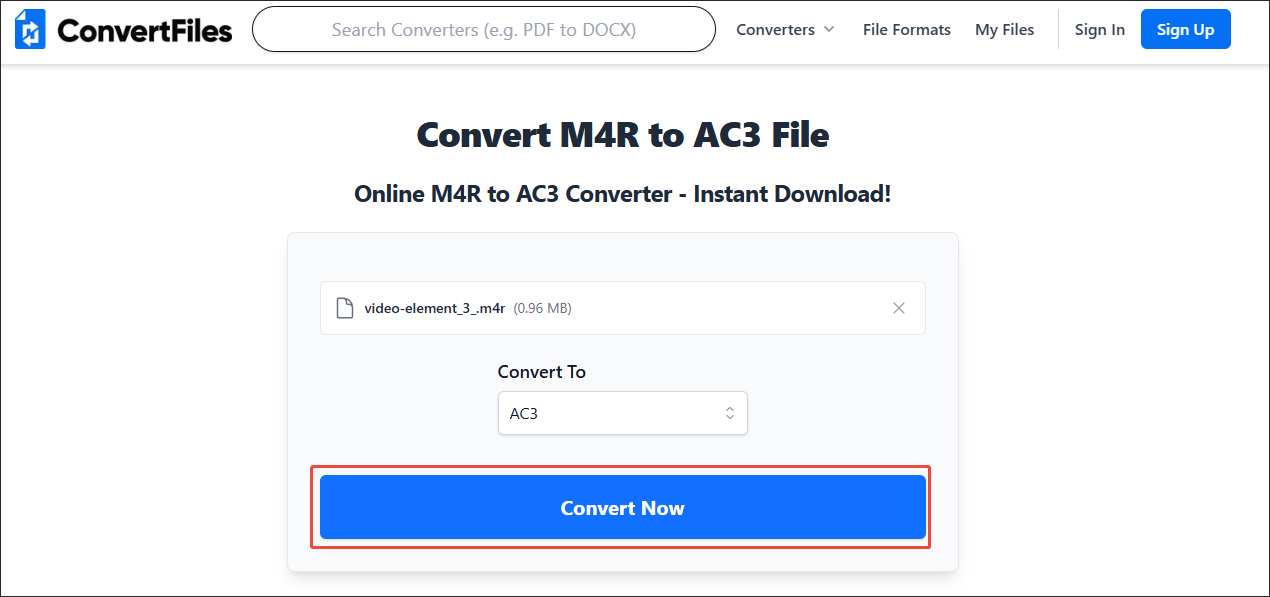
ConvertFiles is a remarkable online M4R to AC3 converter. With it, you can accomplish the conversion tasks in 3 steps. More importantly, ConvertFiles doesn’t require you to sign up for an account, which enables you to get AC3 from M4R more efficiently. In addition, it features an intuitive and clean interface.
Below is the detailed guidance on how to convert M4R to AC3 using ConvertFiles.
Step 1. Go to the M4R to AC3 Converter Page of ConvertFiles
Visit https://www.convertfiles.com/convert/audio/m4r-to-ac3.
Step 2. Import the M4R Audio
Click on the Choose File option to import the M4R file.

Step 3. Star Conversion and Check the Output File
Begin the conversion process by clicking on the Convert Now. When the file conversion ends, download and check the output file.
As you can see, ConvertFiles is a standout online conversion tool. However, it sets a 250MB file size limit for free users.
How to Convert M4R to AC3 Offline
If you prefer an offline M4R to AC3 converter, never miss MiniTool Video Converter. More than a free video converter, it also supports a wide range of audio conversion tasks, including M4R to AC3, M4R to MP3, WAV to MP3, and so on.
Without any file size limit, MiniTool Video Converter allows you to convert up to 5 files simultaneously. Furthermore, its well-organized interface ensures that every beginner can access MiniTool Video Converter effortlessly.
Below is a detailed guide on how to convert M4R to AC3 using MiniTool Video Converter.
Step 1. Download and Install MiniTool Video Converter
MiniTool Video ConverterClick to Download100%Clean & Safe
Click on the download button above to download and install MiniTool Video Converter.
Step 2. Import the M4R Files
After launching MiniTool Video Converter, click on the upper-left Add Files option to import the M4R files.

Step 3. Specify AC3 as the Output Format
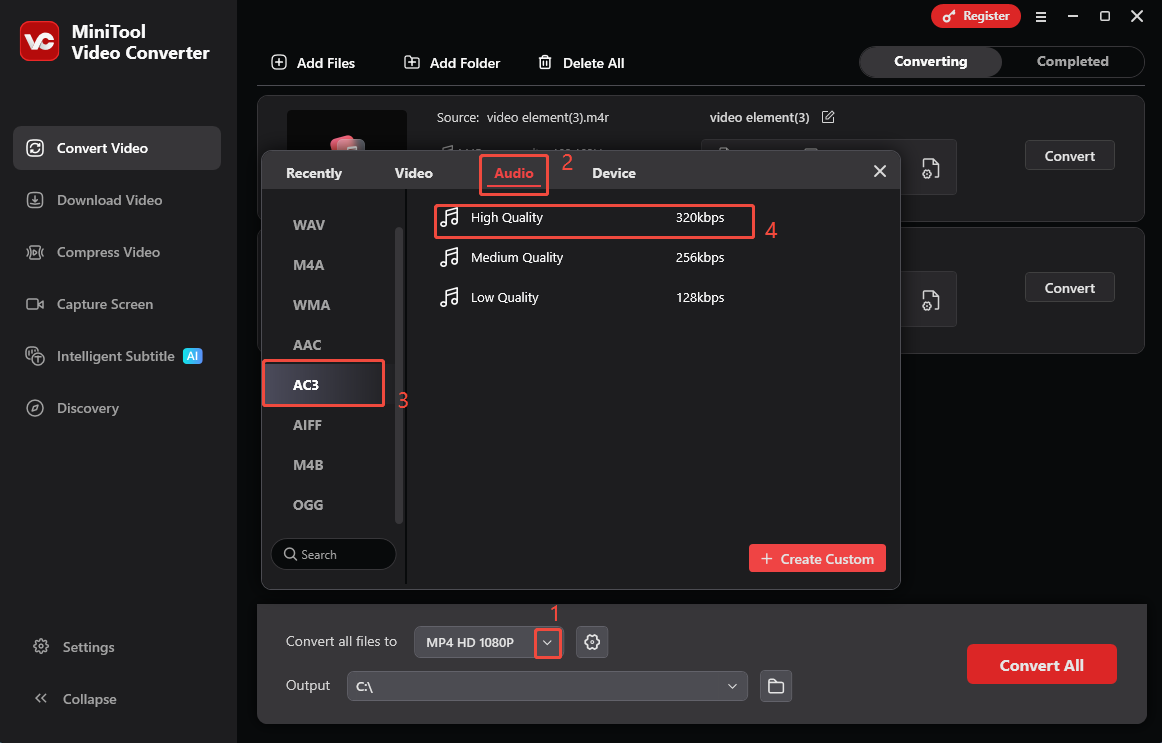
Expand the bottom Convert all files to option to enter the output format window. There, switch to the Audio tab and click on AC3. There, select the audio quality you want.
Step 4. Set an Output Folder and Begin Conversion
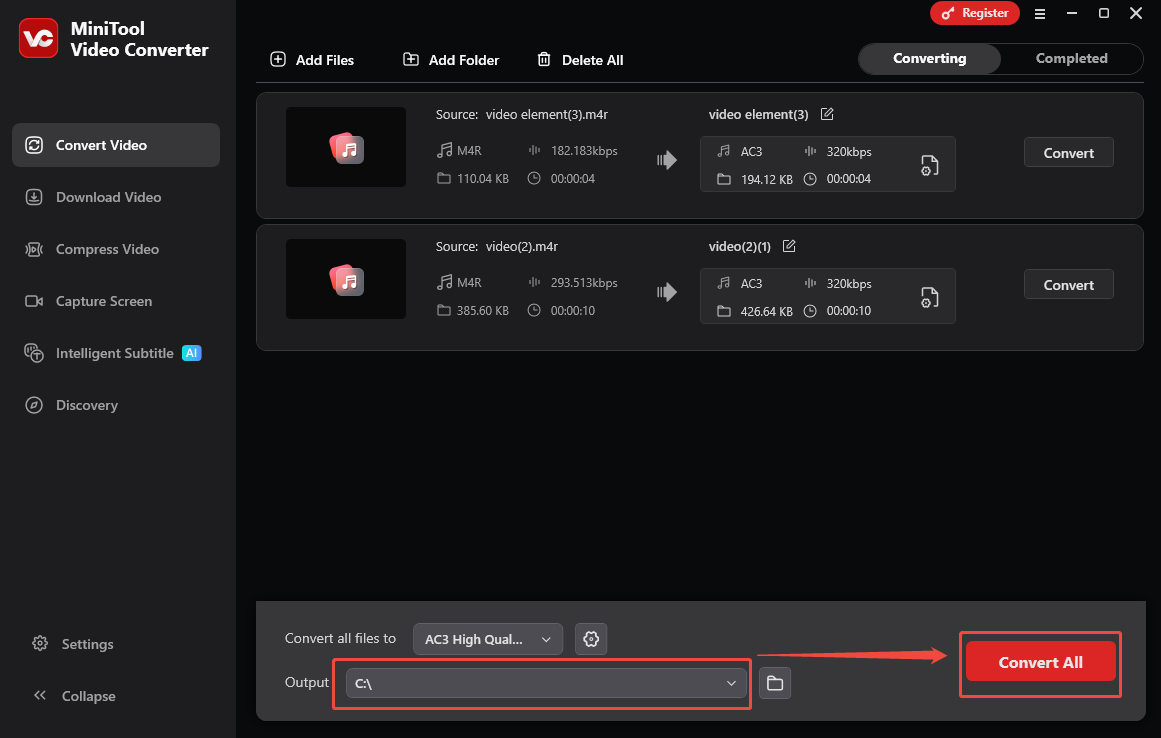
Expand the bottom Output option to choose a saving path for the converted files. Then, click on the bottom-right Convert All button to begin the conversion process.
Step 5. Check the Output Files
When the file conversion finishes, this application will automatically switch to the Completed section. There, click on the Play icon to view the output files. If you want to locate them, click on the Folder icon.
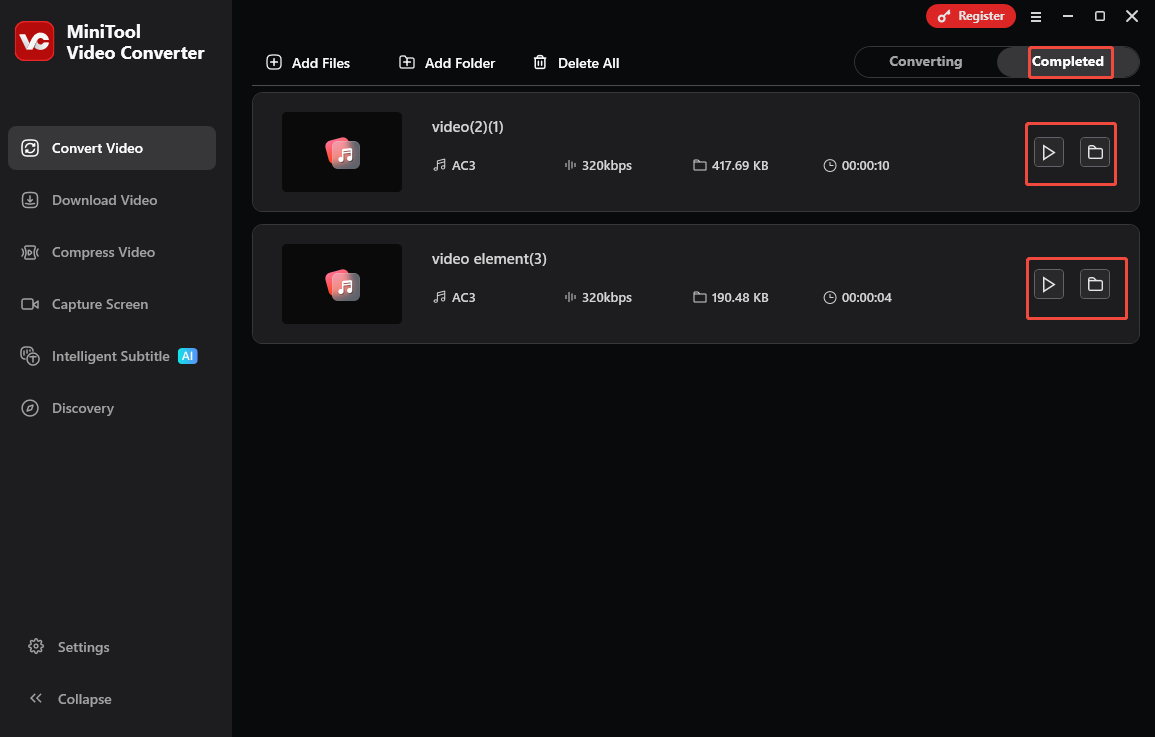
With the above-detailed steps, it will never be difficult for you to get AC3 from M4R offline. Plus, MiniTool Video Converter is also a one-stop solution for video compression and video/audio to text conversion.
How to Convert AC3 to M4R
If you want to convert AC3 to M4R easily and quickly, Convertio can help. It runs well on a wide range of web browsers. Meanwhile, Convertio empowers you to upload your AC3 file from Google Drive, Dropbox, and your device. Below is a step-by-step tutorial on how to convert AC3 to M4R using Convertio.
Step 1. Go to the AC3 to M4R Converter Page of Convertio
Go to https://convertio.co/ac3-m4r/.
Step 2. Import the AC3 File
Click on the Choose Files option to import the AC3 audio.
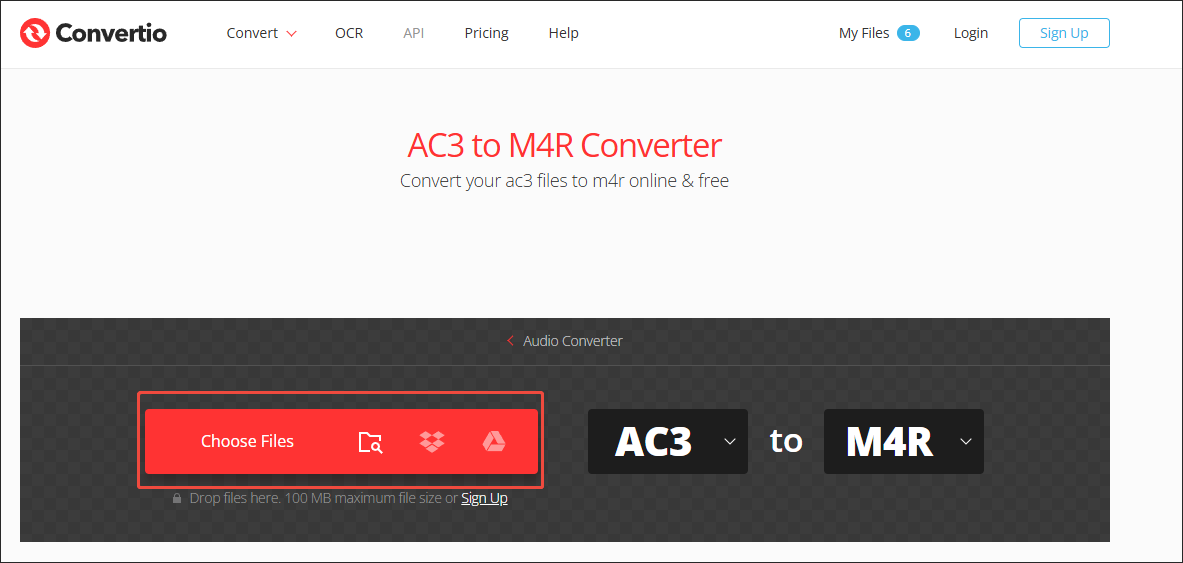
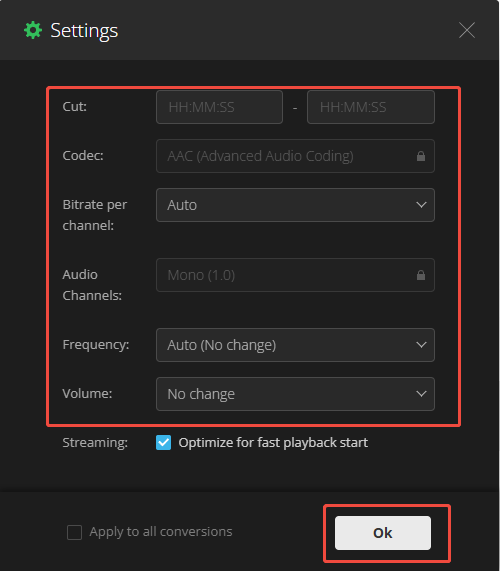
Step 3. Specify the Conversion Settings
Click on the Settings icon to enter the Settings window. There, you can customize the parameters, like codec, bitrate, channel, and more. Finally, click on the Ok button to apply the conversion settings.
Step 4. Start Conversion and Check the Output Files
Click on the Convert button to begin the conversion process. When the file conversion process finishes, download and check the converted file.
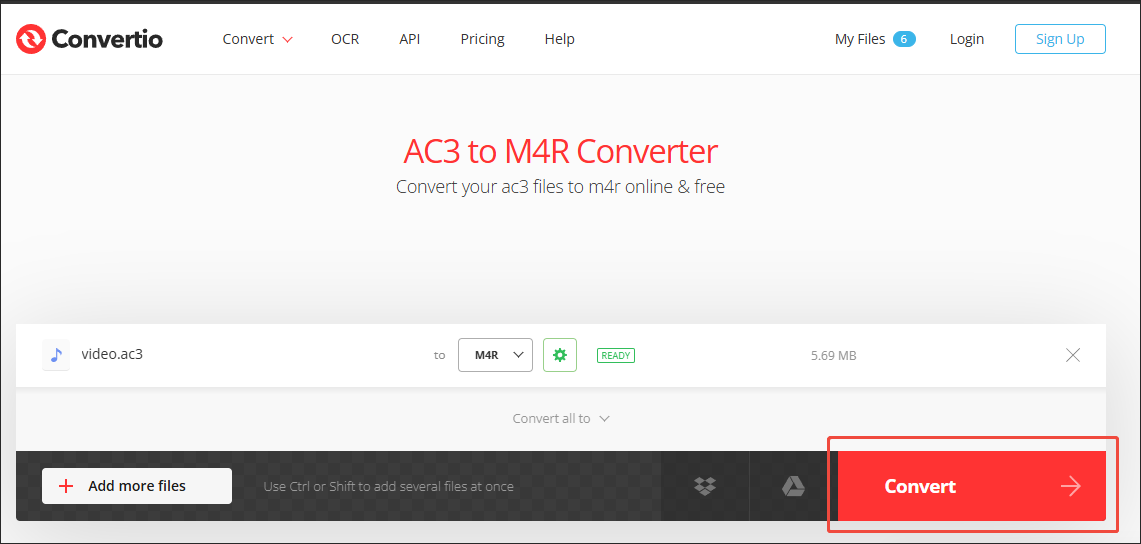
With Convertio, you can convert an M4R file effortlessly. However, it has a 100MB file size limit for free users.
Bonus: How to Edit Your M4R Audio
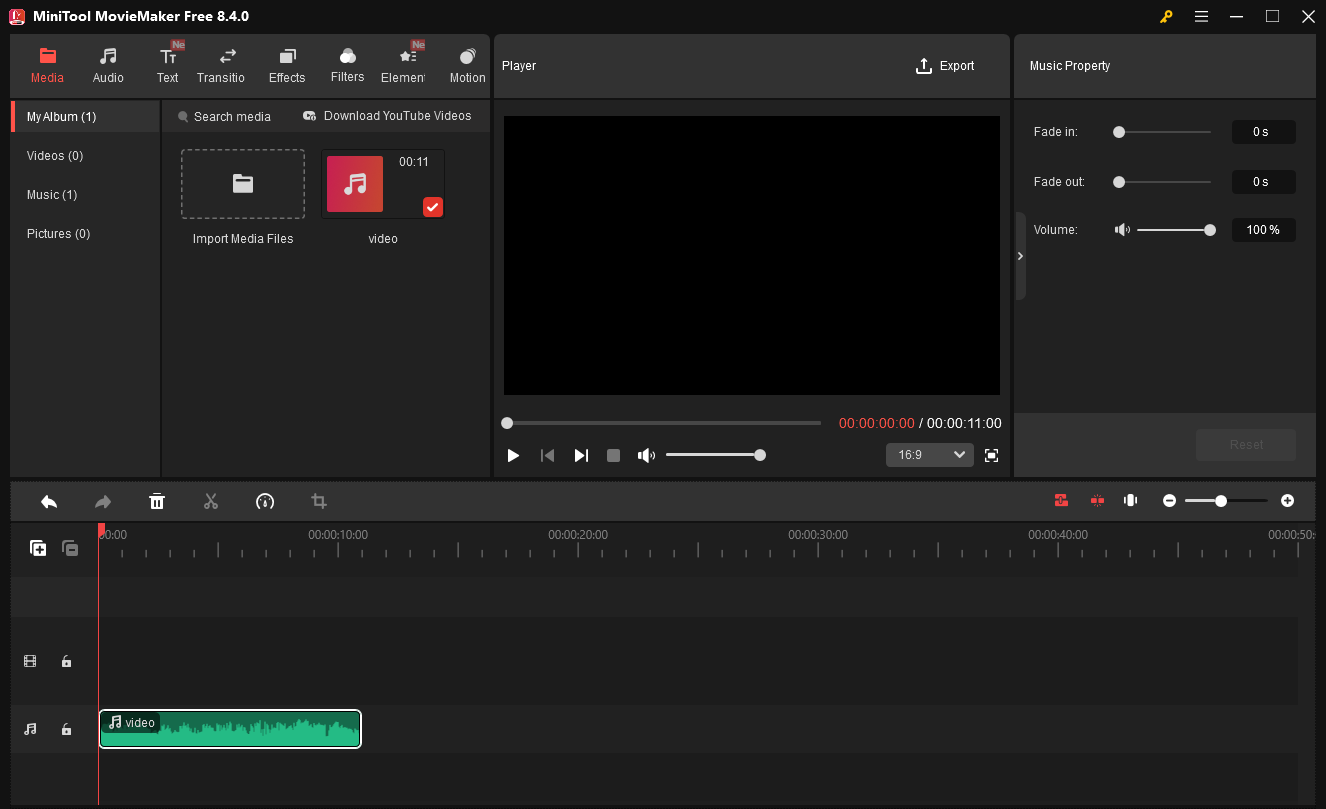
If you want a tool to edit your M4R file, MiniTool MovieMaker can be an ideal option. It enables you to merge, split, reverse, or speed up your M4R audio with simple clicks. In addition, MiniTool MovieMaker can save your M4R file in MP3 format for better compatibility.
MiniTool MovieMakerClick to Download100%Clean & Safe
Wrapping Up
With ConvertFiles and Convertio, you can convert M4R to AC3 and vice versa online easily. If you convert more files without a file size limit, never miss MiniTool Video Converter.
About The Author

Position: Columnist
With over 6 years of experience as a tech writer, Eien specializes in creating clear, simple guides for video conversion, transcription, screen recording, etc. He stays connected with the tech community and its readers to understand the real-world problems users face. By combining their feedback with his own hands-on testing, Eien always provides proven solutions to complex software problems in time.
User Comments :