

This guide explains how to merge video clips into one file with MiniTool Video Converter, including importing videos, arranging clips, cutting specific clips, removing unwanted clips, adding transitions, and exporting the final video.
How to Merge Videos
MiniTool Video Converter supports video conversion, compression, and enhancement. It also lets users merge video files. Here’s how:
1. Install MiniTool Video Converter.
Download and install the latest version of MiniTool Video Converter, then launch the program.
 MiniTool Video Converter
-
 Batch convert video/audio files among 1000+ formats.
 - Quickly compress videos for easy storage and transfer.
- Accurately extract subtitles from video/audio files.
- Effectively enhance video quality.

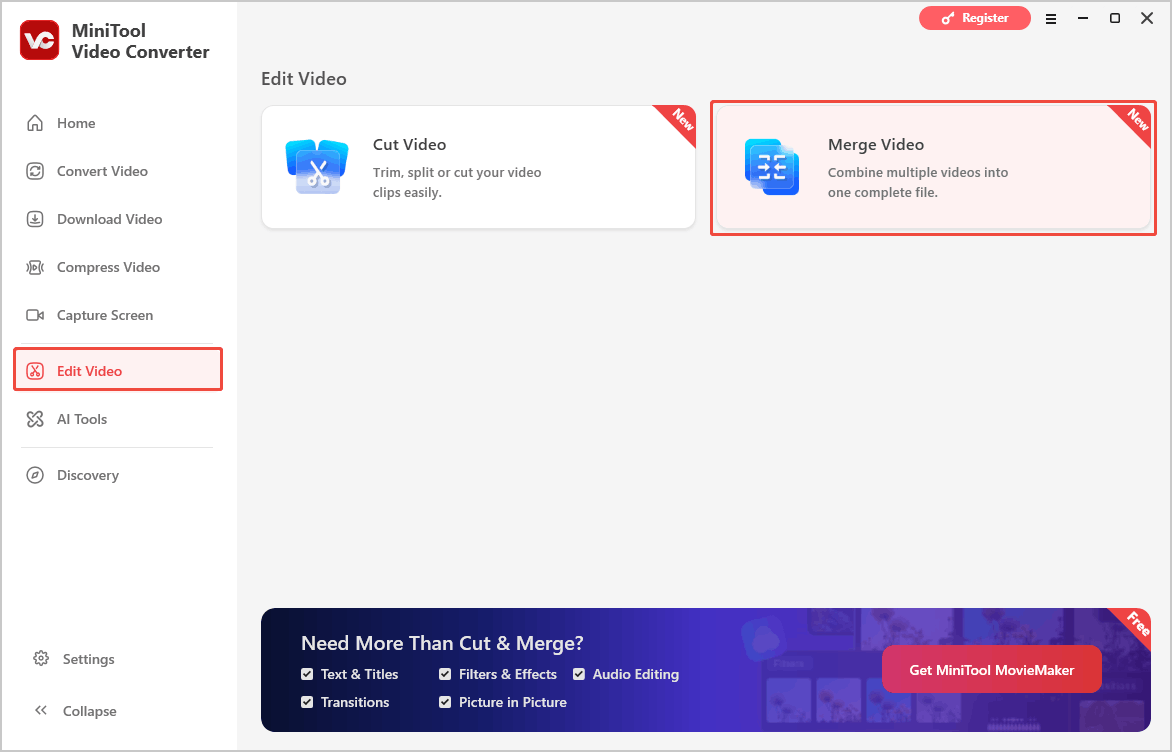
2. Open the Merge Video feature.
Go to the Edit Video tab and select Merge Video.
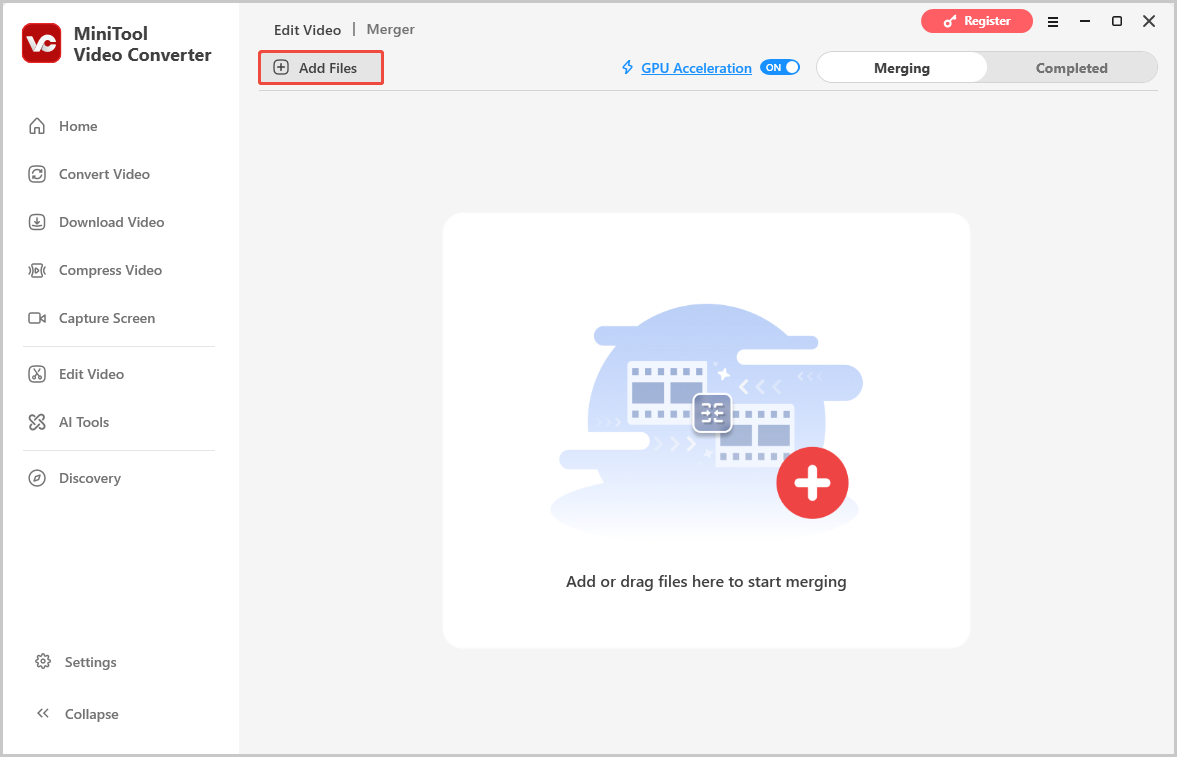
3. Import the videos.
Click the Add Files option and select the videos to merge.
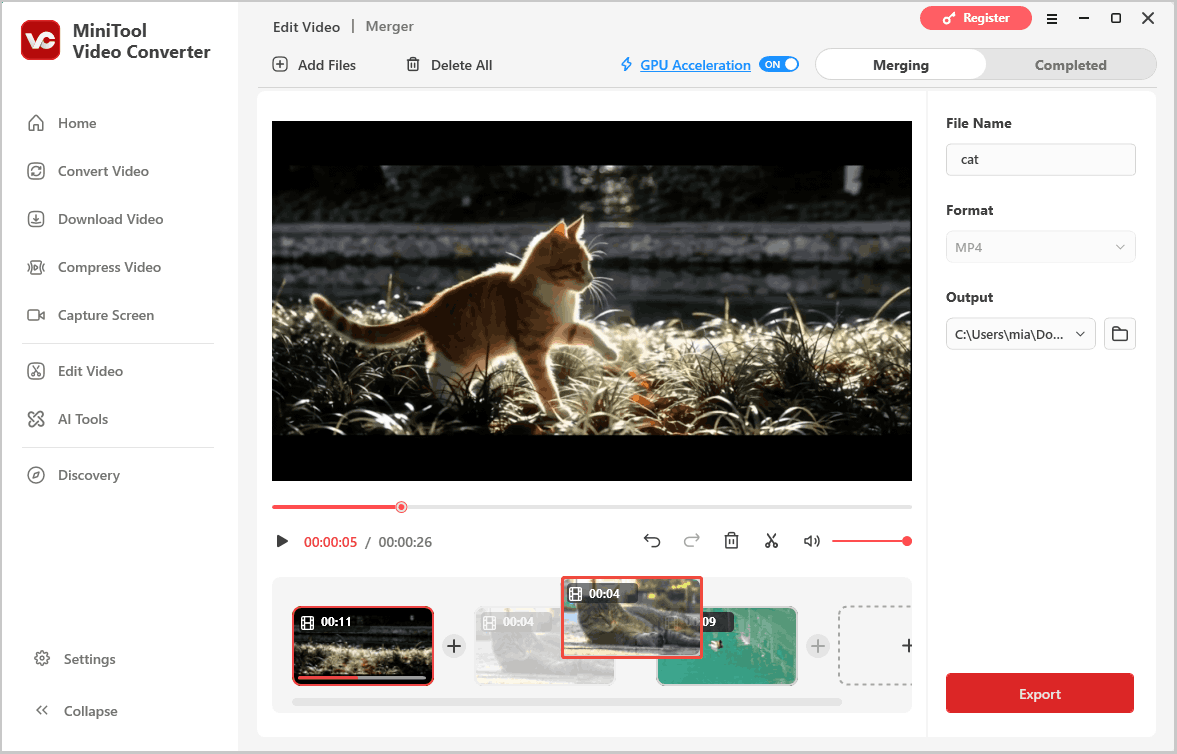
4. Rearrange the video clips.
Drag the clips on the timeline to arrange them in the desired order.
5. Edit a video clip.
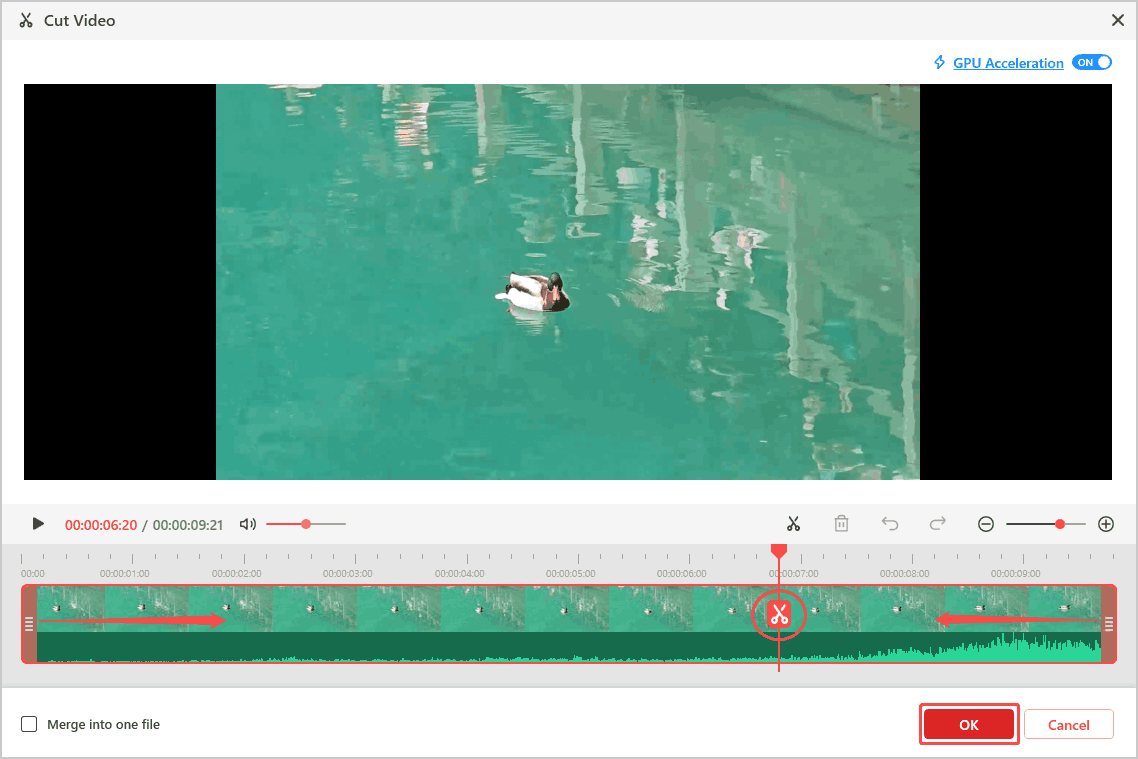
Select the video you want to cut on the timeline and click the Cut option.
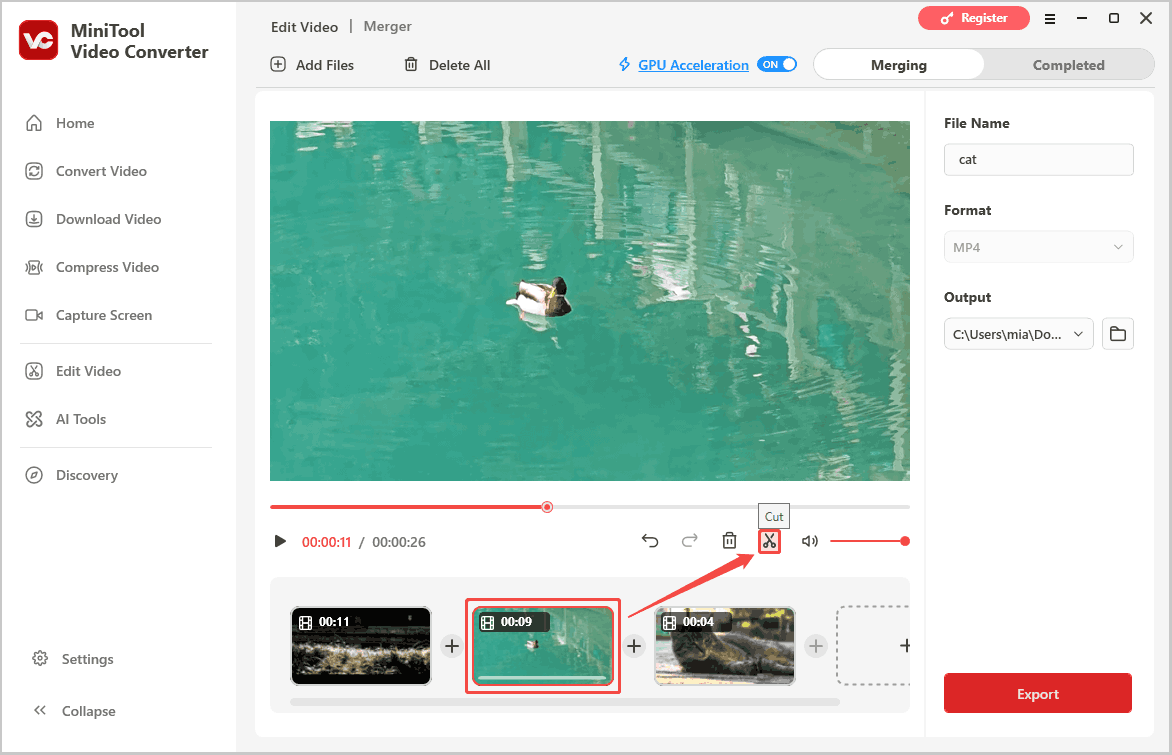
In the Cut Video window, trim the video, split it into segments, delete unwanted segments, or merge segments. Then, click OK.
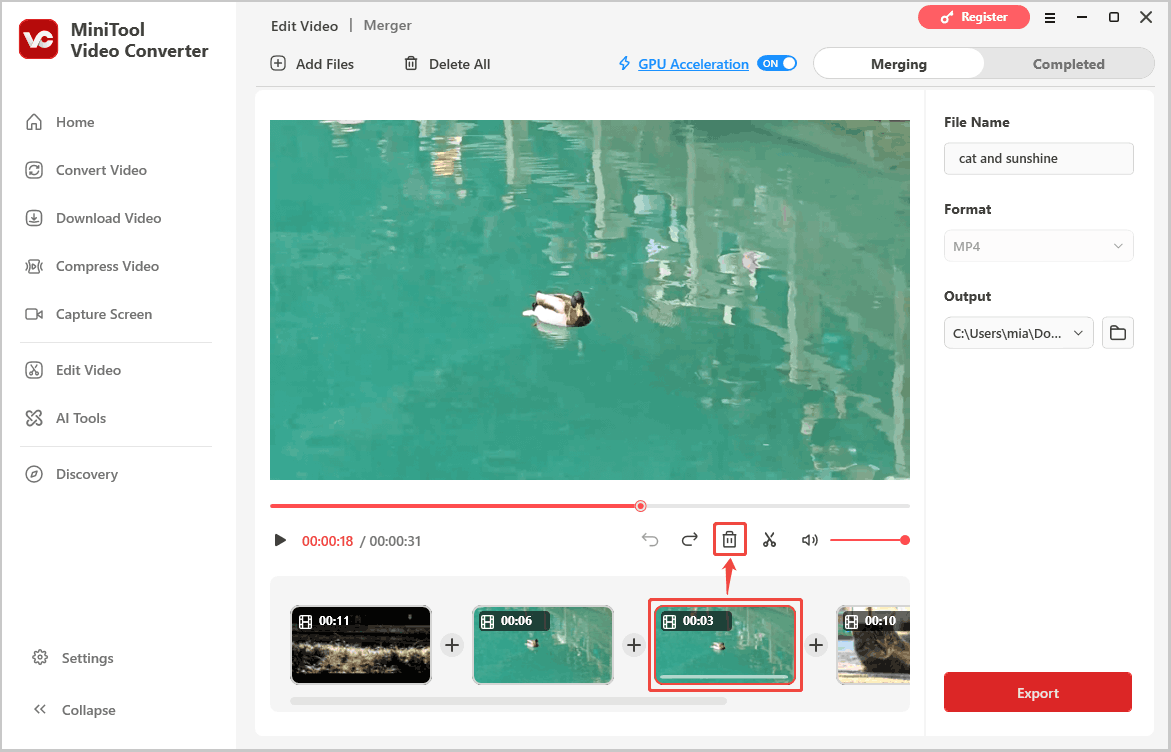
6. Delete a video clip.
Select the unwanted video and click the Delete option to remove it.
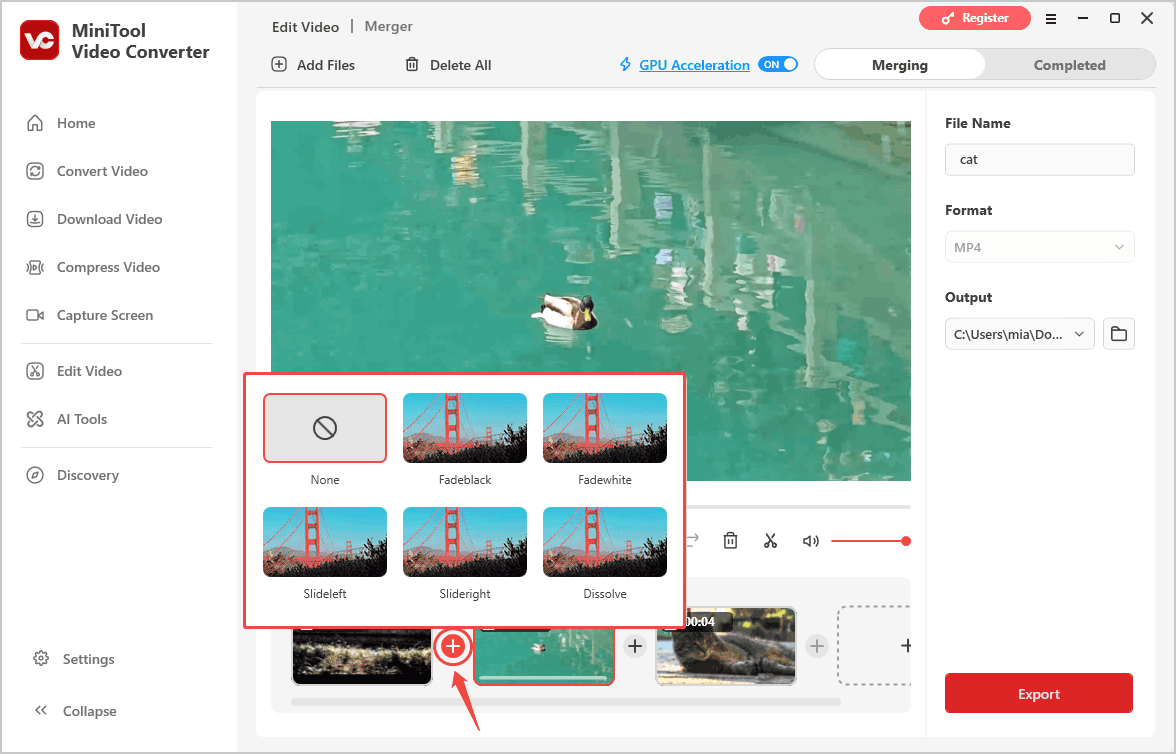
7. Add transitions.
Click the plus icon between the two video clips on the timeline, then select a transition to apply.
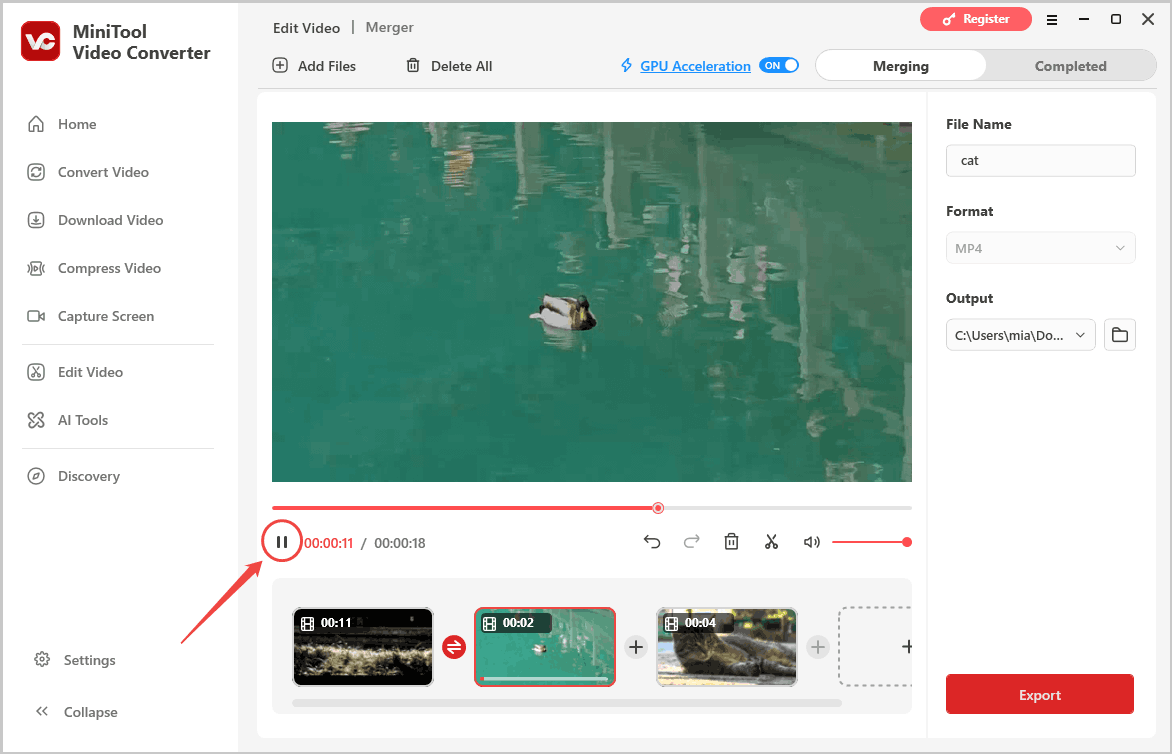
Play the video to preview the applied transition.
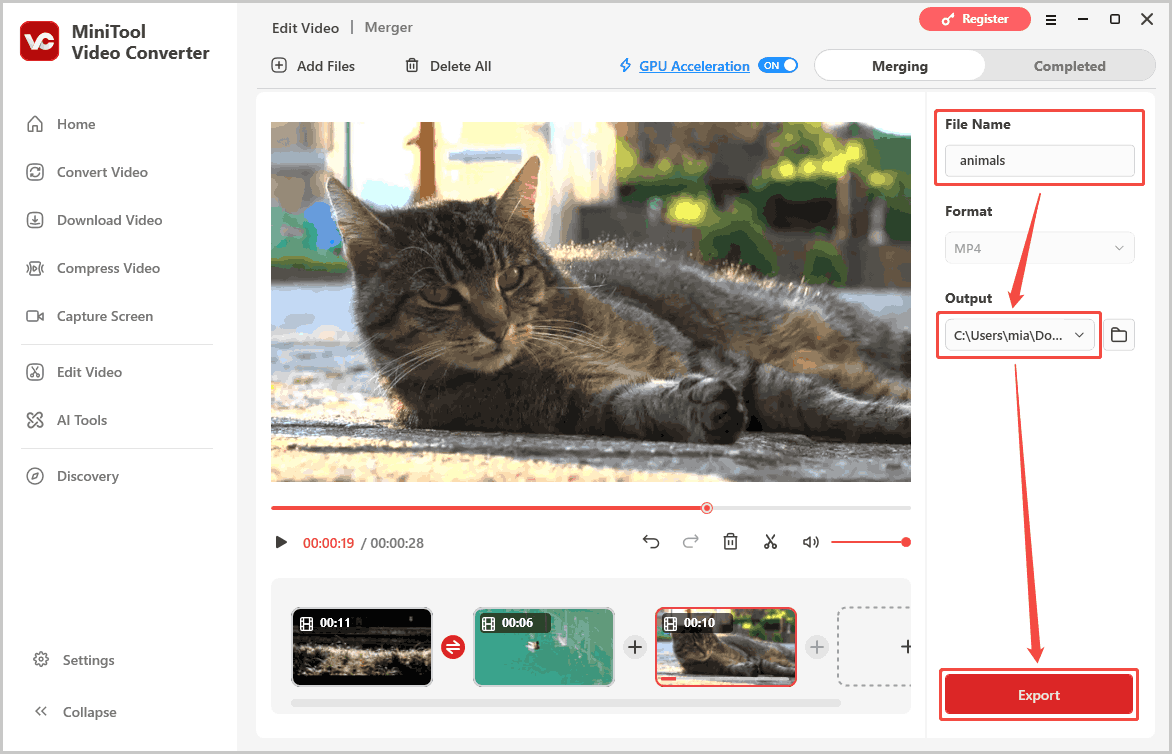
8. Rename the output video file.
Enter the new name in the File Name field.
9. Set the save location.
Expand the Output menu and choose a folder to save the merged video.
10. Export the merged video.
Click Export to save the merged video.
User Comments :