

This article explains how to cut and trim videos with MiniTool Video Converter. It covers splitting a video into segments, removing unwanted sections, merging the remaining clips, choosing an output folder, and exporting the final video. It also explains how to trim unwanted parts from the beginning or end of a video.
How to Cut a Video
MiniTool Video Converter is a versatile tool for video conversion, compression, and enhancement. It also includes a built-in Cut Video feature for trimming and cutting videos.
1. Download and install MiniTool Video Converter.
Get the latest version of MiniTool Video Converter and launch it.
 MiniTool Video Converter
-
 Batch convert video/audio files among 1000+ formats.
 - Quickly compress videos for easy storage and transfer.
- Accurately extract subtitles from video/audio files.
- Effectively enhance video quality.

2. Open the Cut Video feature.
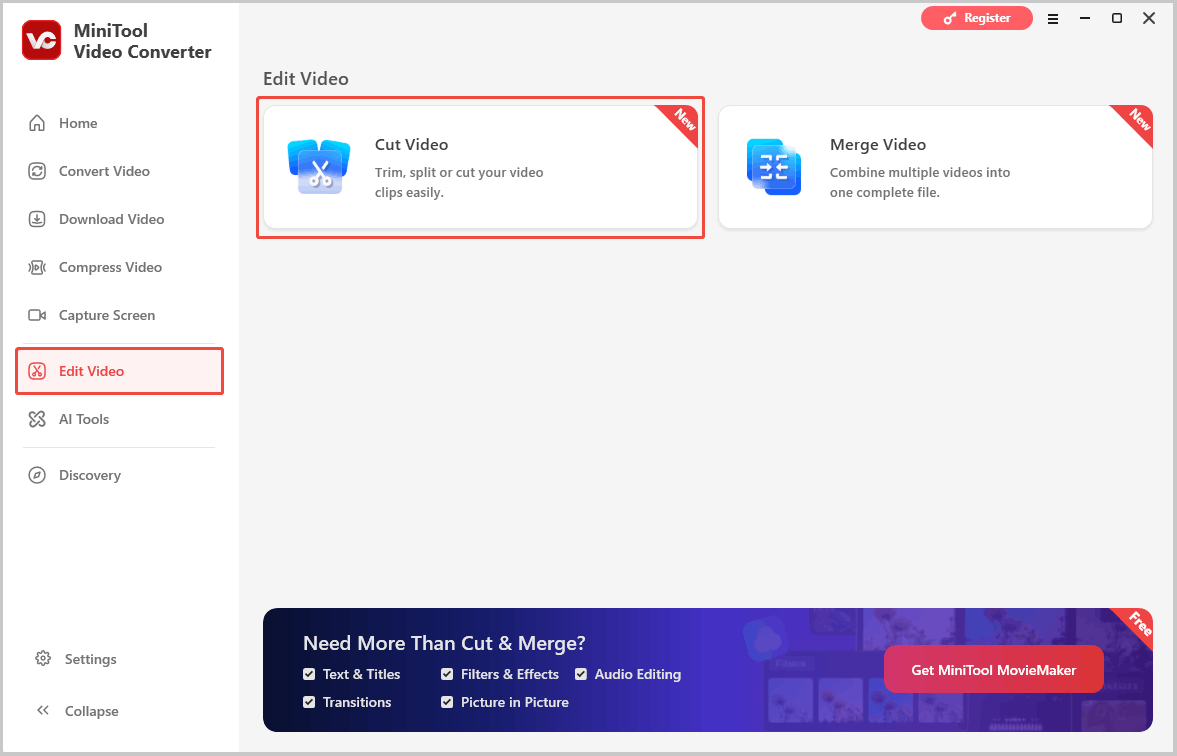
Click Edit Video on the left menu and select Cut Video.
3. Import the source video.
In the File Explorer, select the target video and click Open.
4. Cut the video into segments.
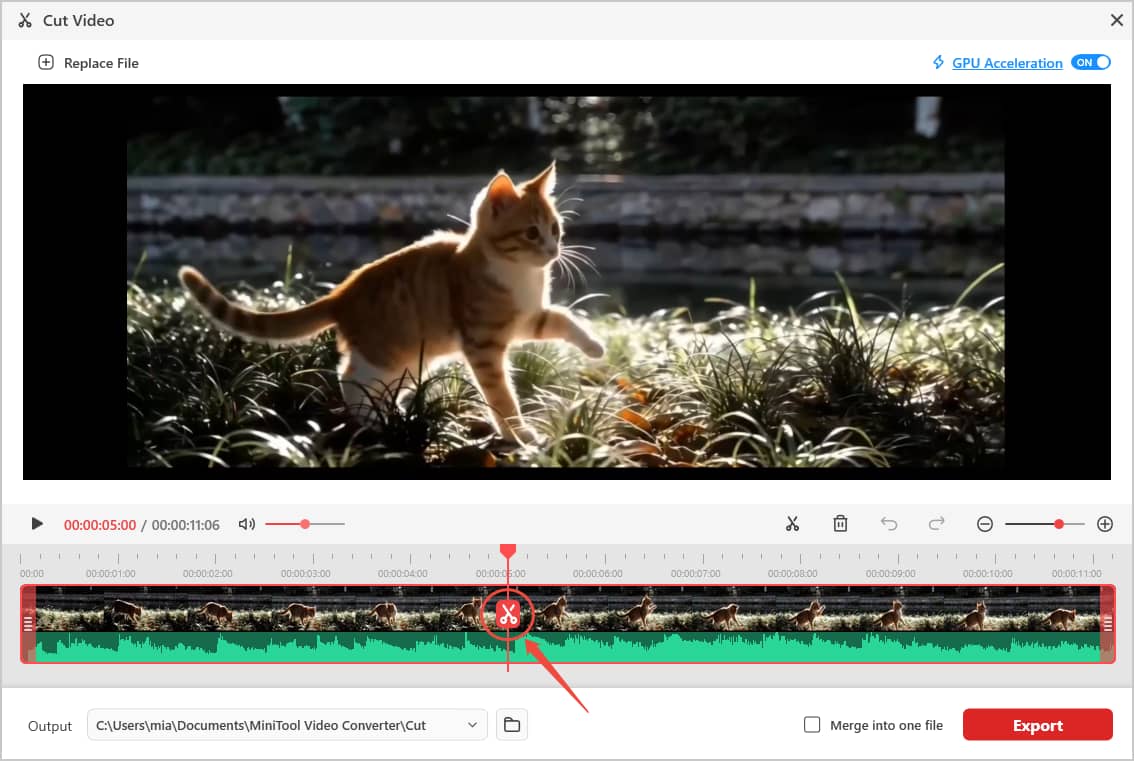
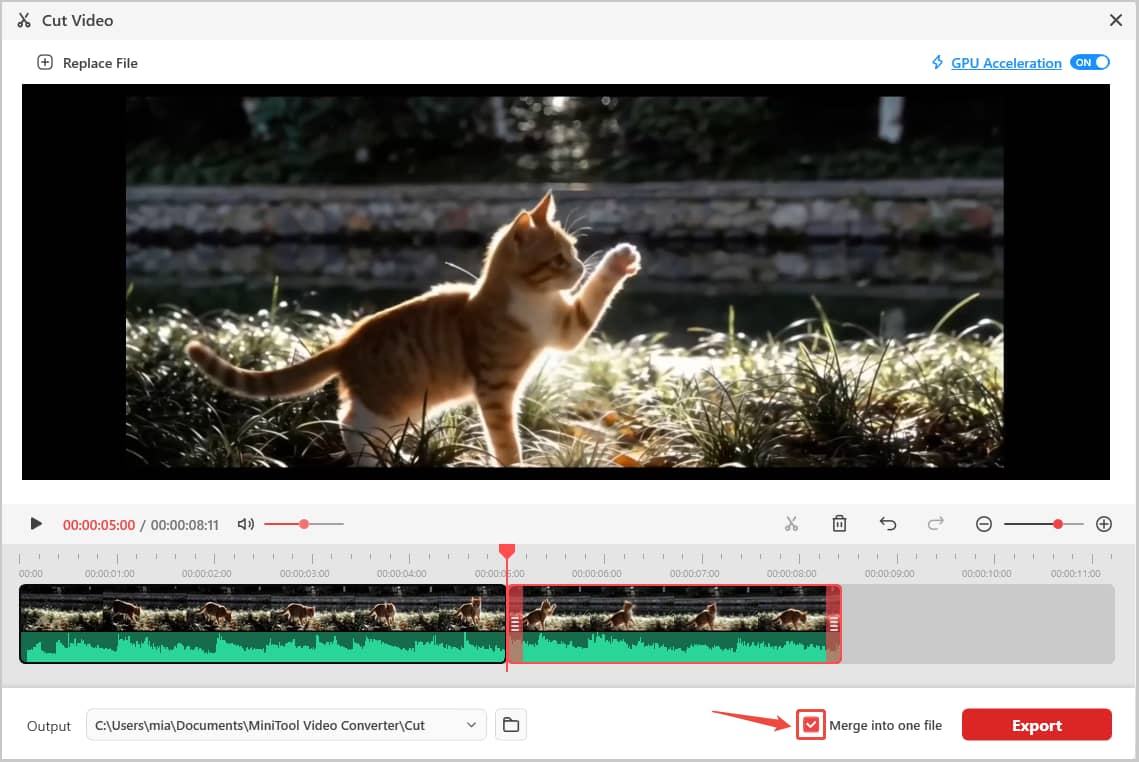
In the Cut Video window, move the playhead to the desired point, and click the scissors icon. Repeat this step to cut the video into multiple clips.
5. Remove unwanted segments.
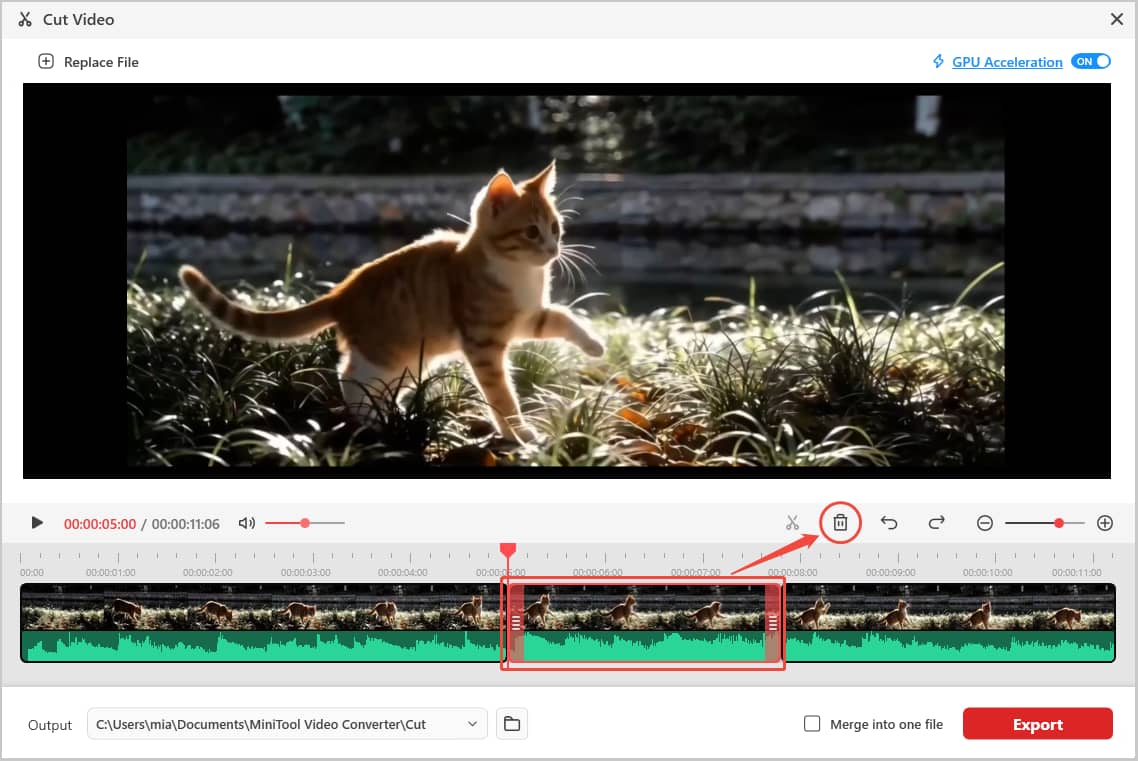
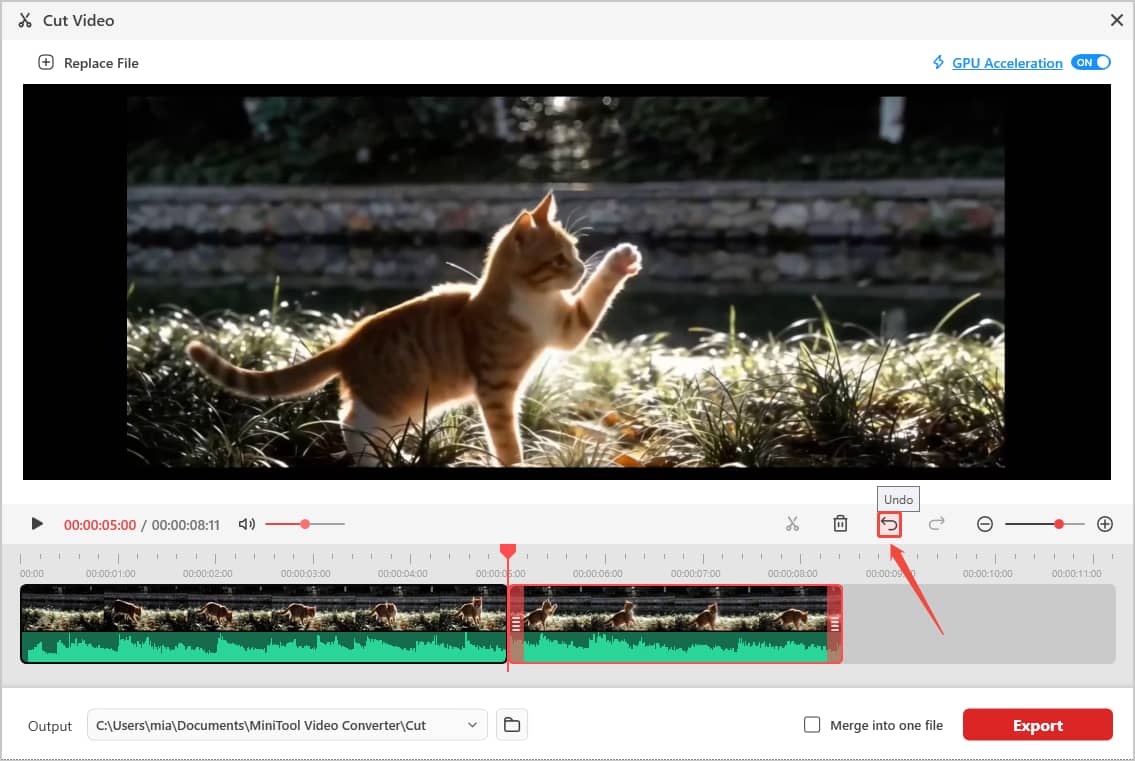
After cutting the video into several segments, select the unwanted segment in the timeline, click the Delete icon above the timeline to remove it directly.
6. Merge the remaining segments. (Optional)
Check the Merge into one file option to combine video clips into one video. Leave this option unchecked to export each segment separately.
7. Choose an output folder.
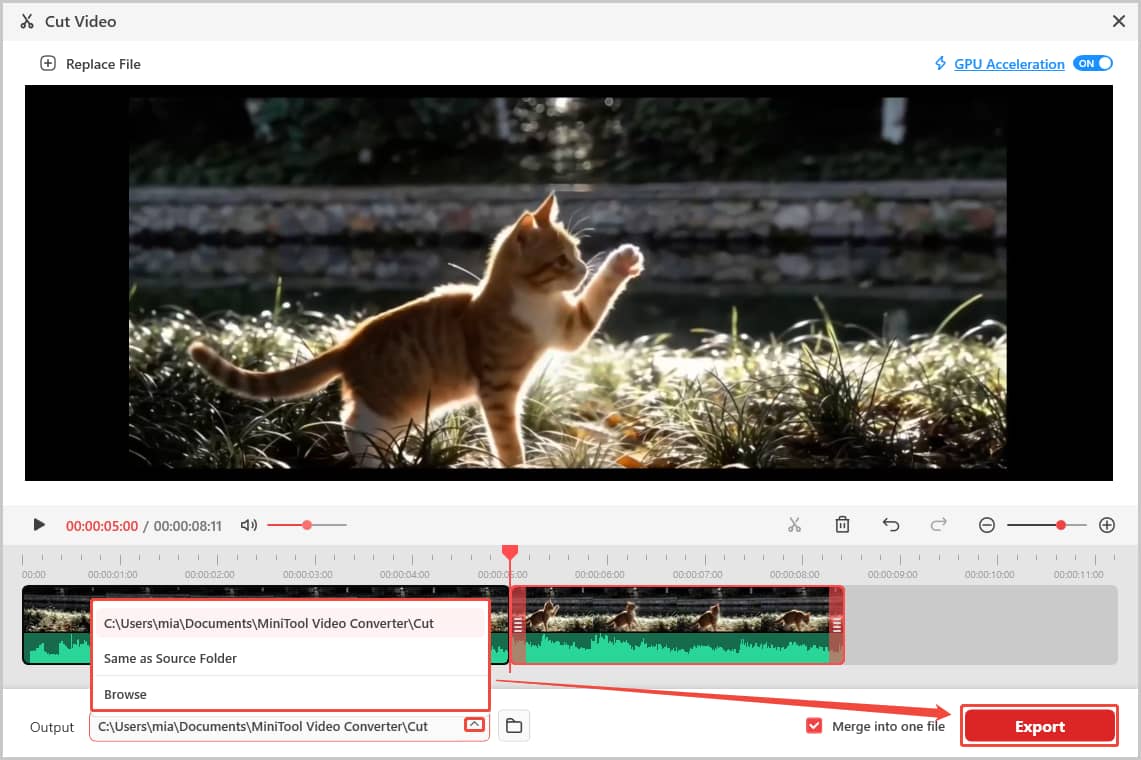
Expand the Output menu and select a folder for the exported video.
8. Export the video.
Click Export to save the merged video or individual video segments.
How to Trim the Video
If the unwanted parts are only at the beginning or end of the video, you can drag the left marker to set the new starting point, then drag the right marker to set the new ending point.
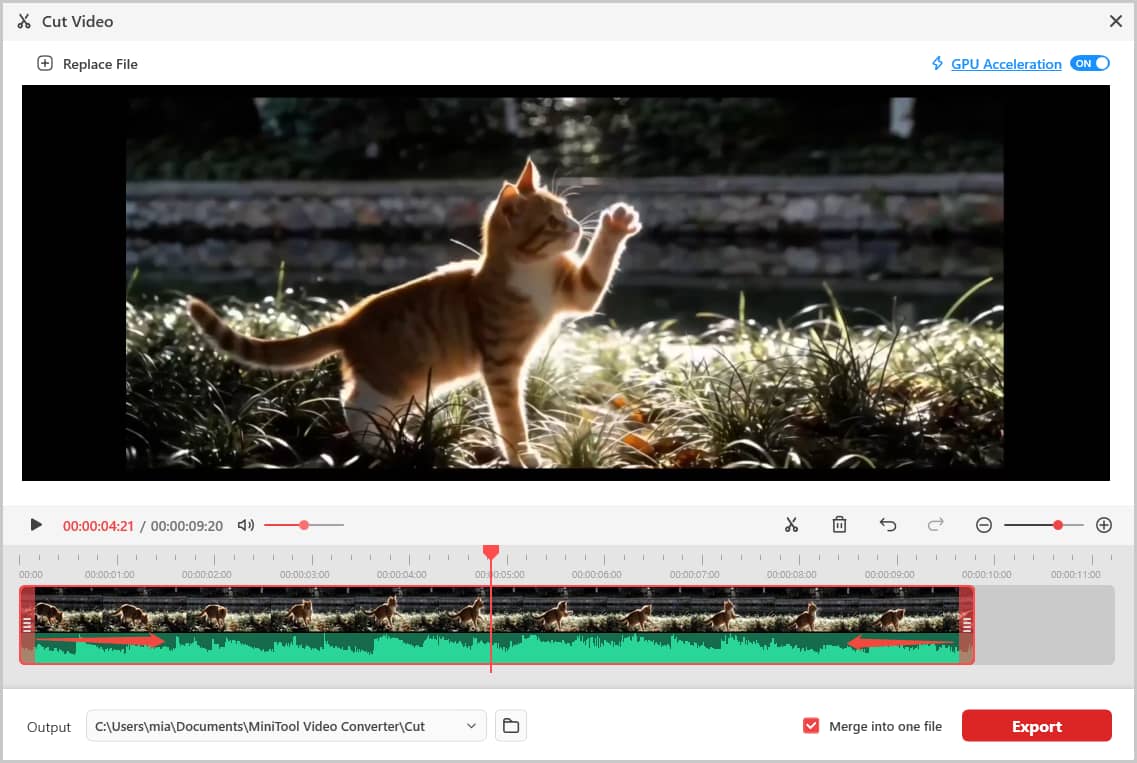
Then, select the save location in the Output menu and click Export.
User Comments :