

This post explains how to convert an Instagram video to text using three reliable video-to-text converters, including MiniTool Video Converter, ScreenApp, and HappyScribe.
Transcribing Instagram videos to text helps you grasp key points faster and makes video content more accessible to the hearing-impaired. Therefore, this post offers three methods to convert Instagram video to text. Before that, download and save the video to your device.
Best 3 Instagram Video to Text Converters at a Glance
- MiniTool Video Converter
- HappyScribe
- Any2Text
Check the comparison table below to find the right tool for you.
| Dimension | MiniTool Video Converter | HappyScribe | Any2Text |
| Price | A free basic model + two paid ones | Free + paid | Free + paid |
| Platform | Windows (local) | Web | Web |
| Free Quota Limit | No limit | 10-minute free trial of AI Transcription, Subtitling, and Translation | Every new user gets the first 15 minutes of transcription free. |
| Privacy | Local processing, no upload | Requires upload | Requires upload |
| Output Format | SRT / TXT | TXT (more formats require payment) | Multiple formats |
| URL Import | No | Supported | No |
| Language Support | Multiple | Multiple | Multiple |
| Editable Text | Sentence-by-sentence editing | Supported | Supported |
How to Convert Instagram Video to Text
Fast Track Steps:
- Open the target transcription tool.
- Upload your video file.
- Wait for the transcription.
- Edit and save the transcript.
I selected three tools: MiniTool Video Converter, ScreenApp, and HappyScribe to convert Instagram videos to text, based on their ease of use, accuracy, language support, output formats, and speed.
Method 1. Use MiniTool Video Converter
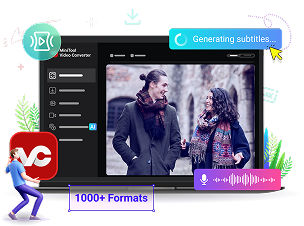
MiniTool Video Converter is a can’t-miss choice for you to convert Instagram video to text. It enables you to quickly get text from a wide range of video/audio files, including MP4, MOV, WMV, MKV, MP3, and more. In addition, the software has a well-organized interface, which empowers entry-level users to convert Instagram video to text effortlessly. With advanced AI technology, the application ensures fast conversion speed and transcription accuracy.
 MiniTool Video Converter
-
 Batch convert video/audio files among 1000+ formats.
- Quickly compress videos for easy storage and transfer.
- Accurately extract subtitles from video/audio files.
- Effectively enhance video quality.
Below is a detailed tutorial on how to convert Instagram videos to text.
1. Download and install
Download and install this Instagram video-to-text converter on your computer.
2. Choose an AI model and import the Instagram video
After launching the program, navigate to the Intelligent Subtitle tab. Click the upper-left Choose Video option to access the Choose AI Model window. Then, select an AI model you desire. Here, I select the Basic Model. Next, click the OK button to download the model.

When the download process completes, you will see a pop-up Import Media window. There, select the Instagram video and import it into the program.
3. Edit the text and set the output format.
Under the Text tab, you will see a subtitle list. Check whether the subtitles are accurate. If not, click on the Edit icons to retype the captions. Then, expand the bottom-left Expand subtitle option to select an output format (Both SRT and TXT are available) for the text file. Here, I choose Srt File (.srt).

4. Choose an output folder and start conversion.
Expand the bottom-left Output option to select a destination folder for the output files. Next, click on the bottom-right Export button to start converting Instagram videos to text. When the conversion process is complete, the output folder will open automatically. Then check the text file.
More than an Instagram video-to-text converter, MiniTool Video Converter also functions as a free screen recorder, robust video compressor, and professional audio/video converter.
Method 2. Use HappyScribe
Don’t want to download extra software? Try HappyScribe. It is a robust web-based Instagram video-to-text converter that allows you to import the video via your computer or a URL. In addition, HappyScribe emphasizes accuracy. Also, it features a well-organized interface and no advertisements.
Below is a detailed guide on how to convert an Instagram video to text with ScreenApp.
1. Go to the interface of HappyScribe.
Visit https://www.happyscribe.com/video-to-text.
2. Import the Instagram video.
Switch to the File upload tab. There, click on the Upload a file button to import the saved Instagram video. Alternatively, navigate to the Paste link module and paste the Instagram video link.
3. Choose the transcription language and start transcription.
Expand the Select transcription language option to choose a transcription language. Here, I choose Auto detect. Then, click on the Transcribe button to begin the transcription process.

4. Edit the text.
When the file transcription process ends, you will see a file list. There, click on the More icon and choose View. Then, check the text content. If necessary, edit it based on your needs.

5. Export the text file.
Once the text editing is done, click on the upper-right Export option to enter the Export window.
In the pop-up window, expand the Choose your file format option to set an output format for the text file. Here, I select Text document (.txt). Then, scroll down and click on the Export file button to export the text file. When the file exporting process ends, check the output file.
Undoubtedly, HappyScribe is an amazing tool that enables you to convert Instagram video to text. However, if you want more output text formats, you need to pay for the upgrade.

Method 3. Use Any2Text
Any2Text is another option that can help you transcribe Instagram videos to text online. It supports many video formats, such as MP4, MKV, FLV, AVI, MOV, and WMV. Meanwhile, Any2Text is able to recognize multiple languages. Below are the detailed steps to convert an Instagram video to text using Any2Text.
1. Go to the Any2Text interface.
Visit https://any2text.com.
2. Import the Instagram video.
Click the Upload files option to import the Instagram video.
3. Start transcription.
Click on the Convert to text button to begin the transcription process.

4. Download the text.
When the transcription process finishes, choose an output format and click on the Download button to download and check the text file.

As you can see, Any2Text is a reliable Instagram video-to-text converter. However, it is not always free to use. If there is no balance, you need to pay for more services.
Wrapping Up
MiniTool Video Converter, HappyScribe, and Any2Text can all help you convert Instagram video to text. The first one works as an offline solution. If you prefer an online tool, never miss the latter two.
If you have problems while using MiniTool Video Converter, contact the support team at support@minitool.com for help.
People Also Ask
1. Go to the Instagram website in your browser and sign in to your account.
2. Click the Messages option on the left sidebar to open Direct Messages.
3. Click the target recipient you want to message.
4. Click the Add Video or Photo icon in the bottom right to select a video from your PC.
5. Click Send.
2. Select a friend or group chat from the list, or use the search bar, and tap Send.
About The Author

Position: Columnist
Cora is a tech writer specializing in digital media workflows, with over six years of hands-on experience in video post-production, media transcoding, and screen capture. Her writing is always clear and practical. Cora also produces in-depth software reviews for users across skill levels to help them find the right tool and enjoy video editing.
User Comments :